
Rewards: Create New Rewards Merchant (store) in Carina
Creating a new Merchant for Ingage Rewards in Carina
Creating a new store in Carina is the first to creating an Ingage reward plan for a customer.
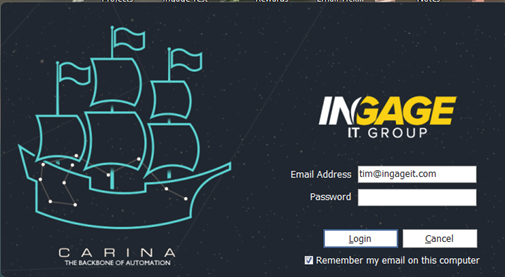
Log into Corina
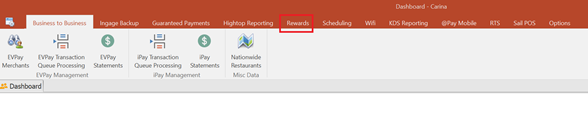
Click the Reward tab
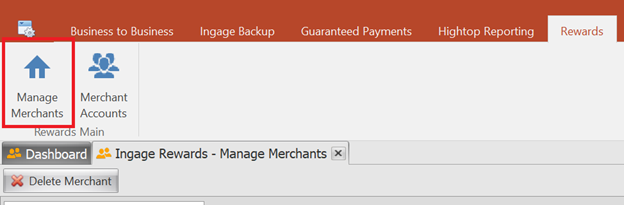
Click Manage Merchants
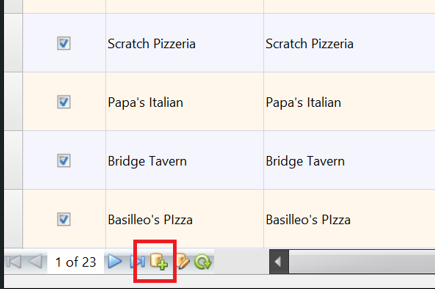
On the bottom of the page – Click the + icon to add a new store
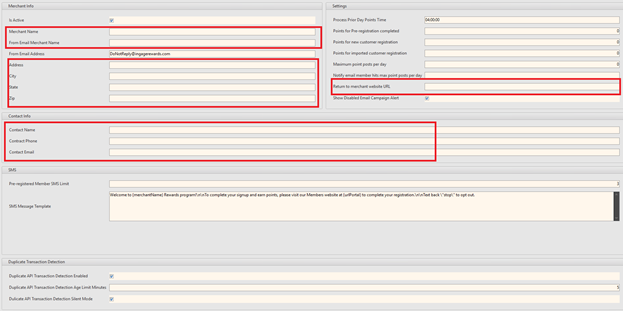
Fill in these boxes
Merchant Name
From Email Merchant Name (same as Merchant Name)
Address of store
City of store
State and Zip Code of store
Return to merchant website URL – the stores main website
Contact Name – Usually manager or owner
Contact Phone – Usually store phone number
Contact Email - Email address – usually the main email address for the store
Click Update
Click Merchant Accounts
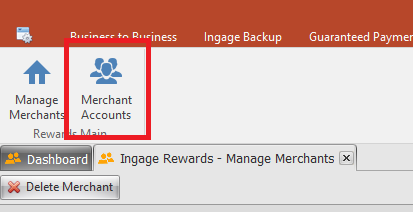
Add a new merchant account
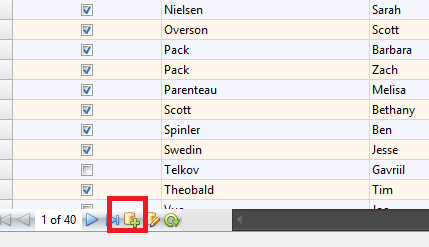
On the bottom of the page – Click the + icon to add a new store
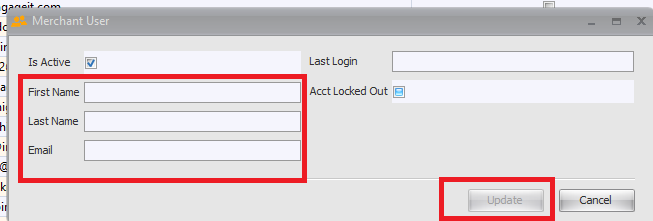
Enter in manager or owners info (only people who will be managing the rewards program
First name – Last name and email address
Click Update
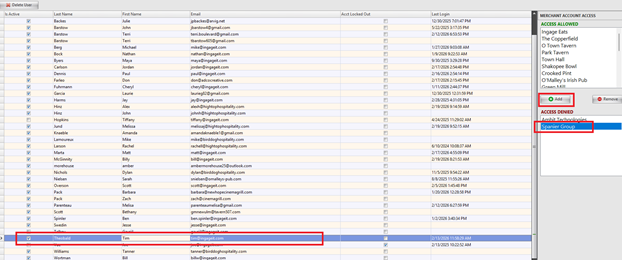
Give the manager or owner access to their store
Click on the account you just created
On the right had side of the screen under access denied
Click on the store you want to give them access
Click Add
Add the Rewards Program to Sail POS
Go back to Manage Merchant
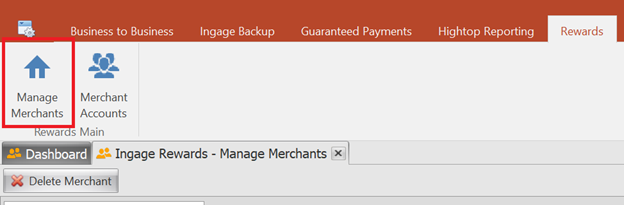
Click on the Merchant
Copy the
Merchant ID
Secret 1
Secret 2
Secret 3
In Sail POS Backoffice
Go to POS icon
Go to System Setup
Go to Integrations
Add New Record
Name the Rewards Program
Connection Type Select Ingage Rewards
Save
Log out to update
Log back in and go back to Integrations
In Details – Paste from Corina
Merchant ID
Secret 1
Secret 2
Secret 3
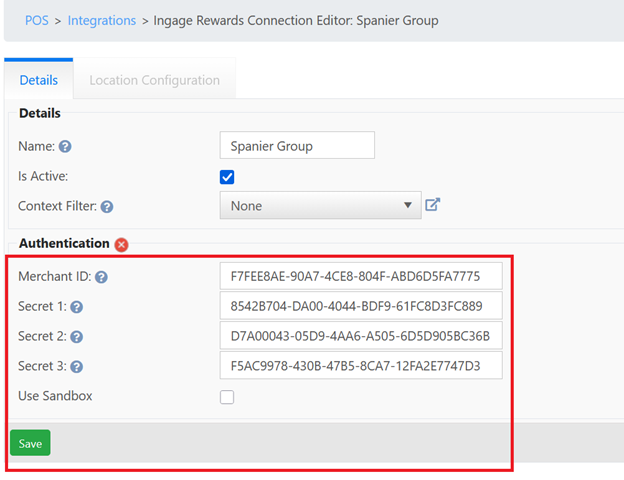
Click on Location Configuration
Under Ingage Rewards Store Name
Click on the Store
Save
