
How to Create a New Schedule
This document will walk you thru how to Build a new schedule from scratch, publish, send, and print it.
Step 1: Open the Schedule View

-
Go to the Schedule tab from the top toolbar.
-
Confirm you are viewing the correct week.
-
Use the date selector at the top to move forward or backward between weeks.
Step 2: Review Availability & Time-Off Requests
Before adding shifts:
-
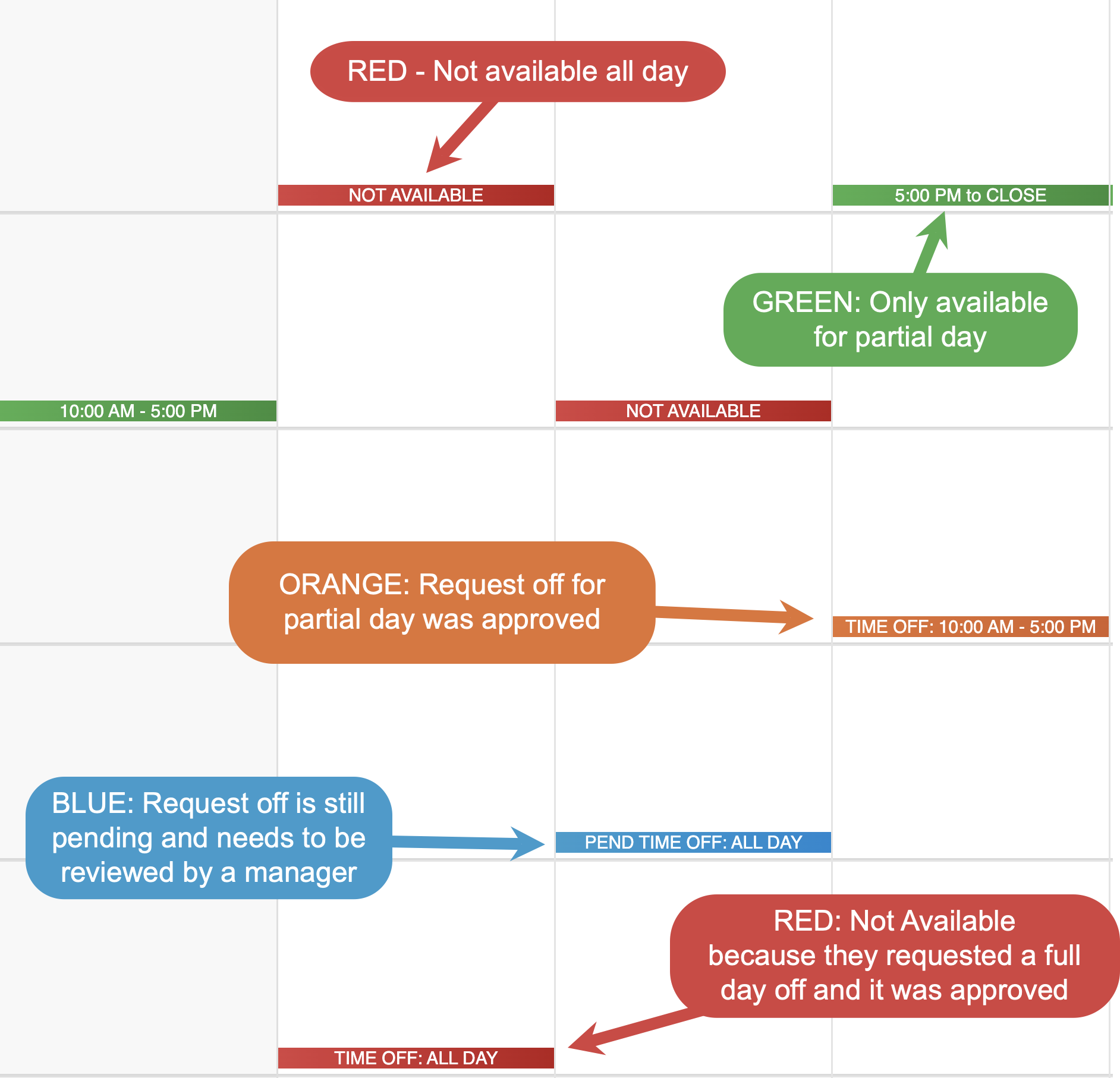
Look for color-coded availability blocks
- RED - Not available for the whole day
- GREEN - Only available for part of the day
-
Check for approved time-off requests
- RED - Request off for the full day was approved
- ORANGE - Request off for part of the day was approved
- BLUE - Still has a pending request off that needs to be reviewed by a manager
-
Ensure employees are scheduled only when they are available
- Check to make sure that all Time off requests for this schedule have been approved or denied
Step 3: Add Shifts
-
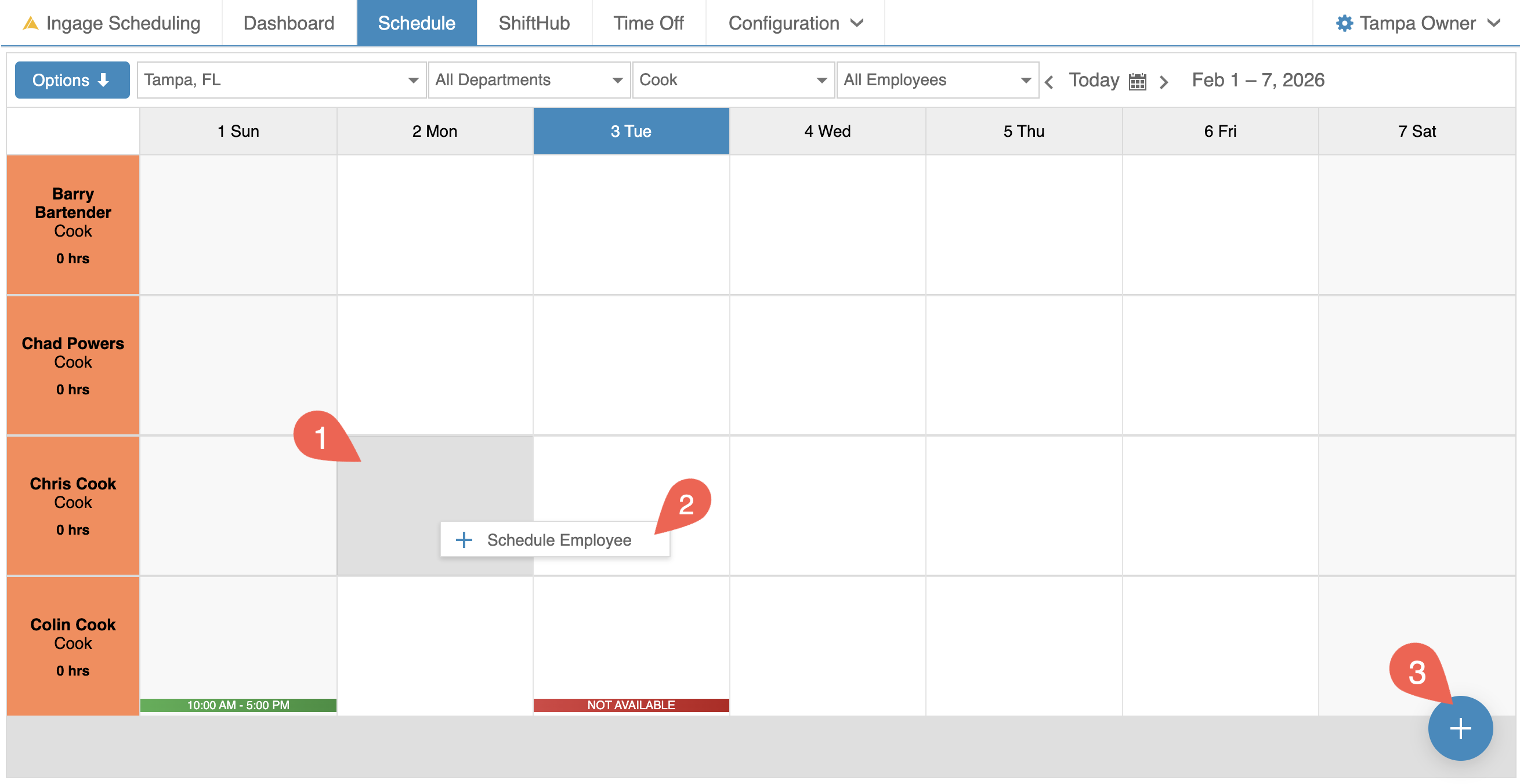
Click on the day and employee row where you want to add a shift
- There are 3 ways to open the Shift Editor
- (1) Double click in the cell
- (2) Right click in the cell and click on the "Schedule Employee"
- (3) Select the cell and Click the Blue + circle in the bottom right of the screen
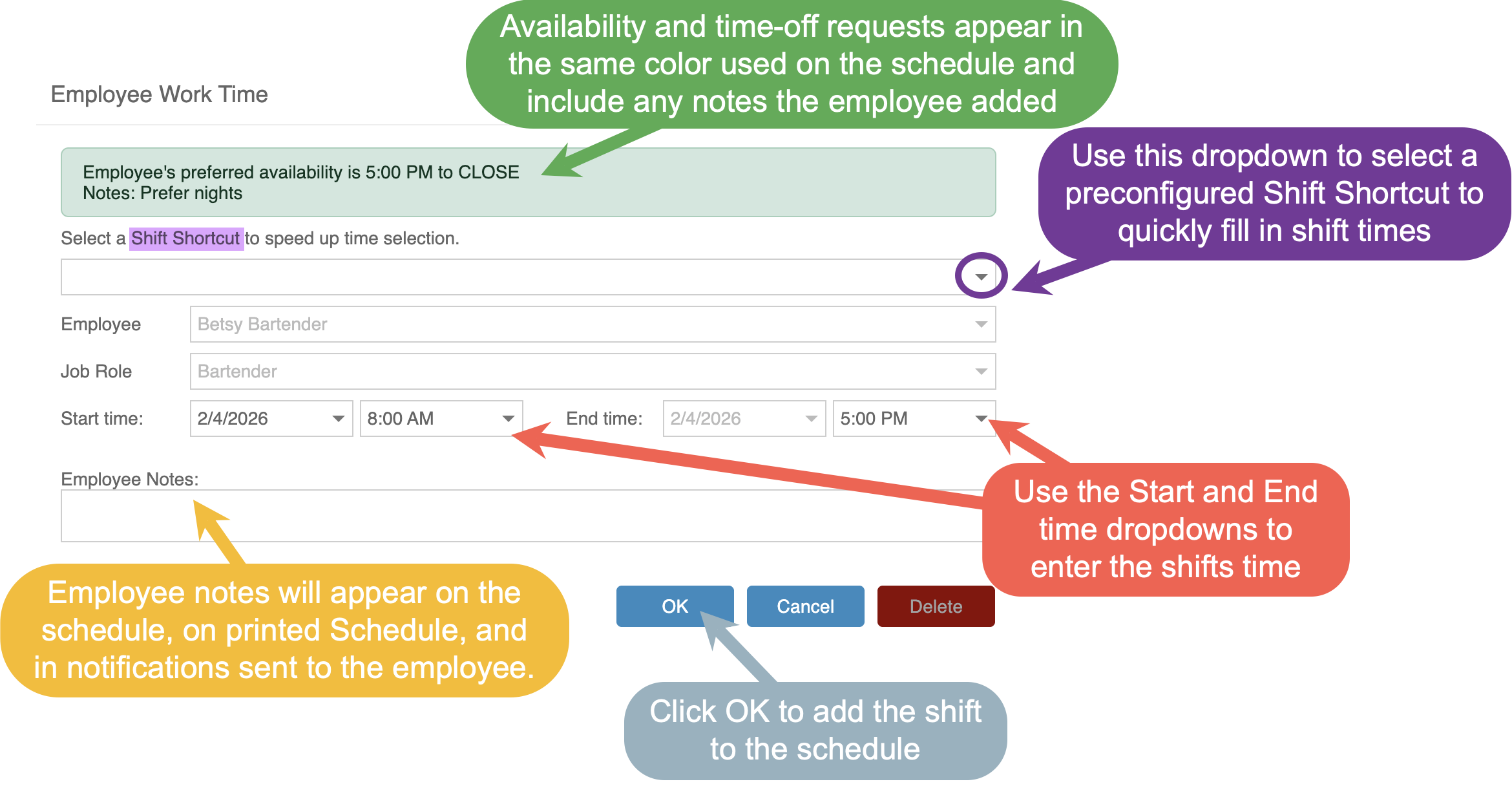
- Use the Shift Editor to enter in the shift times
- To enter in times you can use the drop downs and scroll thru the list to find the time
- Start typing in a number and it will filter all times that use that number
- Type in 3pm as an example and all times during the 3pm hour will appear to choose from
- You can also add notes to the shift if you need to explain more about it, like the section, 1st or 2nd cut, or closer. These notes will appear on the Printed schedule, in the notifications that is sent to the employee, and on their app when they view their schedule.
- Click OK to add the shift to the schedule
- Once a shift is added, it will appear in light tan, indicating that the shift is unpublished.
- If an employee works more than one job role, scheduling them for a shift in one role will cause that shift to appear in their other job role rows in light gray. These "Shadow Shifts" help you quickly see when an employee is already scheduled, preventing accidental overlapping shifts.

Step 4: Review, Adjust & Balance Coverage
-
Review each day for proper staffing
-
Check total hours per employee
- Total hours for each shift can be found on the bottom right corner of the shift
- Total hours for each employees week can be found on the left hand side under the employees name and job role. Each total is the total for all shifts under all job roles
-
Make adjustments as needed to avoid over- or under-scheduling
To Edit a shift
- Shifts can be edited at any time before their published.
- Double click on the shift to get back into the shift editor
- Right click on the shifts and click "Open" or "Delete"
- Select the shift and the Blue circle at the bottom right will turn into shift options to edit or delete it.
- A Shift can be dragged to a different day
- Click and hold on the shift and drag it back and forth to move it on the same employee but a different day
- A Shift can be dragged to a different job role
- Click and hold on the shift and drag it up and down to move it to the Same employee but a different job role
You can use the Filters along the top to narrow in on specific departments, job roles, or individual employees.
- Filters are top down - if a higher one changes after a lower one has been set then the lower ones reset to ALL
- If a higher one changes before the lower ones have been set then it will filter out only things that are compatible
Step 5: Publish the Schedule
Once the schedule is ready:
-
Click Options in the top-left corner
-
Select Publish Schedule
Step 6: Send the Schedule to Employees
After publishing:
-
Select Send Schedule
-
Employees will receive their schedules by email or text
Step 7: Print the Schedule
After publishing:
-
Select Send Schedule
-
Employees will receive their schedules by email or text
Optional
Each week if you don't want to create a new schedule from scratch you can use one of our two shortcuts.
-
Copy Last Week's Schedule
-
Use a schedule template