How to Create a New Schedule
This guide walks managers through the process of creating a new schedule in Ingage Scheduling. It covers how to add shifts, review availability and time-off requests, publish the schedule, and share it with your team.
Step 1: Open the Schedule View

Use the date controls at the top of the screen to move forward or backward between weeks. Make sure you are viewing the correct week before adding or editing shifts.
Step 2: Review Availability & Time-Off Requests
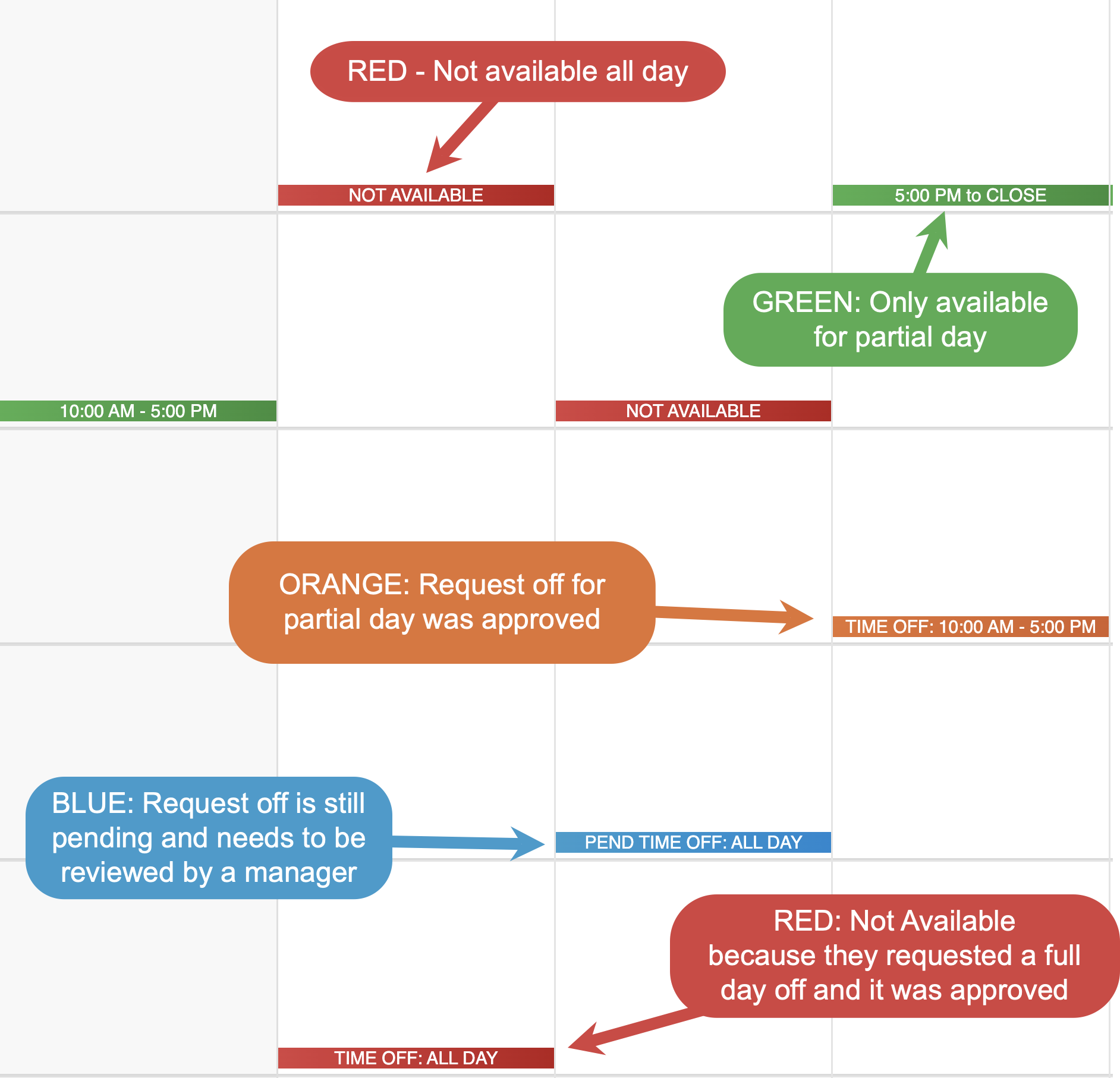
Before adding shifts, review employee availability and any time-off requests on the schedule.
Availability and time-off requests are color-coded to make conflicts easy to spot:
-
Availability Colors
- RED - Not available for the whole day
- GREEN - Only available for part of the day
-
Time-Off requests colors
- RED - Request off for the full day was approved
- ORANGE - Request off for part of the day was approved
- BLUE - Still has a pending request off that needs to be reviewed by a manager
Any notes added by the employee will also be visible on the schedule.
Reviewing this information first helps ensure employees are only scheduled when they are available and prevents conflicts before shifts are added.
Step 3: Add Shifts
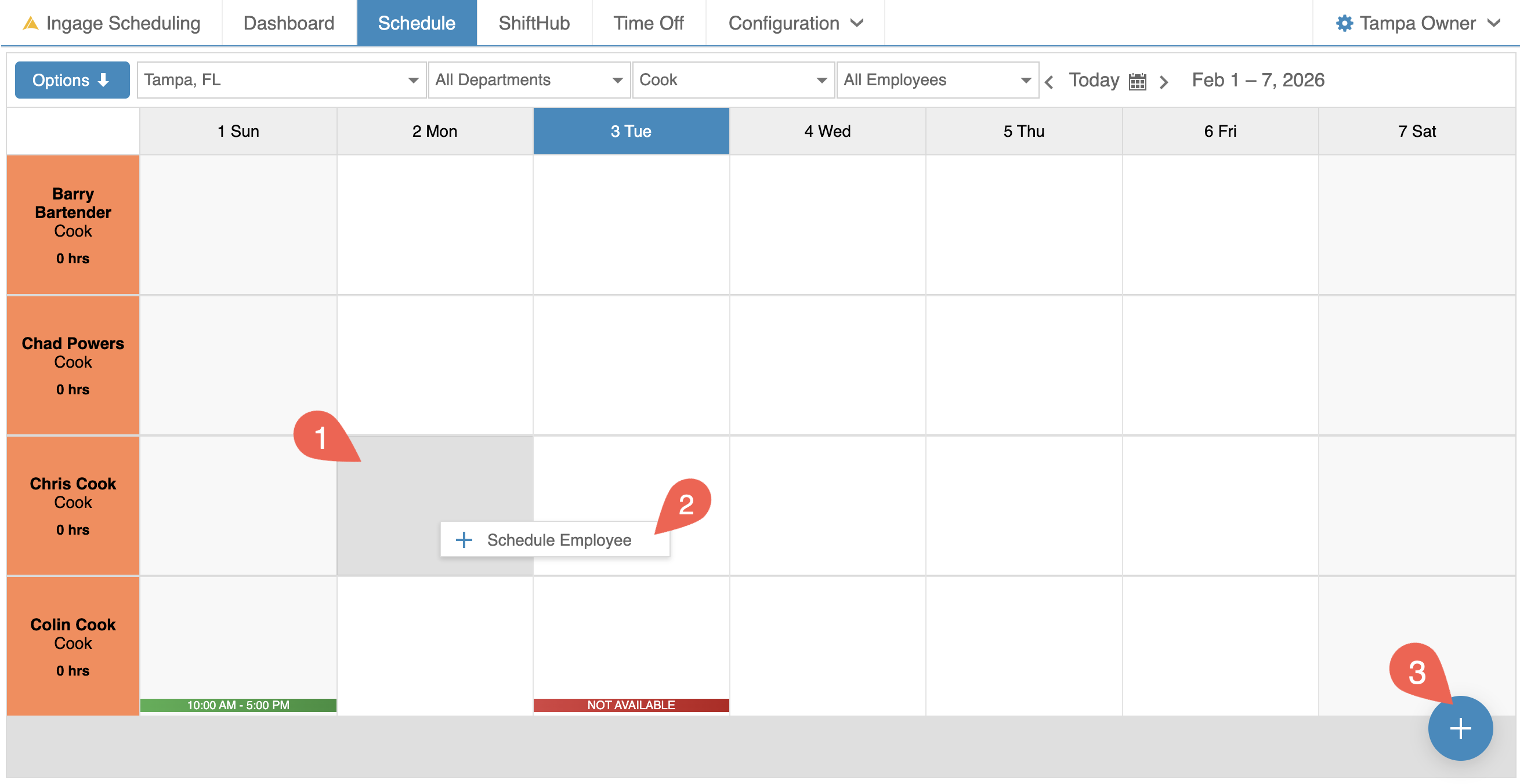
To add a shift, start by selecting the day and employee row where you want the shift. There are three ways to open the Shift Editor:
-
Double-click in the schedule cell
-
Right-click in the cell and select Schedule Employee
-
Single-click the cell to highlight it, then click the blue + button in the bottom-right corner of the screen
Any of these options will open the Shift Editor so you can enter the shift details.
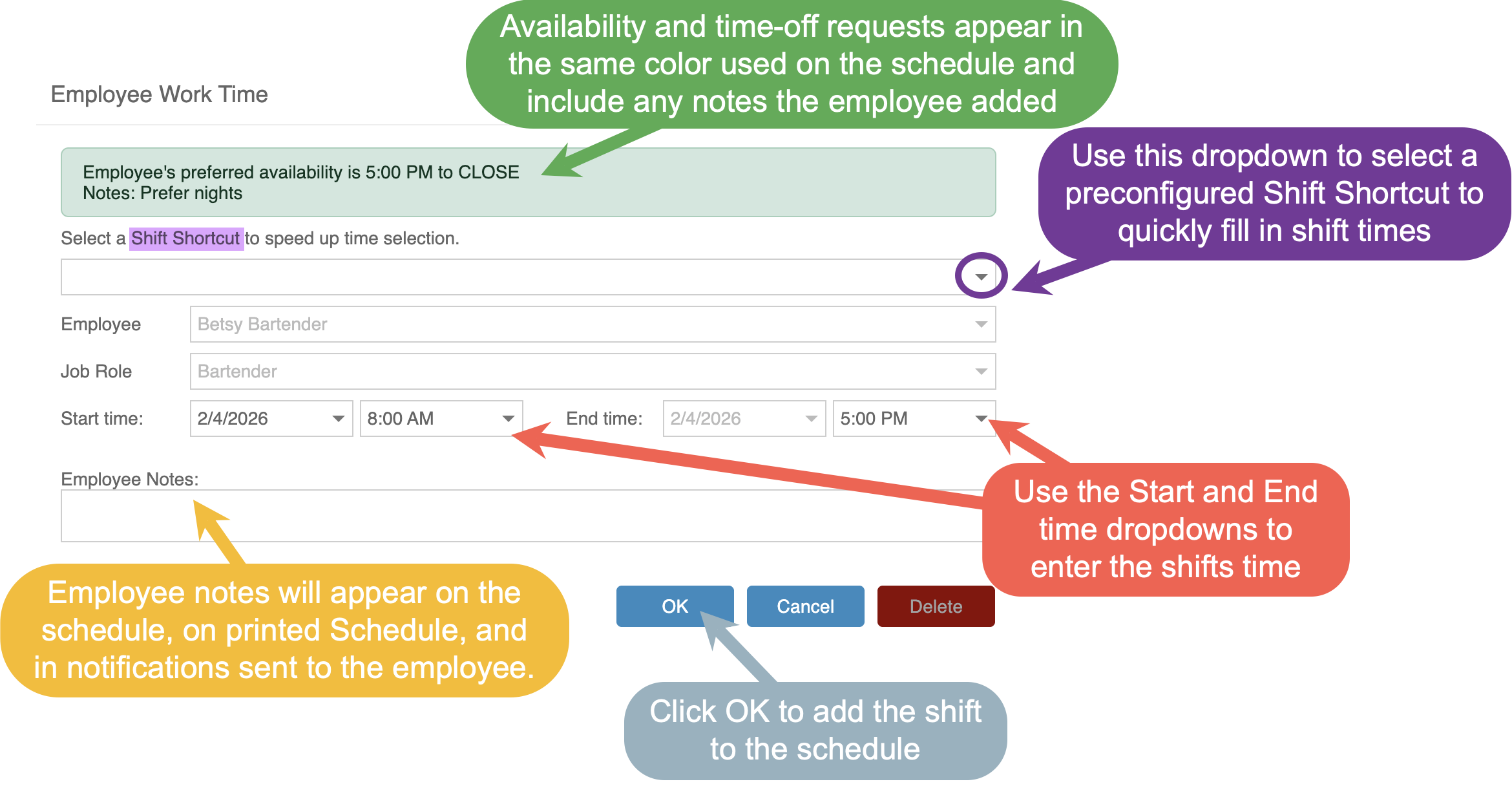
In the Shift Editor, you can either select a Shift Shortcut to automatically fill in preset start and end times, or manually enter the shift times.
To enter times manually:
-
Click into the Start or End time field
-
Begin typing a time to quickly filter the list (for example, typing 9 will show 9:00 AM, 9:30 AM, etc.)
-
Select the correct time from the dropdown
You can also add notes to the shift if you need to provide additional details, such as section assignments, first or second cut, or closer. These notes will appear on the printed schedule, in notifications sent to the employee, and in the employee app when they view their schedule.
Click OK to add the shift to the schedule.
Once a shift is added:
- The shift will appear in light tan, indicating that the shift is unpublished.
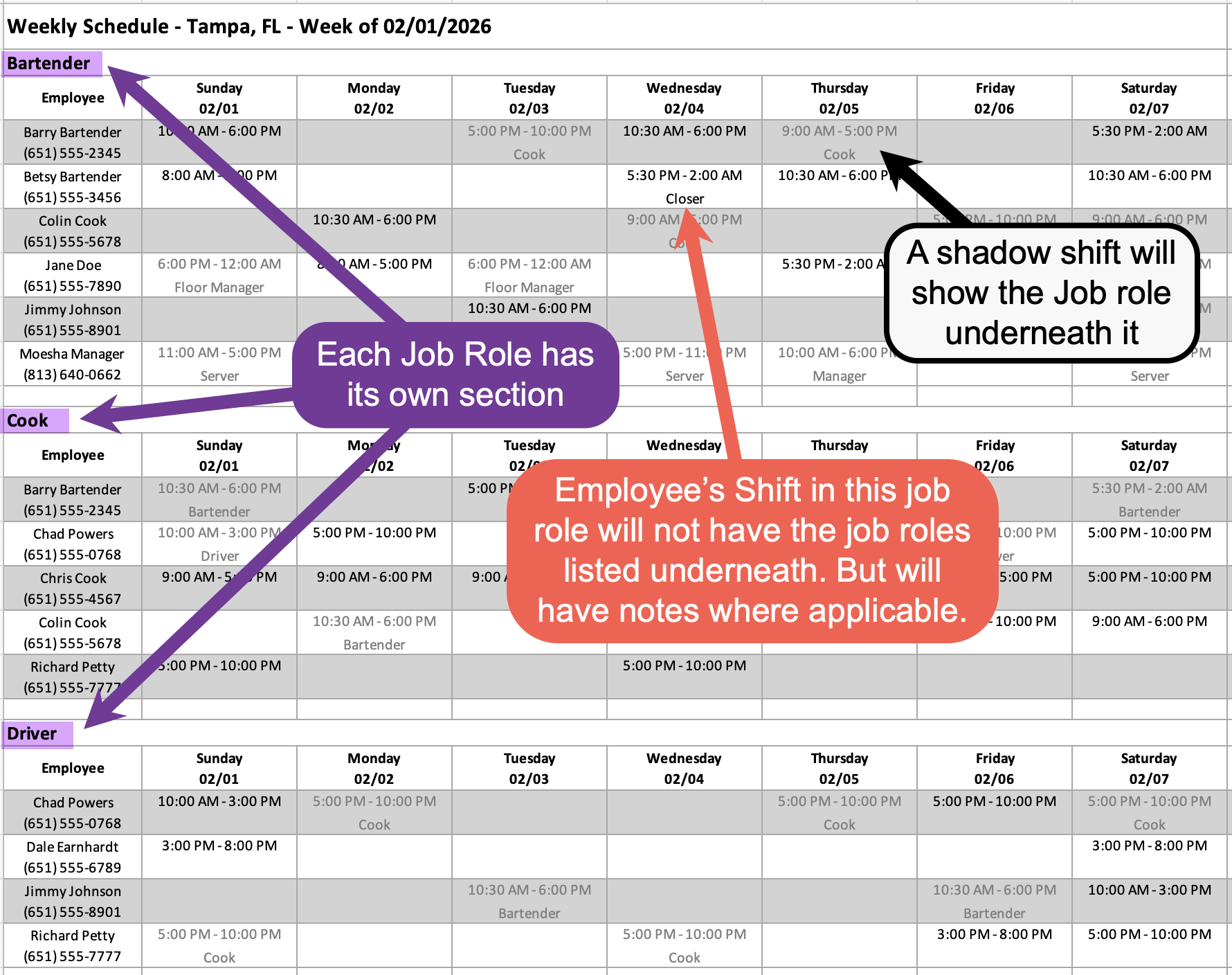
- If an employee works more than one job role, scheduling them for a shift in one role will cause that shift to appear in their other job role rows in light gray. These "Shadow Shifts" help you quickly see when an employee is already scheduled, preventing accidental overlapping shifts.

Step 4: Review, Adjust & Balance Coverage
-
Review each day to ensure proper staffing
-
Check total scheduled hours per employee
- Total hours for each shift are displayed in the bottom-right corner of the shift.
- Total weekly hours for each employee appear on the left-hand side under the employee’s name and job role. This total includes all shifts across all job roles.
-
Make adjustments as needed to avoid over- or under-scheduling
Editing a shift
- Shifts can be edited at any time before they are published.
- Double click on the shift to get back into the shift editor
- Right click on the shifts and click "Open" or "Delete"
- Select the shift, and the blue circle in the bottom-right corner will change to show options to edit or delete the shift.
- A shift can be dragged to a different day
- Click and hold the shift, then drag it left or right to move it to a different day for the same employe
- A shift can be dragged to a different job role
- Click and hold the shift, then drag it up or down to move it to a different job role for the same employee
You can use the Filters along the top to narrow in on specific departments, job roles, or individual employees.
- Filters work from top to bottom
- If a higher-level filter changes after a lower-level filter is set, the lower filters will reset to All
- If a higher-level filter is set first, only compatible options will appear in the lower filters
Step 5: Publish the Schedule
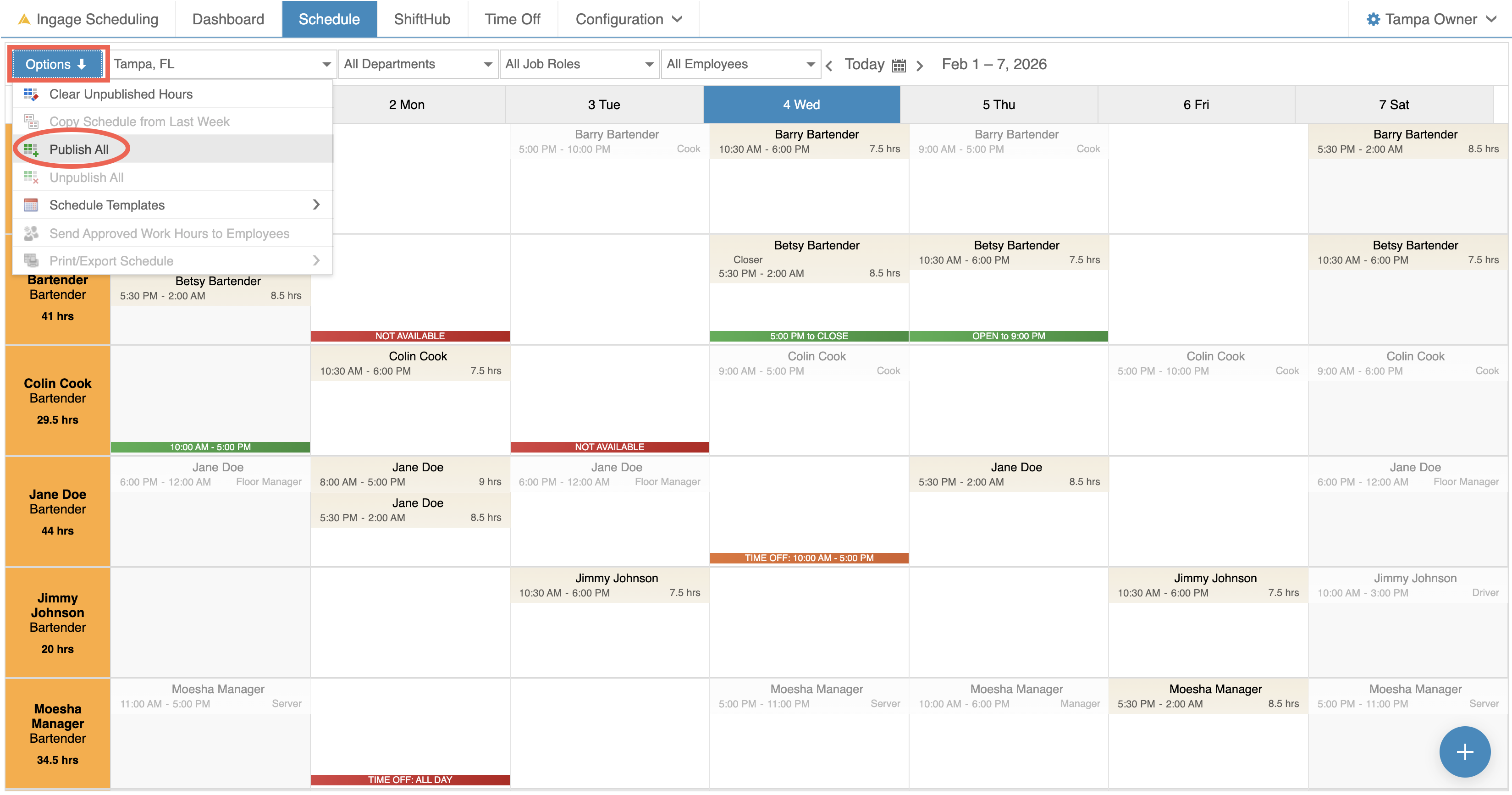
Once the schedule is ready, the next step is to publish it.
To publish the schedule:
-
Click Options in the top-left corner
-
Select "Publish All"
When the schedule is published:
-
All shifts will change from light tan to light blue

-
Employees will immediately see their scheduled hours in the app
-
No notifications are sent to employees at this time

Publishing allows you to make the schedule visible to employees while giving you control over when notifications are sent.
Step 6: Send the Schedule to Employees
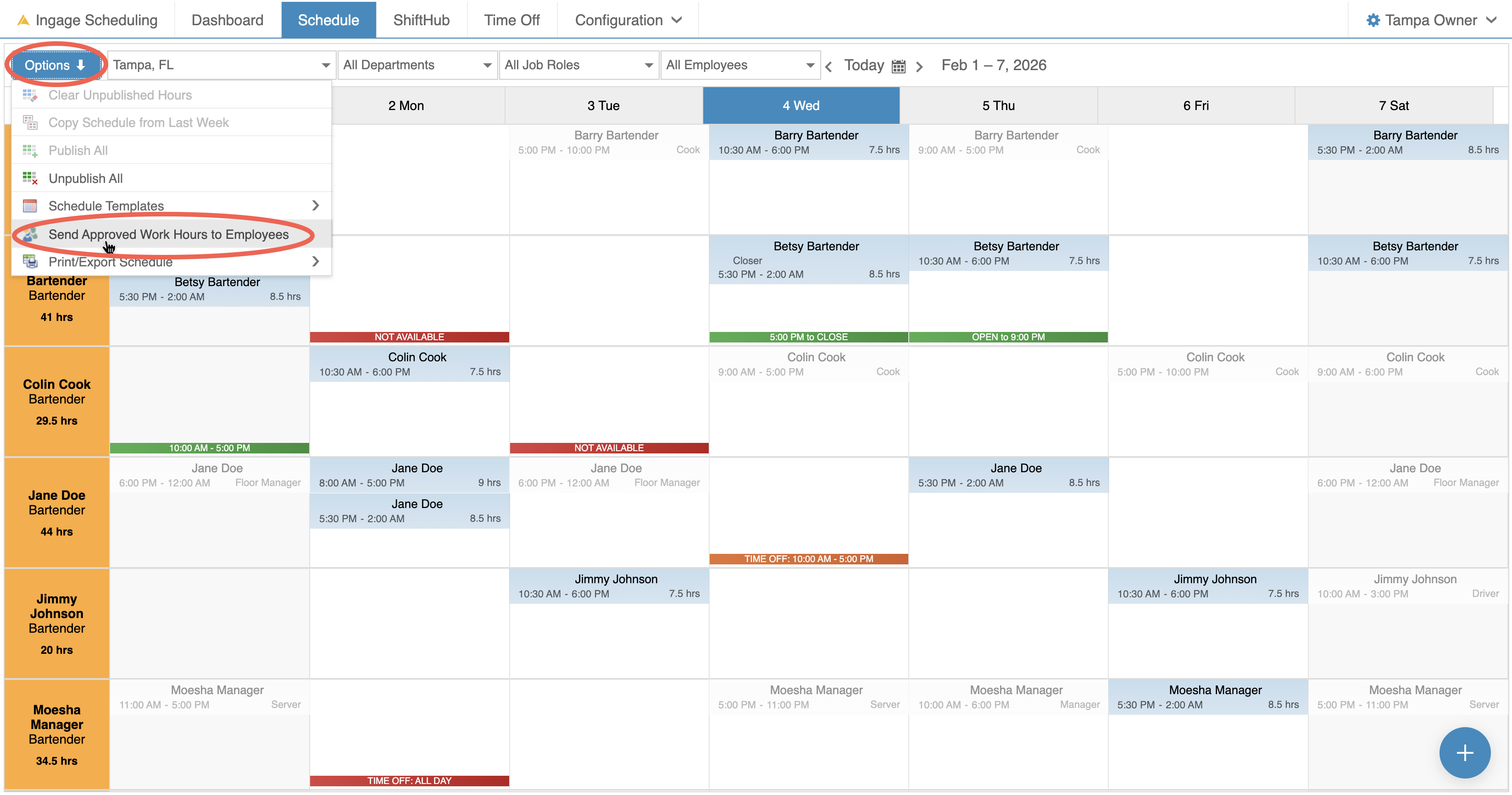
Once the schedule has been published and you’re ready to notify employees, you can send the schedule directly from the Schedule view.
To send the schedule:
-
Click Options in the top-left corner
-
Select "Send Approved Work Hours to Employees"
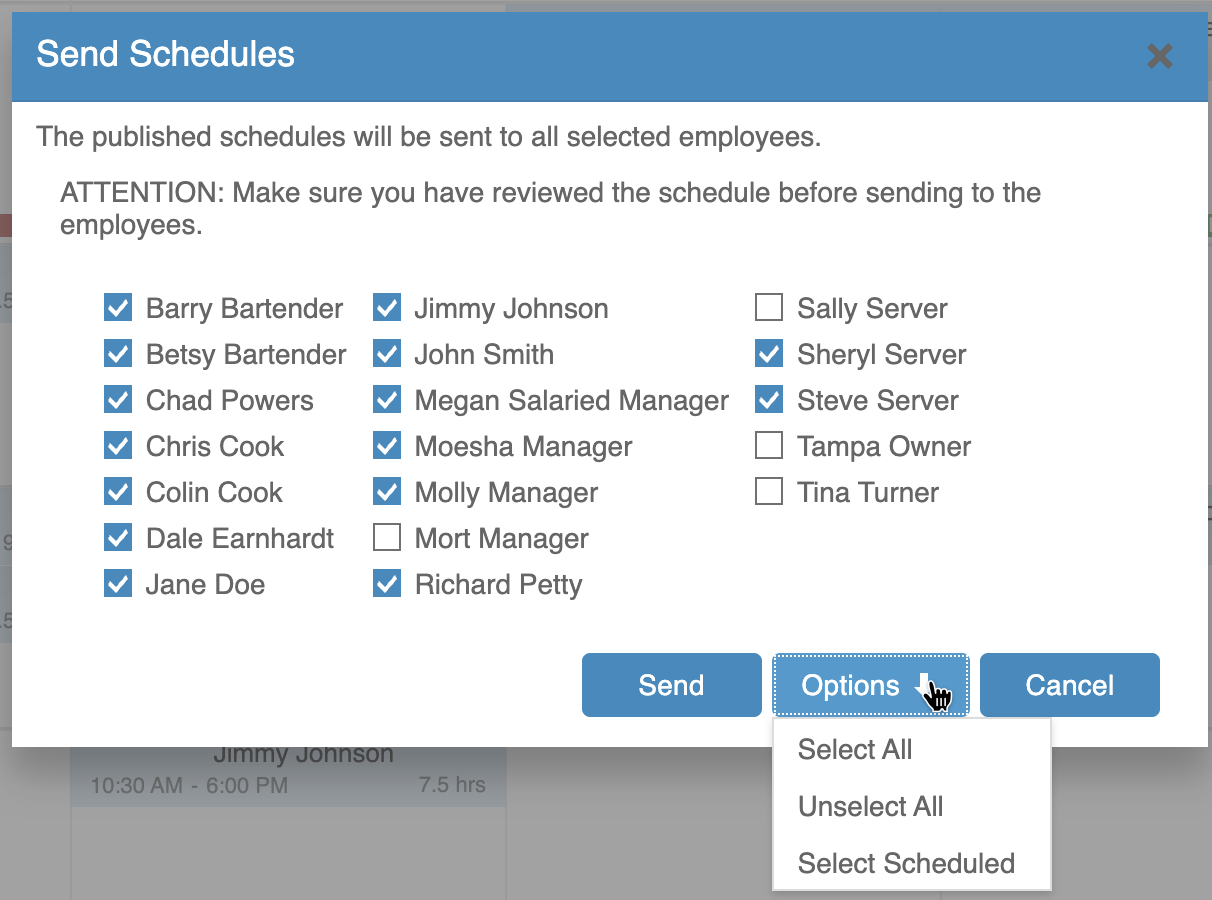
A pop-up will appear allowing you to choose which employees to notify.
-
By default, all employees with a scheduled shift during that time period will be selected
-
Use the options to Select All, Unselect All, or reselect only the scheduled employees
Once you’ve selected the employees you want to notify, click Send.
After the schedule is sent:
-
A mail icon will appear in the top-left corner of each shift

-
This icon indicates the schedule has been sent to the employee

Employees will receive their schedules by email or text, based on their notification preferences.
Step 7: Print the Schedule
If you need a physical copy of the schedule for posting or reference, you can print it directly from the Schedule view.
To print the schedule:
-
Click Options in the top-left corner
-
Select "Print / Export Schedule"
You can choose to print the schedule in two different formats:
-
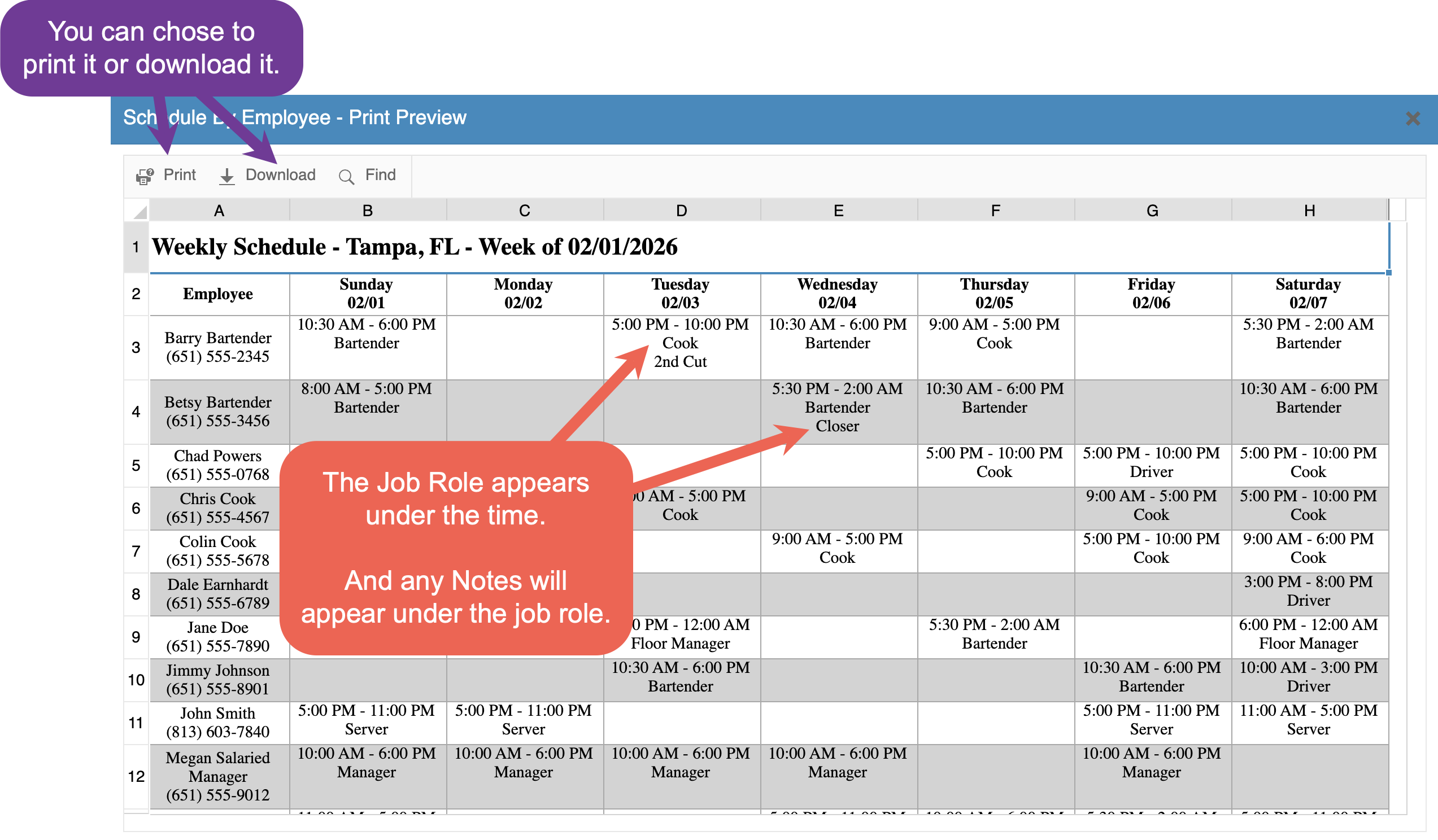
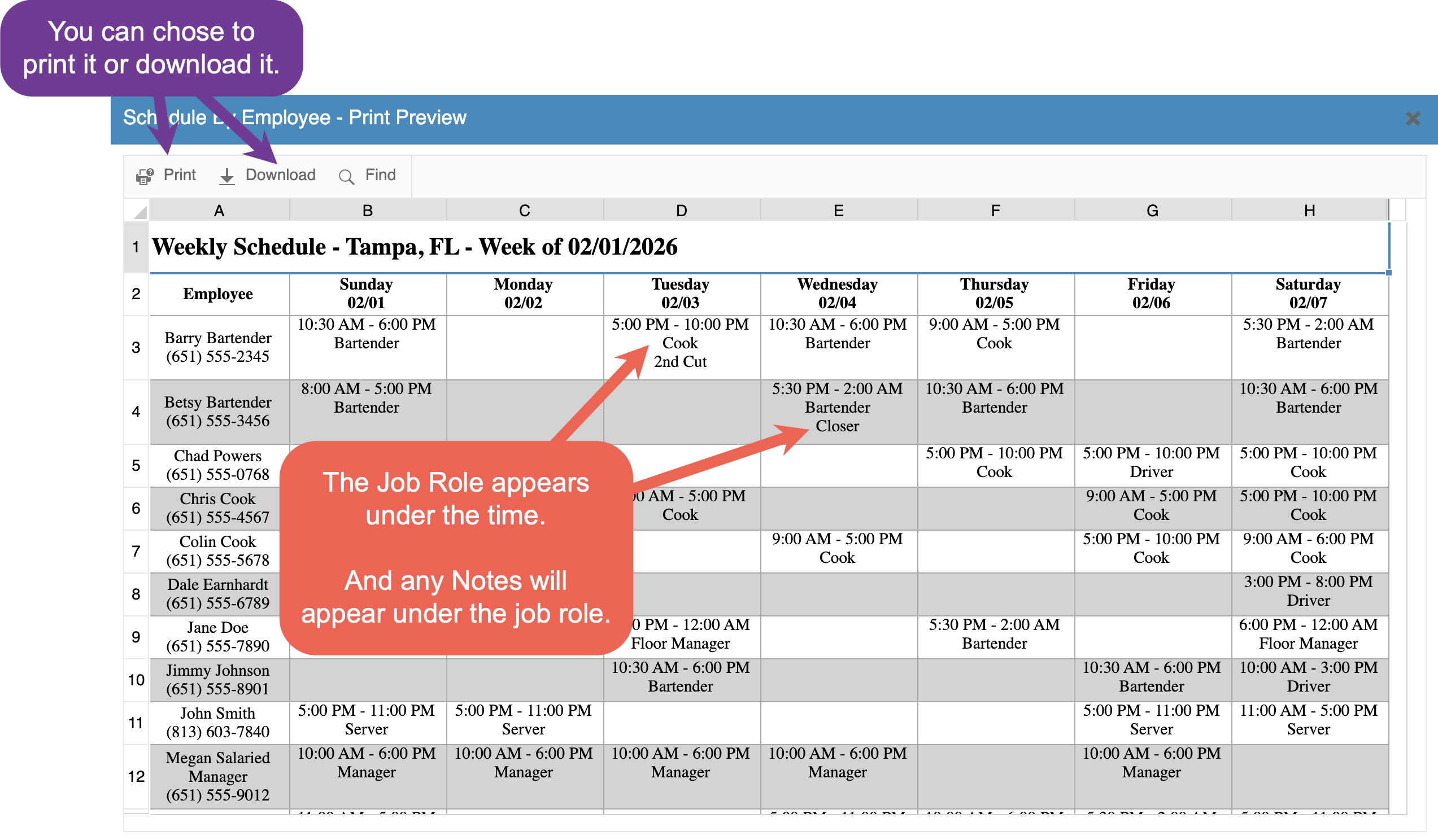
By Employee
-
Employees are listed alphabetically
-
Each shift displays the employee’s job role under the shift, so they know which position they are working that day
-
-
By Job Role
-
The schedule is grouped into sections by job role
-
Employees with multiple job roles will appear in each applicable section
-
Shadow shifts will also appear, allowing employees to view all of their scheduled shifts in one section and avoid missing a shift listed elsewhere
-
Time-Saving Scheduling Options
If you don’t want to build a schedule from scratch each week, you can use one of the options below to speed up the process.
Copy Last Week’s Schedule
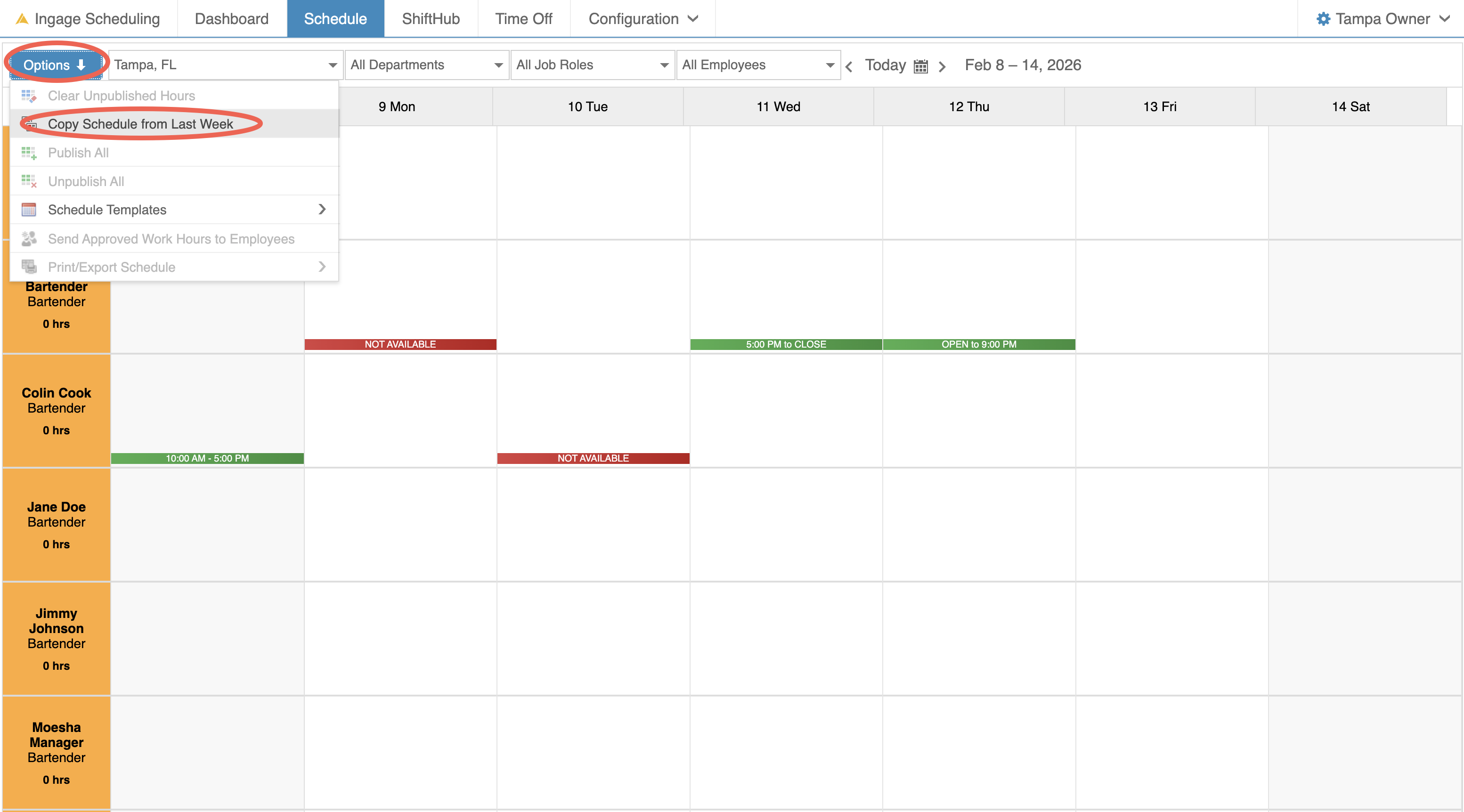
You can copy the previous week’s schedule into a blank week.
To copy last week’s schedule:
-
Click Options in the top-left corner
-
Select "Copy Schedule from Last Week"
Important things to know:
-
This will copy all published shifts from the previous week
-
Availability changes and time-off requests for the current week are not taken into account
-
Be sure to review and adjust the schedule after copying to account for any changes
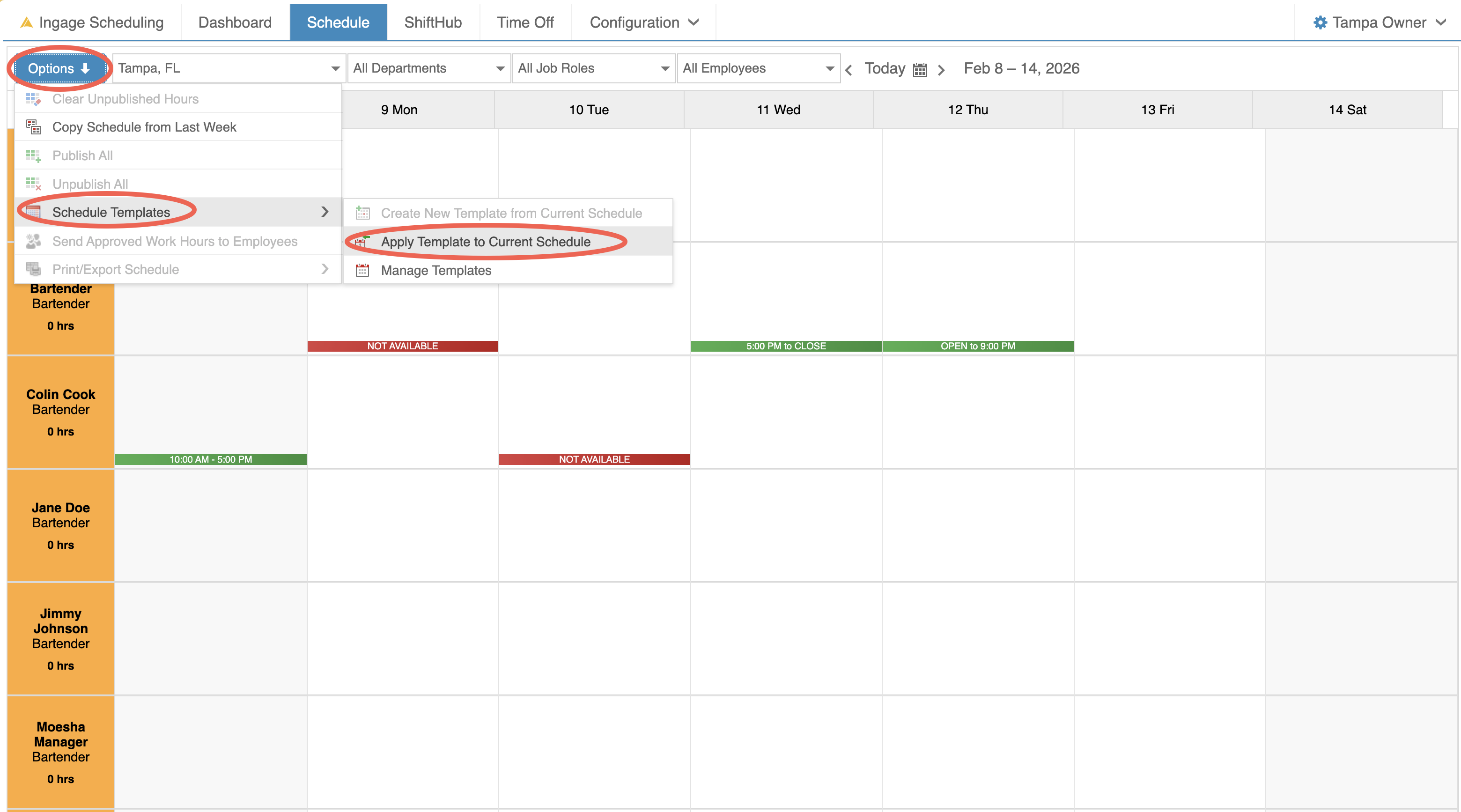
Use a Schedule Template
Schedule Templates allow you to apply a pre-built schedule to the current week.
To apply a schedule template:
-
Click Options in the top-left corner
-
Select "Schedule Templates"
-
Choose "Apply Templates to Current Schedule"
Additional details:
-
The schedule does not need to be blank
-
You can have multiple templates for different job roles or scenarios
-
You’ll have the option to:
-
Overwrite existing hours
-
Skip employees with approved time off
-
Click this link to learn more about creating Schedule Templates