
How to use Shift Hub
This document will explain how to use ShiftHub to give away shifts or swap them with another employee.
My ShiftHub allows employees to request shift swaps or give away shifts with other co-workers. Once a co-worker accepts a request, it is sent to a manager for final approval.
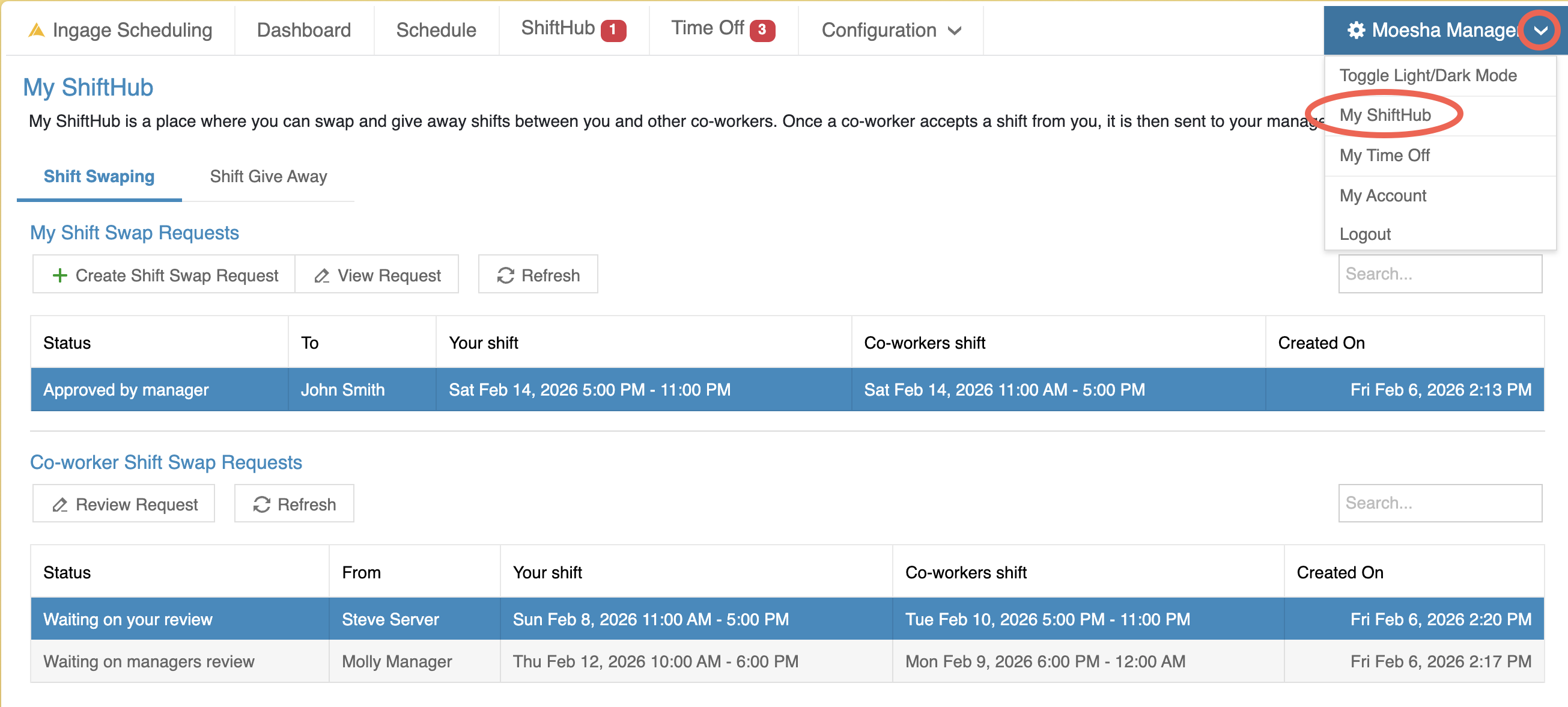
To get to yourYour ShiftHub
-
Log into Scheduling
-
Click the dropdown next to your name in the top-right corner
-
Select My ShiftHub
Shift Swaps
A Shift Swap allows you to trade one of your scheduled shifts with another employee. Both employees must agree to the swap, and a manager must approve it before the schedule is updated.
How Shift
Swaps Work
Shift swaps follow a two-step approval process:
-
Co-worker approval
The employee you select must accept the swap. -
Manager approval
Once accepted, the request is sent to a manager for final approval.
The schedule will only update after both steps are completed.
How To do aViewing Shift Swap Requests
WhenThis youpage firstis logdivided in,into "Shifttwo Swapping"main will be highlighted along the topsections:
In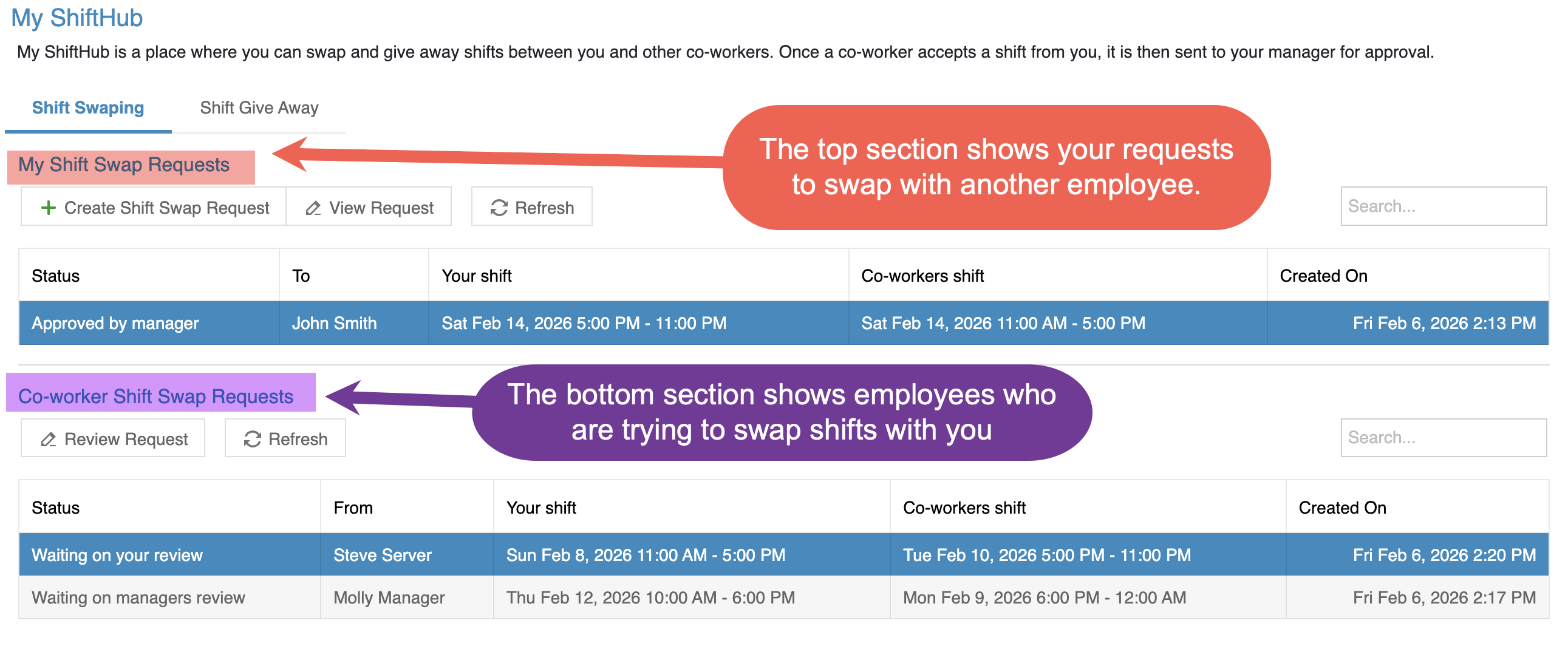
My Shift Swap Requests"Requests
The willtop showsection youshows allshift swap requests you have outcreated.
These thereare forrequests future shifts, and will letwhere you knoware asking another employee to swap shifts with you.
From this section, you can:
-
See the status of each request (waiting for co-worker to accept, Waiting for manager approval, or Approved)
-
View which employee you sent the request to
-
Review both your shift and the co-worker’s shift involved in the swap
This section helps you track requests you’ve initiated and see where they are in the approval process.
Co-worker Shift Swap Requests
The bottom section shows shift swap requests other employees have sent to you.
From this section, you can:
-
Review incoming swap requests
-
See which shift you would be giving up and which shift you would receive
-
Accept or decline the request
If you accept a swap request, it is automatically sent to a manager for final approval.
Creating a Shift Swap Request
When you click Create Shift Swap Request, a pop-up will open where you can choose the shifts you want to swap.
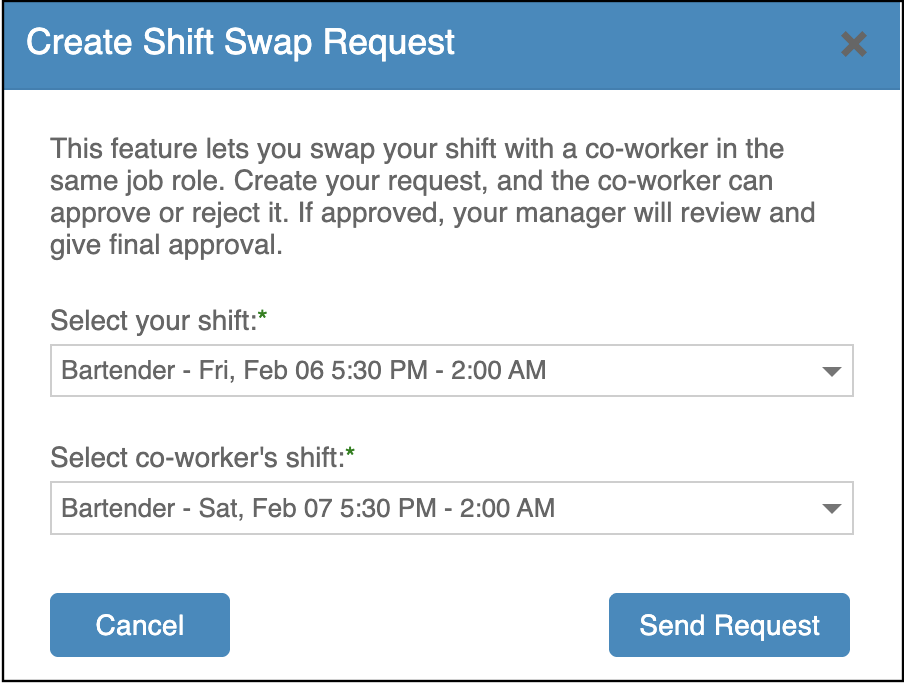
In the bottomSelect halfyour ofshift the screendropdown, you will see "Co-workerall of your upcoming scheduled shifts. Choose the shift swapyou requests."want Thisto give up.
Once you select your shift, the Select co-worker’s shift dropdown will automatically update to show youonly anyeligible shifts:
-
Only future shifts
-
Only shifts
thatfromco-workersotherare requesting to swap with you. Here you canemployees -
ToOnlymake a new request click on "Create Shift Swap Request"This feature lets you swap your shift with a co-workershifts in the same jobrole.role
For example, if you select a Bartender shift, the second dropdown will only show other Bartender shifts that are available to swap with.
OnceAfter youselecting createboth yourshifts, request,click andSend theRequest.
The co-worker canwill approvebe notified via email or rejecttext it.and can accept or decline the swap. If approved,they youraccept, the request is then sent to a manager will review and givefor final approval.
In the
Important dropdown,Rules selectfor theShift shiftSwaps
-
to give up (Note, this will only show you shifts that are eligible to give away.If you have already swapped or given
upaway a shift, it will notbeappearshownashereanbecauseoptionitagain. -
A shift can
notonly be swapped or given awayagain)once, so it cannot be selected for another request. -
OnceYouyoucannotselectrequestthe shift you want to give up, use the bottom dropdown to select the co-workers shift that you would like toa swapwith. (Note: This drop down will only show you eligible shifts to swap with. Ifif you aregiving up a server shift, it will only show you other serving shifts. If you give up a managing shift, it will only show you other managing shifts.)Once you find one, click "Send request""Your shift swap request has been submitted and is pending approval of your co-worker and manager.""You cannot swap shifts on this day, you'realready scheduled to workon Wed, Dec 17 5:00 PM - 11:00 PM."Your co-worker will receive a text message and/or email asking to swap.They can click onduring thelink to bring them directly to their ShiftHub to accept or reject the requestWhen they log in, they will look at the bottom halftime of thescreenotherundershift."Co-worker -
If a shift swap
requests."cannot be submitted (Because you already work), the system will explain why.
These rules help prevent scheduling conflicts and ensure proper coverage.
They
What Happens After You Submit a Swap
-
If the other employee accepts the swap, it is sent to a manager for approval.
-
If the other employee declines, the request is closed and no changes are made.
-
Once a manager approves the swap:
-
The schedule is automatically updated
-
Both employees are notified via email or text of the approval
-
Responding to a Co-Worker’s Shift Swap Request
When a co-worker requests to swap shifts with you, the request will appear in the Co-worker Shift Swap Requests section of ShiftHub.
To review the request, you can selectopen it in either of the following ways:
-
Double-click the request, or
-
Select the request and
either doubleclickor click onReview Request at the top of the page
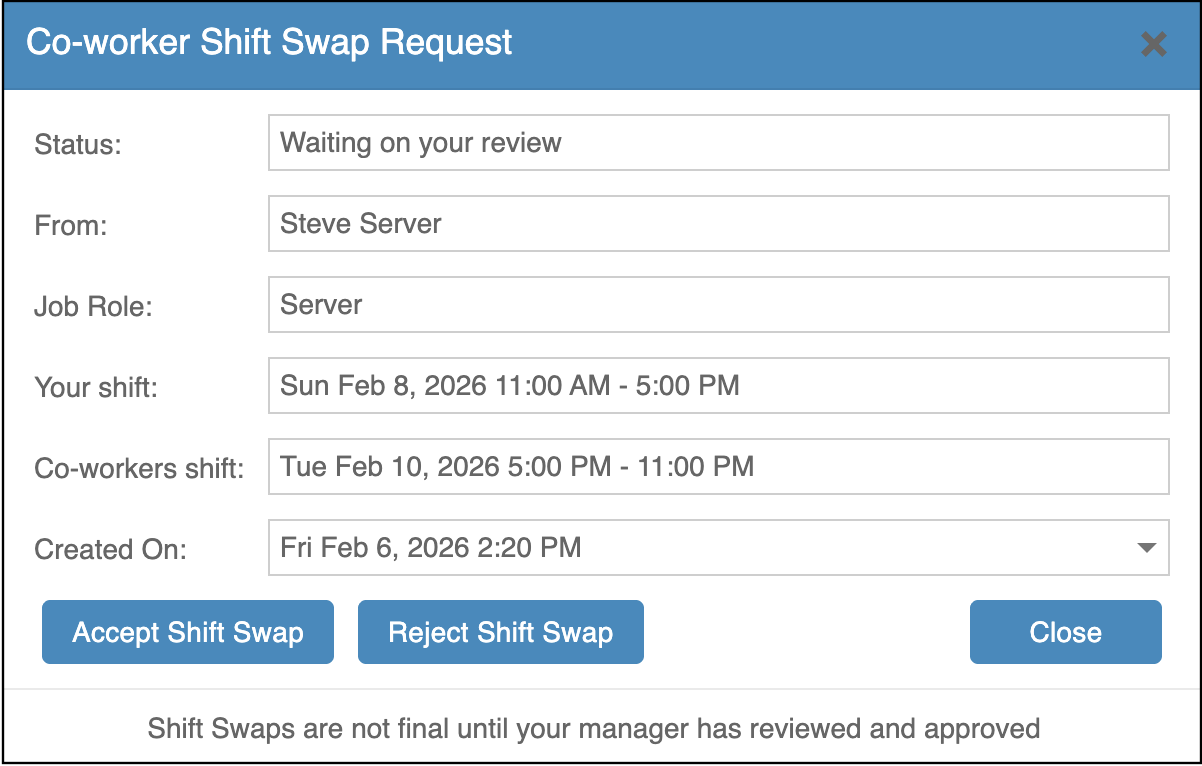
This will open a pop-up showing the full details of the shift swap, including:
-
Who sent the request
-
The job role
-
Your shift
-
The co-worker’s shift
-
When the request was created
From this screen, choose one of the following options:
-
Accept Shift Swap – agrees to
open it.Atthebottom of that pop-up, they can click on "Accept shift swap" or "Reject shift swap" (Note: Once they make a selection they can not change it)
sendsIf they reject it, you are still responsible for the shift. You can either work it, or find someone else toswapwith.andIf they accept it, It will then goit to the manager forthemfinaltoapprovalreview -
Reject Shift Swap – declines the request and
makenothefurtherfinalactionapproval.is taken
Once theyou accept a shift swapswap, hasit beenis approvednot byfinal theuntil manager,a bothmanager partysreviews and approves it. You will getbe anotified text message and/or email letting them know thatonce the manager approvedmakes ita and what their new shift it. decision.
***Please note that the shift still belongs to you until the co-worker has accepted it, and the manager has approved it. If at either point one of them reject or deny the shift swap, you will still be responsible to come in for your shift, or find someone else to cover it.
How To Do a Shift Give Away
"This feature lets you offer your shift to other co-workers that belong to the same job role. To use, select the shift you would like to give away and then select Send Request. Your shift will be shared with eligible co-workers. If someone accepts your offered shift, your manager will review and give final approval."