
Managing Time Off Requests
Managing Time Off Requests allows managers to review, approve, or deny employee requests so they are visible when building the schedule. Time off requests are intended to inform scheduling decisions, not automatically prevent employees from being scheduled.
Approved time off appears on the schedule as a visual indicator, helping managers avoid conflicts while still allowing flexibility when adjustments are needed. Managers can also enter time off on behalf of employees.
Where to View Time Off Requests
Managers can view and manage all employee time-off requests from the Time Off area in Ingage Scheduling.area.
To access time-off requests:
<INSERT PHOTO> - Include a circle of the time off on the toolbar, and a red circle notification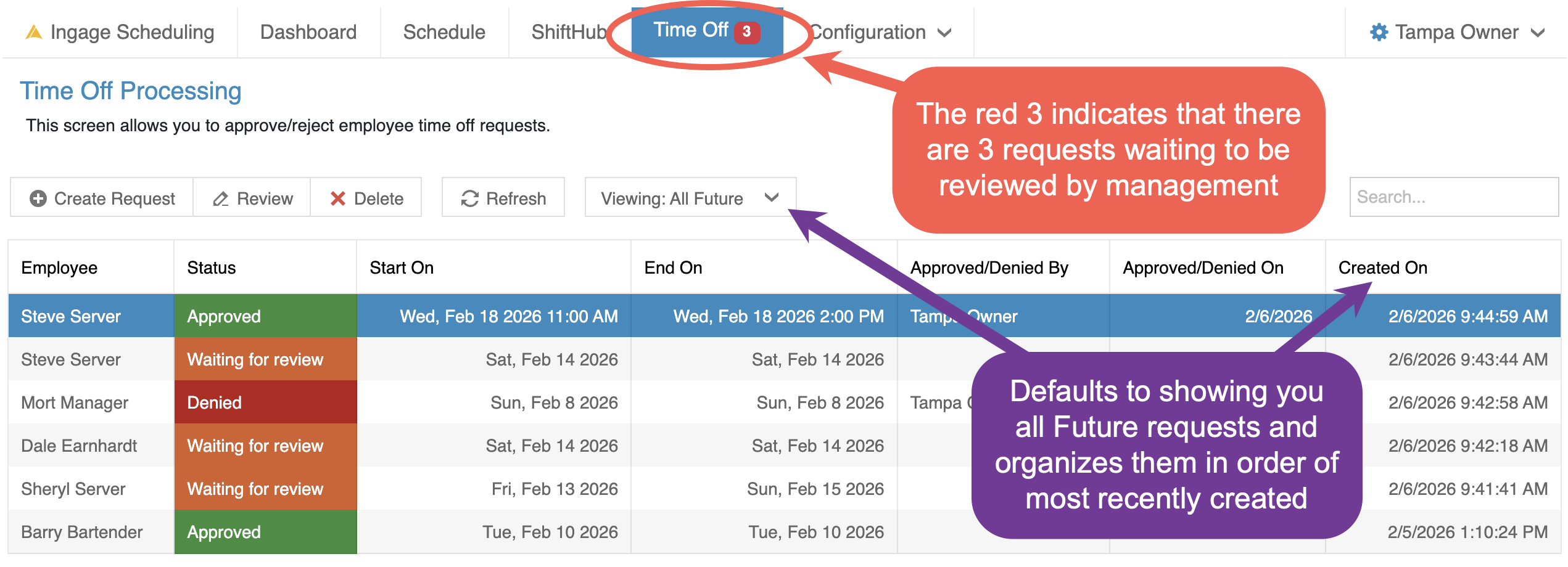
-
Click Time Off in the top toolbar
When you first open this screen, it will default to showing current and future time-off requests. This makes it easy to focus on requests that may impact upcoming schedules.
If there are any requests waiting for review, a red notification badge will appear next to Time Off in the toolbar, indicating that action is needed.
From this area, managers can review request details, approve or deny requests, and track request status all in one place.
Filtering, Sorting & Viewing Time Off Requests
The Time Off screen includes tools to help you quickly find and review requests.
<INSERT PHOTO> - Include call out boxes that point to sorting, filtering, and searching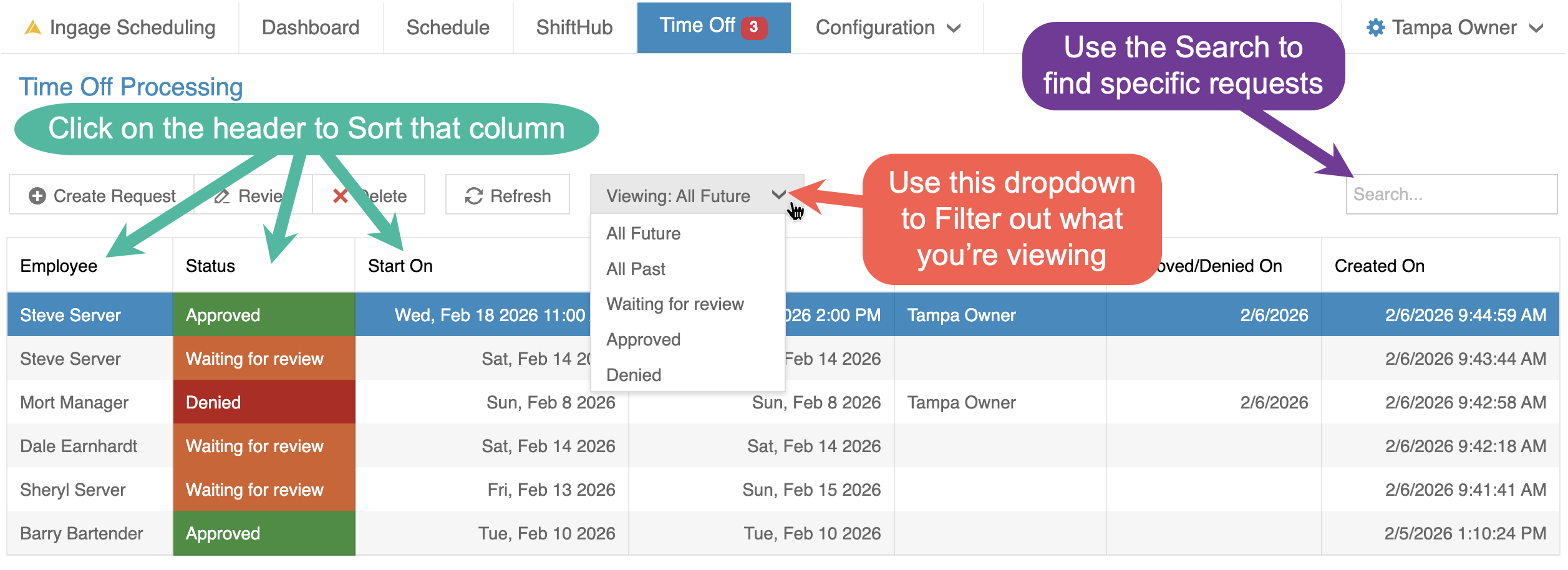
Sorting Requests
You can sort the list by clicking on any column header, including:
-
Employee
-
Date
-
Status
Click a column header again to reverse the sort order.
Filtering Requests
Filtering options are limited to high-level views:are:
-
ALL
CurrentFuture (Current) requests -
ALL Past requests
-
Current Request status (Pending, Approved, or Denied)
These filters help narrow the list to the most relevant requests for scheduling.
Searching Requests
You can also use the Search field to quickly find specific requests.
Typing in the search box will filter the list to only show results that match what you entered, such as:
-
An employee’s name
-
A date
Using sorting, filtering, and search together makes it easier to focus on the requests that need attention before building or adjusting the schedule.
Approve or Deny a Time Off Request
To approve or deny a time-off request, managers must first open the request to review its details.
There are two ways to open a request:
-
Double-click on the request in the list
-
Select the request and click Review at the top of the screen
<INSERT PHOTO> - of the pop-up, circling the status dropdown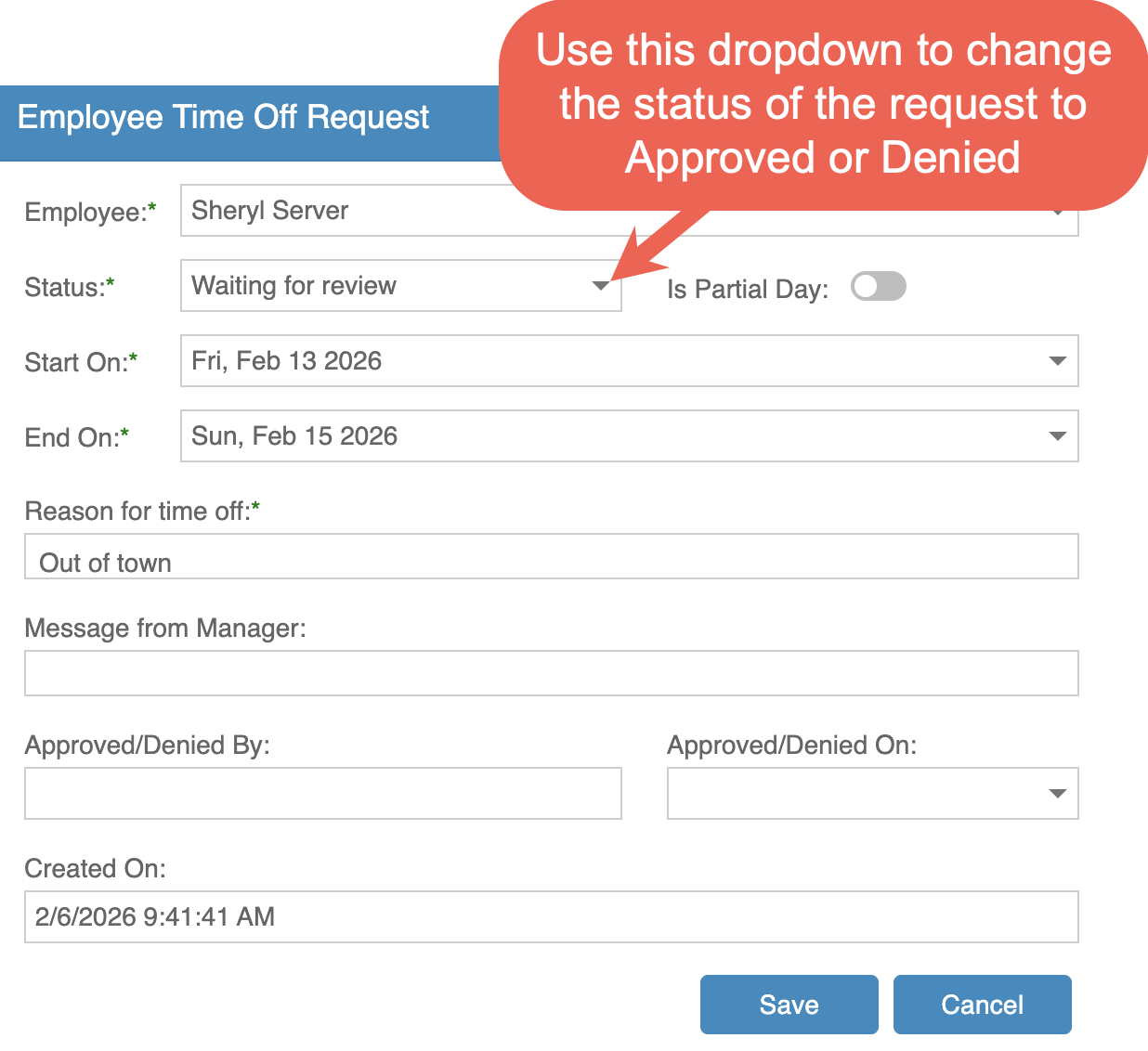
Opening the request will display a detailed view showing:
-
The employee name
-
The requested start and end dates
-
Whether the request is a full or partial day
-
The reason for the request
When the request was created
To take action on the request:
-
Use the Status dropdown to change the request from Waiting for review to Approved or Denied
-
(Optional) Enter a message for the employee
-
Click Save
Once saved:
-
The request status updates immediately
The employee sees the updated status in their app-
Approved time off appears on the schedule as a visual indicator
- The employee sees the updated status in their app (See example below of the statuses in the app)
<INSERT PHOTO> - of what it looks like on the app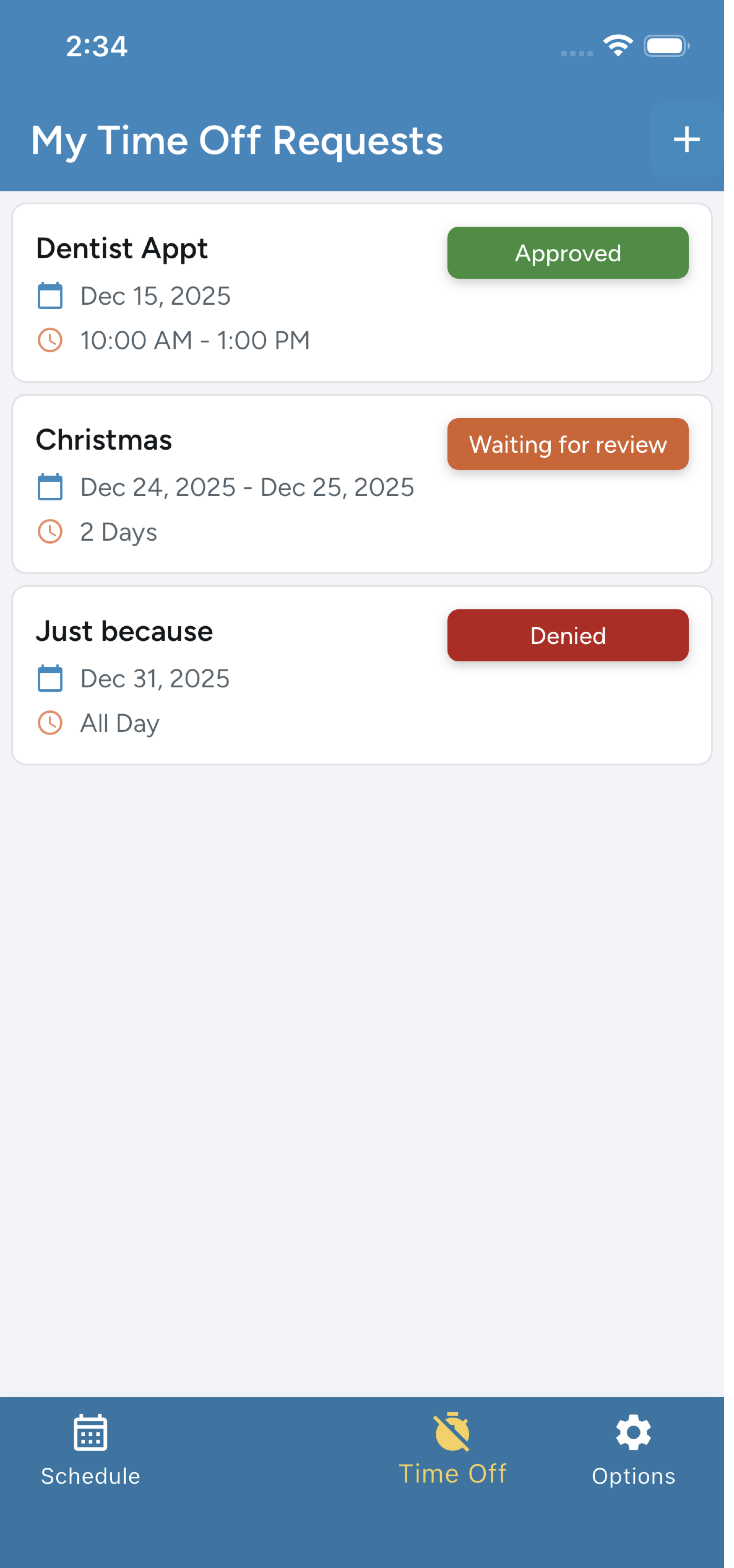
Enter Time Off on Behalf of an Employee
Managers can enter time off requests on behalf of an employee when needed. This is helpful if an employee communicates their request verbally, is unable to submit it themselves, or if a manager needs to record time off for scheduling purposes.
To enter time off for an employee:
-
Go to the Time Off section
-
Click Create Request
-
Select the Employee
-
Choose the Start and End dates for the time off
-
Indicate whether the request is a full day or partial day, if applicable
-
Enter a reason for time off
-
Set the Status to Approved or Waiting for review, depending on how you want it handled
-
Click Save
Entering time off on behalf of employees ensures availability is accurately reflected when building schedules and helps avoid miscommunication.
How Time Off Appears on the Schedule
Approved time-off requests are displayed directly on the schedule to help managers make informed scheduling decisions.
Time off is displayed on the schedule using color-coded indicators. These colors help you quickly understand if an employee may be unavailable or partially unavailable on a given day.
<INSERT PHOTO> - of the schedule with all 3 colors, one on each day 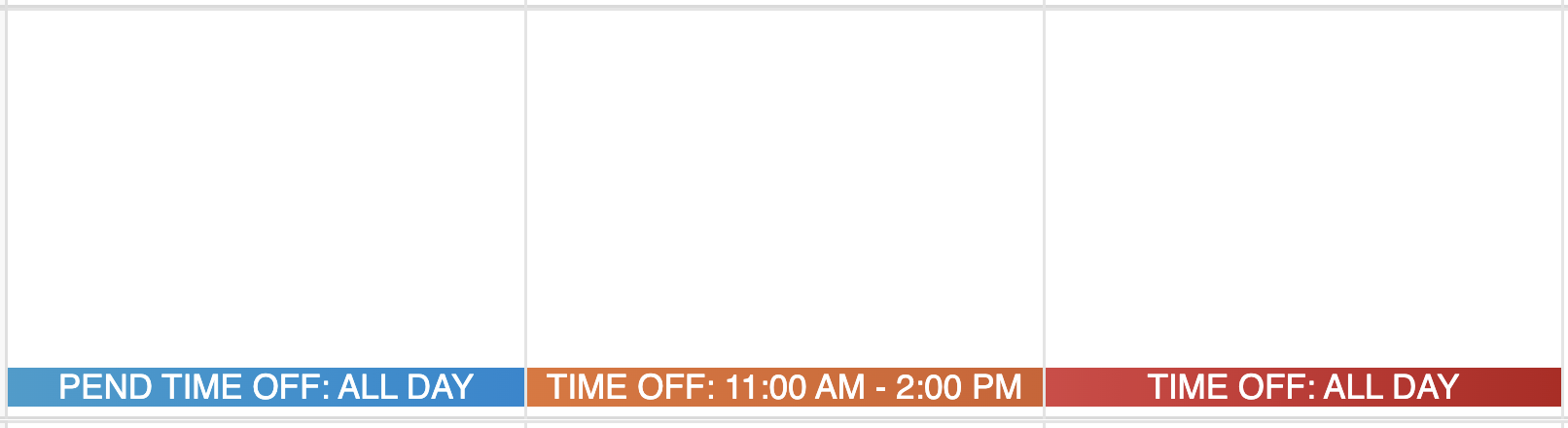
RED - Request off for the full day was approvedORANGE - Request off for part of the day was approved- BLUE - Still has a pending request off that needs to be reviewed by a manager
- ORANGE - Request off for part of the day was approved
- RED - Request off for the full day was approved
These visual indicators are meant to inform scheduling decisions, not restrict them. Managers can still schedule employees if needed, but the colors help prevent accidental conflicts.
Time Off Visibility in the Shift Editor
When building a schedule, if you open the Shift Editor for an employee who has a time off request (pending or approved), the same color indicator will appear at the top of the Shift Editor.
<INSERT PHOTO> - of the shift editor with the matching colors at the top
This makes it easy to:
-
See time off status without returning to the main schedule view
-
Understand availability while entering or adjusting shift times
-
Make informed decisions before saving a shift