
Set up in Sail Backoffice
This document willexplains walkthe youitems thruthat what needs tomust be Set upconfigured in Sail Backoffice BEFOREbefore you execute the sync ofexecuting the integration sync with Ingage Scheduling. Completing these steps first helps ensure a smooth and successful sync.
Update Employee Information
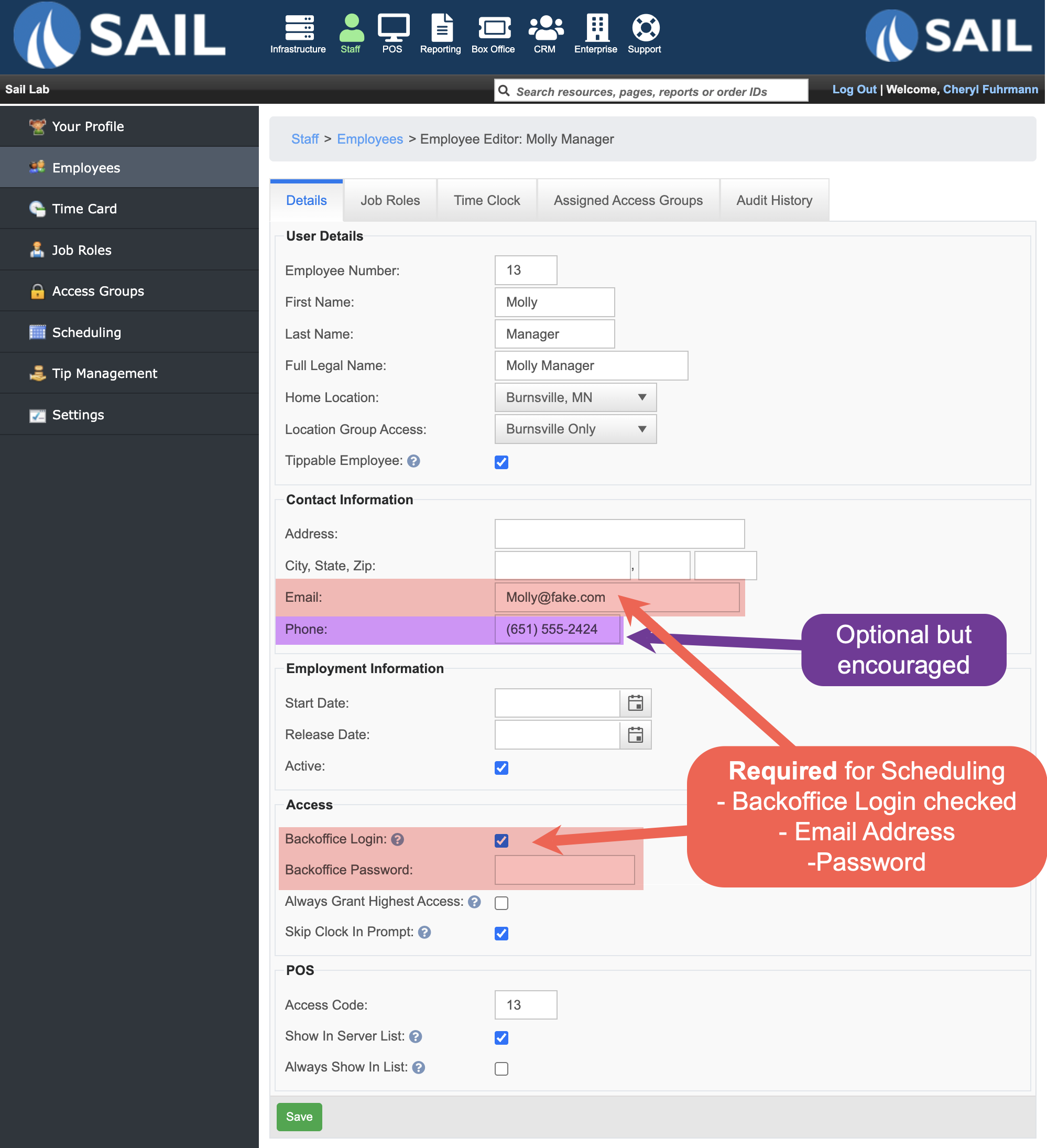
Each employee needsmust have the following set up before syncing:
Backoffice Login
-
Every employee must have a Backoffice Login
setup
created. WithaA valid email address
(thatistheyrequired.can-
schedulingThis
notificationemailon)is used for:-
Scheduling notifications
anda passwordThey will use this to logLogging into the Scheduling website and
themobileAppapp
-
receive-
-
A password must be set for the employee.
Phone Number (Recommended)
-
A phone number is encouraged
(but notrequired)required. ThisisPhone
sonumberstheallowemployeeemployeescanto receive text message notifications.aphonePhone
numbernumbers can only be enteredthruinBackoffice,SailsoBackoffice.if-
If the
wantcustomerthewantsemployeeemployees to have the option to receive textmessages thenmessages, this is theeasiestbest time toenteraddit.the phone number.
-
Clean up Job Roles
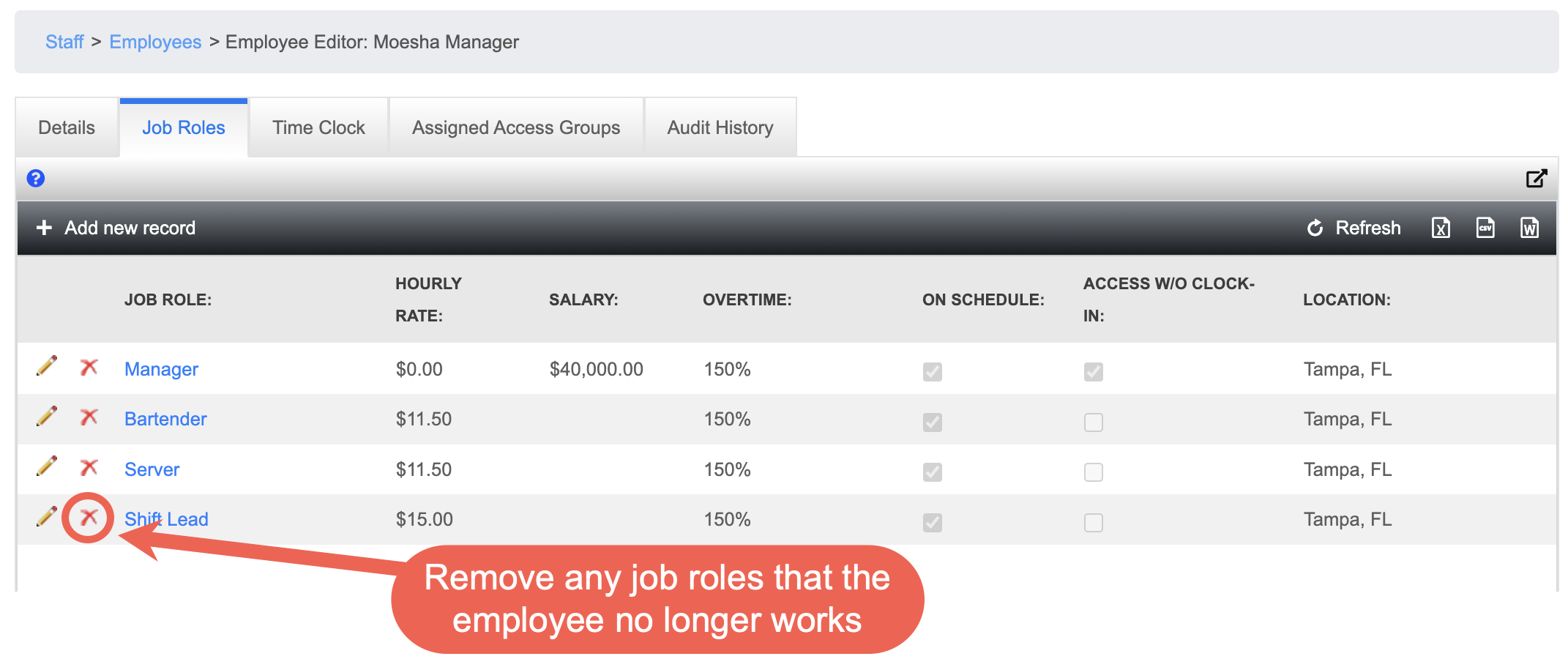
In the Scheduling system, employees appear under each job role they are assigned.
-
If an employee has multiple job roles, they will appear multiple times on the schedule—once for each role.
-
For example, an employee with four job roles will appear in four separate job role sections on the schedule.
-
This is a good opportunity to review and clean up job roles before syncing.
-
If an employee no longer works a specific job role, remove it from their profile.
-
This helps keep the schedule clean and prevents employees from appearing in job role sections they no longer work.
Skill Levels
ThisSkill stepLevels isare optional.optional Rightat nowthis time, but should be configured whenever possible.
-
Currently, Skill Levels act as a placeholder in the Scheduling
systemsystem.just -
it as a place holder, but in theIn future
itreleases, they will be usedforto support:-
Shift swapping
and -
Shift
give aways.give-aways
-
-
ItSkill Levels will preventthe staffemployees from swappingofor giving awaya shiftshifts to someone who is not qualified totakeworktheirthatshift.role.
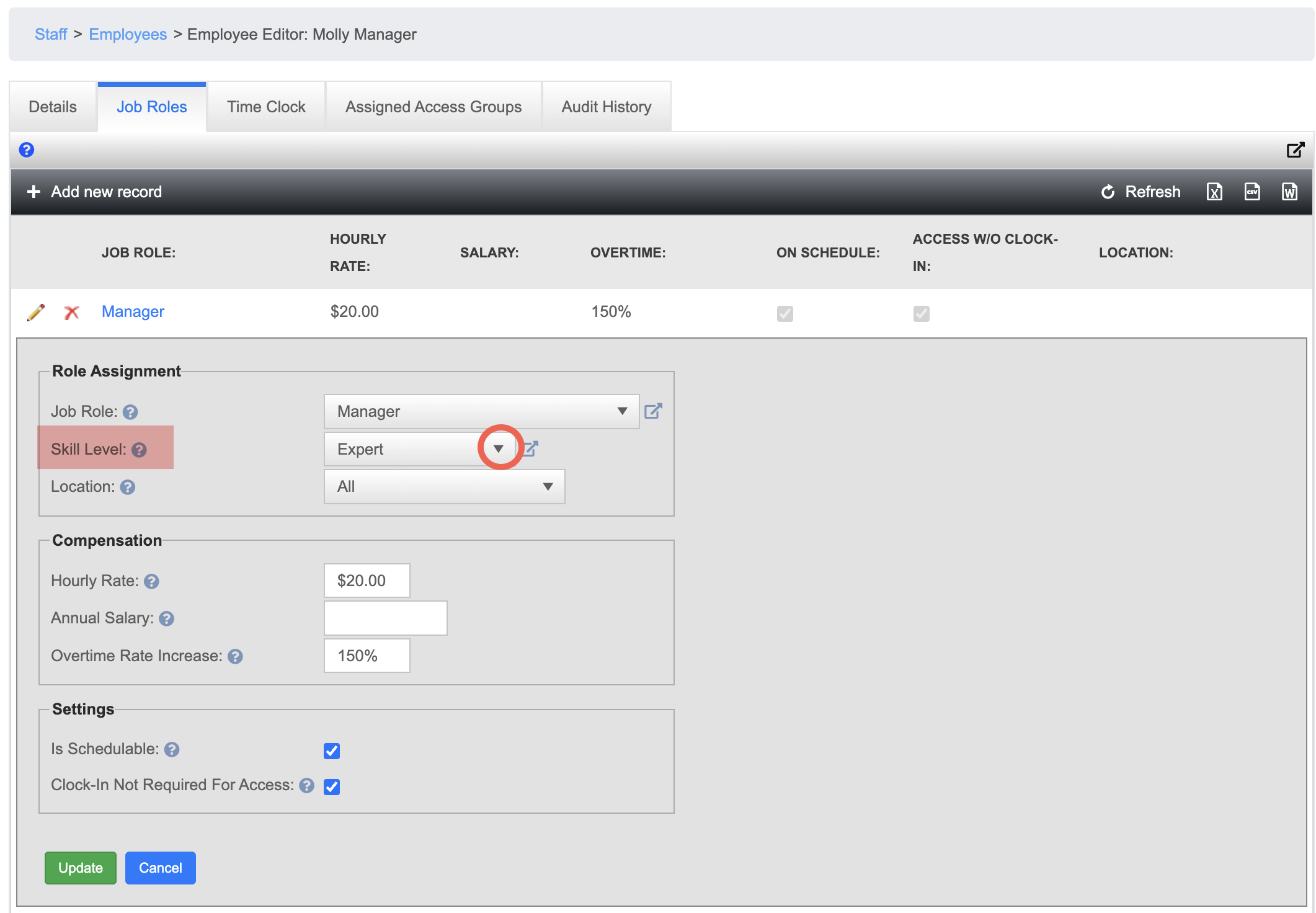
How to Set Skill Levels
For each employee,employee: