
Set up in Sail Backoffice
This document explains the items that must be configured in Sail Backoffice before executing the integration sync with Ingage Scheduling. Completing these steps first helps ensure a smooth and successful sync.
Update Employee Information
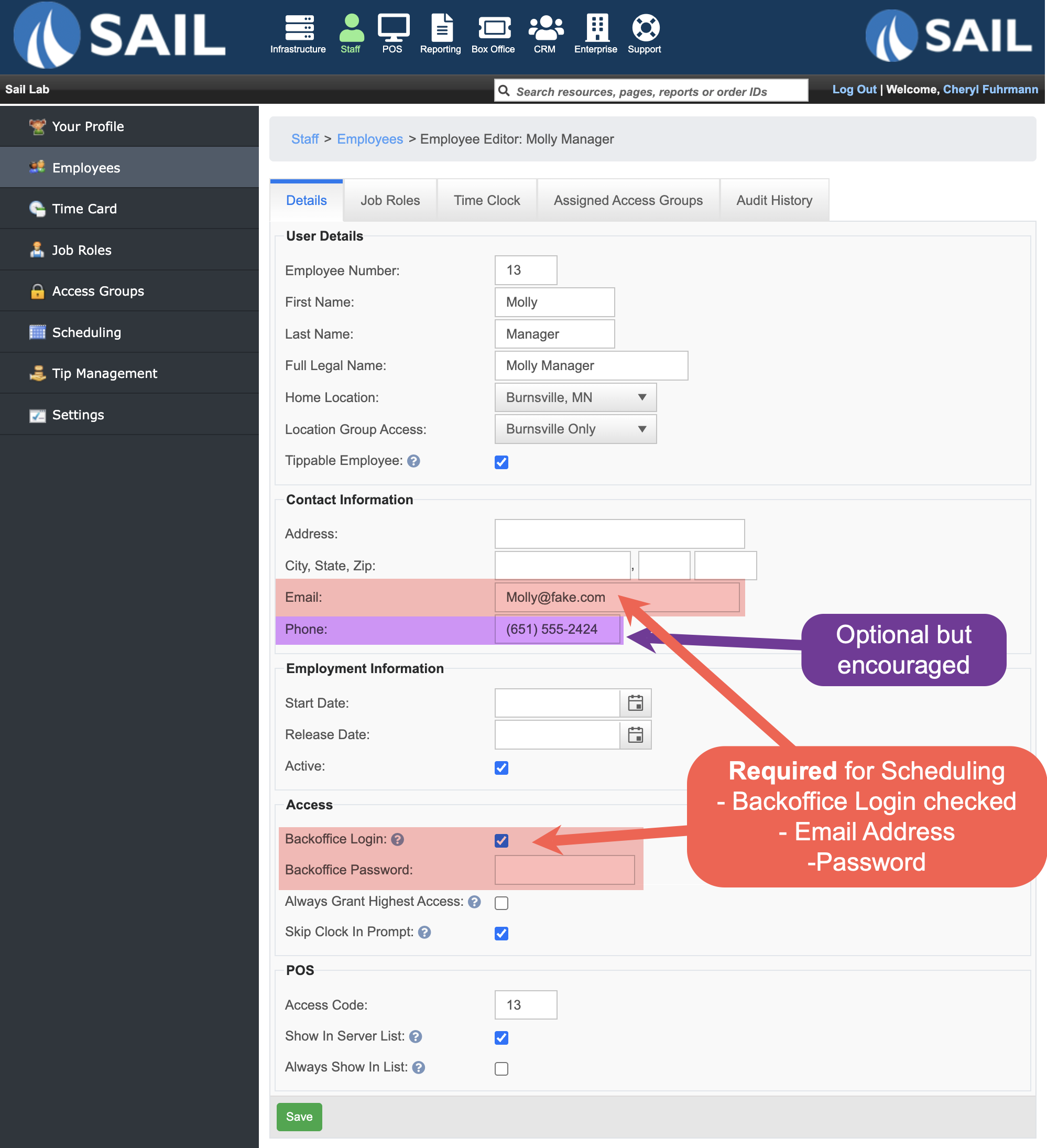
Each employee must have the following set up before syncing:
Backoffice Login
-
Every employee must have a Backoffice Login created.
-
A valid email address is required.
-
This email is used for:
-
Scheduling notifications
-
Logging into the Scheduling website and mobile app
-
-
-
A password must be set for the employee.
Phone Number (Recommended)
-
A phone number is encouraged but not required.
-
Phone numbers allow employees to receive text message notifications.
-
Phone numbers can only be entered in Sail Backoffice.
-
If
the customeryou wants employees to have the option to receive text messages, this is the best time to add the phone number.
-
Clean up Employee's Job Roles
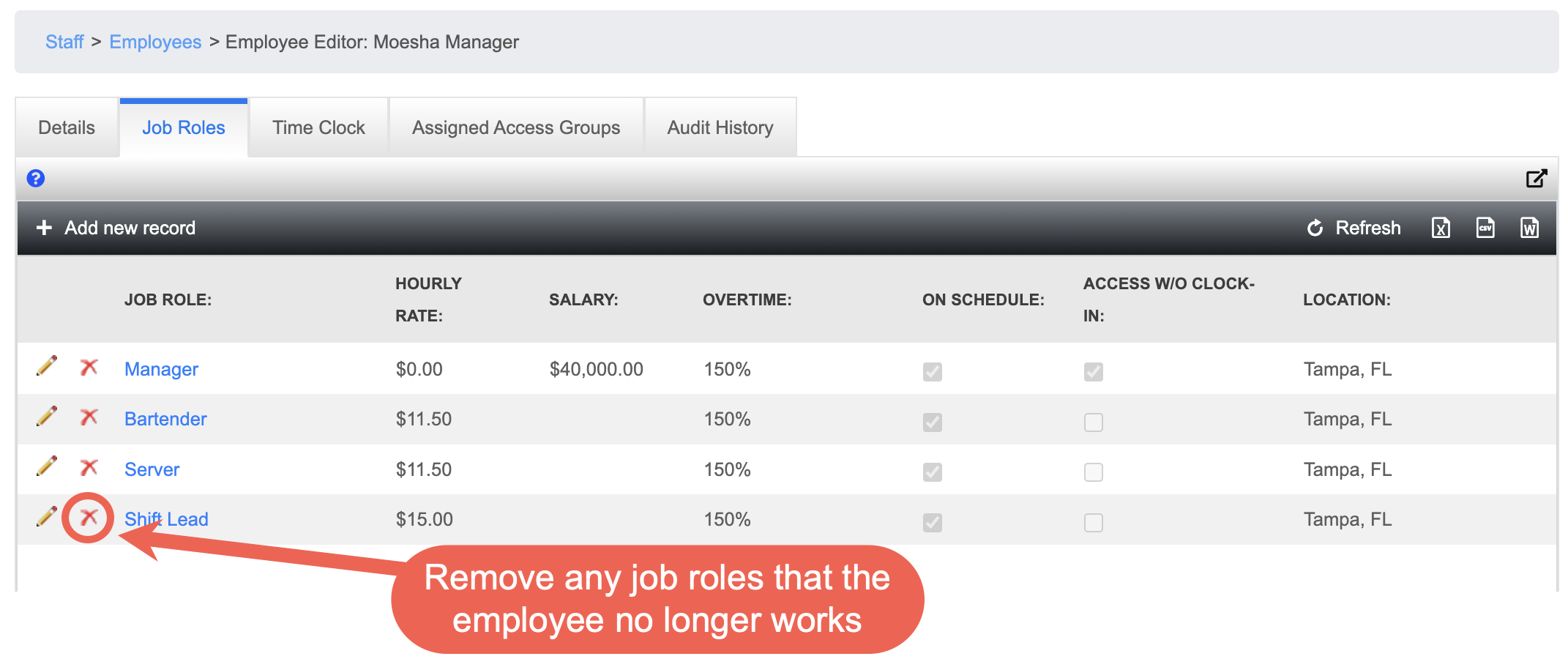
In the Scheduling system, employees appear under each job role they are assigned.
-
If an employee has multiple job roles, they will appear multiple times on the schedule—once for each role.
-
For example, an employee with four job roles will appear in four separate job role sections on the schedule.
-
This is a good opportunity to review and clean up job roles before syncing.
-
If an employee no longer works a specific job role, remove it from their profile.
-
This helps keep the schedule clean and prevents employees from appearing in job role sections they no longer work.
Assign Employee's Skill Levels
Skill Levels are optional at this time, but should be configured whenever possible.possible to make it easier to use in the future.
-
Currently, Skill Levels act as a placeholder in the Scheduling system.
-
In future releases, they will be used to
supportsupport:Shift swapping
and Shift give-aways
-
Skill Levels will prevent employees from swapping or giving away shifts to someone who is not qualified to work that role.
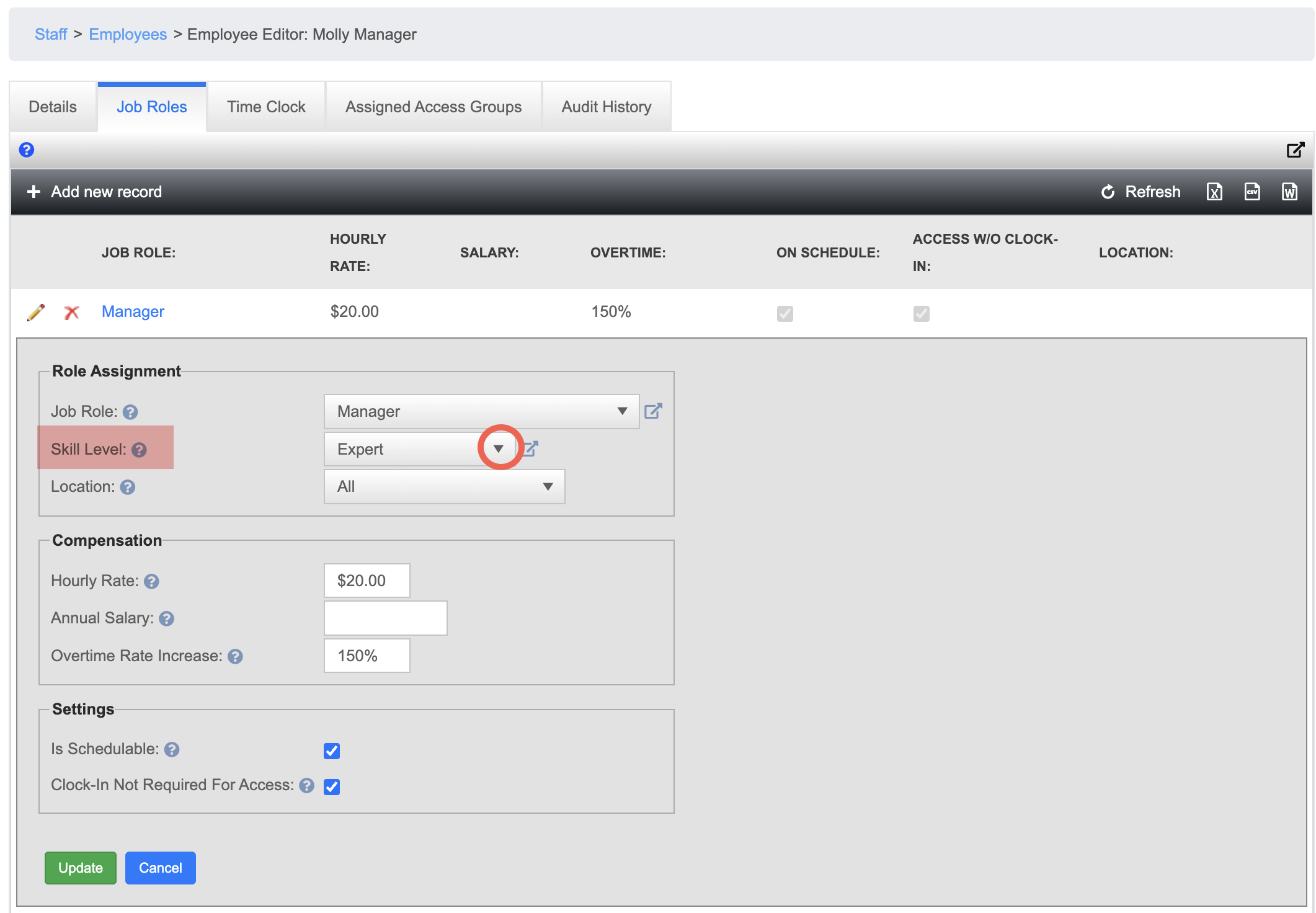
How to Set Skill Levels
For each employee:
Update Job Roles
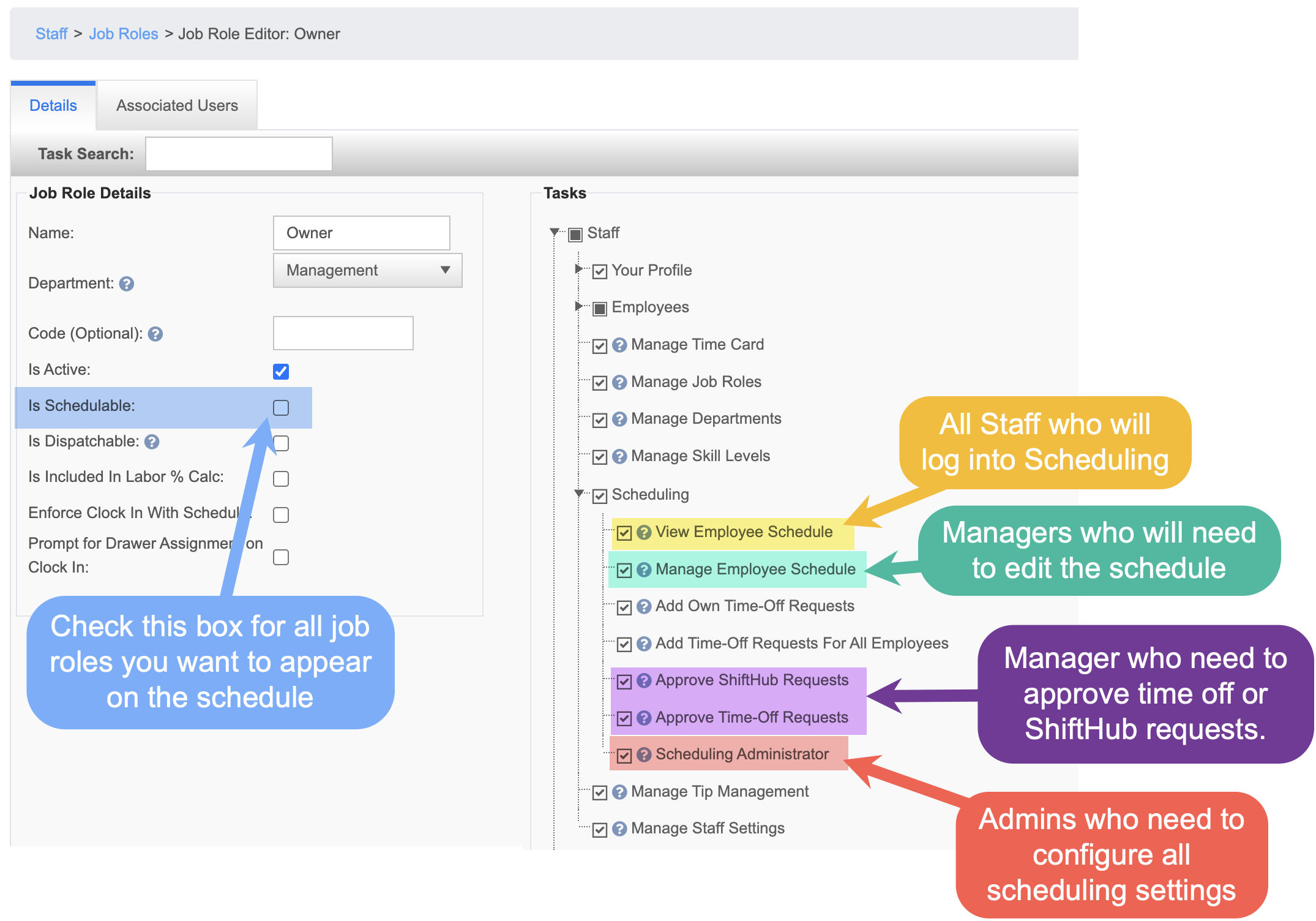
Before syncing, review each Job Role and assign the appropriate Scheduling permissions. These settings control who can view, manage, and approve scheduling actions.
Job Role Visibility on the Schedule
-
Enable Is Schedulable for any job role that should appear on the schedule.
- All active job roles will sync over, but only job roles with this checked will appear on the schedule
Scheduling Permissions Overview
Use the permissions below to control access based on responsibility:
-
View Employee Schedule
-
Enable for all staff who will log in to Scheduling to view their own schedule.
-
-
Manage Employee Schedule
-
Enable for managers who need to create or edit schedules.
-
-
Approve Time-Off Requests / Approve ShiftHub Requests
-
Enable for managers responsible for approving time-off requests or shift give-aways/swaps.
-
-
Scheduling Administrator
-
Enable for admins who need full access to scheduling configuration and settings.
-
Other Optional Cleanup
When you run the integration sync, all Departments, Job Roles, and active Employees will be sent to the Scheduling system.
Before syncing, take a moment to review and clean up the following:
-
Departments
-
Edit or rename as needed
-
Remove any that are no longer used
-
-
Job Roles
-
Edit, rename, or delete roles that are no longer relevant
-
-
Employees
-
Inactivate any employees who are no longer with the business
-
Completing this cleanup beforehand helps keep the Scheduling system organized and prevents unnecessary data from appearing after the sync.