Shift Shortcuts
Shift Shortcuts are preconfigured shift times that make building schedules faster and more consistent. Instead of manually entering start and end times for each shift, managers can select a shortcut and quickly apply common shift patterns. Shift Shortcuts are especially helpful for roles with consistent hours, such as opening, closing, or standard lunch and dinner shifts.
Where to Find Shift Shortcuts
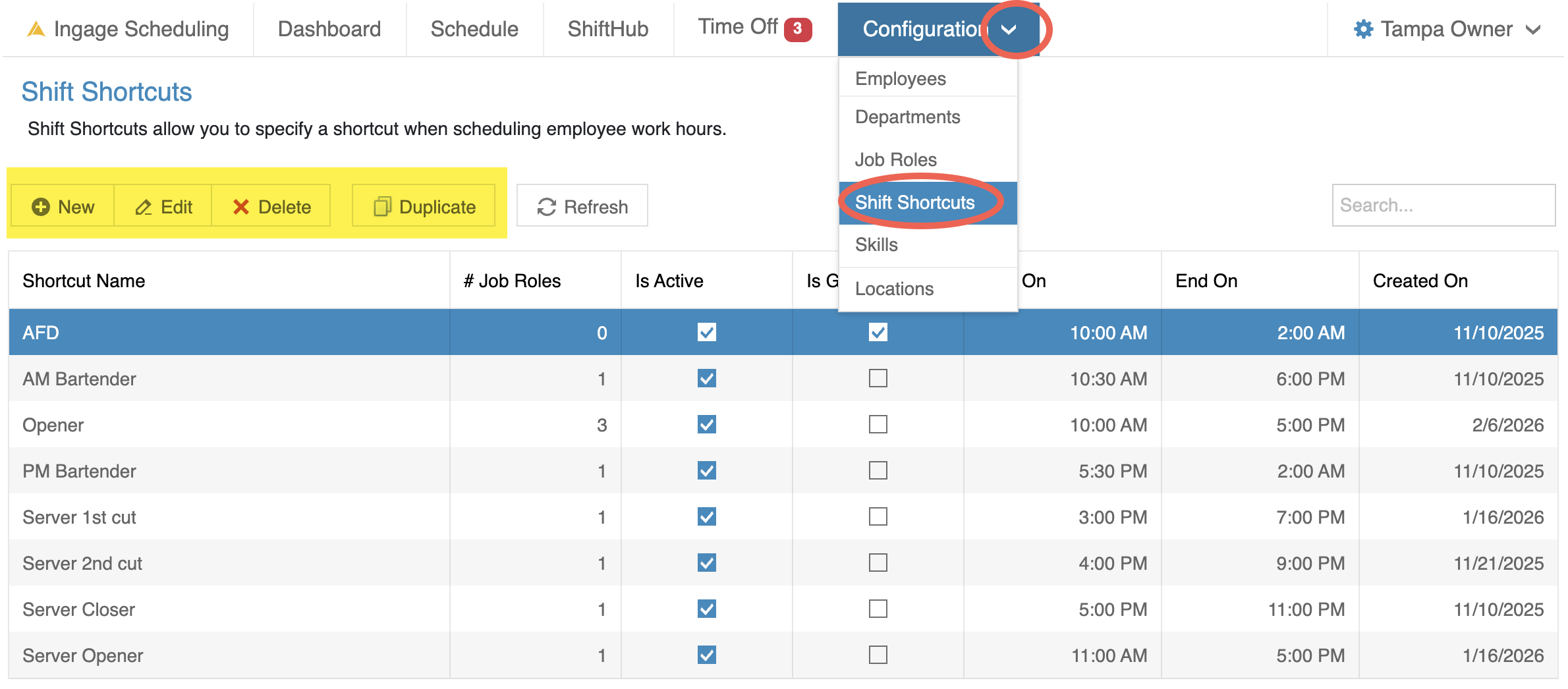
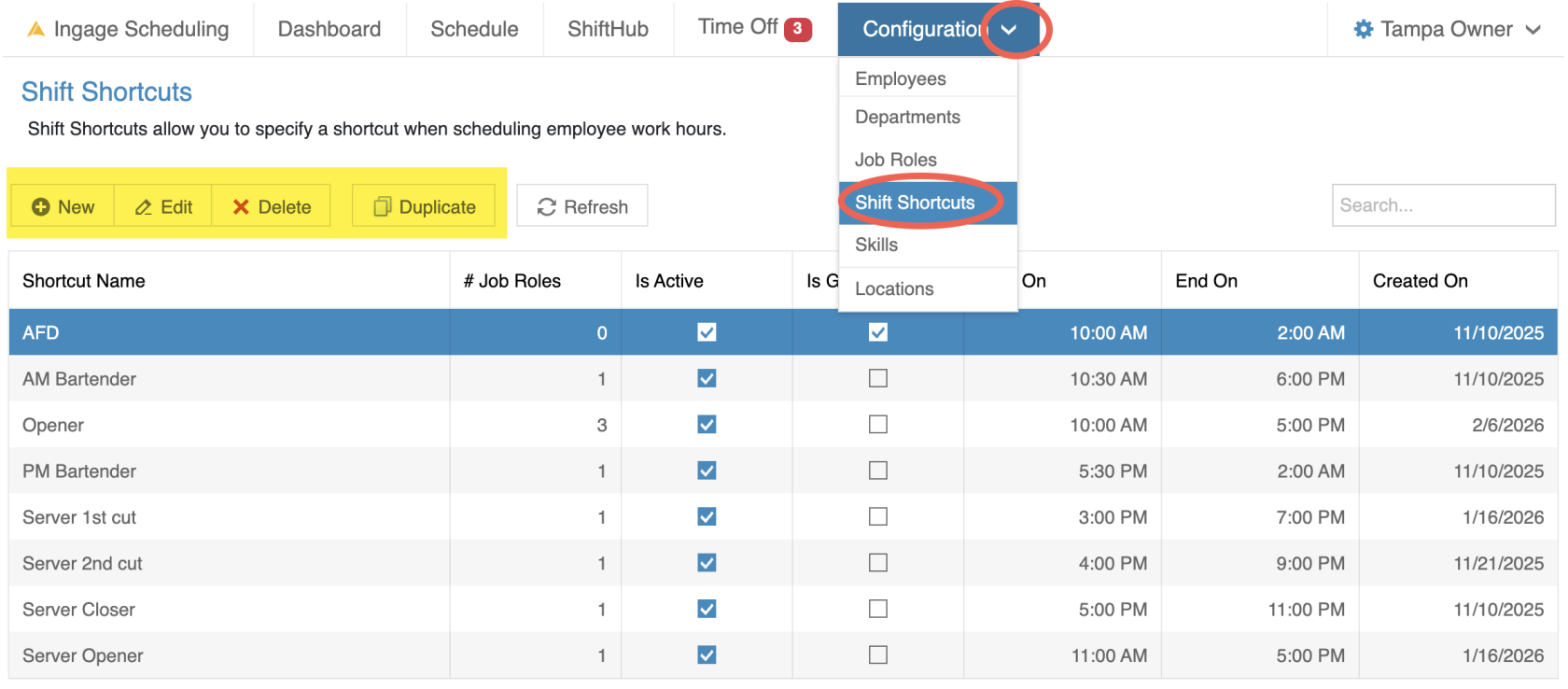
Shift Shortcuts are managed from the Configuration area in Scheduling.
To access Shift Shortcuts:
-
Go to Configuration → Shift Shortcuts
From this screen, managers can:
-
Create new shift shortcuts
-
Edit existing shortcuts
-
Duplicate shortcuts to quickly create variations
-
Delete shortcuts that are no longer needed
How to Create a Shift Shortcut
Shift Shortcuts are used to predefine common shift times so you don’t have to manually enter start and end times every time you build a schedule.
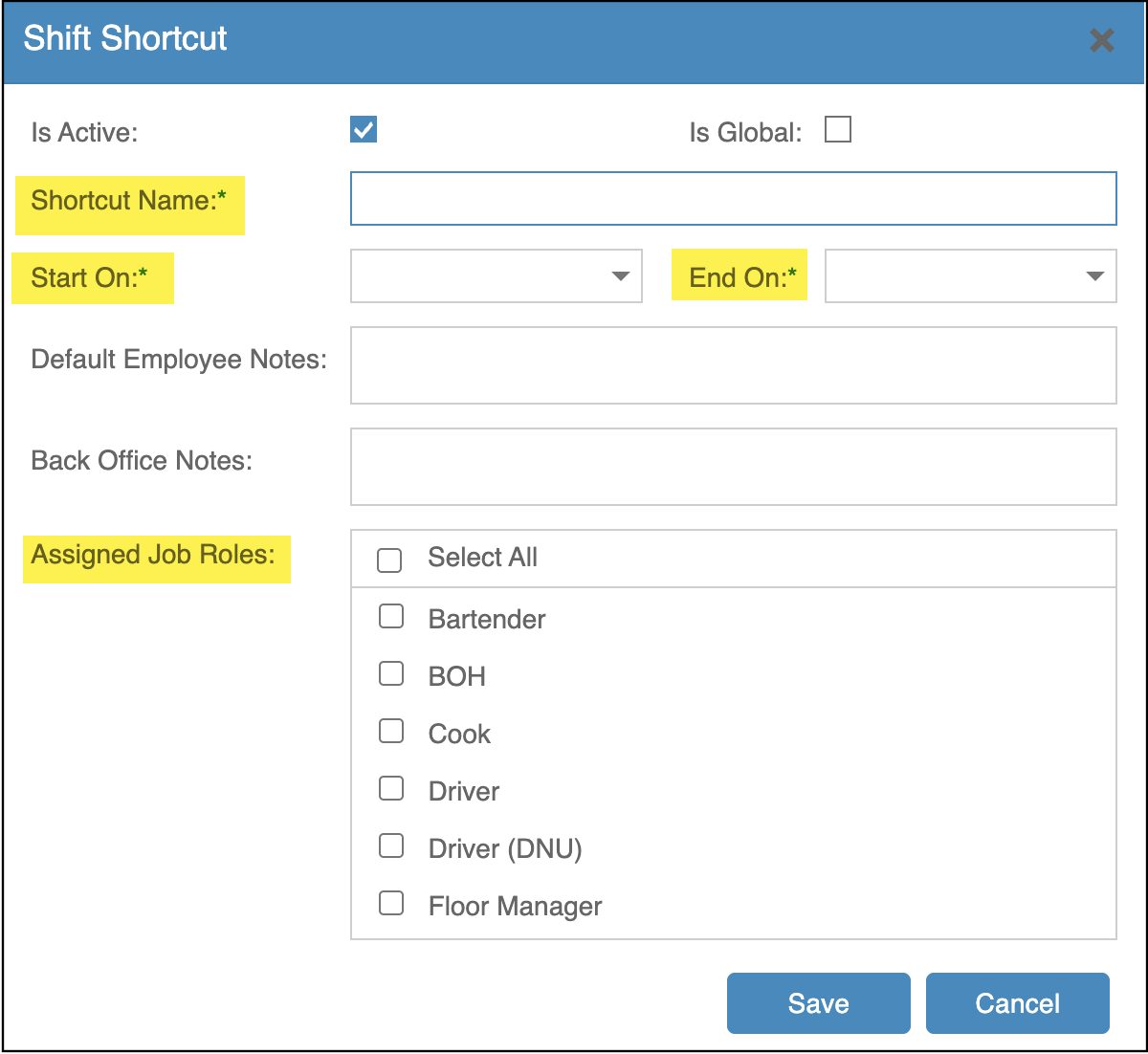
To create a new Shift Shortcut:
-
Go to Configuration → Shift Shortcuts
-
Click New
-
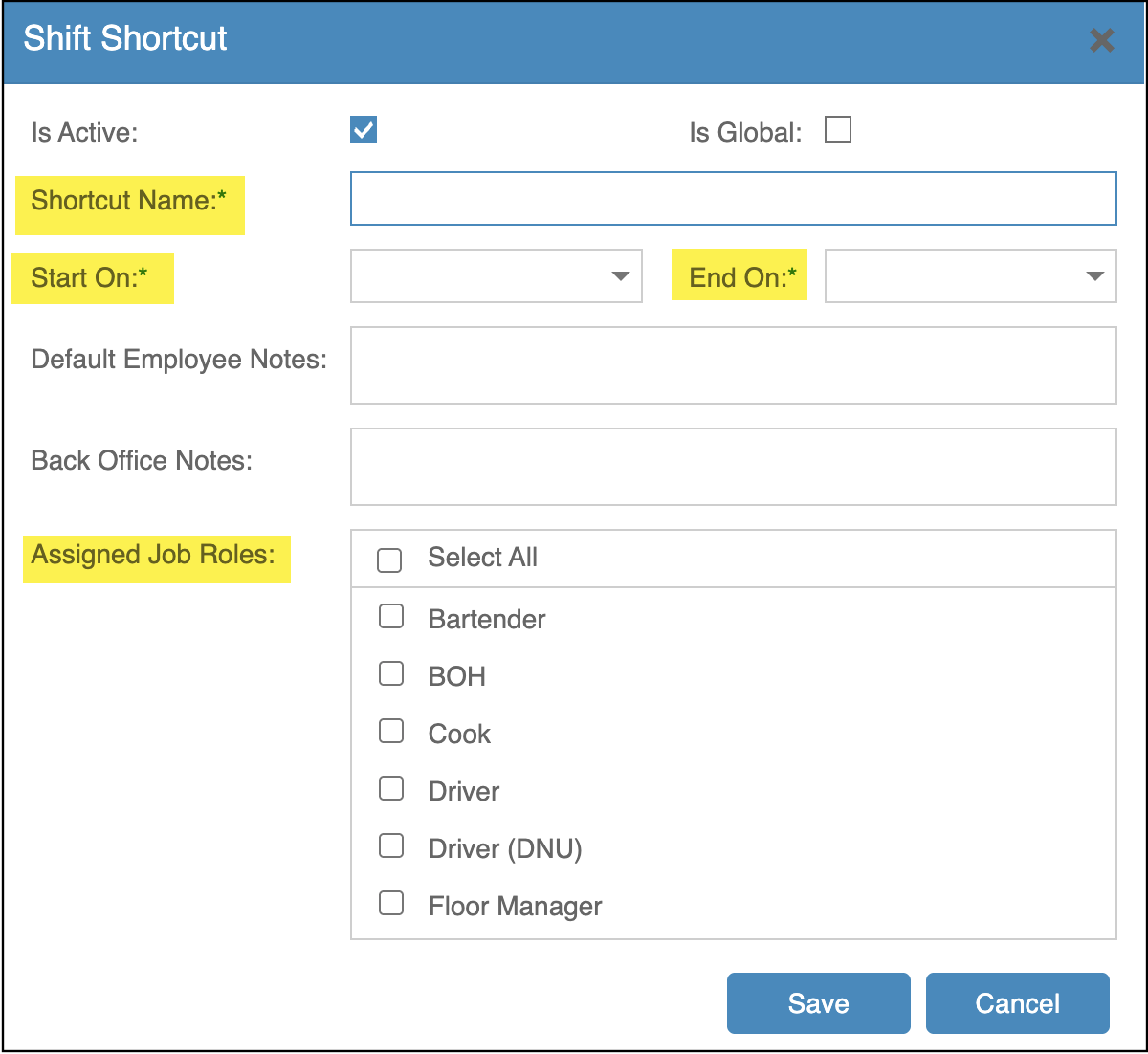
Enter a Shortcut Name
-
Use a clear, recognizable name (for example: AM Bartender, Server Closer, or All Day)
-
-
Select the Start and End times for the shift
-
(Optional) Enter Default Employee Notes
-
These notes will automatically populate when the shortcut is used
-
Examples include Closer, 1st Cut, or Section A
-
-
Select the Job Roles this shortcut should apply to
-
You can assign the shortcut to one job role or multiple job roles
-
-
Click Save
Global Shift Shortcuts
If you want a shift shortcut to be available for every job role, you can use the "Is Global" checkbox at the top
When Is Global is selected:
-
The shortcut is marked as Global on the table
-
It will appear for every job role when scheduling
-
This is useful for shifts like All Day, Open to Close, or other role-agnostic shifts
How to Use Shift Shortcuts When Scheduling
Shift Shortcuts are used while building the schedule in the Shift Editor.
When scheduling an employee:
-
The list of available shift shortcuts is filtered based on the job role
HowYou will only see:
-
Shortcuts assigned to
usethatshiftjob role, and -
Any Global shortcuts
-
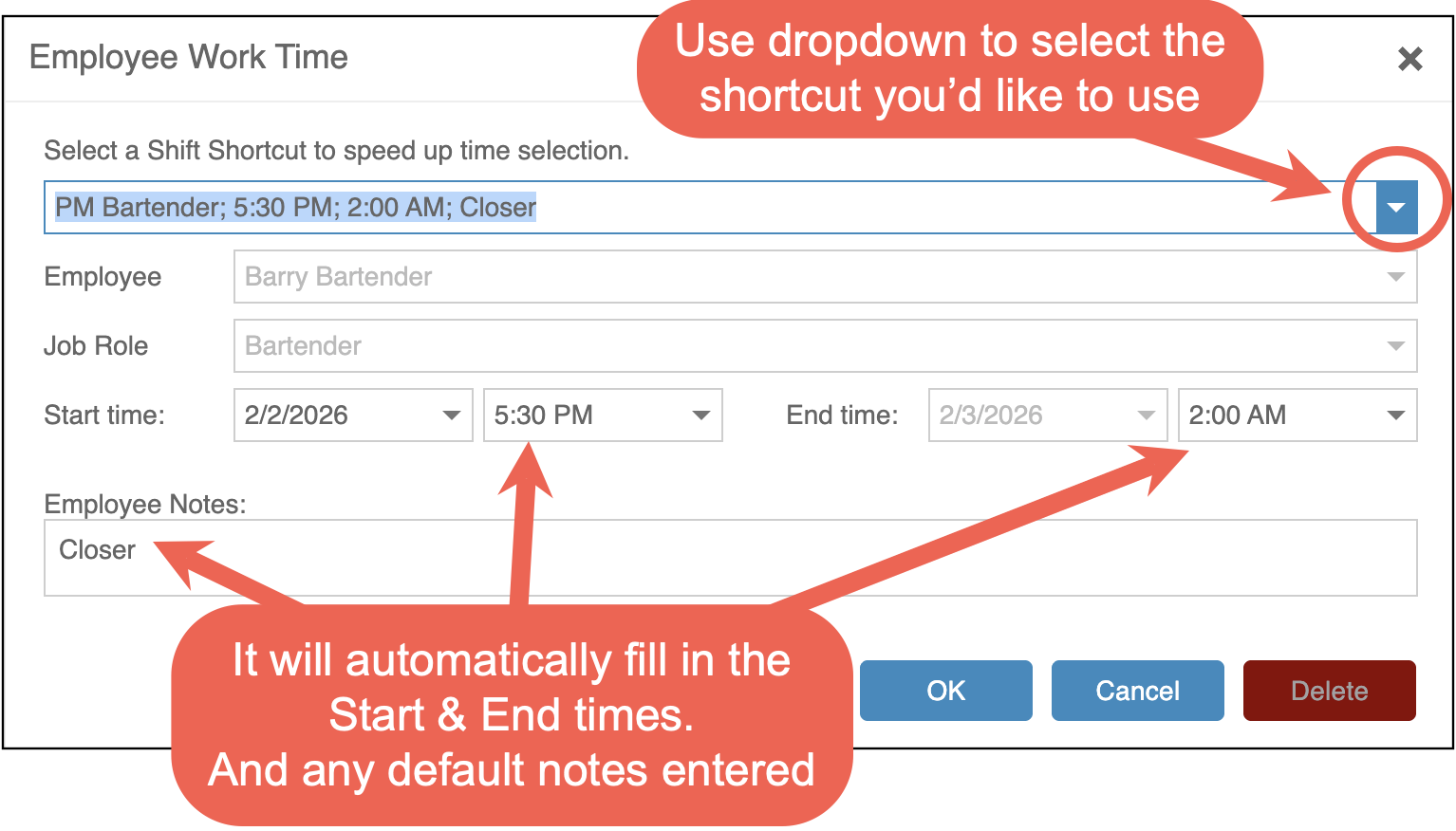
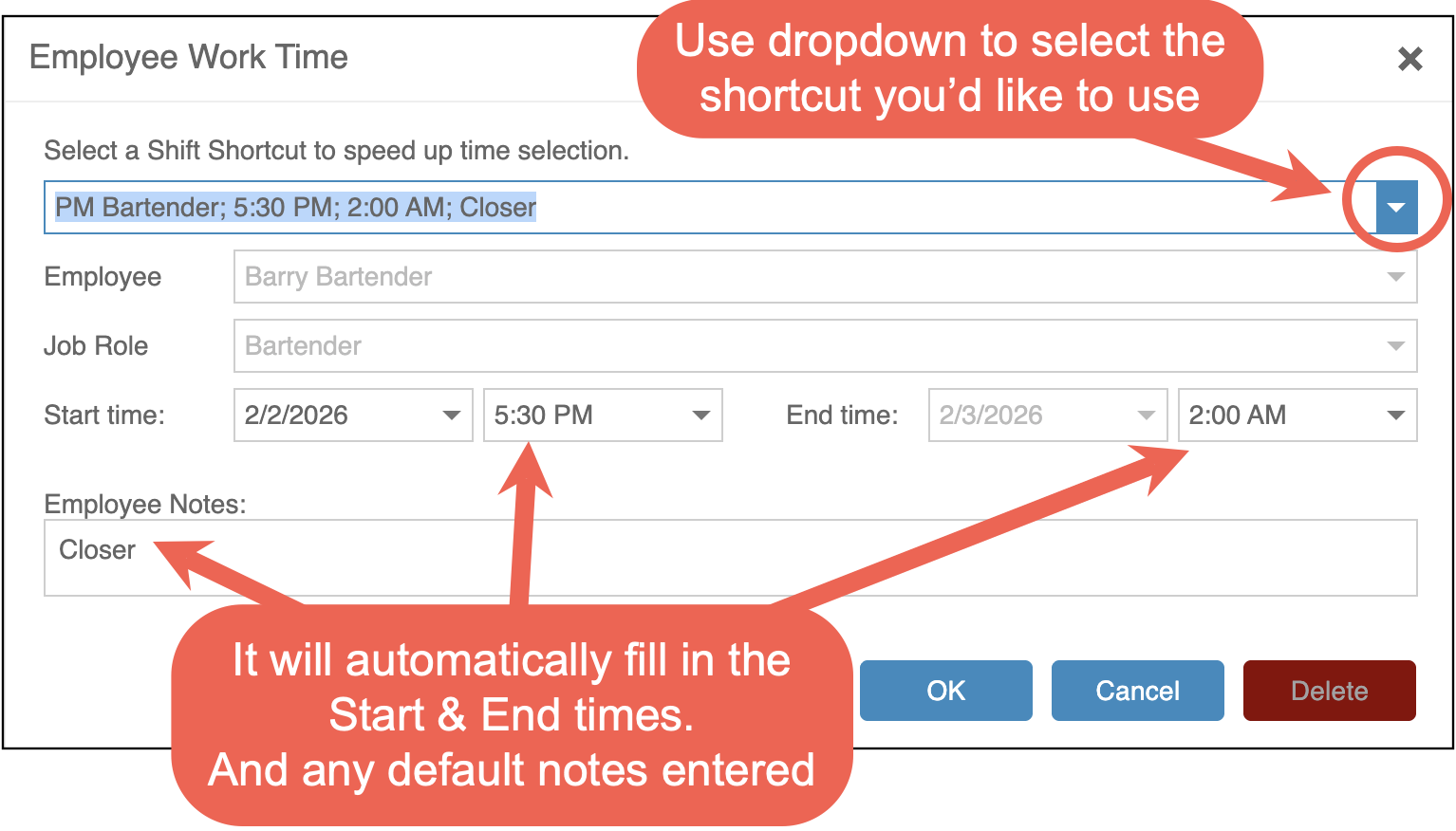
Selecting a Shift Shortcut will:
-
Automatically fill in the start and end times
-
Apply any default employee notes tied to that shortcut
You can still adjust times or notes after applying a shortcut if needed.
-