Welcome to Ingage Scheduling!
Welcome to Your New Scheduling System
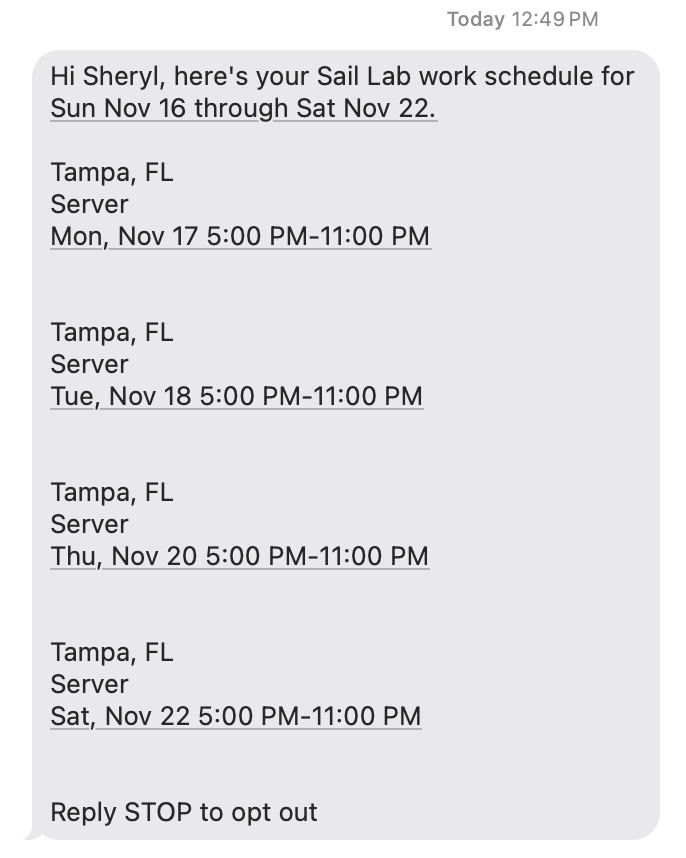
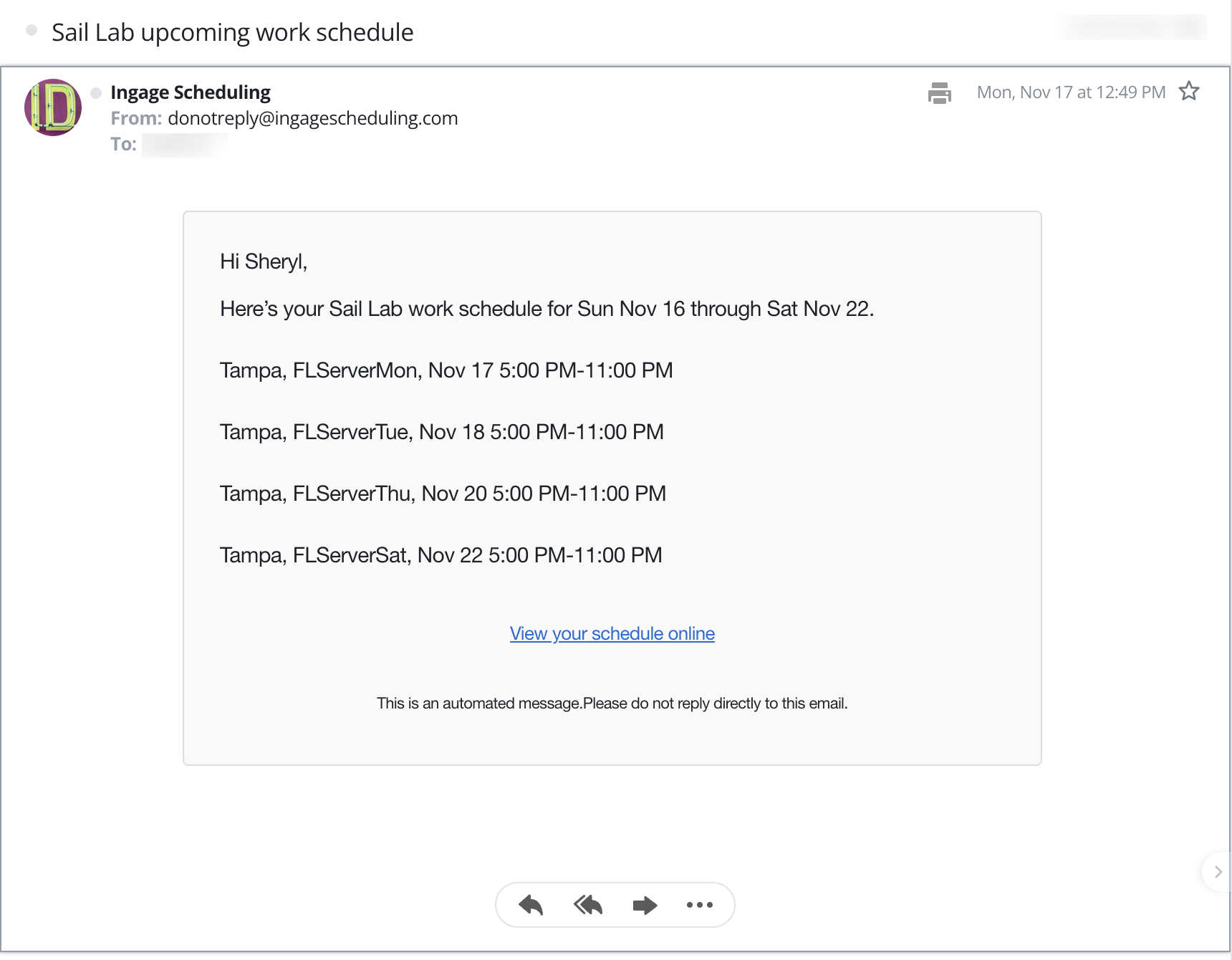
This system makes it easier for you to see your schedule, request time off, swap shifts, and get updates directly on your phone or Email.
This guide shows you everything you need to know before your first day using the new system.
Setting Up Your Account
You will receive an email invitation to join Ingage Scheduling.
Open the email and click "Sign Up" to begin creating your account.
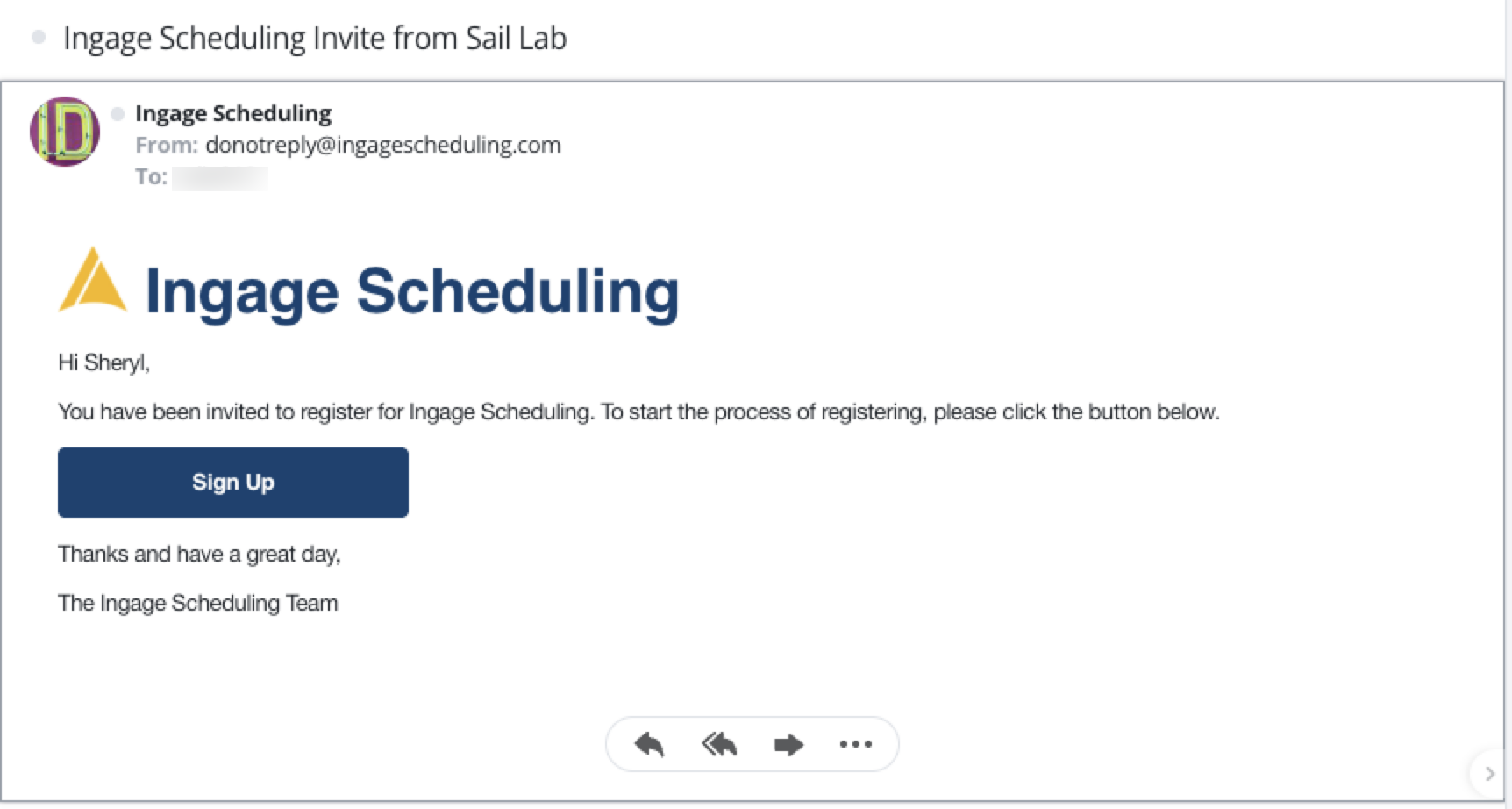
Once you click "Sign Up" in your invitation email, you’ll be taken to the Ingage Scheduling website.
What you see next depends on whether you already have a Sail Backoffice login.

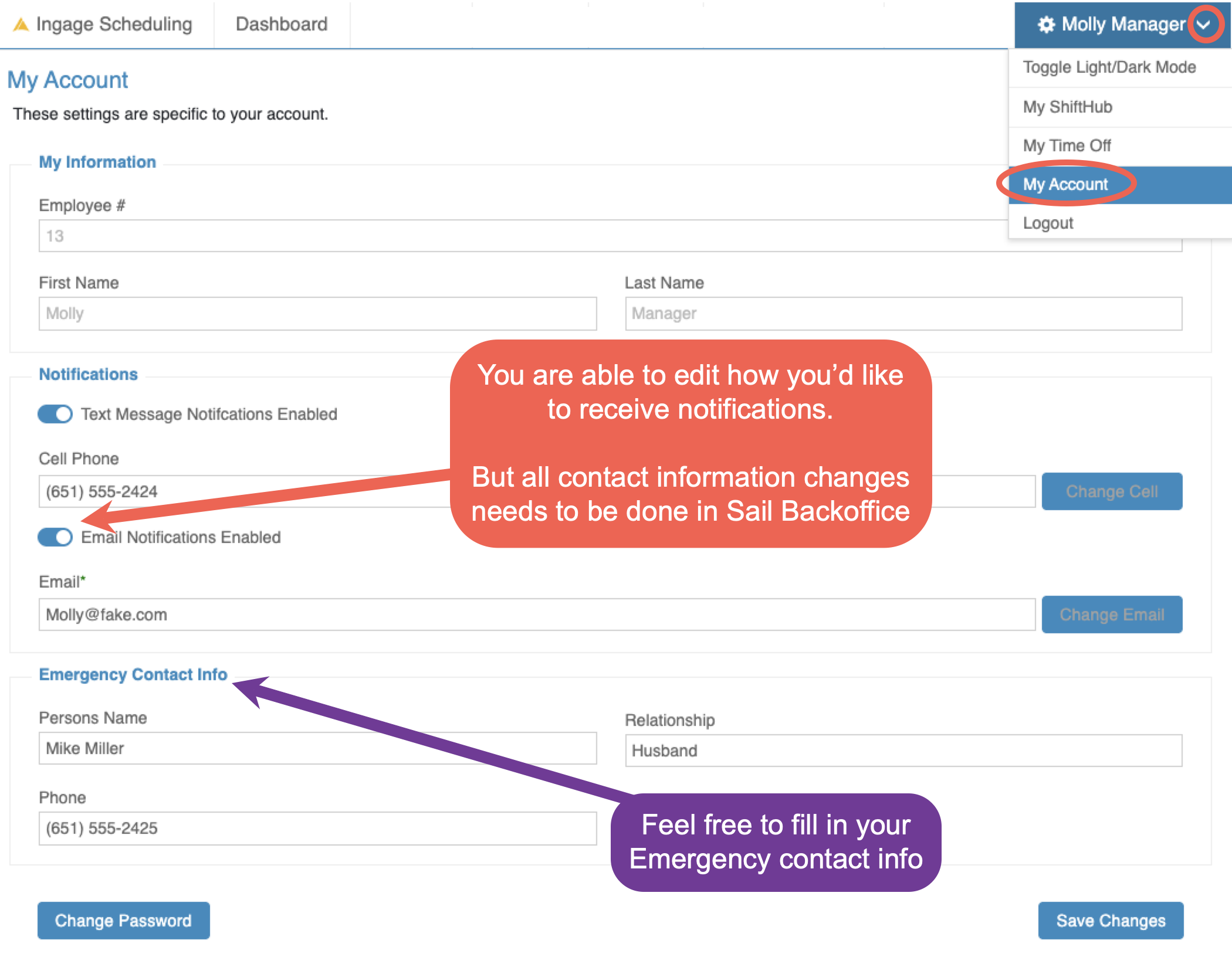
If you ever want to change how you receive notifications, you can do that anytime from your account settings.
How to get there:
-
Log in to the Ingage Scheduling website.
-
Click the dropdown next to your name in the top-right corner.
-
Select My Account from menu.
What you can update here:
-
Turn text message notifications on or off
-
Turn email notifications on or off
- Enter/edit your emergency contact information here
Important:
- If you need to update your phone number or email address, those changes must be made in Sail Backoffice.
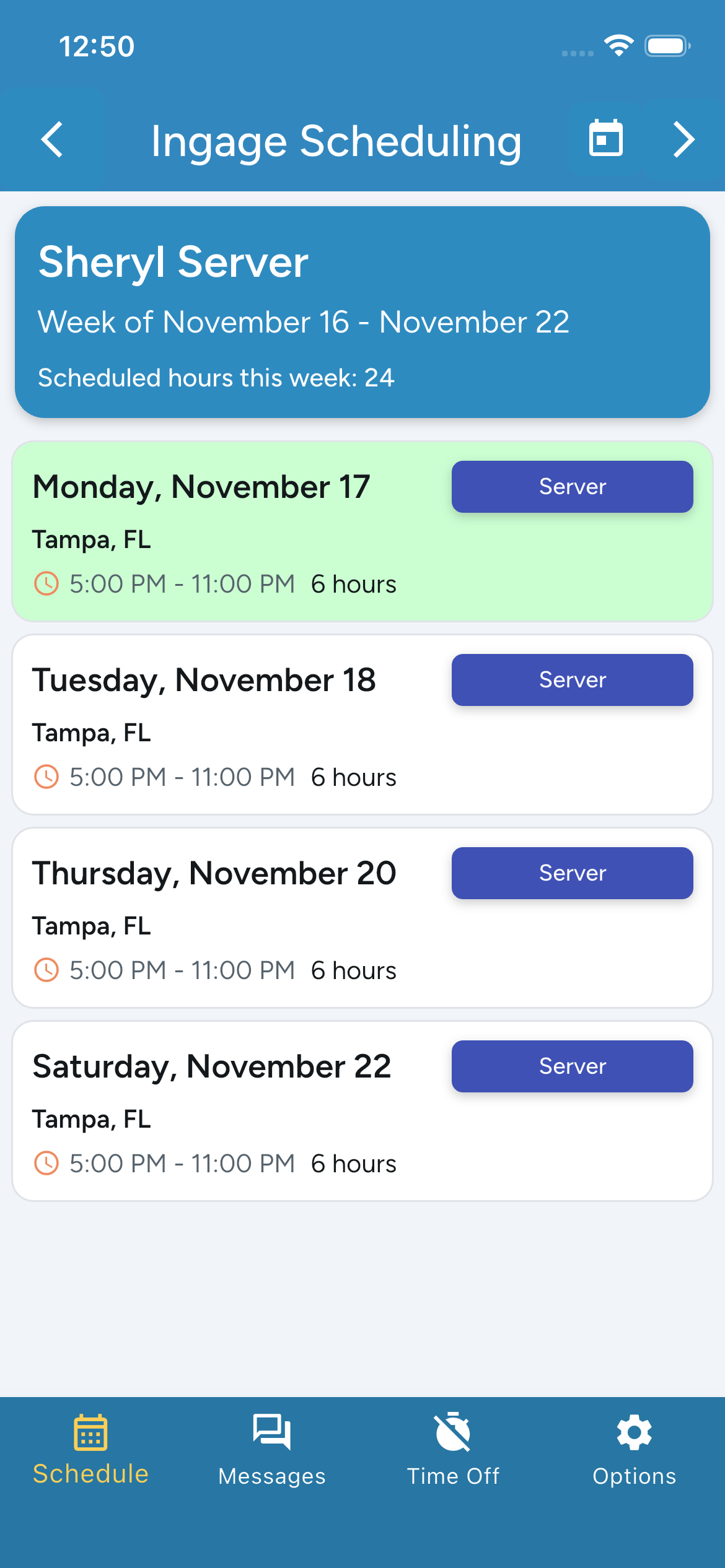
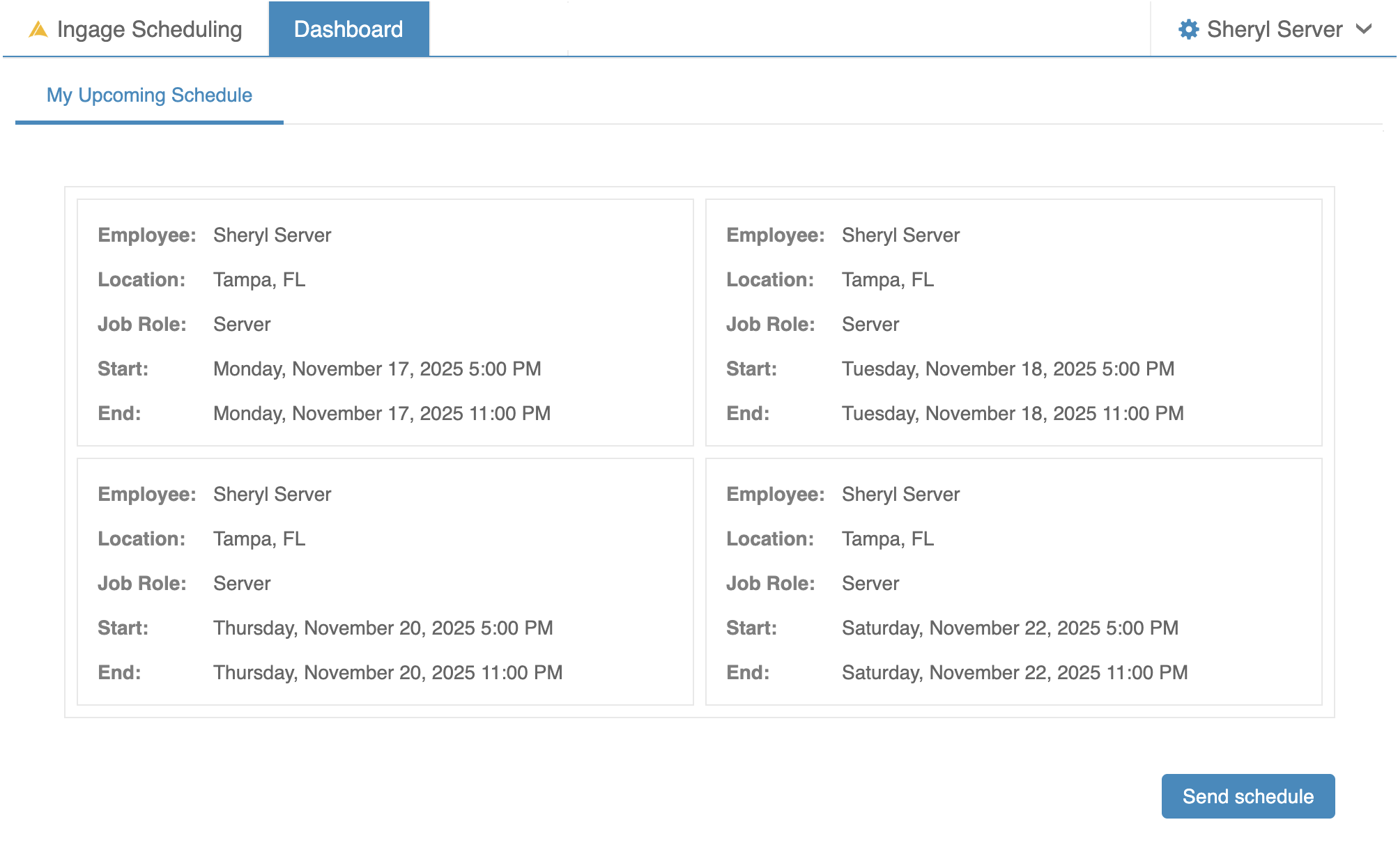
How to view my schedule
On the app
On the website
How to request a day off
On the app
On the website
Editing My Account on the Website
Toggle Text and e-mails on and off
Text Messaged Schedule
Emailed Schedule
Update Emergency contact info
Here is the link to the website
Links to download the app in the app store
 .
.