PCI Compliance for Focus
Introduction
What is PCI?
Payment Card Industry Data Security Standards (PCI DSS) compliance is mandated by credit card companies and the payment network to ensure the security of credit card transactions and cardholder data. It exists to protect cardholders from having their sensitive card data stolen and subsequently used without their consent.
Are we required to complete this?
Even if you do not actively accept card payments, this PCI questionnaire is required.
What is the benefit or cost?
PCI questionnaires that are left uncompleted and fined by the card network and processor. The current processor fee is $69.95/mo. This fee is $0 with a completed PCI questionnaire.
Overview
This guide will assist you with the login and profile questions for your business. This form will not provide answers to the questionnaire and only the merchant can complete the questionnaire. We are not authorized to complete this questionnaire for you and this is not legal or compliance advice.
Step-by-Step Guide:
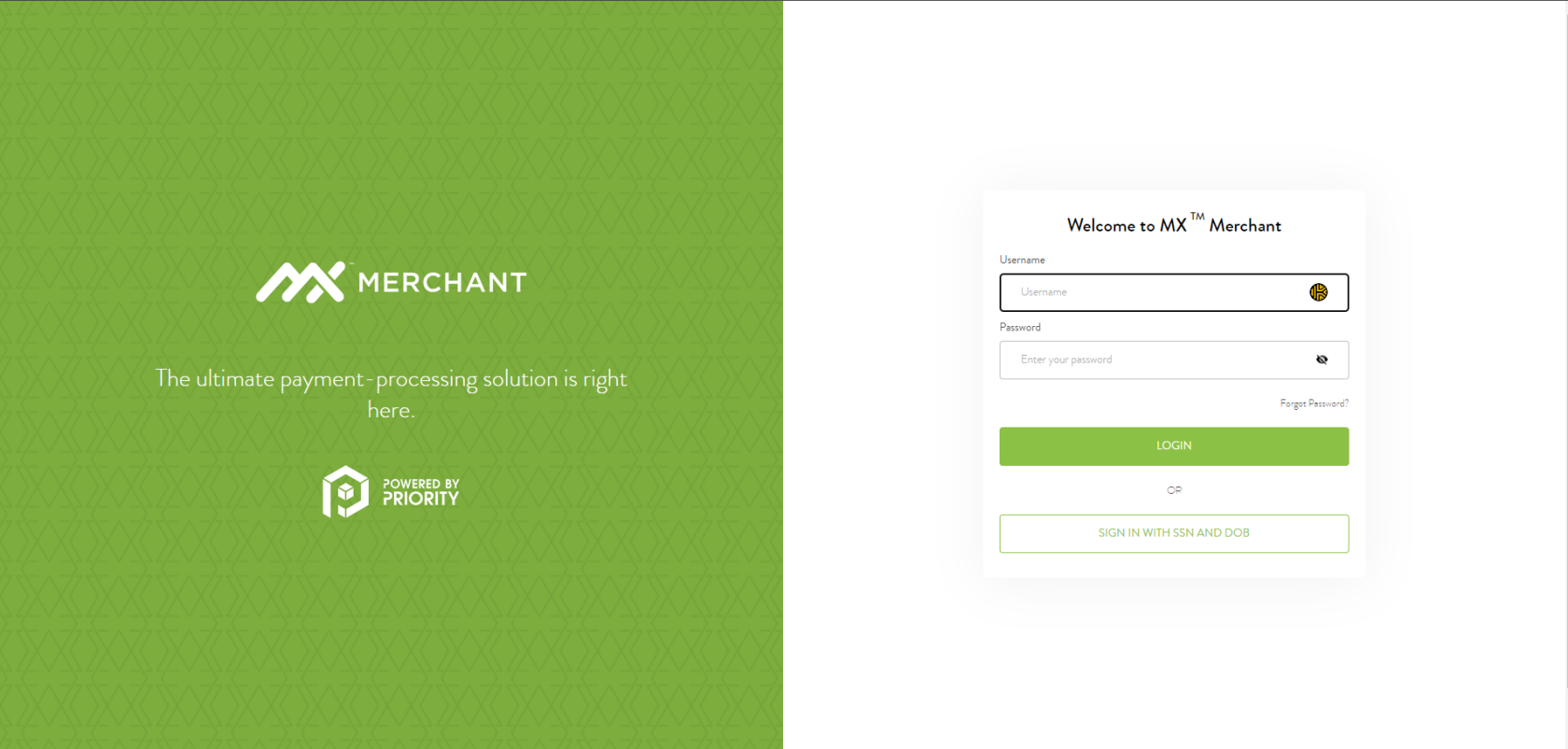
Step 1 - Login to MX Merchant
Click the link in the email from norely@mxmerchant.com or go to www.mxmerchant.com
You must use the Google Chrome web browser. Other web browsers are not fully supported for all features and may cause technical issues.
Then, login using your existing username and password. If you forgot your password, click the "Forgot Password" link to reset. If you forgot your username or are having another issue/error, call or email us:
Step 2 - Select Location
If you only have one location, skip to Step 3.
If you have more than one location, verify you are connected to the right account. You may have to edit your "Location". To do this, select the  in the top right-hand corner. Select "Edit" next to "Location". A pop-up will appear. Search for the correct location by name. Select the checkbox next to the correct location and hit "Save".
Please note, that many merchants have both an in-person, “Brick & Mortar” account as well as an online, “e-Commerce” account. Ensure you have the proper account selected before you begin.
Step 3 - Enable Application
In the lefthand menu, select  . A grid layout will appear.
Navigate to the app titled "PCI Protection by Priority powered by VikingCloud". On the app, in the lower righthand corner, select  .
.
An activation confirmation message will appear. Select "OK".
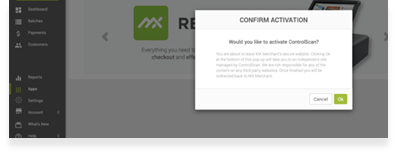
A green bar will appear at the top of your web browser window confirming the app has successfully been activated.
On the app, you should now see the  button where the "ACTIVATE" button was before. This means the app is now activated.
Step 4 - Create Your Account
The application has been activated, but you must create an account. For security, you will be required to re-login after creating your account for the first time.
Hover over the PCI Protection by Priority powered by VikingCloud app with your mouse. Click  . You will be redirected to a webpage at https://pciprotection.com.
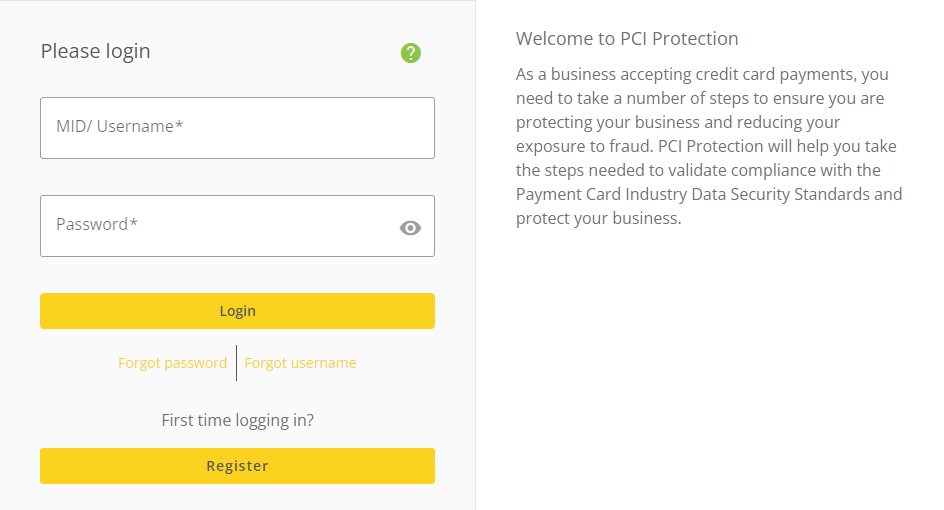
Create a username and password by selecting "Register" and following the prompts.
A pop-up confirming you are integrating your compliance into your online portal will appear. Select "Allow". You will be redirected back to the "Apps" page of your MX Merchant account.
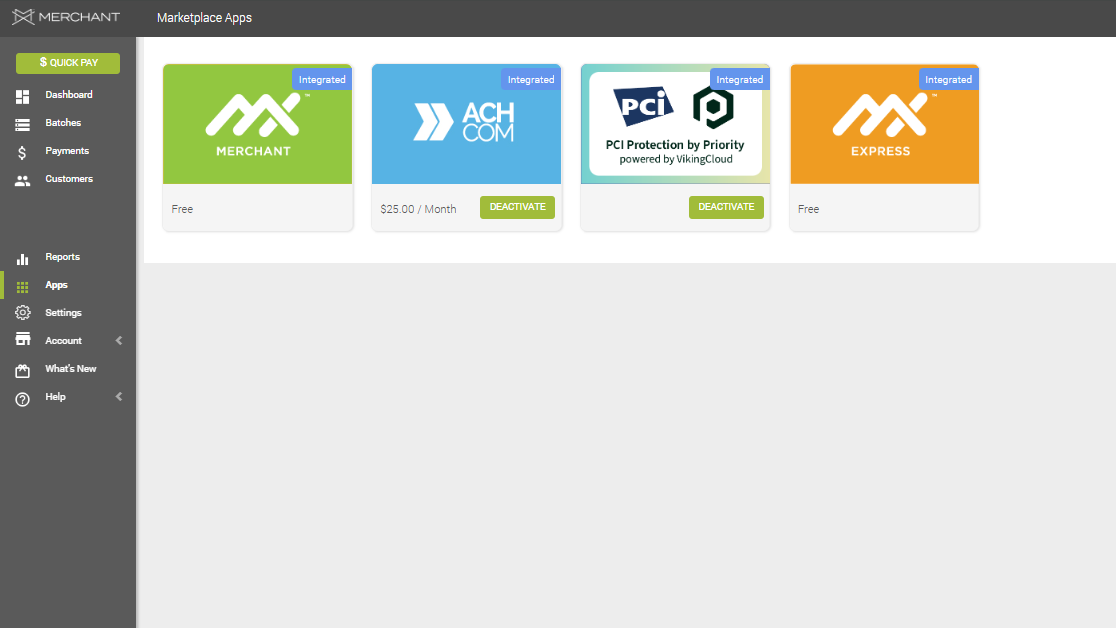
Like before, hover over the PCI Protection by Priority powered by VikingCloud app with your mouse. Click .
Step 5 - Complete Your Compliance
Your dashboard will show “Not compliant” and three boxes for:
- Your Business Profile
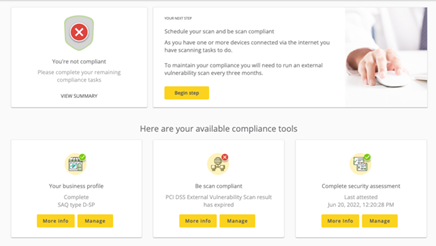
- Be Scan Compliant
- Complete Security Assessment
You'll start with the business profile. Correctly answering the business profile is critical – if the wrong profile is selected, your security assessment or “questionnaire” will not be accurate to your business.
Step 6 - Business Profile
Under "Your business profile", select "Manage".
Follow the prompts. If you are using the integrated point-of-sale, complete the following:
Q: PLEASE READ: PCI DSS 4.0 update
A: I understand
Q. Select Your Processing Method
A: POS Terminal
Q. Your Point-To-Point Encryption system: Is your Point-of-Sale system a PCI SSC Point-to-Point Encryption (P2PE) hardware solution? Select Your Processing Method
A: No
Q: Does your business electronically store credit card numbers? Do not keep credit card information in electronic files unless you have a compelling business reason to store the information. In most cases, you will reduce the level of effort required to comply with the PCI standard if you do not electronically store credit card numbers after authorization.
A: Yes
Q: Third Party Managed System Service Providers: Do you have relationships with one or more third-party service providers that manage system components included in the scope of this assessment, for example, via network security control services, anti-malware services, security incident and event management (SIEM), contact and call centers, web-hosting services, and IaaS, PaaS, SaaS, and FaaS cloud provider?
A: Yes
Q: Managed system component providers: Your service providers. You can add a new one or remove if the existing one is incorrect.
A: INGAGE LLC
NOTE: Make sure to hit the little "+" icon to the right of the textbox to add "INGAGE LLC".
Q: Other Third Party Service Providers that may impact cardholder data security: Do you have relationships with one or more third-party service providers that could impact the security of the merchant’s cardholder data environment (CDE)? For example, vendors providing support via remote access, and/or bespoke software developers.
A: Yes
Q: Other third party service providers: Your other third party service providers. You can add a new one or remove if the existing one is incorrect.
A: INGAGE LLC
Q: Does your business use or allow any remote administrative access?
A: Yes
Q: Does your company have a wireless network connected to the cardholder data environment?
A: Yes
Q: Do you agree with the above statements?
A: Yes
Q: Your company policy for information security
A: I already have an Information Security Policy in place that covers ALL of the relevant clauses of the Payment Card Industry Data Security Standard (PCI DSS)
Q: Password Policy: Do you enforce a minimum password length of seven characters, containing both numeric and alphabetic characters, for user accounts on all POS devices, computers and systems in your business?
A: Yes
Your profile result should be "SAQ-D".
If the resulting SAQ bullet points do not match your business, please email us to review together: payments@ingageit.com
Move on to the next step. Select the Priority logo or "Home" button if needed.
Step 7 - PCI Scan
Under the "Be scan compliant" section, select "Manage".
Select "Schedule scan". 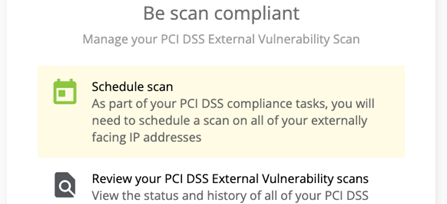
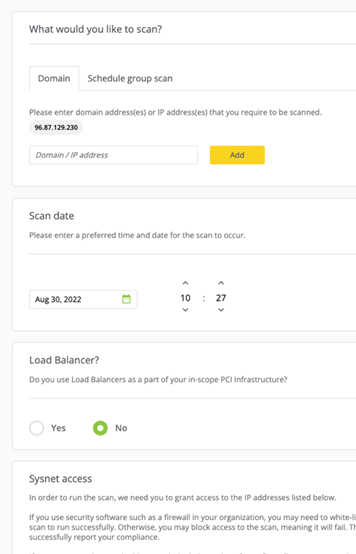
Your IP address will populate in the gray bubble. If you are at the location of the business, this is the business' IP address.
NOTE: Sometimes the IP Address will not submit properly. If this is the case you likely need to clear your cache and cookies. Please see this link for how to clear your cache and cookies: https://help.ingageit.com/books/help-mx-merchant-and-payments/page/how-to-clear-cache-and-cookies
If you are not at the business, you must get the local IP address from the business. This can be done by contacting us or having someone at the restaurant send it to you.
For "Scan Date", enter a time 2-3 minutes from now.
Scans can run at any time and it will not affect your business or ability to take payments.
Set "Load Balancer?" to "No".
Under "Sysnet access", check the box at the bottom and select "Schedule Scan".
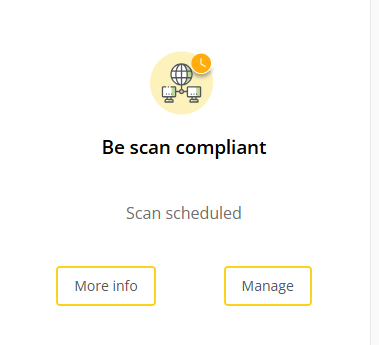
Sysnet will send you an email confirming your scan PASS or FAIL. It will go to the email on file (used earlier). Please check junk/spam as these emails are automated.
If your scan is a FAIL – call our support team at (612)-861-5277 or email us at payments@ingageit.com. Our I.T. support group will need to review your network and scan results to assist you. You will need to follow their direction and proceed with another scan.
If your scan is a PASS – log back into the PCI Protection by Priority powered by VikingCloud app and complete the final question of the questionnaire.
AS OF 7/1/26 Even if your scan is done finished running you will need to wait for the scan to be manually approved by Sysnet before you can move on to the Security Assessment. You will know this is completed if the bubble above the "Be scan compliant" screen turns from yellow to GREEN.
Step 8 - Finish Questionnaire
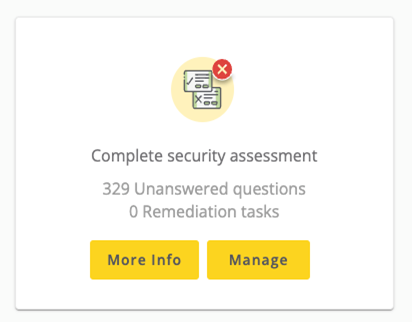
Under "Complete security assessment", select "Manage".
Follow the prompts. Select "Click to start your questionnaire".
Remember, this requires your scan to be done and passed before you begin this section!
All other questions are the responsibility of the merchant and must be answered according to the business’ unique handling of processing and policies.
The questionnaire CANNOT be passed without answering "yes" or "N/A" to all questions. There is a dropdown at the top of the page to filter questions which have not been answered "yes". If you require additional information to support these questions, the PCI Protection website includes a support line (which is not INGAGE) that can assist you.
You will not be allowed to submit your questionnaire if all answers are not marked as “yes” or "N/A". The Security Assessment may have questions that do not apply to you. If you select "N/A" on an answer it will require a short response. A simple response such as "This does not apply to us" or "N/A" will suffice. If it prompts you for a date, put in today's date..
Unfortunately, as your Qualified Integrator Reseller (QIR) we cannot answer these questions for you and we encourage all businesses to answer the questions thoroughly and honestly.
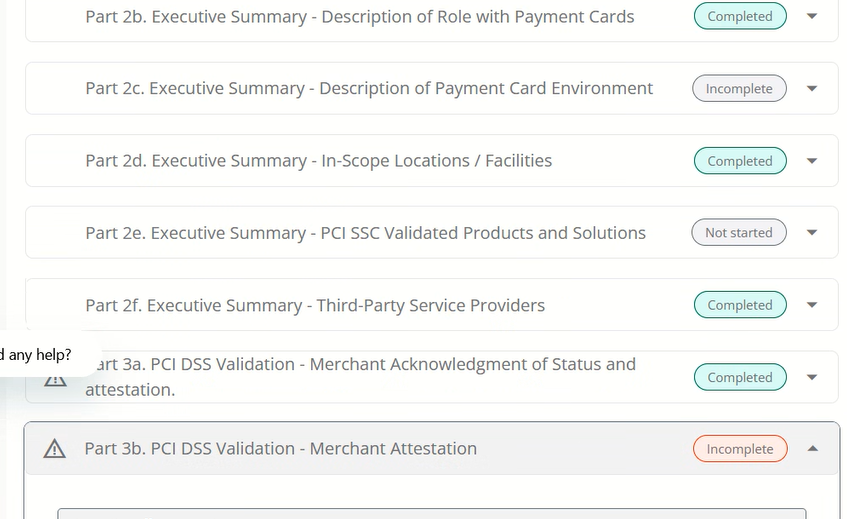
To finalize your attestation, all you'll need to do is enter in your name and title in two spots. These are denoted by an "Incomplete" section in RED.
If it is not highlighted in red, even if it says "Incomplete" or "Not started", it DOES NOT APPLY TO YOU.
Step 9 - Confirm Scan and Finish Questionnaire
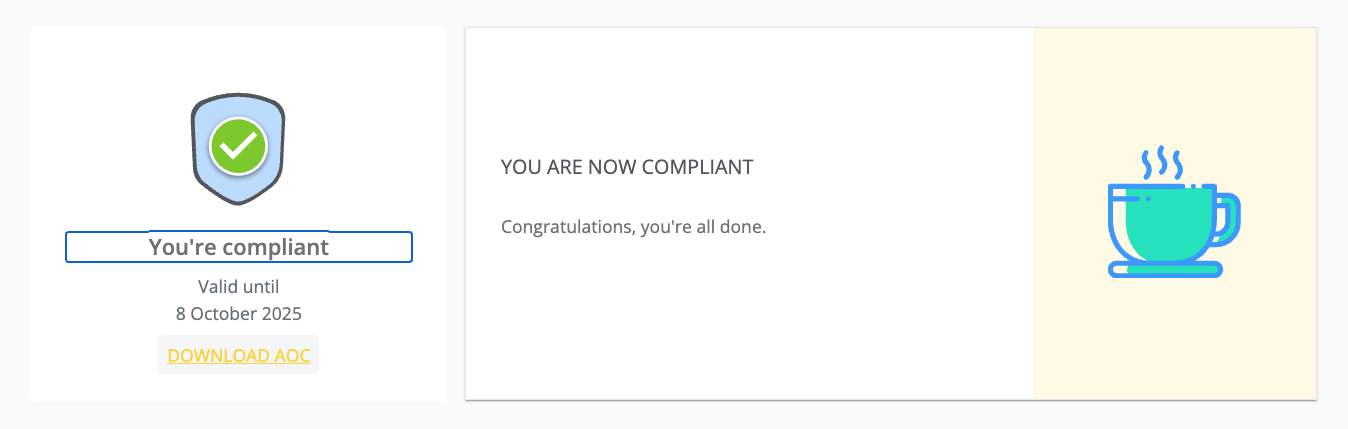
A green checkmark with "You're Compliant" should appear in the home screen. You should download a copy of your compliance certificate by selecting "DOWNLOAD AOC" (Attestation of Compliance) and email it to payments@ingageit.com so that we can guarantee your reflection of compliance.
There are no further steps: Congratulations on completing your PCI attestation!
REMEMBER: Although your compliance as a whole is good for a year from completion date, the SCANS must be completed quarterly. The next time you need to run your scan will be shown in the "Be scan compliant" box: