
How to add or edit deposits in Backoffice
BeingThis written.will walk through the Deposits screen in Backoffice. It lists the cash deposits recorded for your location, and lets you add, change or delete a deposit for tonight or for the last closed day - for example, when the deposit wasn't recorded on the terminal before the Daily Close. The daily report then shows whether the deposit matches the Amount Due: over or short.
Permissions you need
The Deposits screen shows only for job roles that have the Manage Deposits permission (Backoffice --> Staff --> Job Roles, under Reporting). Job roles that have the Sales Period Report permission were given it automatically.
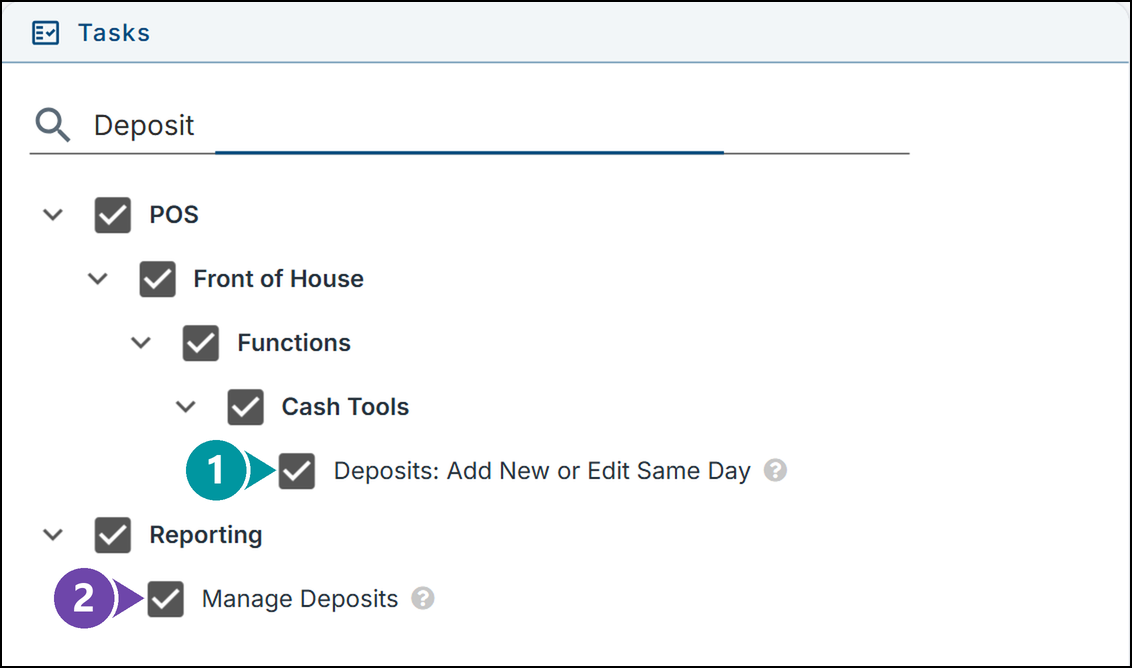
- 1. Deposits: Add New or Edit Same Day - Records, changes and removes tonight's deposits on the terminal.
- 2. Manage Deposits - Adds, changes and deletes deposits on this screen.
Getting to Deposits
Click Reporting at the top, then Deposits on the left.
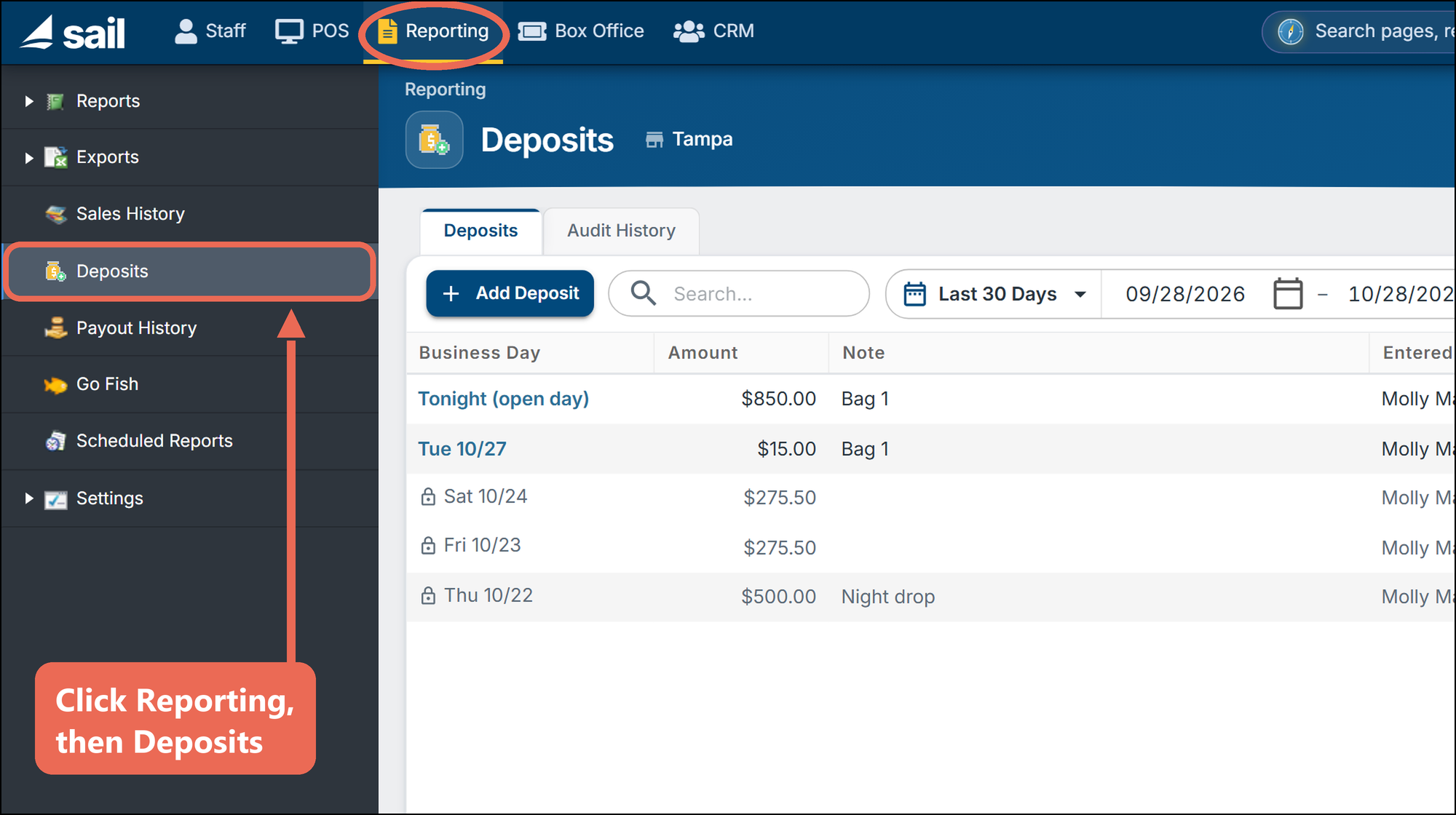
Note: Deposits are kept for one location, the one shown next to the page title. A business with more than one location picks the location there.
The Deposits list
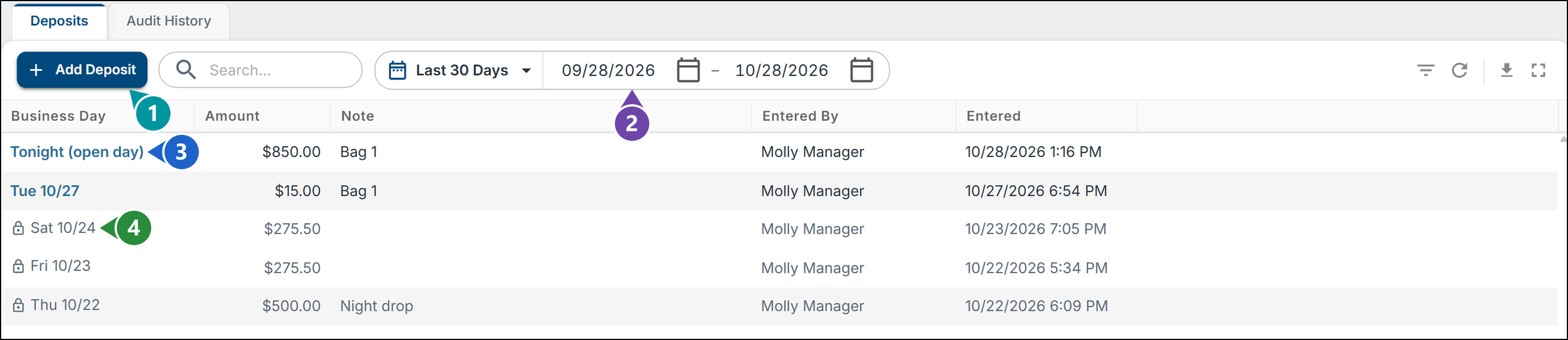
- 1. Add Deposit: adds a deposit (see Adding a deposit below).
- 2. Date range: the business days to list - a quick pick such as Last 30 Days, or type the dates.
- 3. Tonight and the last closed day: shown in blue. Click the day to change or delete the deposit.
- 4. Older days: shown with a lock. They can be opened to read but not changed.
Adding a deposit
1. Click Add Deposit.
2. Fill out the window and click Save:
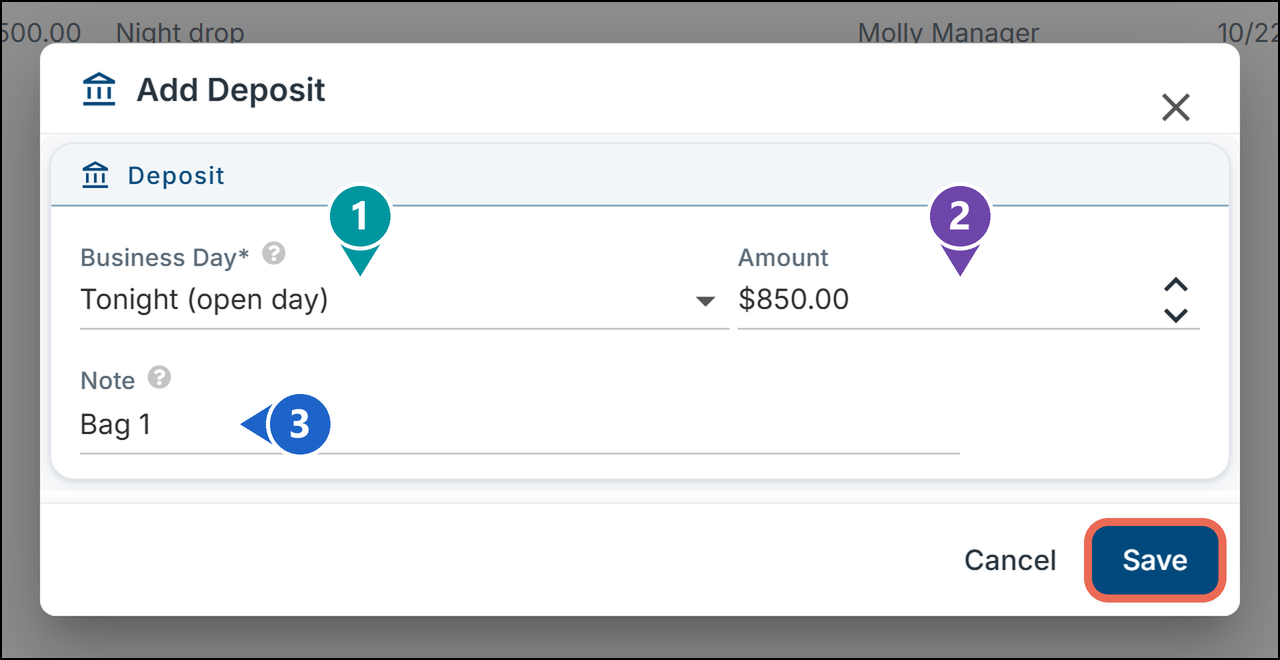
- 1. Business Day (required): Tonight (open day), or the last closed day, marked (closed).
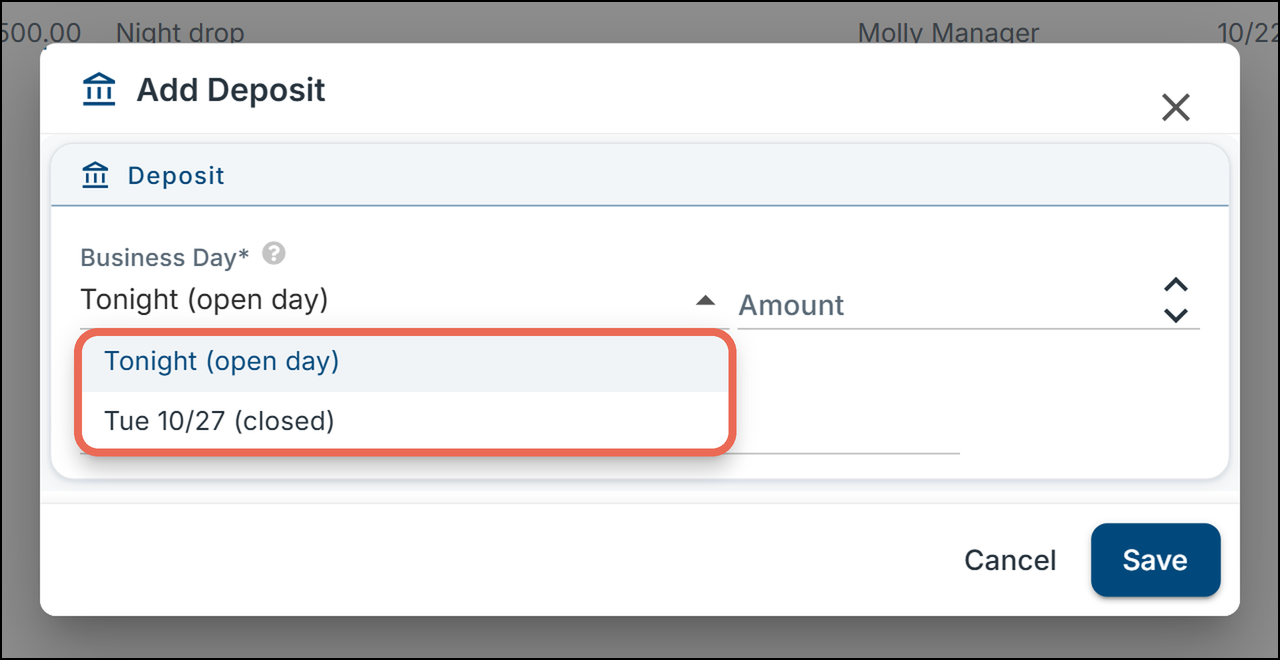
- 2. Amount (required): the amount of the deposit, in dollars and cents.
- 3. Note: anything that helps, such as the bag number.
Changing or deleting a deposit
1. Click the deposit's business day in the list (blue).
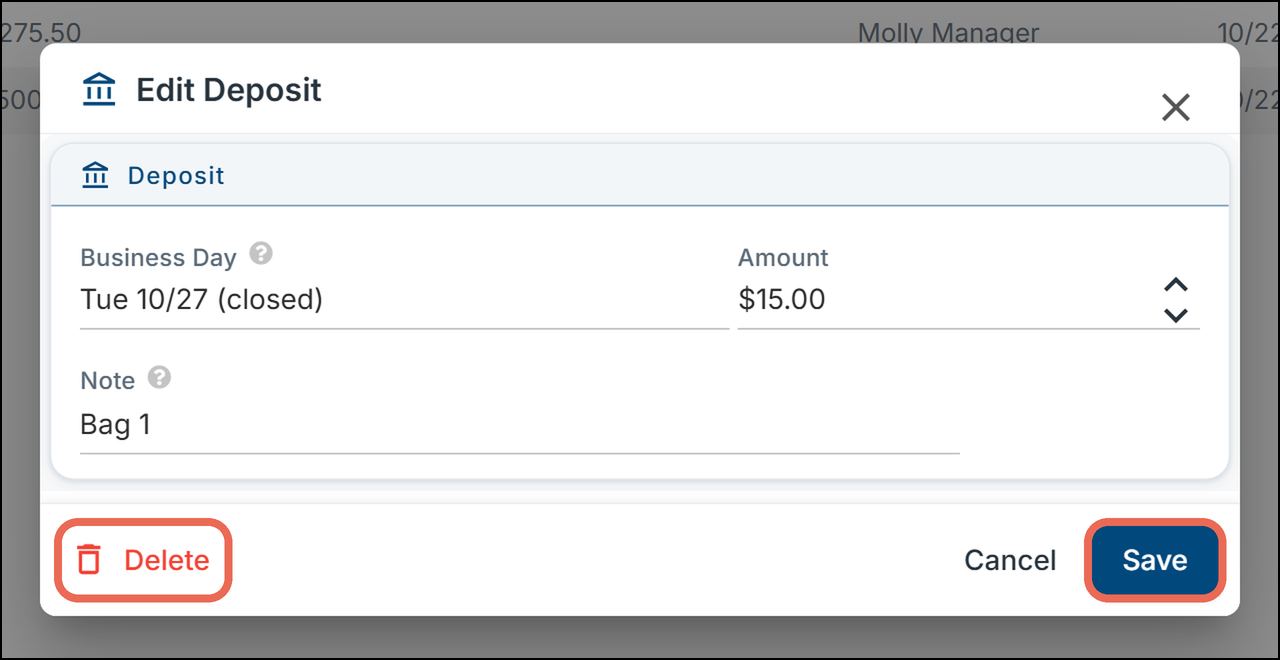
2. Change the Amount or Note and click Save, or click Delete to take the deposit off.
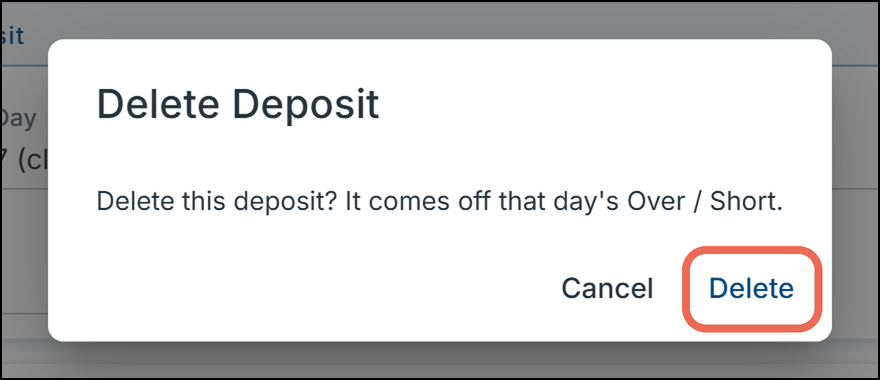
3. Delete asks first, because the deposit comes off that day's Over / Short. Click Delete.
Older days are locked
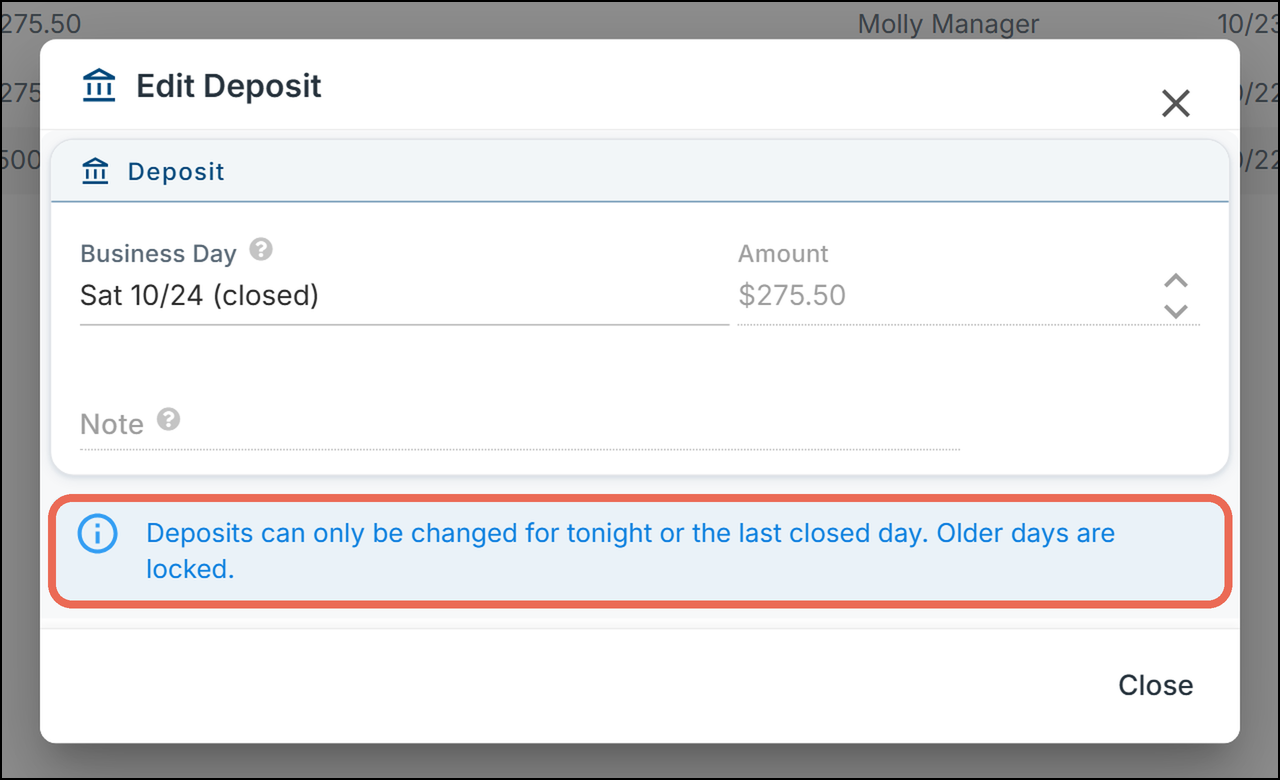
Deposits can only be changed for tonight or the last closed day. A deposit from an older day opens without Save or Delete, and says why.
Click here to learn more about the Daily Sales Report, where the Over / Short section shows each deposit.
If you'd like to learn how to record a deposit on a terminal, click here.