
How to create and use a Price Level
BeingThis written.document will walk you through creating a price level, attaching items to it, and changing menu and modifier prices in bulk.
A price level changes the price of the items you pick, on the days and at the times you pick. For example, a Happy Hour price level can take $1.00 off every bottle beer from 3:00 to 6:00 PM, Monday to Friday. The terminal uses the happy hour price by itself during those hours and goes back to the normal price afterwards.
Permissions you need
- Manage Price Levels (POS --> Back Office --> Settings) to create price levels and change prices.
- Toggle Price Levels (POS --> Front of House --> Functions --> Management) to turn a price level on or off from a terminal.
How to create a price level
-
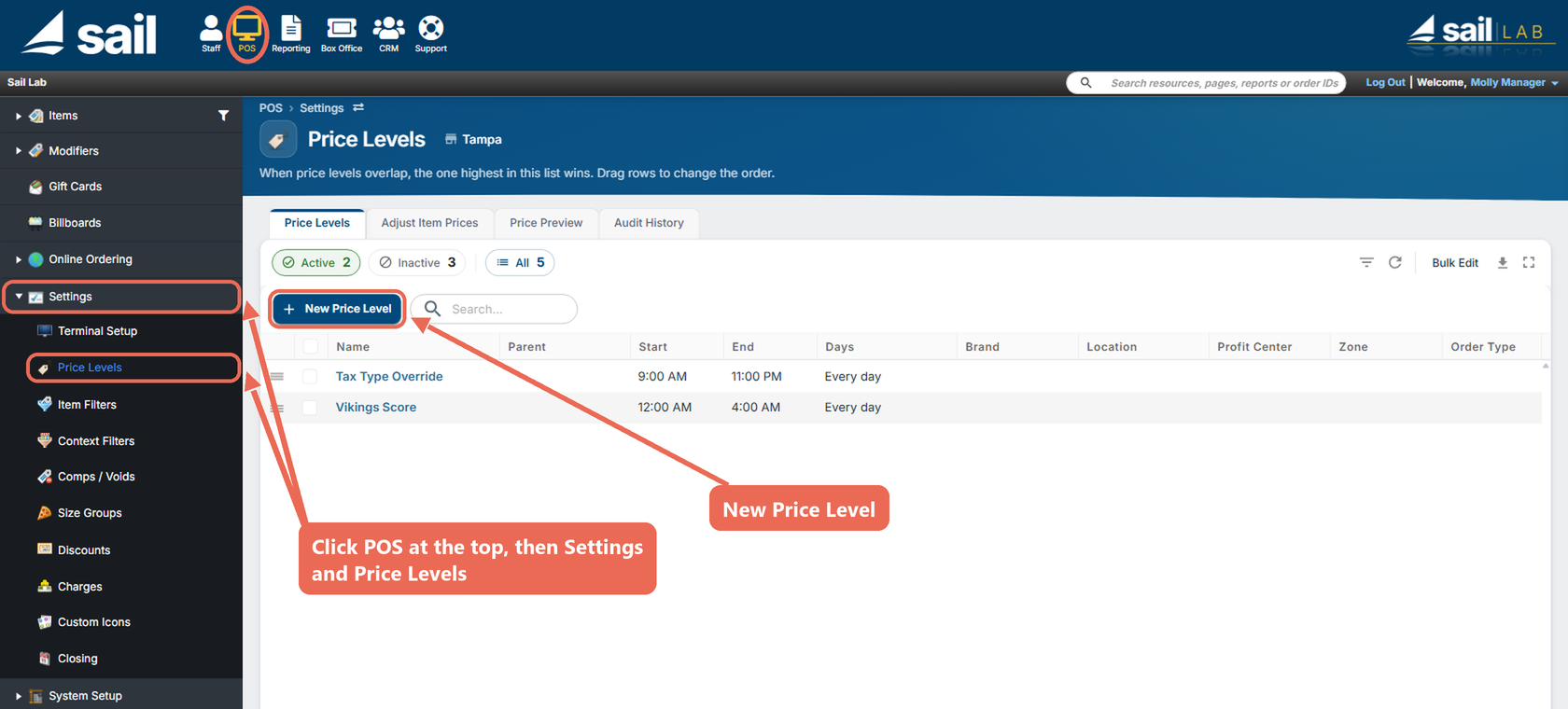
Click POS at the top, then Settings and Price Levels in the menu on the left. Click New Price Level.
-
Fill out the window:
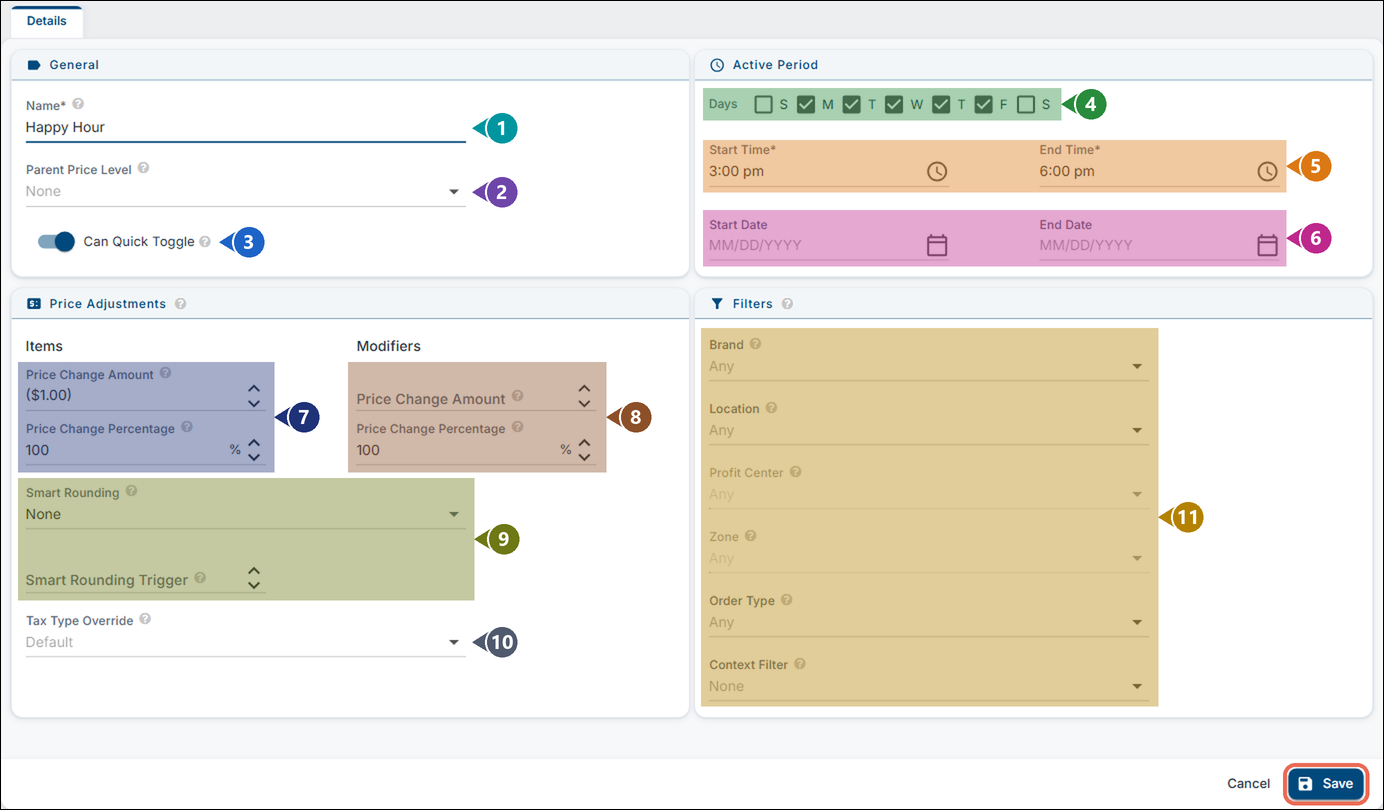
- Name (required): a short name your staff will recognize, for example Happy Hour.
- Parent Price Level: leave it at None. Use it for a second time slot of the same deal - for example a 9:00 PM to midnight happy hour that uses the same prices as the 3:00 to 6:00 PM one.
- Can Quick Toggle: turn it on to let managers turn this price level on and off from a terminal.
- Days: check the days the price level is on.
- Start Time and End Time (required): the hours it's on each of those days.
- Start Date and End Date: optional. Fill them in for a deal that runs only for a while, such as a holiday special.
- Items: how the price of each item you attach changes. Price Change Amount adds or takes off a dollar amount - type a minus sign to lower the price (-1.00 shows as ($1.00)). Price Change Percentage is the share of the normal price to charge: 100 means no change, 90 is 10% off, 110 is 10% more.
- Modifiers: the same two settings for modifier prices.
- Smart Rounding: optional. Rounds the new price, for example To 99¢ or Up To Next 25¢. With a "To" rounding, the Smart Rounding Trigger decides when to round down or up.
- Tax Type Override: optional. Charges a different tax on the attached items while the price level is on.
- Filters: optional. Leave them at Any to use the price level everywhere, or pick a Location, an Order Type (for example, Dine-In only, so To-Go keeps its normal price), a Profit Center or Zone (pick the location first), a Brand or a Context Filter.
-
Click Save. A new price level is Active. To stop using it, open it and turn off the Active switch at the bottom of the page.
Note: If your login has only some of your locations, pick one of them under Location. You can only change price levels set for your own locations.
How to attach items to a price level
A price level only changes the items attached to it. Attach many items at once on the Adjust Item Prices tab, or one item at a time in the item.
Many items at once
-
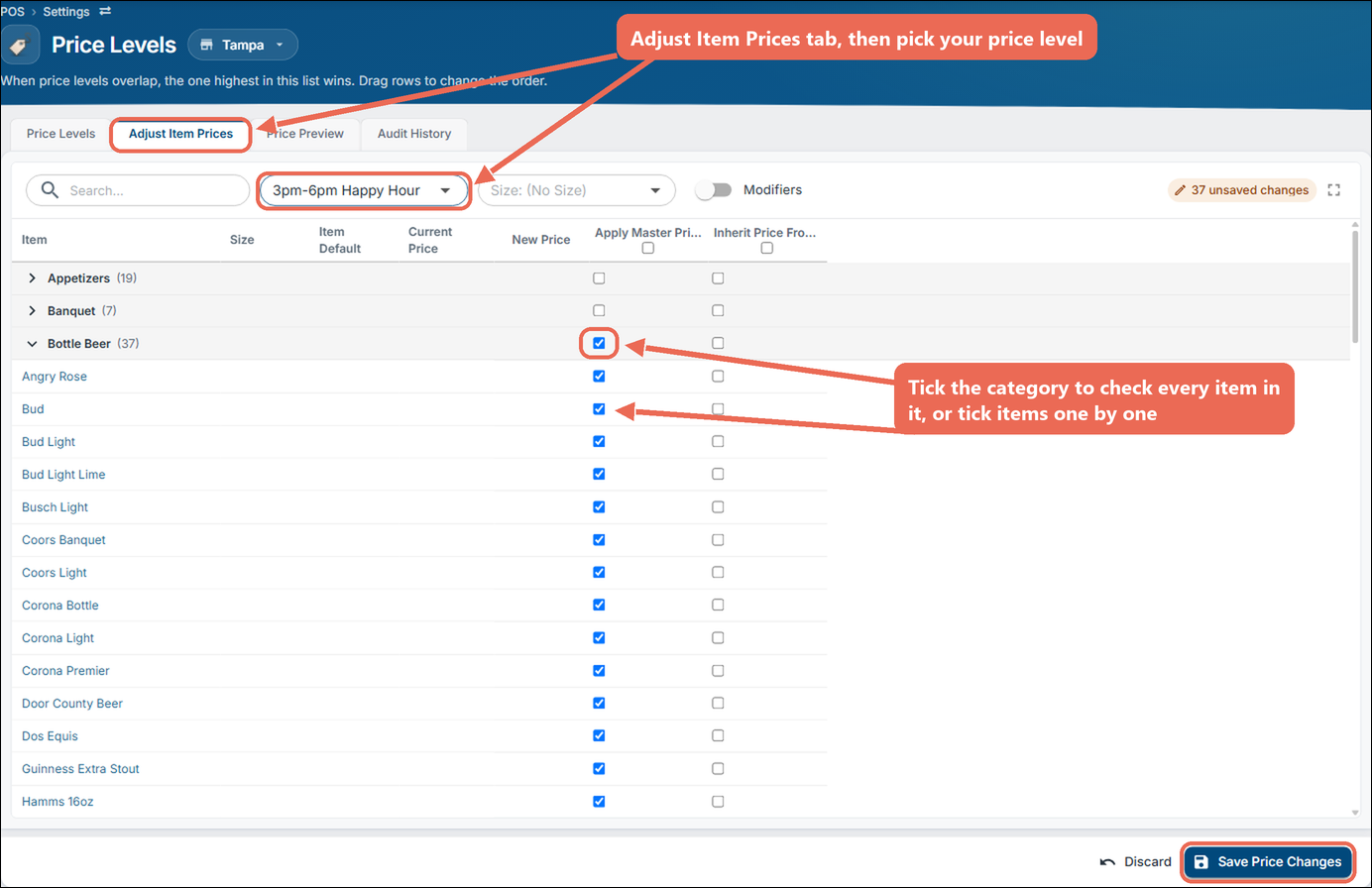
On the Price Levels page, click the Adjust Item Prices tab and pick your price level in the list next to the search box. The items are grouped by category.
-
Check Apply Master Price Change for each item that should get the price level's price change. Check the box on a category's row to check every item in it, or the box under the column name to check every item.
-
To charge a set price instead, type it in the item's New Price box and leave Apply Master Price Change unchecked.
-
Click Save Price Changes.
To attach modifiers, turn on the Modifiers switch next to the lists and check them the same way.
One item
-
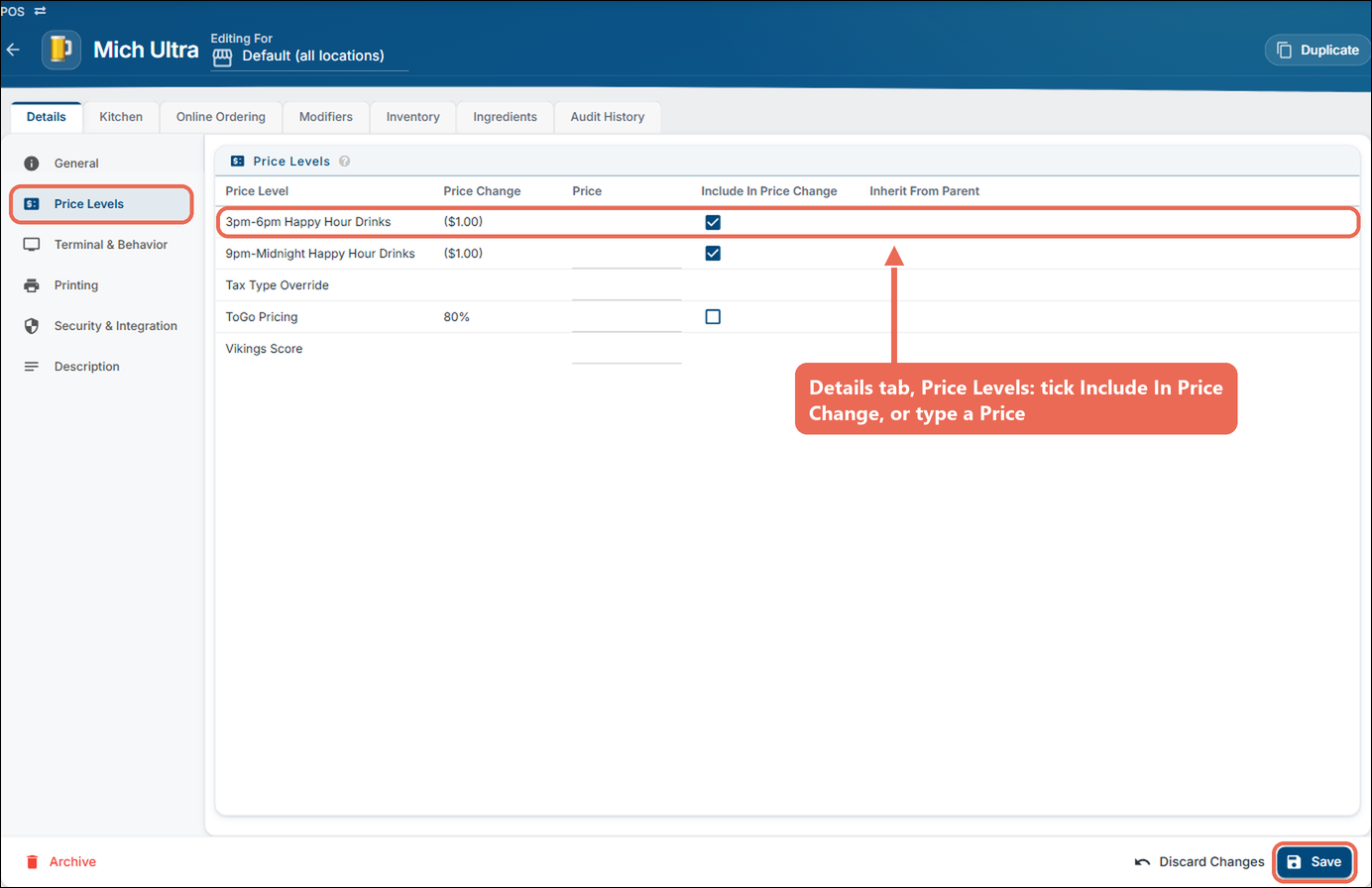
Open the item in Backoffice --> POS --> Items, then click Price Levels on the Details tab.
-
On the price level's row, check Include In Price Change, or type a set price under Price.
-
Click Save.
Click here to learn more about the item's Details tab
How to change menu and modifier prices in bulk
The Adjust Item Prices tab also changes your everyday prices, many at once, without opening each item.
-
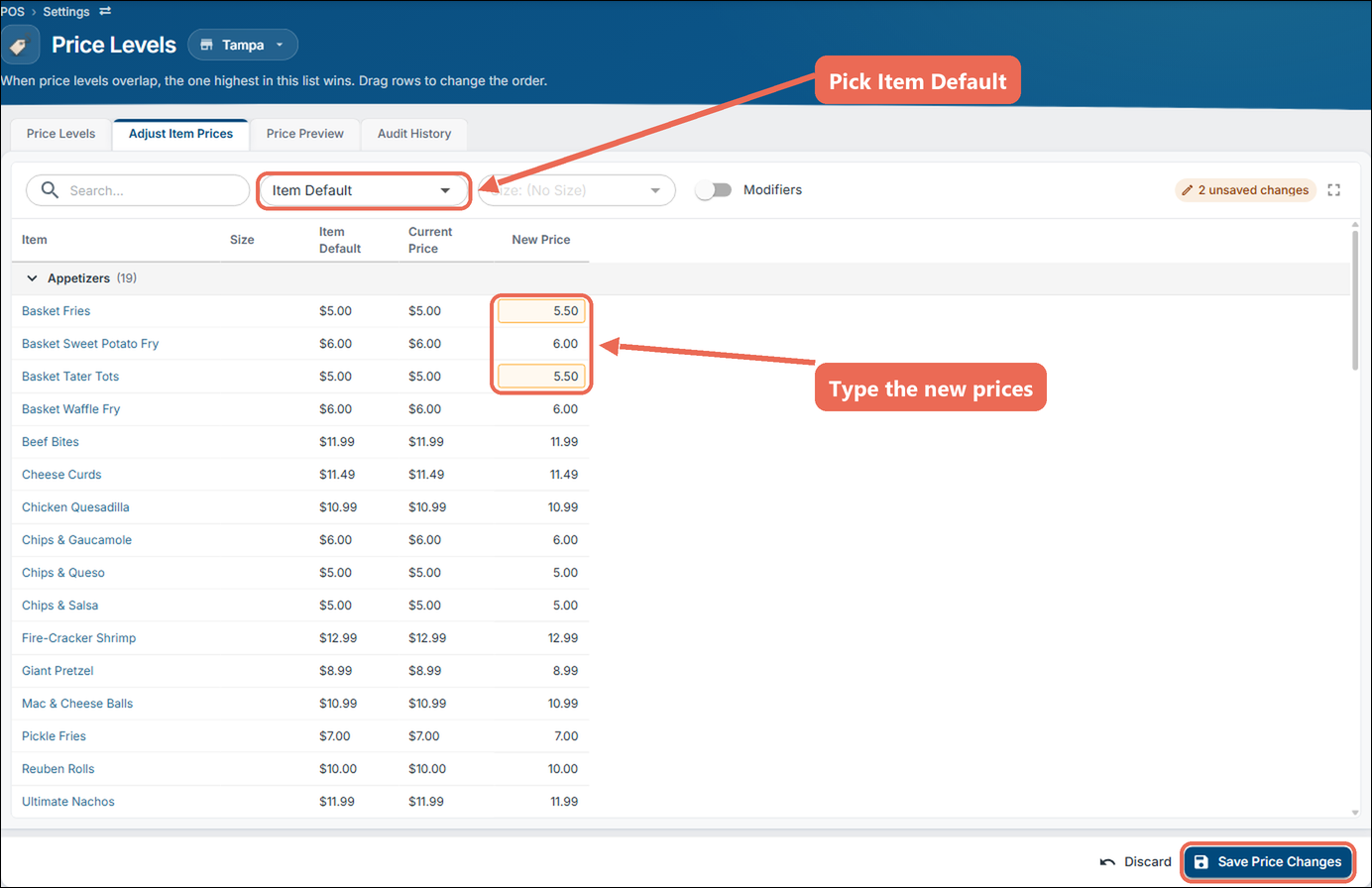
On the Price Levels page, click the Adjust Item Prices tab and pick Item Default in the list next to the search box. Item Default is each item's normal price at every location. To change the prices at one location only, pick Location Default and the location next to the page title.
-
Type the new prices in the New Price column. A changed price is highlighted until you save.
-
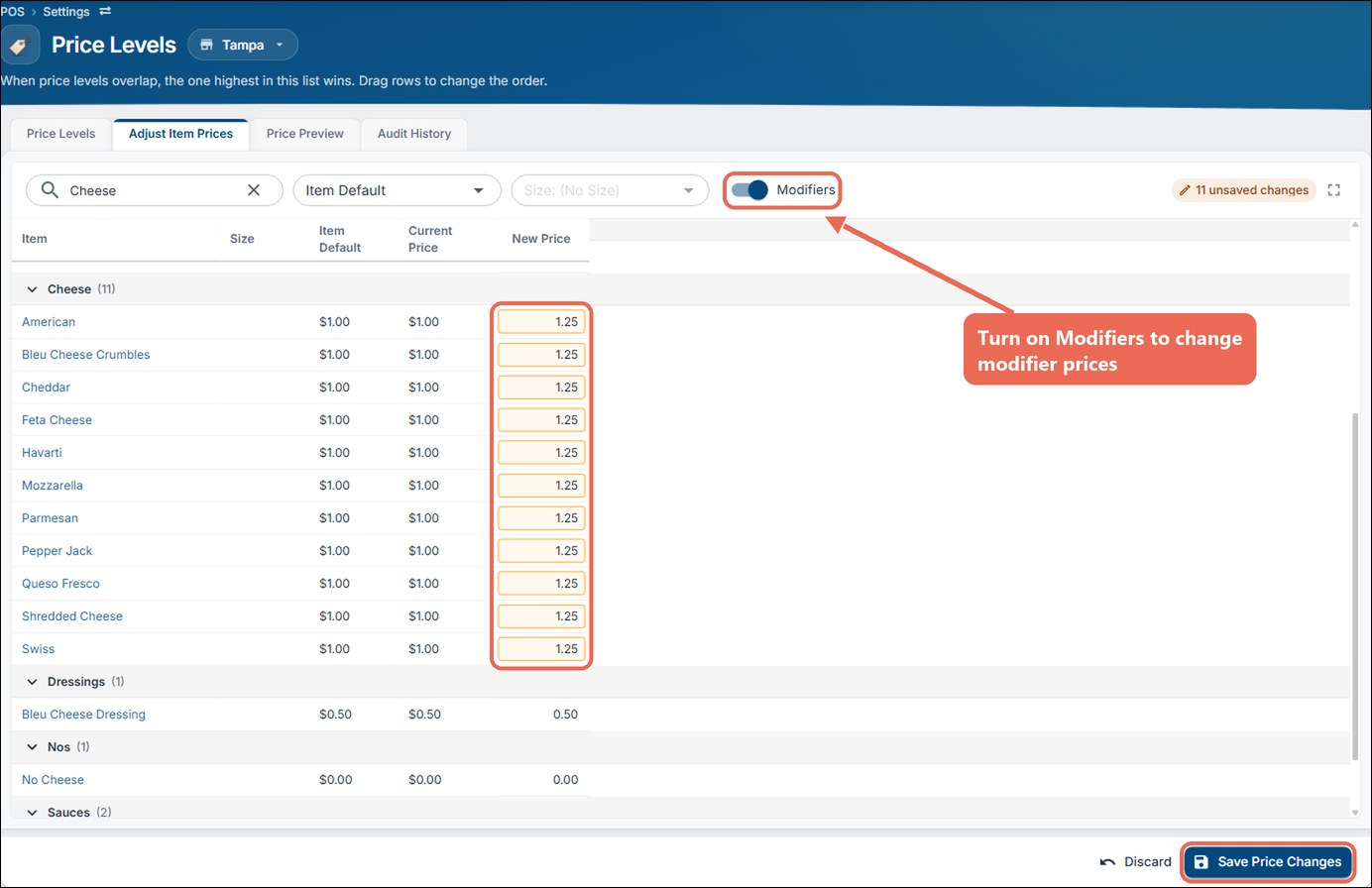
To change modifier prices, turn on the Modifiers switch. Type a word in the search box to find the modifiers quickly - for example "Cheese" to raise every cheese from $1.00 to $1.25.
-
Click Save Price Changes. To start over instead, click Discard.
Note: Item Default shows only for logins that have every location.
How to check the prices before they go live
-
On the Price Levels page, click the Price Preview tab.
-
Pick the Profit Center, Order Type, Date and Time to check - for example a Tuesday at 4:00 PM for a happy hour. After the first preview, click the pencil to change them.
-
Click Preview Prices. Type in the search box to find an item.
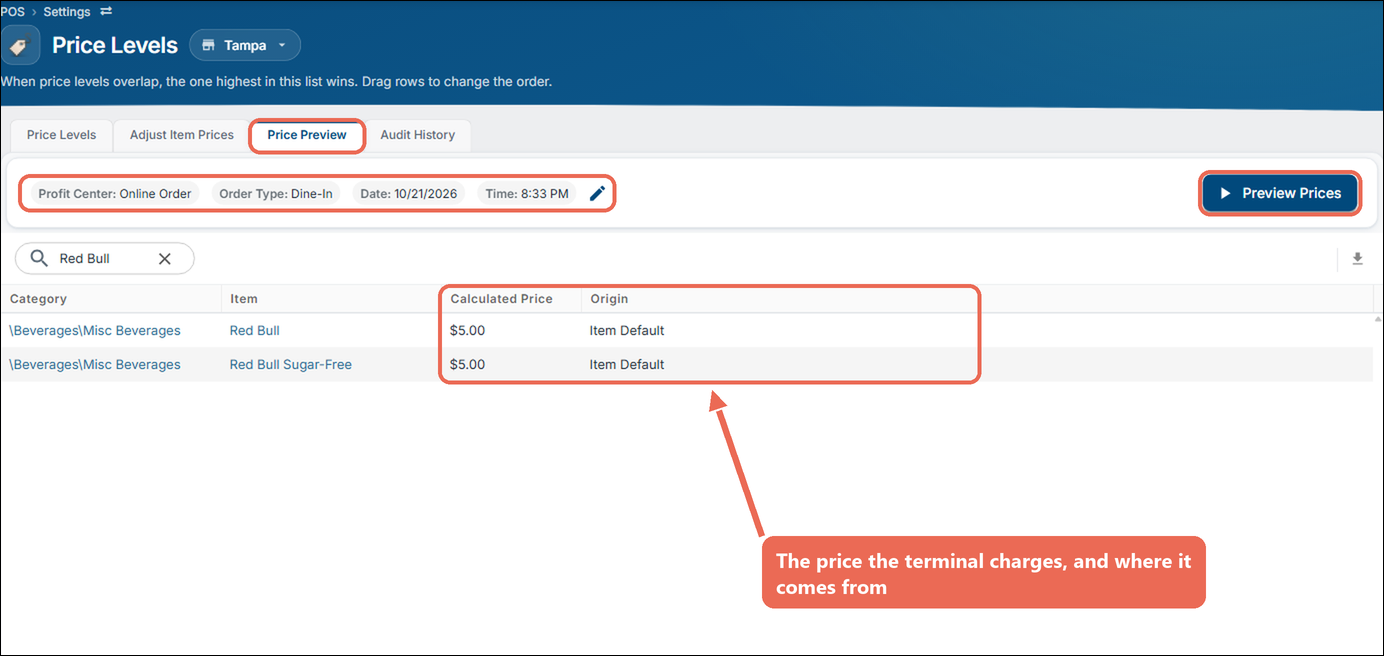
Calculated Price is what the terminal charges at that time, and Origin says where the price comes from: Item Default for the normal price, or the name of the price level that changed it.
When price levels overlap
When two price levels are on at the same time for the same item, the terminal uses the one higher in the list on the Price Levels tab. Drag a row by its handle on the left to move it up or down.
Turning a price level on or off from the terminal
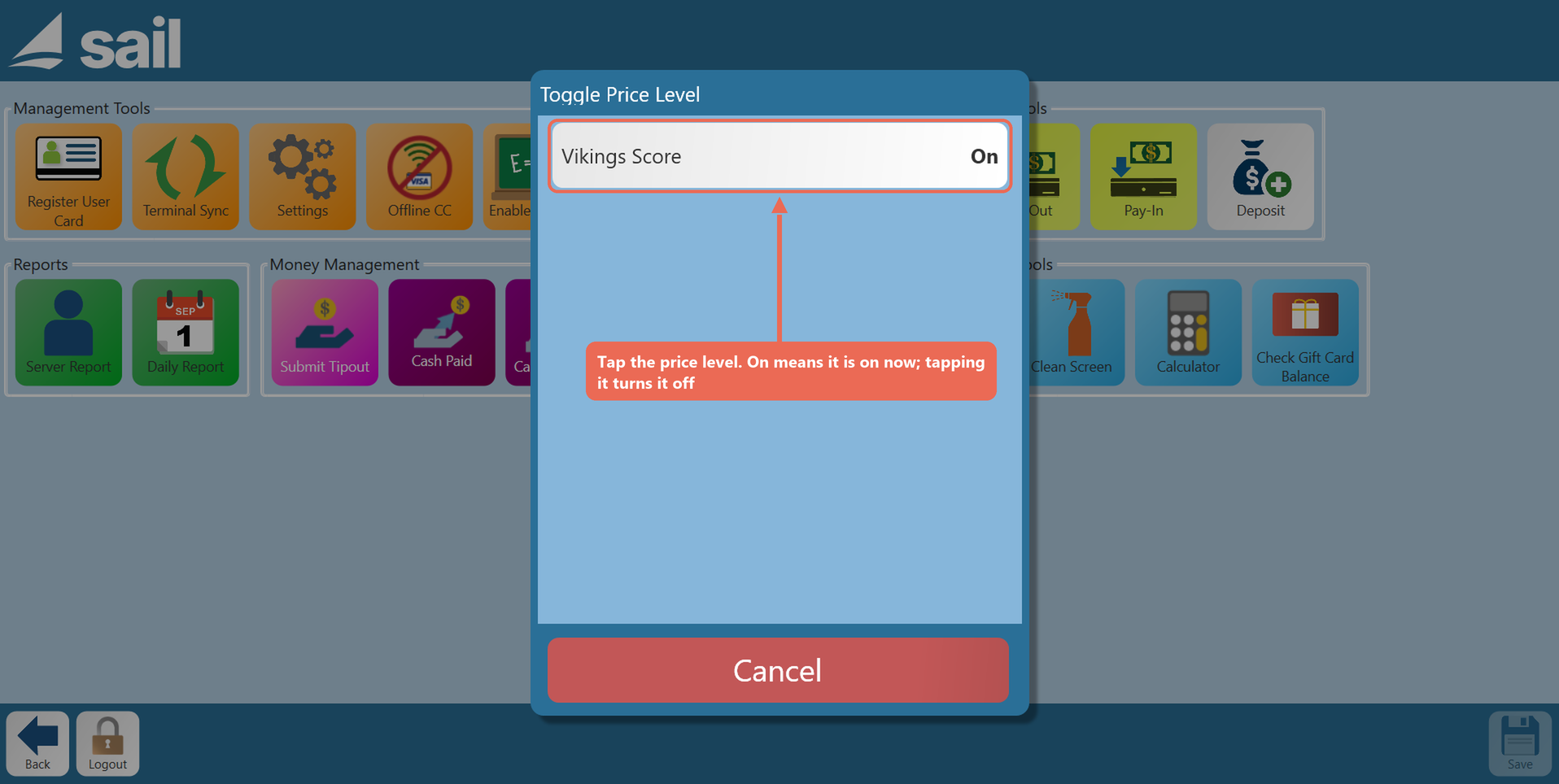
A price level with Can Quick Toggle turned on can be turned on and off on a terminal with Toggle Price Levels - handy for a deal you start by hand, such as a game-day special.
-
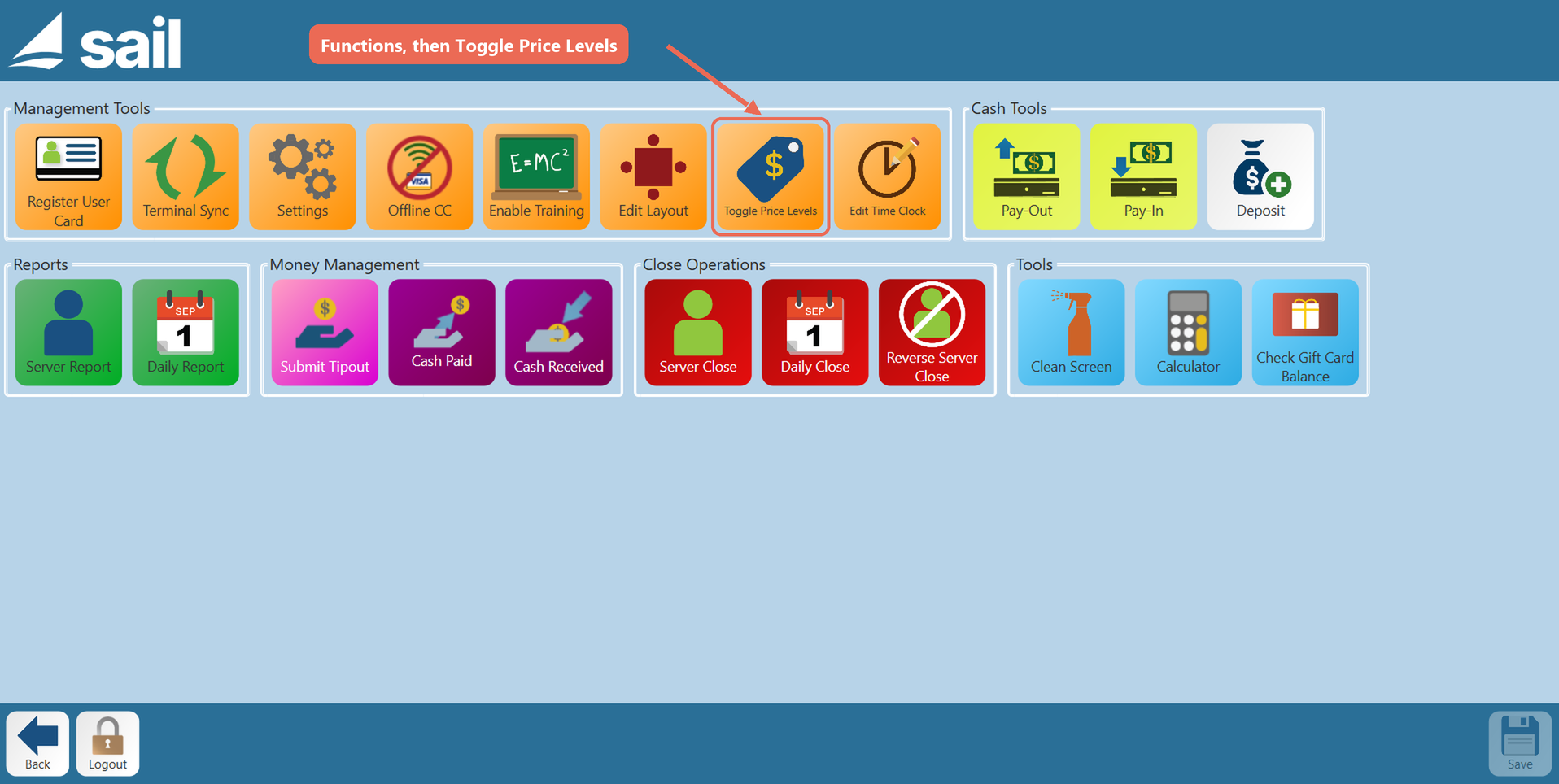
Log in, tap Functions, then Toggle Price Levels.
-
Tap the price level. The list shows each one as On or Off: tapping one that's on turns it off, and tapping one that's off turns it on.
-
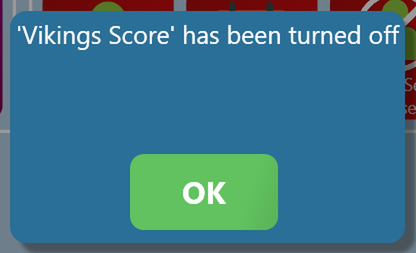
The terminal says the price level has been turned on or off. Tap OK.
Note: A price level turned on here stays on until someone turns it off, and it still changes prices only on its days and at its times.
If you'd like to learn how to turn a price level on or off on a terminal, click here