
How to Deactivate or Reactivate an employee.
This Document is about how to deactivate and re-activate an employee that was once moved to inactive status. Active status means that the employee can log into and out of Sail POS terminals, devices, and Backoffice. They will only be able to log into Backoffice if their account is set up to have a Backoffice login.
-
Log into Backoffice.
-
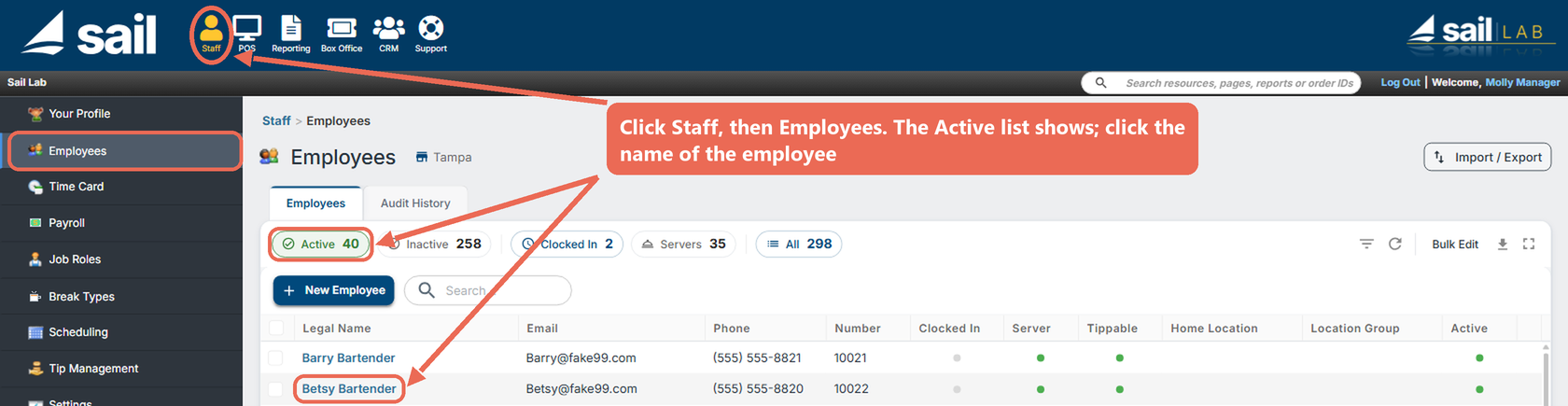
Click Staff at the top, then Employees in the menu on the left.
-
The Employees screen brings up all the active employees: the Active filter above the list is selected, and the green dot in the Active column shows that they are currently active in the system.
To deactivate an employee
-
Click the name of the employee you wish to deactivate.
-
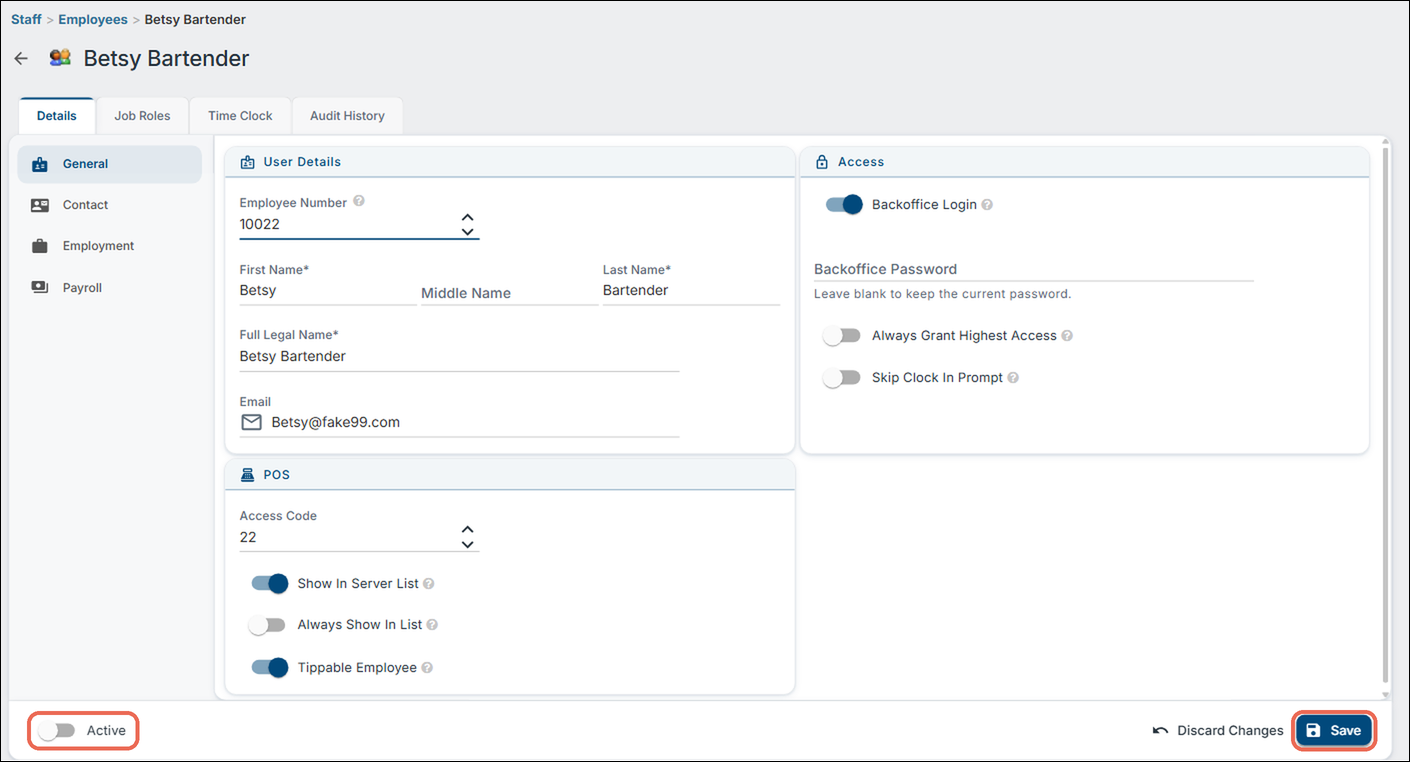
Turn off the Active switch at the bottom left of the employee's page.
-
Click Save at the bottom right.
-
Now the employee has been deactivated in the system and will no longer be able to log in.
To re-activate an employee or to view inactive employees
-
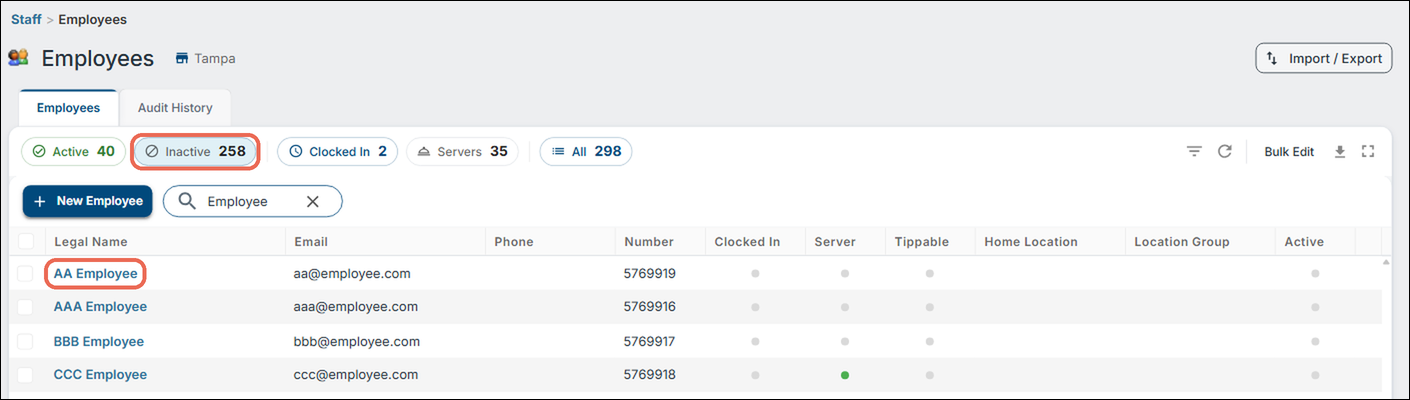
Click the Inactive filter above the list. This will show all the inactive employees only. You can type a name in Search to find the employee.
-
Click the name of the employee you wish to re-activate.
-
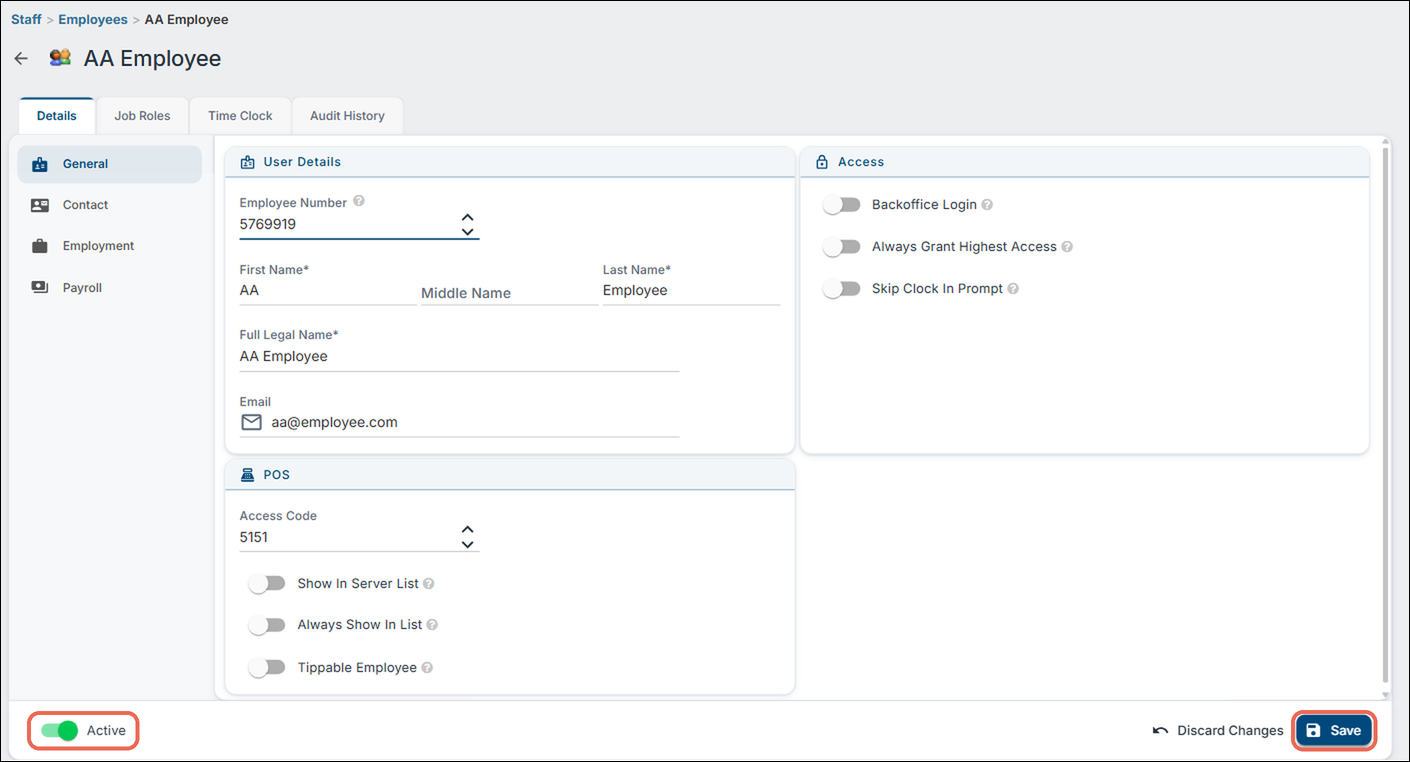
Turn on the Active switch at the bottom left of the employee's page to make them active again.
-
Click Save at the bottom right.
-
Now the employee is active in the system again and will populate in the active list. The employee can now log back into the terminals and devices.