
How to search in Backoffice
BeingThe written.search box at the top of every Backoffice screen, Compass, finds pages, reports, settings, menu items, orders, customers and help articles from one place, so you don't have to remember where something is in the menus. This will walk through searching and what each kind of result does.
Opening the search
Click Search or ask Compass… at the top of the screen, or press Ctrl+K (Cmd+K on a Mac) from anywhere in Backoffice. You can also press / when you aren't typing in a box.

Searching
- Type a word or two, like time card. Results show as you type, grouped by kind.
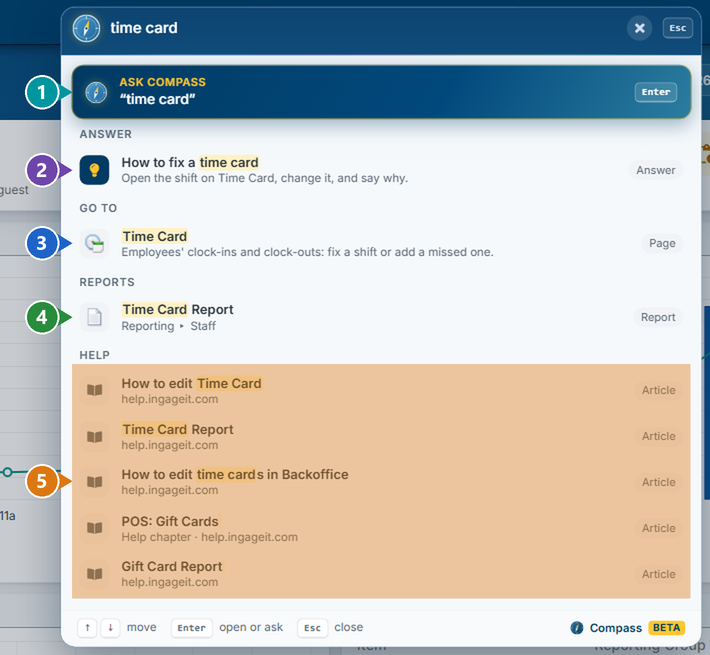
- Click a result to open it.
What the results are:
- Ask Compass - asks your words as a question, like "Top 10 items this month" or "How do I fix a time card?".
- Answer - short steps for a common task. Click it to read them.
- Go to - Backoffice pages, with a line on what each one is for.
- Reports - your favorite reports and custom reports first, then the regular reports.
- Help - articles from this help site. They open in a new tab.
Depending on what you type, you may also see Commands (like New Item or New Employee, which open a blank editor - nothing is saved until you click Save), Settings, Records (items, modifier items, discounts, employees, terminal screen tabs and more), Customers (by name, email or phone number) and Orders.
Note: You only see what your job role lets you open.
Pro tip: You don't need the mouse: use the up and down arrows to pick a result, Enter to open it, and Esc to close the search.
Finding an order
Type the order number. The last 4 digits are enough.
- Click the order to see it (1). Orders from the last 30 days show here, with their location, time, total and whether they're open or closed.
- For an older order, click Find order (2) - it looks through every date.
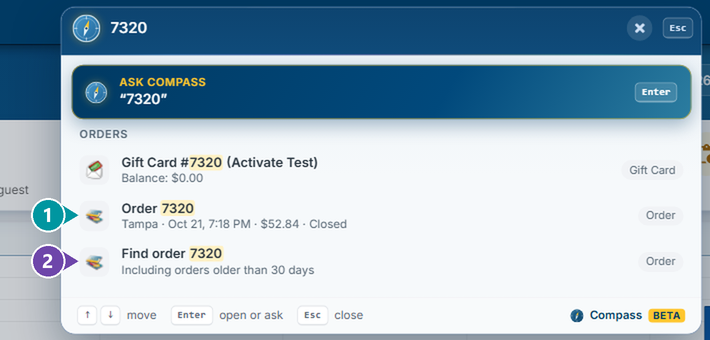
A gift card with that number shows here too, with its balance.
Finding a setting
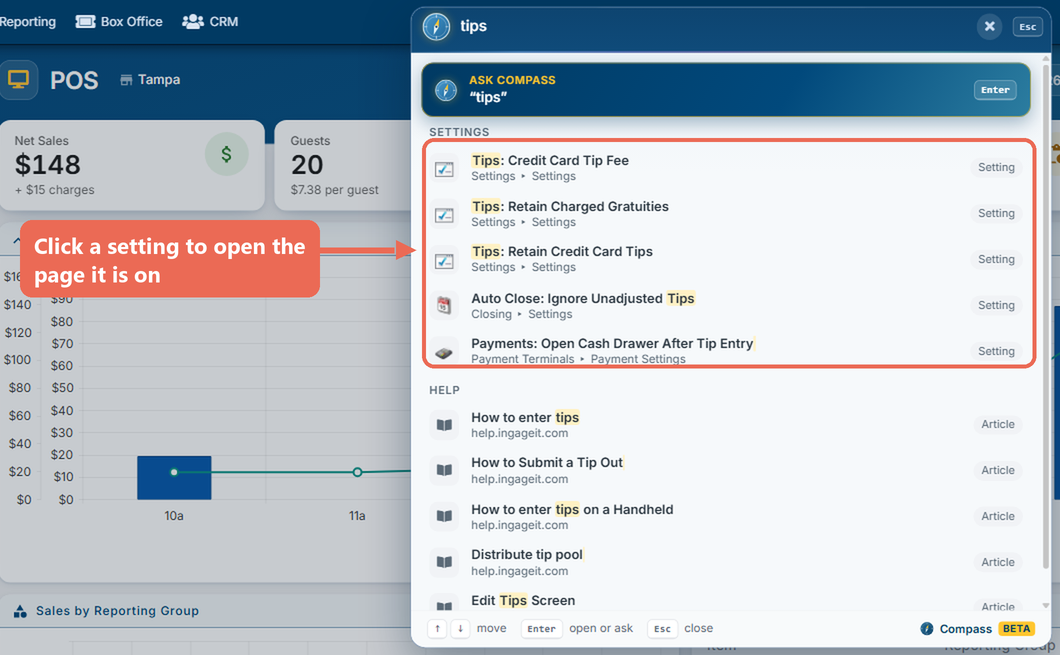
Type what the setting is about, like tips. Click a setting to open the page it's on.
Click here to learn more about asking Compass about your sales.