
Toggle Online Ordering Status
This article provides instructions on how to manually toggle the online ordering status. These methods are intended for use only when online ordering needs to be turned off during scheduled operating hours. To adjust the regular online ordering schedule, navigate toopen the site's Schedule tab, then Hours tab, under Site Configuration.
Permissions you need
- POS --> Back Office --> Online Ordering --> Manage Configuration: opens Site Configuration in Back Office (Method #1).
Method #1 - Back Office
Log in to Sail Back Office and navigatego to POS --> Online Ordering --> Site Configuration, then click on the pencil next to Main. For multi-store sites, you will see multiple instances of online ordering sites listed. 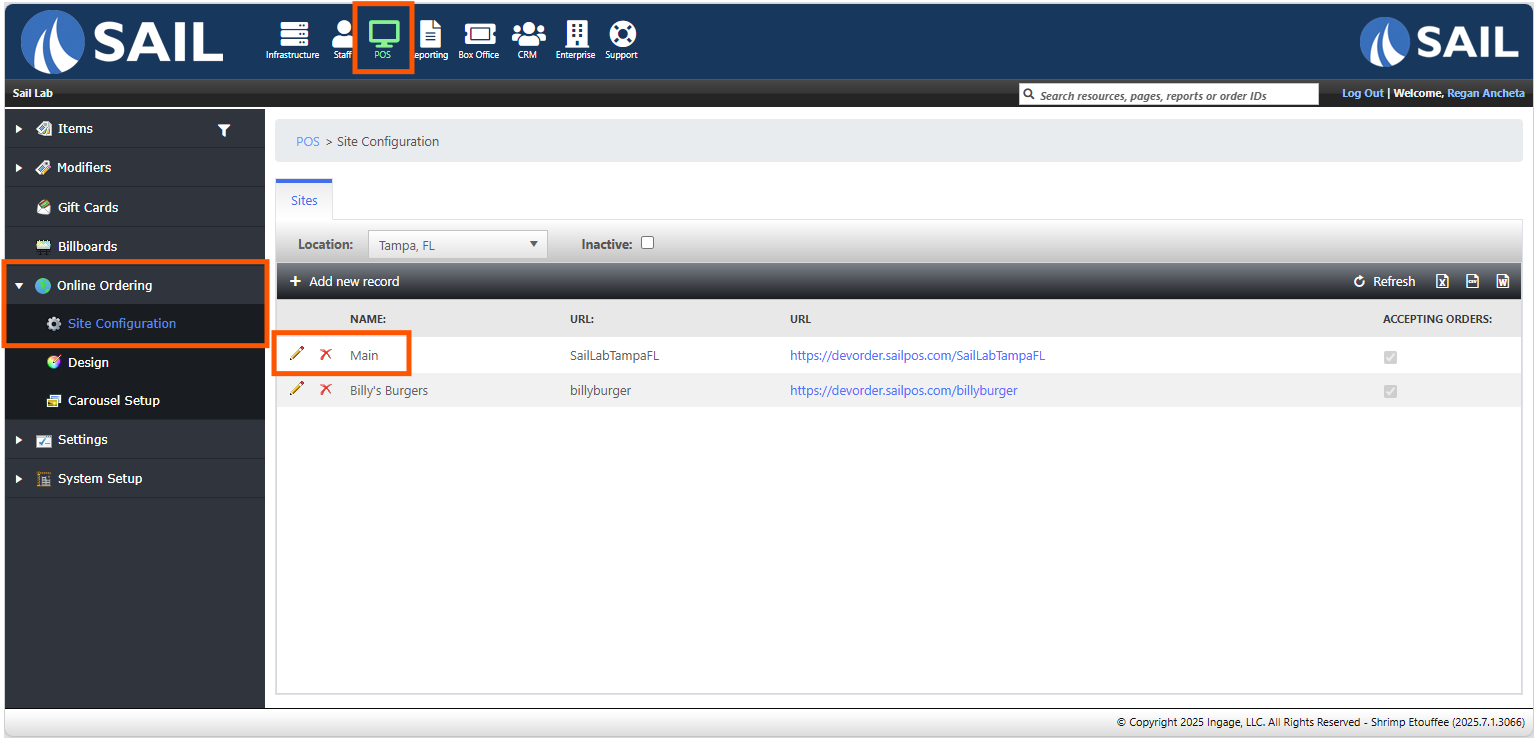
Under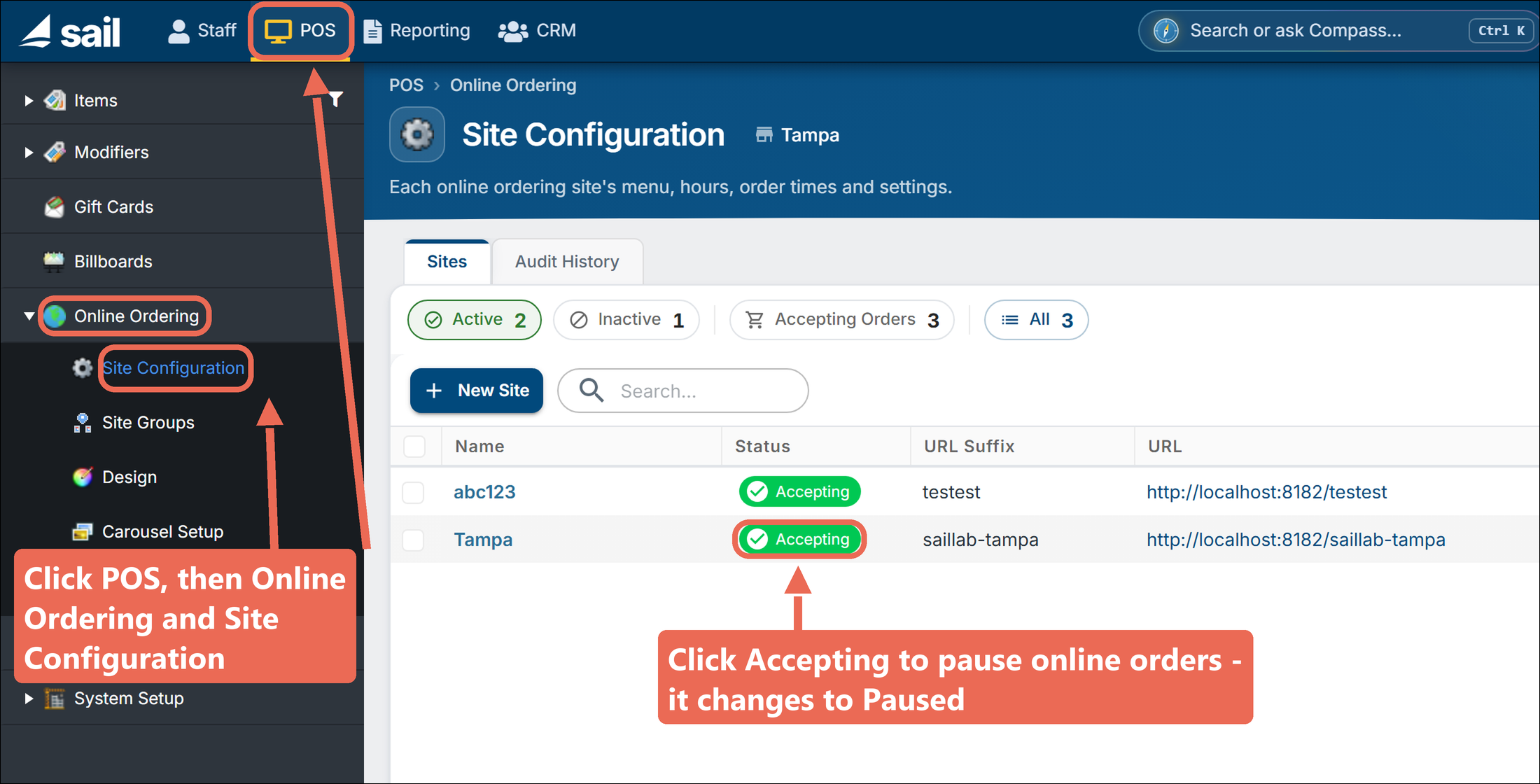
You can also do it on the site's own page: click the site's name. On the Configuration tab, General, look at the Availability section,section:
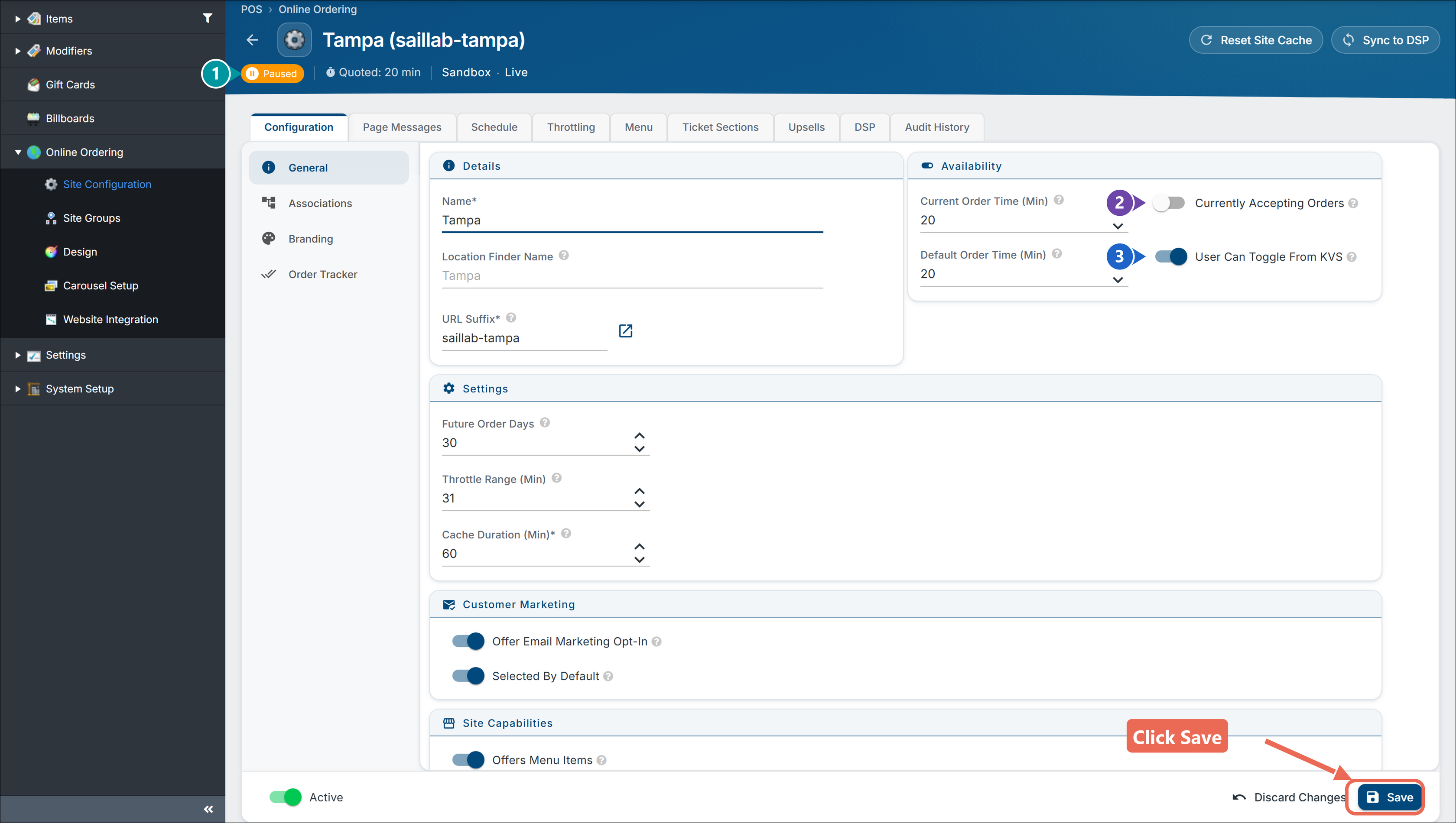
- Status at the
checktopboxofforthe page: Online while the site is taking orders, Paused when you've stopped it. Click it to pause or start taking orders right away - no need to save. Outside the site's hours it says Closed instead. - Currently Accepting Orders: turn it off to
togglestopthetakingstatus eitherorders, onortooff,take them again, then clickSave.Save. - User Can Toggle From KVS: on shows the Accepting Online Orders button on the Kitchen Video screen (Method #2), so the kitchen can pause online ordering. Off hides it. Click Save after changing it.
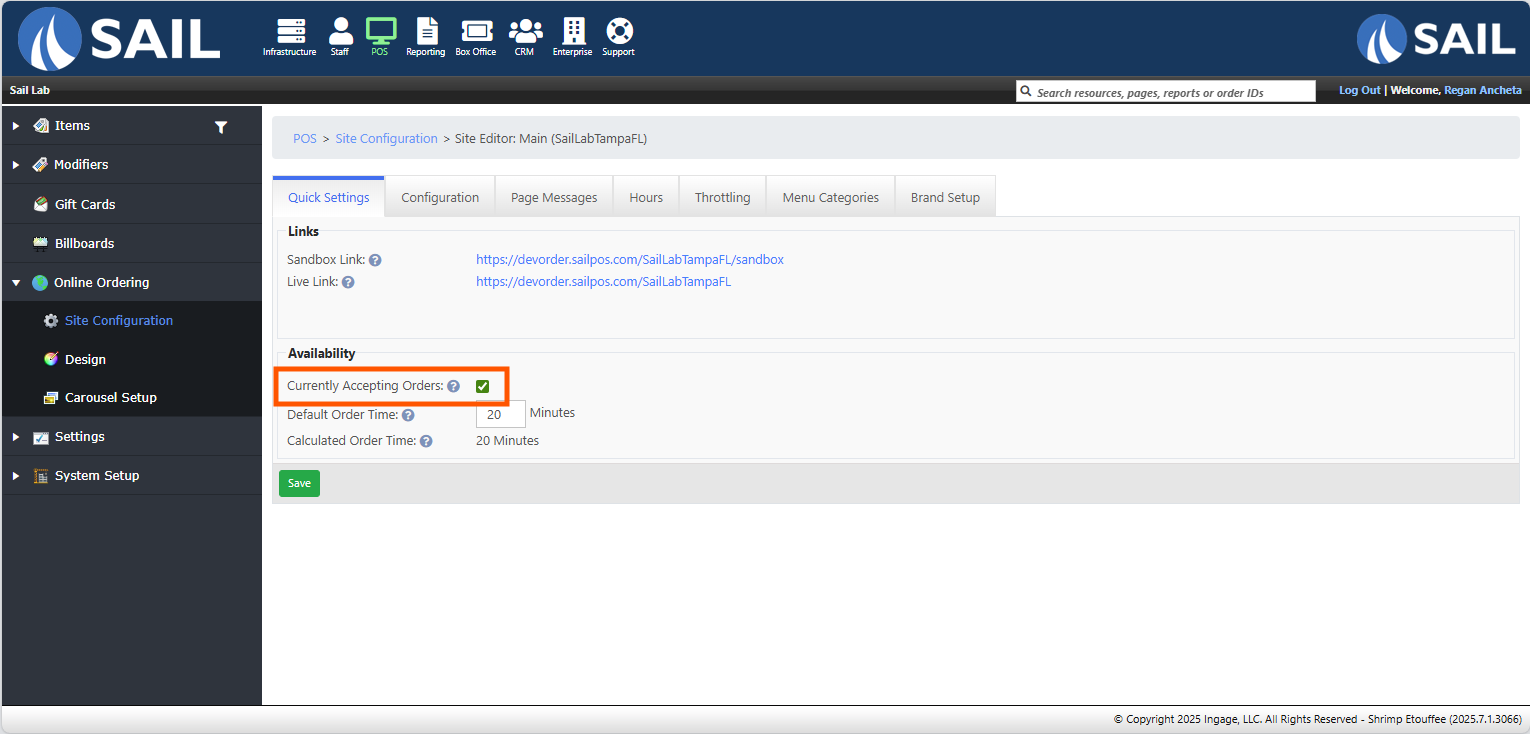
Method #2 - Expo Screen
At the bottom of the Expo screen display, there is a button that will most likely be green with the text Accepting Online Orders.Orders. It shows only when User Can Toggle From KVS is on for the site (Method #1, item 3).
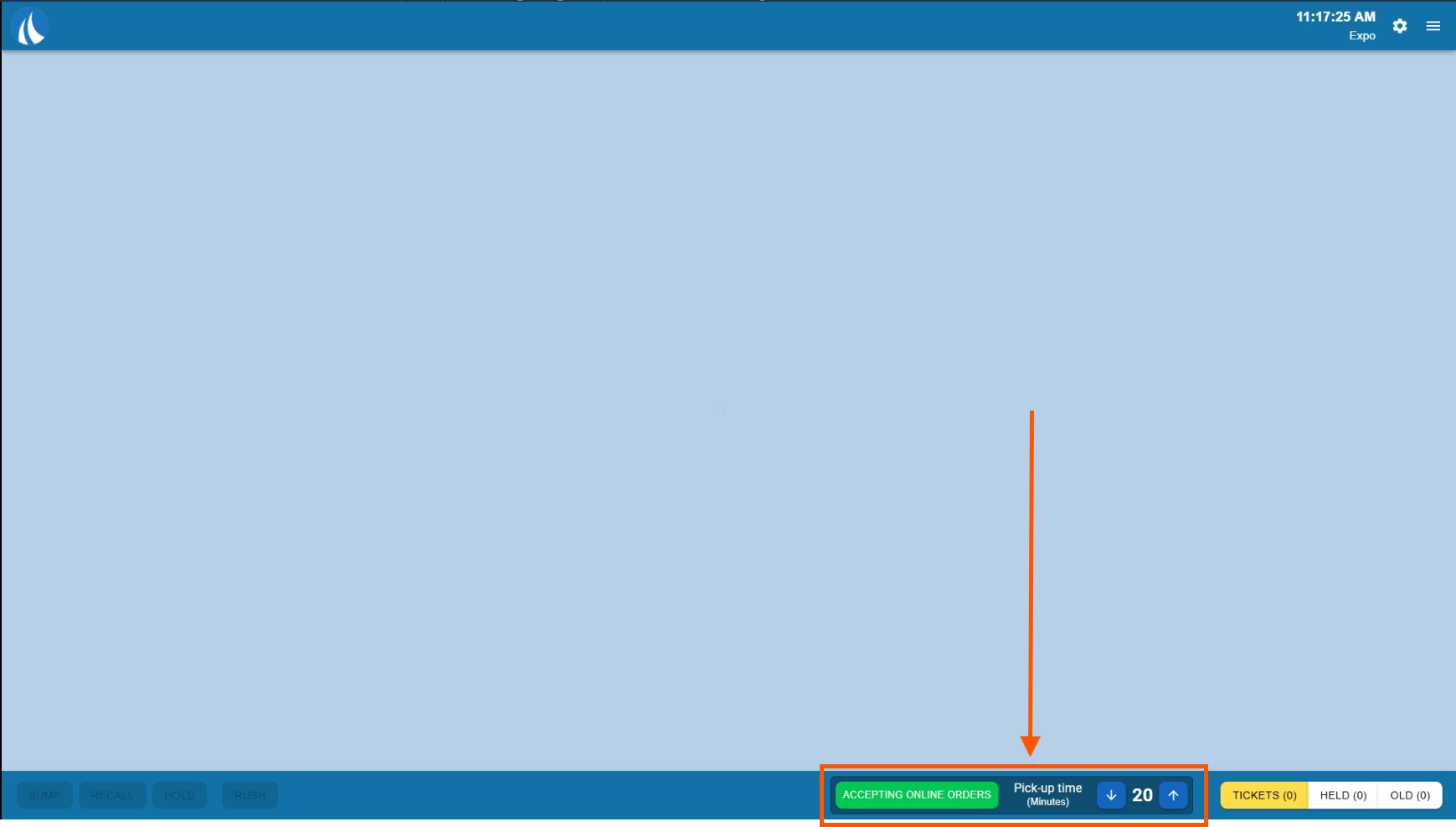
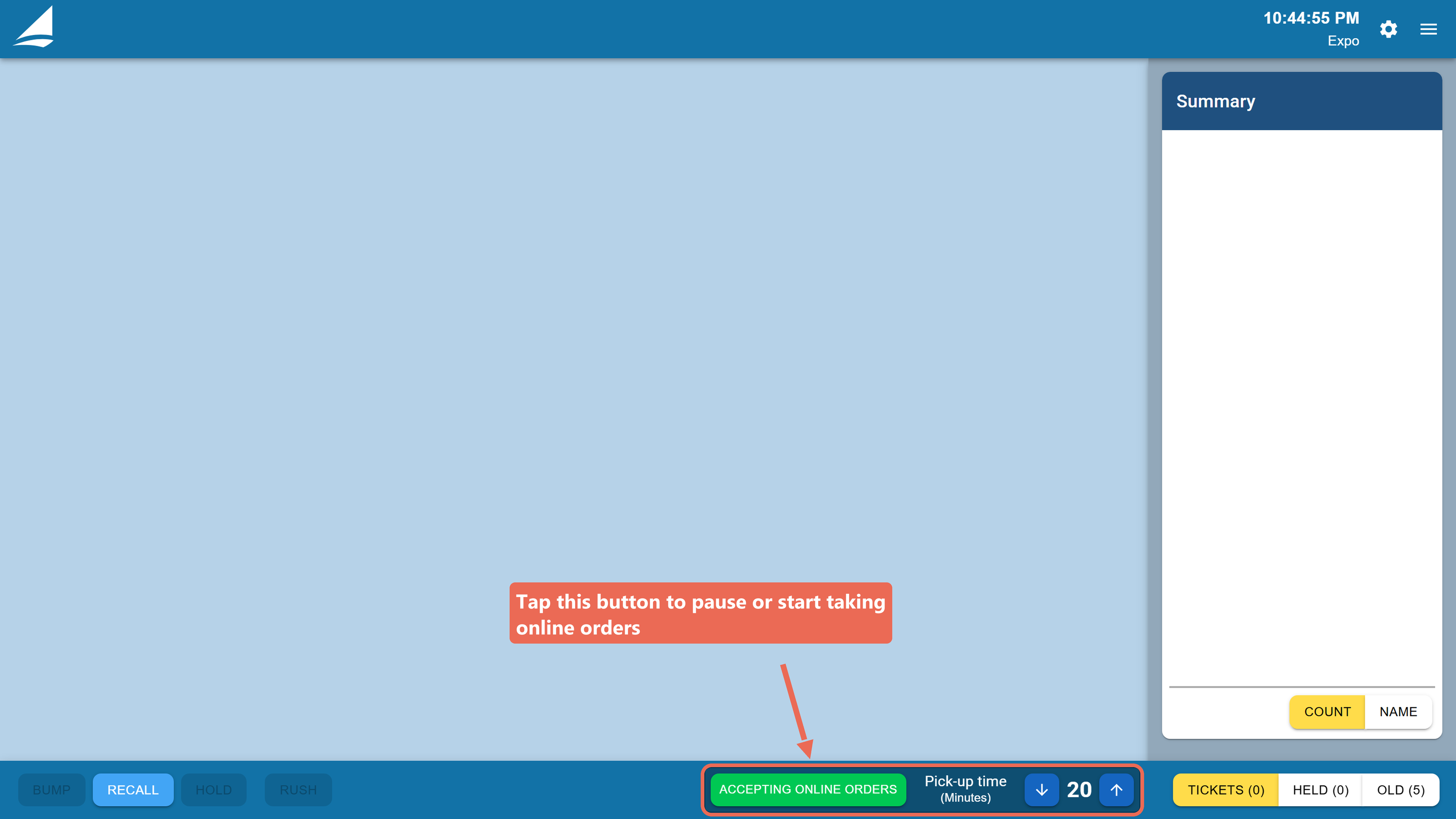




Note: The arrows next to Pick-up time change the order time guests are quoted online, a minute at a time.
Regardless of which method is used, these changes take effect immediately and override the scheduled hours. Be sure to re-enable online ordering manually when ready.
Pro tip: It is good practice to check if any scheduled orders had been placed as they will still send to the kitchen if the order had been submitted before disabling online ordering.
Online ordering will need to be manually disabled each day, as the system automatically resets the status to 'available' during the daily close process. If online ordering needs to be shut off for more than one business day, consideradd adjustinga closure on the onlinesite's orderingSchedule availabilitytab instead.--> Closures instead (How to set Closed Schedule on Online Ordering).