
Toggle Online Ordering Status
This article provides instructions on how to manually toggle the online ordering status. These methods are intended for use only when online ordering needs to be turned off during scheduled operating hours. To adjust the regular online ordering schedule, navigate to the Hours tab under Site Configuration.
Method #1 - Back Office
Log in to Sail Back Office and navigate to POS > Online Ordering > Site Configuration, then click on the pencil next to Main. For multi-store sites, you will see multiple instances of online ordering sites listed. 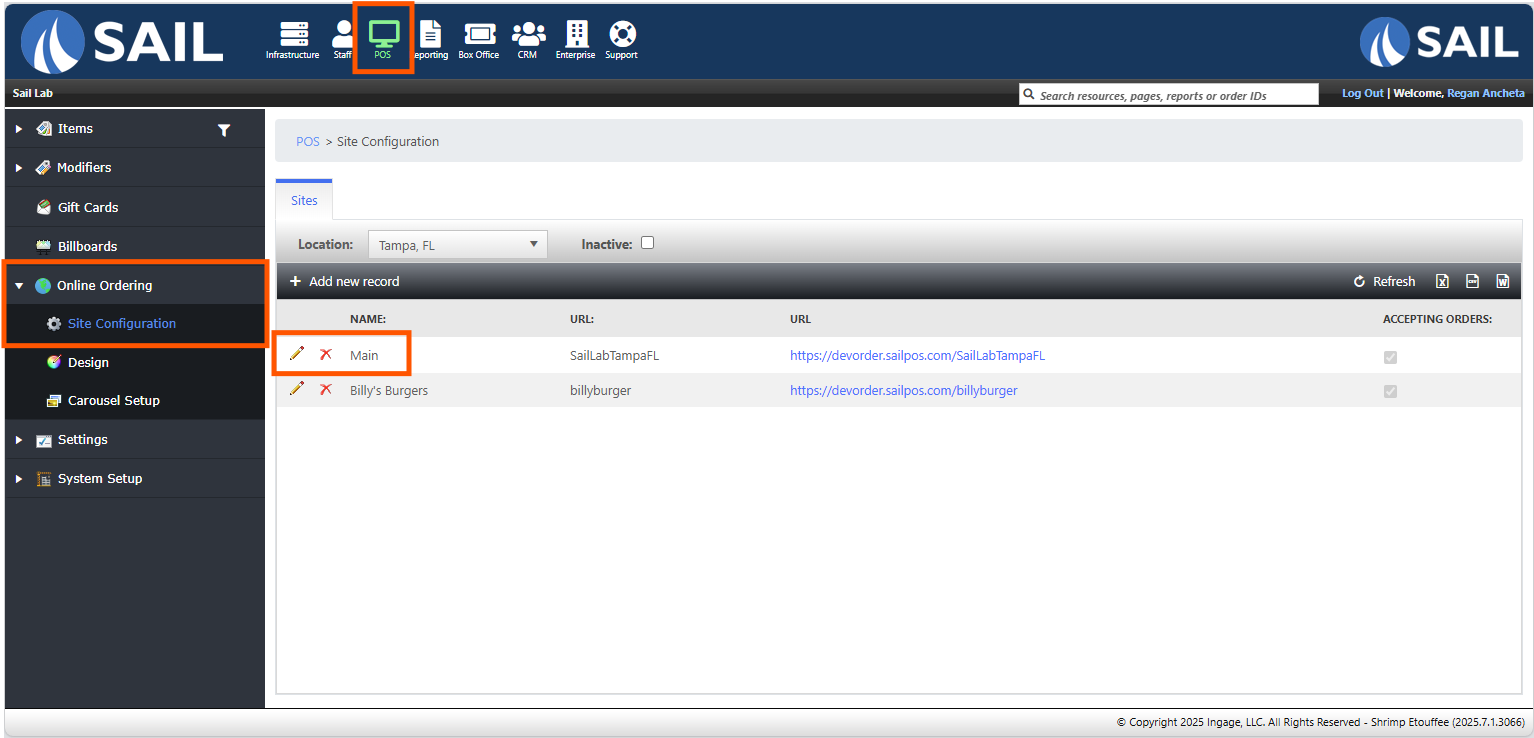
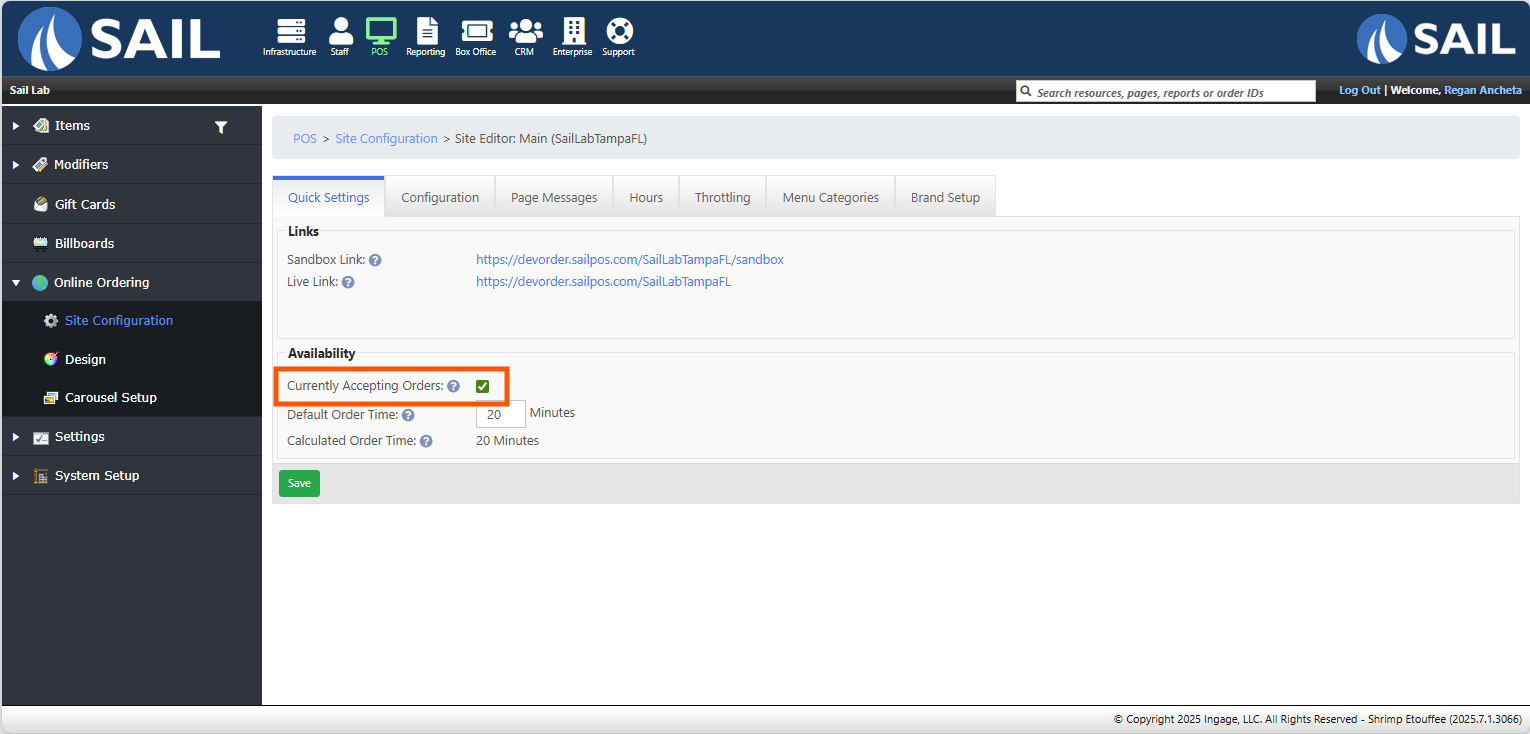
Under the Availability section, simply click on the check box for Currently Accepting Orders to toggle the status either on or off, then click Save.
Method #2 - Expo Screen
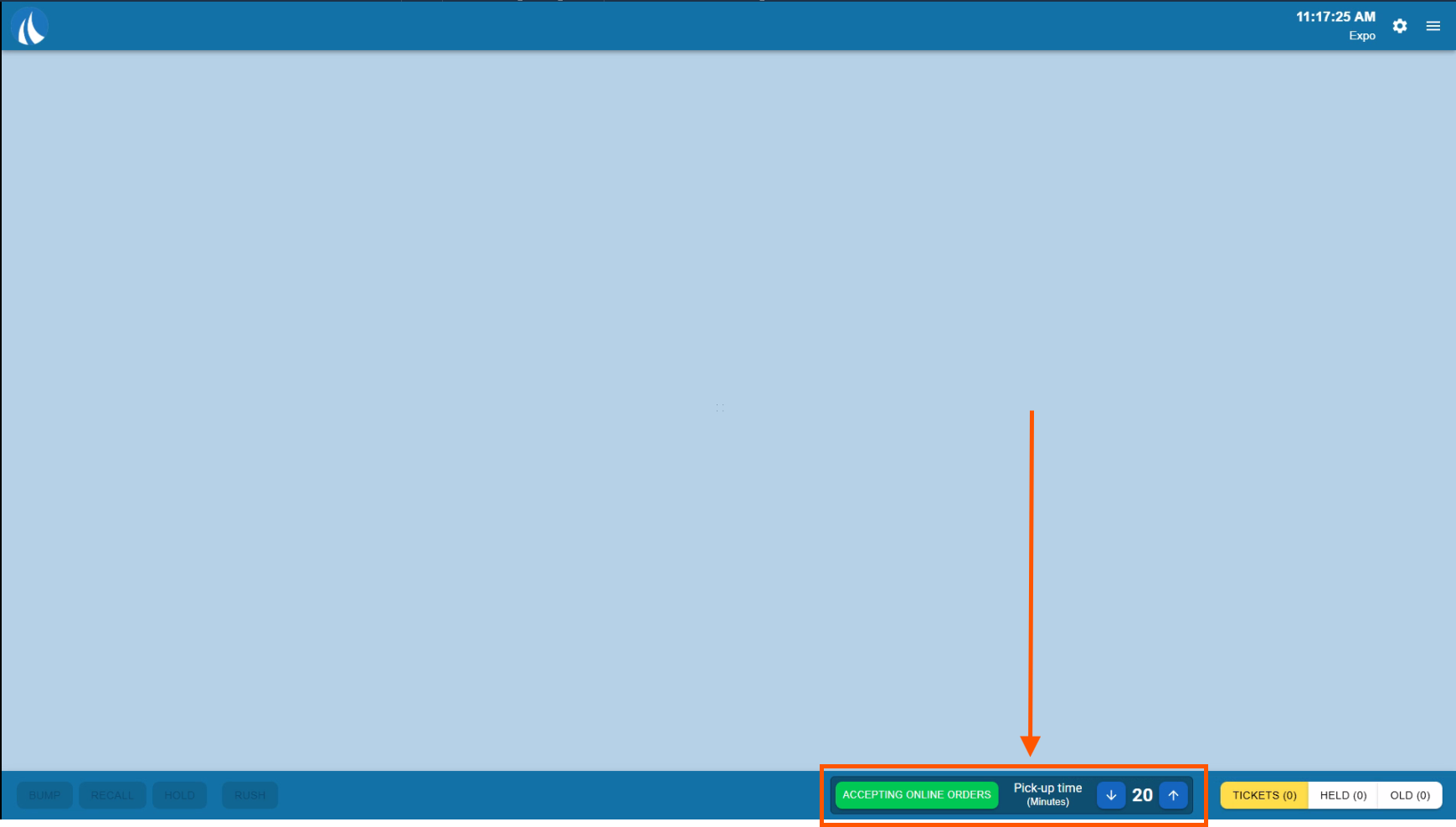
At the bottom of the Expo screen display, there is a button that will most likely be green with the text Accepting Online Orders.


Regardless of which method is used, these changes take effect immediately and override the scheduled hours. Be sure to re-enable online ordering manually when ready.
Online ordering will need to be manually disabled each day, as the system automatically resets the status to 'available' during the daily close process.