
How to edit time clock
This document will detailwalk you through how to editfix an employee's time clock: in Backoffice, on a timeterminal, clock.
In Backoffice
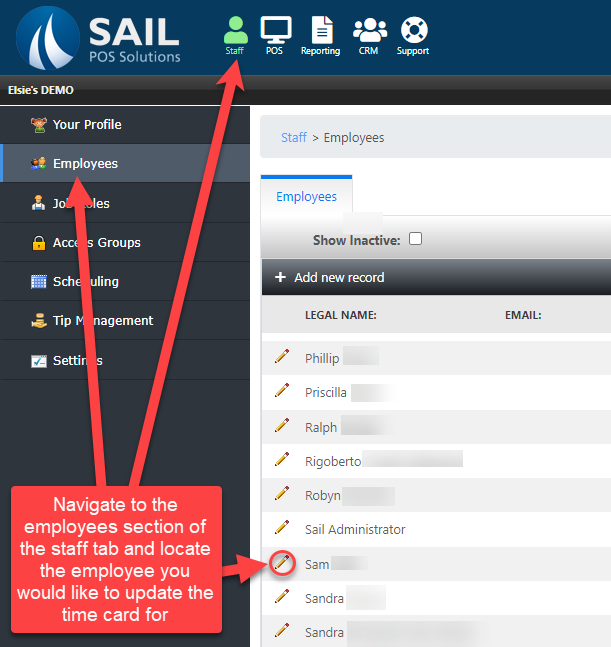
Open back office then navigatehow tothechooseStaffwhotab then gohas toemployees.leaveOnceatherenoteselectwhen they change one. You can change a clock in, clock out or job role, add a shift someone forgot to clock in for, fix breaks and clear a shift, for any day.You need the
employeeManageyouTimewouldCardlikepermission on your job role to edit the timeclockclock.of.In Backoffice
Finding the shift
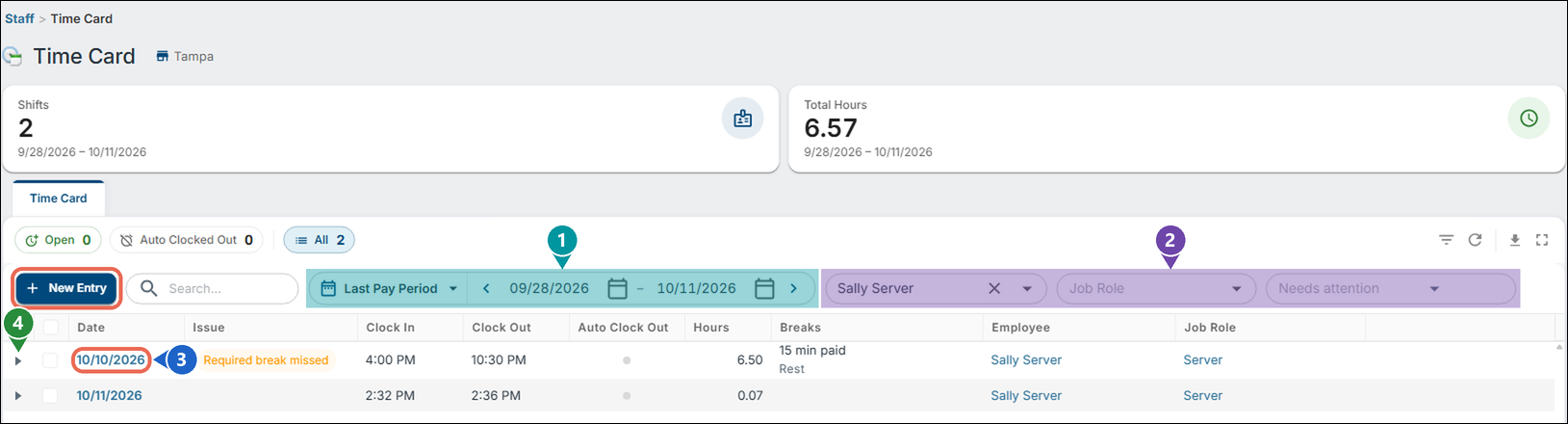
1. Go to Backoffice --> Staff --> Time Card. Every shift for the pay period is listed.
 forgot
- New Entryshift-aAdd
someoneto
clock in for.- New
- 1. Dates - Pick the pay period (or any dates). The arrows go back or forward one pay period.
- 2. Employee and Job Role - Show only one employee's or one job role's shifts. Needs attention shows only the shifts with a problem, such as Never clocked out.
- 3. Date - Click the date to open the shift and change it.
- 4. Arrow - Shows the shift's breaks and everything that was changed on it.
- 1. Employee and Job Role - Pick a different job role if the employee clocked in as the wrong one.
- 2. Clock In Date and Clock In Time - When the shift started.
- 3. Clock Out Time - When the shift ended. Leave it blank if the employee is still clocked in. If the clock out time is earlier than the clock in time, Sail puts it on the next day (for a shift that ran past midnight).
- 4. Breaks - Pick the break, then its Start and End. Picking a break fills in its length and whether it's paid. Add Break adds another one; the red trash can removes one.
- 5. Audit Log Note - The reason for the change. It's saved with the change and shows in the shift's history.
- 6. Clear Entry - See Clearing a shift below.
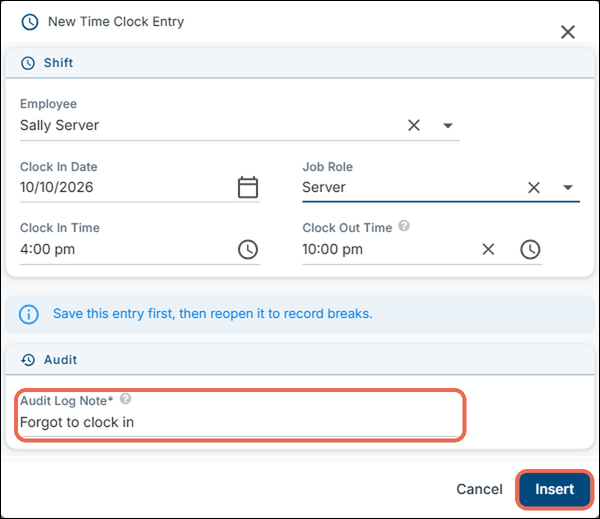
- To add breaks to the
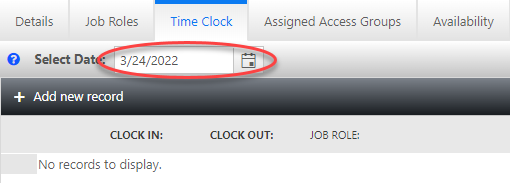
timenewclockshift,tab.save it first, then click its date to open it again. Once on the time clock tab make sure your on the date you would like to edit.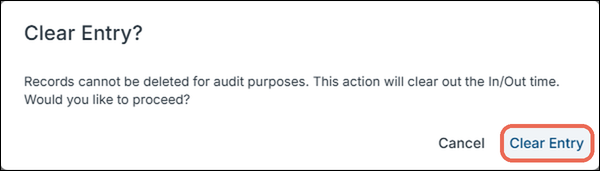
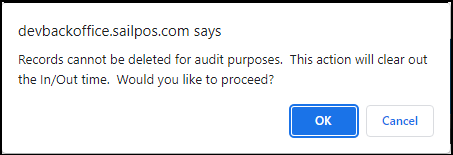
Shifts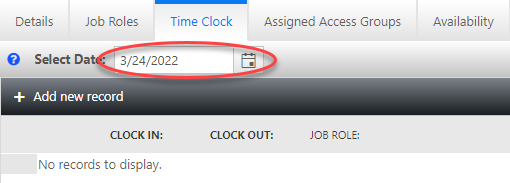 can'tbedeleted,forreasons.audit
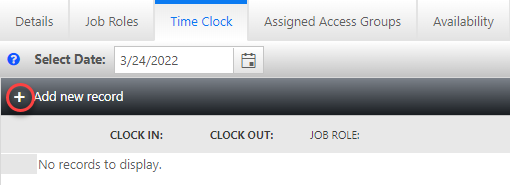
Once the date has been selected you there are several editing options to pick from.To addClearing anewshift takes away its clock inorand clockout.out,Pressso it no longer counts any hours. It stays in thepluslistsign.marked Cleared.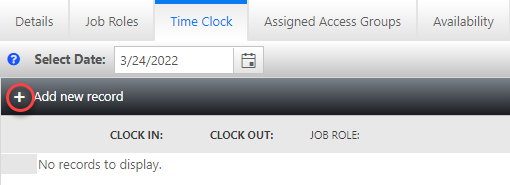
Seeing
whatchangedwas6.
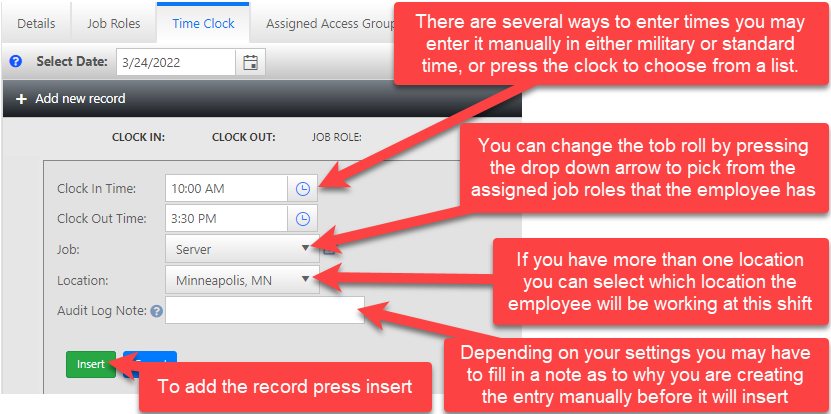
This will prompt to add a new record.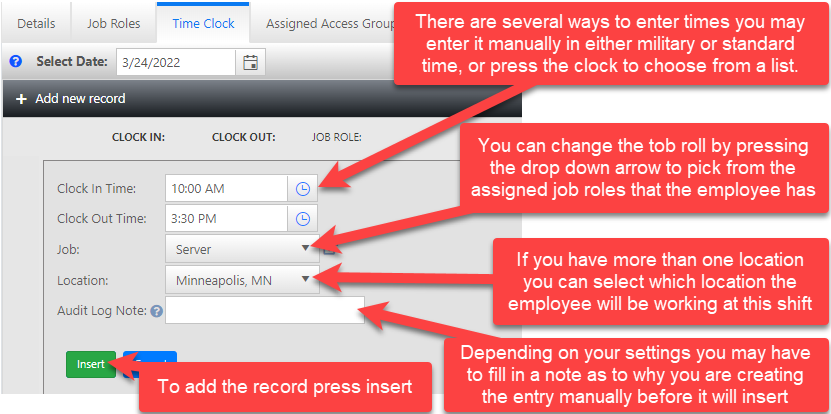
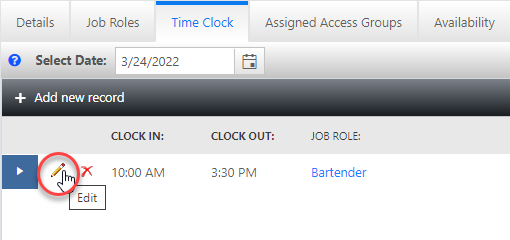
You can edit any of the settings above by pressing the pencil next to any existing time clock entry.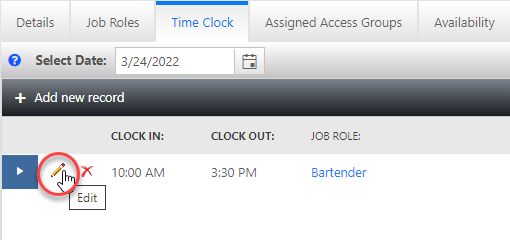
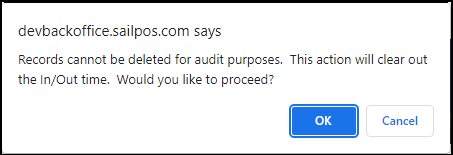
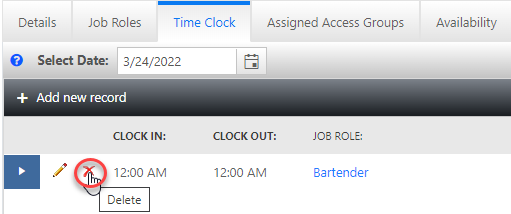
To zero out the time from an existing time clock entry click the red x and press ok when prompted.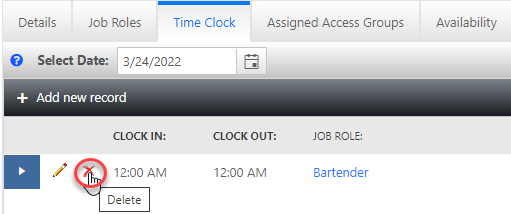
All
editschanges are recorded.You can view the records by pressingClick the arrow next totheaentry.shift to see them.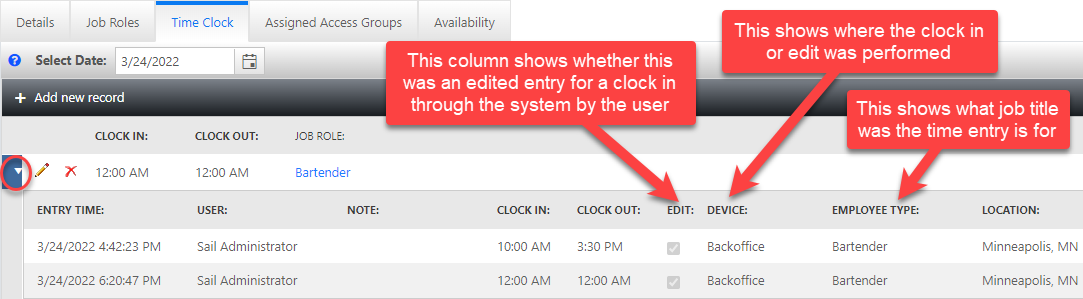
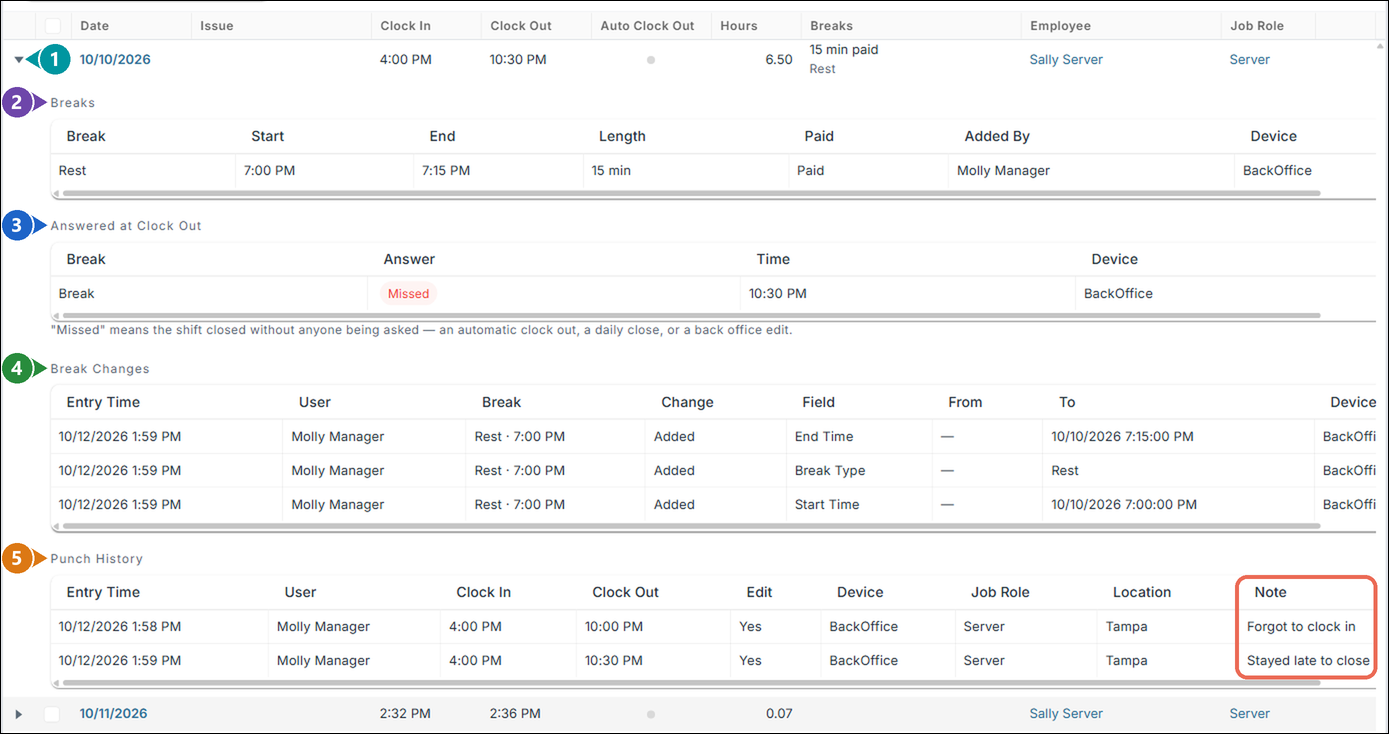
- 1. Arrow - Opens and closes the shift's details.
- 2. Breaks - The breaks on the shift, who added them and where.

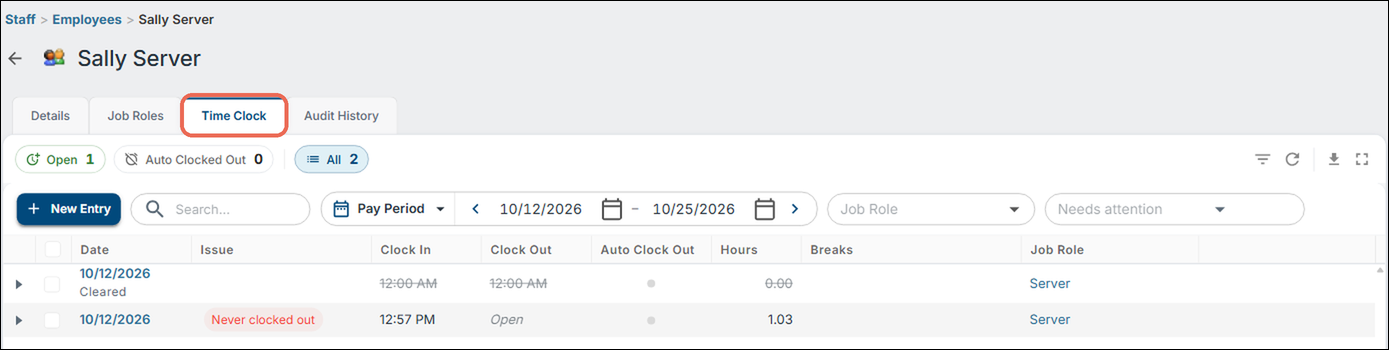
NavigateThe Open and Auto Clocked Out buttons above the list show only the shifts still clocked in, or the ones Sail clocked out by itself.
Note: You can also go to Backoffice --> Staff --> Employees, pick the employee and open the Time Clock tab. It's the same list, with only that employee's shifts.
Changing a clock in, clock out, job role or break
2. Click the date of the shift. The Edit Time Clock Entry window opens.
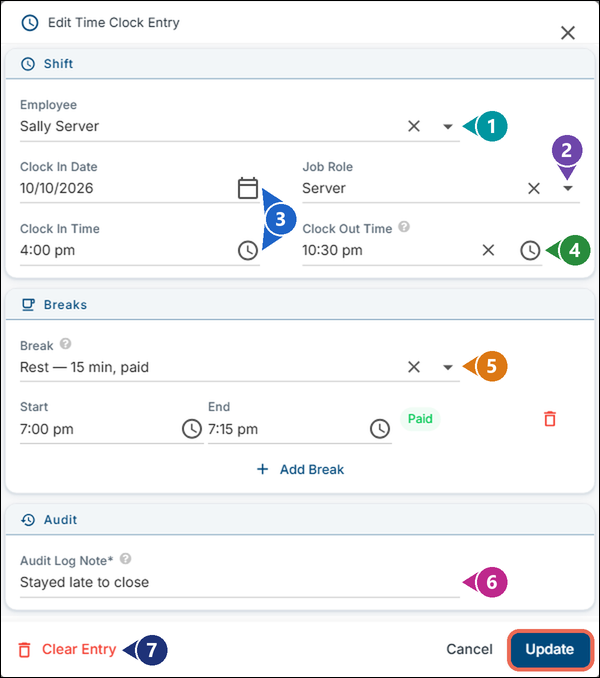
3. Click Update to save the change.
Note: If the note is required and you leave it blank, you'll see "A reason for this manual entry is required." See Required notes setting below.
Adding a shift someone forgot
4. Click New Entry. Pick the Employee, the Clock In Date and the Job Role, fill in the Clock In Time and Clock Out Time, enter the reason in Audit Log Note, then click Insert.
Clearing a shift
5. To clear a shift that shouldn't be there, open it and click Clear Entry, then click Clear Entry again to confirm. To clear several at once, tick them in the list and click Clear Entries.


On a terminal
You7. Managers can also editfix the time clock for any day from a terminal, too. Log in, tap Functions, then tap Edit Time Clock under FunctionsManagement Tools.

8. Go to the day the employee worked and tap their shift. Change the job role, clock in, clock out or breaks, then tap Save and enter the reason for the change. New Shift adds a shift someone forgot, and Clear Shift clears one.

Changes made on a terminal show in Backoffice under Staff --> Edit Time Clock.Card, and changes made in Backoffice show on the terminal.
Click here to learn more about editing the time clock on a terminal.
Required notes setting
Whenever
yousomeonemanually enteradds oradjustchanges atimeshiftclockbyyouhand,willSailbeasksprompted to enterfor anote. By default you will be able to press cancel and skip addingnote: thenote.AuditIfLogyouNotewouldinlikeBackoffice, or the Reason for this change on a terminal. The notetoisberequired,mandatory you can setunless thesystem to not let it be bypassed with the cancel button.Note: On a terminal, a reason is always asked for when you save a change. Onlyperson's jobrolesrolewithhas the Allow Manual Time Clock Entries Without Audit Notespermissionpermission.To choose who can skip
it.the note: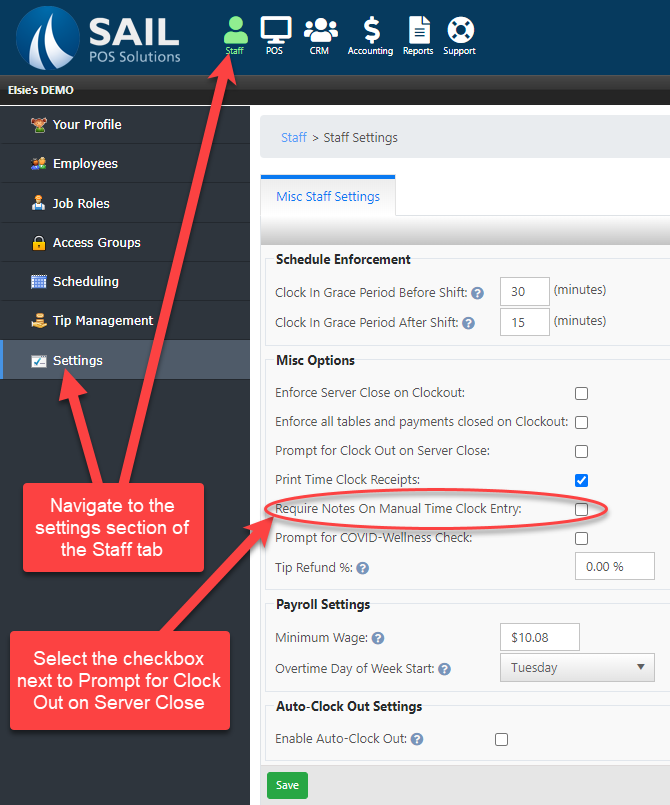
- Go to Backoffice --> Staff --> Job Roles and click the job role.
- On the Details tab, under Tasks, open Staff --> Employees.
- Tick Allow Manual Time Clock Entries Without Audit Notes to let this job role save changes without a note. Leave it unticked to make the note required.
- Click Save.
Note: The list of tasks only shows the permissions your own job role has. If you don't see Allow Manual Time Clock Entries Without Audit Notes, ask someone whose job role has it.
9.
