
How to edit time cards in Backoffice
This document will walk you through how to fix an employee's time card in Backoffice. You can change a clock in, clock out or job role, add a shift someone forgot to clock in for, fix breaks and clear a shift, for any day.
Settings you need
Both settings are permissions on a job role.
1. Go to Backoffice --> Staff --> Job Roles and click the job role.
2. On the Details tab, open Staff in the Tasks list, then open Employees.


- 1. Manage Time Card - Required. Lets this job role see and edit the time card, in Backoffice and on a terminal.
- 2. Employees --> Allow Manual Time Clock Entries Without Audit Notes - Optional. Whenever someone adds or changes a shift by hand, Sail asks for a note saying why. The note is required, unless their job role has this permission. Tick it to let this job role skip the note; leave it unticked to make the note required.
3. Click Save.
Note: The Tasks list only shows the permissions your own job role has. If you don't see Allow Manual Time Clock Entries Without Audit Notes under Employees, ask someone whose job role has it.
Editing time cards
Finding the shift
There are two ways you can find the shift to edit it.
1. Go to Backoffice --> Staff --> Time Card. Every shift for the pay period is listed.
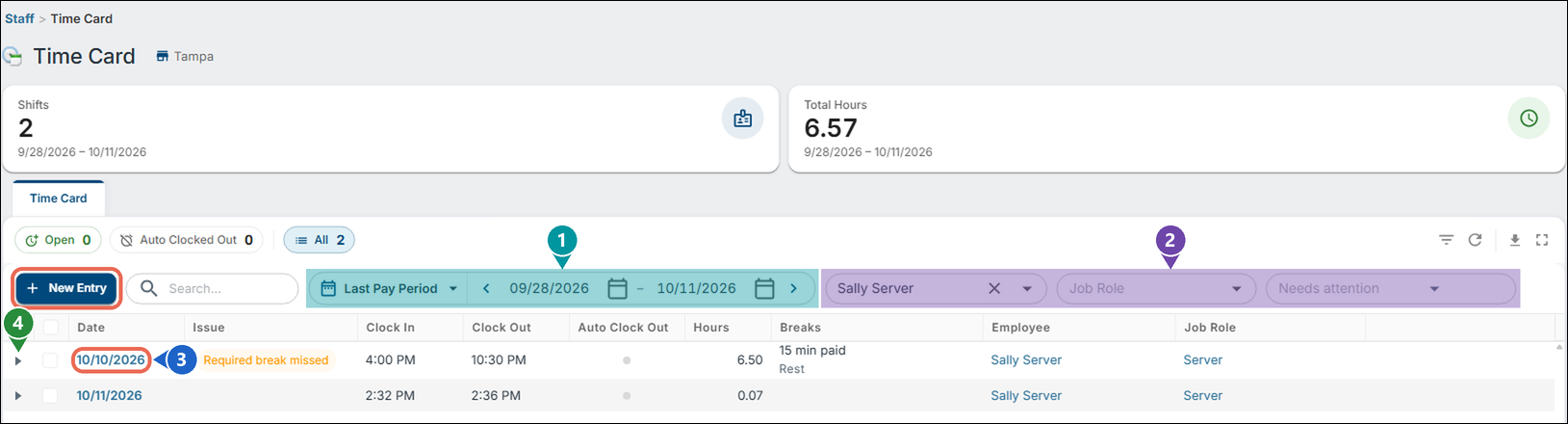

- New Entry - Add a shift someone forgot to clock in for.
- 1. Dates - Pick the pay period (or any dates). The arrows go back or forward one pay period.
- 2. Filters - Employee and Job Role show only one employee's or one job role's shifts. Needs attention shows only the shifts with a problem, such as Never clocked out.
- 3. Date - Click the date to open the shift and change it.
- 4. Arrow - Shows the shift's breaks and everything that was changed on it.
The Open and Auto Clocked Out buttons above the list show only the shifts still clocked in, or the ones Sail clocked out by itself.
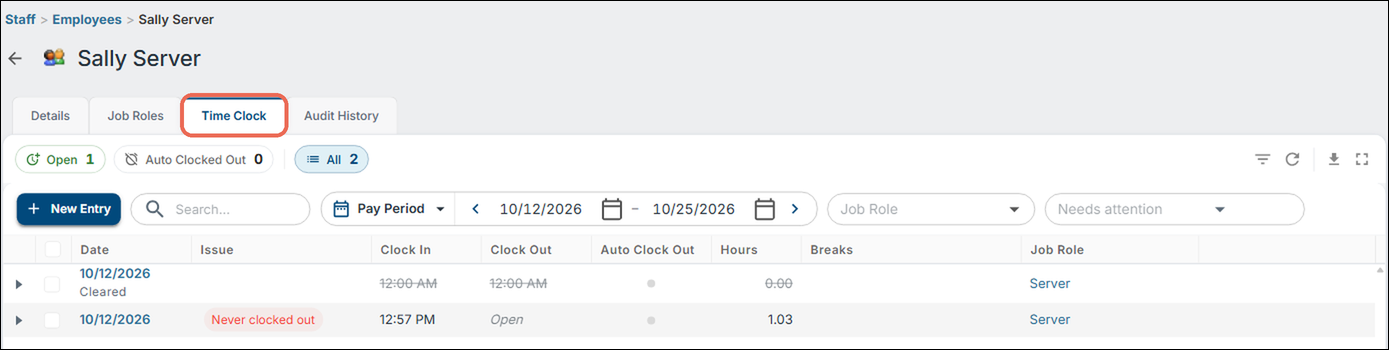
2. Go to Backoffice --> Staff --> Employees, pick the employee and open the Time Clock tab. It's the same list, with only that employee's shifts.

Changing a clock in, clock out, job role or break
1. Click the date of the shift. The Edit Time Clock Entry window opens.
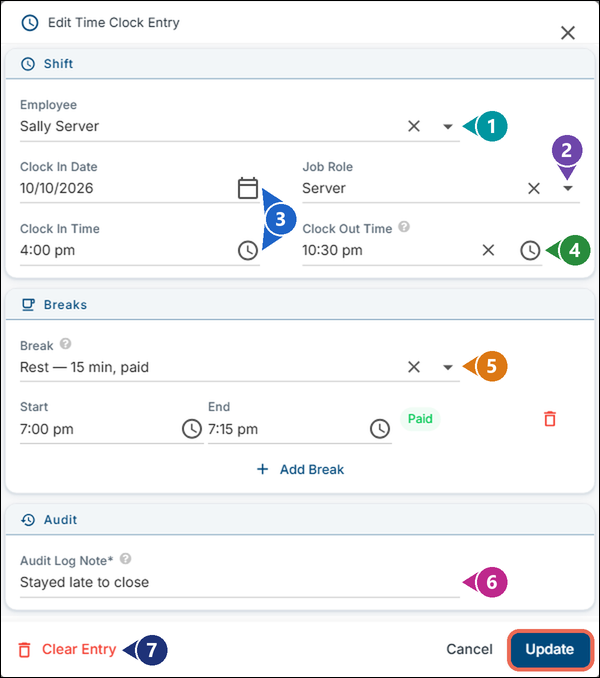

- 1. Employee - Who the shift belongs to.
- 2. Job Role - Pick a different job role if the employee clocked in as the wrong one.
- 3. Clock In Date and Clock In Time - When the shift started.
- 4. Clock Out Time - When the shift ended. Leave it blank if the employee is still clocked in. If the clock out time is earlier than the clock in time, Sail puts it on the next day (for a shift that ran past midnight).
- 5. Break - Pick the break, then its Start and End. Picking a break fills in its length and whether it's paid. Add Break adds another one; the red trash can removes one.
- 6. Audit Log Note - The reason for the change. It's saved with the change and shows in the shift's history.
- 7. Clear Entry - See Clearing a shift below.
2. Click Update to save the change.
Note: If the note is required and you leave it blank, you'll see "A reason for this manual entry is required." See Settings you need above.
Adding a shift someone forgot
Click New Entry. Pick the Employee, the Clock In Date and the Job Role, fill in the Clock In Time and Clock Out Time, enter the reason in Audit Log Note, then click Insert.
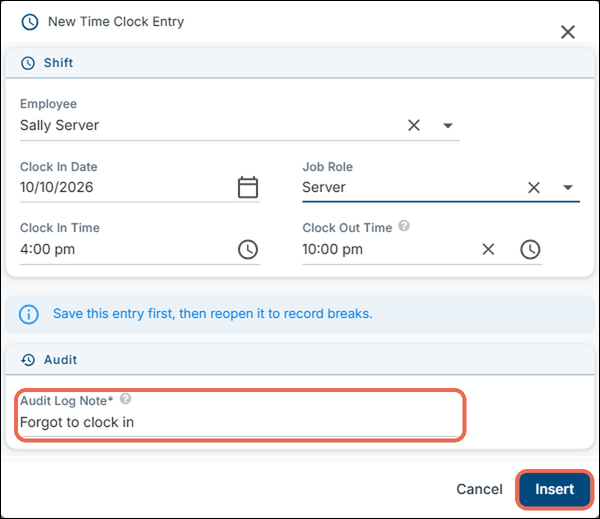

Note: To add breaks to the new shift, save it first, then click its date to open it again.
Clearing a shift
Open the shift and click Clear Entry, then click Clear Entry again to confirm. To clear several at once, tick them in the list and click Clear Entries.
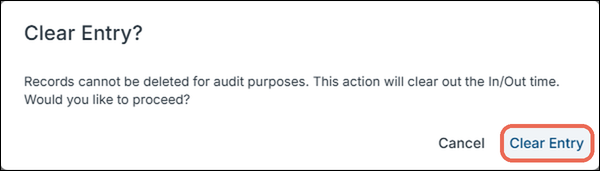

Shifts can't be deleted, for audit reasons. Clearing a shift takes away its clock in and clock out, so it no longer counts any hours. It stays in the list marked Cleared.
Seeing what was changed
All changes are recorded. Click the arrow next to a shift to see them.
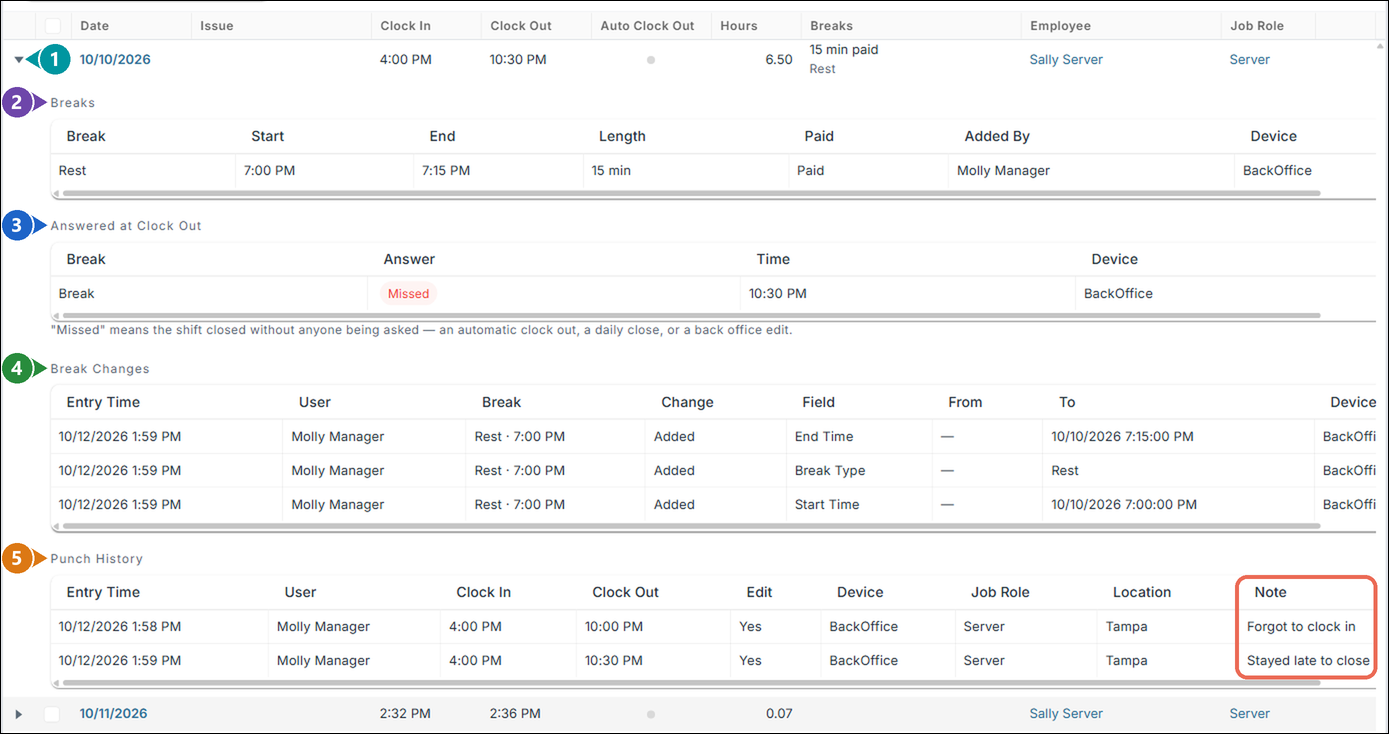

- 1. Arrow - Opens and closes the shift's details.
- 2. Breaks - The breaks on the shift, who added them and where.
- 3. Answered at Clock Out - What the employee answered about their breaks when they clocked out. "Missed" means nobody was asked, for example because the shift was auto clocked out or changed in Backoffice.
- 4. Break Changes - Every change to a break: who made it, when, and what it was before and after.
- 5. Punch History - Every change to the clock in and clock out: who made it, when, on which device, and the note they left.
If you'd like to learn how to edit the time clock on a terminal, click here.