
How to assign a receipt check printer
A handheld device can be assigned to a guest check printer to print off customer receipts. You pick it on the handheld's home screen.
-
Enter your login
numbernumber.Click -
Tap Receipt Printer under Station Settings. The printer you have now is shown next to it.
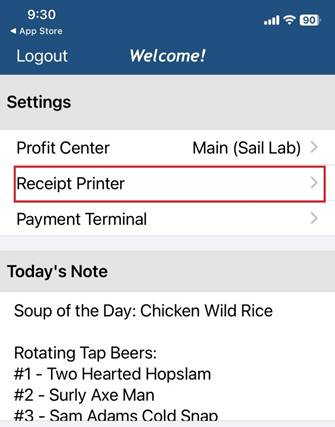
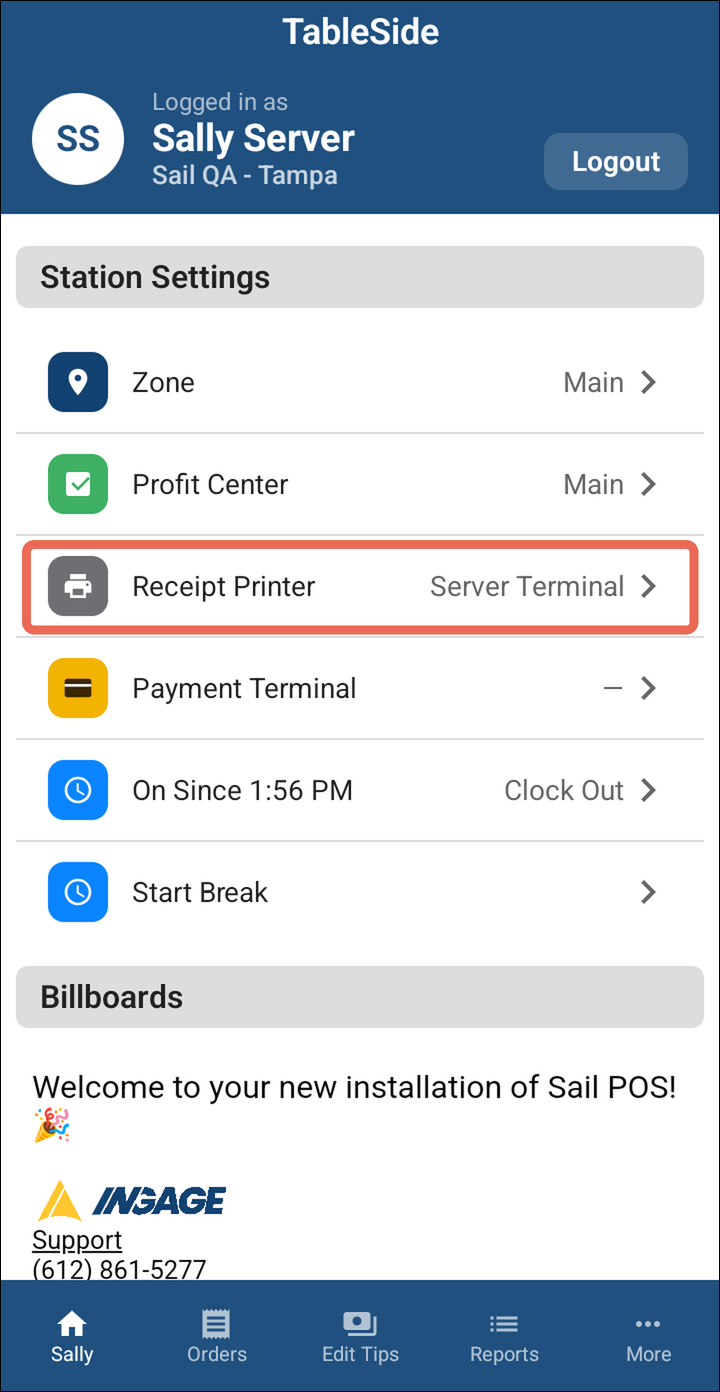
-
ClickTap theGuestguestCheckcheck printer you want the receipt to print to. A check mark shows the one that's picked, and its name now shows next to Receipt Printer.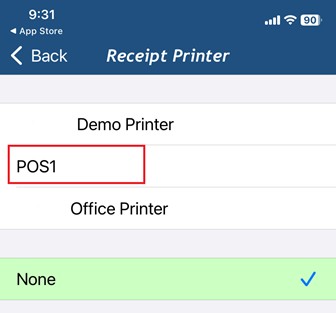
NOTE:Note: If you don’don't choose a receipt printer (None), each time you want to print it will ask you which printer you want to print to.
Pro tip: The printer is saved with your login, so it's still picked the next time you log in.
Note: Don't see Receipt Printer on the home screen? Your location has only one receipt printer, and the handheld always prints to it.