How to close a table/order from a handheld
This document will detail how to close a table/order from a handheld.
To see how to close a table/order from a terminal please click the link
To close a table or an order you will need to locate the order you would like to close. Once it has been located, pay it out in the manner the guest chooses in order to close the table. This document will go into detail on how to accomplish these steps and note any necessary details along the way.
From outside the order
-
Log into the
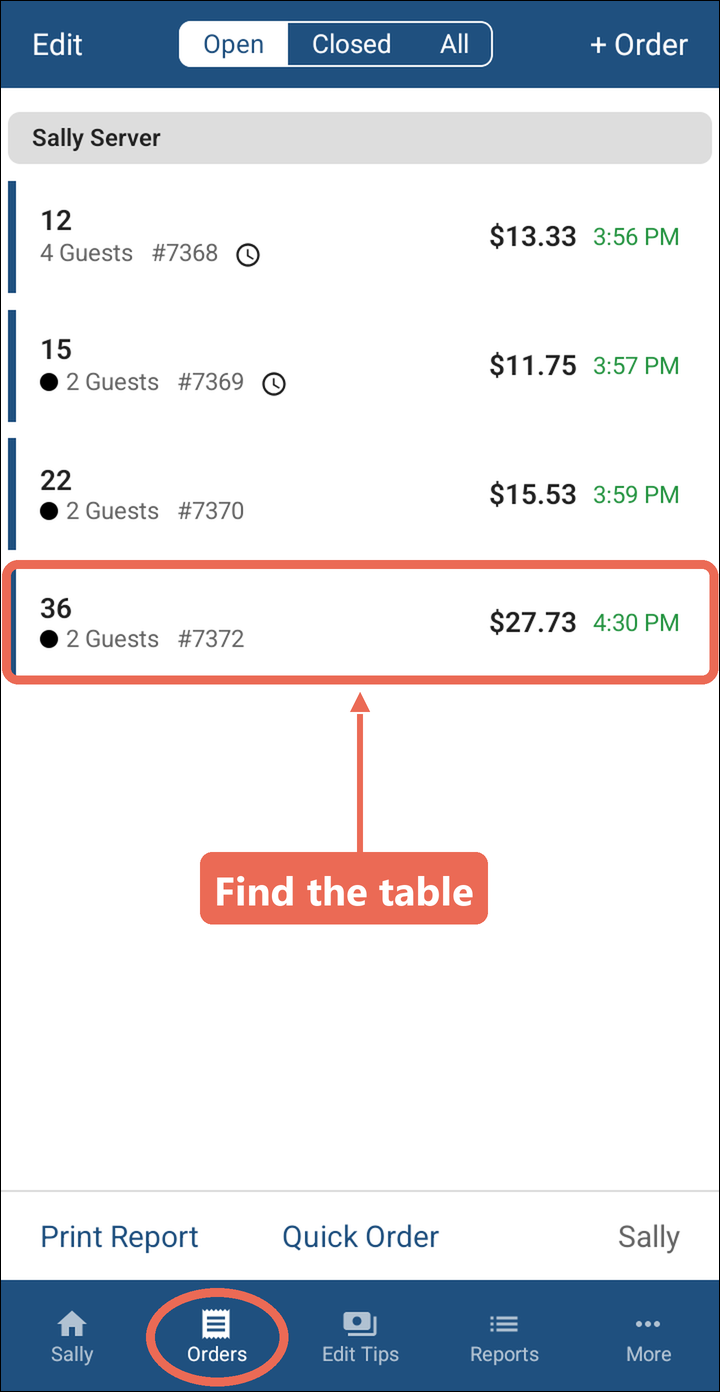
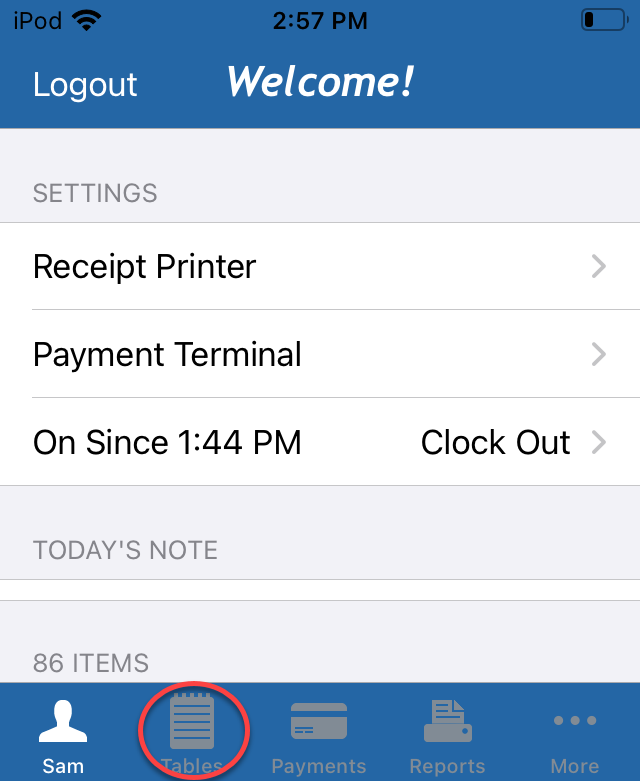
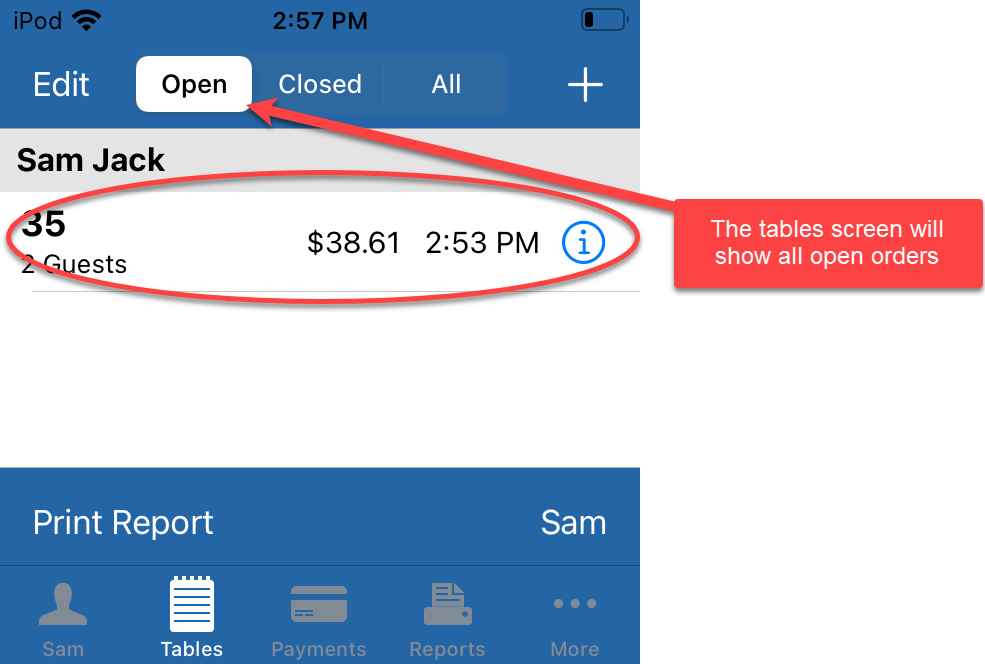
hand held.handheld. To locate theorderorder,clicktaponOrdersthe “Tables” button onat the bottomtoolbar.of the screen.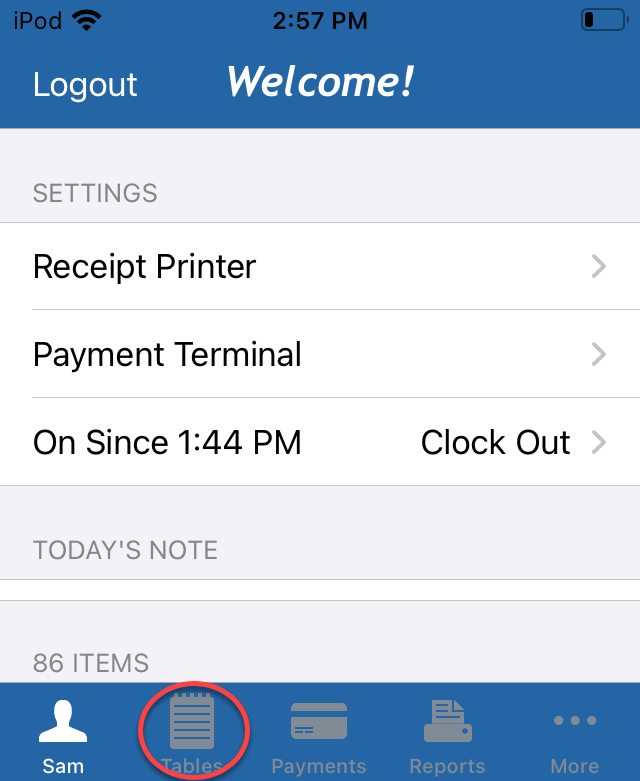
-
To pay out an order with fast
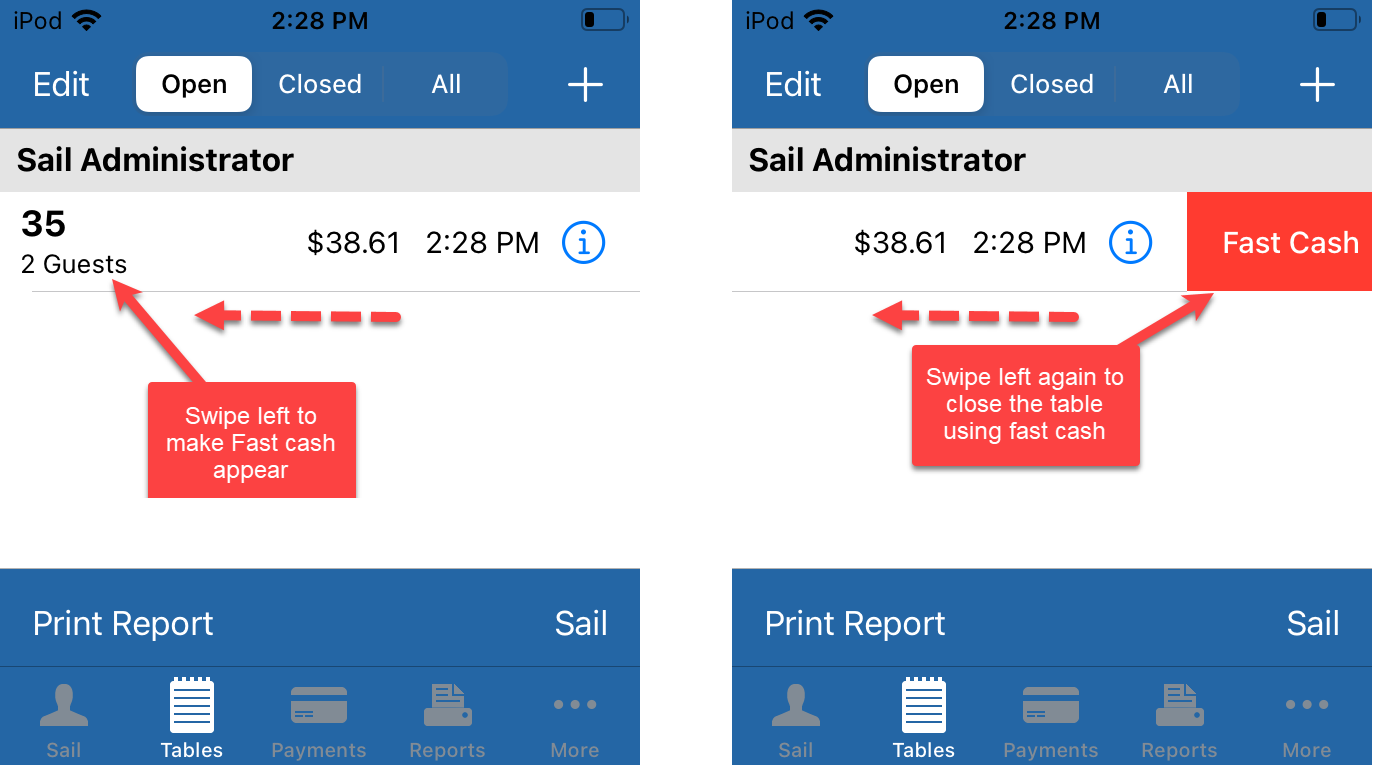
cash on a handheldcash, swipeleft.the table left, then tap Fast Cash. The whole balance is paid in cash and the table closes.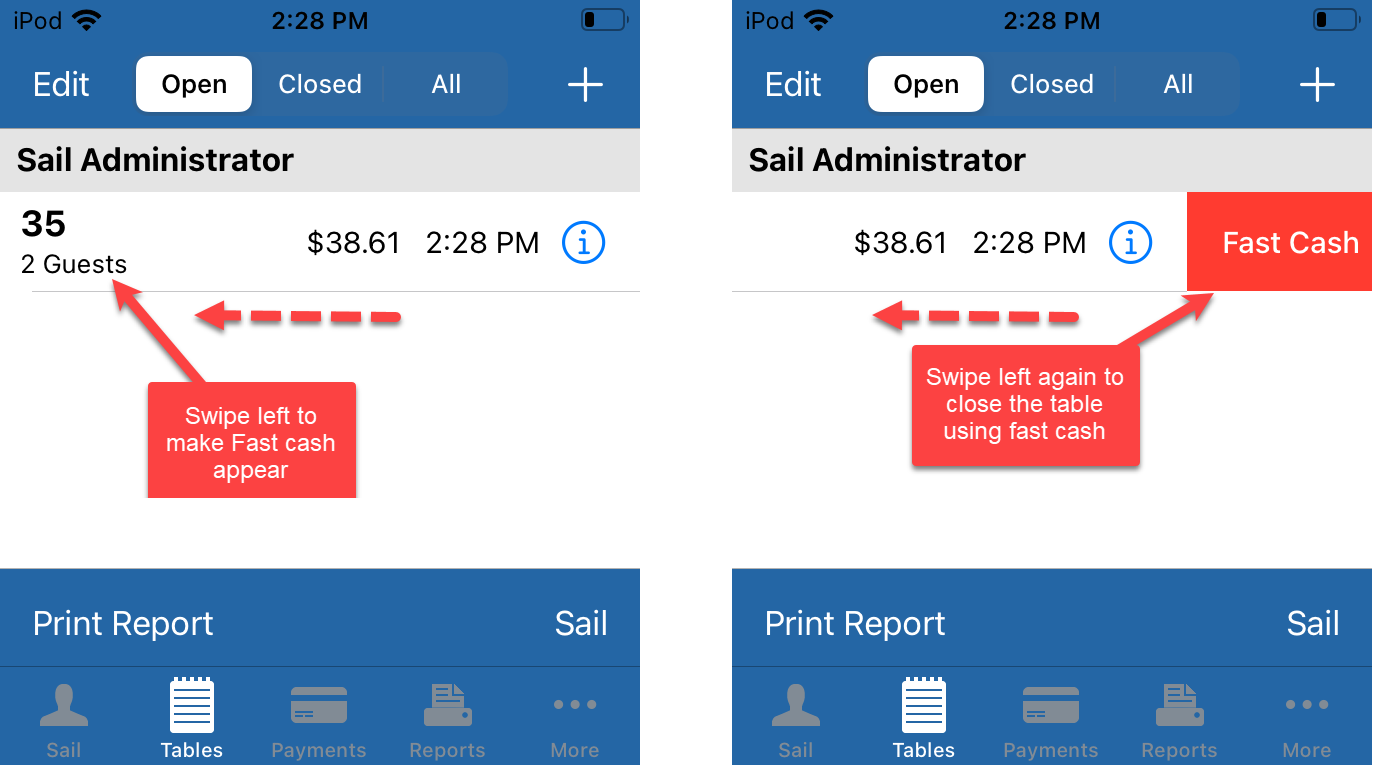
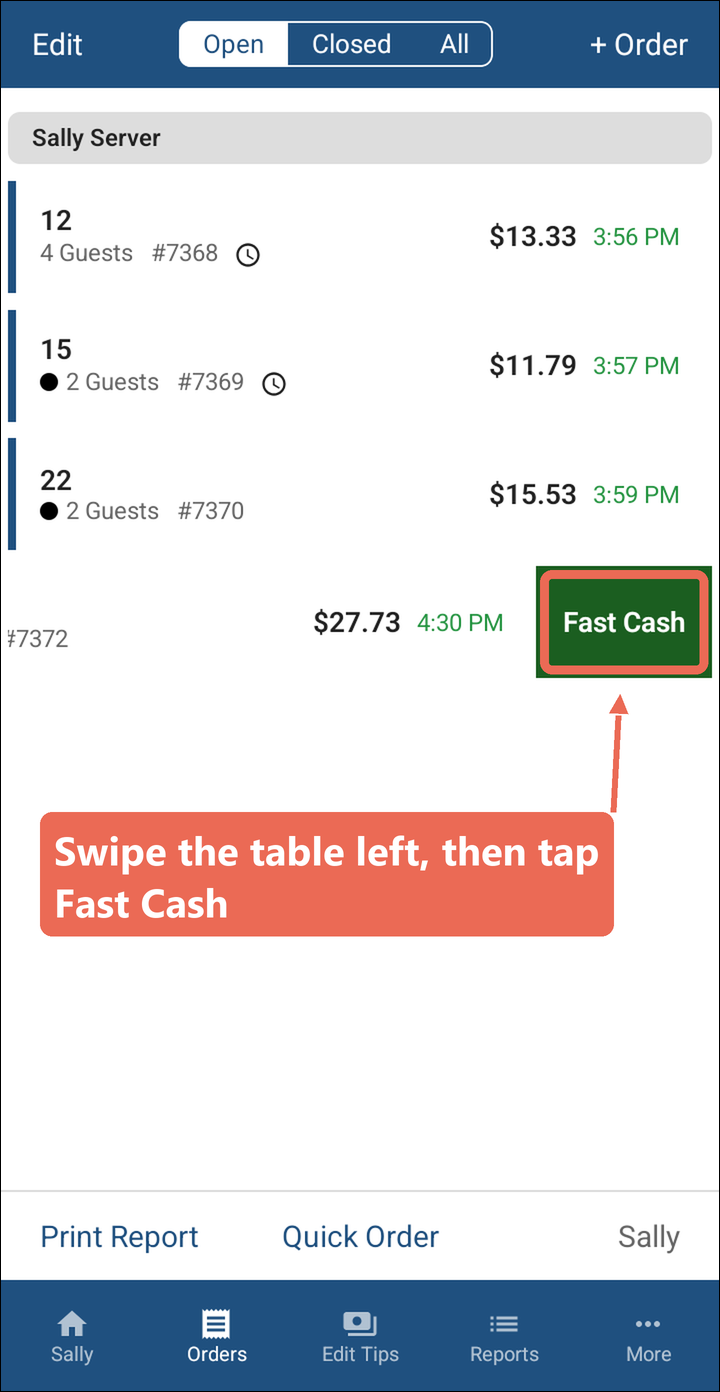 the screen pays the table with fast cash straight away.
Note:
Aacrosslongwayswipetheall -
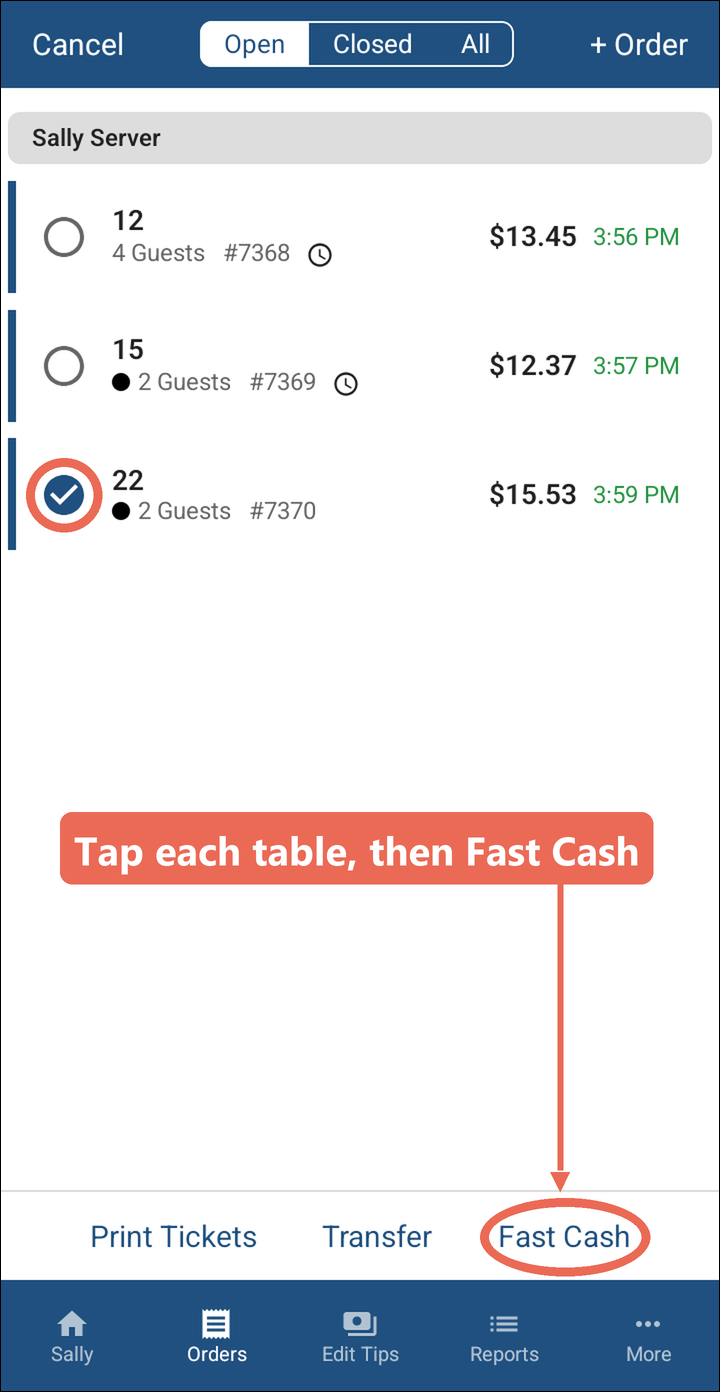
To close several tables with fast cash at once, tap Edit at the top left, tap each table, then tap Fast Cash at the bottom.
-
If the customer used a different form of payment or you need to calculate change you will need to
openopen the order and add a payment.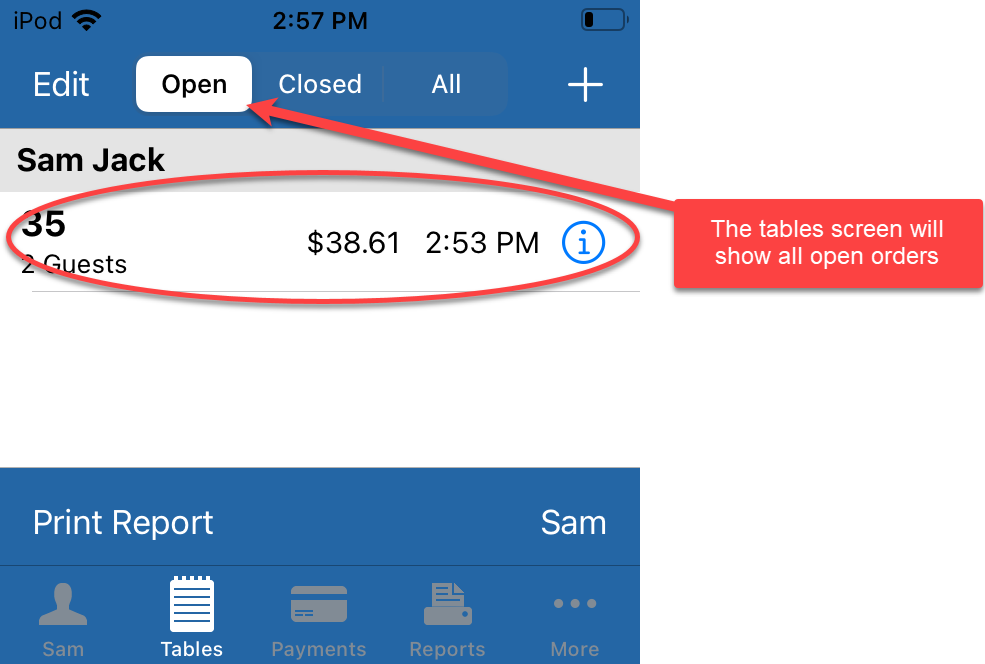
From inside the order
-
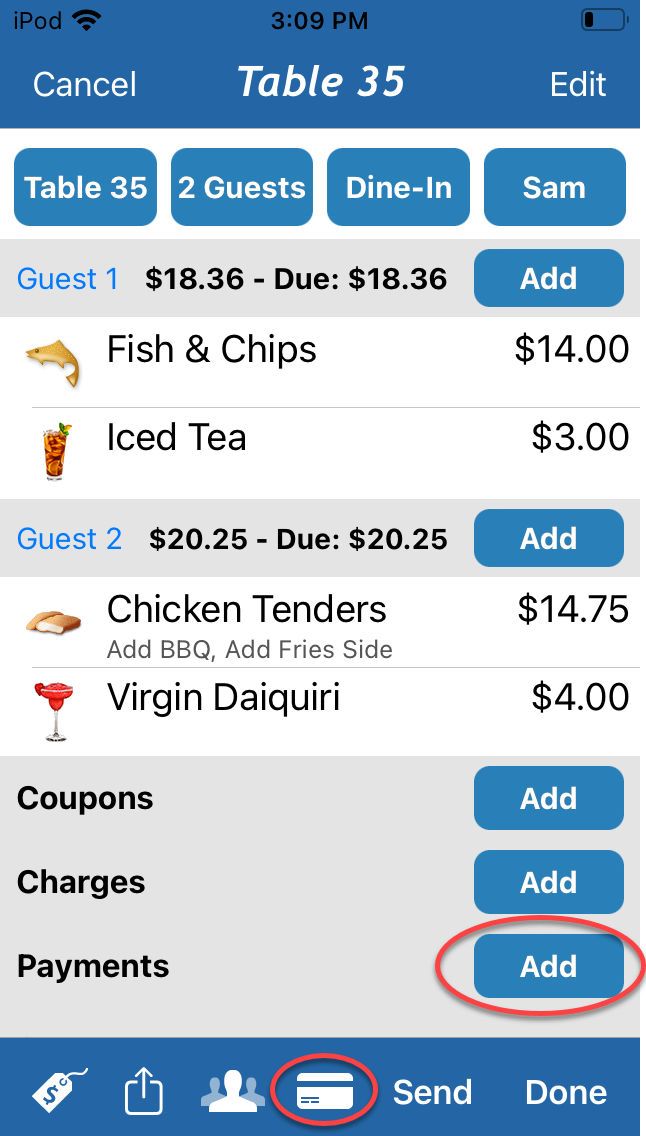
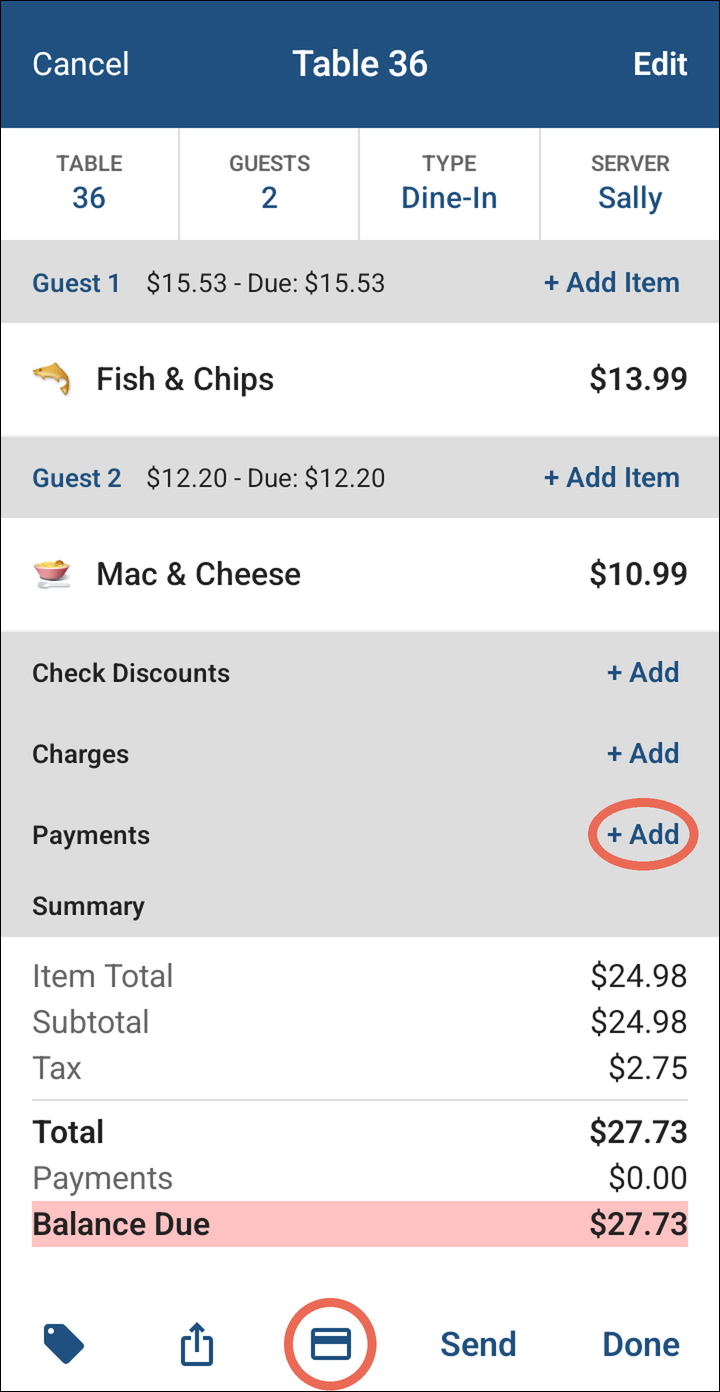
SelectTap theAdd button to the right of payments or select the creditcard icon at thebottom.bottom, or + Add next to Payments.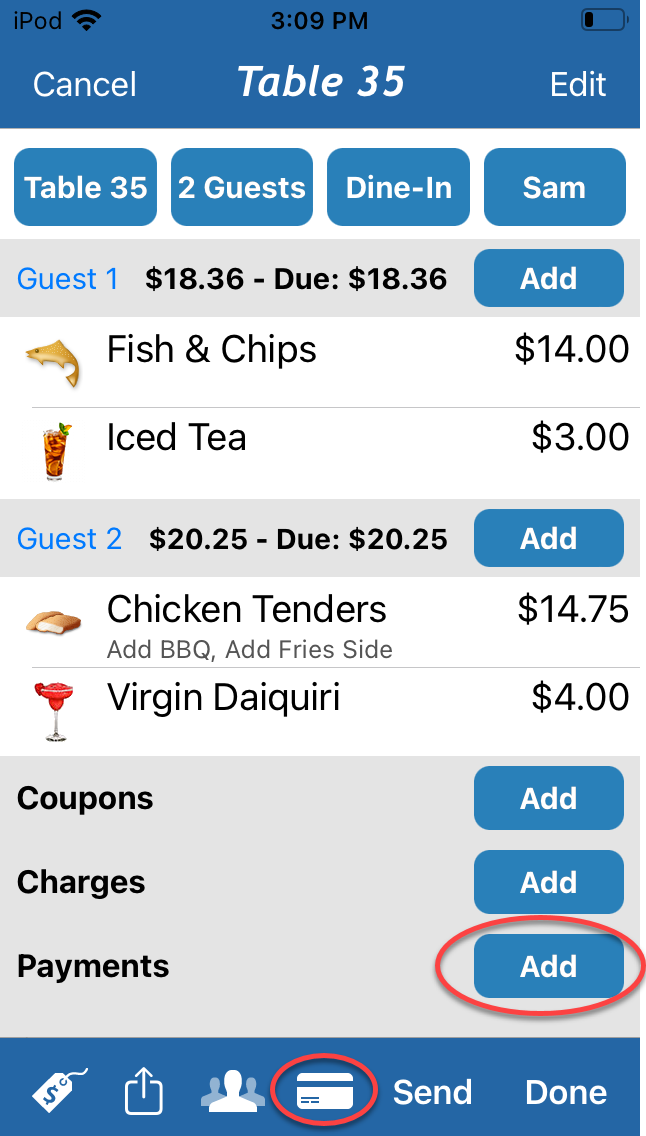
-
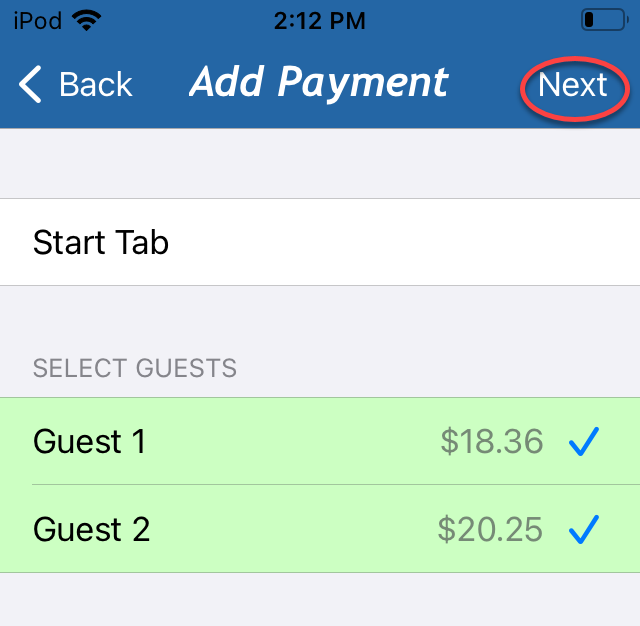
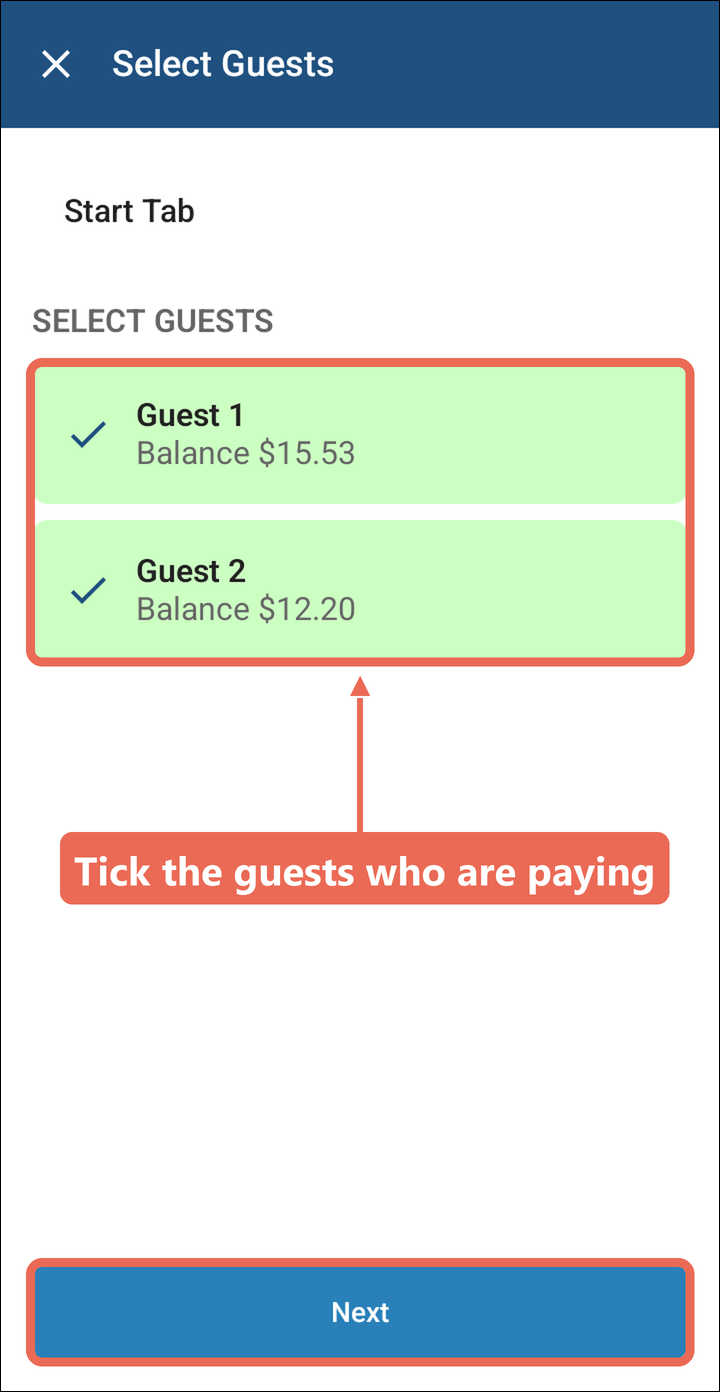
Select which guest or guests the payment will be applied
toto, thenselecttaptheNext.nextEverybutton.guest with a balance starts ticked.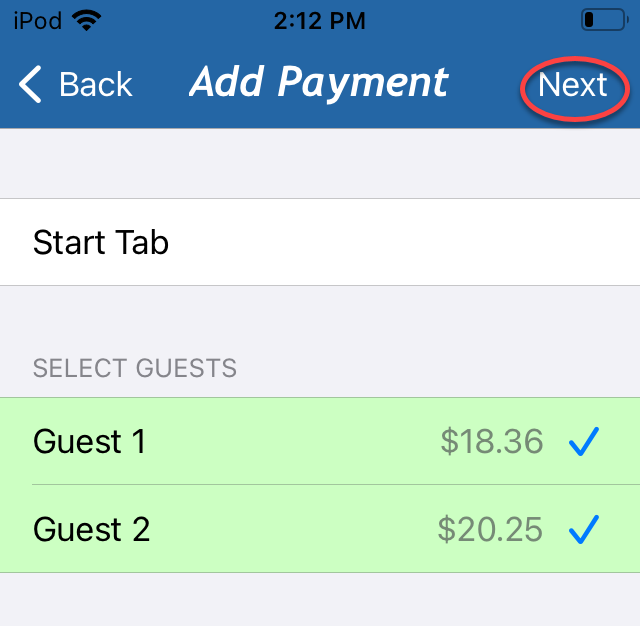
-
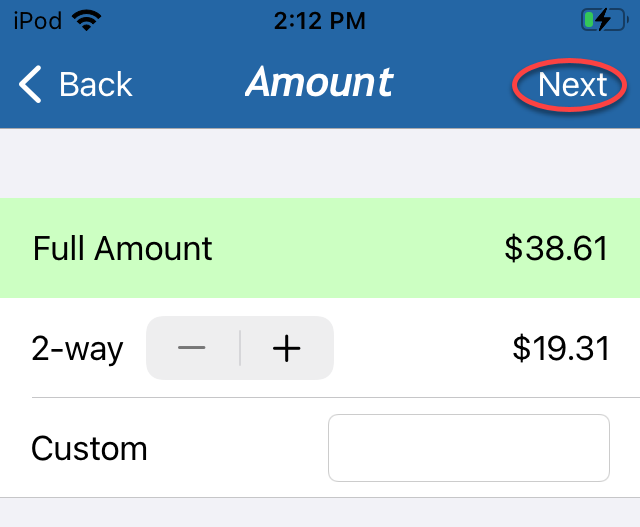
Select the amount that the guest will
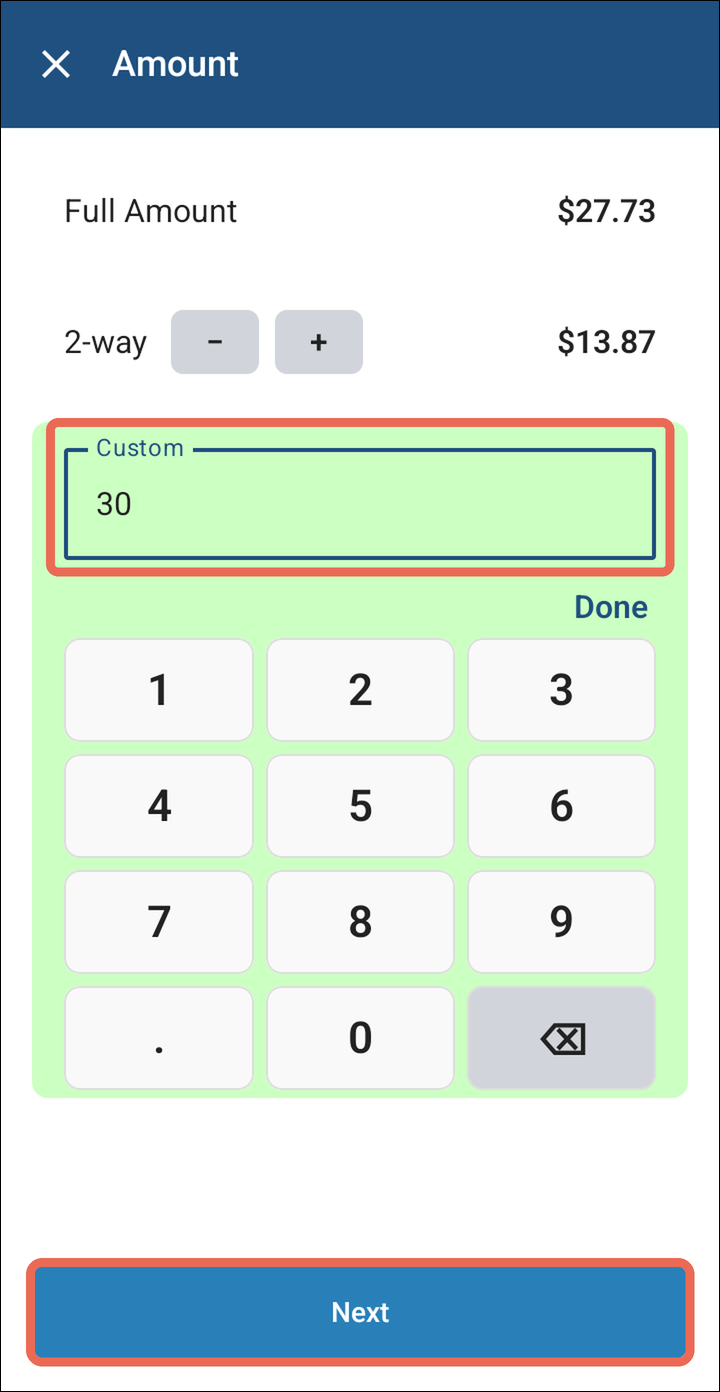
paypay, thenselecttapnext.Next:Note:Full Amount: the balance of the guests you selected.- 2-way: splits it evenly. Tap + or − to split it between more or fewer guests.
- Custom: type any amount on the number pad.
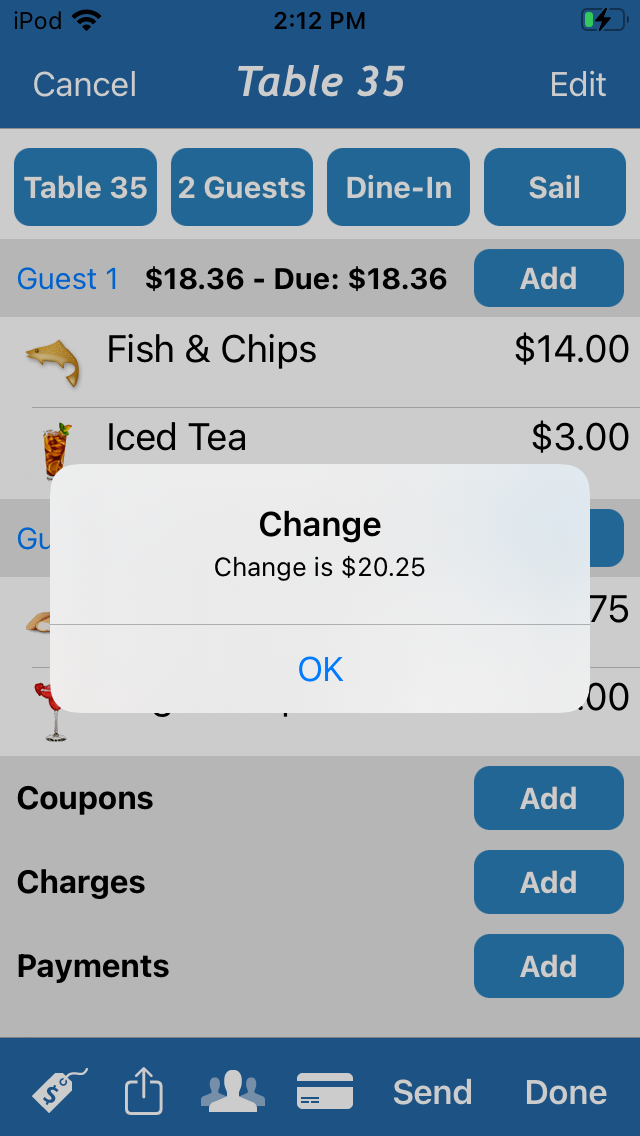
Note: If
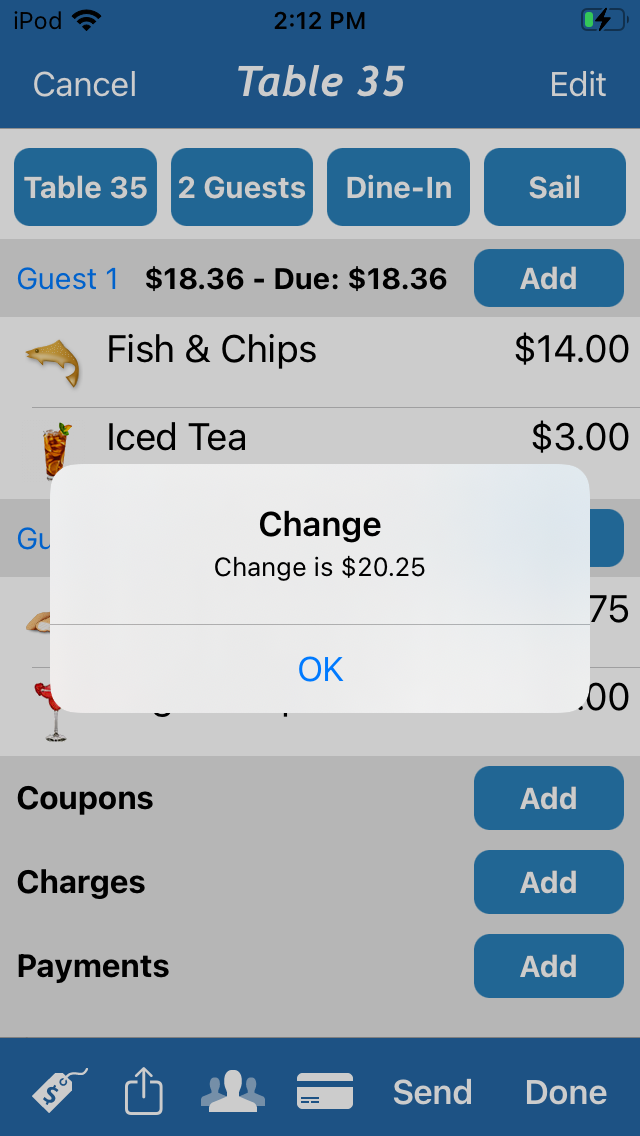
you’you'd like to see how much change to give a customer,you need toput the dollar amount that they gave you inthe custom field,Custom, and then selectcashCash on the next screen.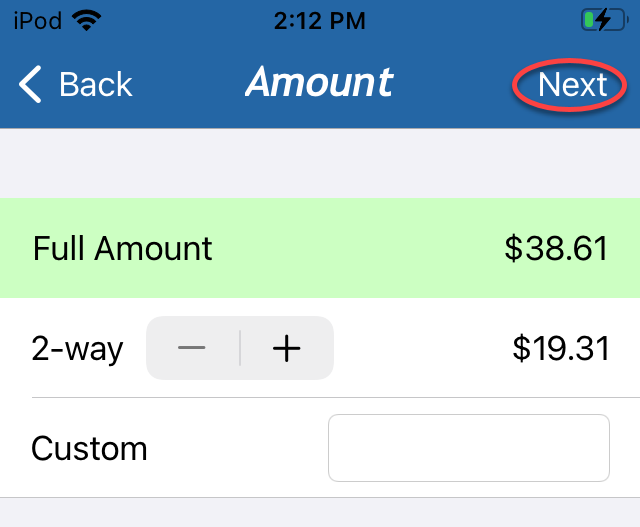
-
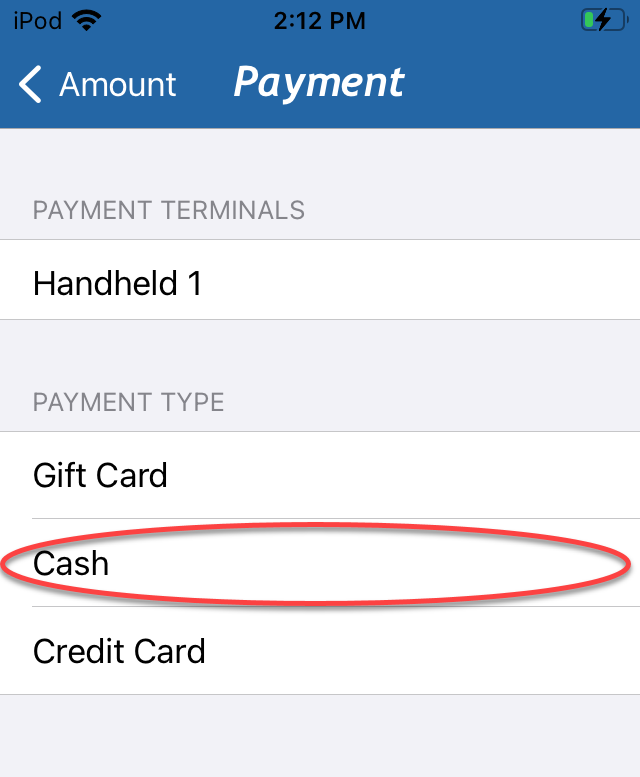
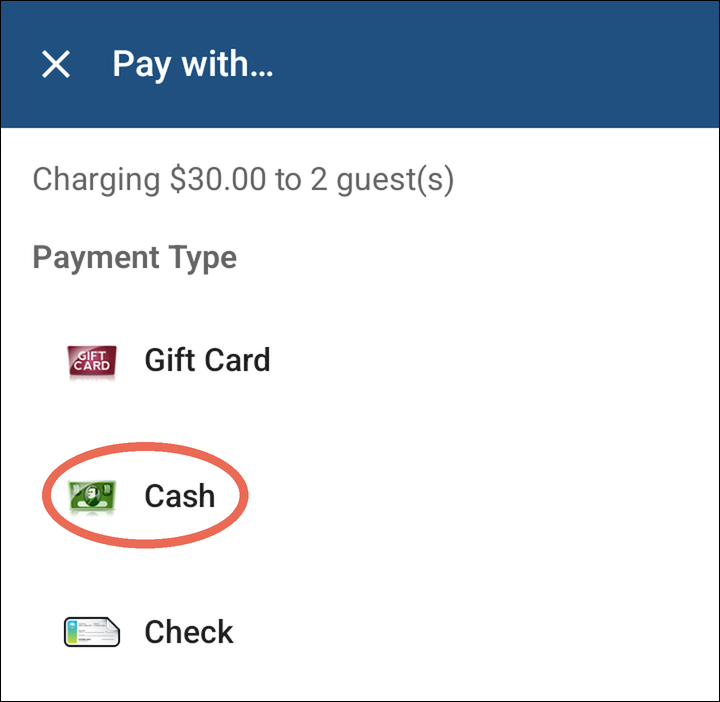
Select the payment type that the guest has chosen. For
moreainformationcard, tap Credit Card, and the guest inserts, taps or swipes their card on theother payment types see How to process a payment.handheld.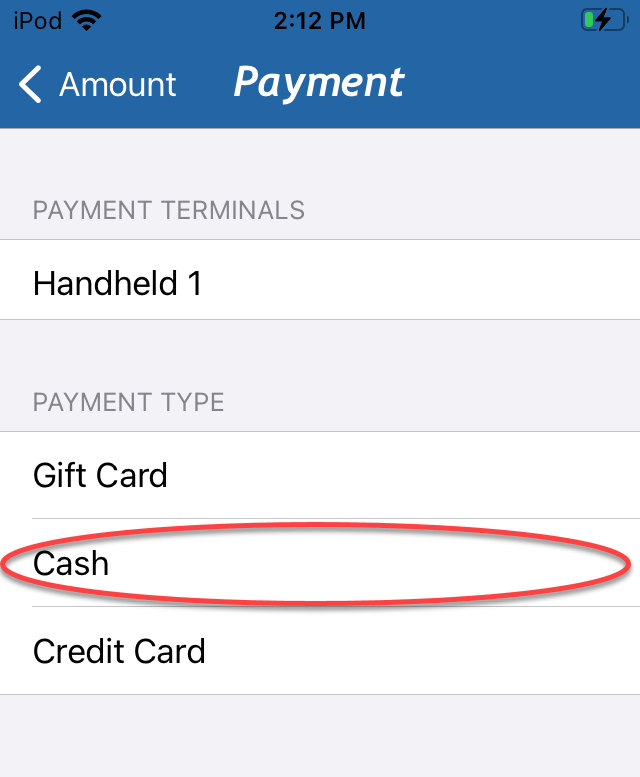
-
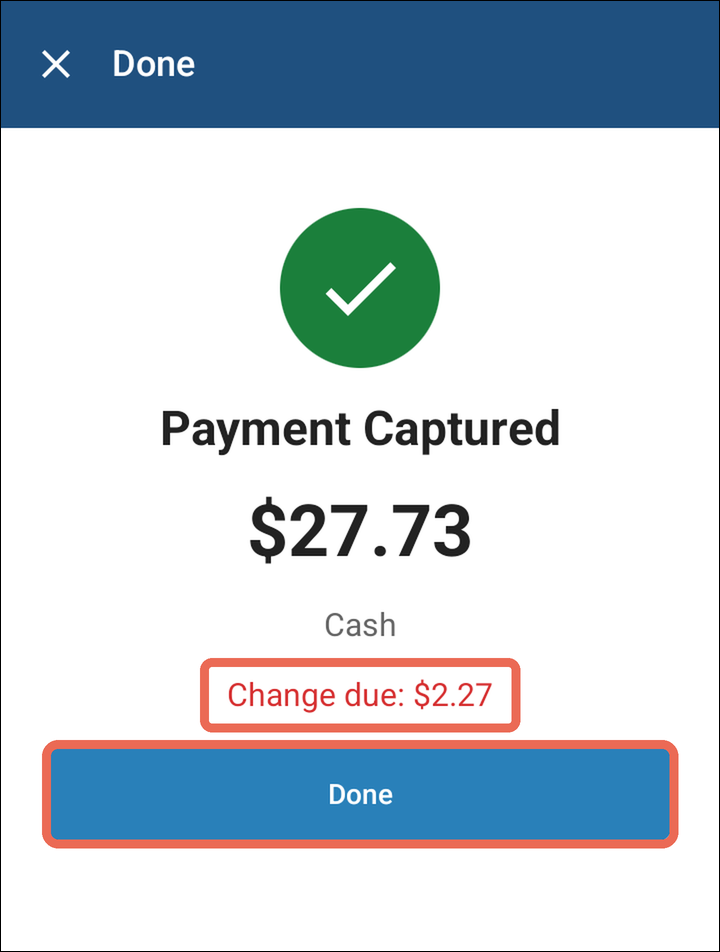
The transaction is now complete. For cash, the change to give shows in red. Tap Done. Once the whole balance is paid, the table closes and you're back on Orders.