
How to modify a table on a handheld
This will walk you through how to modify a table on a handheld after it has been created.
If you'd like to see how to modify a table on the terminal please click the link.
On a handheld
-
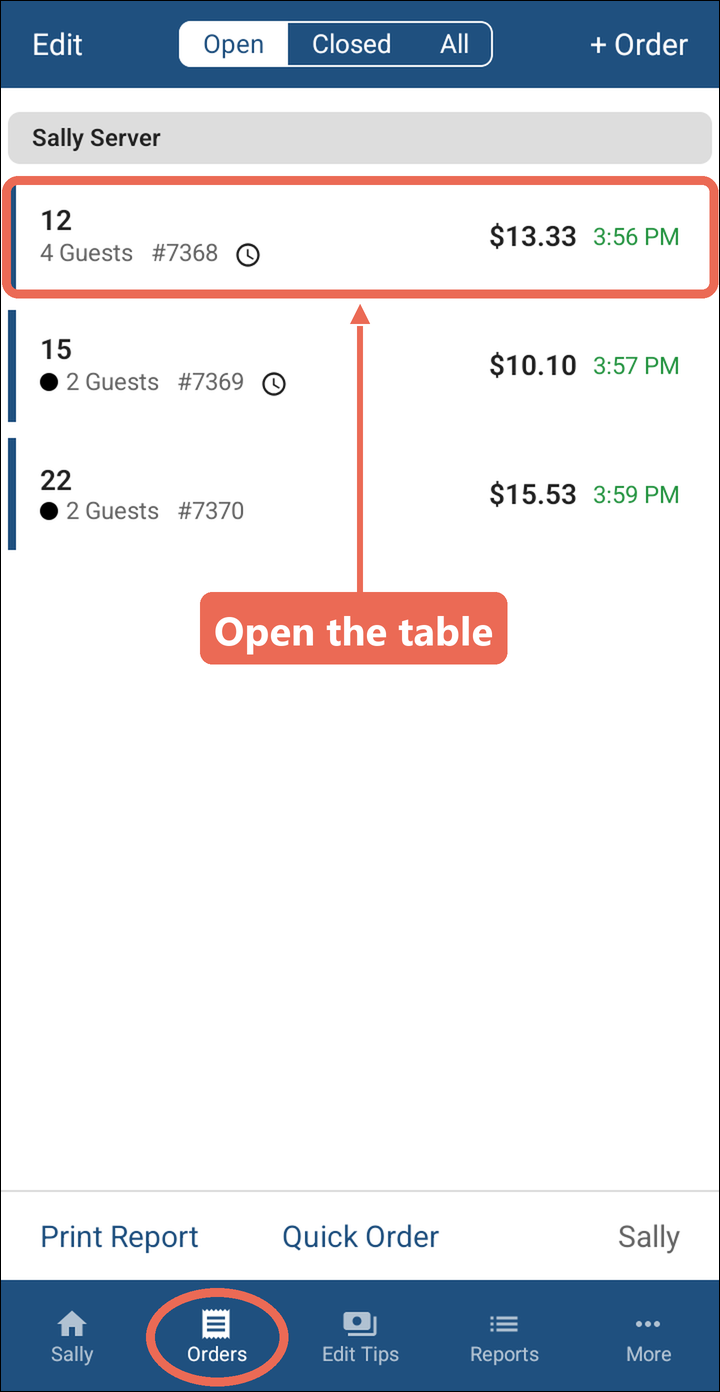
Tap Orders at the bottom of the screen, then open the table.
-
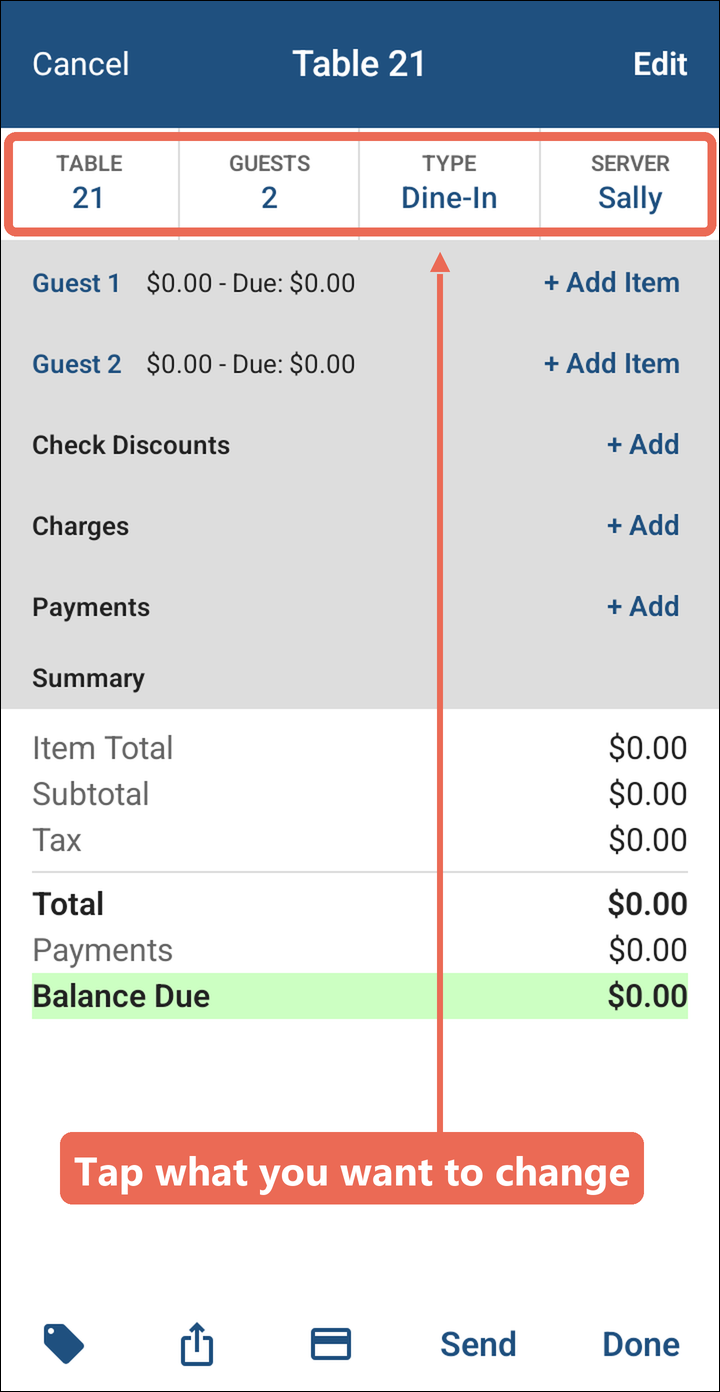
There are several table modifications across the
top.top: Table, Guests, Type and Server. Tap the one you want to change.
-
Select
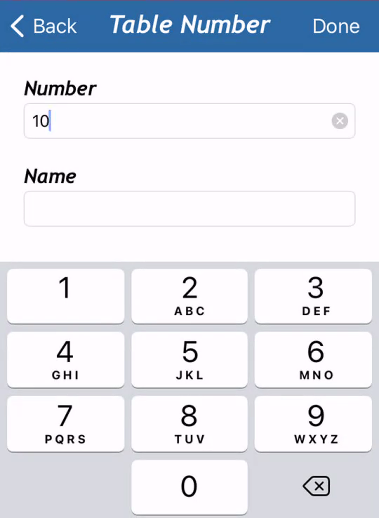
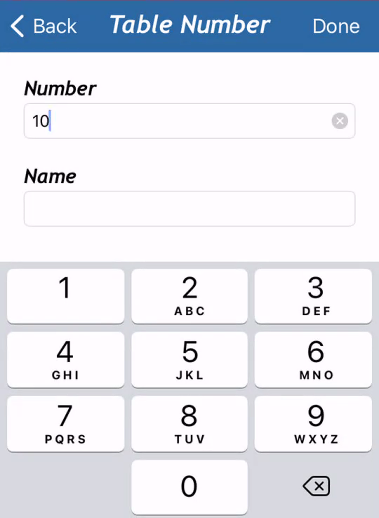
tableTable to change the number or the name of the table.TheThenpresstapdoneOK.in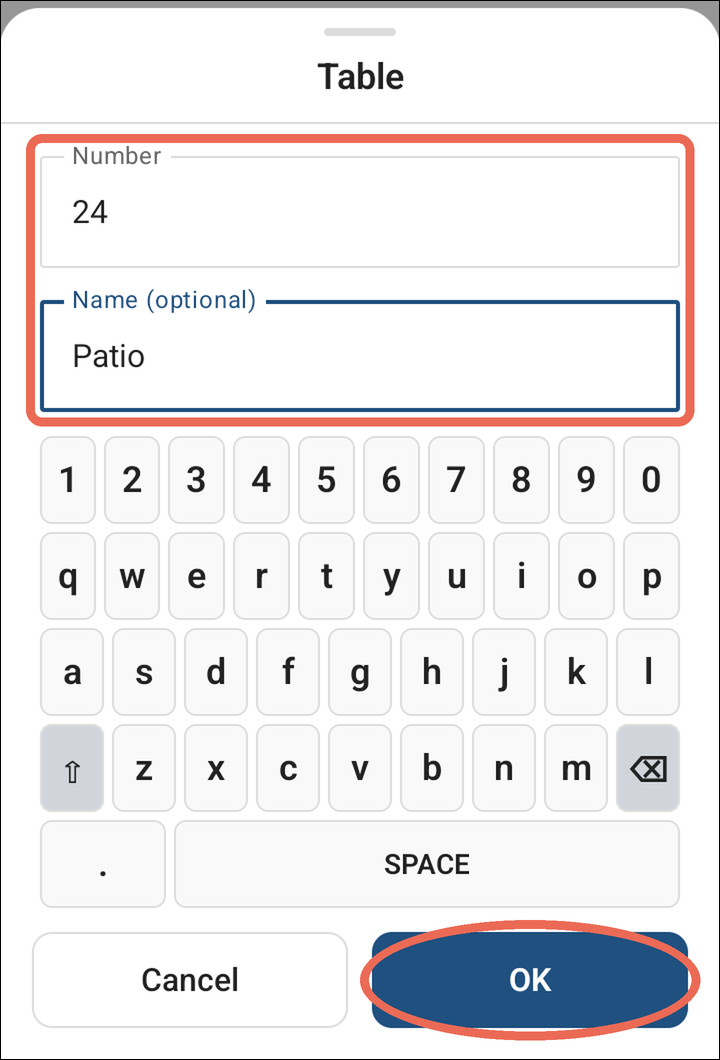
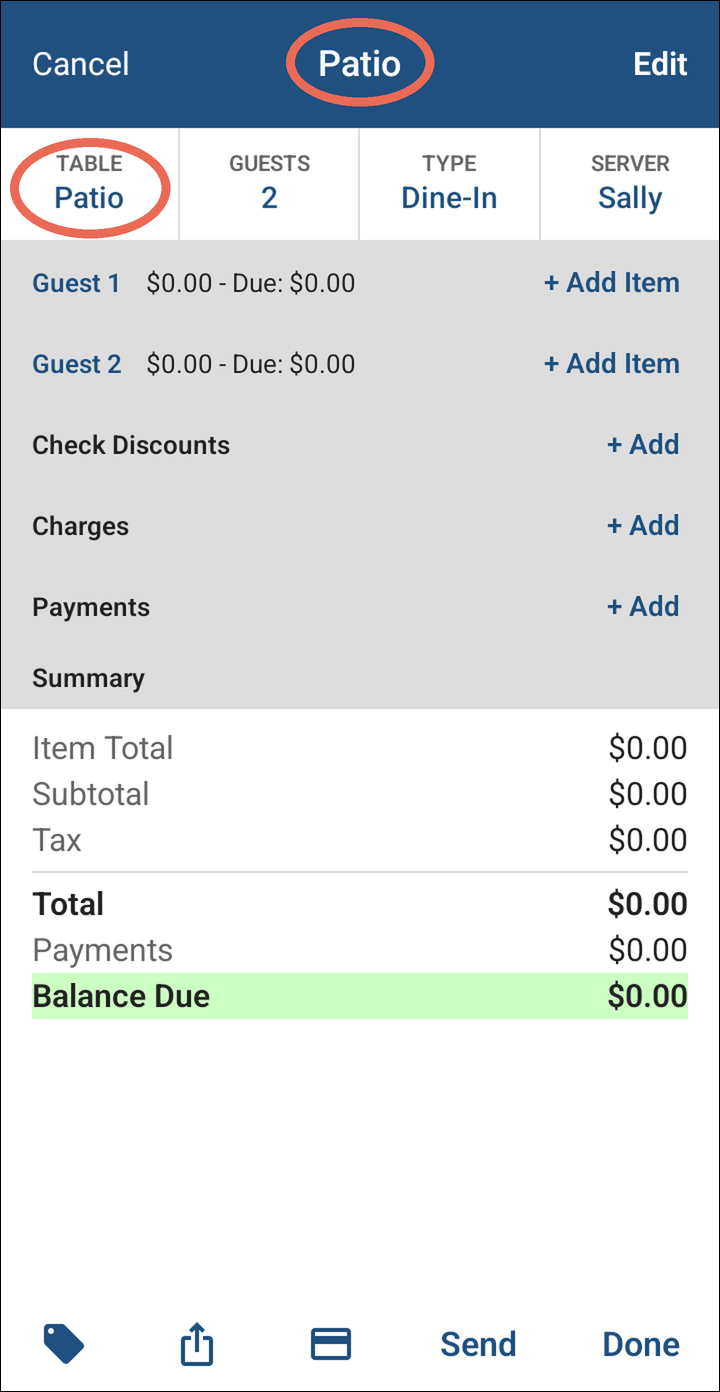
When a table has a name, the name shows at the top
rightinsteadcorner.of the number.
-
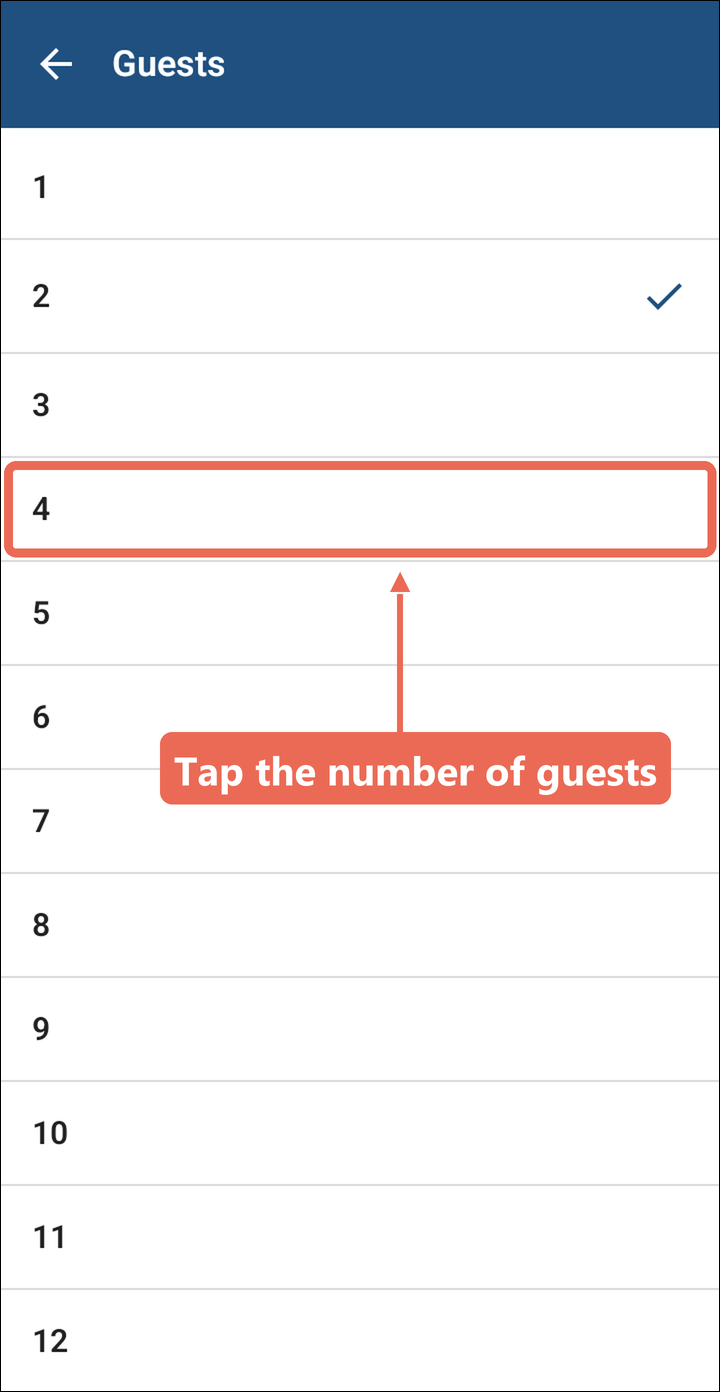
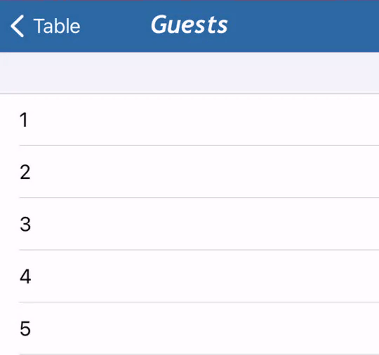
Selecting
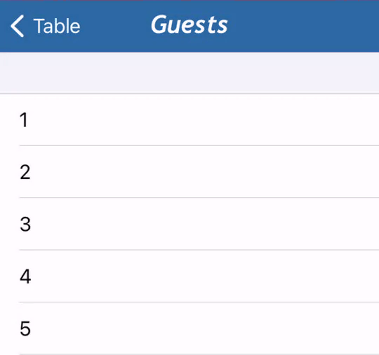
the guest count buttonGuests allows you to change the number of guests. Tap the new number of guests.
-
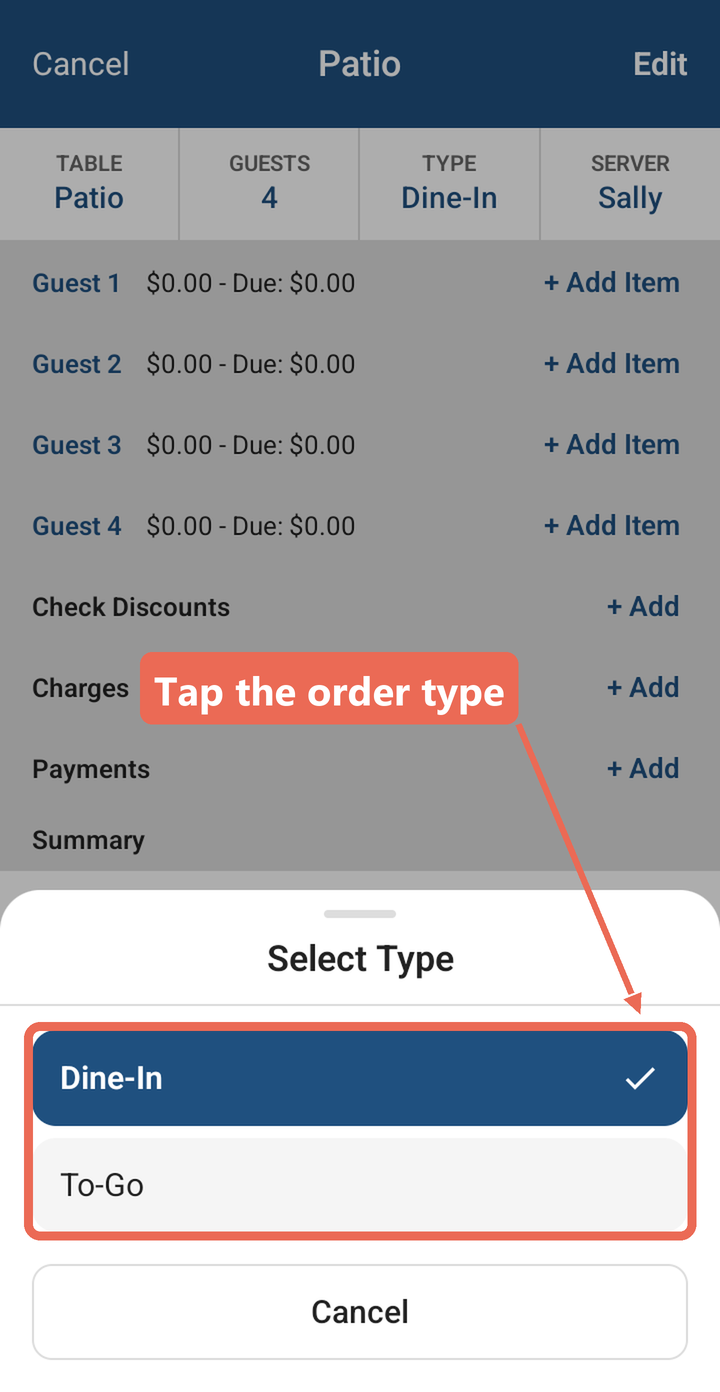
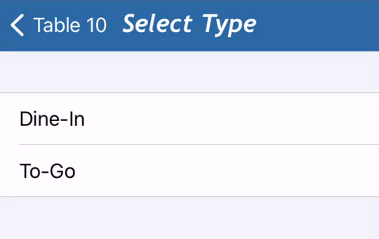
Select
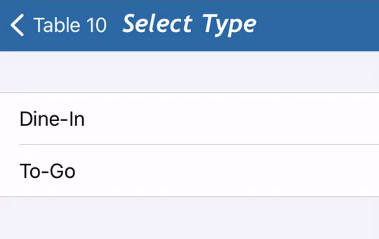
the dine in buttonType to change between your order typeoptions.options, then tap the one you want.
-
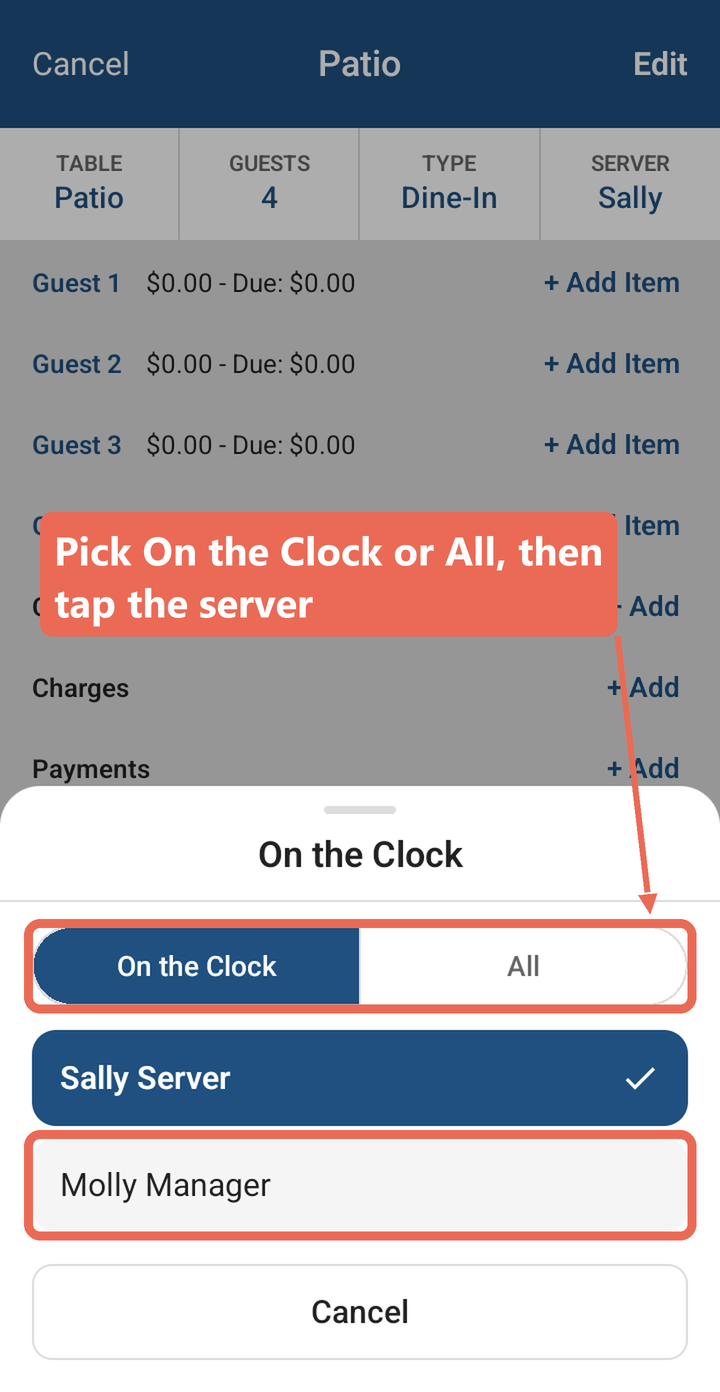
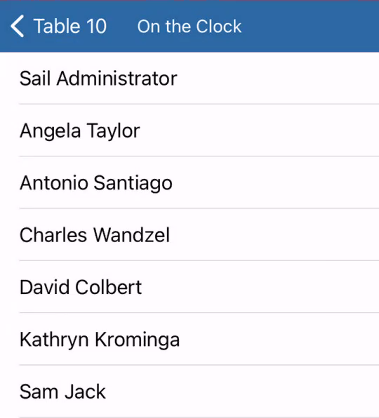
The last button is the name of the server. Select
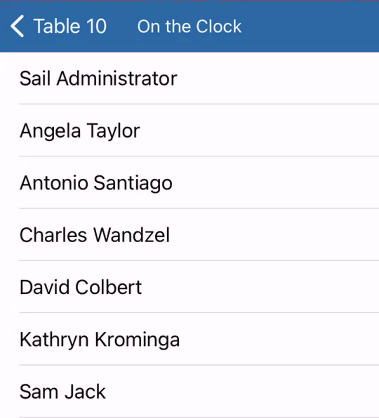
thisit to transfer the table to a different server. On the Clock lists the servers who are clocked in and All lists everyone. Tap the server who takes the table.
-
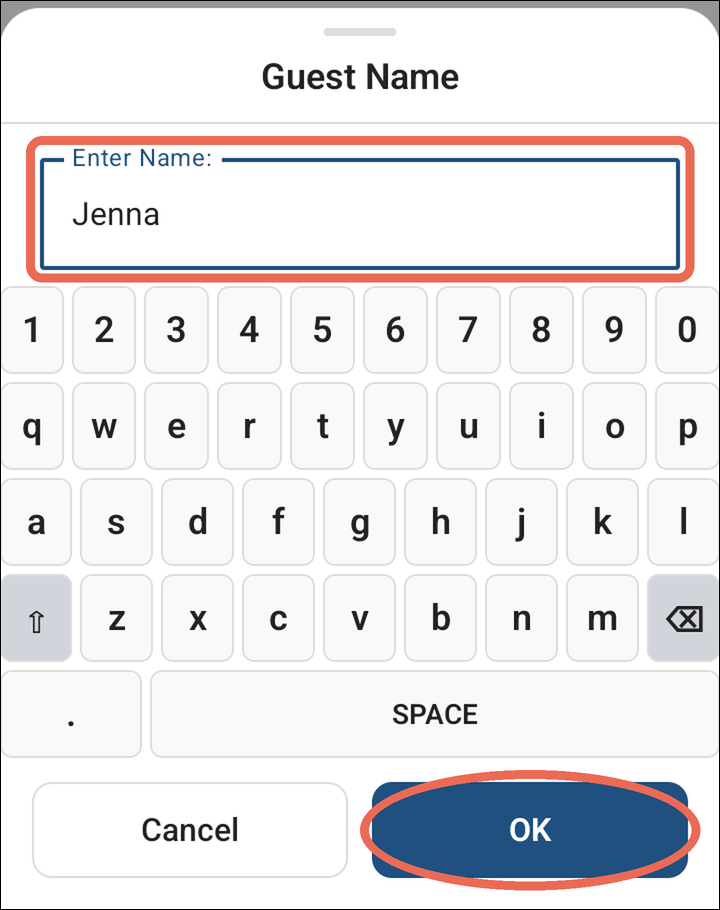
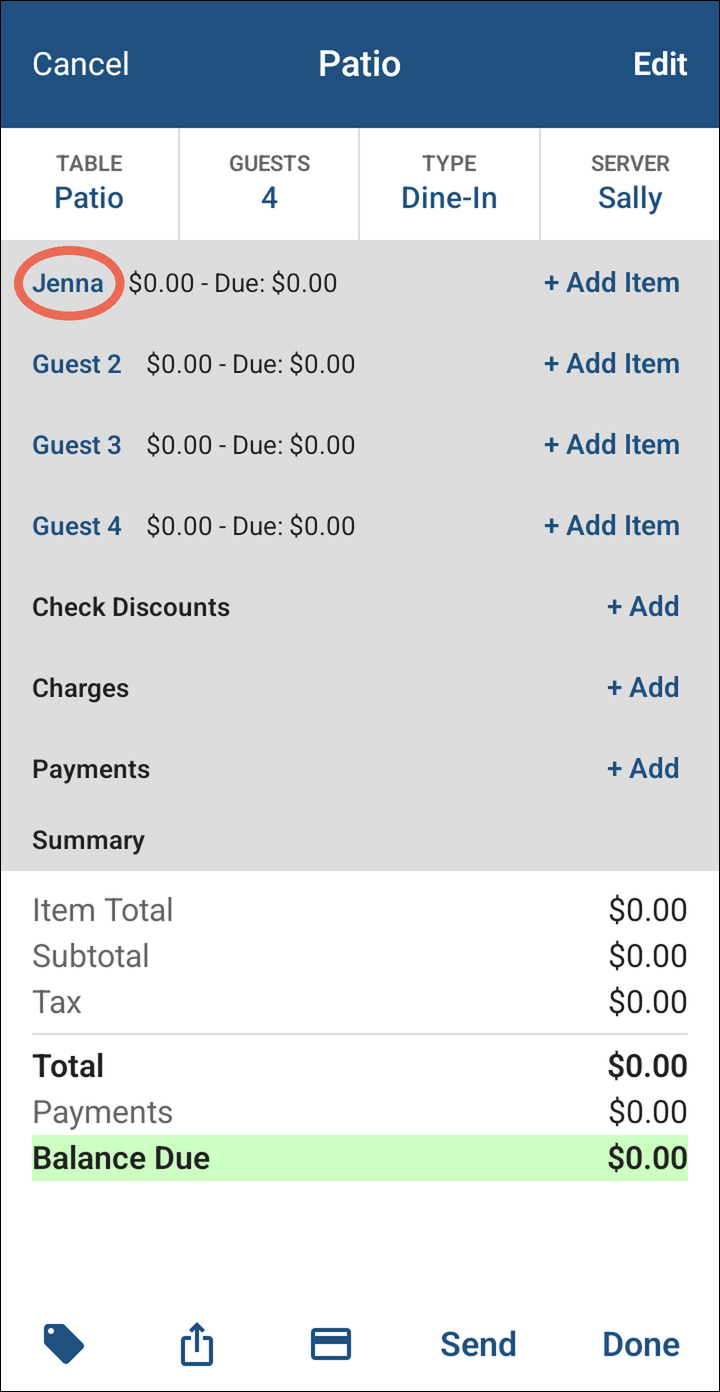
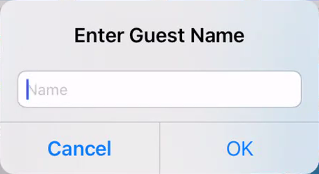
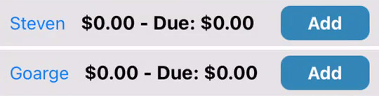
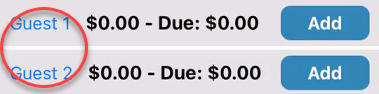
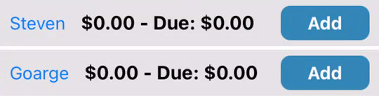
You can name each guest by
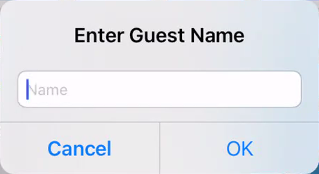
clicking ontapping the guest numberto(Guestchange1). Type thename.name and tap OK.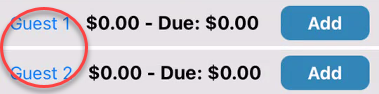
-
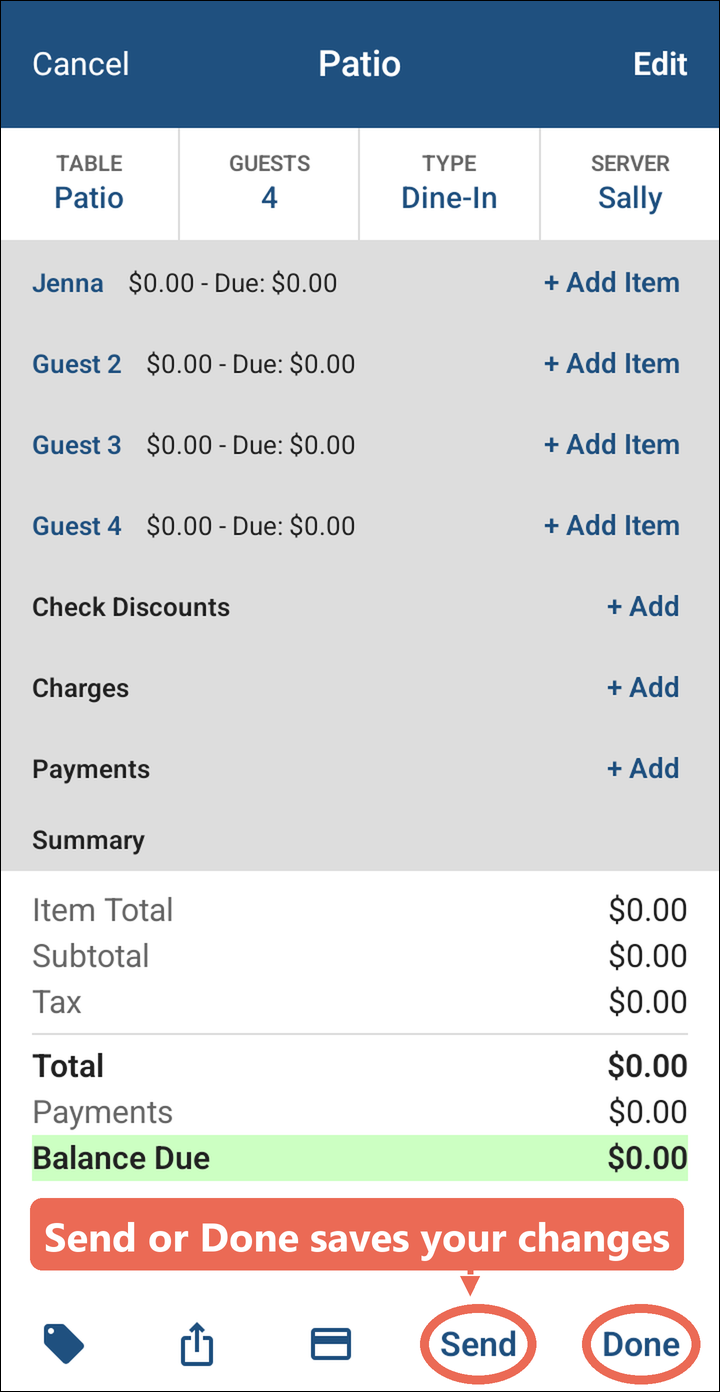
Your changes are saved when you tap Send or Done.





Note: If Table or Server is greyed out on a table that has been sent, your job role isn't allowed to change it. Ask your manager.