Release 2026.11.1 "Arches"
Notes: This release consists of 8 New features and Improvements. Use the page navigation section on the top left of this screen to jump between the features you'd like to read about.
**This release WILL require a handheld update to version 2026.11.1**
If you would like any additional information or help setting up any of these new features, please contact support at:
Support@ingageit.com or call (612) 861-5277
New Features
1. Timed Items: Charge Pool Tables, Bowling Lanes and Darts by the Hour
- You can now sell items that are charged by how long they're used — pool tables, bowling lanes, dart boards, shuffleboard. Instead of a fixed price, a timed item has a price per hour: when it's rung in, a timer starts and the price grows until the timer is stopped.
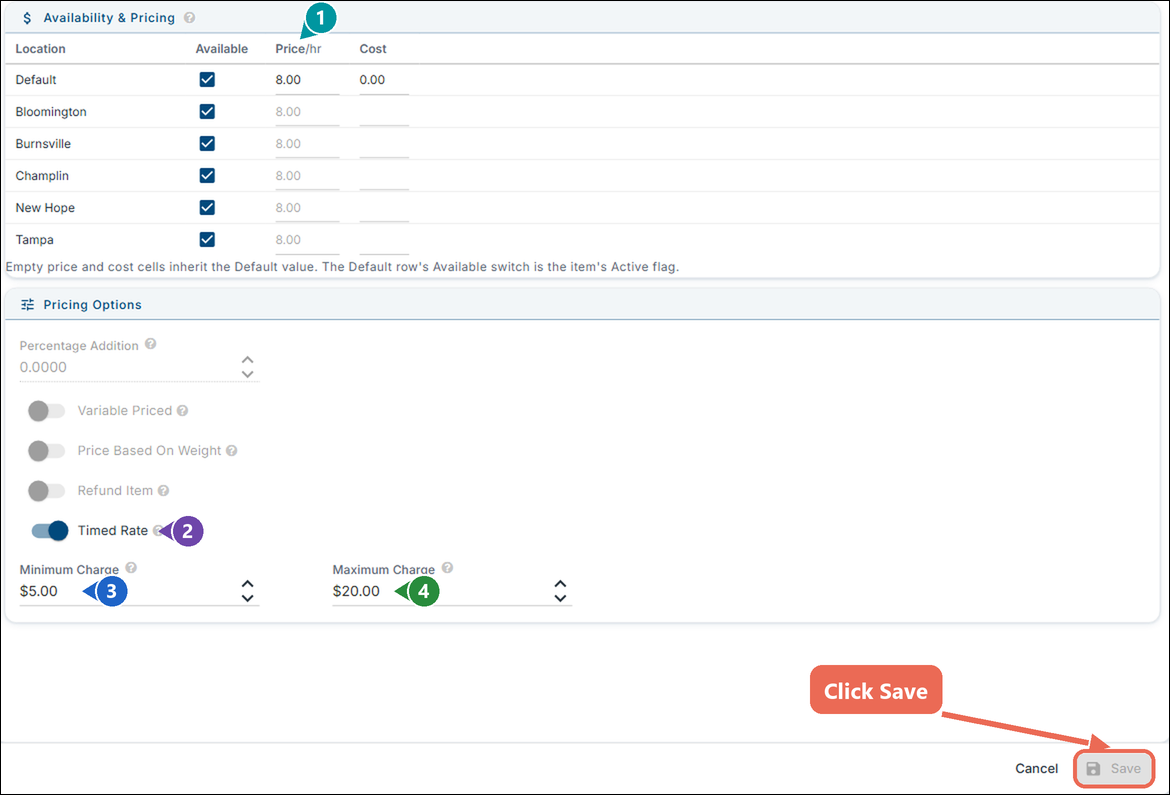
- Backoffice Setup: Go to Backoffice --> POS, click the item, and on the Details tab --> General --> Pricing Options turn on Timed Rate (2). The price in Availability & Pricing becomes the Price/hr (1) — like any price, a location can have its own.
- Minimum Charge (3) and Maximum Charge (4): both optional. Example: a Pool Table at $8.00 an hour with a $5.00 minimum and a $20.00 maximum — 30 minutes costs the $5.00 minimum, 1 hour 30 minutes costs $12.00, and 3 hours stops at the $20.00 maximum.
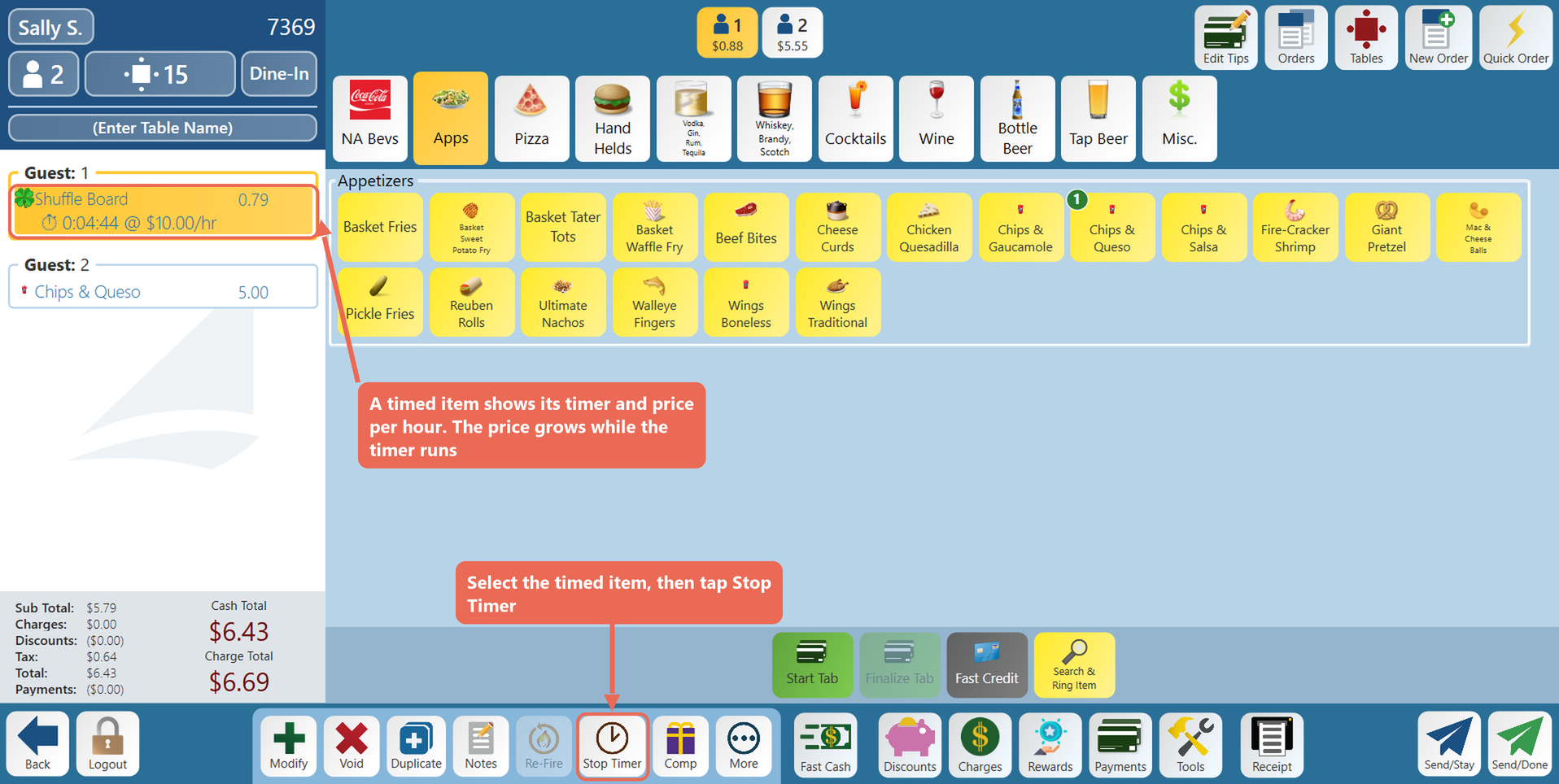
- On the terminal: Ring in the timed item like any other item. The order shows the stopwatch, how long it has run and the price per hour, and the price grows while it runs. Select it and tap Stop Timer to stop it; if the guests keep playing, Resume Timer picks up where it left off.
- Stop timers without opening the order: On the Orders screen or the Table View, select the order or table and tap Stop Timer.
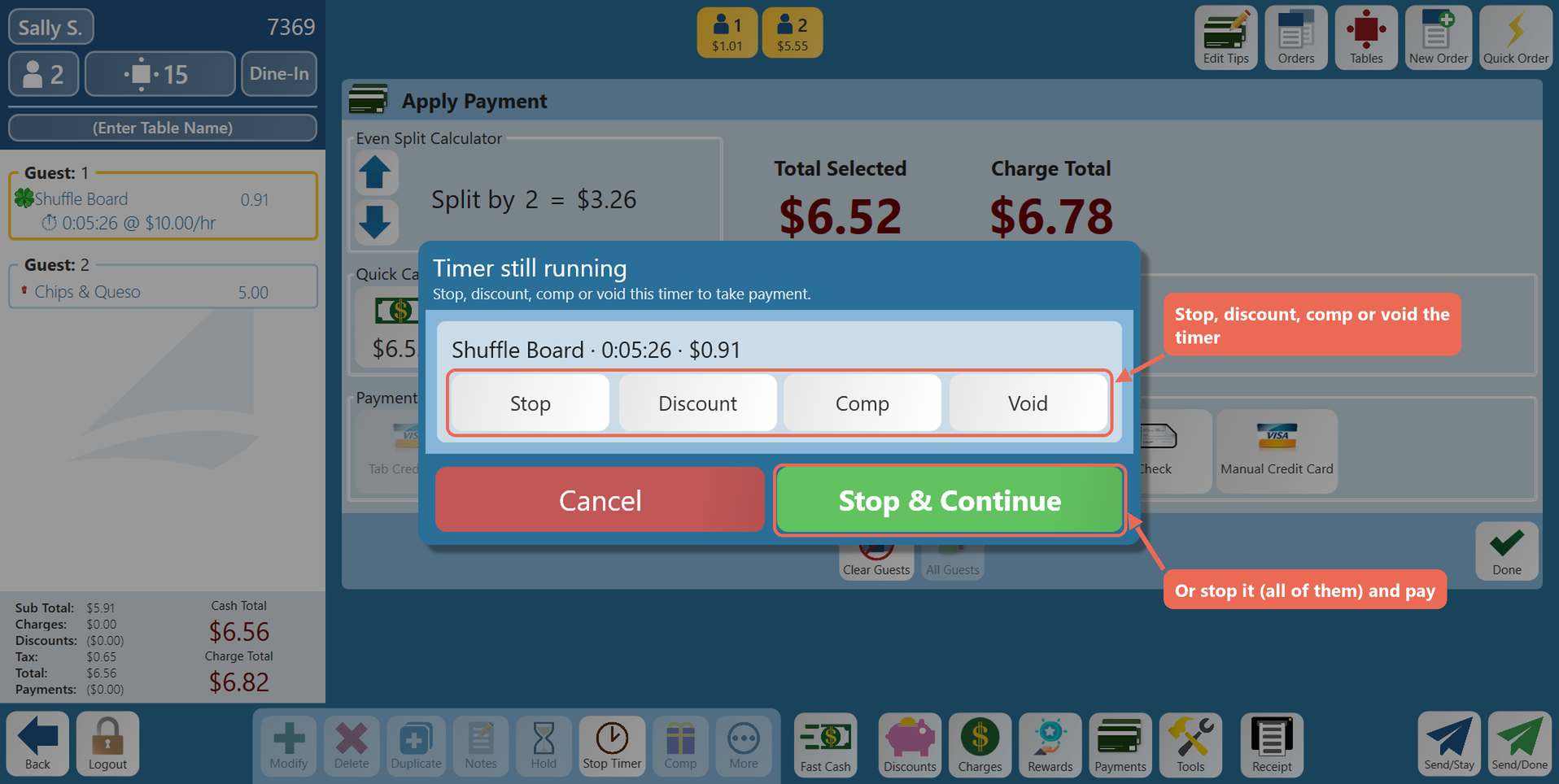
- Paying: An order can't be paid while a timer is running. If you go to pay first, the terminal lists each running timer so you can Stop, Discount, Comp or Void it — or tap Stop & Continue to stop them all and finish paying. Fast Cash and Fast Credit ask the same.
Click here to learn more about how to set up and use timed items
2. Cash Deposits: See If You're Over or Short
- Managers can now record the night's cash deposit — the cash you take to the bank — right in Sail, and the Daily Sales Report shows whether it matches the Amount Due: over or short.
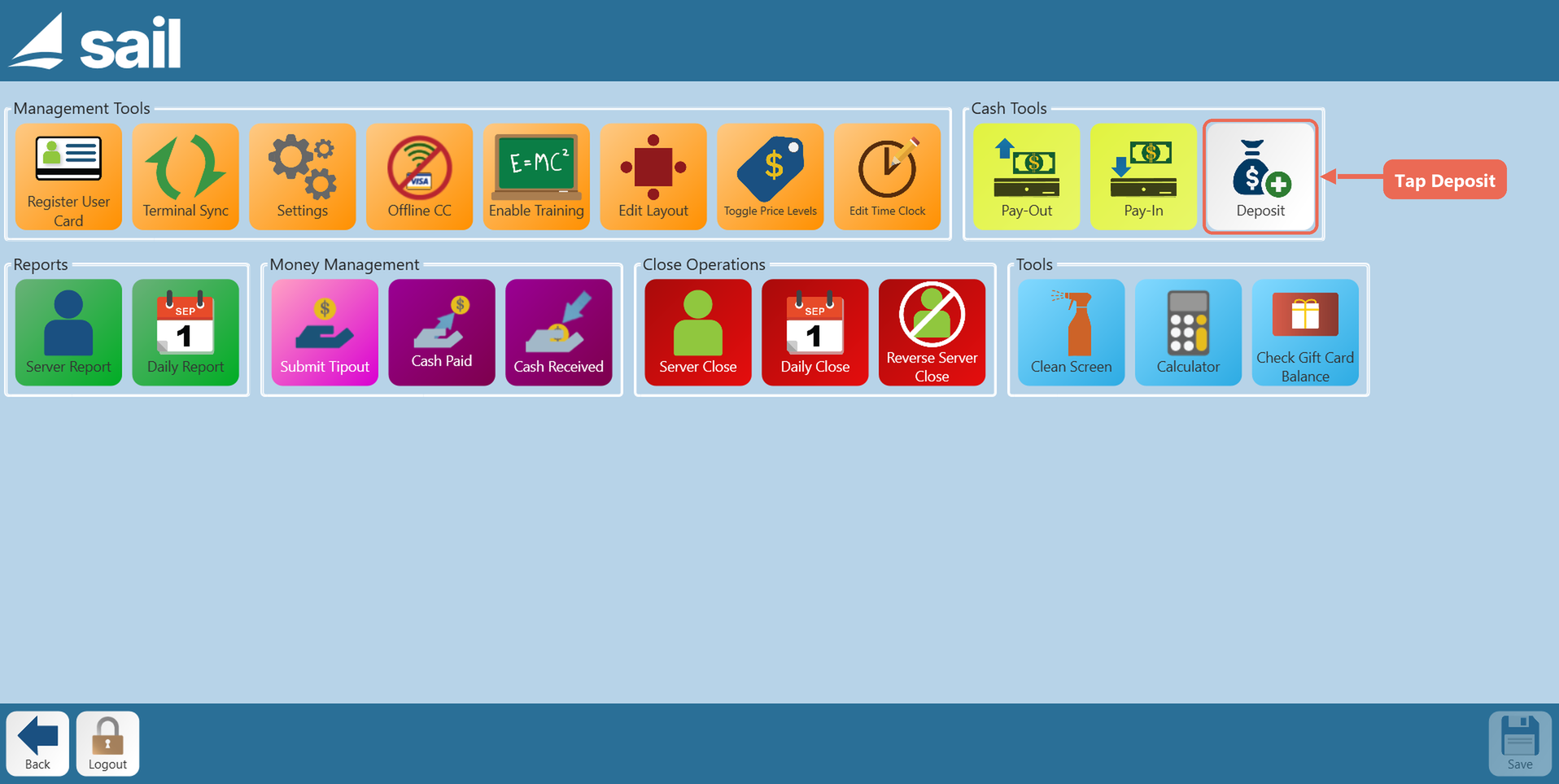
- On the terminal: Tap Functions, then Deposit under Cash Tools. Type the amount, add a note if you'd like (such as the bag number) and tap Done. Taking more than one bag to the bank? Tap Deposit again and + New deposit. Tap a deposit to change the amount or remove it. The terminal records tonight's deposits only.
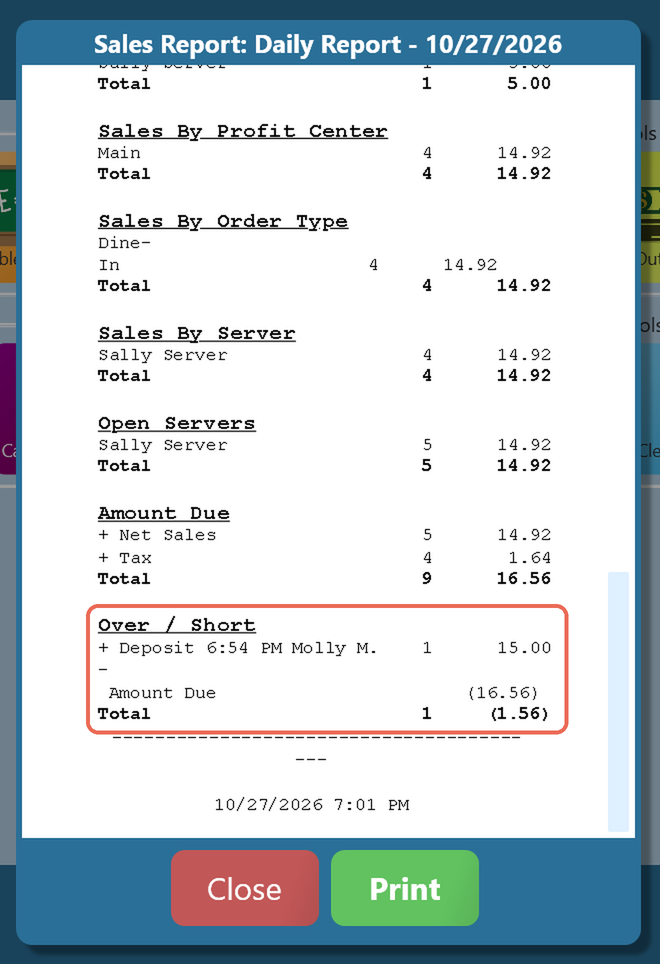
- Over / Short: The Daily Report now ends with an Over / Short section under Amount Due. It lists each deposit with its time and who recorded it, takes away the Amount Due, and the total shows how much the deposit is over — or short, in parentheses. Example: a $15.00 deposit against an Amount Due of $16.56 shows (1.56).
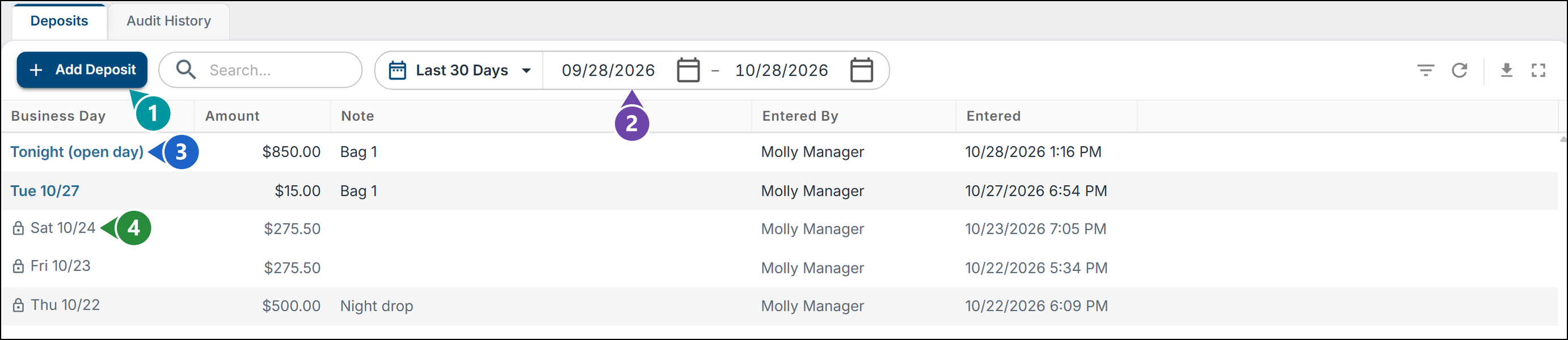
- Backoffice: Backoffice --> Reporting --> Deposits lists your location's deposits. Add Deposit (1) adds one for tonight or the last closed day — handy when it wasn't recorded before the Daily Close. Pick the days to list (2); tonight and the last closed day (3) can be changed or deleted, older days (4) are locked.
Click here to learn more about how to record a cash deposit
Improvements
3. Start a Tab Before Anything Is Ordered
- You can now start a tab on an order that has nothing on it yet — for example when a guest sits down at the bar and hands over their card before ordering. Tap Start Tab on the empty order and swipe or enter the card as usual.
- The order stays open with its tab until items are rung in and it's paid, so the tab isn't lost.
4. Fast Credit on the Orders Screen and Table View
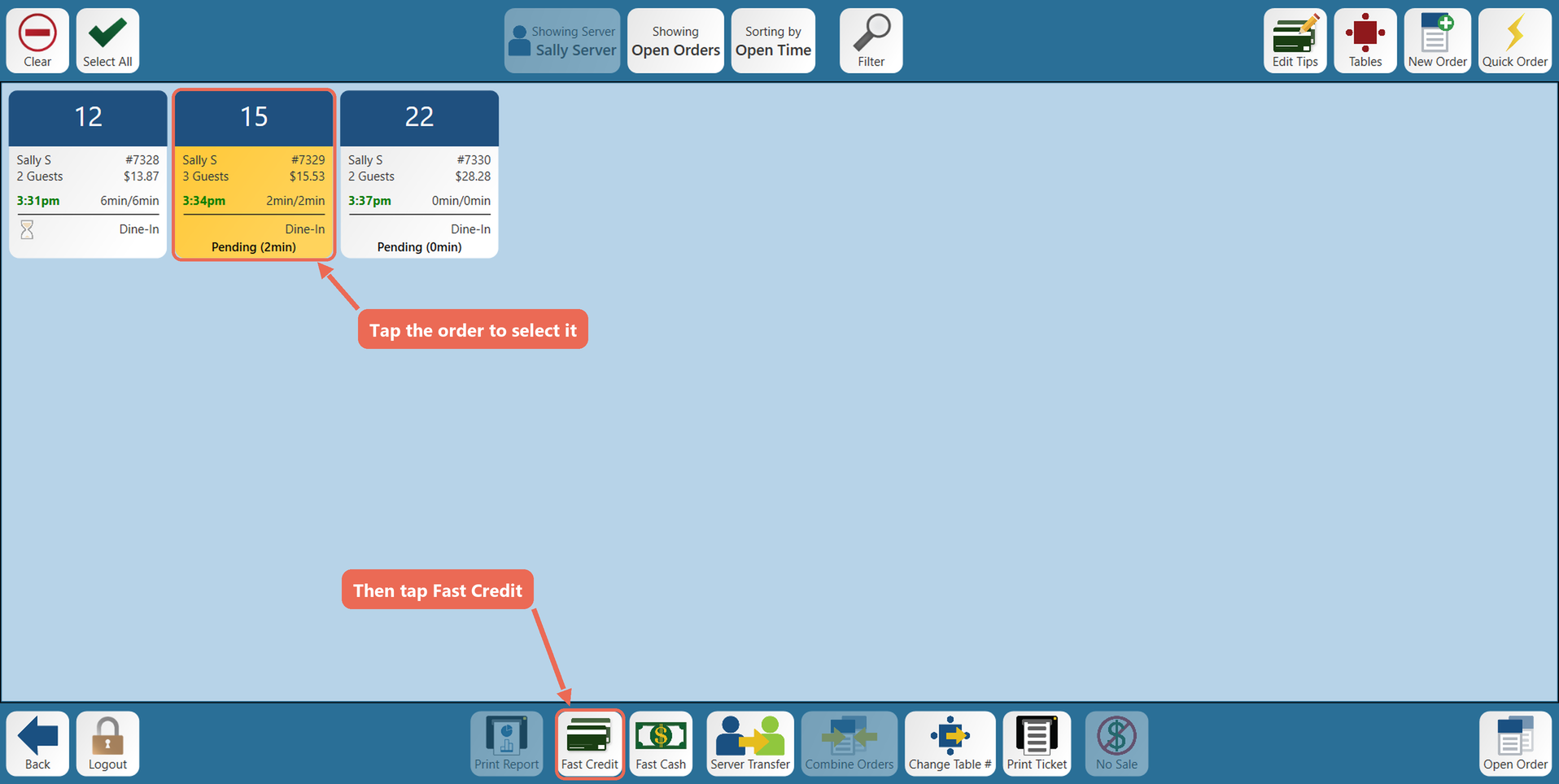
- Fast Credit is now on the bottom toolbar of the Orders screen and the Table View, next to Fast Cash. Tap the order to select it, then tap Fast Credit to charge its full balance to a card and close it — without opening the order.
- There's no "Are you sure?" message: the guest inserts, taps or swipes their card on the card reader, which is where you can still cancel.
- If the order has an open tab, you choose which card to charge.
5. New Split Item Actions
- On the item's More screen, Split Item works the way you know: tap it, then tap the guests along the top to split the item with them. While it's split, the button is gold and reads Unsplit — tap it to put the item back on one guest.
- New on the More screen: while the item is split, All Guests splits it with every guest who hasn't paid in one tap, and Clear Guests puts it back on the first guest only.
- You can now select one split and move it to another guest on its own.
- 4 New split Actions: Four new actions can go on your order screen or in a shortcut — great for pool tables and other shared items, and they pair well with Stop Timer.
- Auto-Split splits the selected item evenly between every guest who hasn't paid.
- Manual Split asks "Split into how many?" (2 to 20) and keeps all the splits on the same guest so you can hand them out — or set it up to always make the same number of splits.
- Remove Splits takes away the selected splits, and the price is shared by the splits that are left.
- Unsplit Item puts the whole item back on one guest.
- Note: Once a guest has paid their part of an item, its splits can't change.
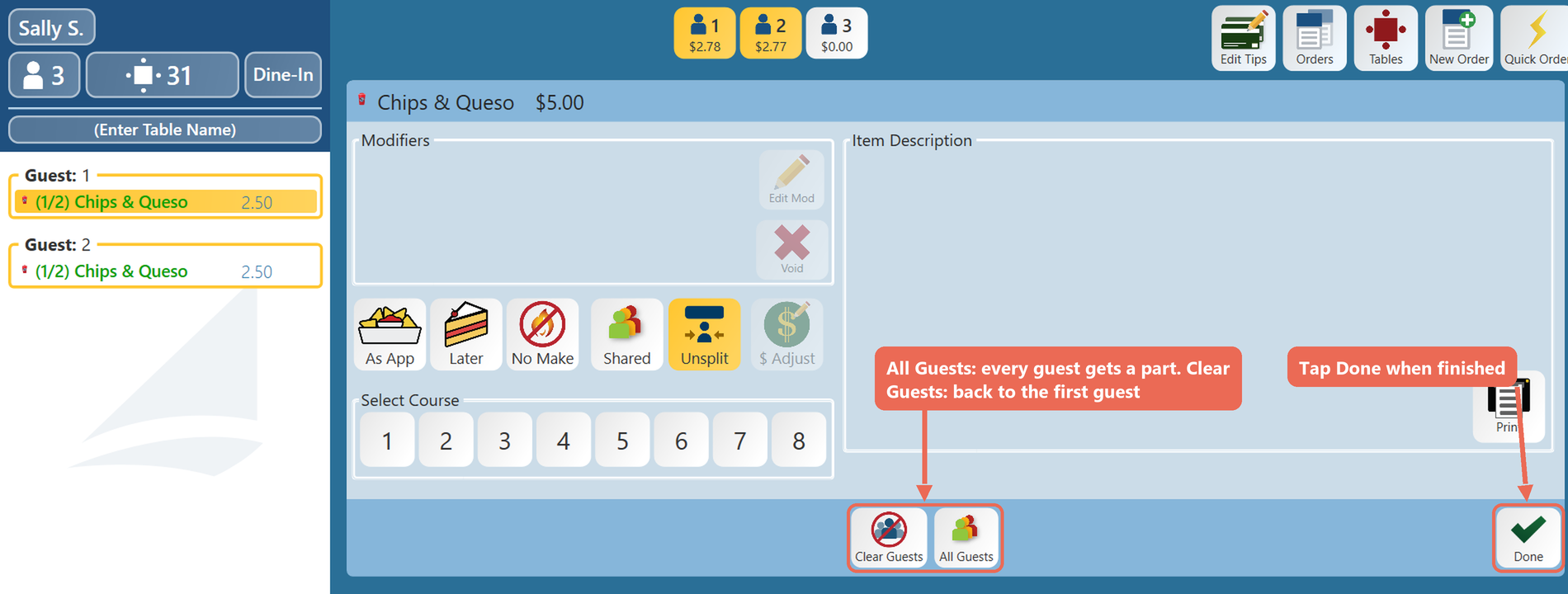
Click here to learn more about how to use the Split Item actions
6. Size Groups: Colors and Icons on the Size Buttons
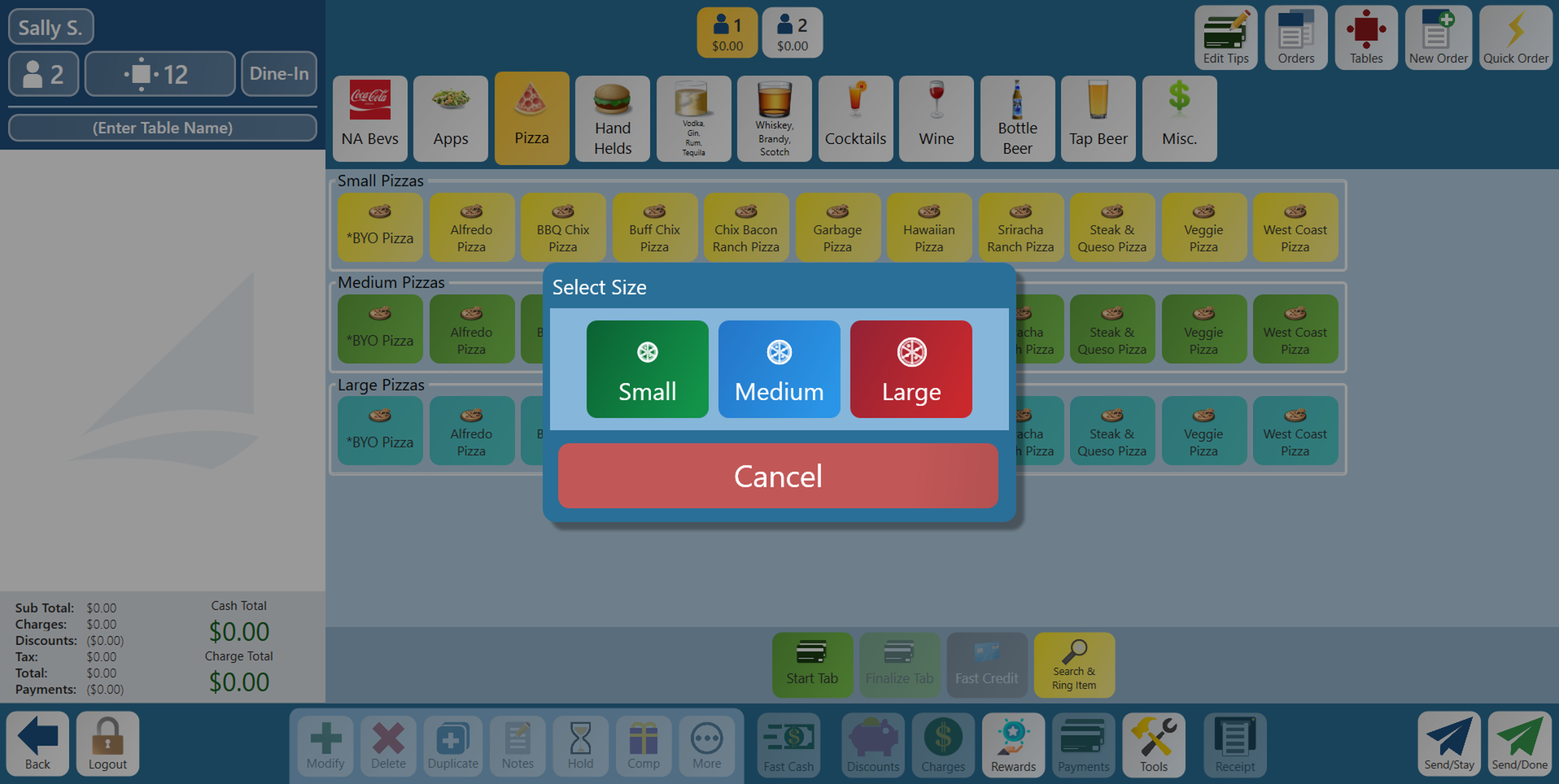
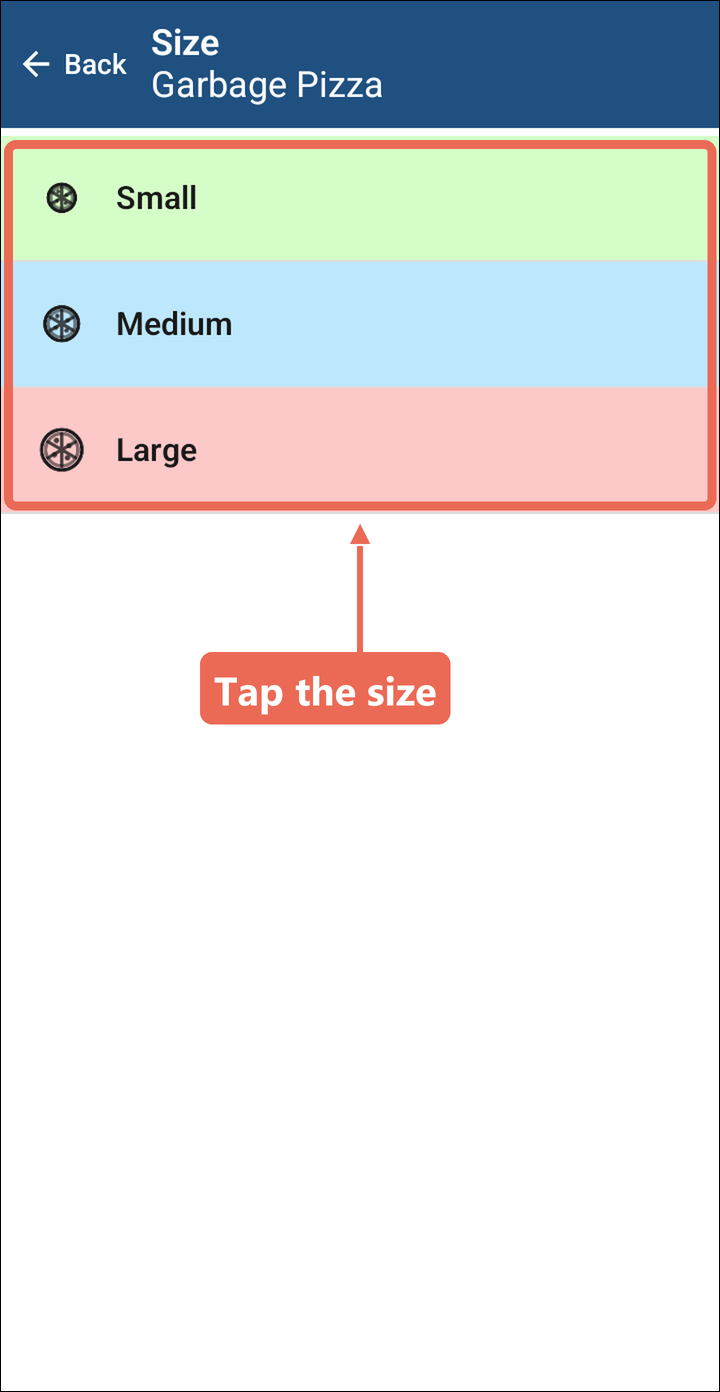
- When the terminal or a handheld asks which size, each size can now have its own button color and icon — so servers pick Small, Medium or Large at a glance.
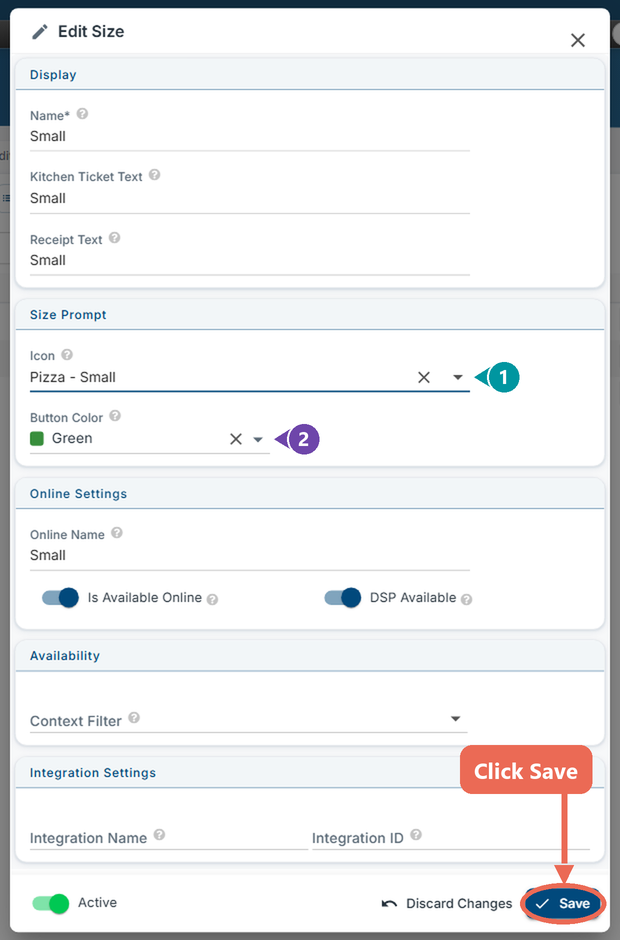
- Backoffice Setup: Go to Backoffice --> POS --> Settings --> Size Groups, click the size group, then the Sizes tab. Click a size and, under Size Prompt, pick its Icon (1) and Button Color (2). Sail comes with ready-made size icons — coffee cups, pint and wine glasses, pitchers, bottles, pizzas, bowls, fries and more, getting bigger with the size. The Prompt Button column shows how each size will look.
- On the terminal: The Select Size window shows each size in its color with its icon.
- On the handheld: Each size shows its icon on a light shade of its button color.
- Note: Sizes without a color or icon look just like before. The colors and icons show when the terminal asks for the size; sections with a button for each size keep the item's own color and icon.

7. Flashing Hourglass for Held Orders
- On the Orders screen, the hourglass on an order button now flashes while anything on the order is on hold — timed holds and items held until you fire them — so held items are harder to forget. It stops flashing once nothing on the order is held.
8. Price Levels: Start and End Dates
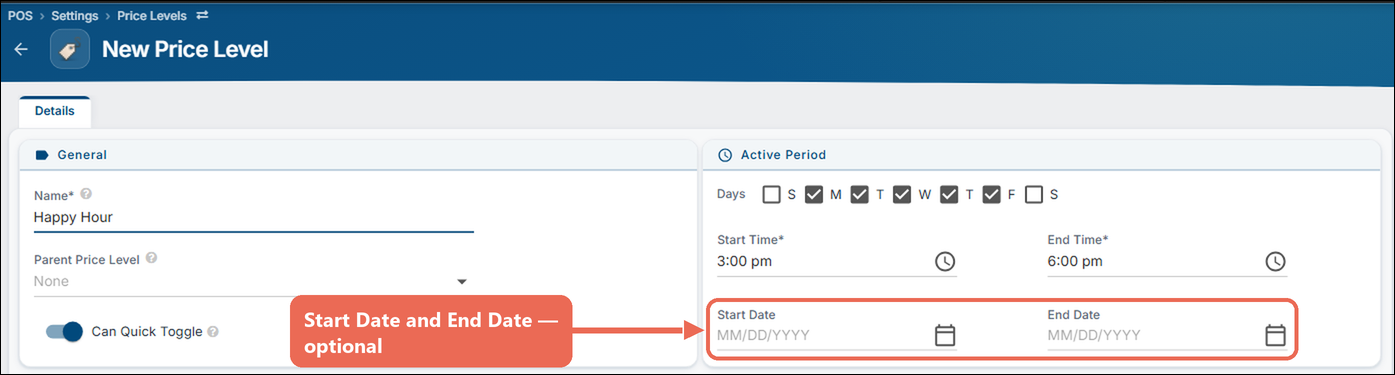
- Price levels can now run between a Start Date and an End Date — great for a holiday special or a limited-time deal. Outside its dates the price level doesn't apply, and items ring in at their normal price on the terminal, the handheld and Online Ordering.
- Backoffice Setup: Go to Backoffice --> POS --> Settings --> Price Levels, click the price level, and on the Details tab --> Active Period fill in Start Date and End Date. Both are optional — leave them blank for no date limit, so your existing price levels don't change.