
Release 2026.6.1 "Pink Paloma"
Notes: This release consists of 6 New features and Improvements. Use the page navigation section on the top left of this screen to jump between the features you'd like to read about.
**This release WILL require a handheld update to version 2026.6.1**
If you would like any additional information or help setting up any of these new features, please contact support at:
Support@ingageit.com or call (612) 861-5277
New Features
1. Auto Print Engine
-
We’We’ve added a new Auto Print Engine that allows you to automatically print customer-facing documents based on specific triggers and conditions- Example use case: Automatically printing delivery receipts when an order is dispatched to a driver.
- To find the Auto Print engine log into Backoffice --> POS --> System Setup --> Auto Print Engine

- To create a rule click on "New Auto Print Rule"
- Name the Rule
- You are required to pick at least 1 of the 4 triggers
- You are required to pick at least 1 of the 6 documents
- Filters are optional
- Schedule is optional
- Click Save


2. New 86 Item Report
- A new 86 Item Report has been added to Reporting. This report displays all items that are currently on the 86 list, making it easier to quickly review unavailable or low-stock items.
- The report includes current on-hand quantities, reorder points, and last sold dates, with optional filters for Item Filters, Item Categories, and Reporting Groups.
- Items can also be sorted by item name or on-hand quantity for easier review.
- To find the report login to Backoffice --> Reporting --> Reports --> Sales --> 86 Item Report

- Here is an example of what the report looks like
- Red means there are 0 left and the item is out of stock
- Orange means the item is below the reorder point
- Black means the item is above the report point (or there is no reorder point listed)

- Items can now have a "Reorder Point" configured to help track when inventory is running low. To set a reorder point, open the item in Backoffice and navigate to the "Inventory" tab. The configured reorder quantity will then appear on the new 86 Item Report for easier inventory monitoring.


3. New Gift Card Liability Report
-
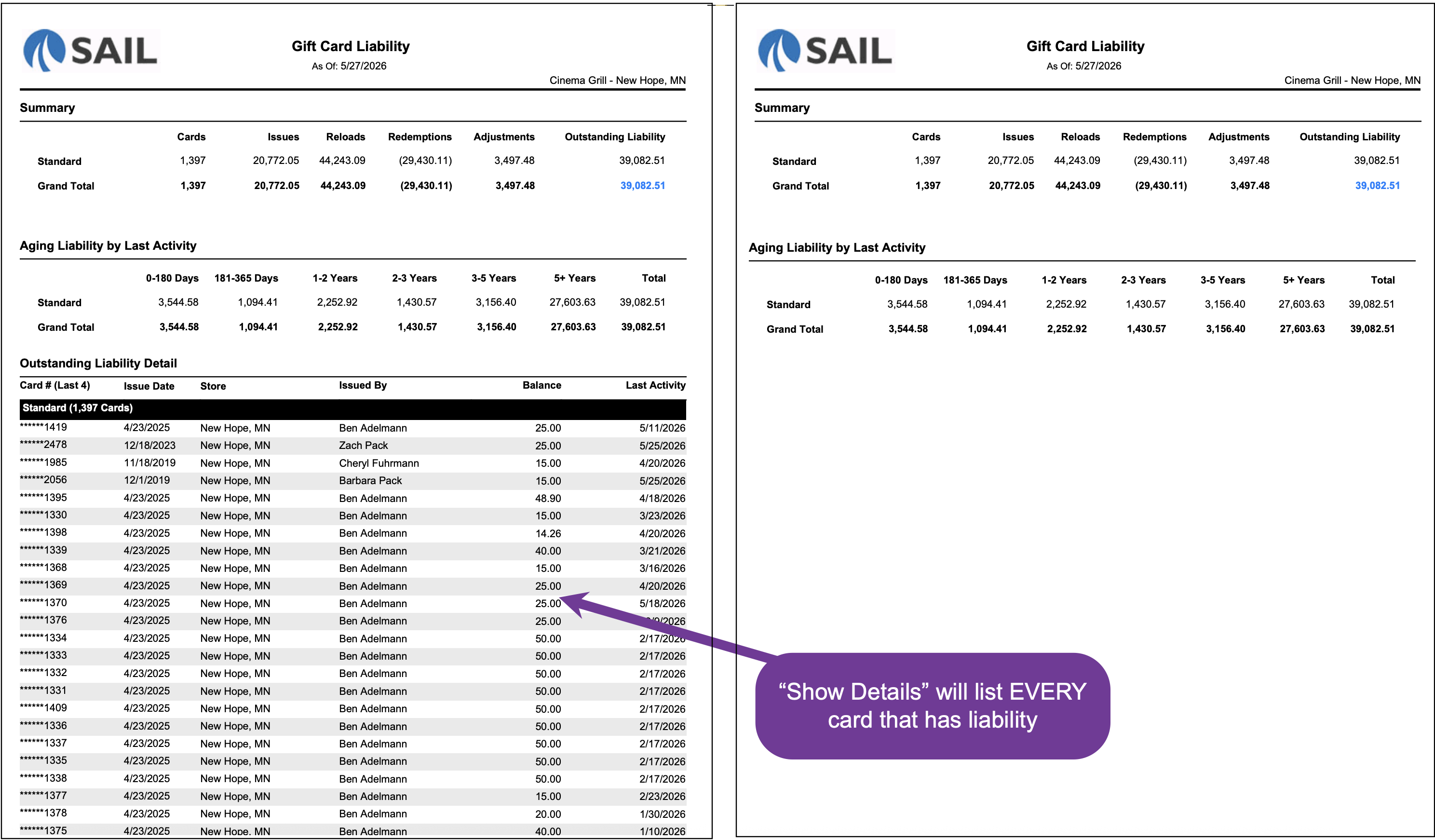
We have added a new Gift Card Liability Report to help track outstanding gift card balances and better understand your current gift card liability.
- The report also includes an Aging Liability by Last Activity section, which groups liability based on the last time the gift card was used or updated. This can help identify older inactive balances.
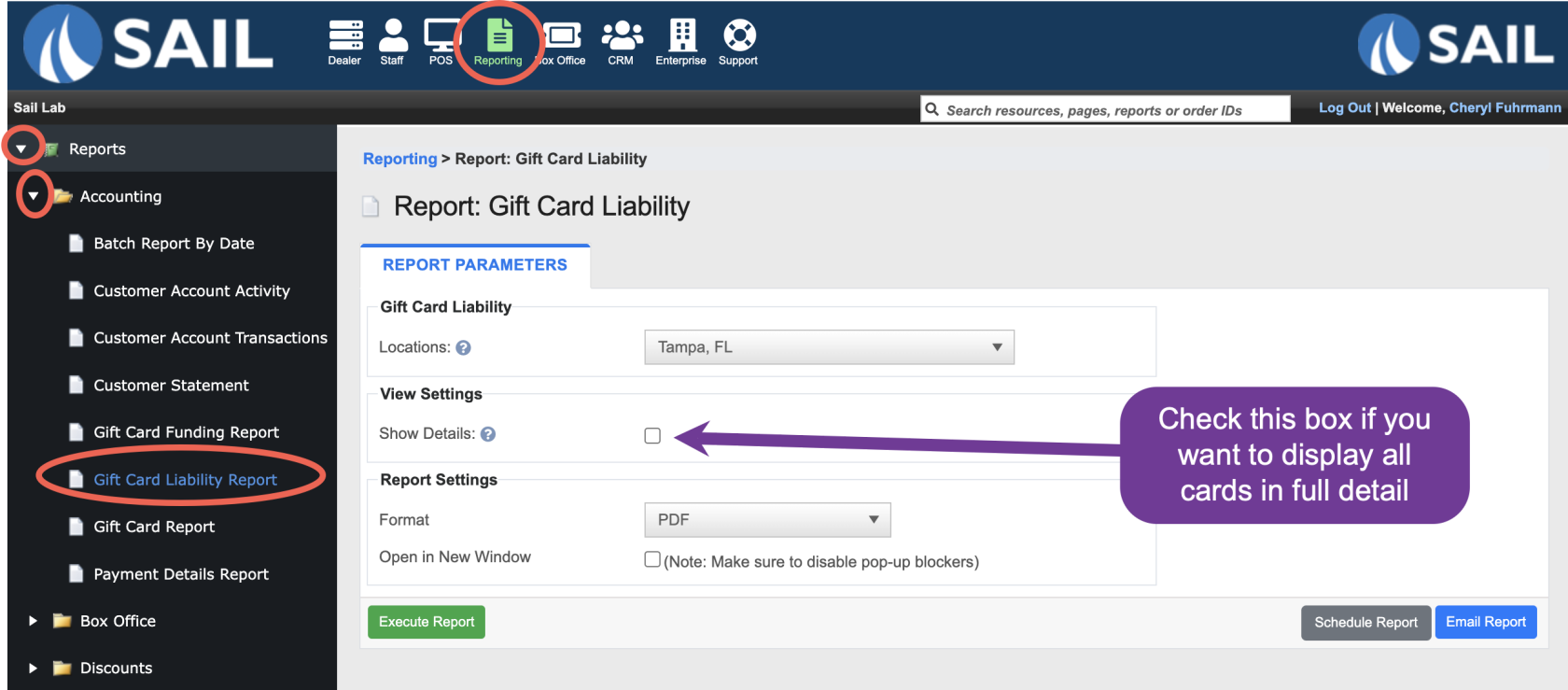
- If you enable the Show Details option, the report will display every individual gift card that currently has a balance remaining.
- Here is an example of the two reports side by side:
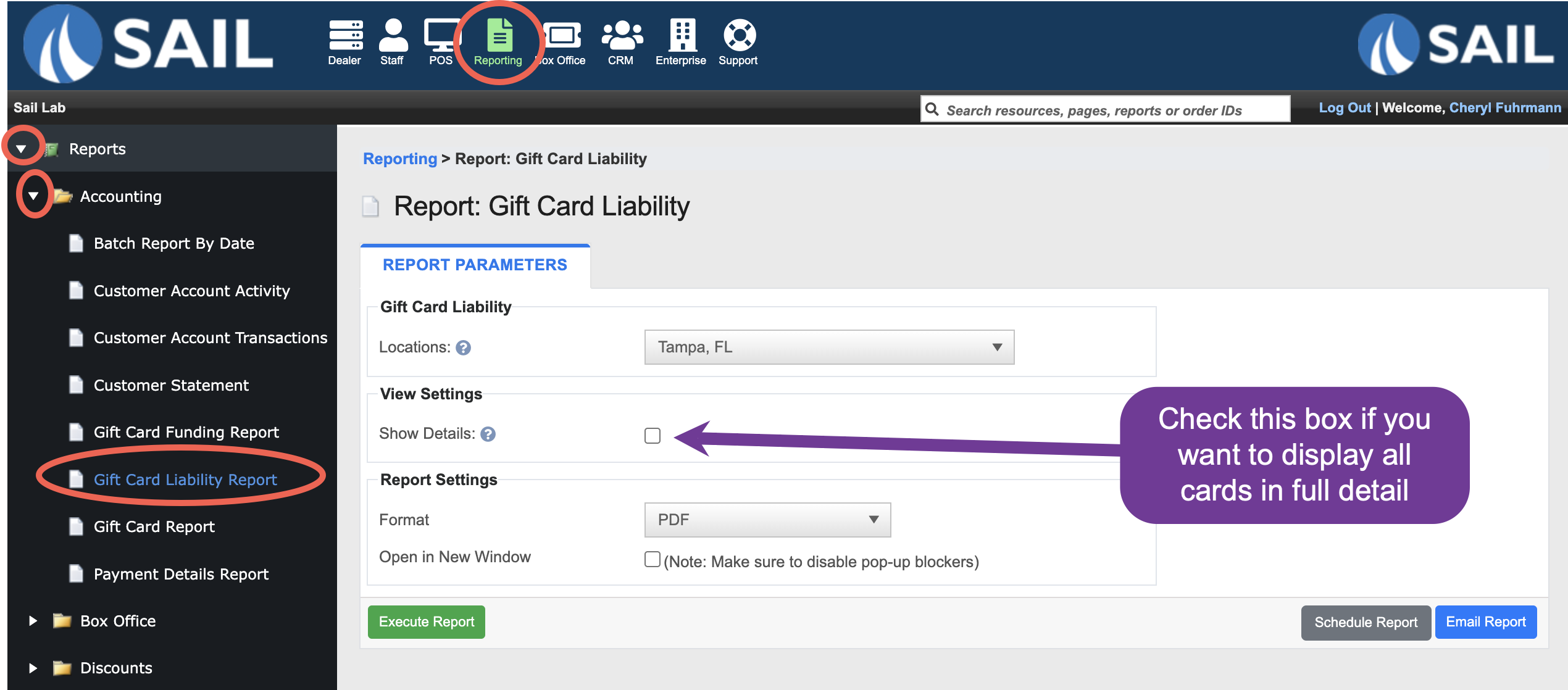
- To Find the report login to Backoffice --> Reporting --> Reports --> Accounting --> Gift Card Liability Report
Improvements
4. Handhelds now shows KVS order status icon
We’We’ve added KVS order status indicators to the handheld order list, making it easier to quickly see the current kitchen status of each order without opening it.- Each order now displays a colored status dot that matches the KVS status color shown on the order tile.
- Examples include:
- Green = Waiting at Expo
- Blue = Preparing
- Black = Pending
- Examples include:
- This gives staff a faster way to monitor order progress directly from the handheld and helps improve communication between the kitchen and front-of-house staff.

5. Enhancement to the Labor Productivity Report
We’We’ve made improvements to the Labor Productivity Report to make long-term labor trends easier to analyze.- Previously, the report could only be run for 7 days at a time, with each column representing a specific calendar date.
- Now, the report can be run for any date range and will automatically group matching weekdays together. The report will always begin with Monday and continue through Sunday.
- Each day column now includes a number in parentheses showing how many of those weekdays are included in the selected date range.
- For example, Thursday (5) means the report combined data from 5 different Thursdays into a single column.
- This makes it much easier to compare average weekday performance and identify labor patterns over longer periods of time.
- Here is an example of the report:

6. Close time added to the order history
- We have added a new Close Time column to Sales History Orders in Backoffice.
- This new column records and displays the exact time an order was officially closed out, making it easier to see how long orders remained open and when payment was completed.

Fixes
- Fixed an issue where the Order Vaulting history menu did not refresh when changing the order type. The menu now updates correctly based on the selected order type.
- Scheduled Online Orders now properly respect Online Ordering closure schedules, preventing guests from placing scheduled orders on days the location is marked as closed.