
Release 2026.6.2 "Quentao"
Notes: This release consists of 6 New features and Improvements. Use the page navigation section on the top left of this screen to jump between the features you'd like to read about.
**This release will NOT require a handheld update**
**This release WILL require a handheld update to version 2026.6.2**
If you would like any additional information or help setting up any of these new features, please contact support at:
Support@ingageit.com or call (612) 861-5277
New Features
1. New Driver Report
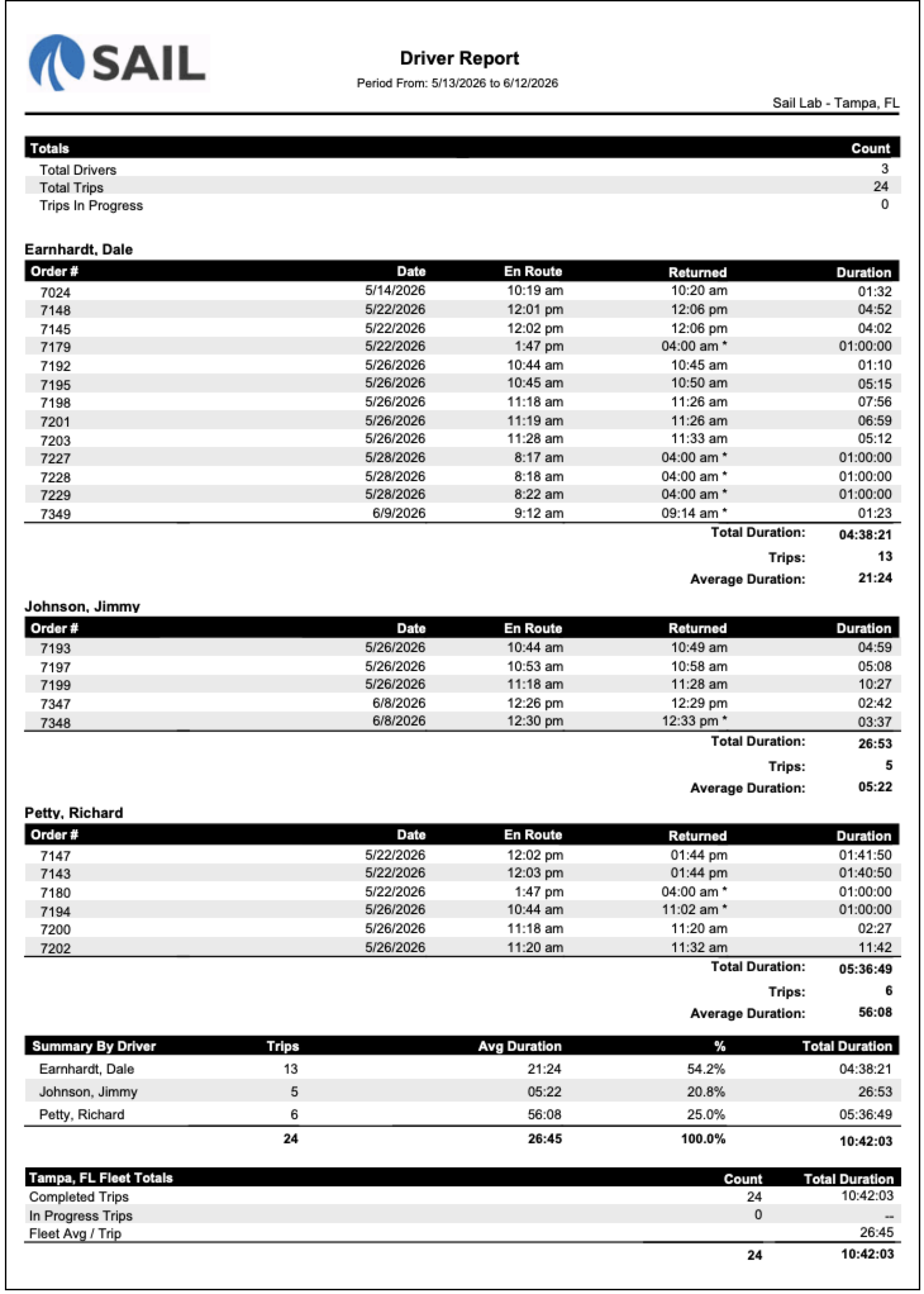
- A new Driver Report has been added to Reporting. This report shows the total time each driver spends out on deliveries, making it easy to track driver productivity and trip history.
- The report includes each trip's En Route time, Returned time, and Duration, along with per-driver totals and averages. A Summary by Driver section and Fleet Totals section are included at the bottom.
- To find the report, log into Backoffice --> Reporting --> Staff --> Driver Report
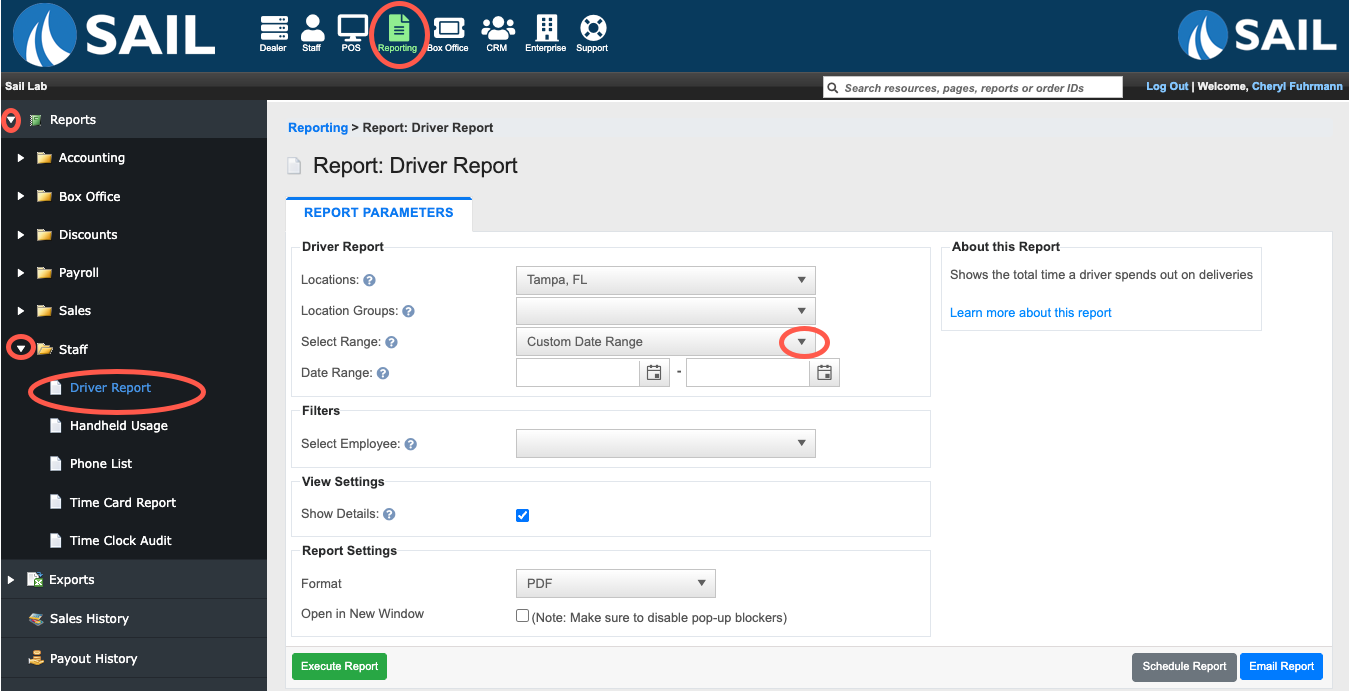
- Here is an example report with the Show Details checkbox checked.
2. New Gift Card Liability Report
- A new Gift Card Liability Report has been added to Reporting. This report shows the total outstanding liability of your gift cards, broken down by gift card type.
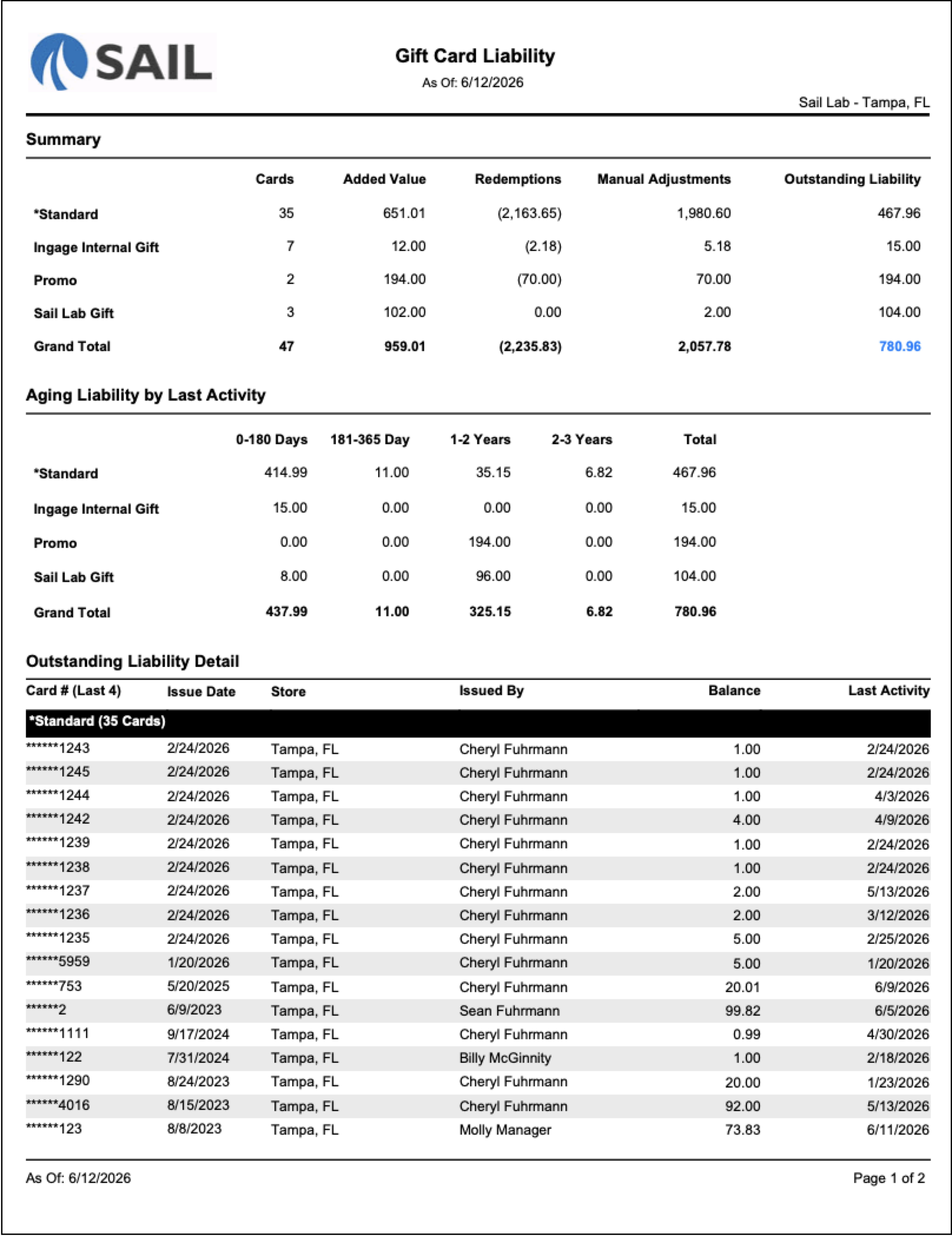
- The report includes three sections:
- Summary – Shows the total Cards, Added Value, Redemptions, Manual Adjustments, and Outstanding Liability for each gift card type
- Aging Liability by Last Activity – Breaks down the outstanding liability by how recently each card was last used (0–180 Days, 181–365 Days, 1–2 Years, 2–3 Years)
- Outstanding Liability Detail – Lists every card with a remaining balance, including the last 4 digits of the card number, Issue Date, Store, Issued By, current Balance, and Last Activity date
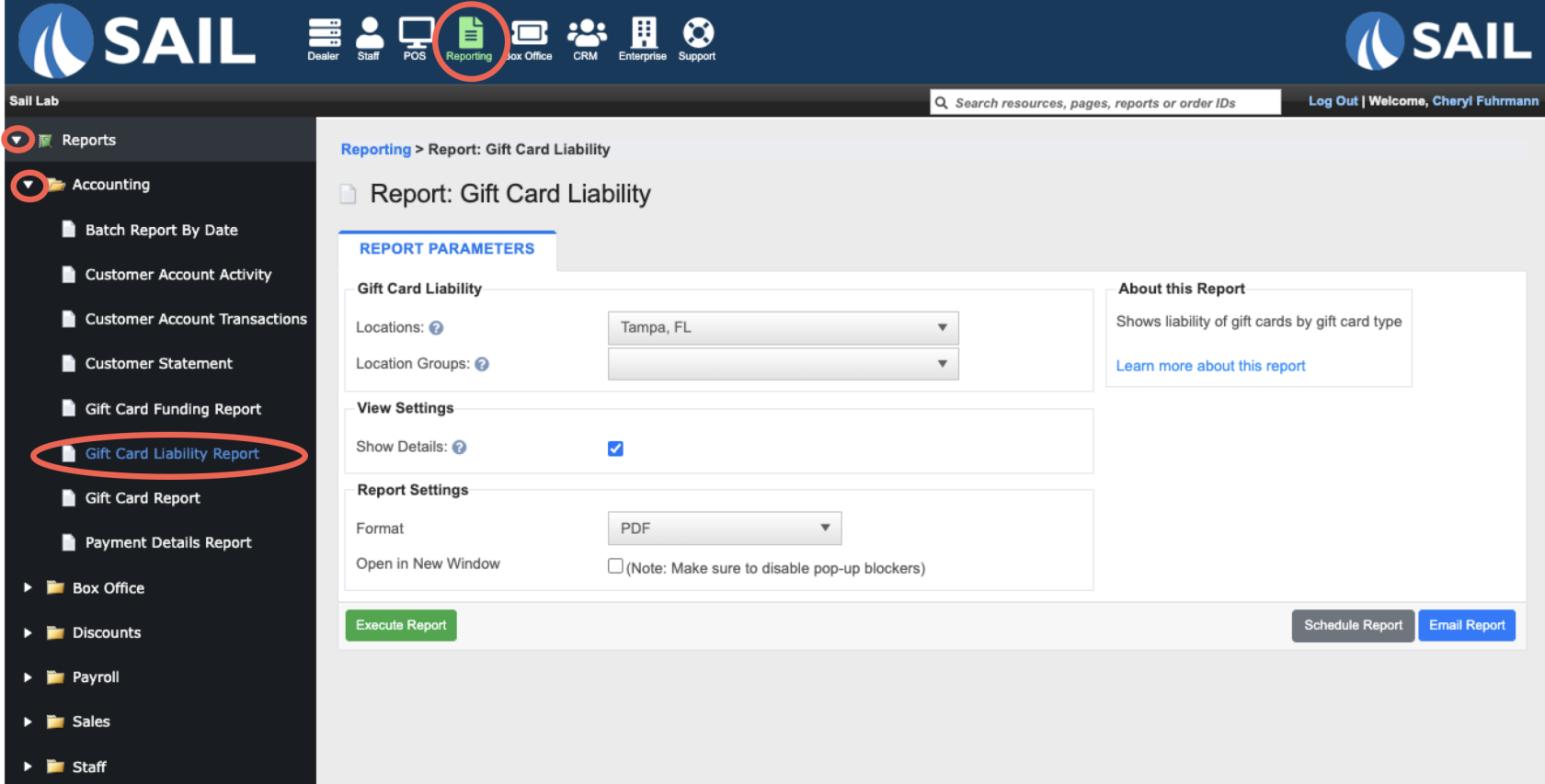
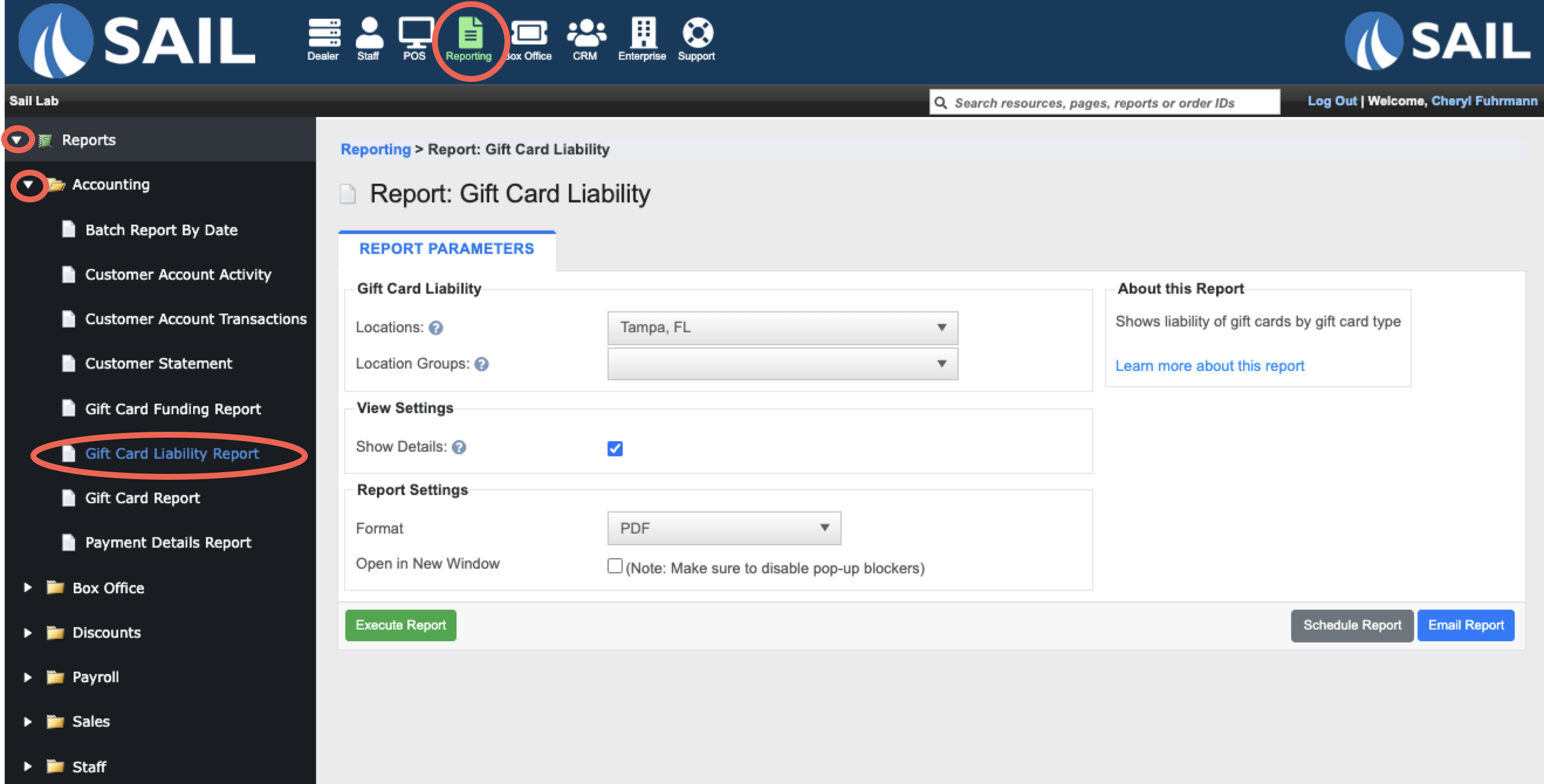
- The Show Details checkbox in View Settings toggles the Outstanding Liability Detail section on or off.
- Here is an example of the report with the Show Details checkbox checked:
- To Find the report login to Backoffice --> Reporting --> Reports --> Accounting --> Gift Card Liability Report
Improvements
3. Online Ordering: Order Type & Timing Now Visible on the Menu
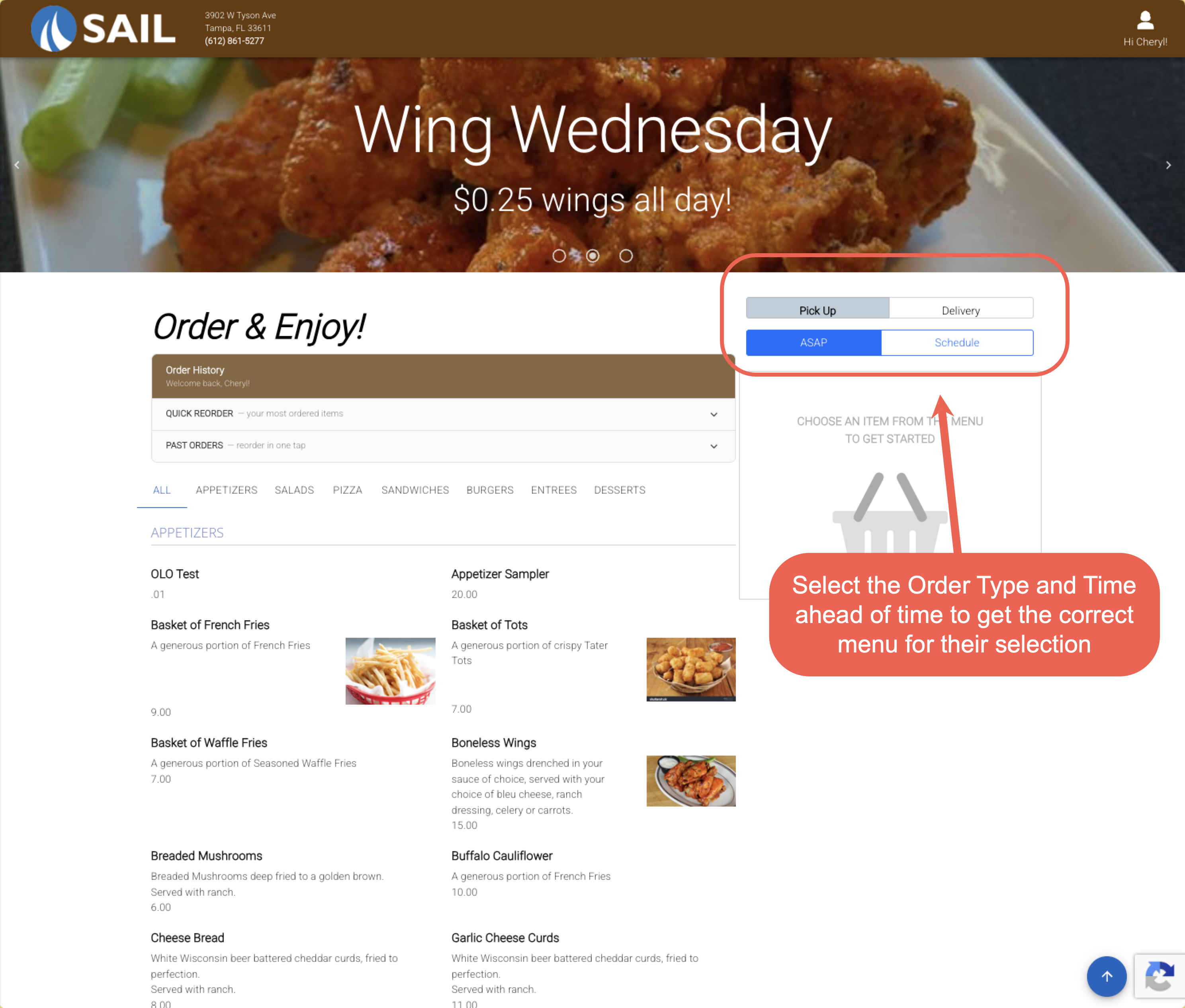
- Guests can now select their order type (Pickup or Delivery) and timing (ASAP or Schedule) directly on the menu page — before they start adding items to their cart.
- Previously, these selections were not made until checkout.
- The selector appears in the right sidebar above the cart on desktop
- Once an order type and time are selected the menu will automatically show only the items available during the selected order time.
- If the restaurant is currently closed, the menu will reflect items available during the next open period.
- Cart Validation – If a guest changes their selected time and some cart items are not available during the new time period, those items will be flagged. The guest can either remove the flagged items or change their selected time. This validation also runs again at checkout before the order is submitted.
4. Separated voids and comps on the audit report
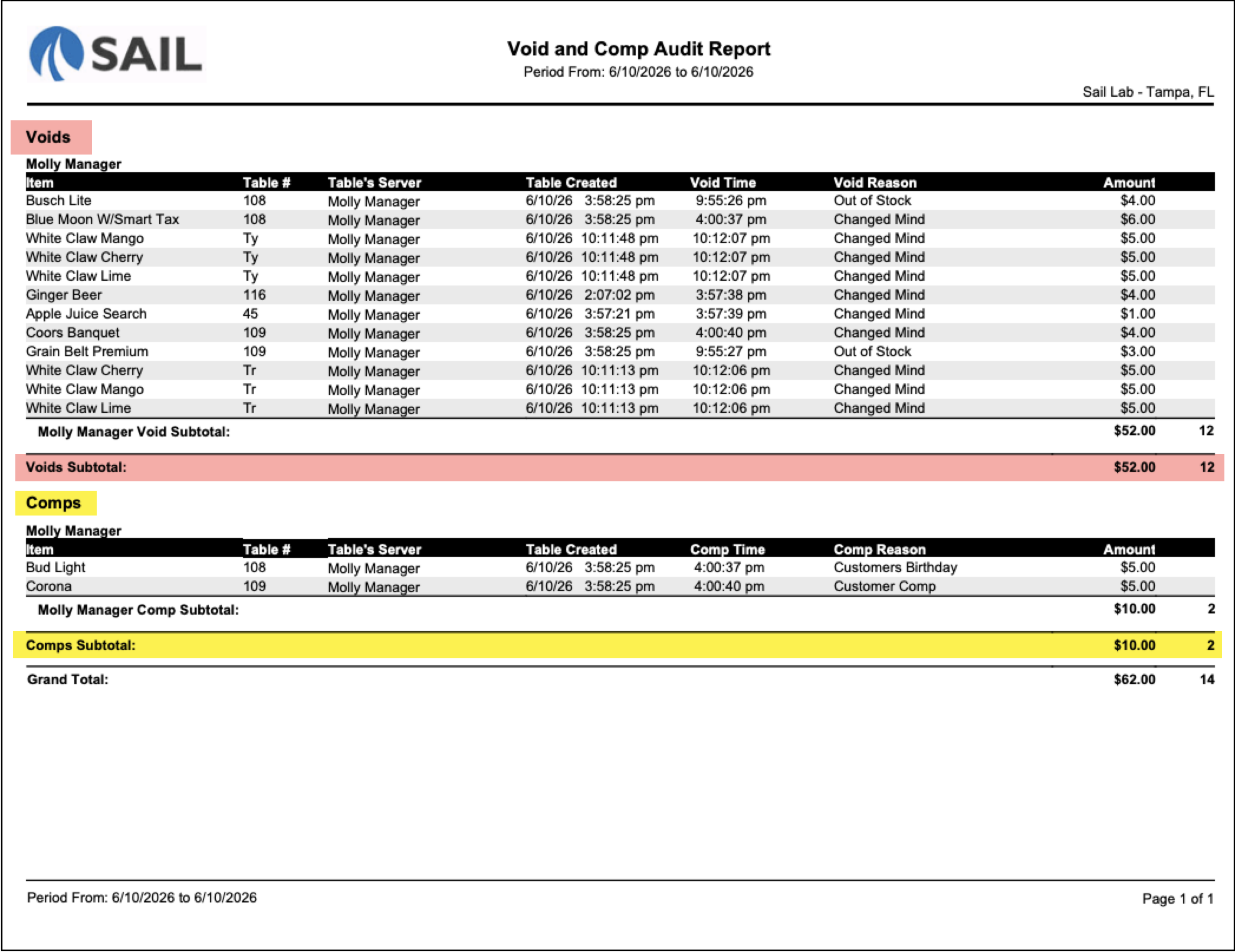
- The Void and Comp Audit Report has been updated to display Voids and Comps in separate sections, making it easier to distinguish between the two at a glance.
- Each section has its own subtotal, with a Grand Total at the bottom combining both.
- The report still includes the same detail columns: Item, Table #, Table's Server, Table Created, Void/Comp Time, Void/Comp Reason, and Amount — now just organized clearly by type.
5. Ability to Schedule reports for the CURRENT day
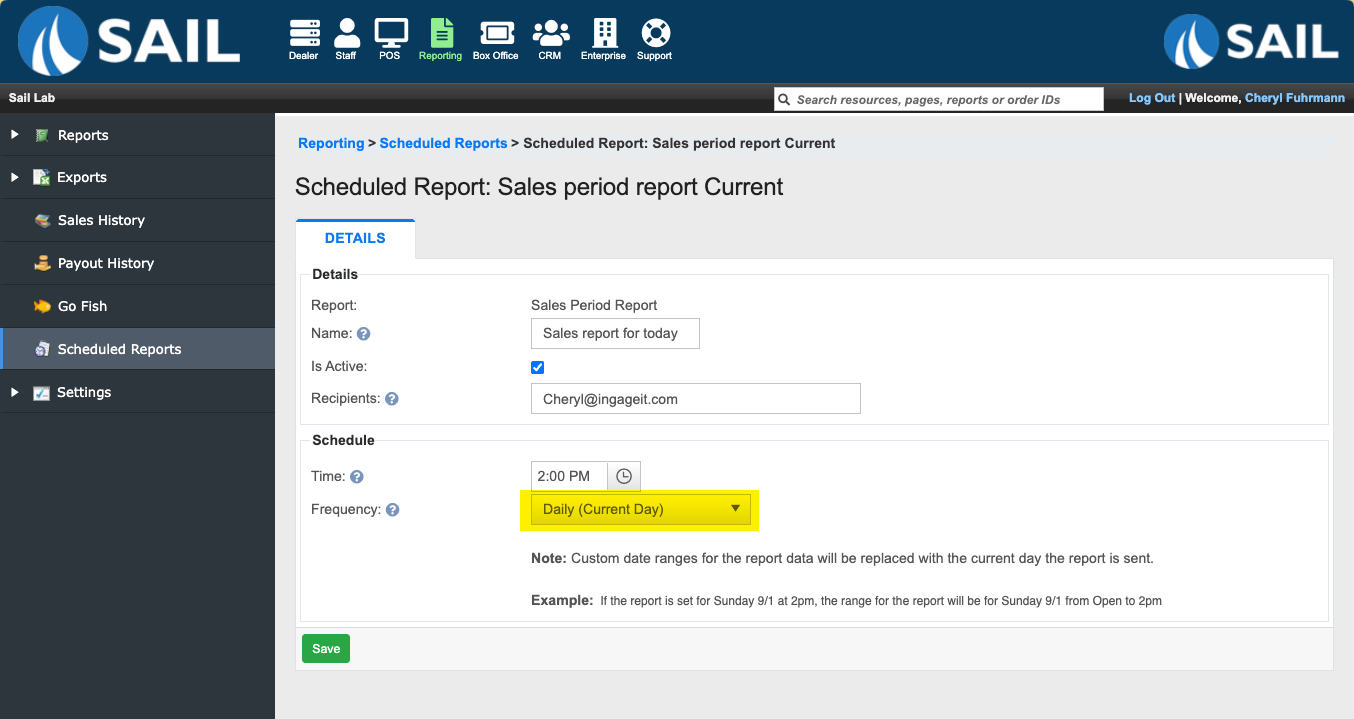
- When scheduling a report, there is now a Daily (Current Day) frequency option in addition to the existing daily option.
- To find this, go to Backoffice --> Reporting --> Scheduled Reports --> create or edit a scheduled report --> Frequency dropdown.
- The existing "Daily" option has been renamed to "Daily (Previous Day)" to make the behavior clearer:
- The report covers the full previous day's data.
- Example: A report sent on Sunday 9/1 will contain data for Saturday 8/31.
- The new "Daily (Current Day)" option sends the report at your selected time, covering from the beginning of the day up to that send time:
- Example: A report set for Sunday 9/1 at 2:00 PM will contain data from Open through 2:00 PM on Sunday 9/1.
- Example: A report set for Sunday 9/1 at 2:00 PM will contain data from Open through 2:00 PM on Sunday 9/1.
6. Improvements to Item Filtering in Backoffice
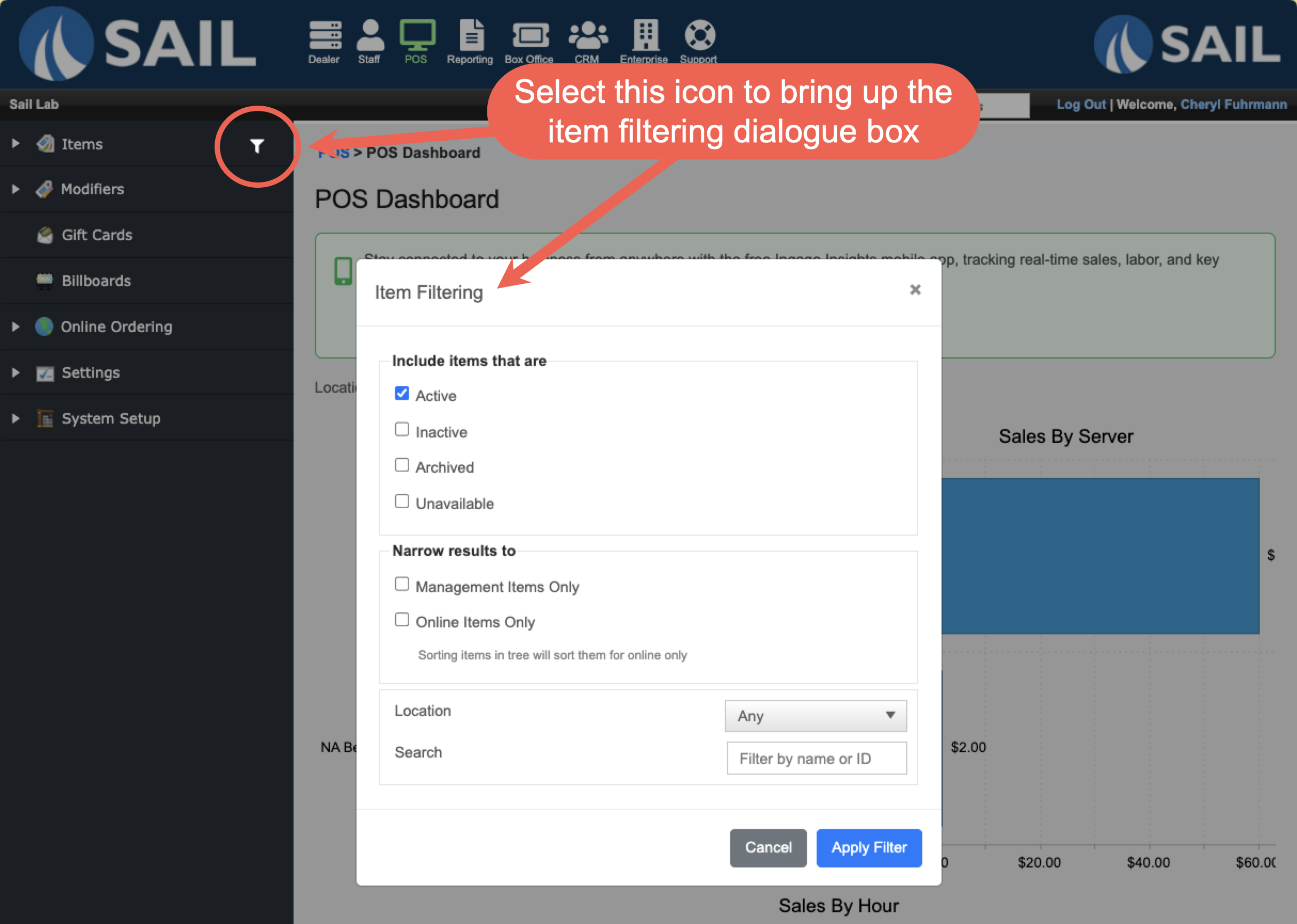
- The Item Filtering dialog in Backoffice has been updated to give you more flexibility when searching and managing your items.
- To open Item Filtering, go to Backoffice --> POS and click the filter icon in the top left corner of the left navigation panel.
- "Active" is now a selectable filter option.
- Previously, Active items were always included — there was no way to exclude them. For example, selecting "Inactive" would show you both Active and Inactive items together.
- Now you can check or uncheck Active, Inactive, Archived, and Unavailable independently, so you can see exactly the items you want. For example, you can view only Inactive items without Active items mixed in.
- "Management Items Only" and "Online Items Only" now work across all item states.
- Previously, selecting one of these options would only show Active items of that type.
- Now you can combine them with any item state filter — for example, view only Inactive Online Items, or only Archived Management Items.
Fixes
- The Product Mix report pie chart and legend now only display reporting groups with positive sales amounts. A disclaimer has been added to the bottom of the chart to note this, while the Total Sales figure on the right still reflects all reporting groups including any with negative amounts.