
Release 2026.7.1 "Shirley Temple"
Notes: This release consists of 5 Improvements. Use the page navigation section on the top left of this screen to jump between the features you'd like to read about.
**This release WILL require a handheld update to version 2026.7.1**
If you would like any additional information or help setting up any of these new features, please contact support at:
Support@ingageit.com or call (612) 861-5277
Improvements
1. Online Ordering: Adjust Item Quantities Directly in the Cart
- Guests can now use the + and – buttons directly in the cart to increase or decrease item quantities without having to go back to the item on the menu.
- Tapping – down to zero will remove the item from the cart entirely.
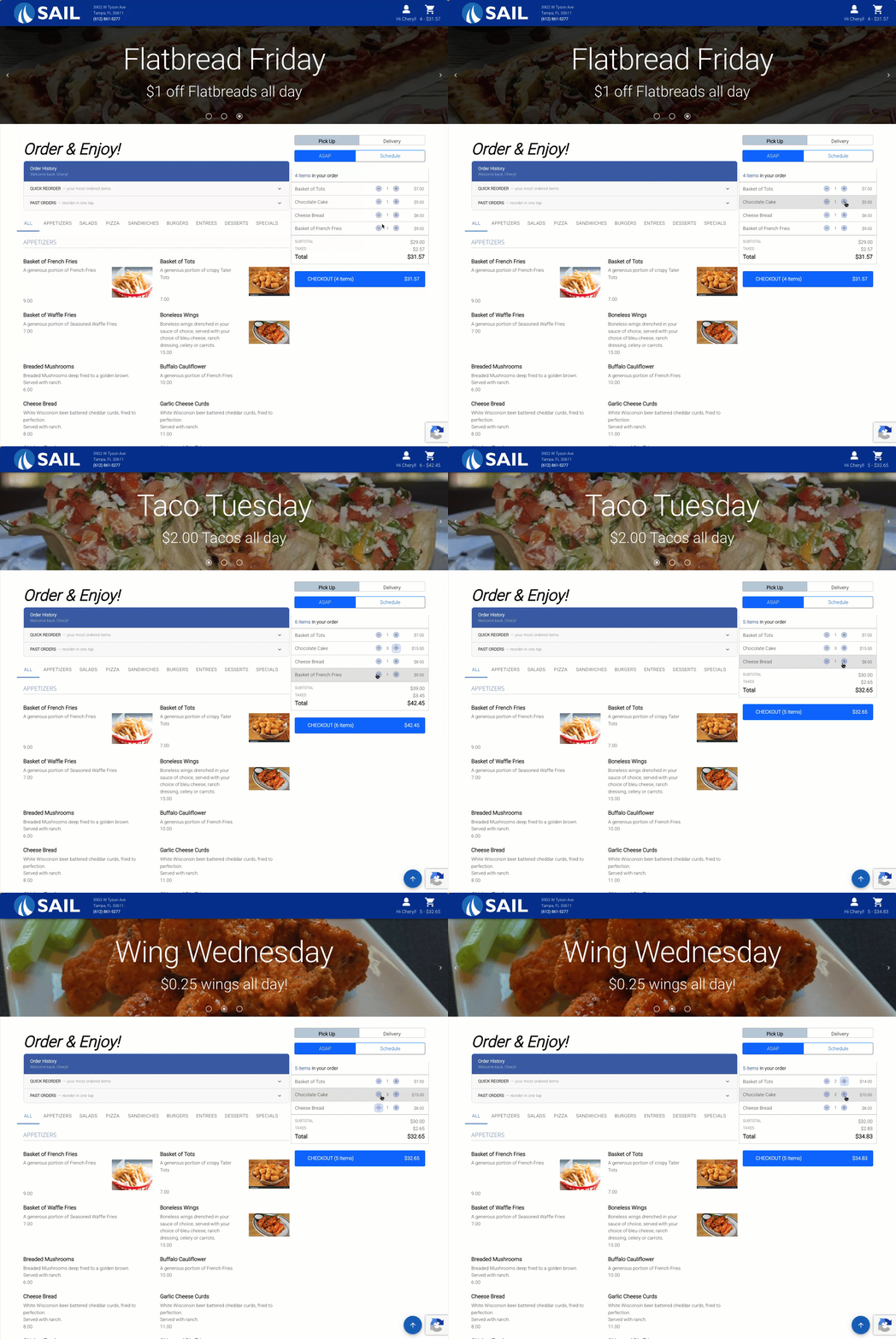
2. Online order Shortcut Support
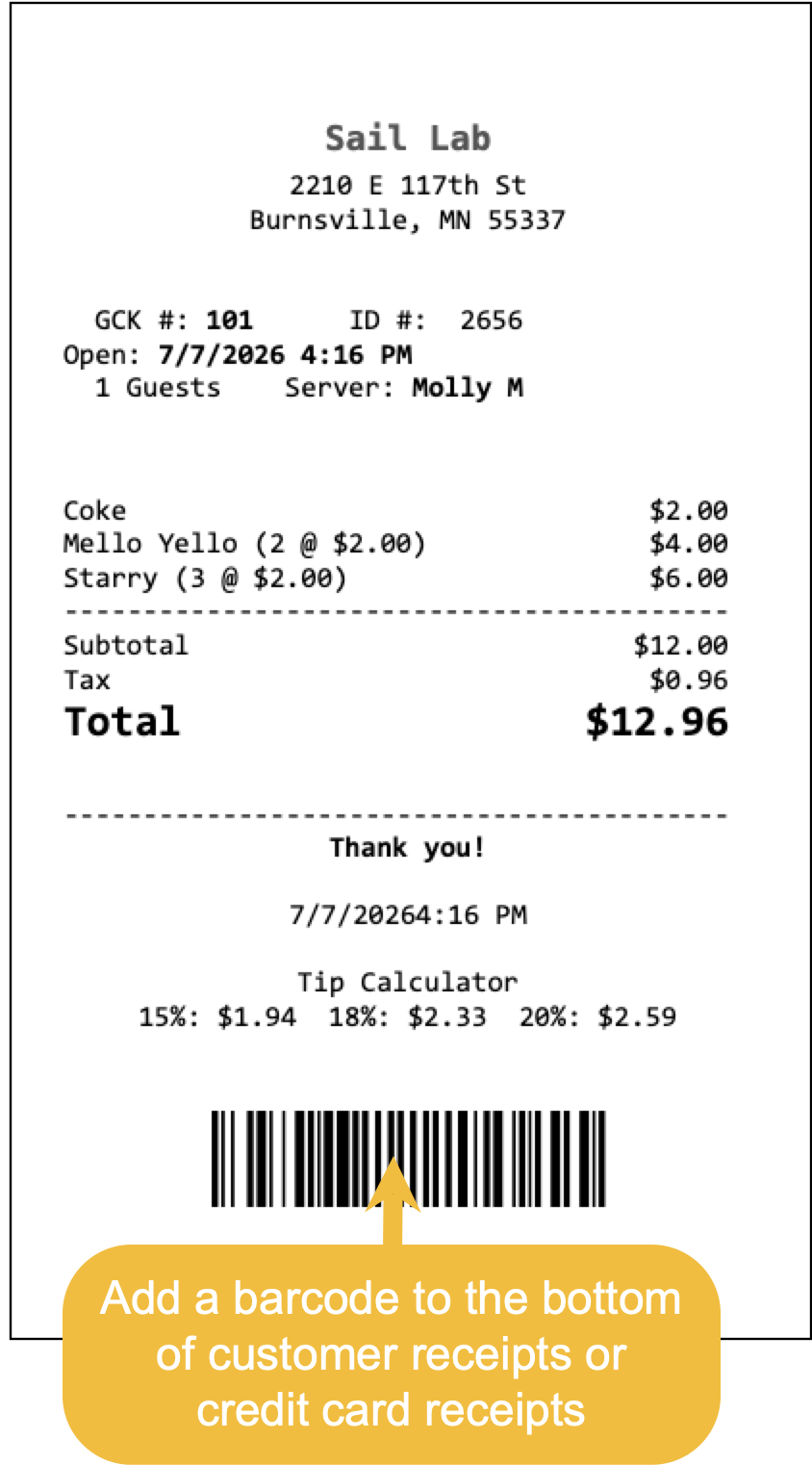
3. ScanAdd a Barcode to Receipts
- You can now add a barcode to
openthe bottom of customer receipts or credit card receipts. Scanning the barcode with atablebarcode scanner will let you quickly pull up the order orentertipaeditor without having to search for it manually. - A barcode scanner is required to use this feature.
- Customer Receipt:
- On the Edit Tips screen — scanning opens the tip editor for that payment. If the order has multiple payments, you will be prompted to select the correct one.
- On any other screen — scanning opens the order.
- Credit Card Receipt:
- On the Edit Tips screen — scanning opens the tip editor for that exact payment.
- On any other screen — scanning opens the order.
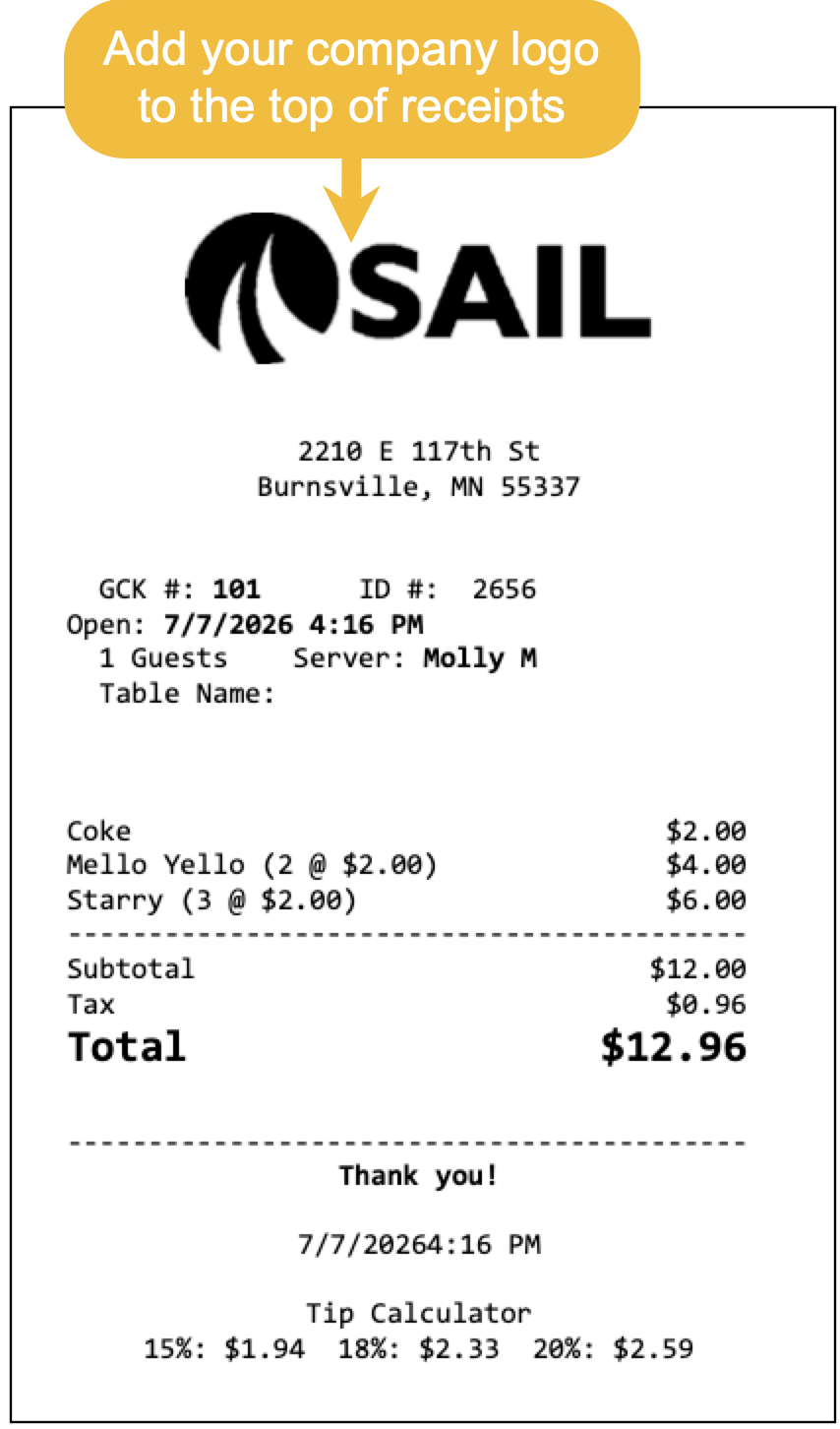
4. Add your logo to the top of receipts
- You can now add your company logo to the top of printed receipts.
- If you'd like this set up, please contact support at Support@ingageit.com or call (612) 861-5277. They can help ensure your logo is formatted correctly for receipts.
5. New Shortcut Actions added
We added 27 new Actions to the system
|
Action Name |
Group | What it does |
Can it be used in a Shortcut |
Available on Terminals |
Available on Handhelds |
| Search & Ring Item | Items | Opens an item search; the item you pick is rung onto the order. | ✓ | ✓ | |
| Void Item | Items | Voids the selected items using the configured void reason. Unsent items are just removed. | ✓ | ✓ | ✓ |
| Comp Item | Items | Comps the selected items using the configured comp reason. | ✓ | ✓ | ✓ |
| Add Modifier | Items | Adds the configured modifier to the selected items, or the last item. | ✓ | ✓ | ✓ |
| Change Size | Items | Changes the size of selected unsent items and reprices them with their modifiers — a set size or prompt. | ✓ | ✓ | ✓ |
| Set Order Type | Order | Switches the order's type (e.g. Dine In, To Go) and recalculates. No customer/name/schedule prompt. | ✓ | ✓ | ✓ |
| Logout | Navigation | Logs the current user out of the terminal. | ✓ | ✓ | |
| Navigate: Box Office | Navigation | Opens the Box Office screen. | ✓ | ||
| Navigate: Screen | Navigation | Switches the terminal to the chosen action screen. | ✓ | ||
| Navigate: Discounts | Navigation | Opens the Discounts screen. | ✓ | ||
| Navigate: Charges | Navigation | Opens the Charges screen. | ✓ | ||
| Navigate: Payments | Navigation | Opens the Payments screen for the current order. | ✓ | ||
| Navigate: Tools | Navigation | Opens the order Tools (transaction options) screen. | ✓ | ||
| Navigate: Orders | Navigation | Opens the Orders (open checks) screen. Prompts to save first. Needs Create and View Orders. | ✓ | ||
| Navigate: Tables | Navigation | Opens the Tables (floor plan) screen. Prompts to save first. Needs Create and View Orders. | ✓ | ||
| Navigate: New Order | Navigation | Starts a new order. Prompts to save first. Optionally starts it as a chosen order type. | ✓ | ||
| Navigate: Quick Order | Navigation | Starts a new quick order. Prompts to save first. Optionally starts it as a chosen order type. | ✓ | ||
| Navigate: Dispatch | Navigation | Opens the Dispatch screen. Prompts to save first. Needs View Dispatch Screen. | ✓ | ||
| Navigate: Edit Tips | Navigation | Opens the Payments module to edit tips. Prompts to save first. | ✓ | ||
| Navigate: Rewards | Navigation | Opens the Rewards screen for the order. Shown only when rewards are configured. | ✓ | ||
| Navigate: Clean Screen | Navigation | Opens the Clean Screen tool. Prompts to save first. | ✓ | ||
| Navigate: Settings | Navigation | Opens the device Settings screen. Prompts to save first. | ✓ | ||
| Navigate: Table Layout Editor | Navigation | Opens the floor-plan editor. Prompts to save first. (Not the Screen Layout Editor.) | ✓ | ||
| Navigate: Register Card | Navigation | Opens the screen to assign a login/ID card to a user. Prompts to save first. | ✓ | ||
| Navigate: Offline CC | Navigation | Opens the Offline Credit Card mode screen. Prompts to save first. | ✓ | ||
| Navigate: Order Type | Navigation | Switches to the Order Type screen (order type, customer, name, schedule) for the open order. | ✓ | ✓ |
Fixes
Something was fixed