
Release 2026.7.1 "Shirley Temple"
Notes: This release consists of 5 Improvements. Use the page navigation section on the top left of this screen to jump between the features you'd like to read about.
**This release WILL require a handheld update to version 2026.7.1**
If you would like any additional information or help setting up any of these new features, please contact support at:
Support@ingageit.com or call (612) 861-5277
Improvements
1. Online Ordering: Adjust Item Quantities Directly in the Cart
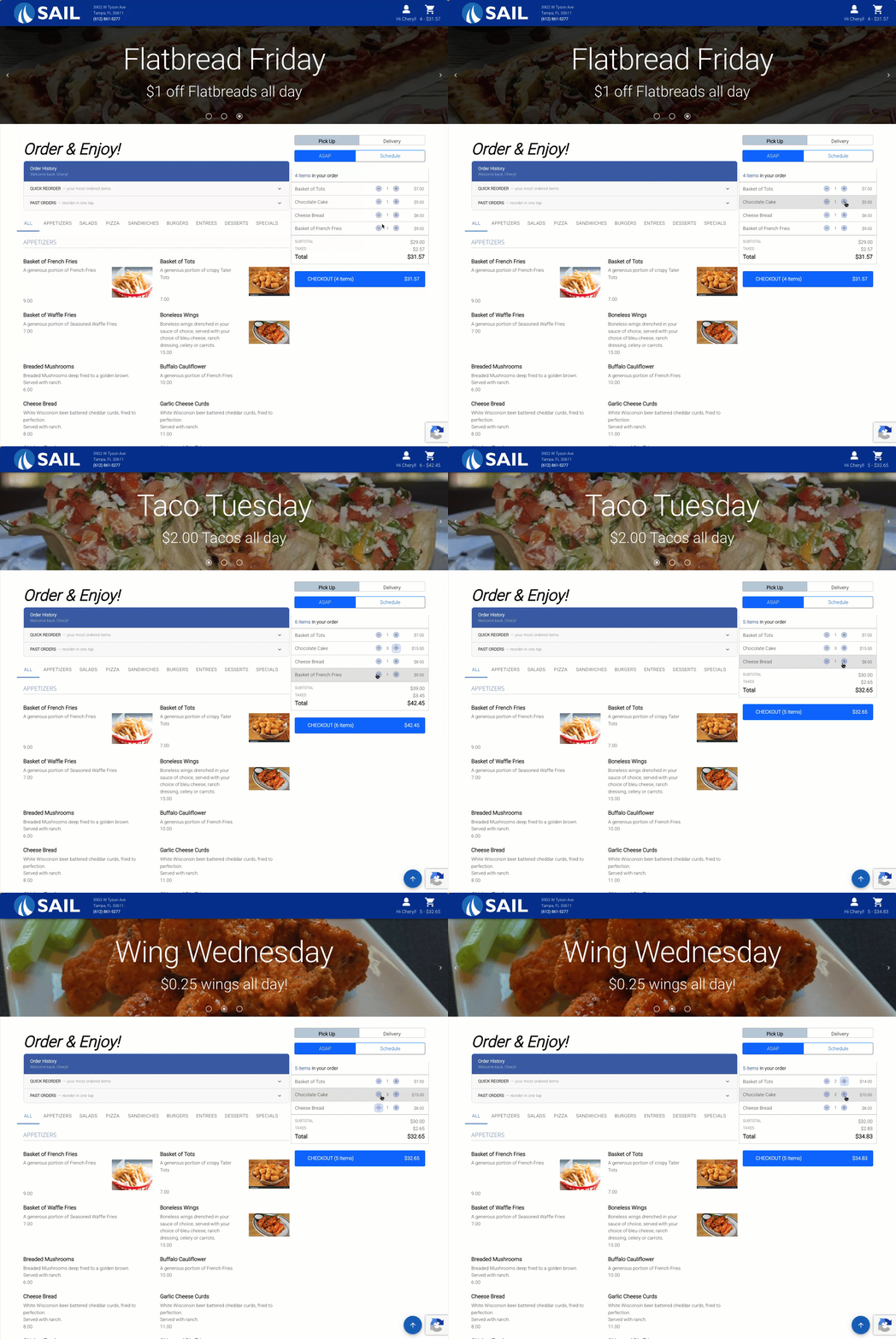
- Guests can now use the + and – buttons directly in the cart to increase or decrease item quantities without having to go back to the item on the menu.
- Tapping – down to zero will remove the item from the cart entirely.
2. Shortcuts Now Supported in Online Ordering
- Two shortcut actions are now supported in Online Ordering: Ring in Item and Price Adjust.
- This is especially useful for locations that run specials — a single shortcut can ring in multiple items and apply price adjustments all at once, making it easy to offer and manage combo deals or promotions through your online ordering site.
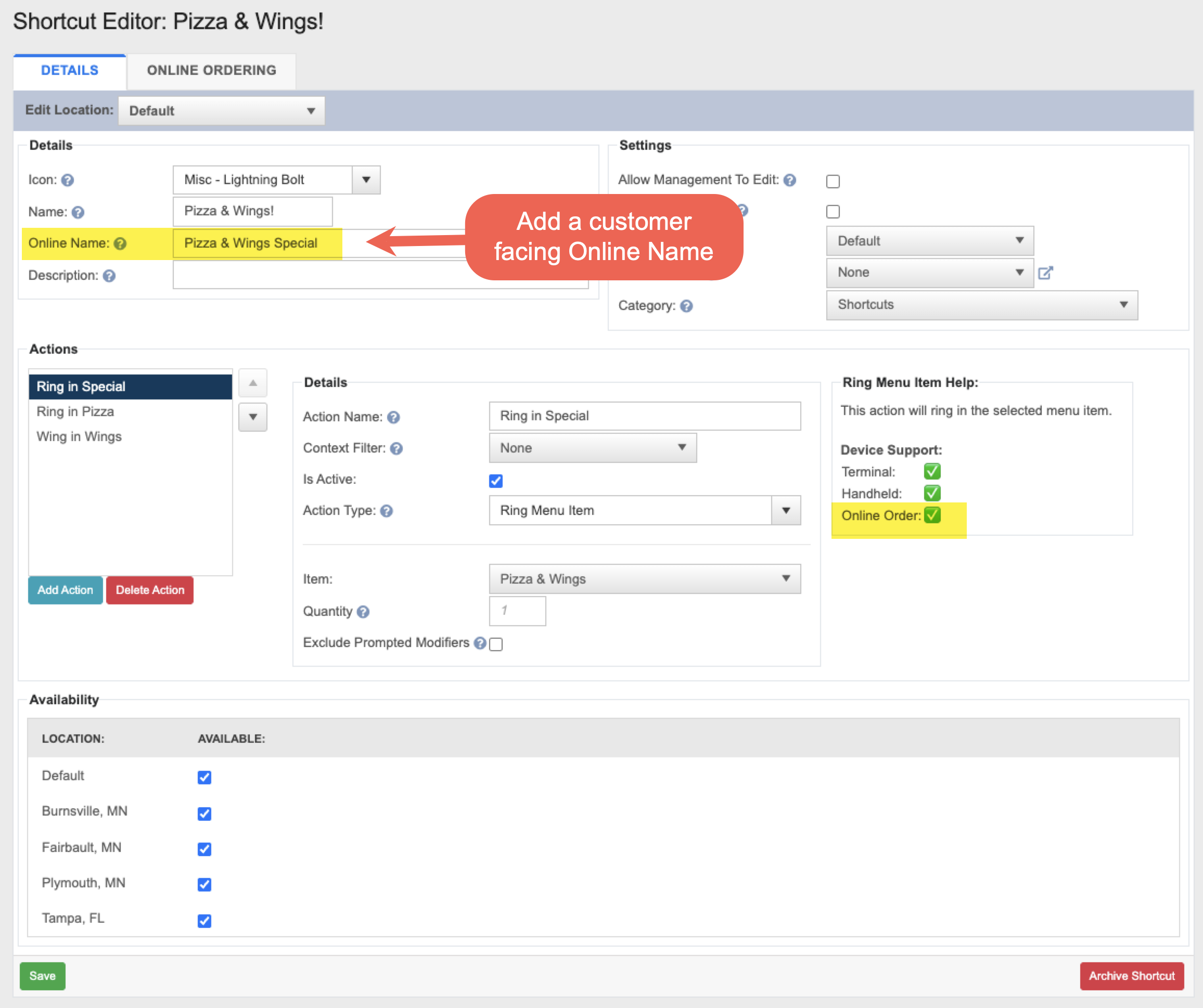
- When setting up a shortcut, there are a few new online-specific options to configure. To find these, go to Backoffice --> POS --> Settings --> Shortcuts --> edit a shortcut:
- Online Name (Details tab) — Add a customer-facing name that will display on the online ordering site, separate from the internal shortcut name.
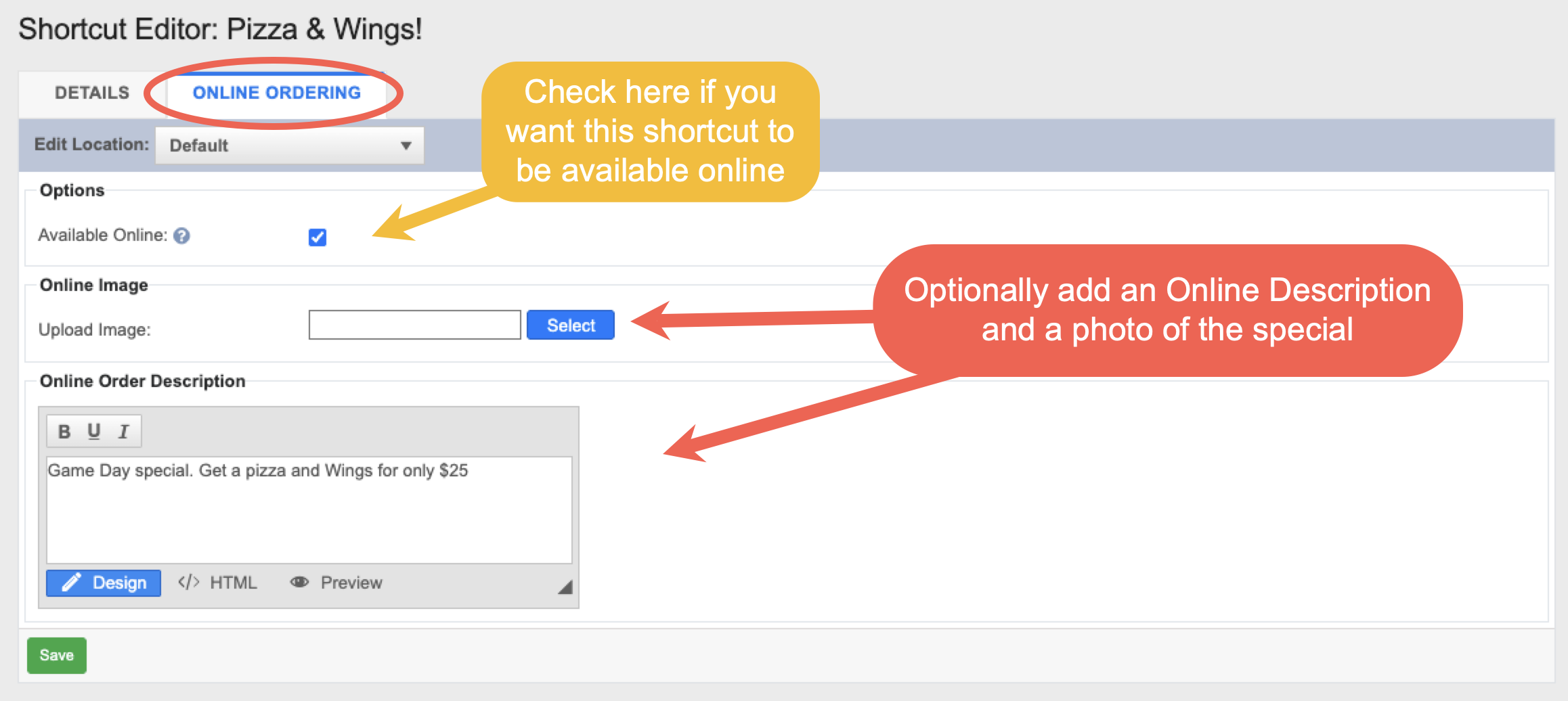
- Online Ordering tab — Check the "Available Online" box to make the shortcut visible on your online ordering site. You can also upload an image and add a description specifically for online customers.
- Note: If a shortcut includes actions that are not supported for online ordering, a message will appear on the Online Ordering tab listing those actions. They will be skipped when the shortcut is used online, while the supported actions will still run.
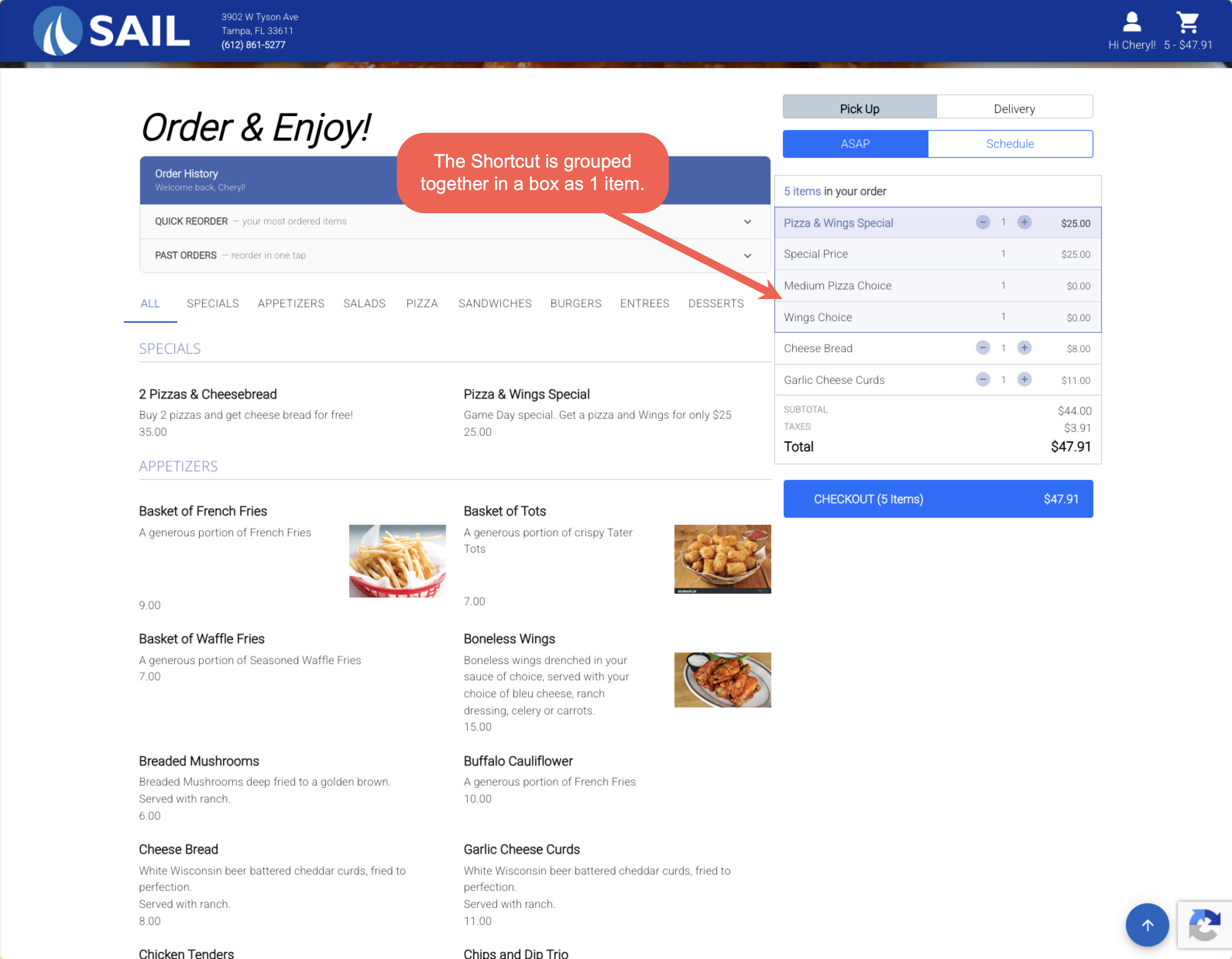
- On the ordering site, the shortcut appears as a single grouped item. Guests can still click into each individual item within the shortcut to make modifications (such as changing pizza toppings), but the + and – quantity controls are on the shortcut as a whole — so guests add or remove the entire special as one unit.
- If any item within the shortcut is 86'd or unavailable, the entire shortcut will be unavailable.
3. Add a Barcode to Receipts
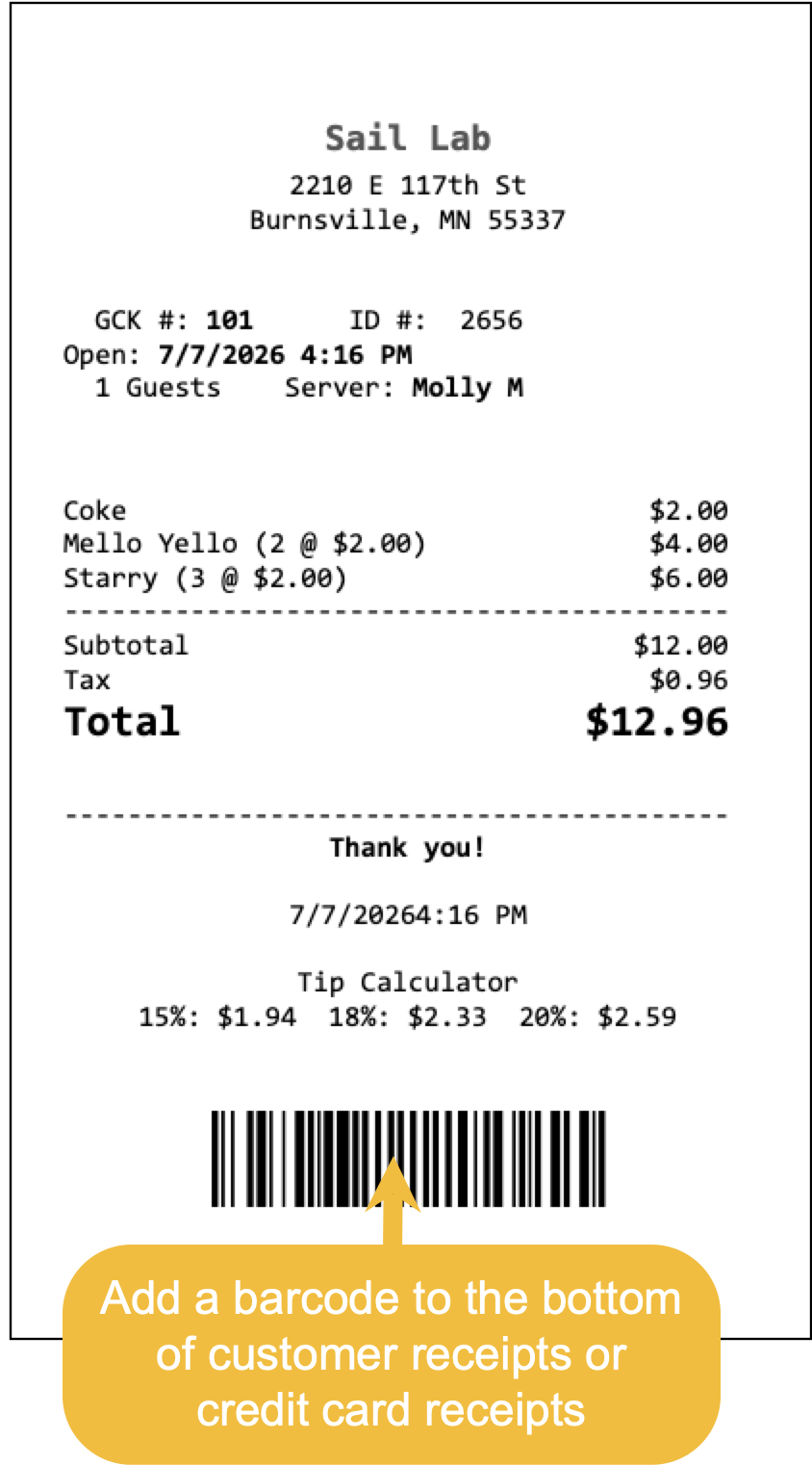
- You can now add a barcode to the bottom of customer receipts or credit card receipts. Scanning the barcode with a barcode scanner will let you quickly pull up the order or tip editor without having to search for it manually.
- A barcode scanner is required to use this feature.
- Customer Receipt:
- On the Edit Tips screen — scanning opens the tip editor for that payment. If the order has multiple payments, you will be prompted to select the correct one.
- On any other screen — scanning opens the order.
- Credit Card Receipt:
- On the Edit Tips screen — scanning opens the tip editor for that exact payment.
- On any other screen — scanning opens the order.
4. Add your logo to the top of receipts
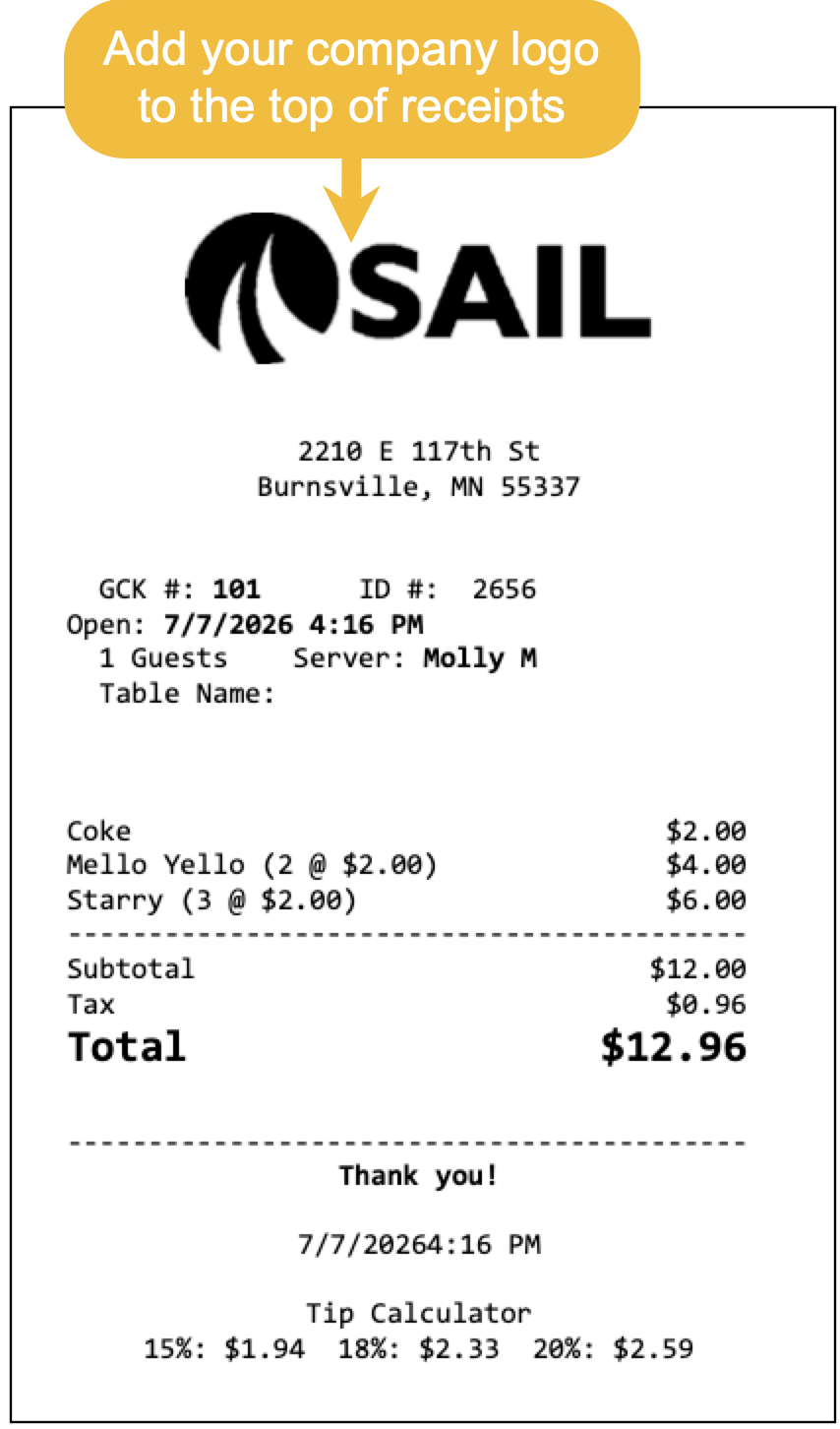
- You can now add your company logo to the top of printed receipts.
- If you'd like this set up, please contact support at Support@ingageit.com or call (612) 861-5277. They can help ensure your logo is formatted correctly for receipts.
5. New Shortcut Actions added
We added 27 new Actions to the system
|
Action Name |
Group | What it does |
Can it be used in a Shortcut |
Available on Terminals |
Available on Handhelds |
| Search & Ring Item | Items | Opens an item search; the item you pick is rung onto the order. | ✓ | ✓ | |
| Void Item | Items | Voids the selected items using the configured void reason. Unsent items are just removed. | ✓ | ✓ | ✓ |
| Comp Item | Items | Comps the selected items using the configured comp reason. | ✓ | ✓ | ✓ |
| Add Modifier | Items | Adds the configured modifier to the selected items, or the last item. | ✓ | ✓ | ✓ |
| Change Size | Items | Changes the size of selected unsent items and reprices them with their modifiers — a set size or prompt. | ✓ | ✓ | ✓ |
| Set Order Type | Order | Switches the order's type (e.g. Dine In, To Go) and recalculates. No customer/name/schedule prompt. | ✓ | ✓ | ✓ |
| Logout | Navigation | Logs the current user out of the terminal. | ✓ | ✓ | |
| Navigate: Box Office | Navigation | Opens the Box Office screen. | ✓ | ||
| Navigate: Screen | Navigation | Switches the terminal to the chosen action screen. | ✓ | ||
| Navigate: Discounts | Navigation | Opens the Discounts screen. | ✓ | ||
| Navigate: Charges | Navigation | Opens the Charges screen. | ✓ | ||
| Navigate: Payments | Navigation | Opens the Payments screen for the current order. | ✓ | ||
| Navigate: Tools | Navigation | Opens the order Tools (transaction options) screen. | ✓ | ||
| Navigate: Orders | Navigation | Opens the Orders (open checks) screen. Prompts to save first. Needs Create and View Orders. | ✓ | ||
| Navigate: Tables | Navigation | Opens the Tables (floor plan) screen. Prompts to save first. Needs Create and View Orders. | ✓ | ||
| Navigate: New Order | Navigation | Starts a new order. Prompts to save first. Optionally starts it as a chosen order type. | ✓ | ||
| Navigate: Quick Order | Navigation | Starts a new quick order. Prompts to save first. Optionally starts it as a chosen order type. | ✓ | ||
| Navigate: Dispatch | Navigation | Opens the Dispatch screen. Prompts to save first. Needs View Dispatch Screen. | ✓ | ||
| Navigate: Edit Tips | Navigation | Opens the Payments module to edit tips. Prompts to save first. | ✓ | ||
| Navigate: Rewards | Navigation | Opens the Rewards screen for the order. Shown only when rewards are configured. | ✓ | ||
| Navigate: Clean Screen | Navigation | Opens the Clean Screen tool. Prompts to save first. | ✓ | ||
| Navigate: Settings | Navigation | Opens the device Settings screen. Prompts to save first. | ✓ | ||
| Navigate: Table Layout Editor | Navigation | Opens the floor-plan editor. Prompts to save first. (Not the Screen Layout Editor.) | ✓ | ||
| Navigate: Register Card | Navigation | Opens the screen to assign a login/ID card to a user. Prompts to save first. | ✓ | ||
| Navigate: Offline CC | Navigation | Opens the Offline Credit Card mode screen. Prompts to save first. | ✓ | ||
| Navigate: Order Type | Navigation | Switches to the Order Type screen (order type, customer, name, schedule) for the open order. | ✓ | ✓ |
Fixes
Something was fixed