
Release 2026.7.1 "Shirley Temple"
Notes: This release consists of 5 Improvements. Use the page navigation section on the top left of this screen to jump between the features you'd like to read about.
**This release WILL require a handheld update to version 2026.7.1**
If you would like any additional information or help setting up any of these new features, please contact support at:
Support@ingageit.com or call (612) 861-5277
Improvements
1. Online Ordering: Adjust Item Quantities Directly in the Cart
- Guests can now use the + and – buttons directly in the cart to increase or decrease item quantities without having to go back to the item on the menu.
- Tapping – down to zero will remove the item from the cart entirely.
2. Shortcuts Now Supported in Online Ordering
- Two shortcut actions are now supported in Online Ordering: Ring in Item and Price Adjust.
- This is especially useful for locations that run specials — a single shortcut can ring in multiple items and apply price adjustments all at once, making it easy to offer and manage combo deals or promotions through your online ordering site.
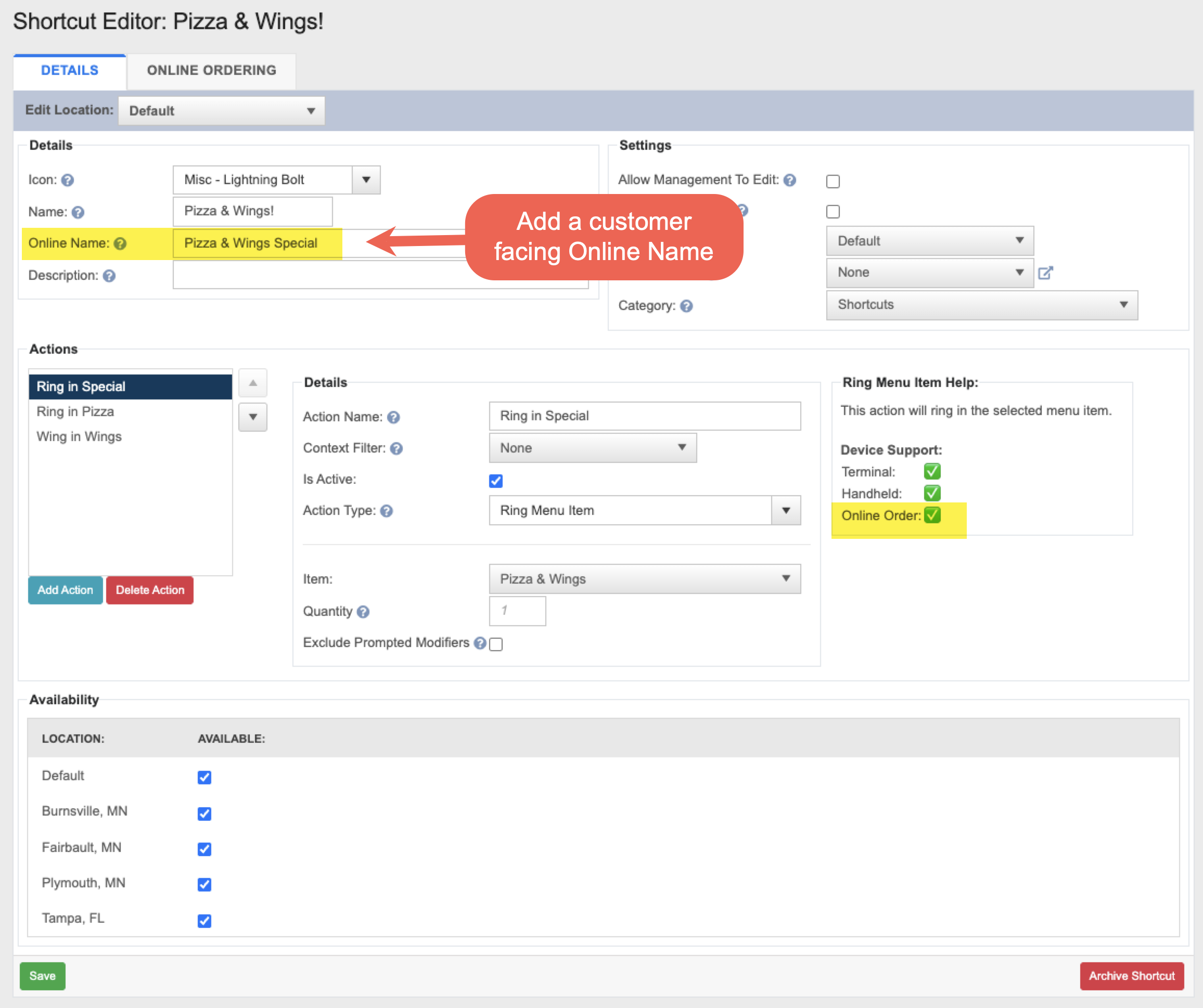
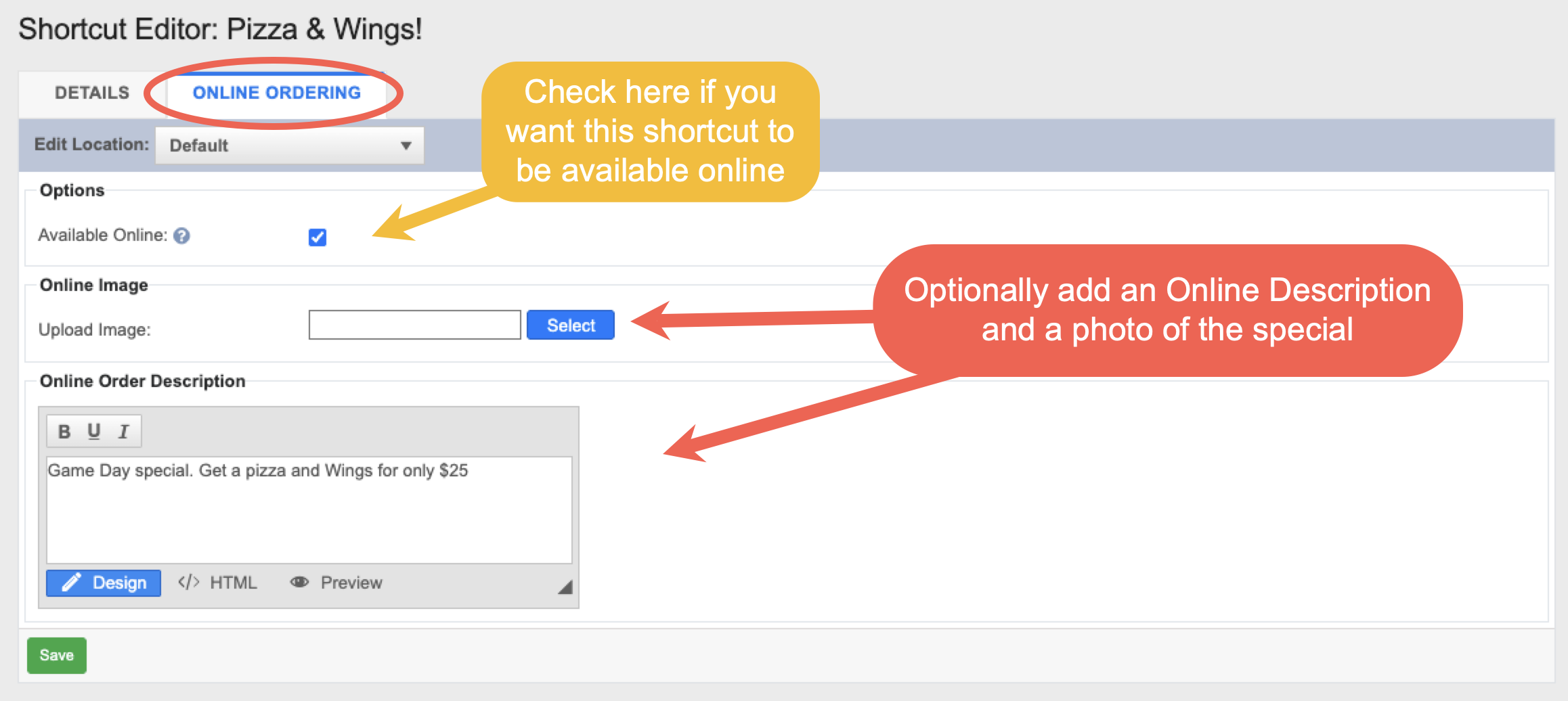
- When setting up a shortcut, there are a few new online-specific options to configure. To find these, go to Backoffice --> POS --> Settings --> Shortcuts --> edit a shortcut:
- Online Name (Details tab) — Add a customer-facing name that will display on the online ordering site, separate from the internal shortcut name.
- Online Ordering tab — Check the "Available Online" box to make the shortcut visible on your online ordering site. You can also upload an image and add a description specifically for online customers.
- Note: If a shortcut includes actions that are not supported for online ordering, a message will appear on the Online Ordering tab listing those actions. They will be skipped when the shortcut is used online, while the supported actions will still run.
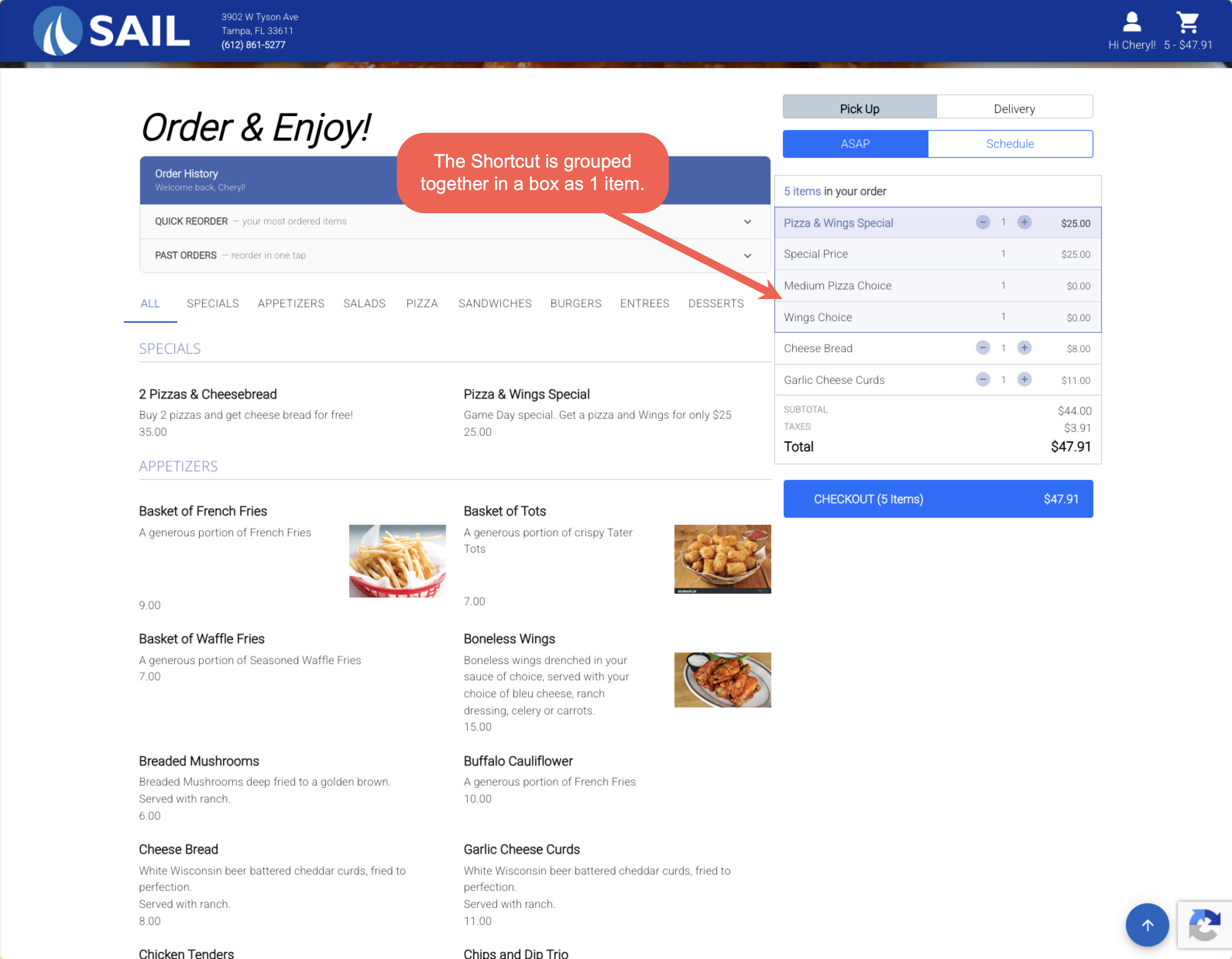
- On the ordering site, the shortcut appears as a single grouped item. Guests can still click into each individual item within the shortcut to make modifications (such as changing pizza toppings), but the + and – quantity controls are on the shortcut as a whole — so guests add or remove the entire special as one unit.
- If any item within the shortcut is 86'd or unavailable, the entire shortcut will be unavailable.
3. Add a Barcode to Receipts
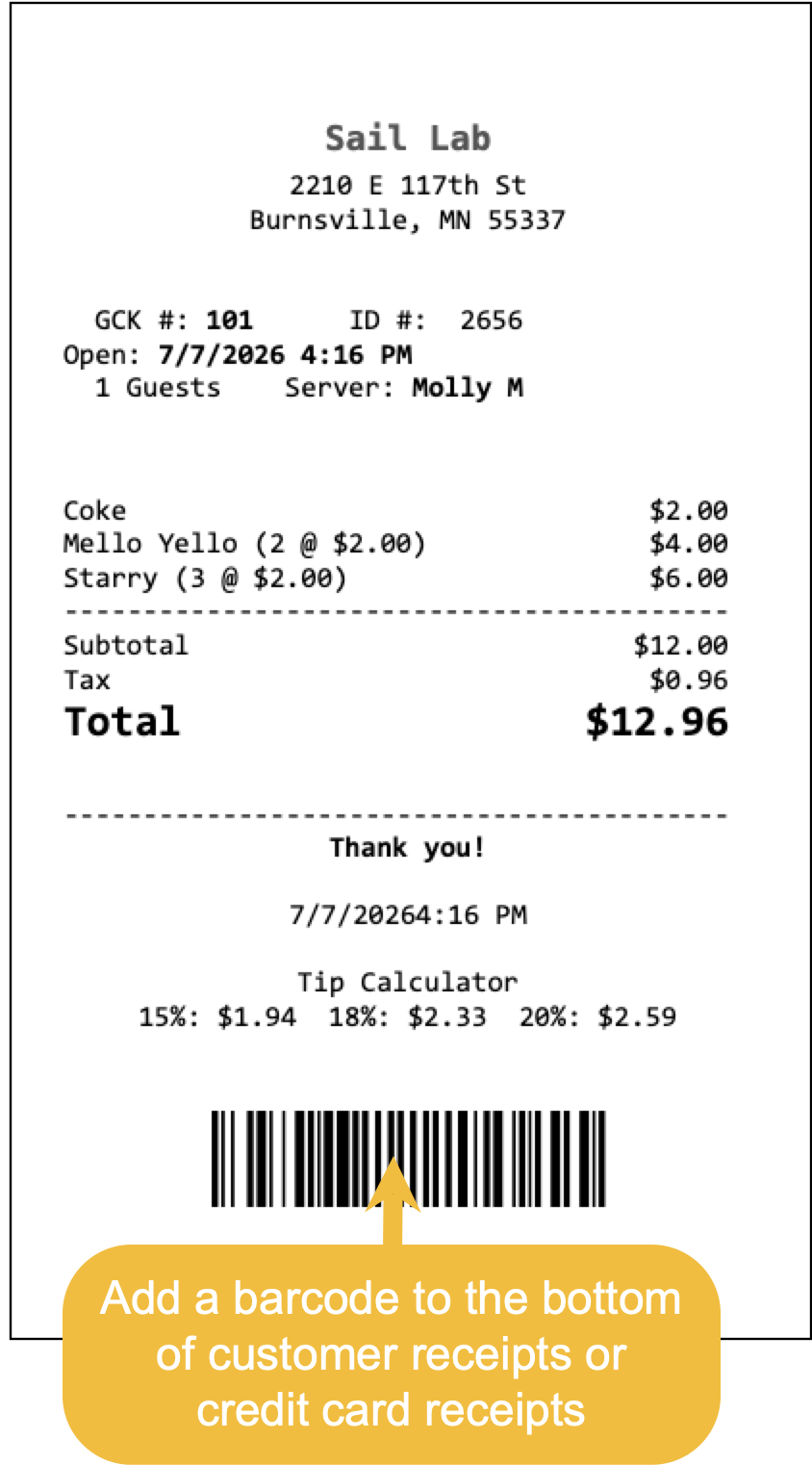
- You can now add a barcode to the bottom of customer receipts or credit card receipts. Scanning the barcode with a barcode scanner will let you quickly pull up the order or tip editor without having to search for it manually.
- A barcode scanner is required to use this feature.
- Customer Receipt:
- On the Edit Tips screen — scanning opens the tip editor for that payment. If the order has multiple payments, you will be prompted to select the correct one.
- On any other screen — scanning opens the order.
- Credit Card Receipt:
- On the Edit Tips screen — scanning opens the tip editor for that exact payment.
- On any other screen — scanning opens the order.
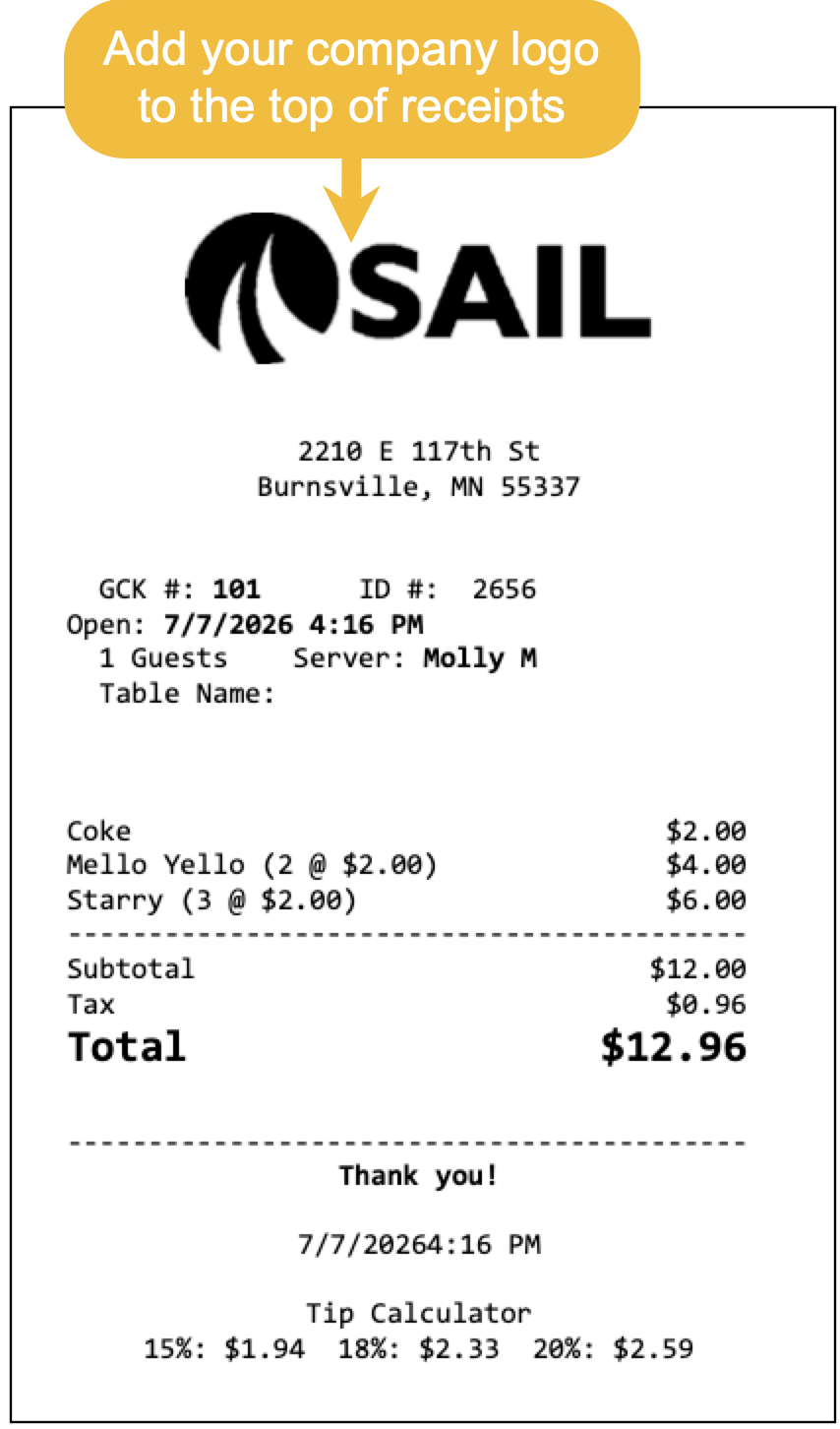
4. Add your logo to the top of receipts
- You can now add your company logo to the top of printed receipts.
- If you'd like this set up, please contact support at Support@ingageit.com or call (612) 861-5277. They can help ensure your logo is formatted correctly for receipts.
5. Many New "Actions" Added
- An Action is a single step that performs a specific function — like voiding an item, navigating to a screen, or changing an order type. A Shortcut is a button made up of one or more actions, so a single tap can perform multiple steps at once.
- Previously there were 9 actions available that could be used in a shortcut or added to your speedrail. In this release we are adding 27 new actions, with more rolling out over the next two releases.
- Below is a table with the new actions included in this release. It covers the action name, what it does, whether it can be used in a Shortcut, and which devices it supports.
- Note: Actions without a checkmark in the "Can it be used in a Shortcut" column can still be placed directly on a screen as a standalone button — they just can't be combined into a shortcut with other actions.
|
Action Name |
Group | What it does |
Can it be used in a Shortcut |
Available on Terminals |
Available on Handhelds |
| Search & Ring Item | Items | Opens an item search; the item you pick is rung onto the order. | ✓ | ✓ | |
| Void Item | Items | Voids the selected items using the configured void reason. Unsent items are just removed. | ✓ | ✓ | ✓ |
| Comp Item | Items | Comps the selected items using the configured comp reason. | ✓ | ✓ | ✓ |
| Add Modifier | Items | Adds the configured modifier to the selected items, or the last item. | ✓ | ✓ | ✓ |
| Change Size | Items | Changes the size of selected unsent items and reprices them with their modifiers — a set size or prompt. | ✓ | ✓ | ✓ |
| Set Order Type | Order | Switches the order's type (e.g. Dine In, To Go) and recalculates. No customer/name/schedule prompt. | ✓ | ✓ | ✓ |
| Logout | Navigation | Logs the current user out of the terminal. | ✓ | ✓ | |
| Navigate: Box Office | Navigation | Opens the Box Office screen. | ✓ | ||
| Navigate: Screen | Navigation | Switches the terminal to the chosen action screen. | ✓ | ||
| Navigate: Discounts | Navigation | Opens the Discounts screen. | ✓ | ||
| Navigate: Charges | Navigation | Opens the Charges screen. | ✓ | ||
| Navigate: Payments | Navigation | Opens the Payments screen for the current order. | ✓ | ||
| Navigate: Tools | Navigation | Opens the order Tools (transaction options) screen. | ✓ | ||
| Navigate: Orders | Navigation | Opens the Orders (open checks) screen. Prompts to save first. Needs Create and View Orders. | ✓ | ||
| Navigate: Tables | Navigation | Opens the Tables (floor plan) screen. Prompts to save first. Needs Create and View Orders. | ✓ | ||
| Navigate: New Order | Navigation | Starts a new order. Prompts to save first. Optionally starts it as a chosen order type. | ✓ | ||
| Navigate: Quick Order | Navigation | Starts a new quick order. Prompts to save first. Optionally starts it as a chosen order type. | ✓ | ||
| Navigate: Dispatch | Navigation | Opens the Dispatch screen. Prompts to save first. Needs View Dispatch Screen. | ✓ | ||
| Navigate: Edit Tips | Navigation | Opens the Payments module to edit tips. Prompts to save first. | ✓ | ||
| Navigate: Rewards | Navigation | Opens the Rewards screen for the order. Shown only when rewards are configured. | ✓ | ||
| Navigate: Clean Screen | Navigation | Opens the Clean Screen tool. Prompts to save first. | ✓ | ||
| Navigate: Settings | Navigation | Opens the device Settings screen. Prompts to save first. | ✓ | ||
| Navigate: Table Layout Editor | Navigation | Opens the floor-plan editor. Prompts to save first. (Not the Screen Layout Editor.) | ✓ | ||
| Navigate: Register Card | Navigation | Opens the screen to assign a login/ID card to a user. Prompts to save first. | ✓ | ||
| Navigate: Offline CC | Navigation | Opens the Offline Credit Card mode screen. Prompts to save first. | ✓ | ||
| Navigate: Order Type | Navigation | Switches to the Order Type screen (order type, customer, name, schedule) for the open order. | ✓ | ✓ |
- Here is a closer look at three of the most useful new actions:
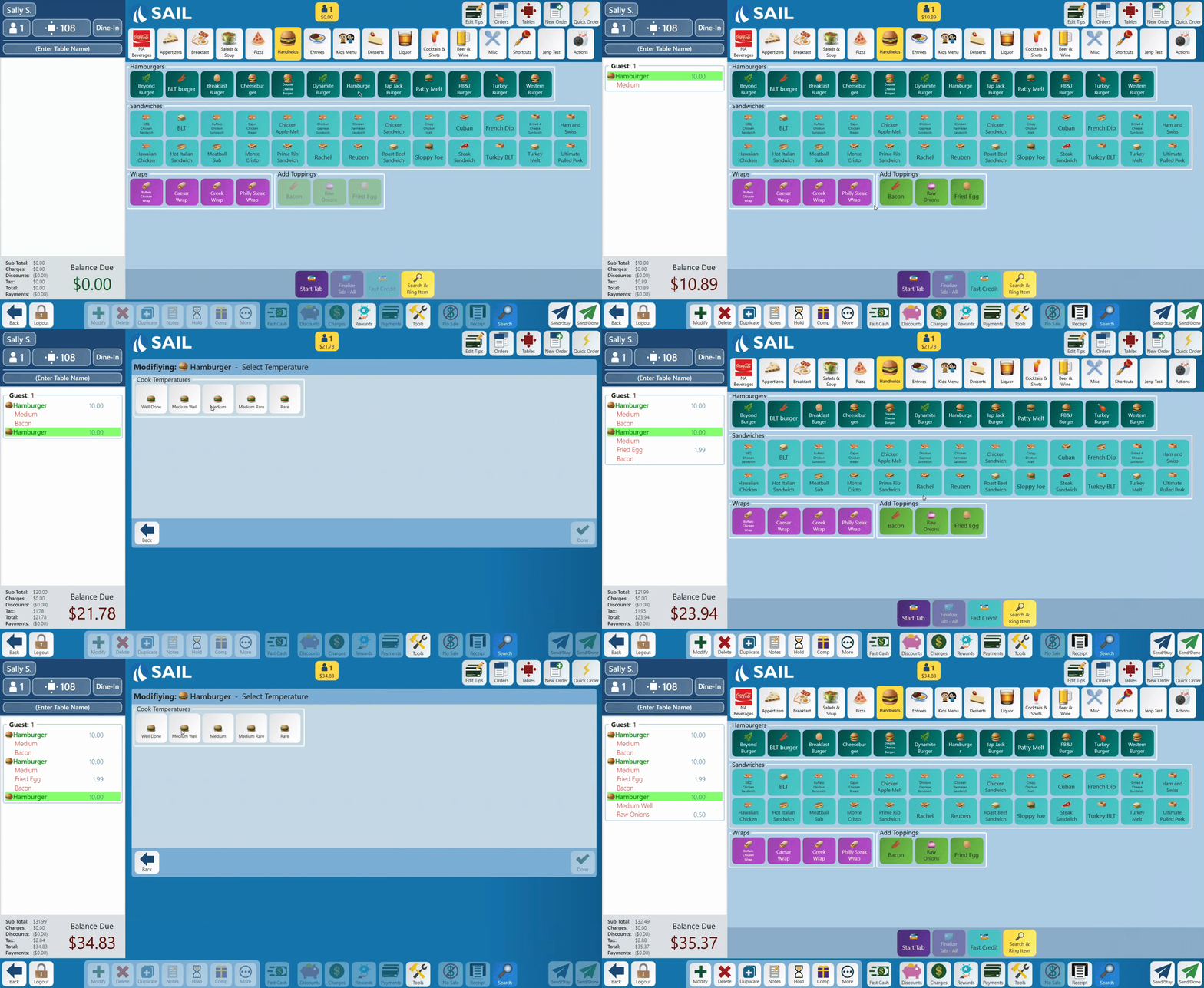
Search & Ring Item
- Opens an item search directly on the terminal. When the employee selects an item from the search results, it is rung onto the order automatically. This is great for locations with large menus where finding an item quickly matters.
Add Modifier
- Adds a pre-configured modifier to the selected item, or the last item rung in. This can be added to a shortcut so that a modifier is applied automatically as part of a sequence — no extra taps needed.
Change Size
- Changes the size of a selected unsent item and reprices it with the appropriate modifiers. Can be set to a specific size or configured to prompt the employee to choose.
Fixes
Something was fixed