
Release 2026.8.2 "Vesper"
Notes: This release consists of 5 New features and Improvements. Use the page navigation section on the top left of this screen to jump between the features you'd like to read about.
**This release will NOT require a handheld update**
If you would like any additional information or help setting up any of these new features, please contact support at:
Support@ingageit.com or call (612) 861-5277
Improvements
1. OLO: Pizza Builder
- Guests can now build their pizza online topping by topping, choosing exactly where each topping goes and how much of it they want. This is an online ordering only feature at this time.
- Guest Experience:
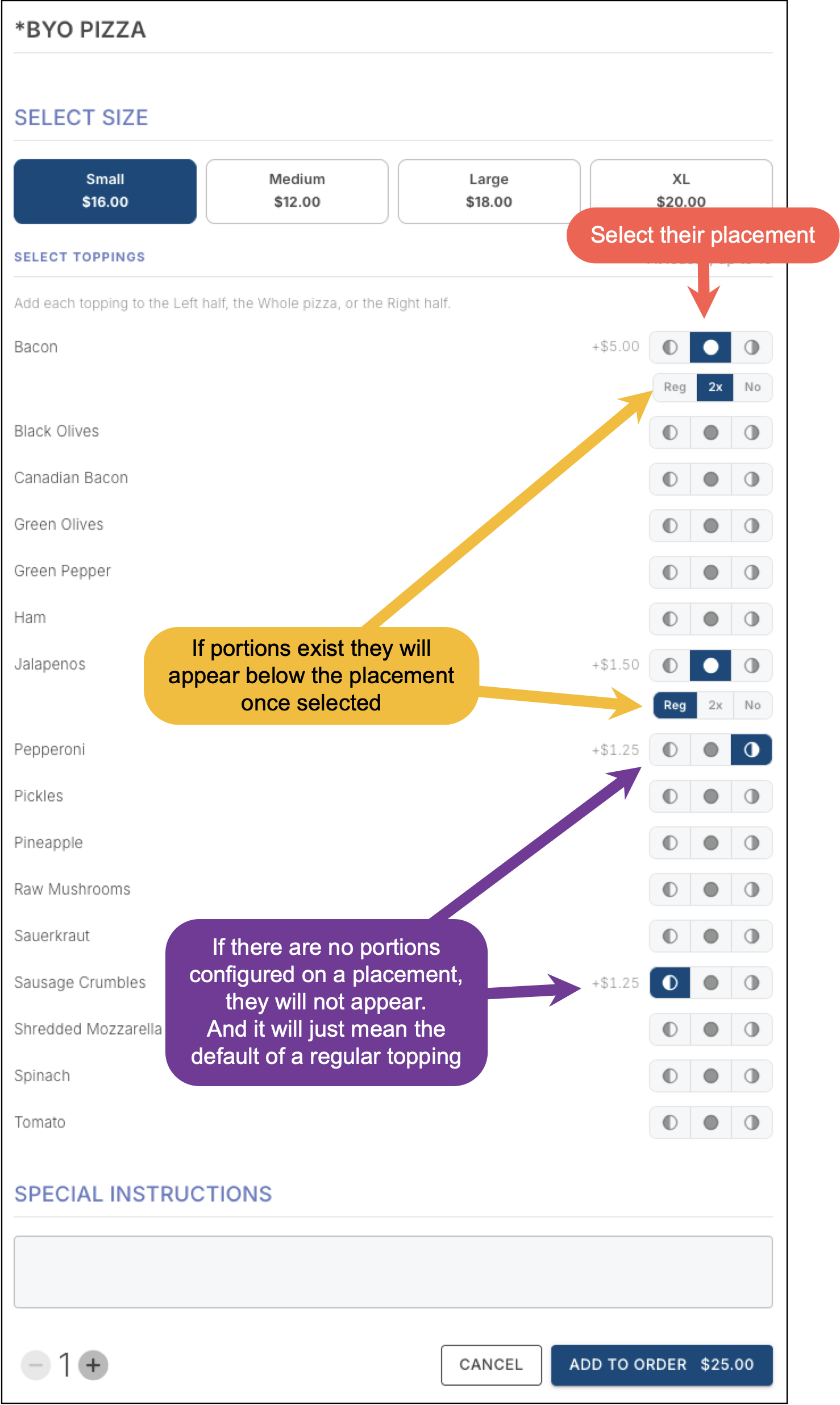
- When a guest opens a pizza item, they are presented with a size selector followed by a full topping list.
- Each topping displays placement icons — Left half, Whole pizza, Right half, and No. Tapping an icon selects that placement and highlights it. Only placements that have been mapped in Backoffice will appear.
- Once a topping is placed, portion options may appear (for example: Regular & Double) if more than one portion is configured for that placement. If all modifiers use the same portion, the portion selector will not appear.
- No can be configured as either a placement or a portion depending on how your Modifier Type is set up.
- The placements and portions are what the guest sees online. The kitchen ticket still displays the modifier name they are mapped to in Backoffice.
- Backoffice Setup:
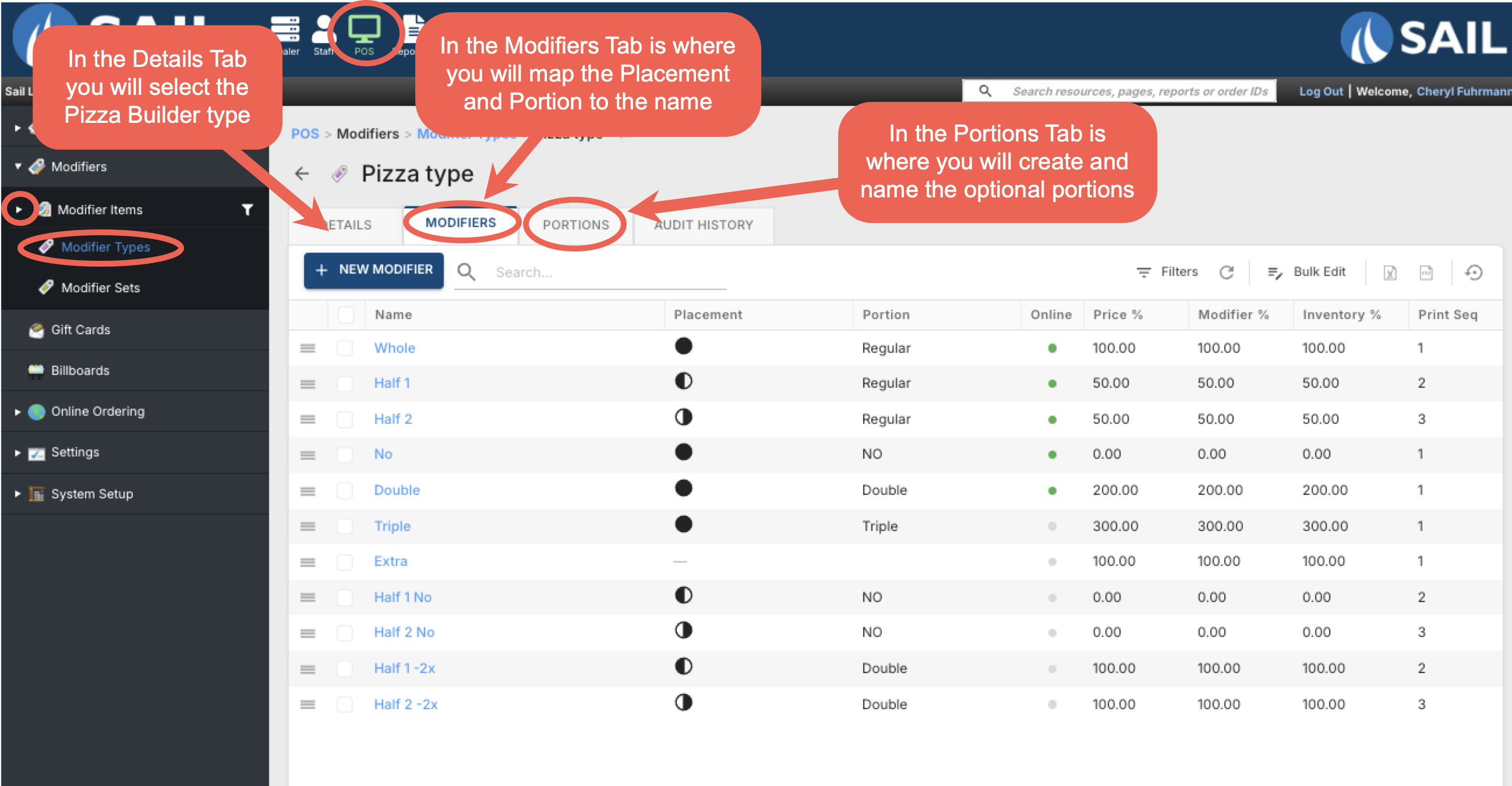
- To enable the Pizza Builder, go to Backoffice --> POS --> Modifiers --> Modifier Types --> open the Modifier Type you want to configure --> Details tab --> Switch it from standard type to Pizza Builder.
- This unlocks a new Portions tab where you can create custom portion options (for example: Regular, Double, Triple, No) and assign each an online display name.
- On the Modifiers tab, each modifier record can then be assigned a Placement (Left, Whole, Right, or No) and a Portion, which combine to map to the correct modifier when the guest makes their selection.
2. OLO: Price range on size groups
3. OLO Email Marketing Opt-in
4. OLO: Cache Order
Fixes
Something was fixed