
How to edit table layout
This document will show how to create and edit the table layout on terminals.terminals: adding sections (dining areas), adding, moving and arranging tables, and drawing walls, labels and other shapes on the floor plan.
Creatingneed athe newManage diningTable area
Layout Thispermission muston beyour donejob role to see the Edit Layout button. Sections are now added and changed right on the terminal - there is no Restaurant Layout page in Backoffice beforeanymore.
Opening the table layout editor
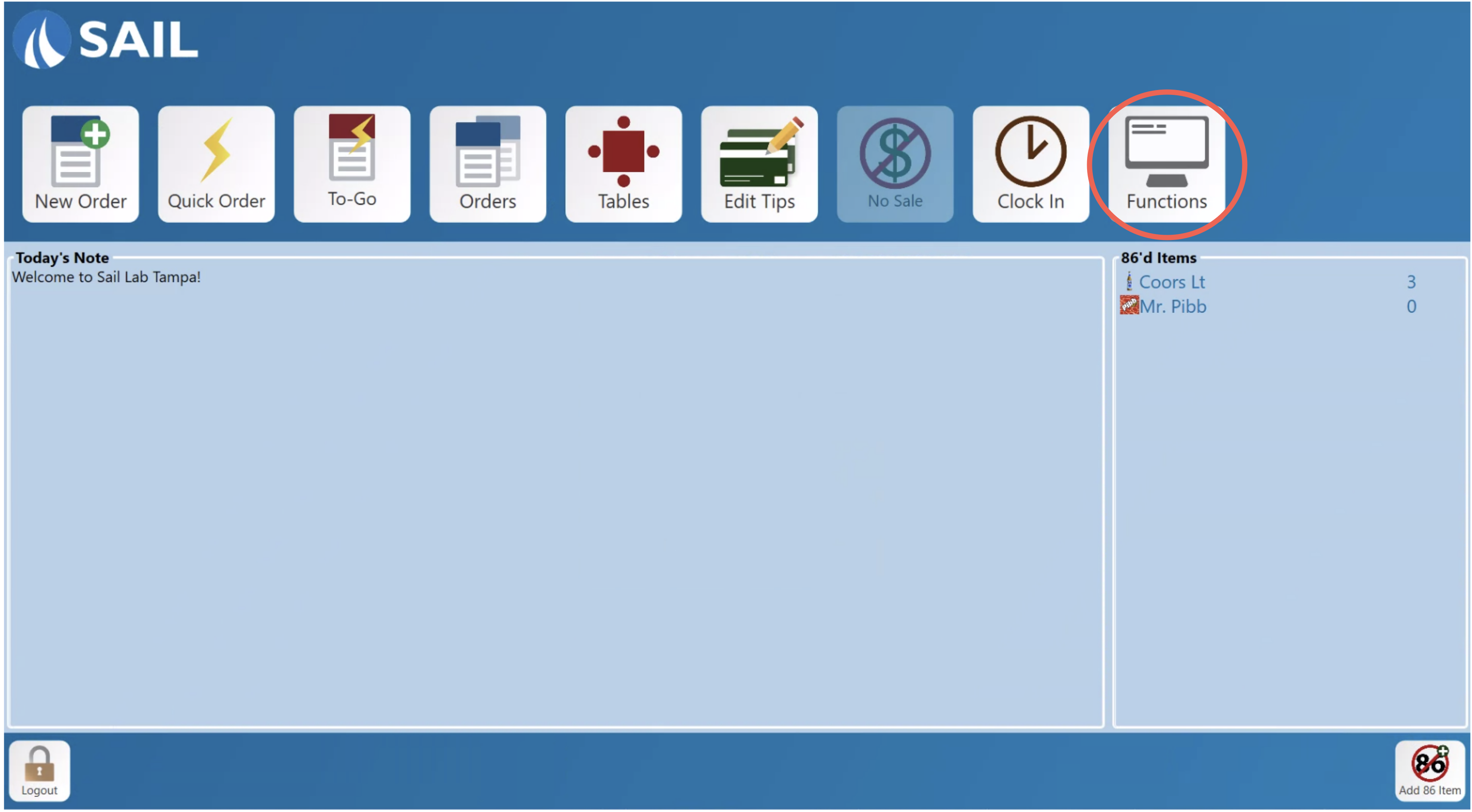
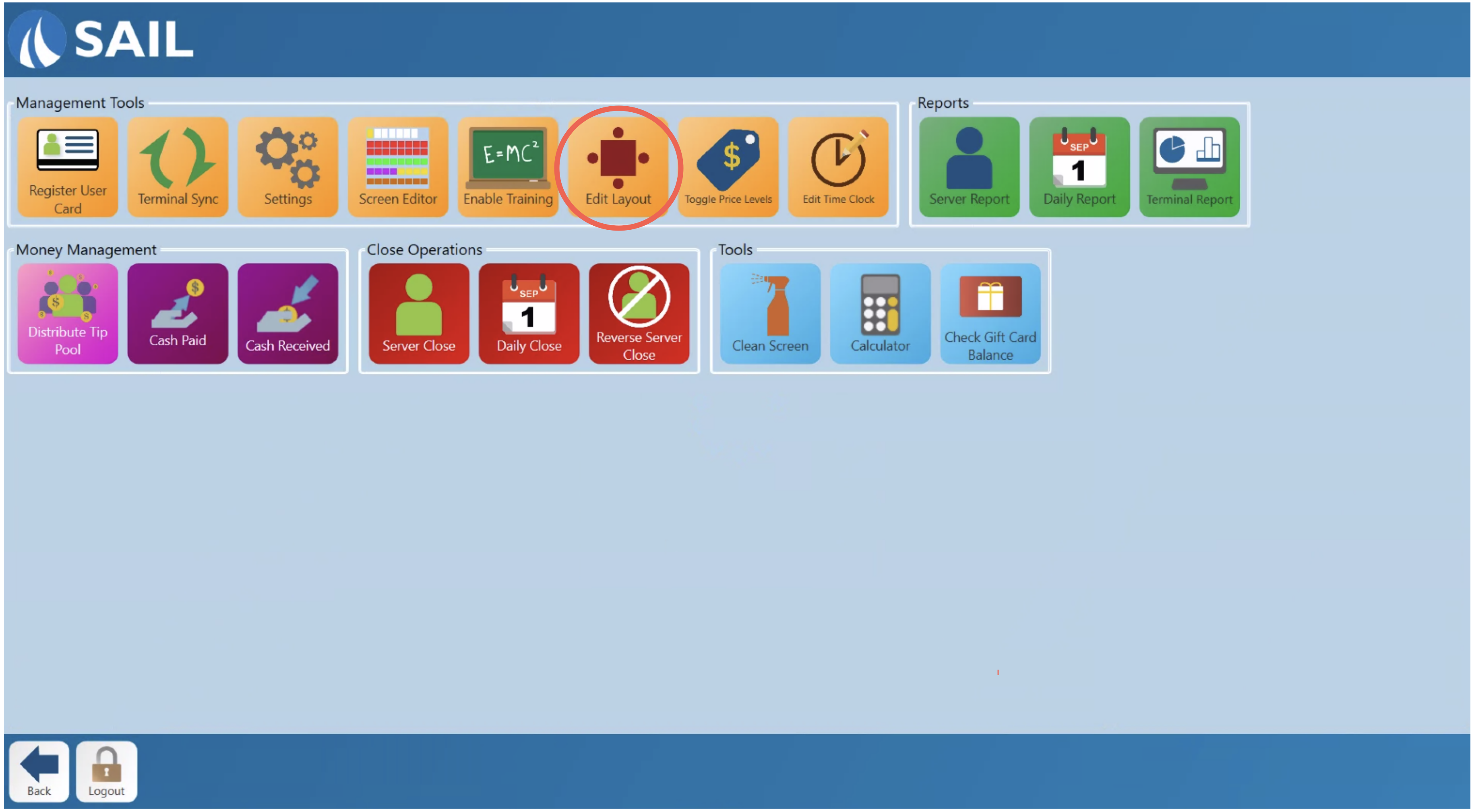
1. Log into a terminal, tap Functions on the terminalslaunch
screen, then tap Edit Layout under Management Tools.
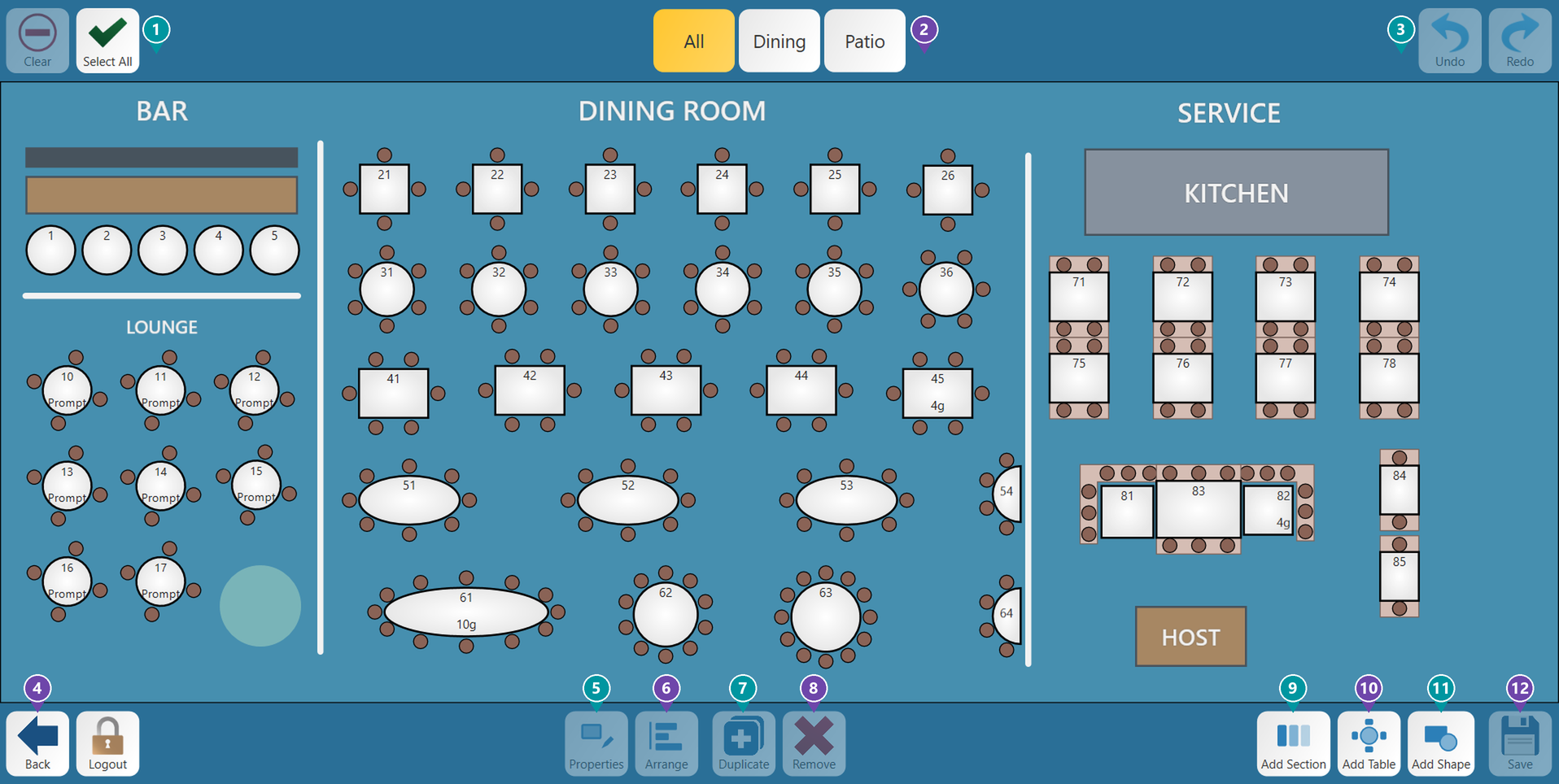
- 1.
- Unselect everything, or select every table in the section.LoginClear / Select All - 2. Sections - Each tab is a room or section of your restaurant. Tap one to
Backofficeedit it. Press andnavigatehold a tab totherename,POSmovetab.or delete it. - 3.
- Take back your last change, or put it back again.NavigateUndo / Redo - 4. Back - Leave the editor. If you have changes that aren't saved, you'll be asked what to
SystemdoSetup.with them. - 5.
SelectPropertiesRestaurant-Layout nearChange thebottom.selected table's number, guests, order type and seats, or a shape's colors. - 6. Arrange - Line up, space out, resize and rotate the selected tables, and layer shapes.
- 7. Duplicate - Make a copy of the selected table.
- 8. Remove - Delete the selected tables or shapes.
- 9. Add Section - Add a new room or section.
- 10. Add Table - Add one or more tables.
- 11. Add Shape - Draw a box, oval, line or text label on the floor plan.
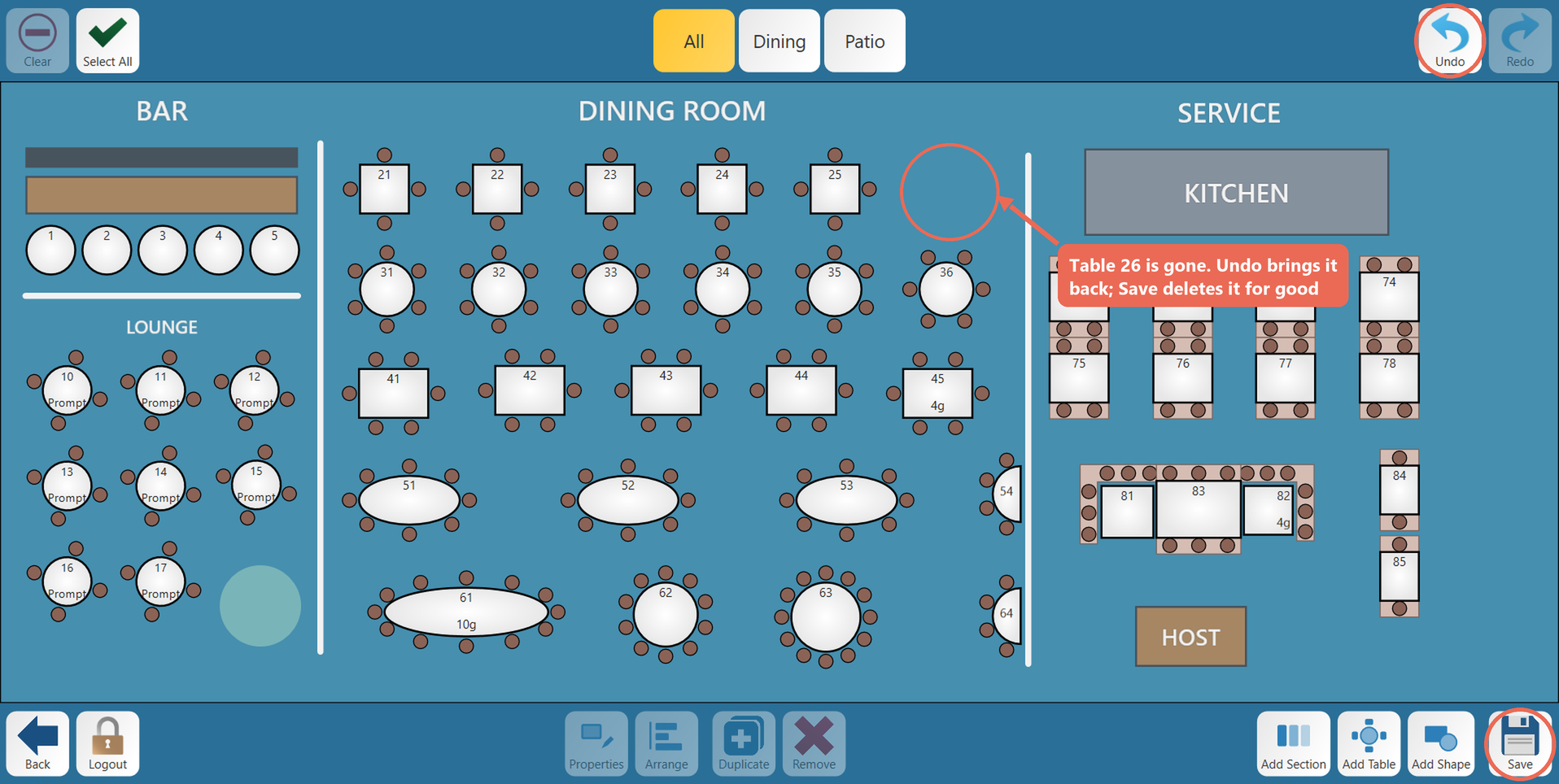
- 12. Save - Save your changes. Nothing you change is kept until you save.
areaEnterthe name of the new diningarea.- and
- tap Done. The new section shows as a tab at the top of the screen. You can have as many sections as you'd like.
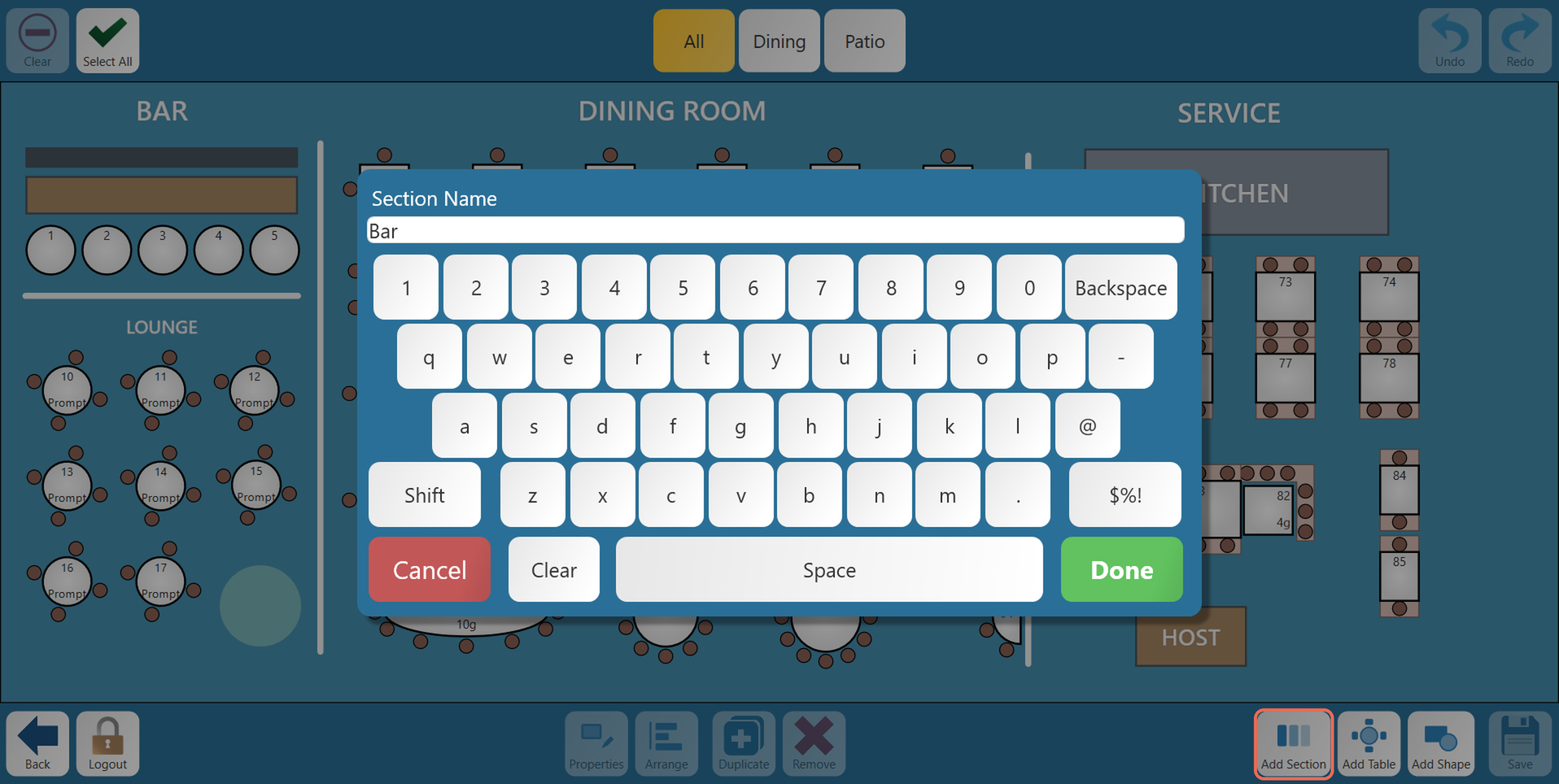
Note: If you have changes in the section you're on, you'll be asked to save them first.
2. To change a section, press and hold its tab, then pick what you'd like to do.
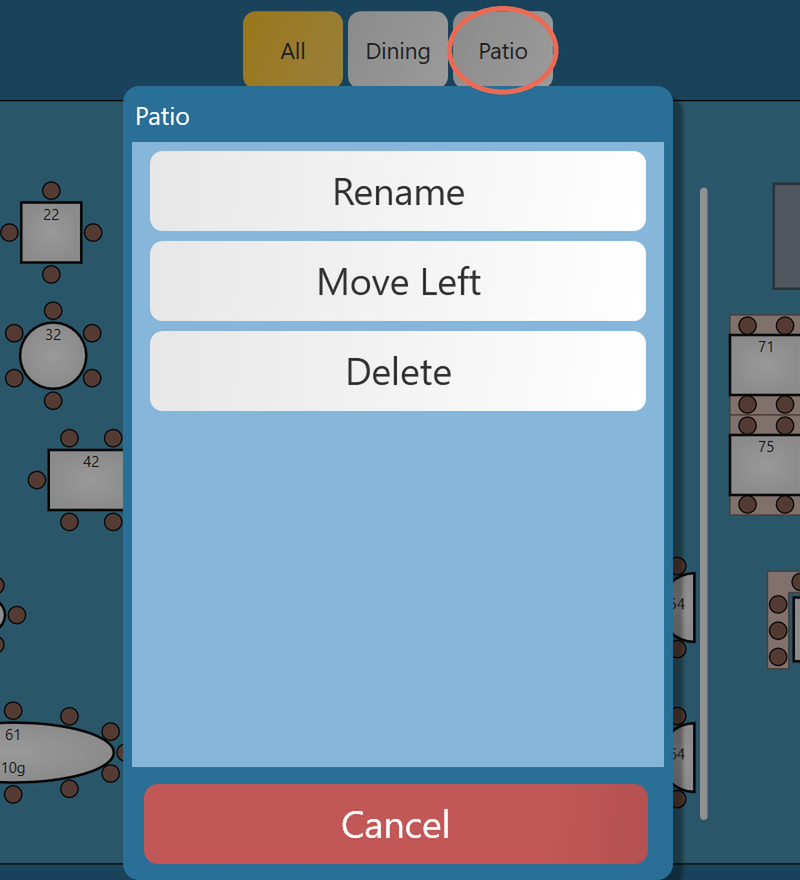
- Rename - Give the section a new name. Two sections can't have the same name.
***OPTIONAL***MoveSelectLeft / Move Right - Change the order of the tabs.- Delete - Delete the section.
Deleting a
filesectiontoalsoupload.deletesUploadevery table and shape in it. Sail tells you how many tables will be deleted and asks before it does.Making a
picturetable1. Tap the section you want the table in, then tap Add Table.
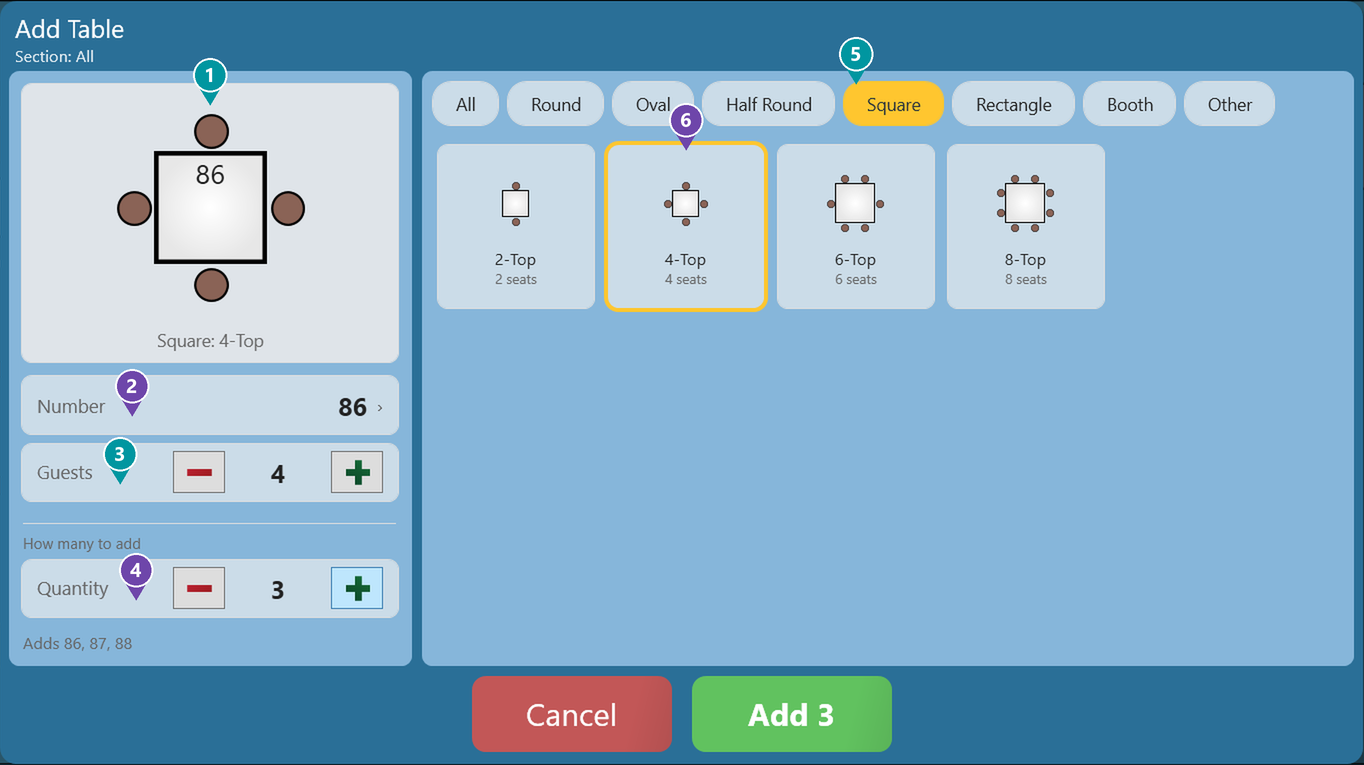
- 1. Preview - Shows the table exactly as
aitbackgroundwillfor your new dining area with a resolution of 1366x608 for screens at 1366x768 and1920x920 for screens at 1920x1080. Once finished, press insert.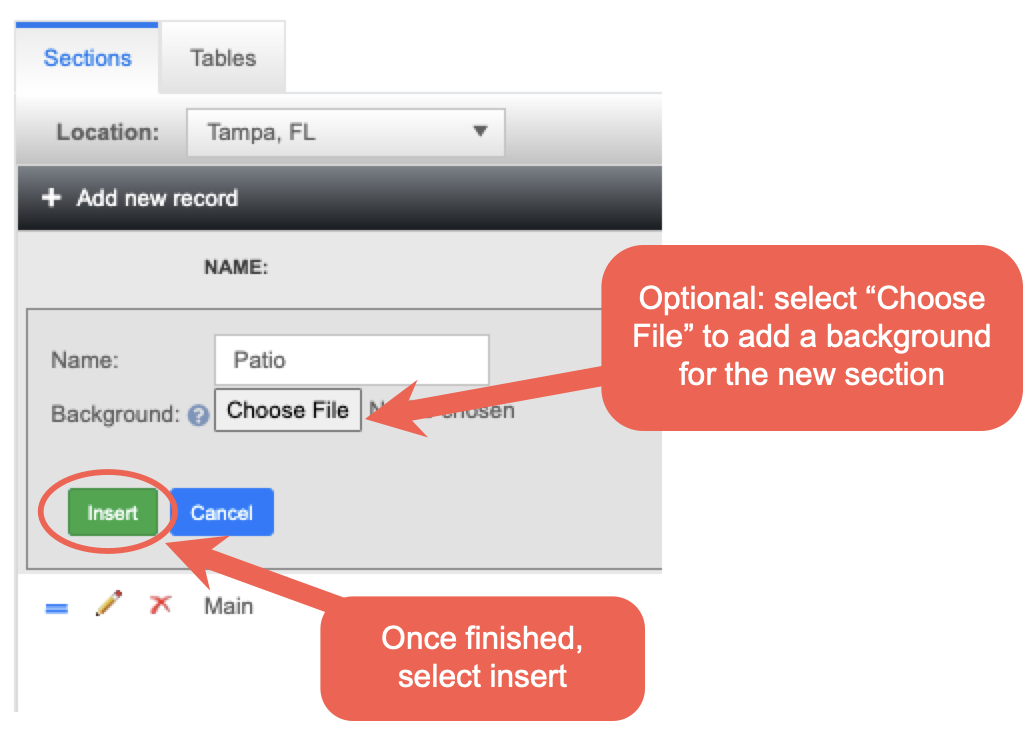
- tap Done. The new section shows as a tab at the top of the screen. You can have as many sections as you'd like.
2. The table layout editor opens: your table view, with the layout editing buttons along the top and bottom of the screen.
The table layout editor at a glance
Click
Creating a new section name.
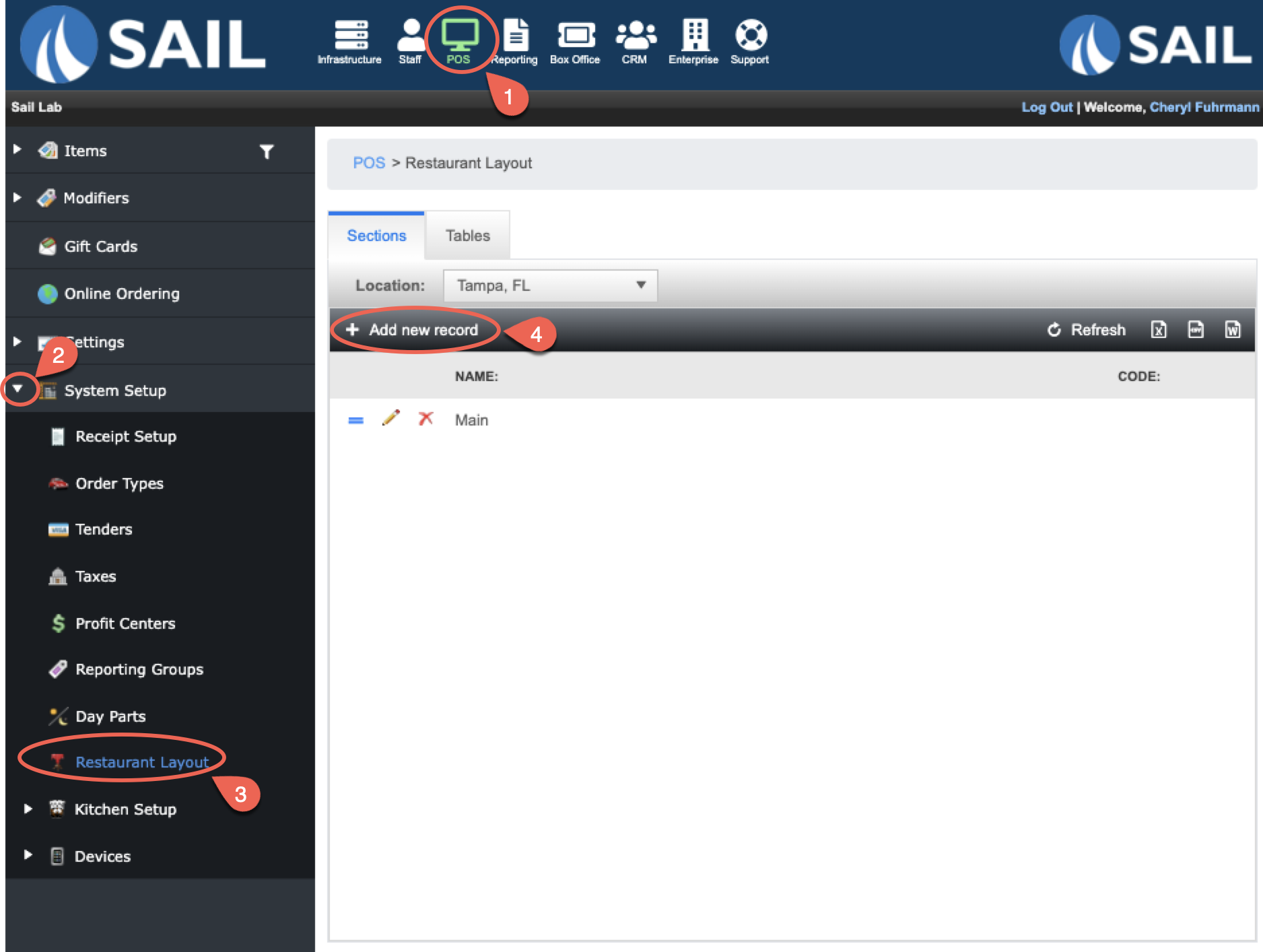
Add
Section, type
Editing table layoutlook on the terminal
floor - plan, with its number.
Log2.intoNumber - Already filled in with the next free table number. Tap it to type aterminaldifferent one.- 3. Guests - The guest count that is filled in when a server opens this table. Set it to 0 (Prompt) to have the server enter the guest count instead.
- 4. Quantity - How many of this table to add at once. They are numbered in order, for example 86, 87 and
navigate to the launch screen then select Functions.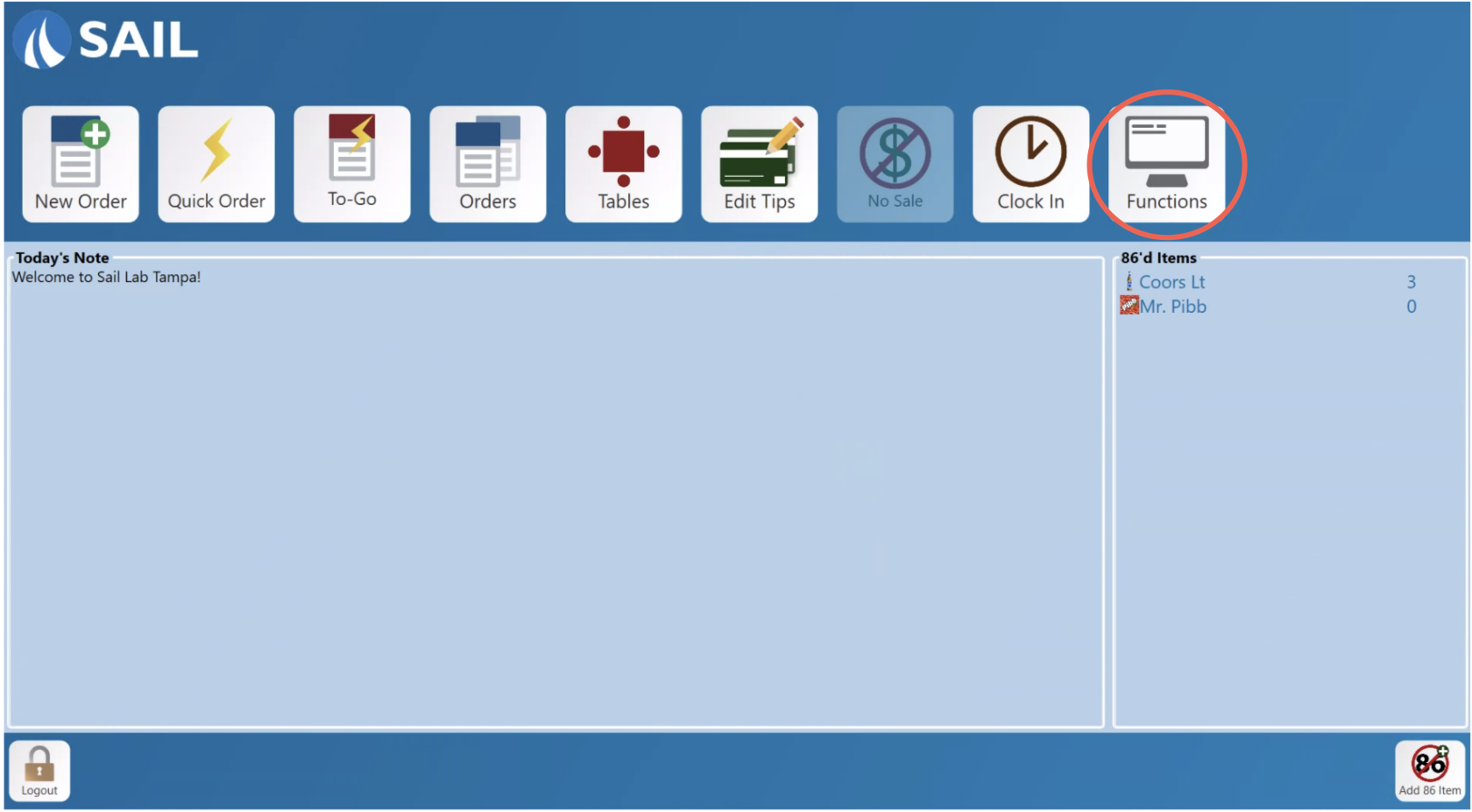
88. Select5.theTableEdittypesLayout-button.
Show
only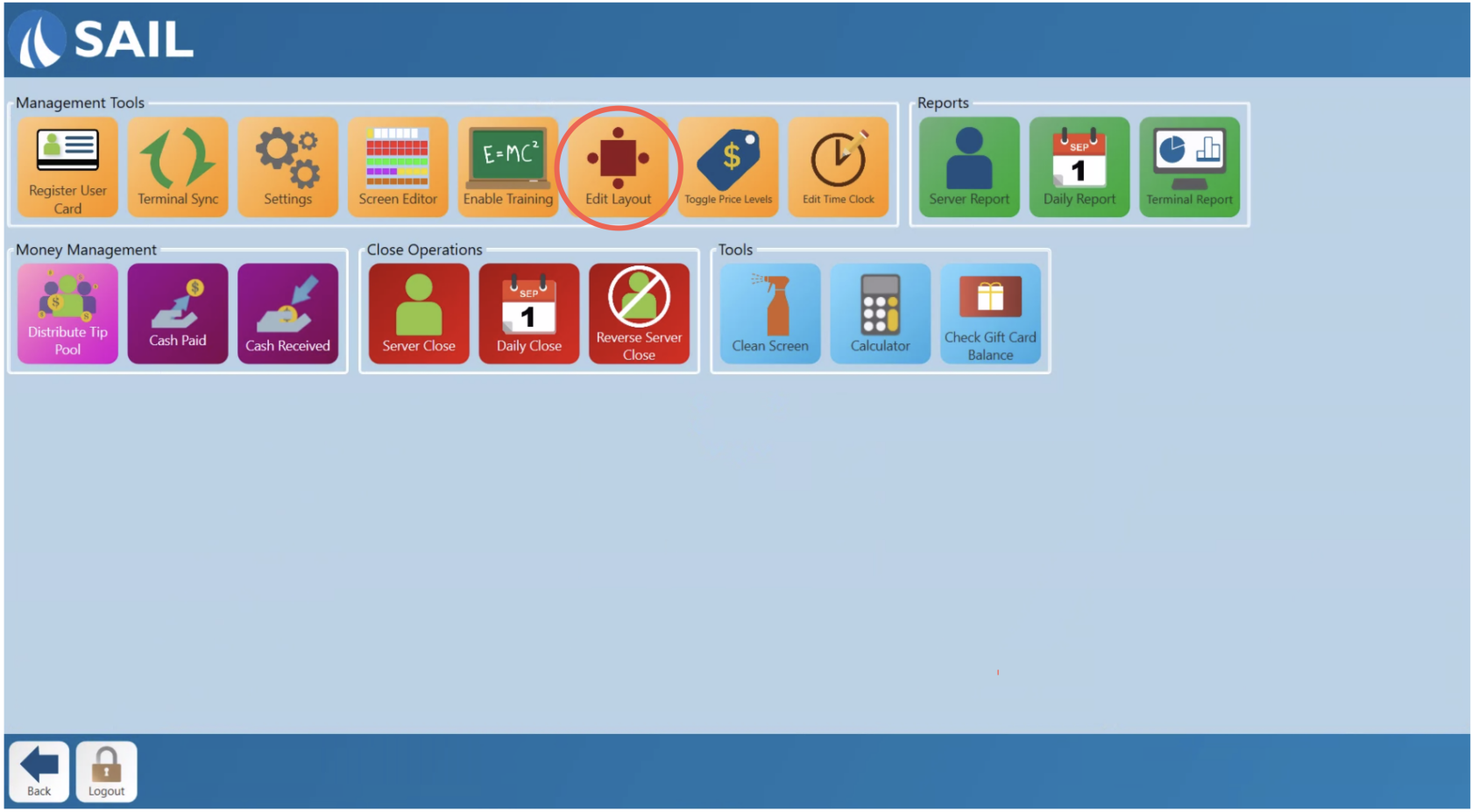
Round, Oval, Half Round, Square, Rectangle, Booth or Other tables, or All of them.The6.ScreenTablewillshapesthen-reflectTap the tableview screen with layout editing options at the bottom of the screen.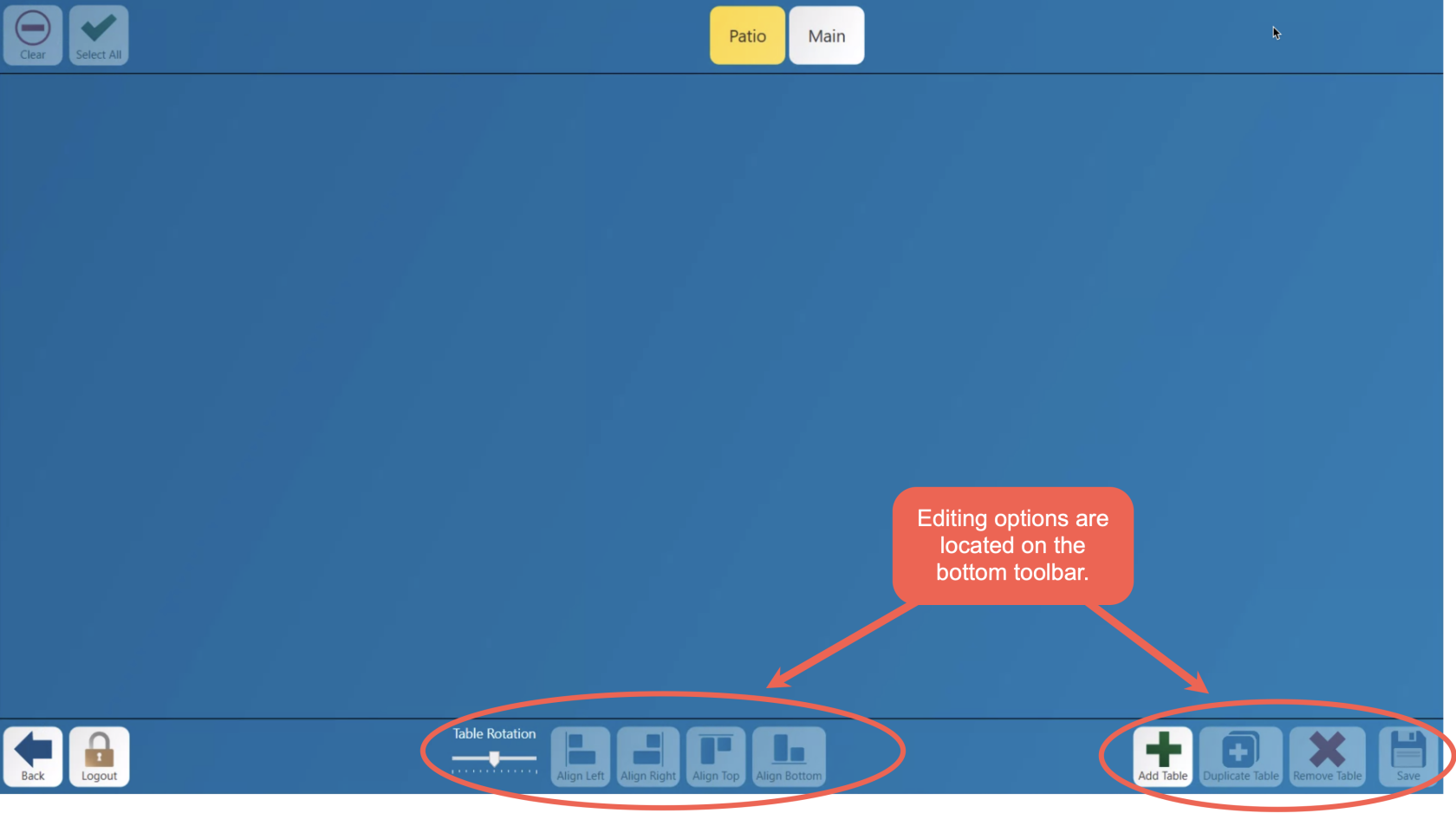
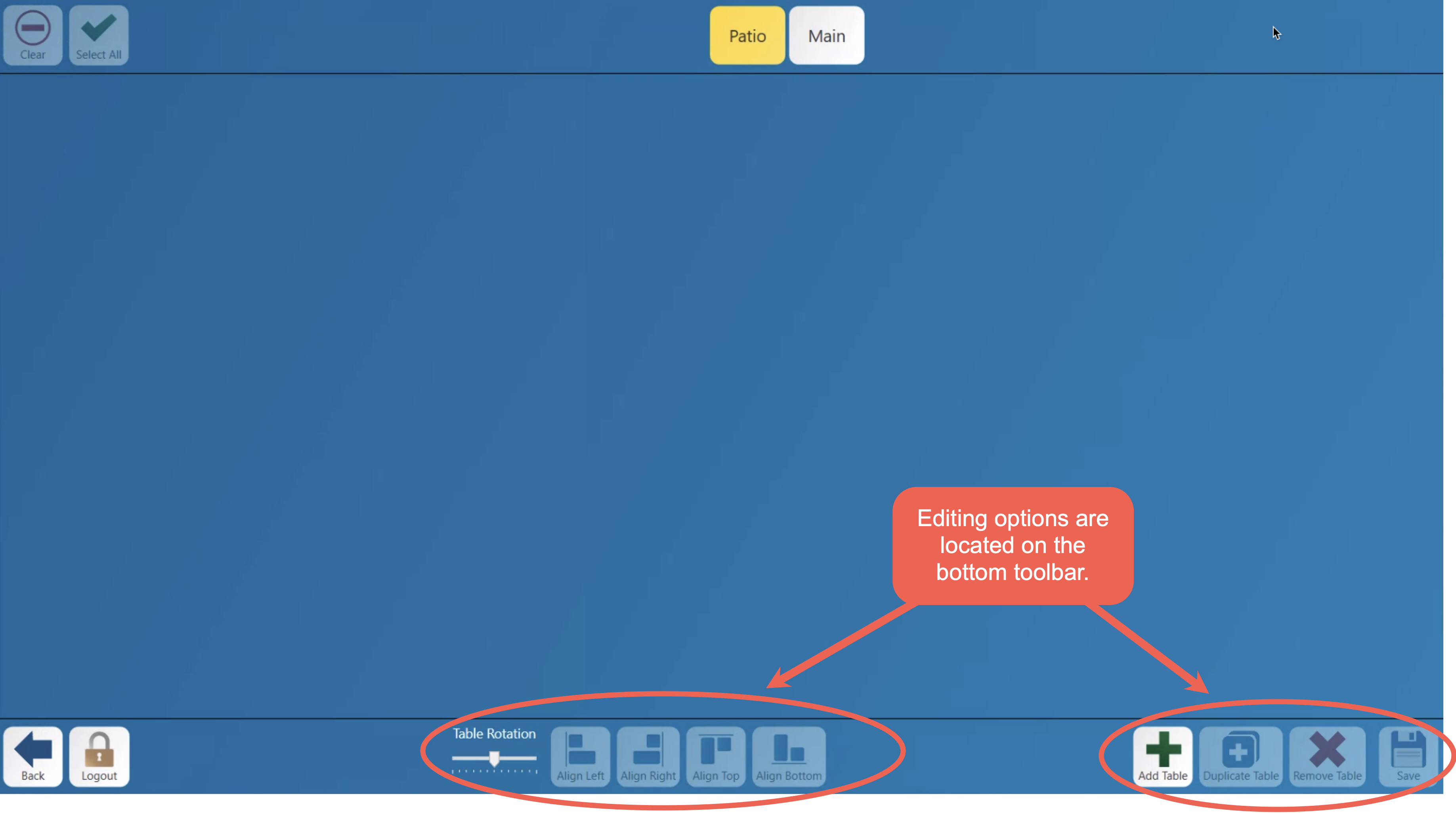
Making a table
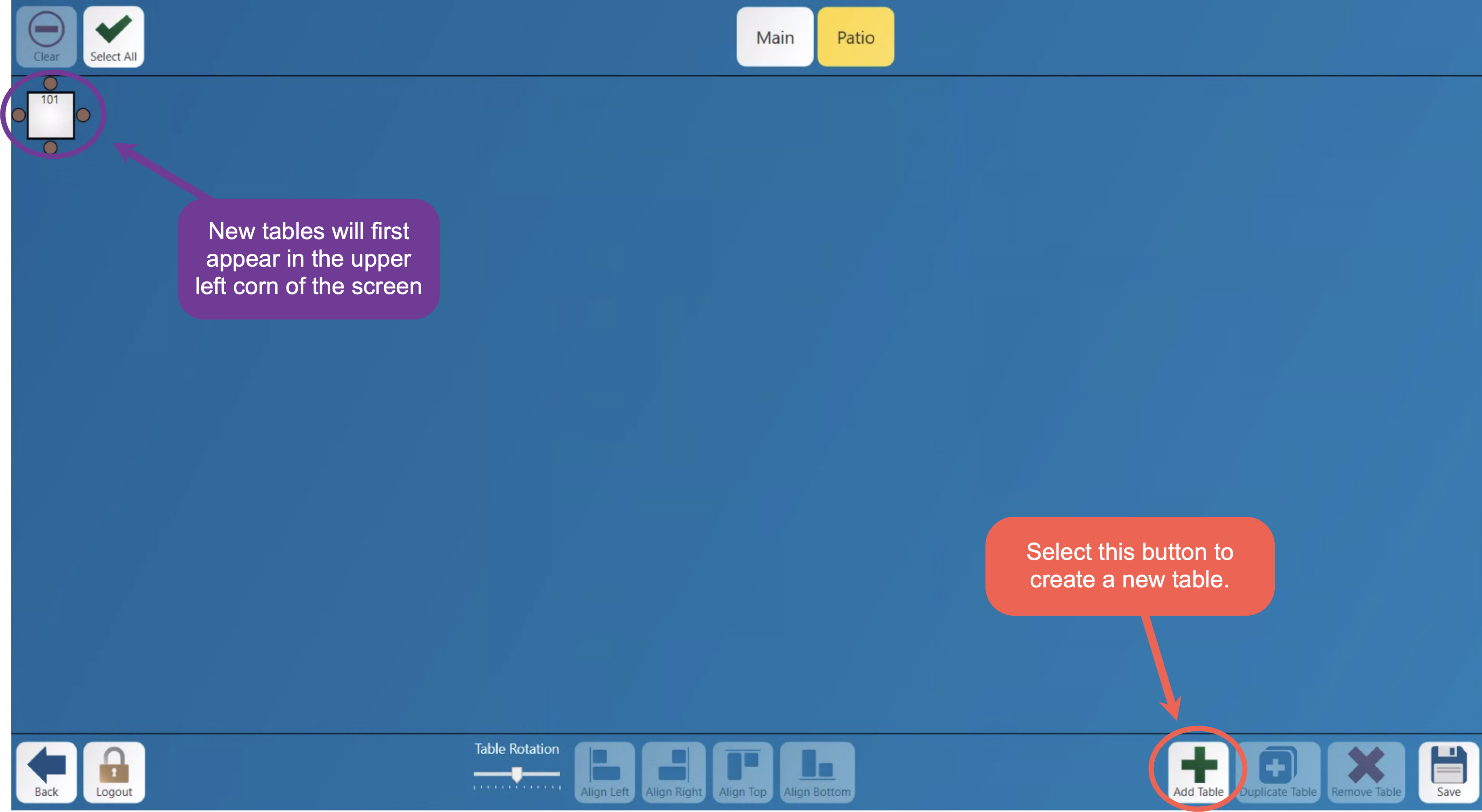
Press the green plus sign on the bottom right of the screen to create a new table.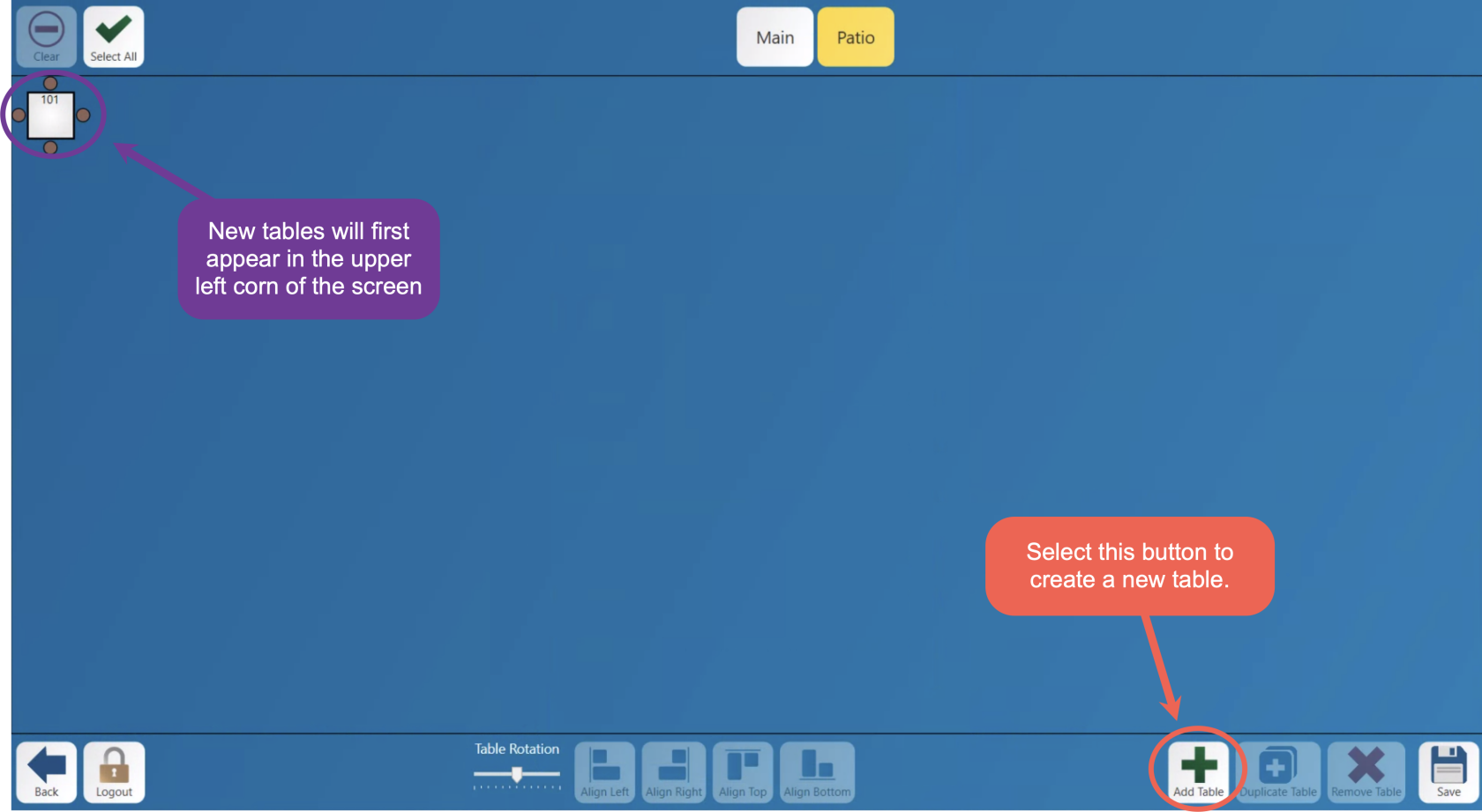
Enter the table number you would like the new table to be.The table number should NOT match any currently existing tables. When an order is entered on a table if there are more than one table with the same number it will confuse the system and not work properly.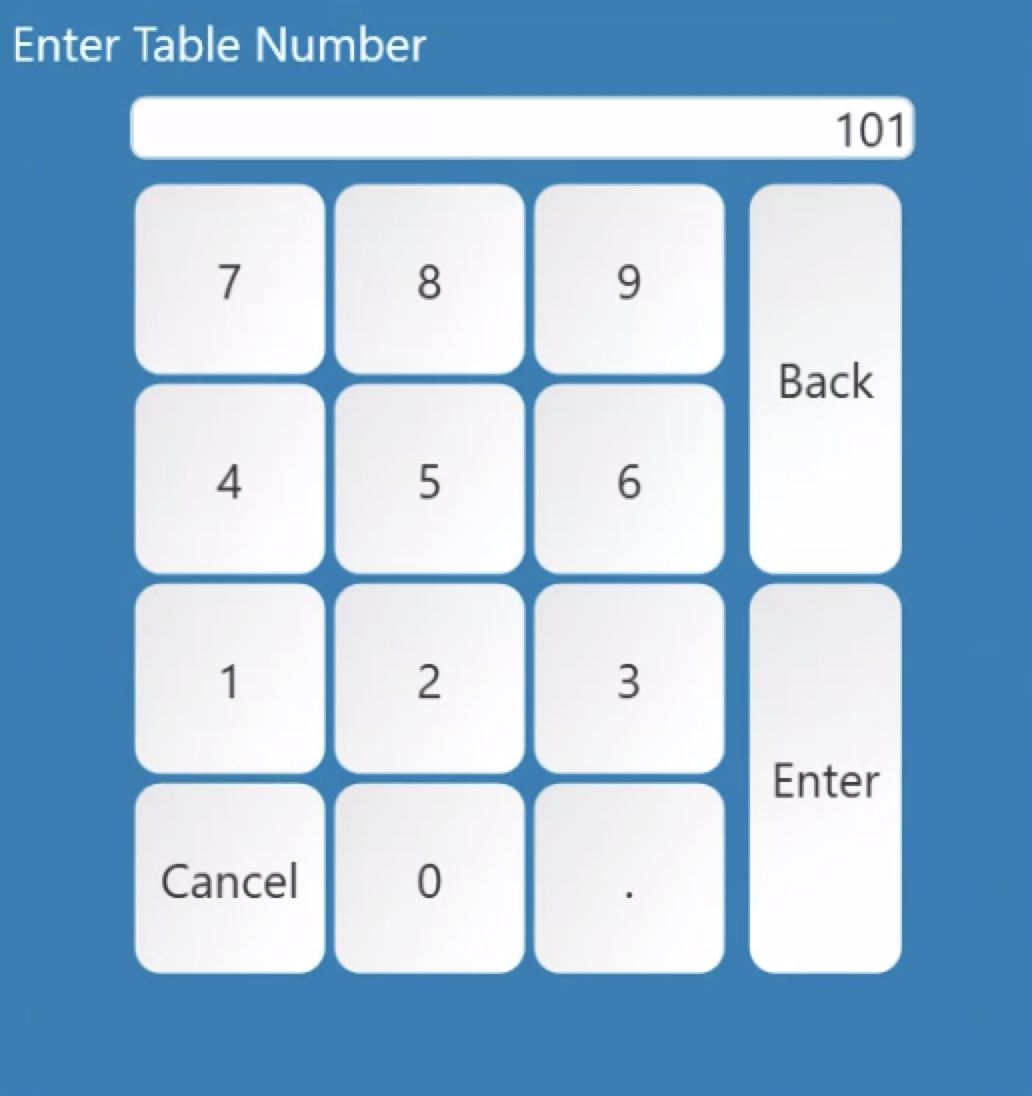
Next you will be prompted to select what kind of table you wouldyou'd like to add.Here2. Each table number can only be used once in a section. If the number is already taken, you'll see a red message and the
listAddofbuttonallstaysyouroffoptions.until
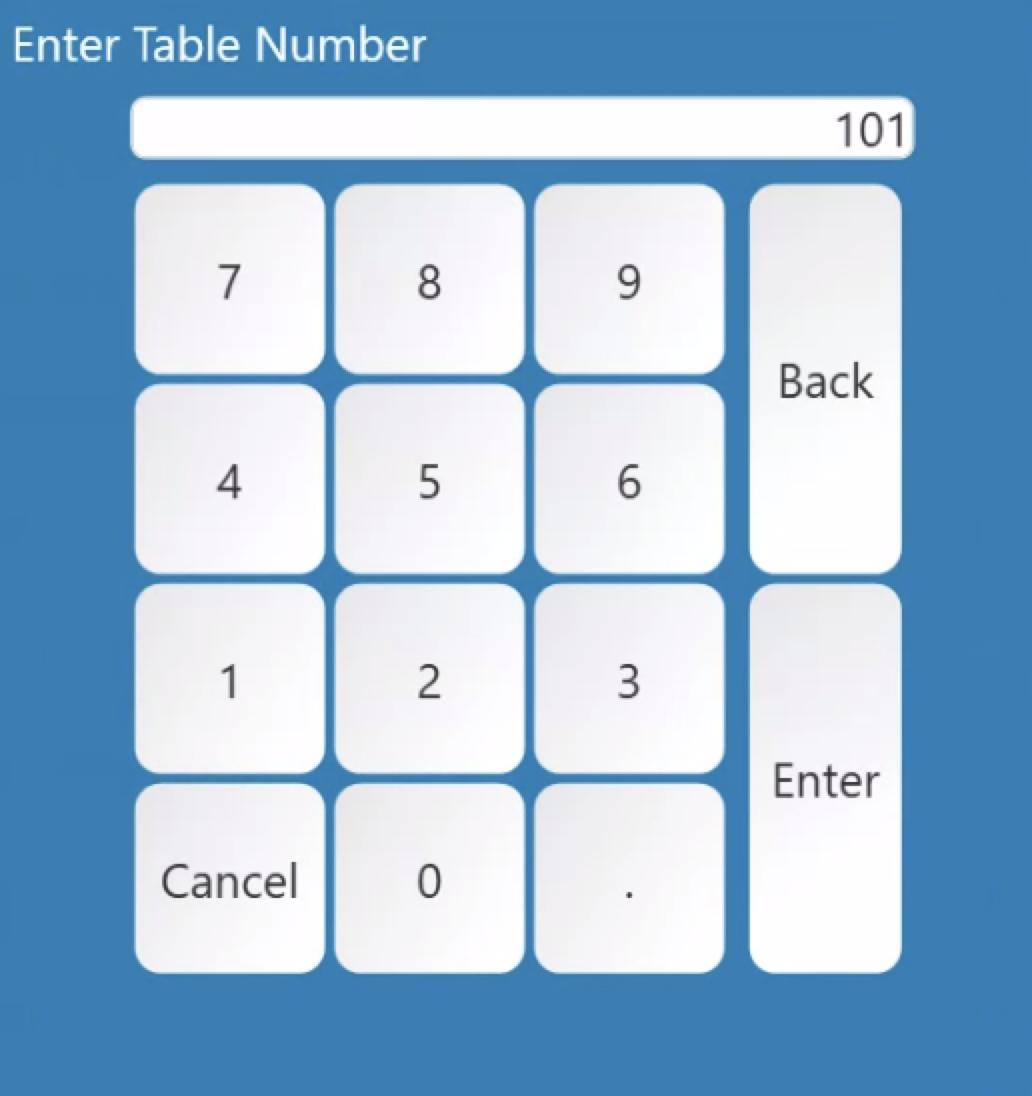
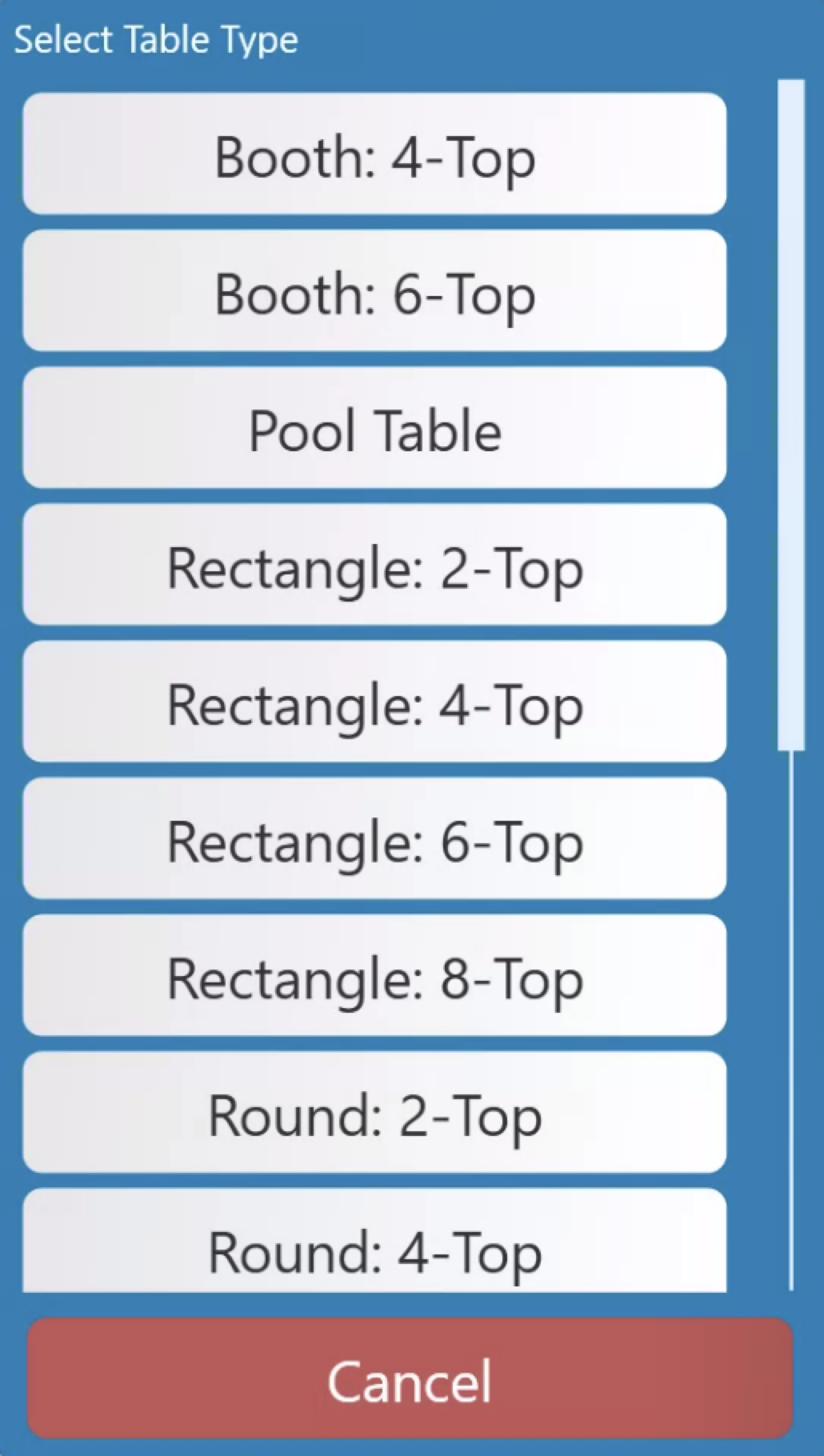
. number.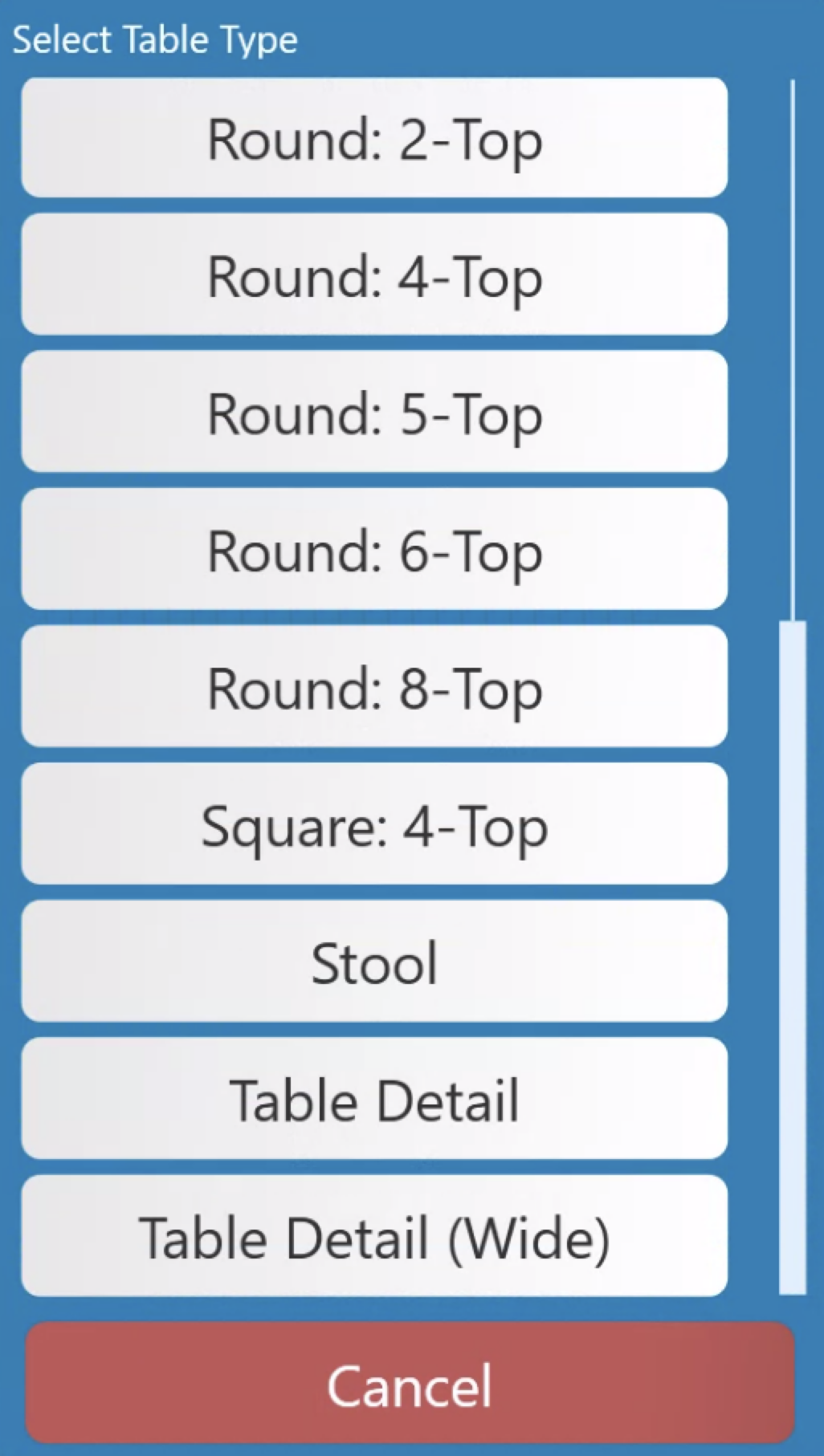
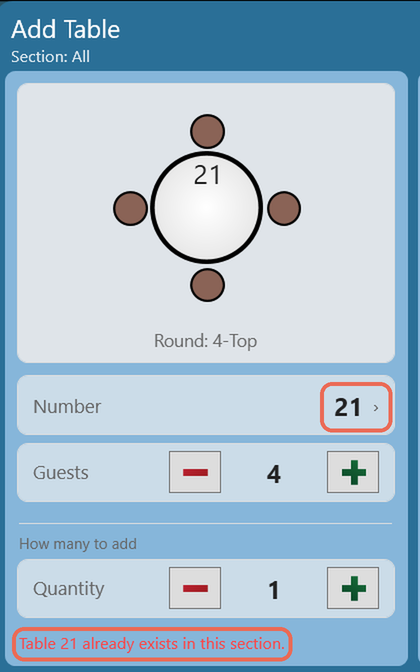
3. Tap Add. The new tables are placed in the first free space on the floor plan and stay selected, so you can drag them where you want them right away.
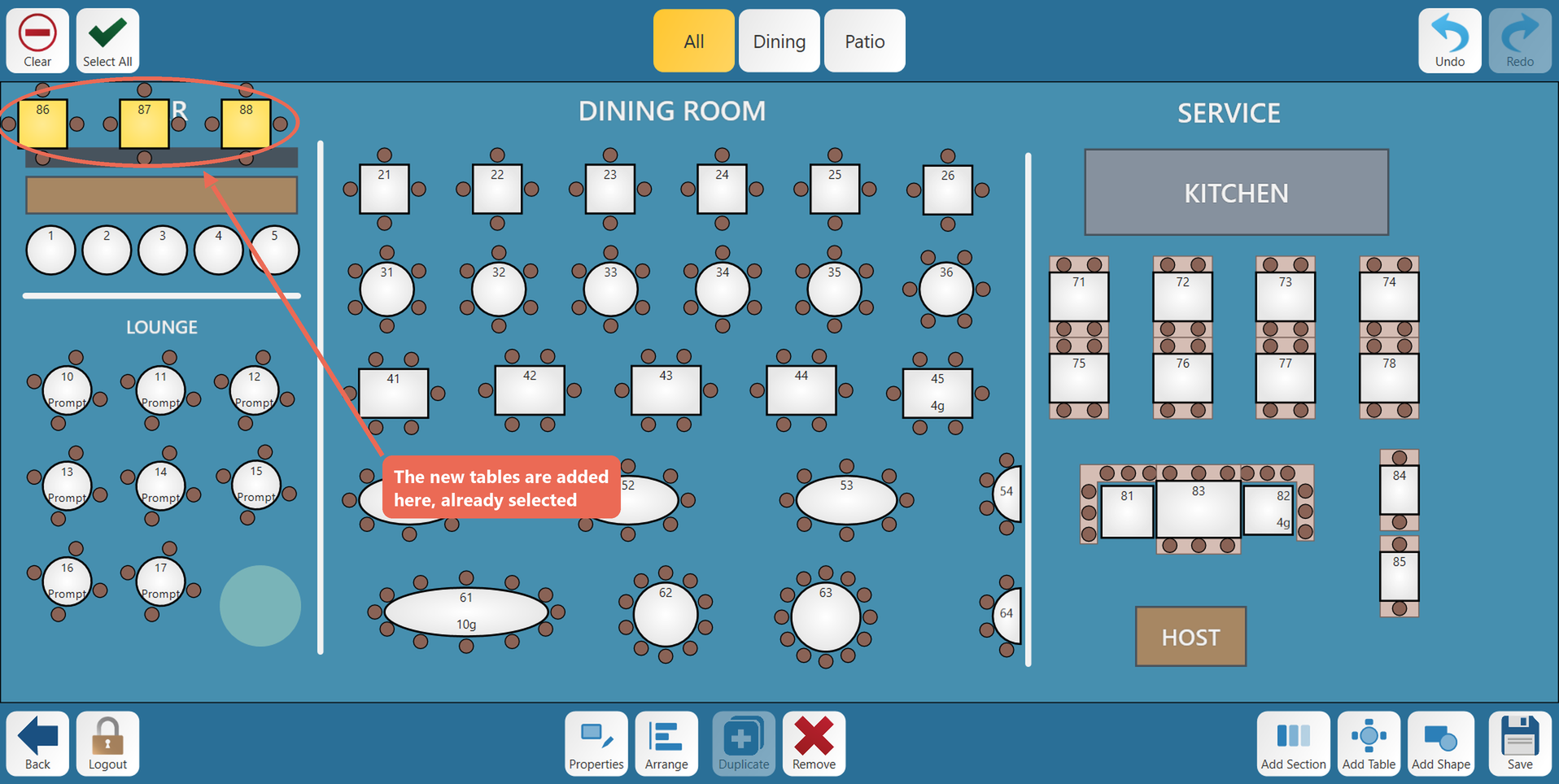
Selecting and moving tables
To select a
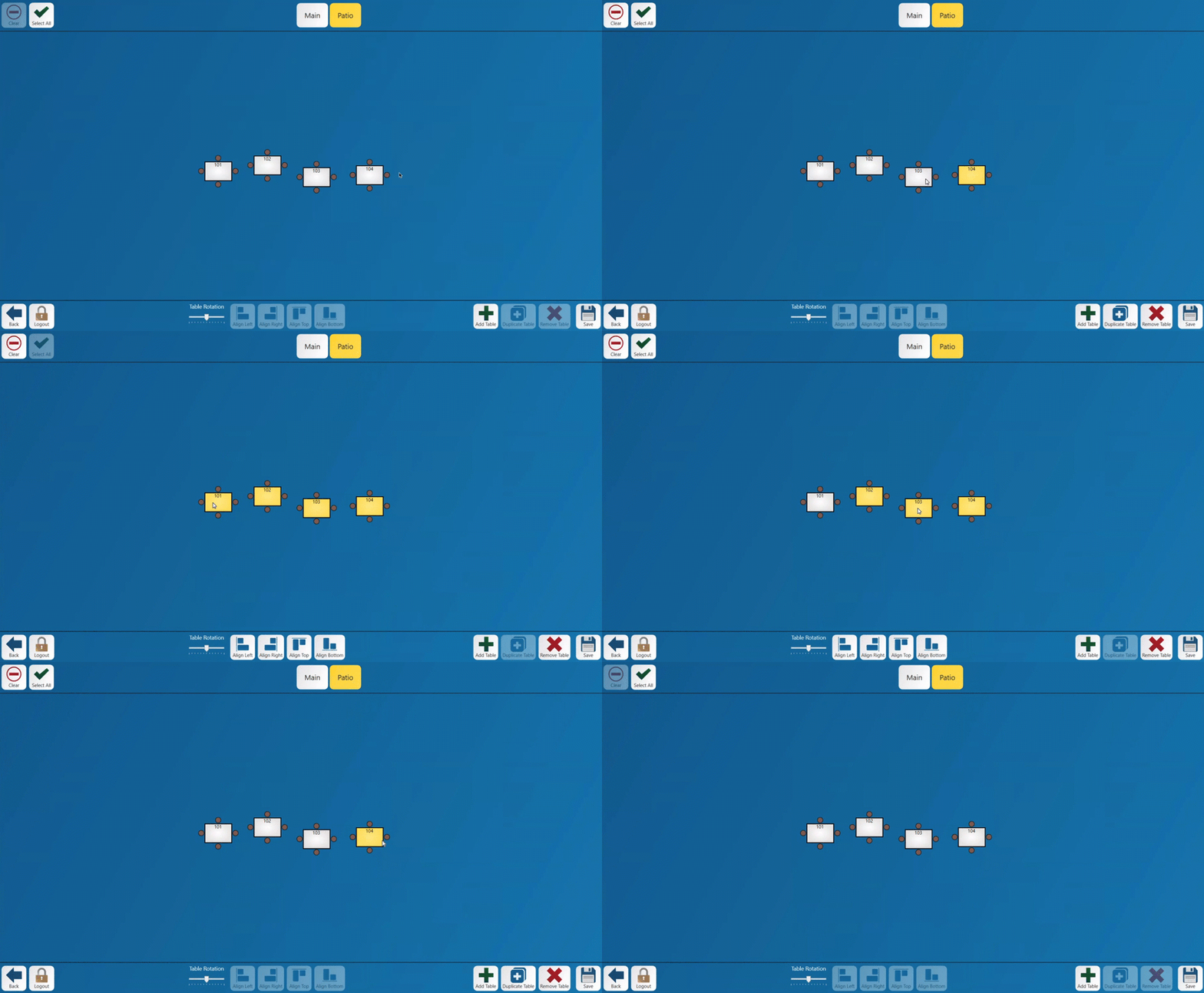
tabletable,clicktap it once and it will turn yellow. Tap it again to unselect it. Tap more tables to select several, or tap an empty spot on the floor plan to unselect everything.2. To select a group of tables, drag your finger across an empty spot. Every table inside the box is selected.
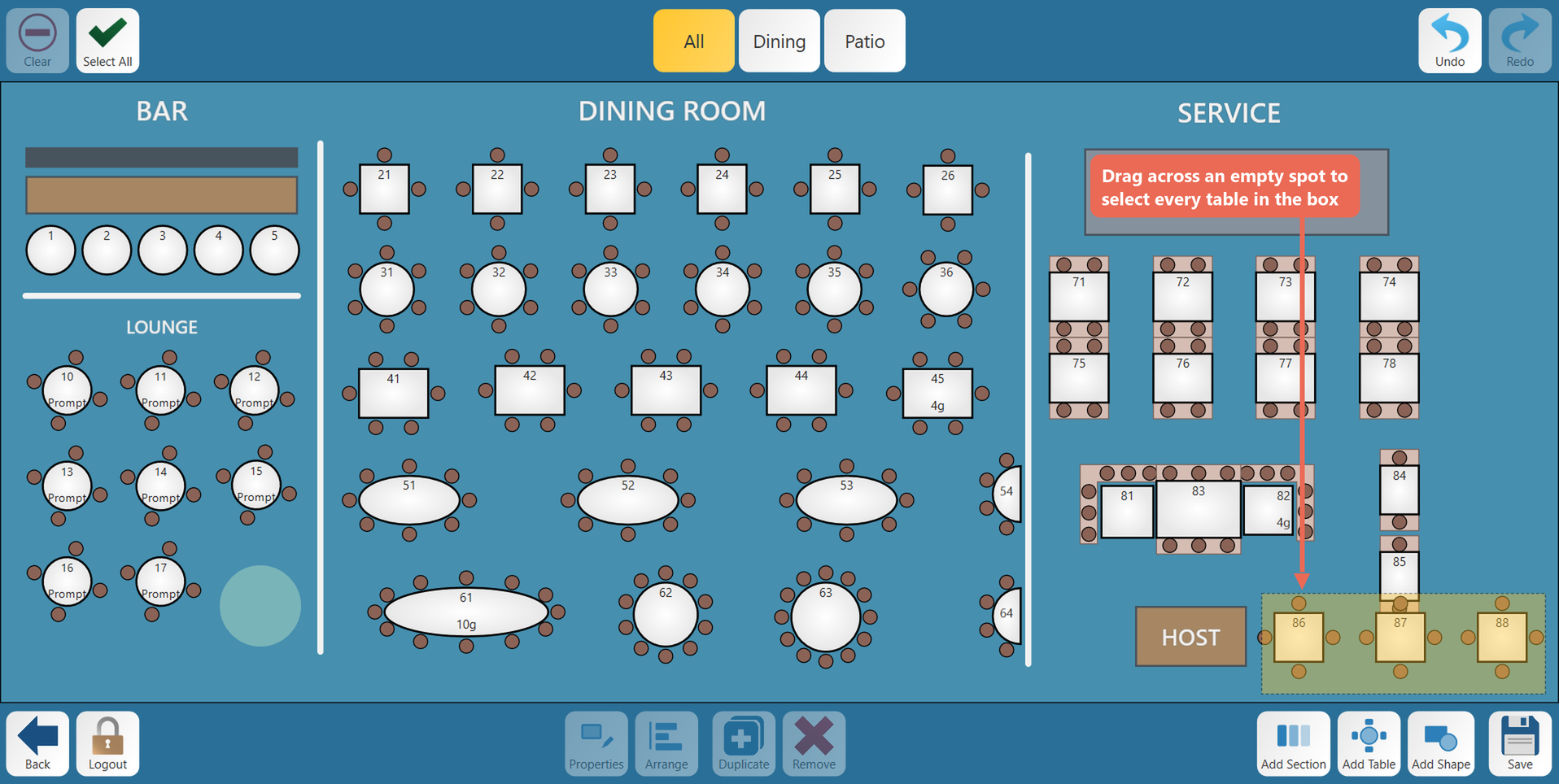
3. Drag any of the selected tables to move them. All the selected tables move together and keep their places next to each other. While you drag, pink guide lines show when the tables line up with other tables.
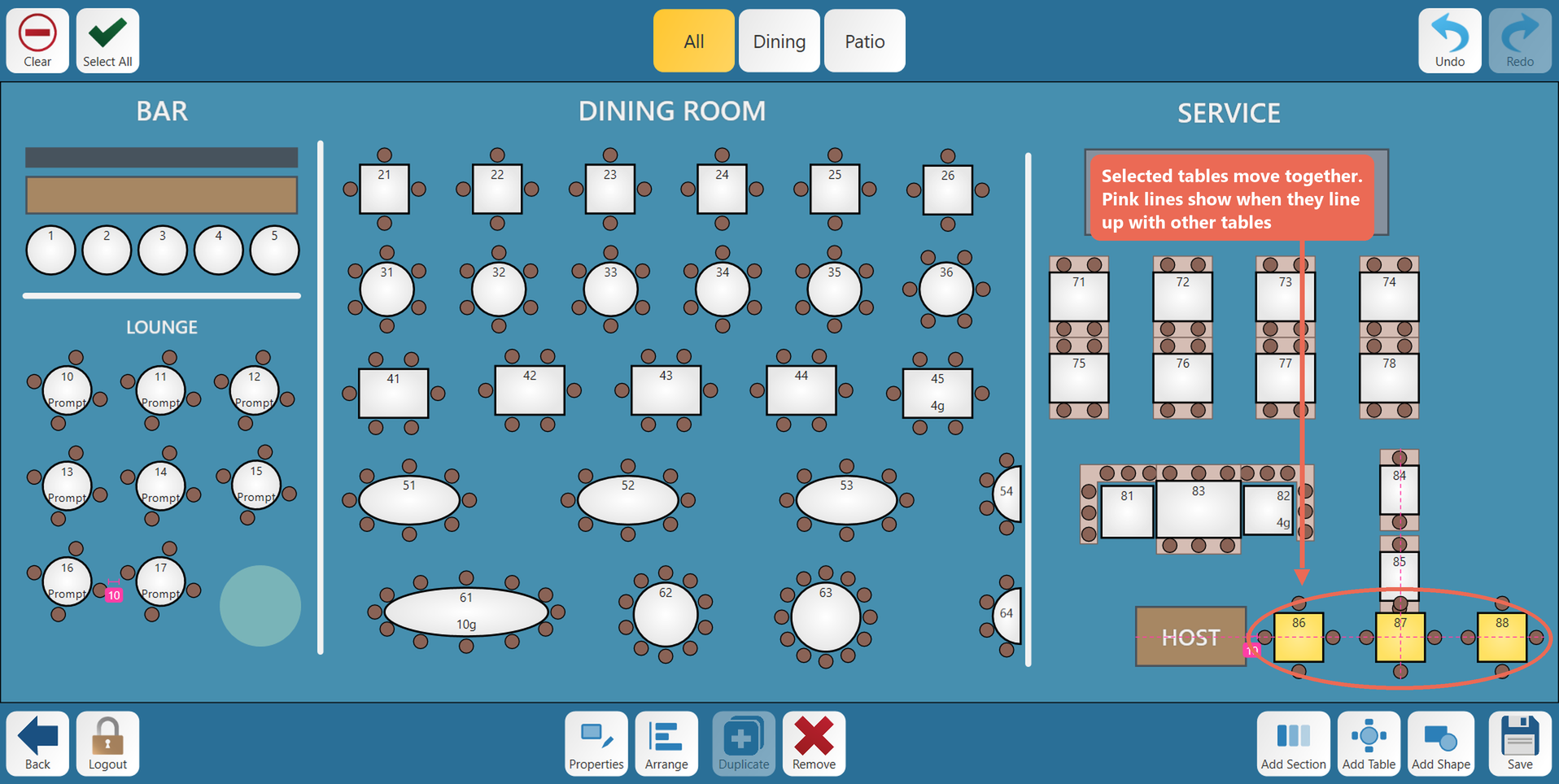
4. To make a table bigger or smaller, select it and drag the small handle at its bottom right corner.
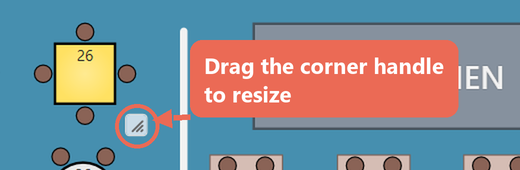
For example, table 26 dragged to twice its size:
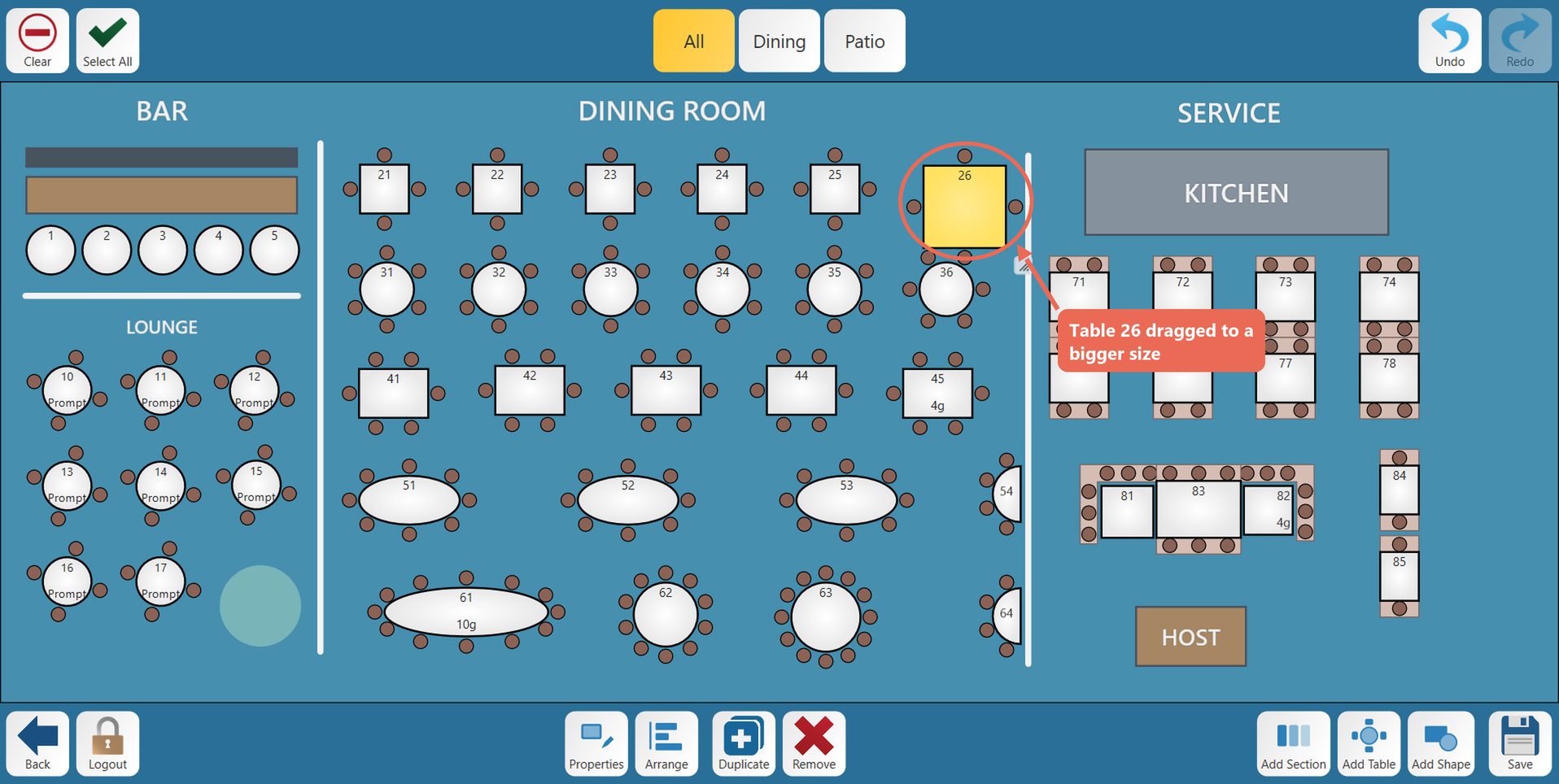
To put a table back to its normal size, use Reset Size in Arrange (see below).
Copying a table
Select one table and tap Duplicate. The copy appears on top of the original with the next free table number, for example table 26 creates 27, and the copy is selected. Drag it where you want it.
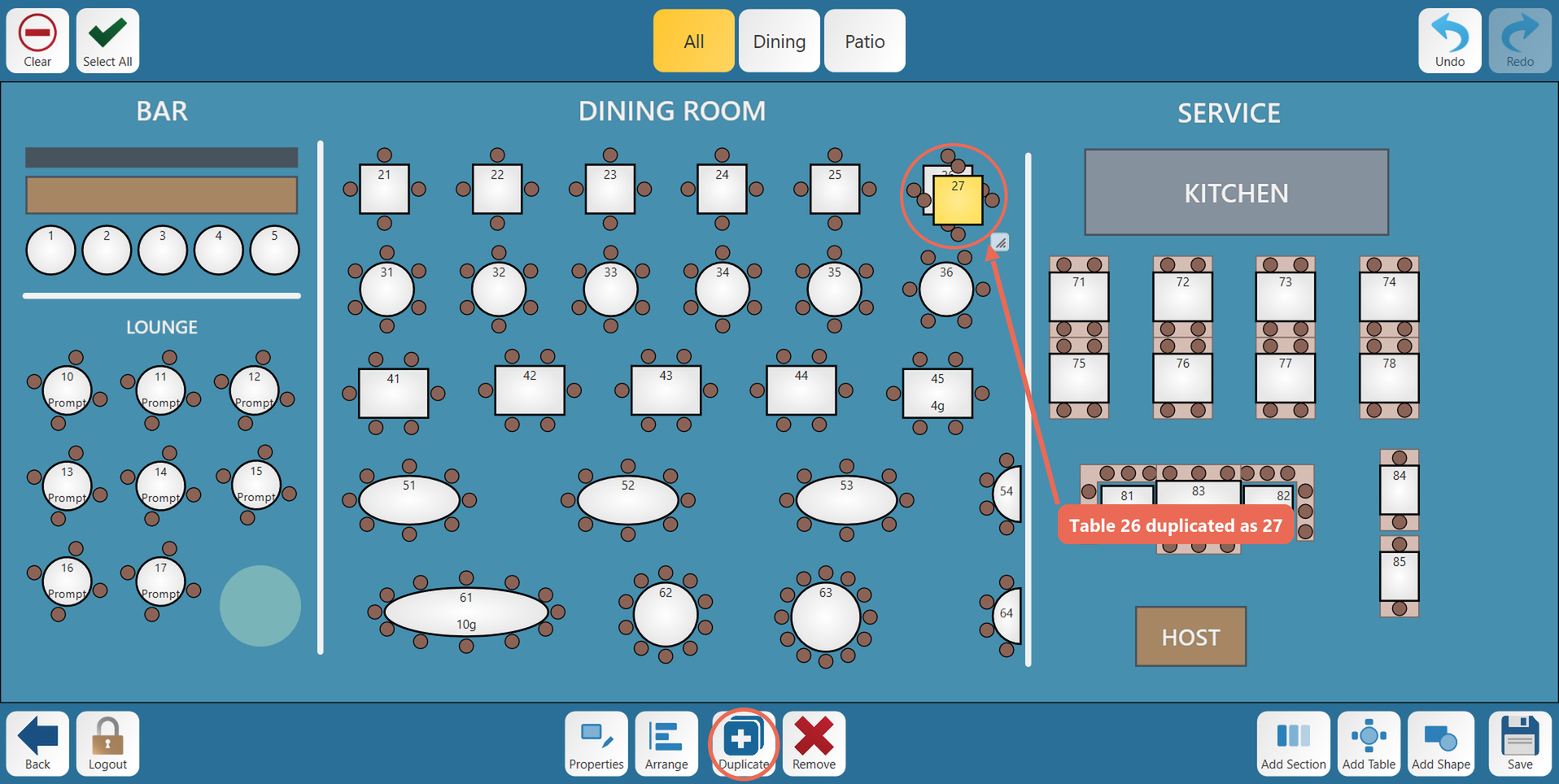
- Numbers that are already used are skipped, so a duplicate never gets the same number as another table.
- A copy of a rotated table
mayhas the same angle as the original.
Changing a table
Select a table and tap Properties (or double-tap the table).
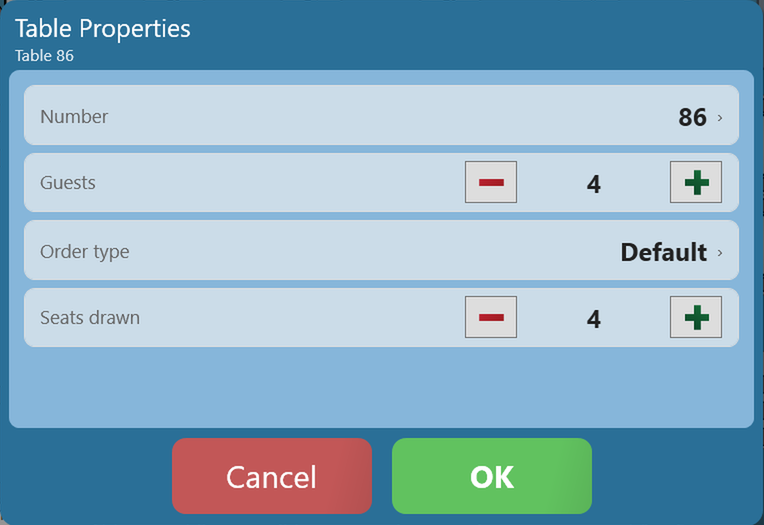
- Number - Change the table number. The new number can't already be
movedusedanywhere onin thescreensection. - Guests
clicking-itTheandguestdraggingcountitfilledtoin when the table is opened. 0 (Prompt) asks the server. - Order type - The order type a new
location.
order
on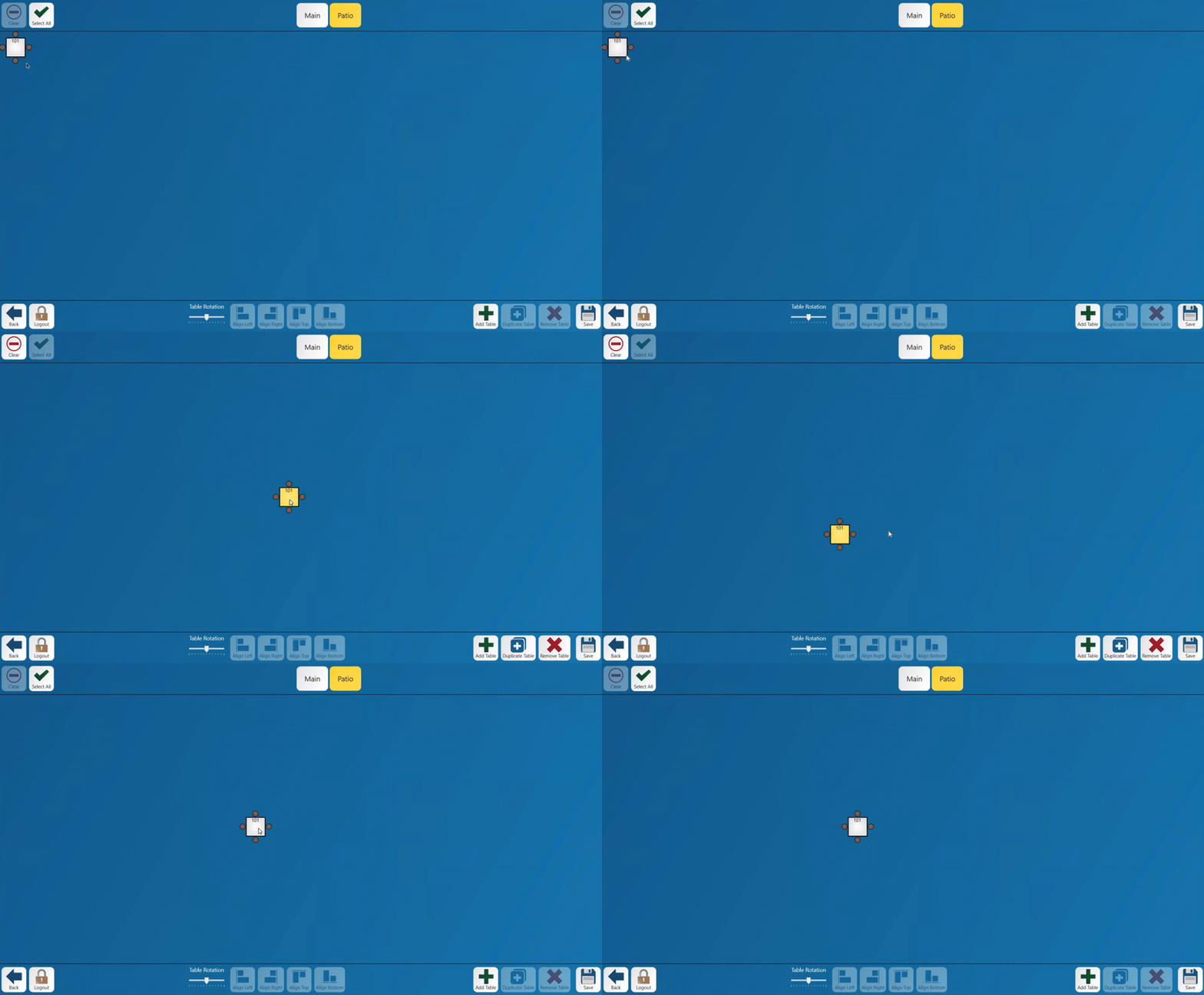
this table starts with: Default, Dine-In, To-Go, Delivery, Curbside Pickup or Inside Pickup. - Seats drawn - How many chairs are drawn around the table.
byTo select multiple tables click any and all tables you would like to have selected until each is yellow.Note: You can only move 1 table at a time
To deselectDeleting a table
click it a second time and the yellow highlight will go away leaving the standard gray table color.
1.
1.
Copying a table
- Select the table you
would like to copy and click the Duplicate Table button. Once duplicated the new table will appear over the original table with the next table number. For example table 101 creates 102 as a copy.If you select duplicate table it selects the table you created and unselects the table you created it from. If you select duplicate multiple times it will continue to create new tables in number order. 101, 102, 103, 104, etc.Be aware: If the next table number is already assigned to another table it willcreatea table with a conflict that will confuse the system. You will then needwant to deleteoneandoftaptheRemove.duplicate tables (see below)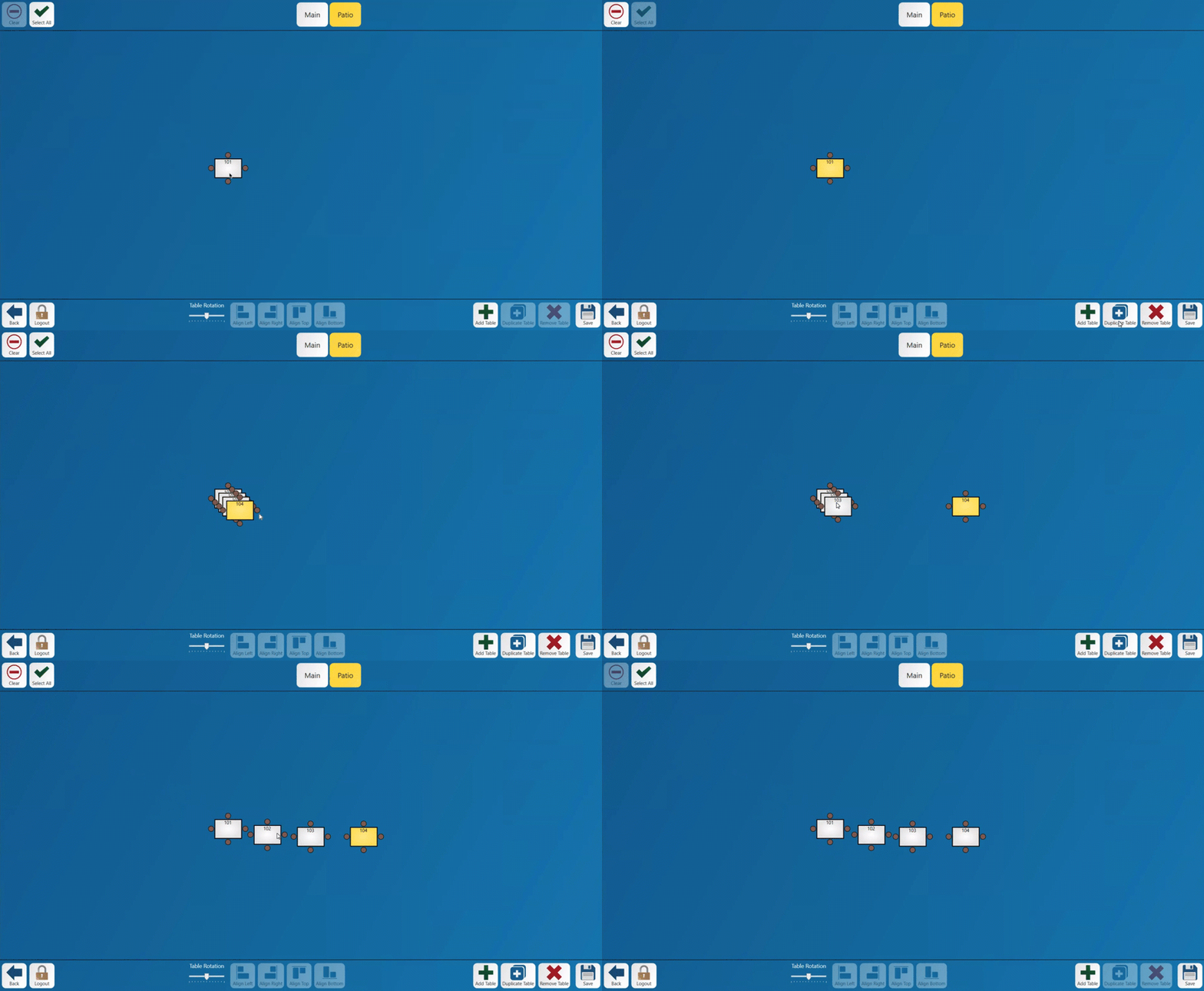
A table number cannot be changed. A table that has a number that is already taken must be deleted.- You
maycan selectmultipleseveral tablesat the same timeto delete them all at the sametim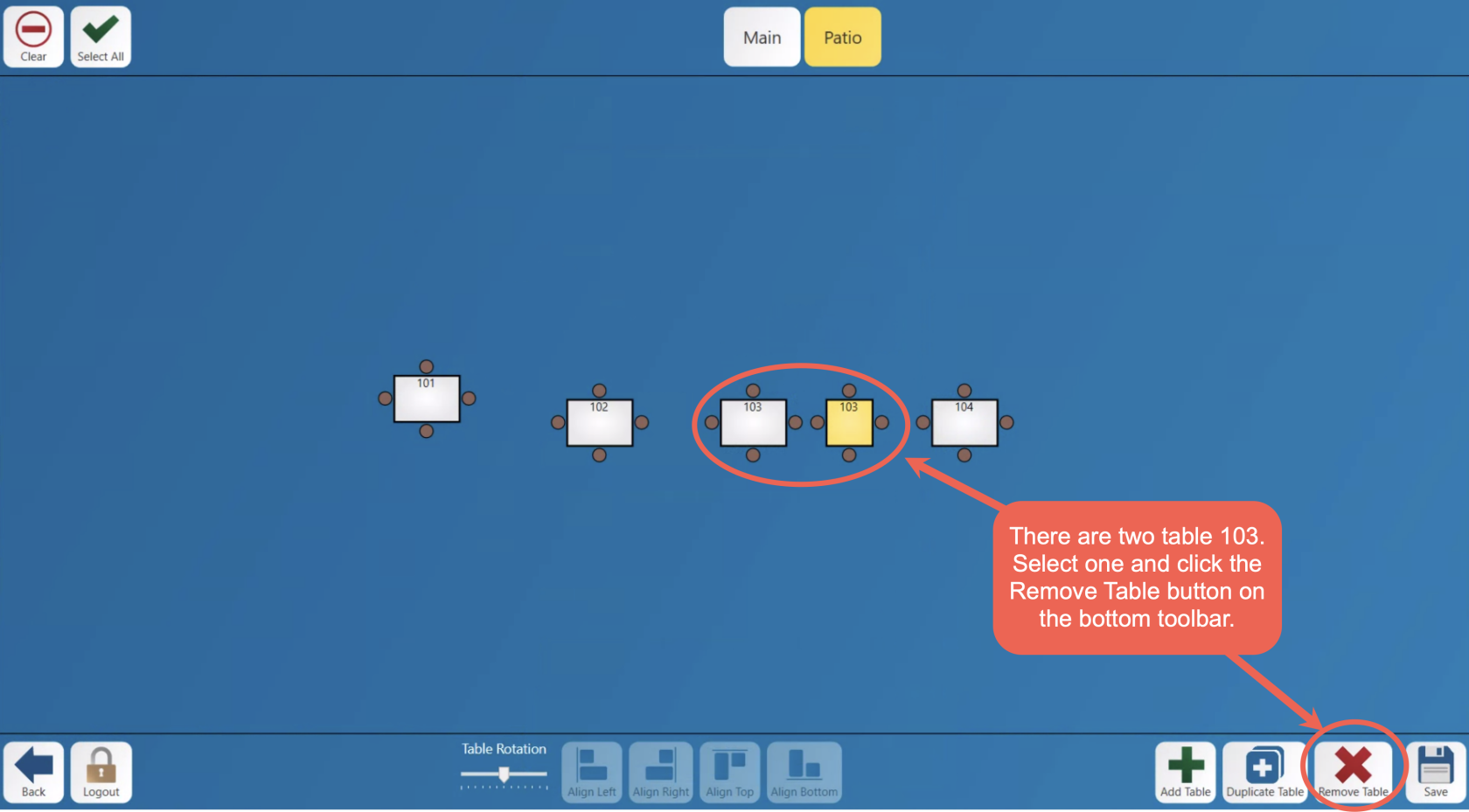
- You
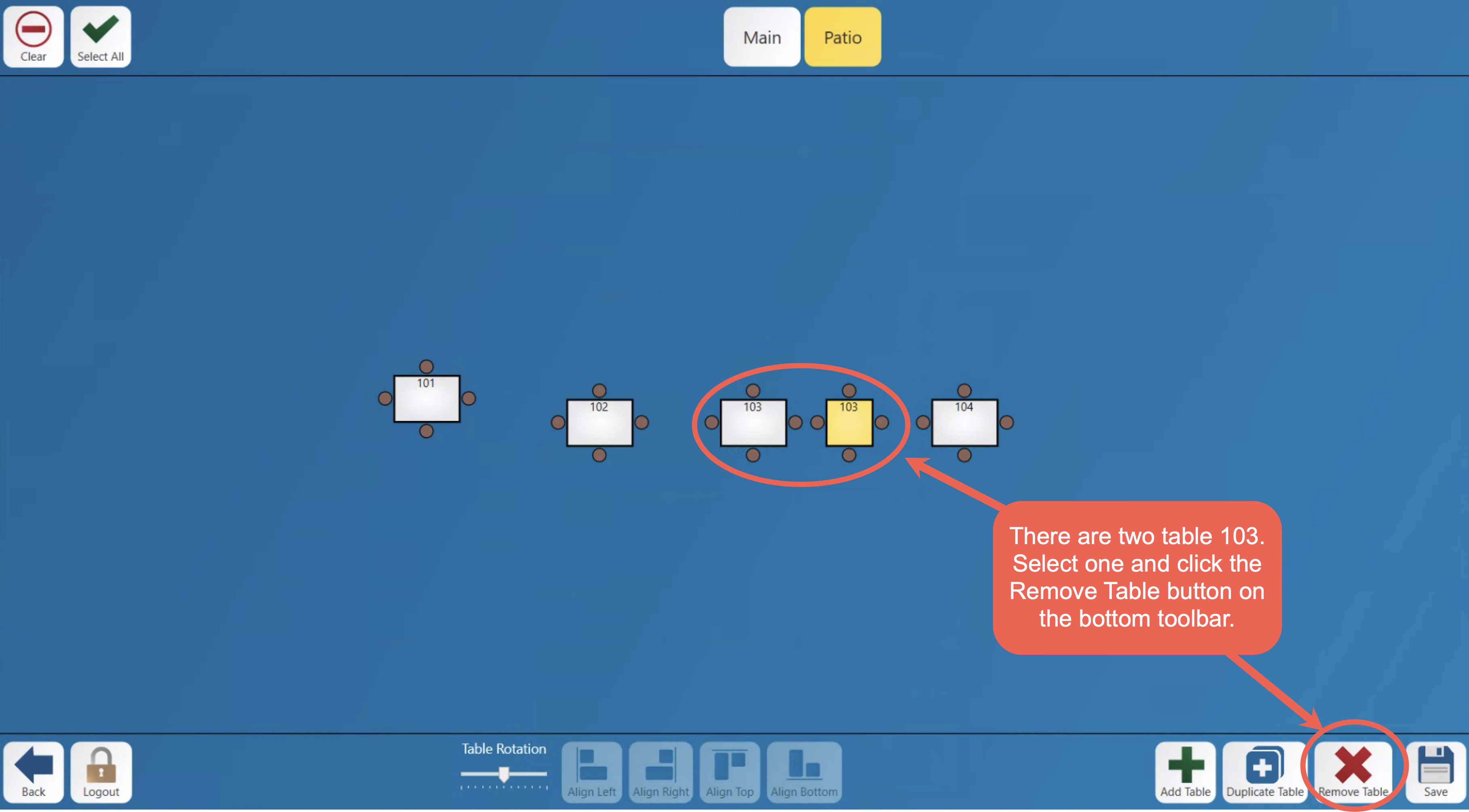
time.
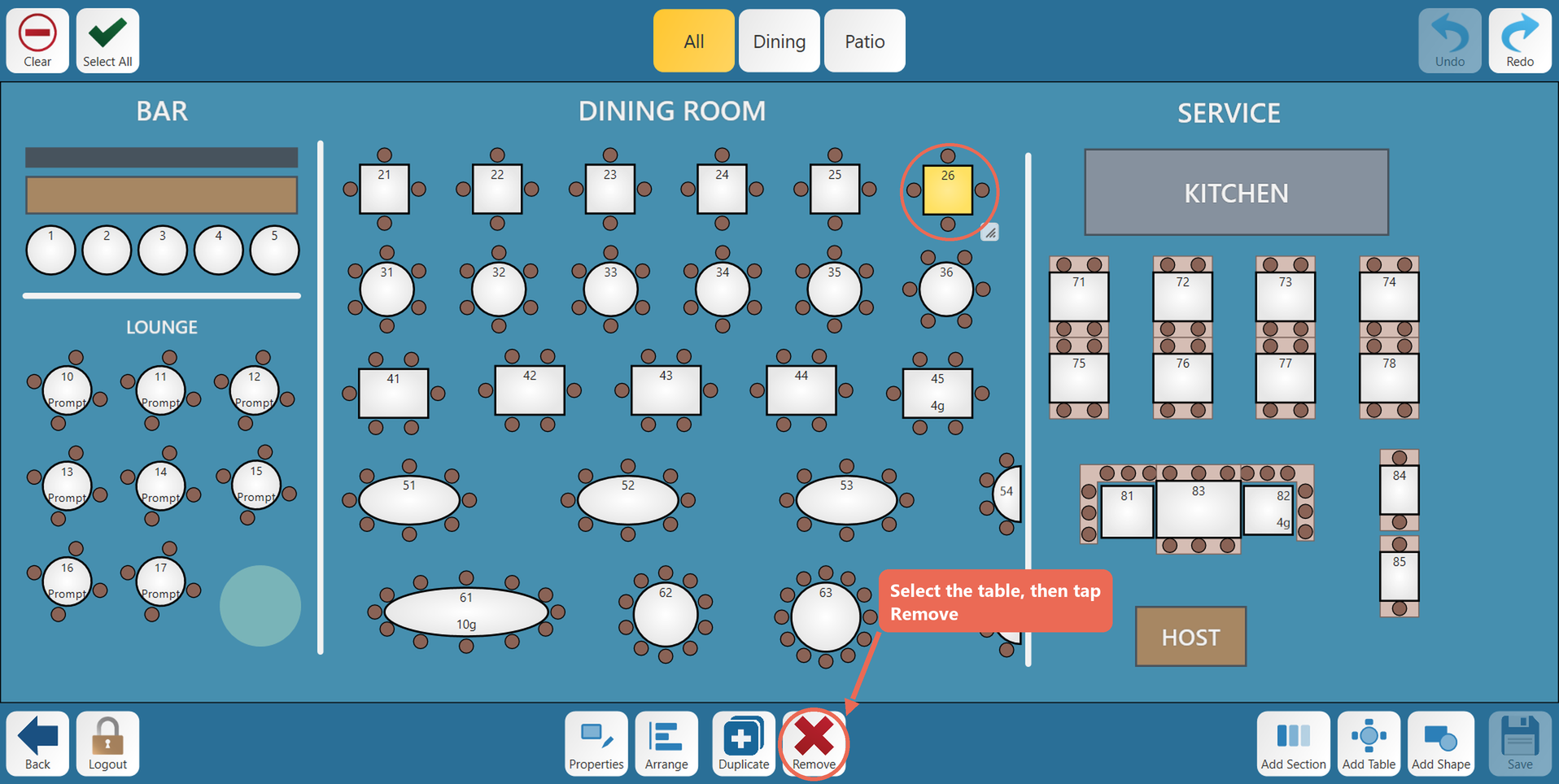
2. The table is taken off the floor plan. Tap Save to delete it for good, or Undo if you removed the wrong one.
AlignAligning, spacing and rotating tables
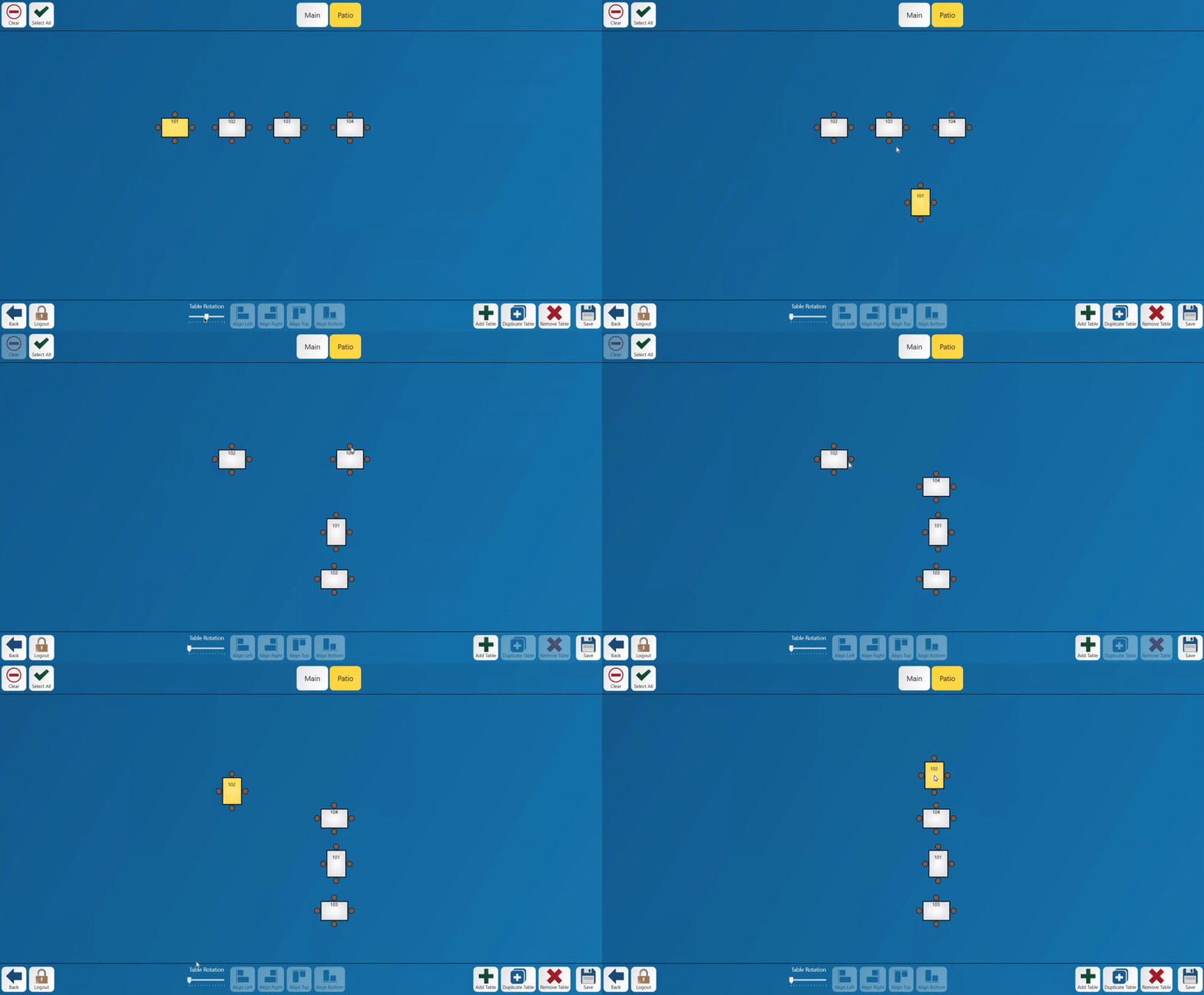
You can align the tables automatically with each other by using the buttons across the bottom middle of the screen.Move at least one table to the location you would like to align tables to. Select each table you would like to align then press the align button that matches what direction you would like to align the tables to.The table that is the furthest in the selected direction will always be the table that the other tables align to.The tables will only move to the alignment you selected they will not automatically separate.
You may rotate a table with the rotation slide bar at the bottom of the screen.-
Select the
tabletables andmovetap Arrange.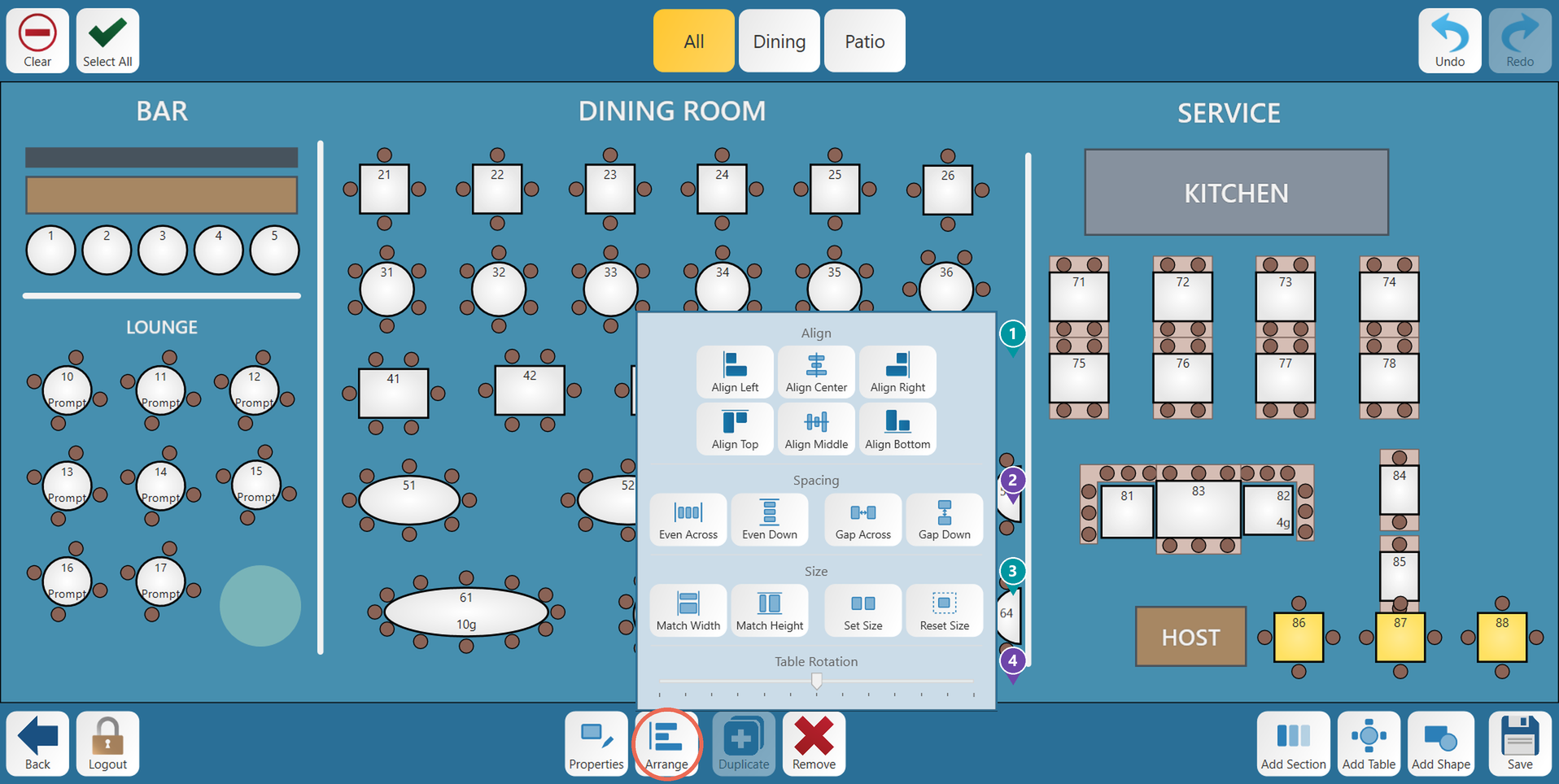
- 1. Align - Line up the
slidingselectedbartablesatalong their left edges, centers, right edges, tops, middles or bottoms. - 2. Spacing - Even Across and Even Down space the
bottomtablesofout evenly. Gap Across and Gap Down put thescreensame gap you choose between each table. - 3. Size - Match Width and Match Height make the selected tables the same size. Set Size lets you choose an exact size. Reset Size puts a table back to its normal size.
- 4. Table Rotation - Slide left or right
untilto turn the selected tables. Several tables selected together turn to the same angle.
Once a table is at the
desiredangle you want, you can move it without changing its angle.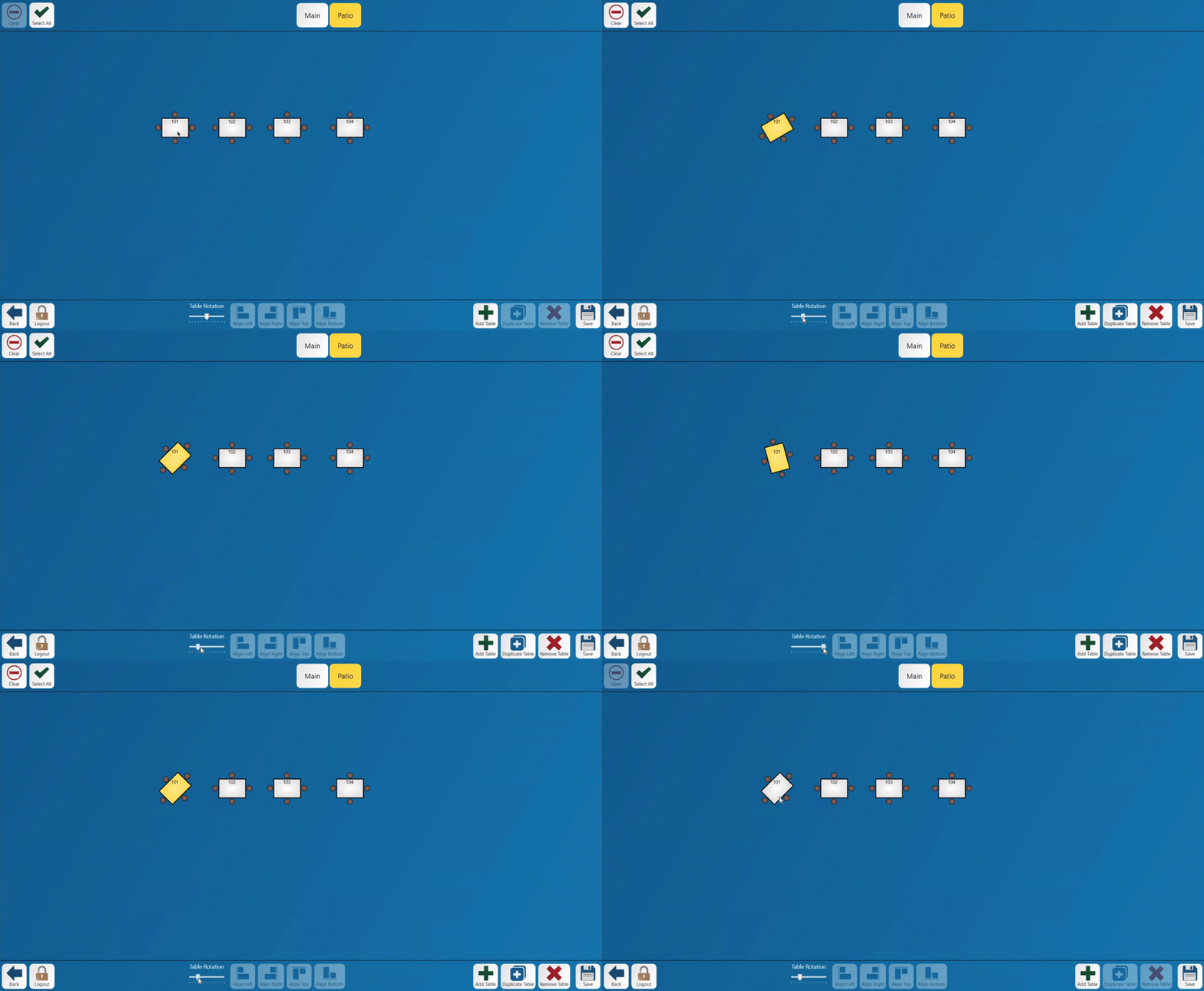 shapes
Drawing
walls,labelsandother1. Tap Add Shape and pick what to draw, then tap Add.
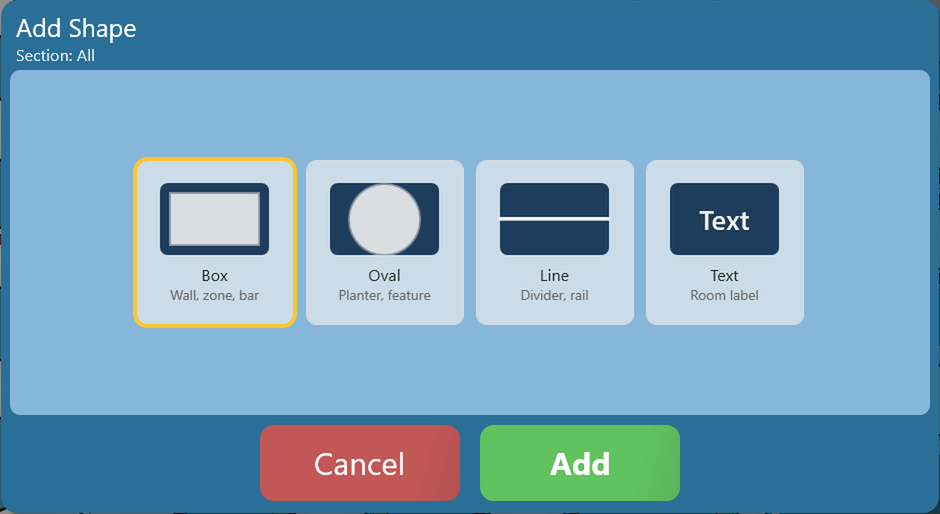
- Box - A wall, a zone or the bar.
- Oval - A planter or another feature.
- Line - A divider or a rail.
- Text - A label, such as the name of a room. A keyboard opens so you can type the words.
Once2. The shape is added to the floor plan. Drag it where you want it and resize it with its corner handle, the same way as a table. Here a box (a wall), an oval (a planter), a line (a rail) and a text label were added to the patio.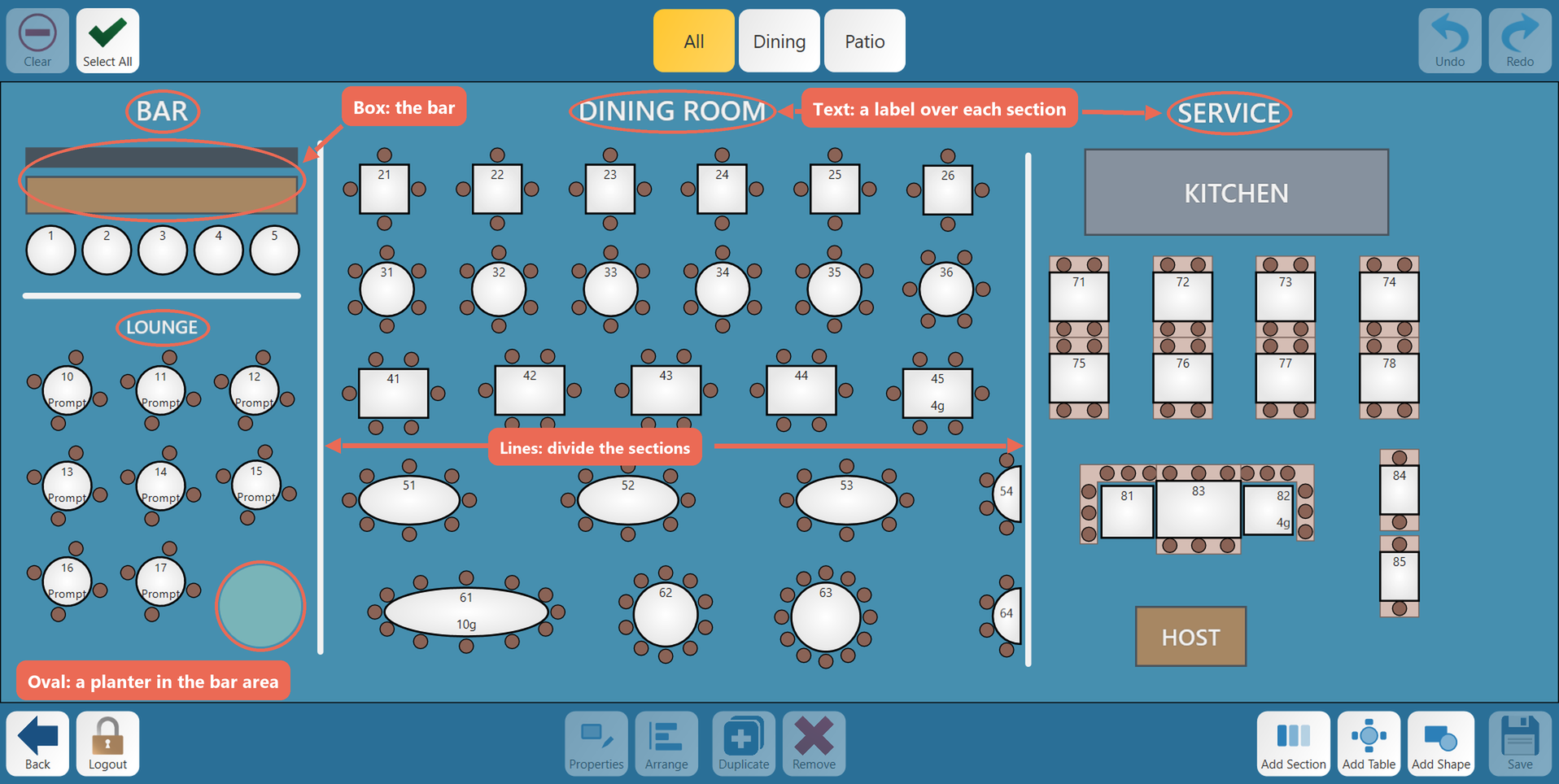
3. Select a shape and tap Properties to change its colors.
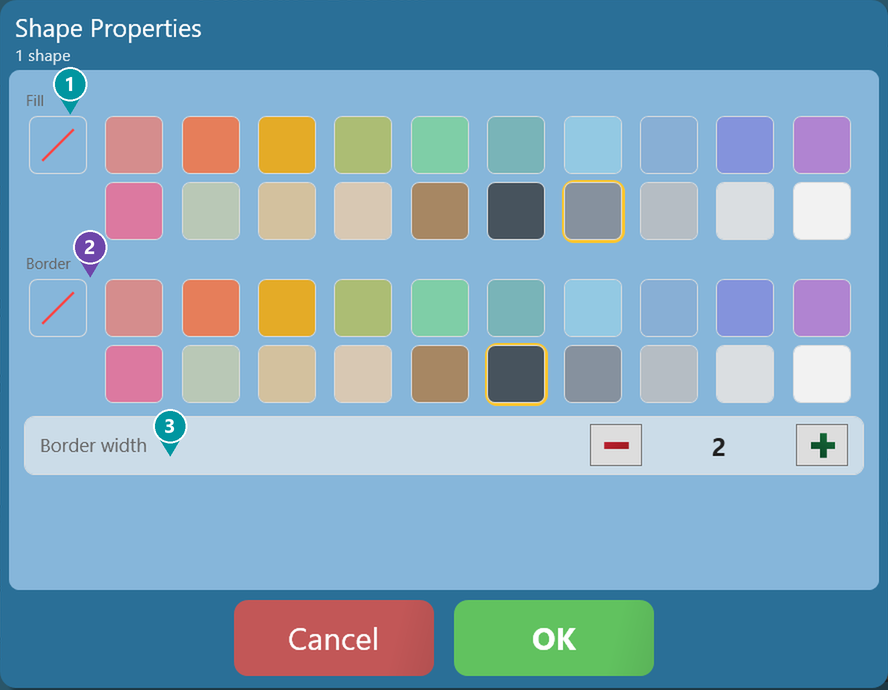
- 1. Fill - The color inside the shape. The first square (with the red line) means no color.
- 2. Border - The color of the shape's outline.
- 3. Border width - How thick the outline is.
For a line, pick the Line colour and the Line width.
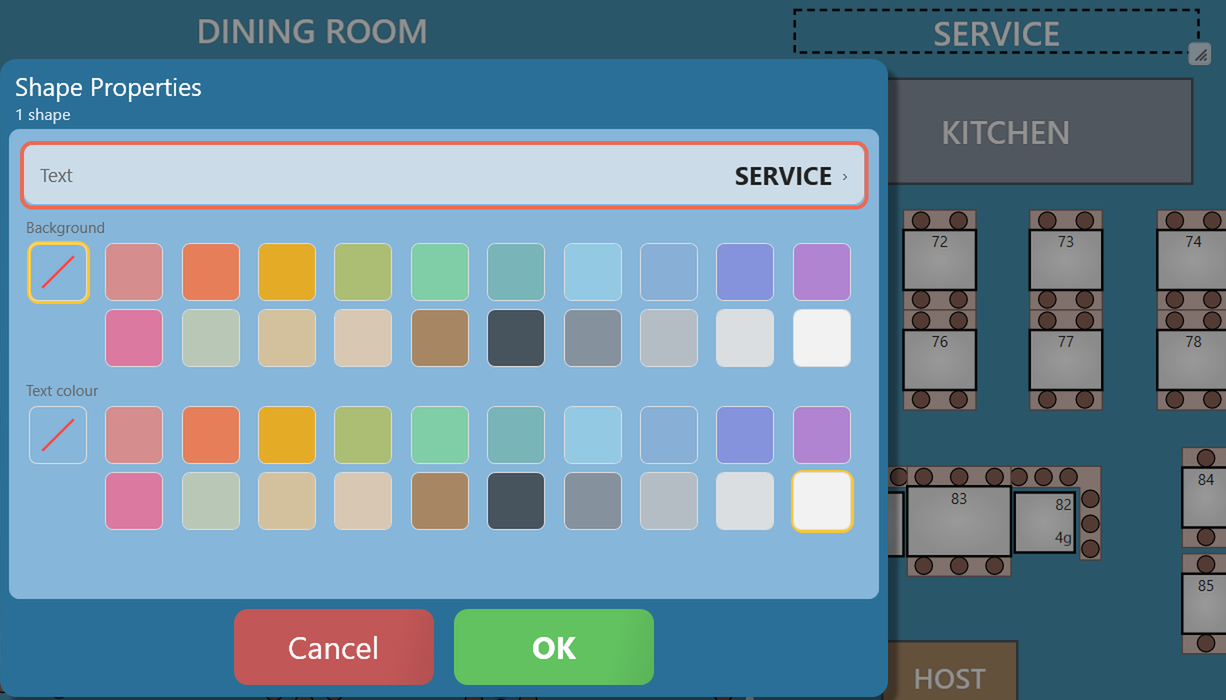
For a text label, tap Text to change the words, and pick a Background and a Text colour.
4. When shapes overlap, select one and use Shape Layering in Arrange to bring it to the front or send it to the back.
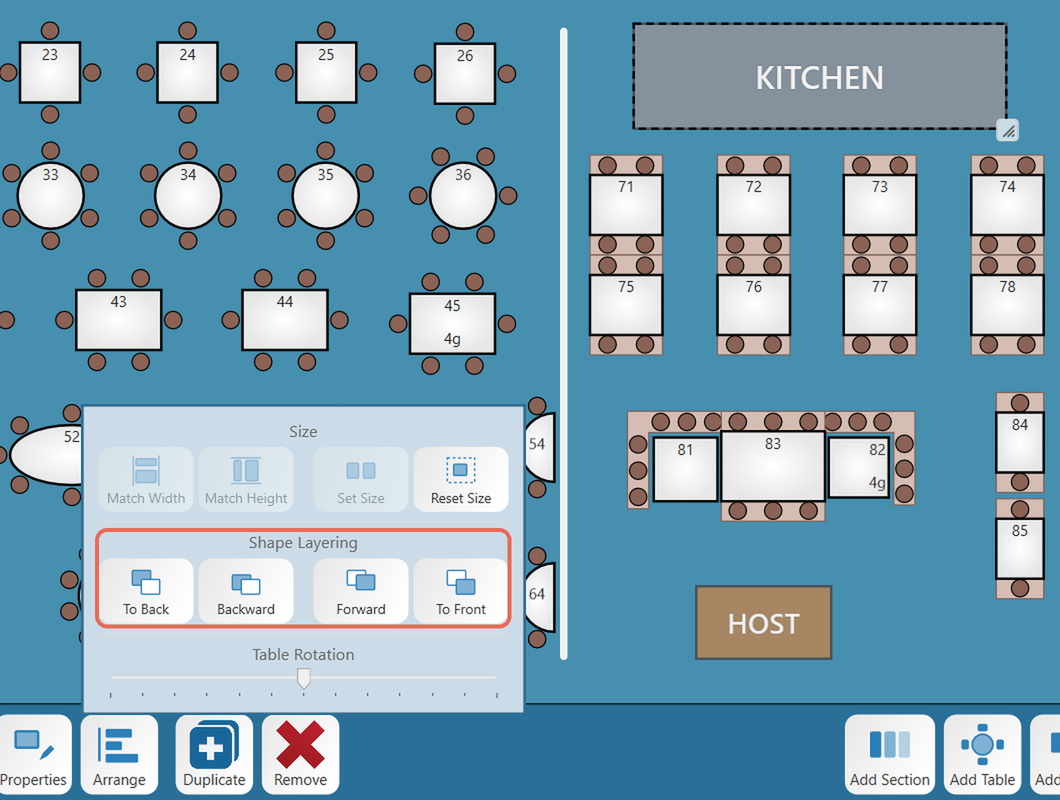
Note: Shapes are always drawn under the tables. On the table
isview,atshapesthearedesiredonlyanglepictures: tapping them does nothing, so servers can't open them by mistake.Saving your changes
1. Tap Save when you're done. Changes are only kept once you
may move the table without changing the angle.save.
2.
- 1. Align - Line up the
If you
maketap Back, switch to another section or add acopysectionofwitha tablechanges thathasaren'tbeensaved,angledSailtheasksnewwhattabletowilldobe at the same angle as the existing table.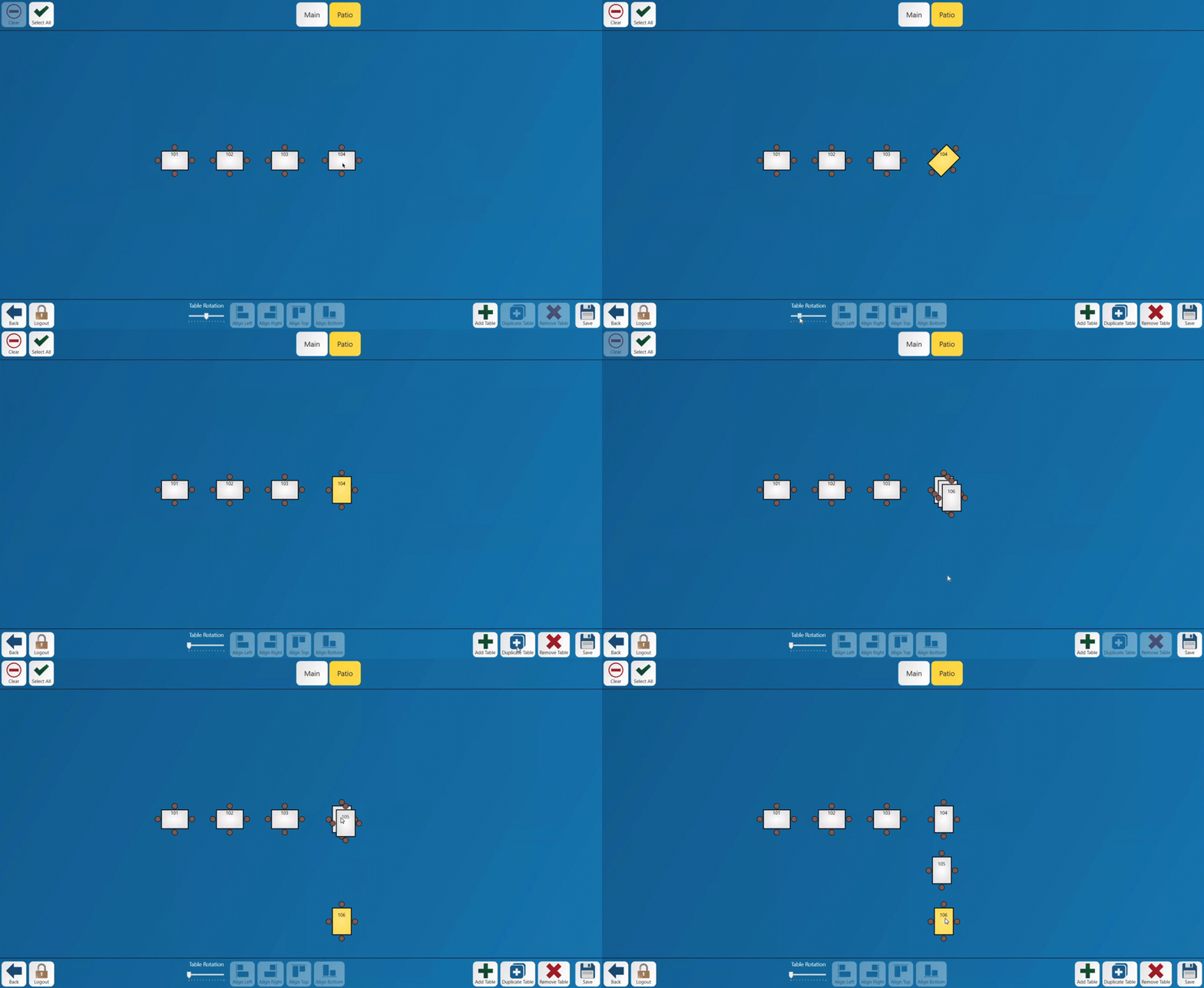
You may rotate multiple tables at the same time by selecting more than one before rotatingwith them.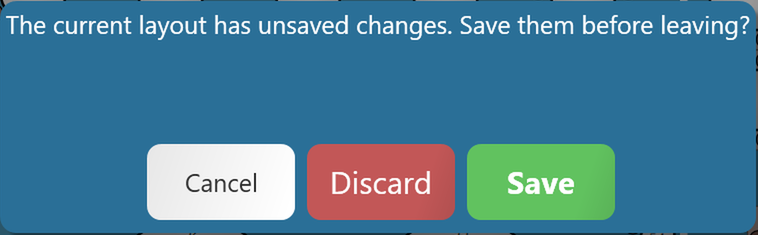
- Save - Keep your changes.
- Discard
When-rotatingThrowmultipleyourtableschangestheyawaywillandautomaticallygoalignback to thesamelastanglesaved layout. - Cancel - Stay in the editor and
rotatekeeptogether.working.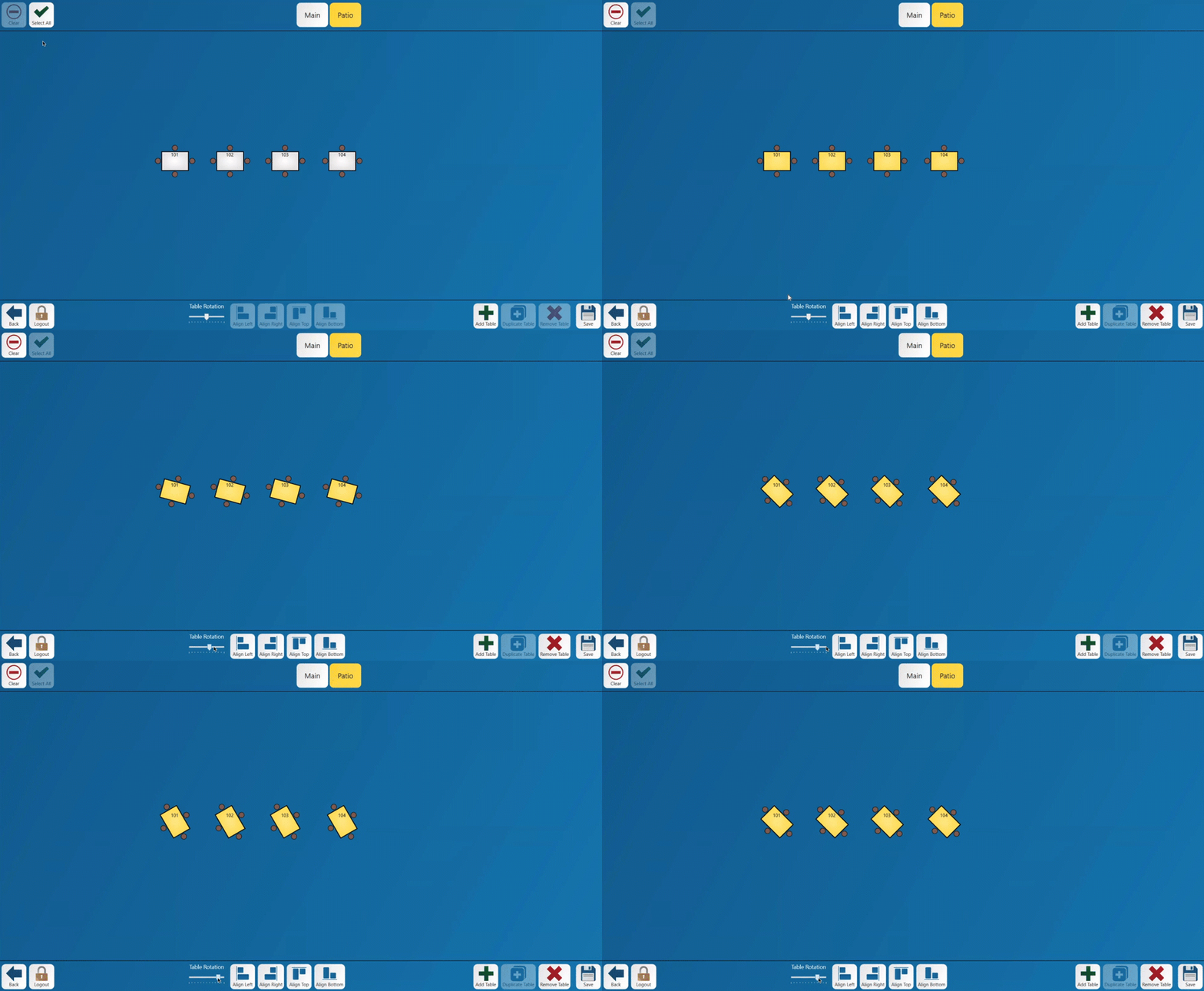
Note:
Thefirstwithtimesectionyou openaolder
table shapes,
updates -
to the current shapes and tells you how many tables were updated. Each table keeps its size and position. Check the layout and tap Save to keep the update - if you leave without saving, the old shapes stay.
Pro tip: On a terminal with a keyboard you can also use: the arrow keys to nudge the selected tables, Delete to remove them, F2 for Properties, Ctrl+A to select all, Ctrl+D to duplicate, Ctrl+S to save, Ctrl+Z to undo, Ctrl+Y to redo and Esc to unselect.