How to Modify an Item
This will walk you through changing an item's ingredients on the terminal with the Modify button and the Hot Mod buttons, and how to change, delete or add a note to one of its modifiers.
Modify an Item
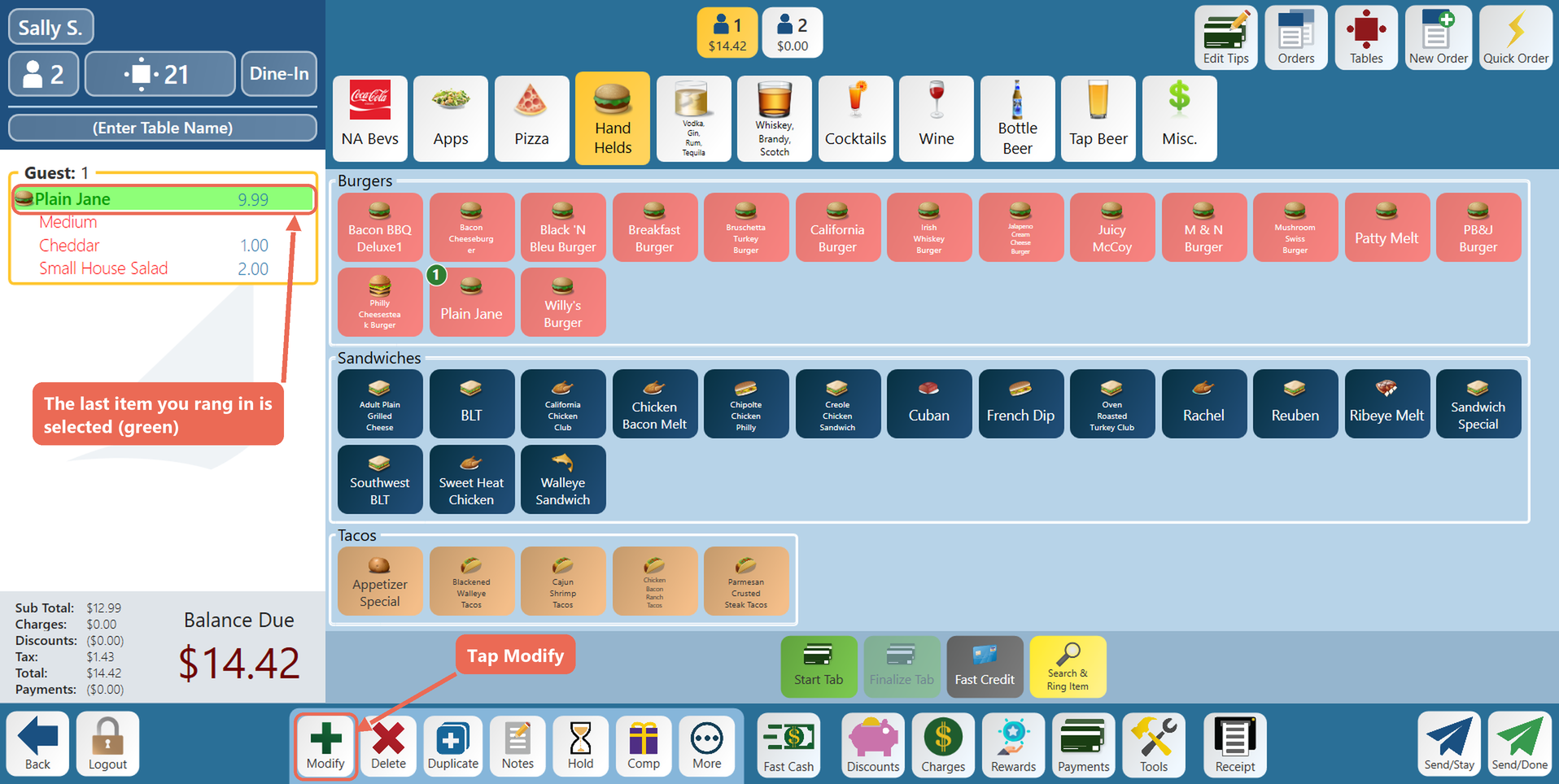
To get toSelect themodifier screen, select the “Modify” buttonitem on theveryorder.left of the tool barIf it's the last item you rang in and it's selected in green, you do not need to touch the item.
If not,
thentapyouitwillsoneed to make sure itsit's selected inyellow,yellow.and2.
then hitTap the Modifybutton.button on the very left of the bottom toolbar to get to the modifier screen.
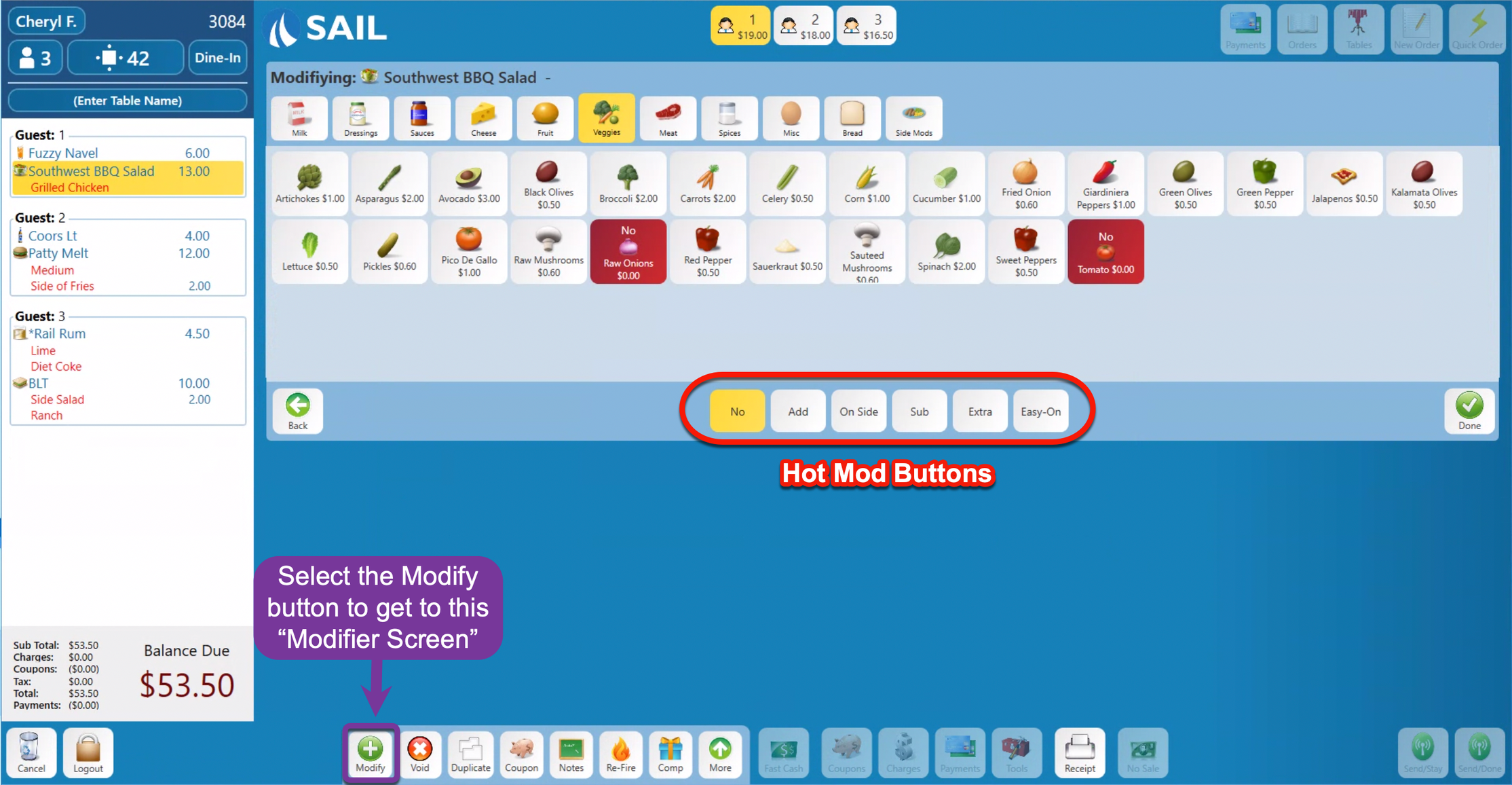
3. Tap a Hot Mod button, like No. We have added the Hot Mod
item.Buttonsbuttons to themiddlebottomtoolbarof the modifier screen to speed up modifying anitem- (Tapping
(Clicking on thean ingredient to go through the list is still an option, if you want.)
4.
the - ingredient.
AllItyou need to do is clickshows on thequickitem,button,like“No,”"Nothen click on the ingredient.Tomato".If you selected an ingredient by mistake, just
click ontap the ingredient again and it will unselect it. If youclicked ontapped the wrong Hot ModButton,button, just select the correct Hot ModButtonbutton and then select the ingredient again.
Once a Hot Mod
Buttonbutton is selected, like“"No,”" you canclick ontap multiple ingredients without needing to keep selecting the same Hot ModButton.button. You can even go to different categories and the“No”"No" will still stay selected.In this example: I selected
“"No,”" then selected“Tomato”"Tomato" and“Raw"OnionOnion.”Raw." Now if I needed, I could go to the Cheese category and select“"ShreddedCheese”Cheese" without having to select“No”"No" again!
1.
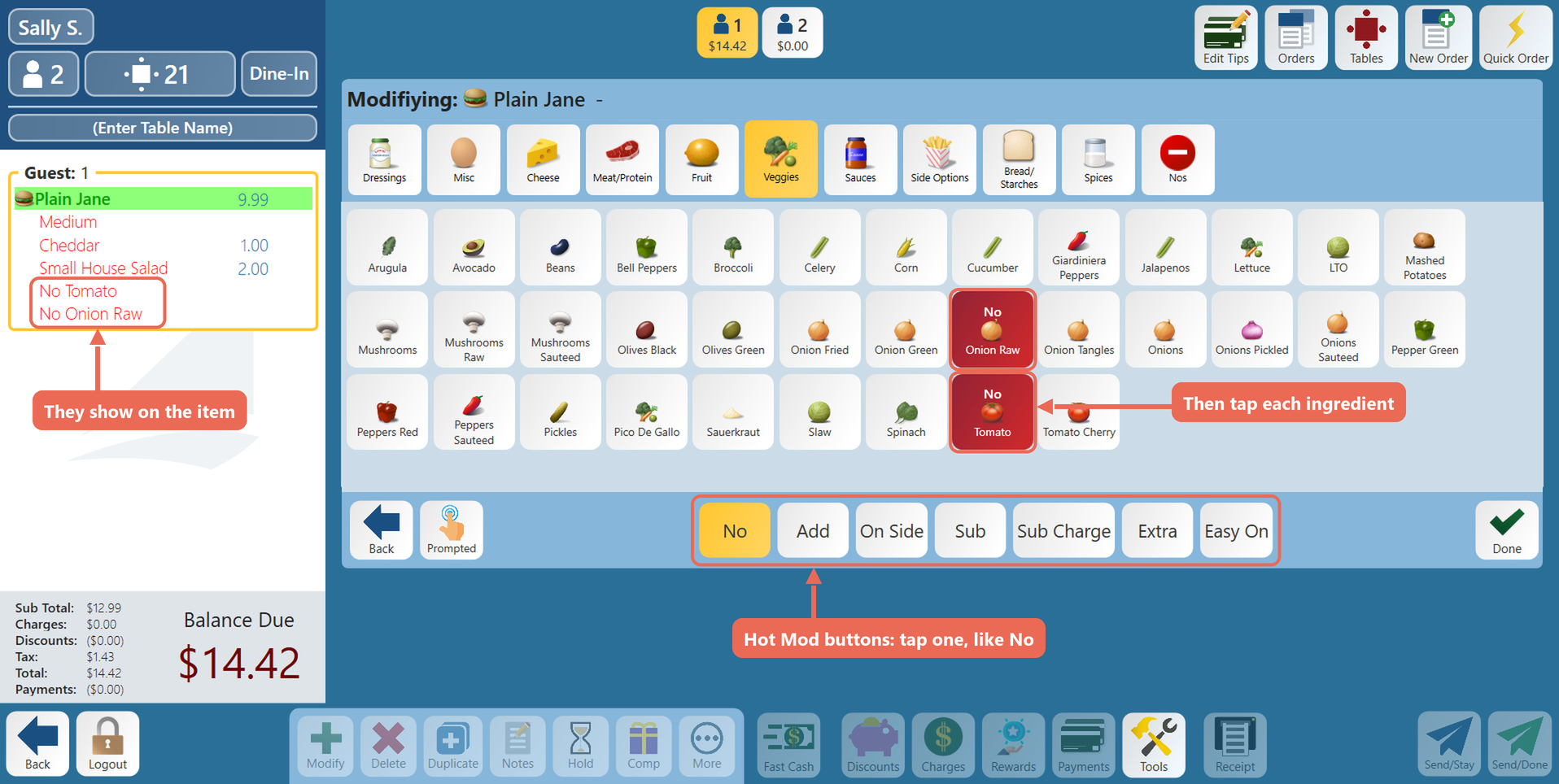
5. Tap Done at the bottom right.
Click here to learn more about what each Hot Mod button does and changing a prompt's answer.
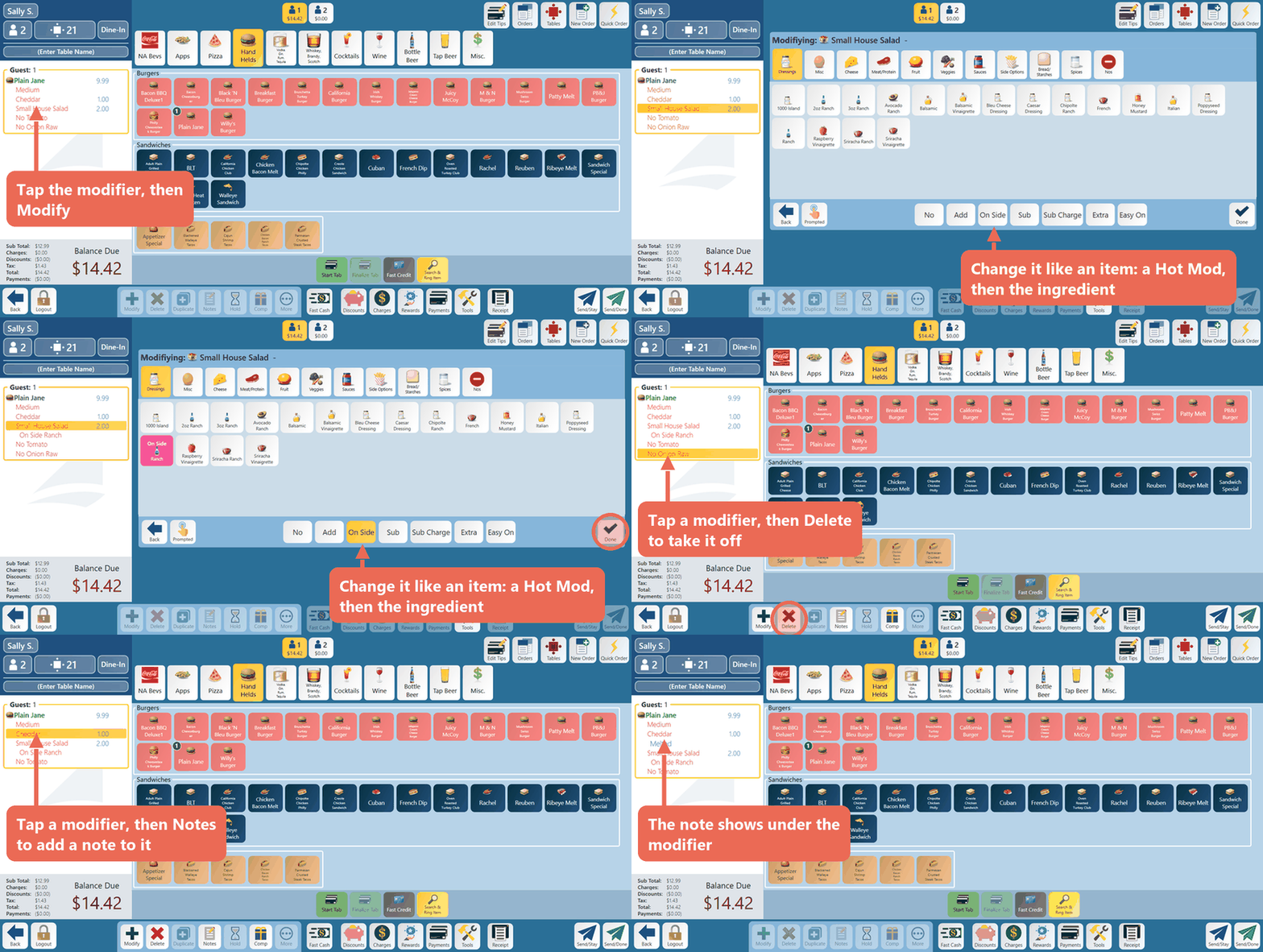
Ability to Modify a Modifier
You can
nowindividually select modifiers to Modify,Delete/void,Delete, orTypetype a Note on.1. Tap the modifier on the order, like the side salad, so it's selected in yellow.
Note: Only one line can be selected for Modify. If the item is still selected too (green or yellow), tap the item to unselect it - otherwise the Modify button stays grey.
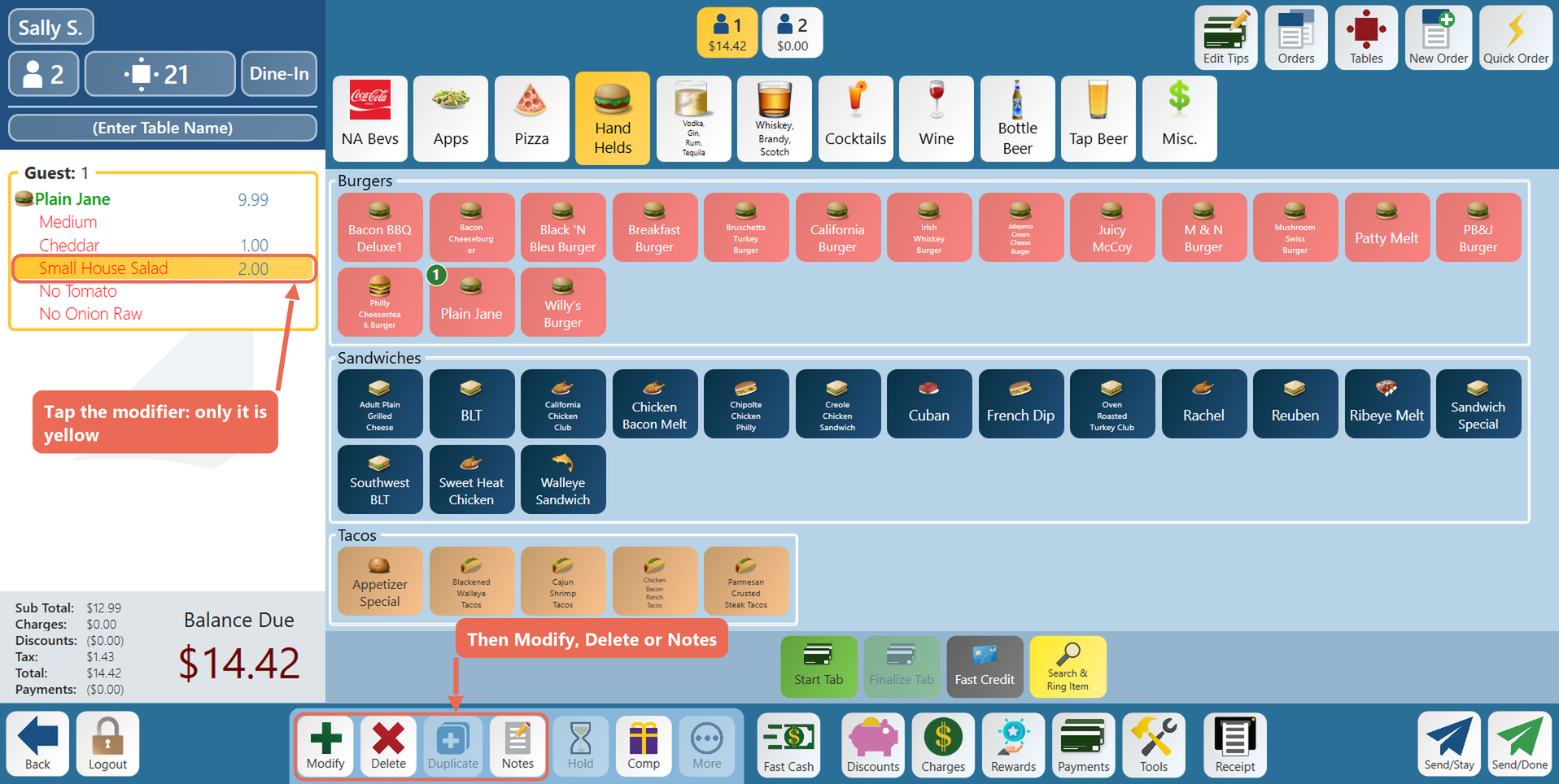
- Modify: change the modifier the same way as an item - the screen says "Modifying:" and the modifier's name. Tap a Hot Mod button, then the ingredient, then Done. The change shows under the modifier, like "On Side Ranch" under the side salad.
- Delete: take the modifier off the item. If it was the answer to a prompt (like the side), that prompt opens again so you can pick a new answer.
- Notes: type a note
on
for
the modifier, like "Melted" for the cheese, then tap Done. The note shows under the modifier.