How to sort orders on the order view screen
This document will show how to sort orders inon the OrderOrders Viewscreen, Screenso the order you are looking for is easier to find.
-
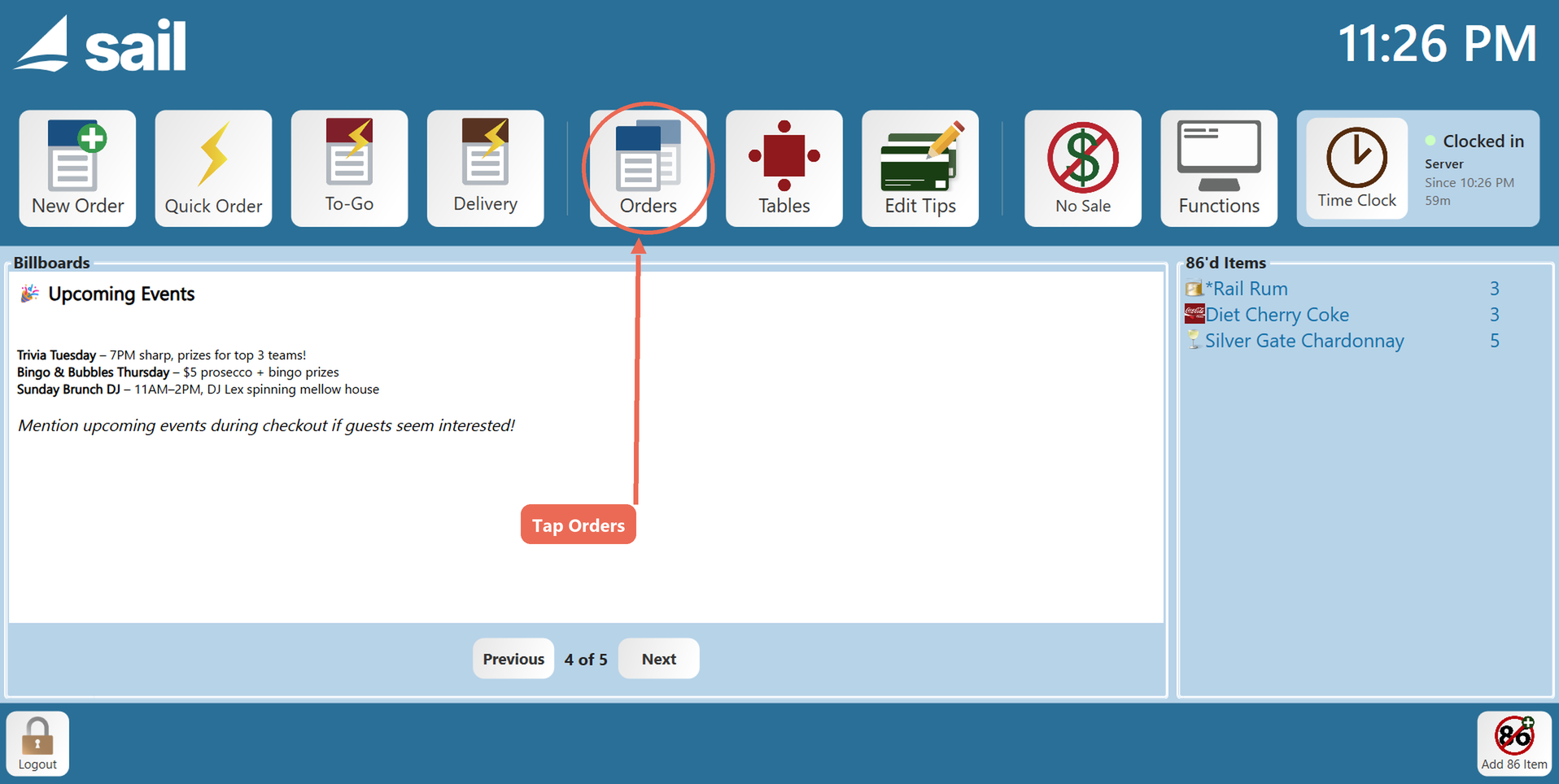
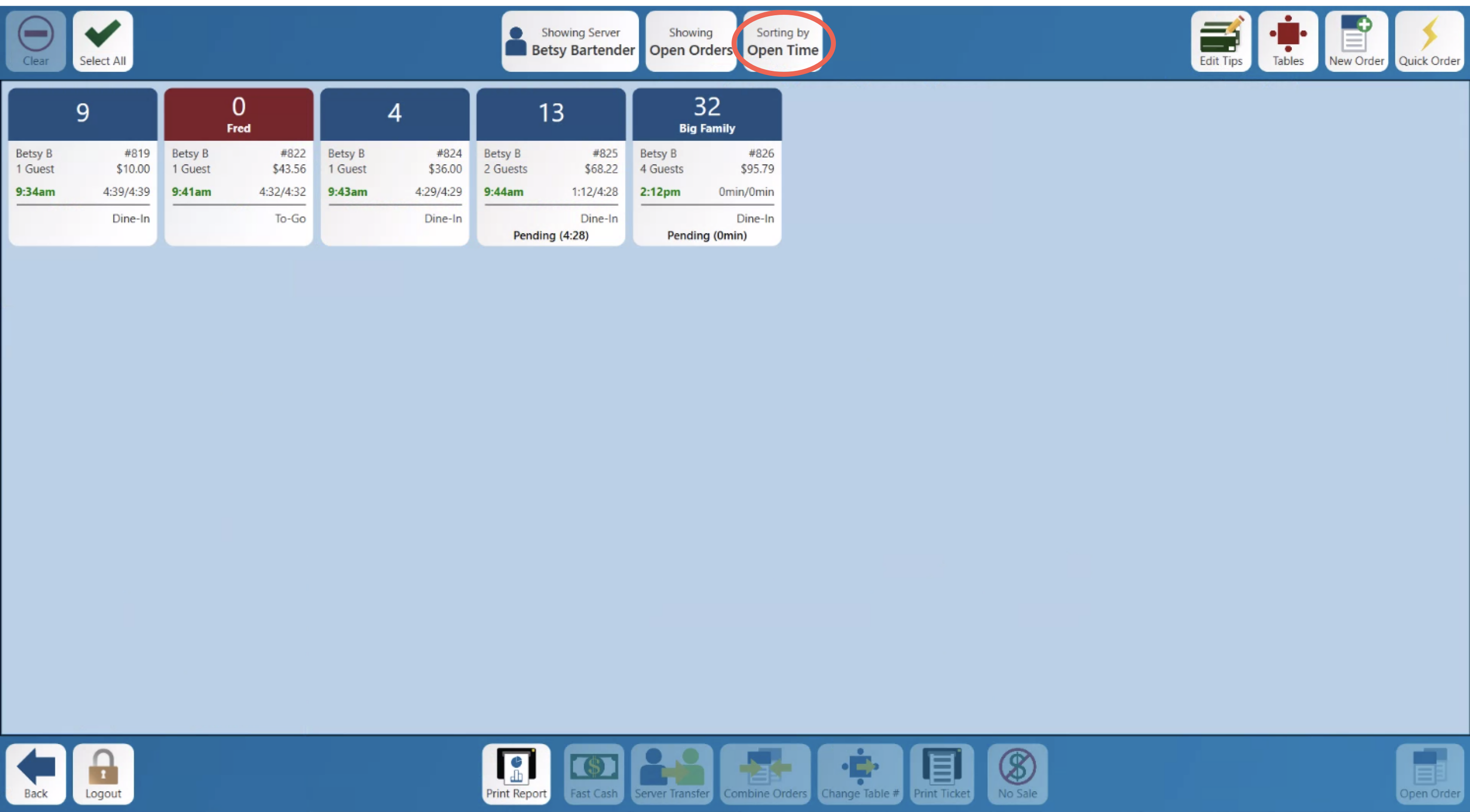
First openOn theordershomescreen.screen, tap Orders.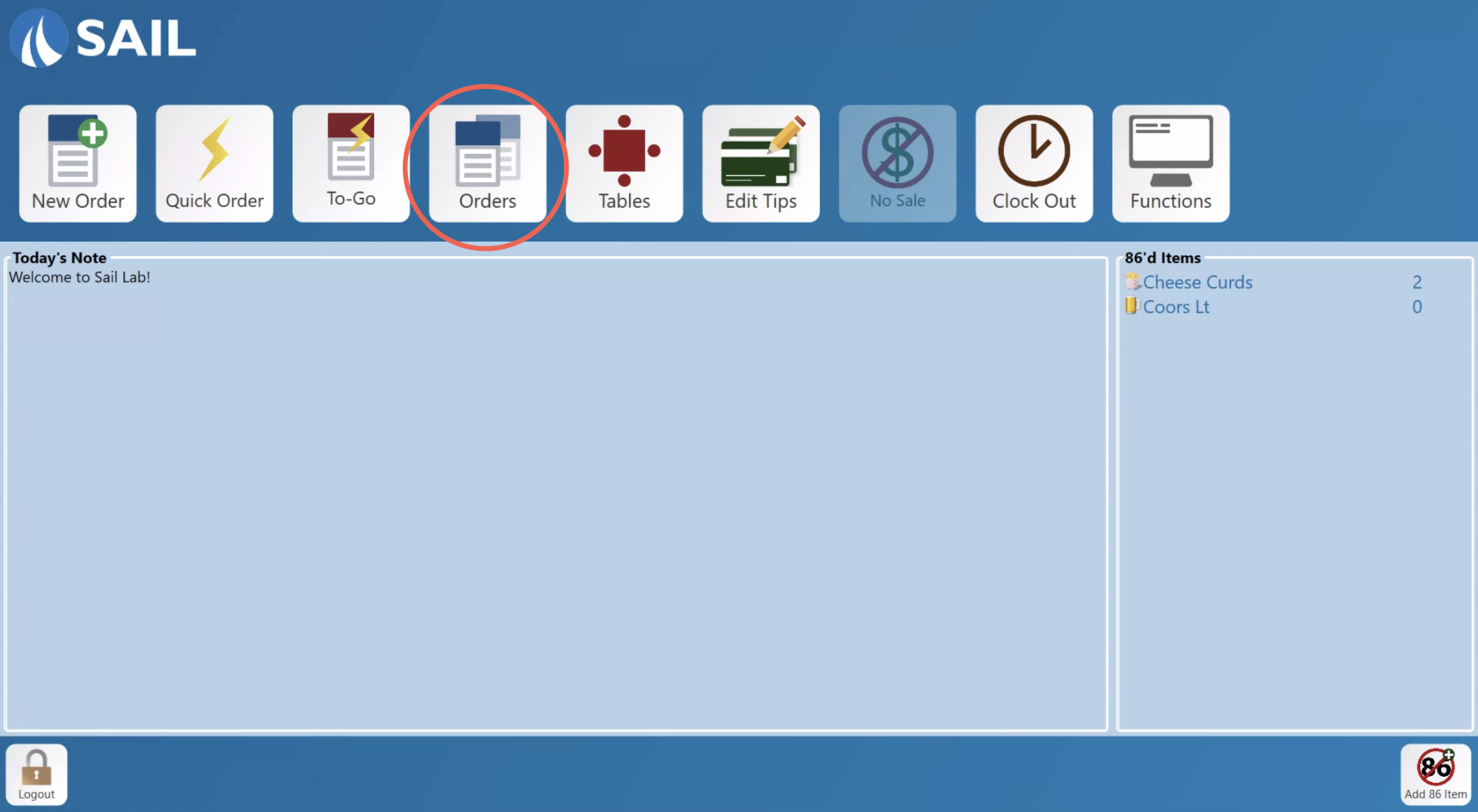
-
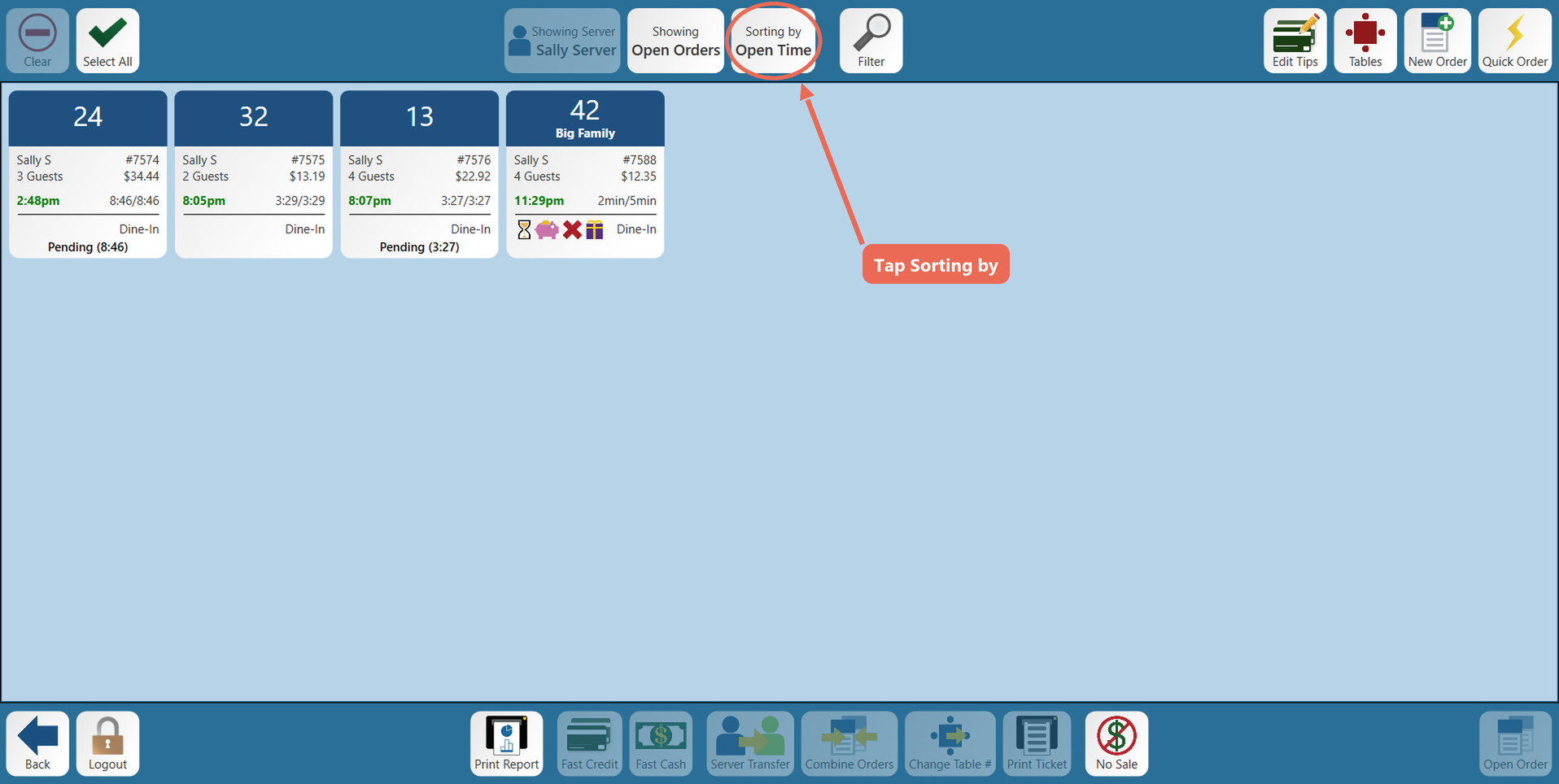
You will see all of your orders in the middle of the screen. To rearrange/sort the
ordersorders,selecttap theSortSortingByby buttoninat the top middle of thescreenscreen. It shows how the orders are sorted now.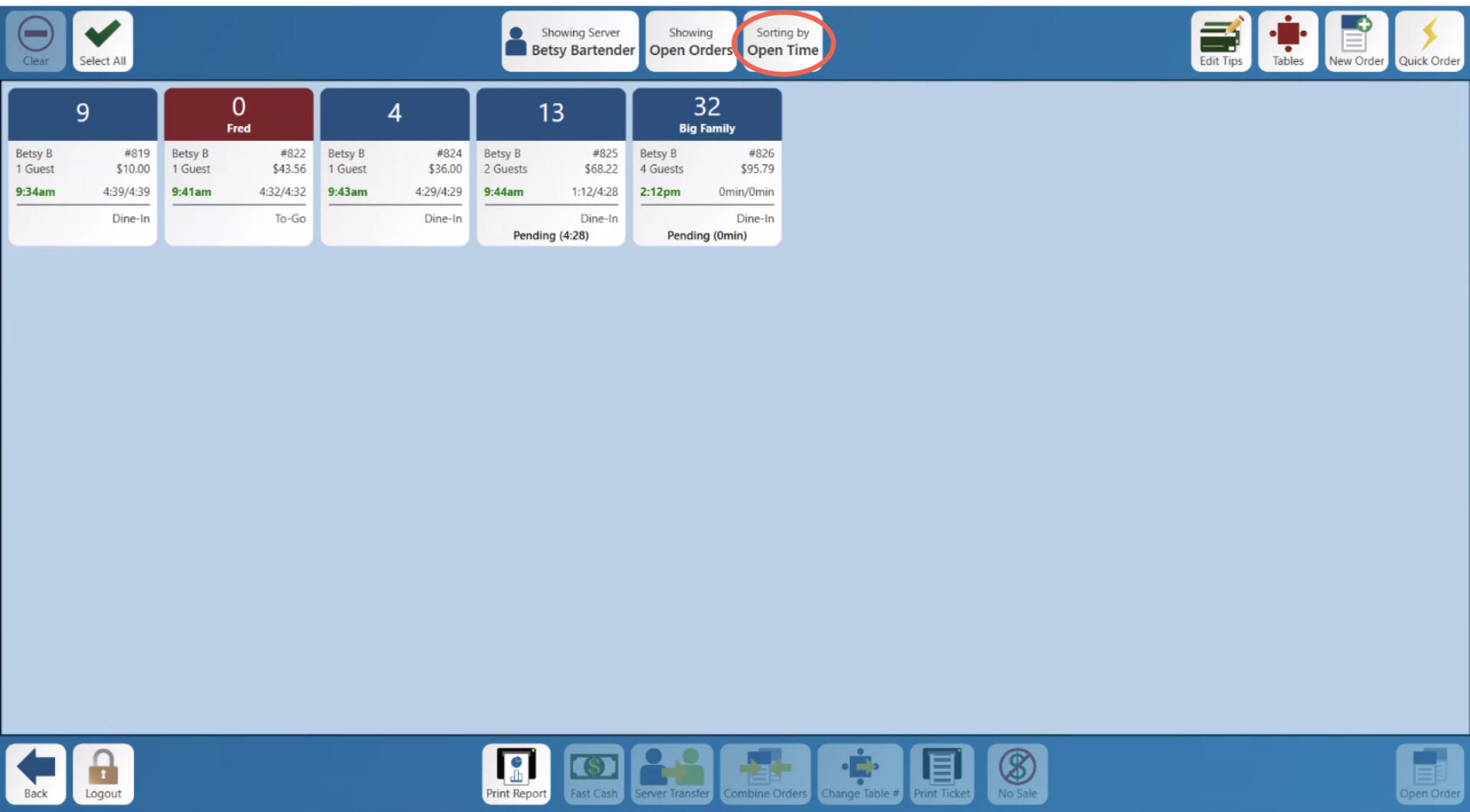
-
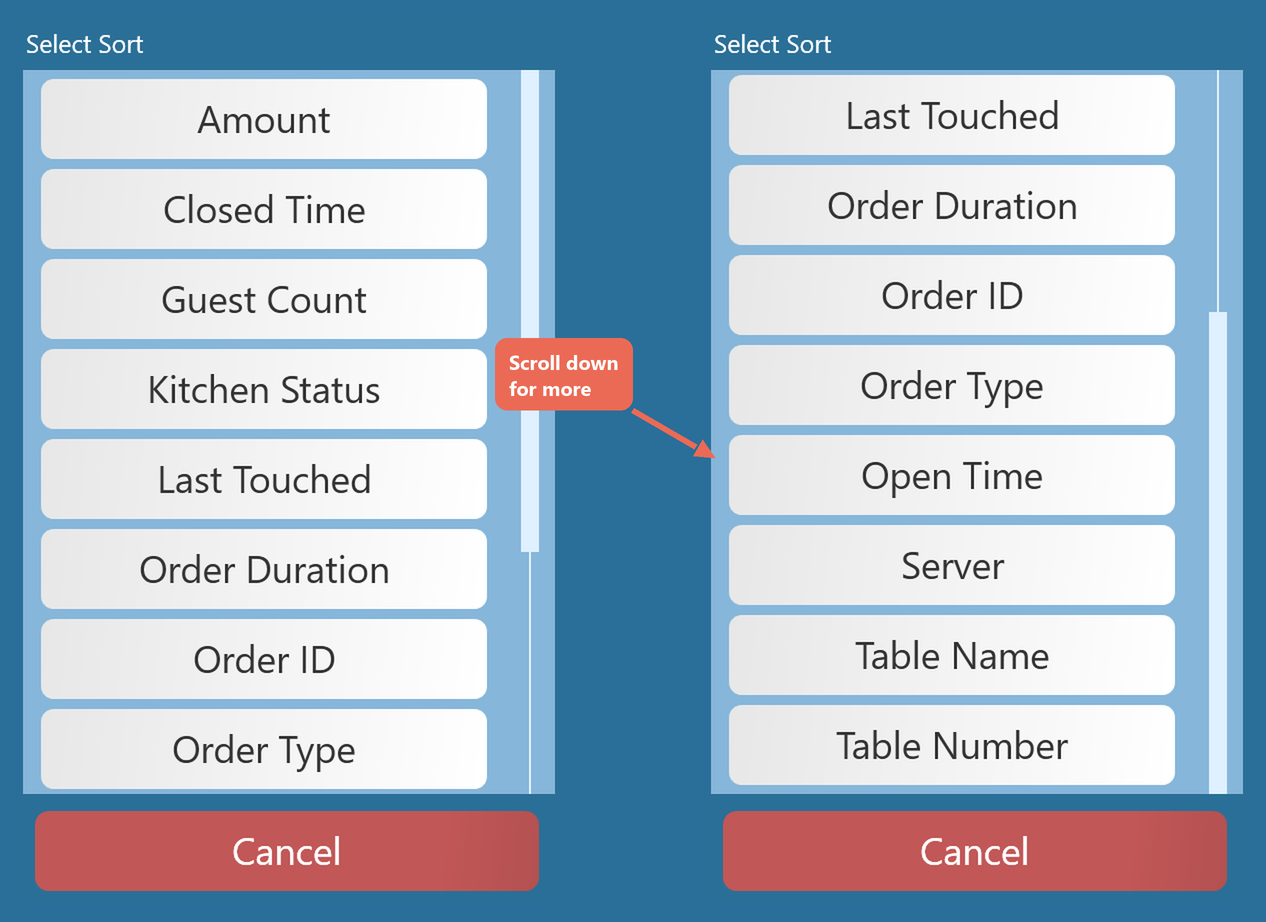
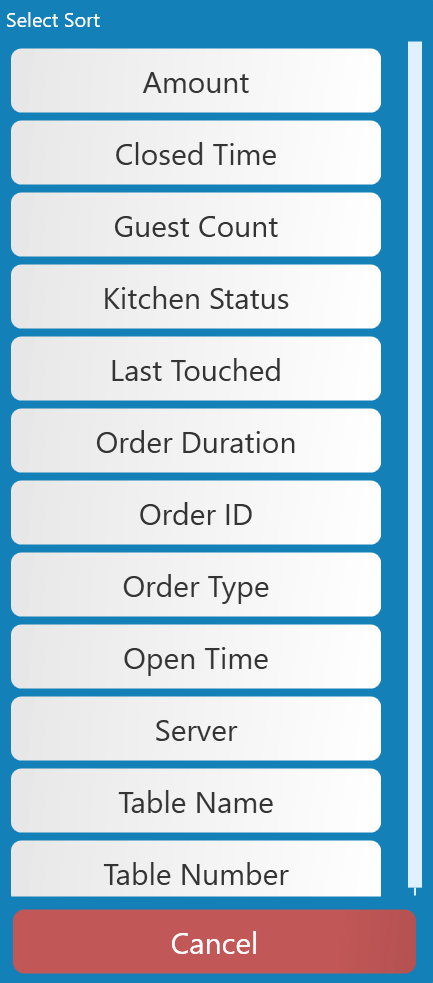
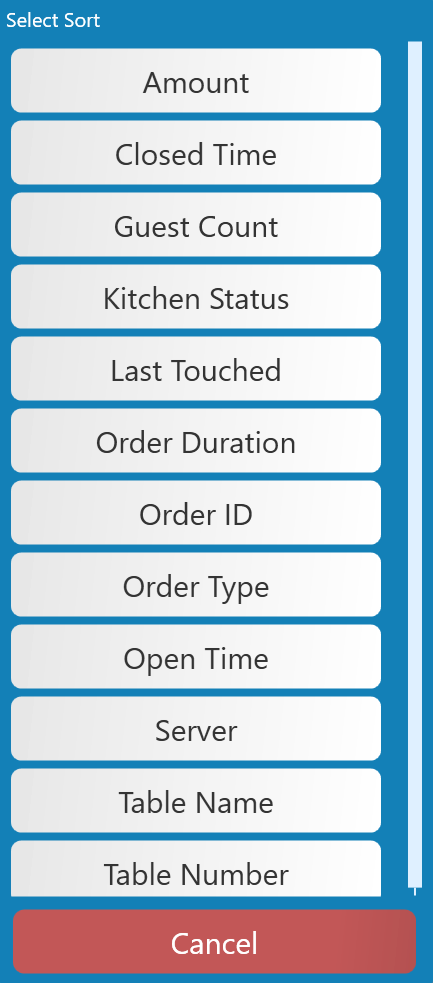
Select the option you would like to sort by. Scroll down the list to see them all: Amount, Closed Time, Guest Count, Kitchen Status, Last Touched, Order Duration, Order ID, Order Type, Open Time, Server, Table Name and Table Number.
-
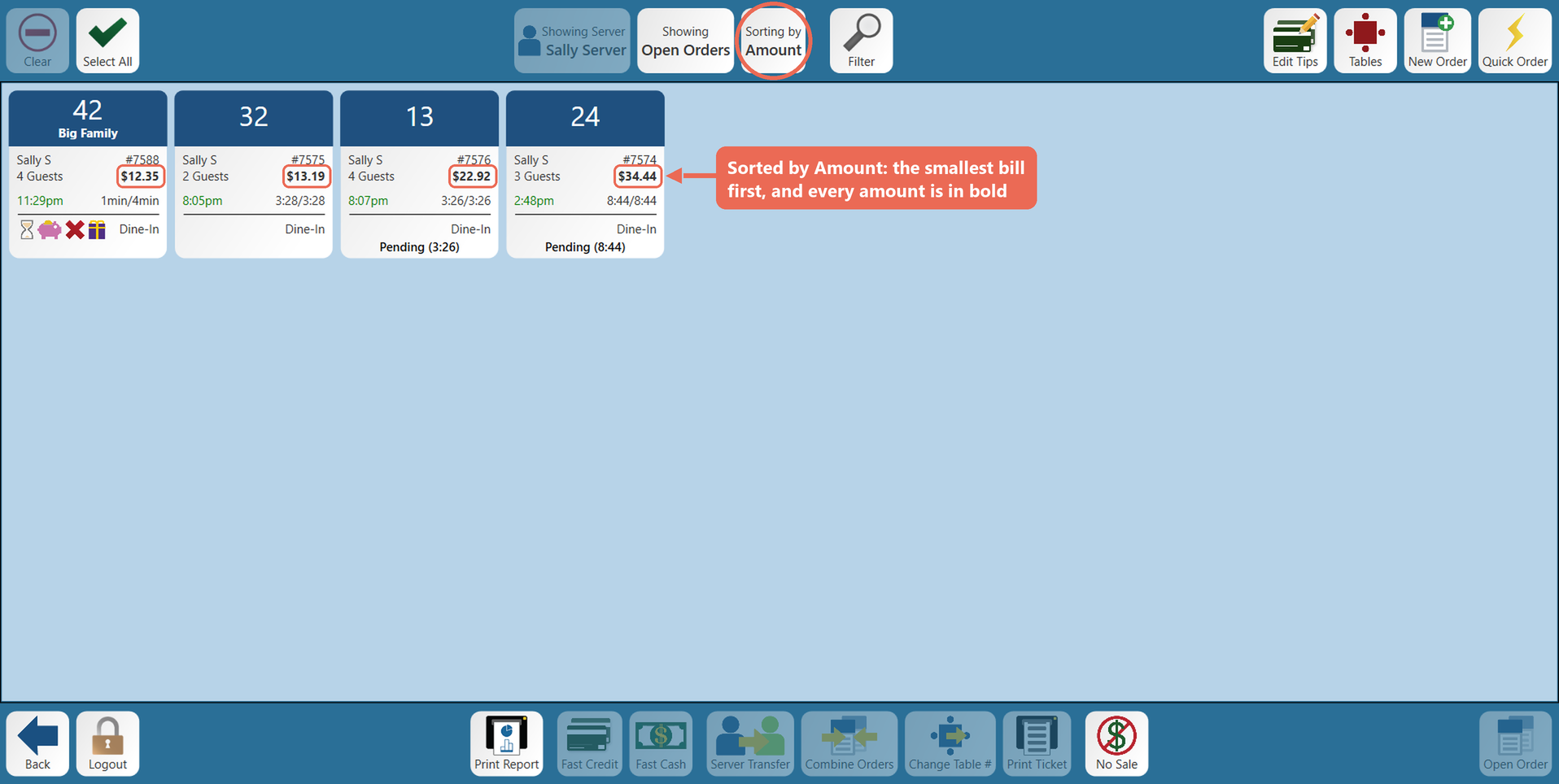
Whichever option you choose to sort the orders by, that information will be bolded so that it's easier to find. The orders go from the smallest or earliest first.
-
-
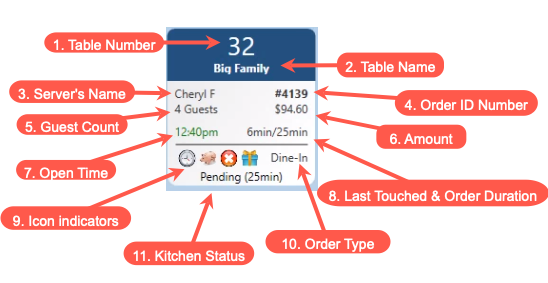
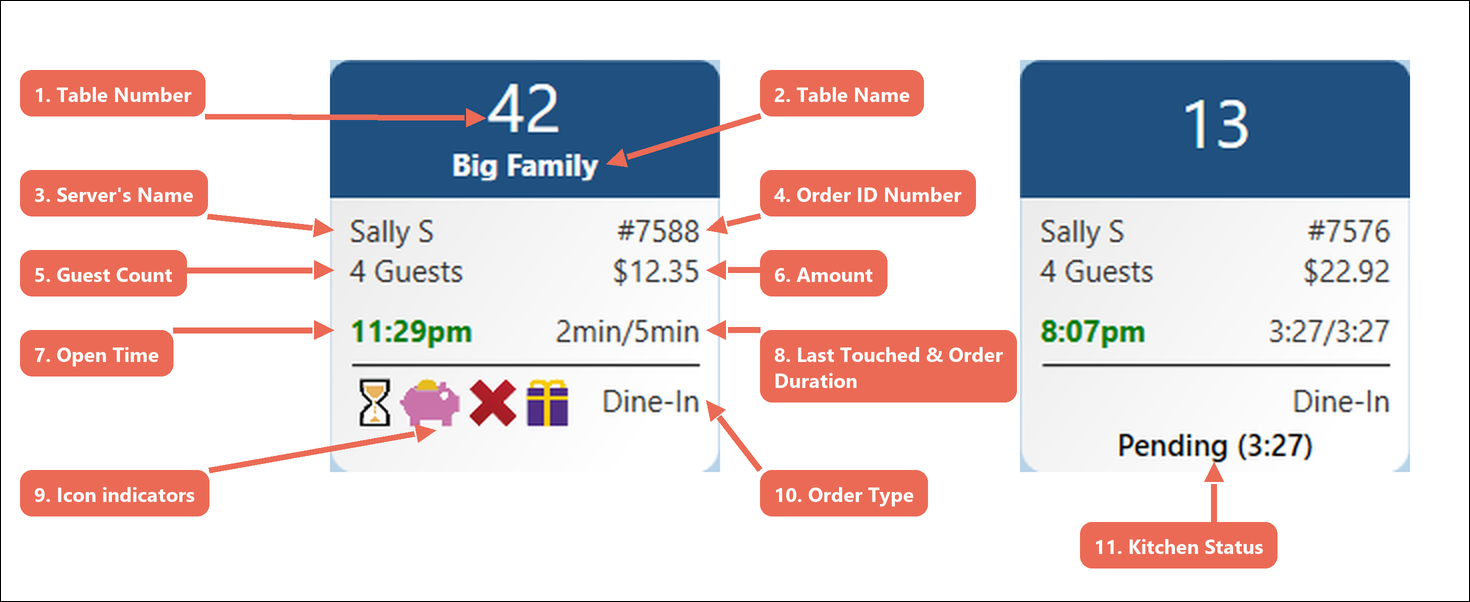
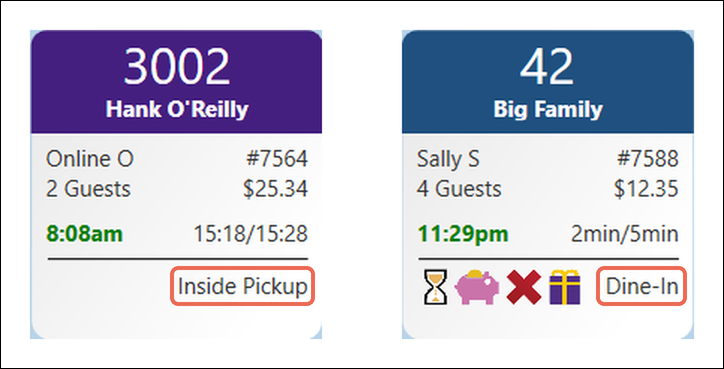
Anatomy of an Order view button
-
Table Number - This is the table number your guests are sitting at.
-
Table Name - This will appear if you choose to put a table name on your order.
-
Server’Server's Name - This is the name of the server/bartender that this order is assigned to. -
Order ID Number - This is the last 4 digits of the Transaction ID number that is also on the check header on the order entry screen and on the top right corner of the customer receipt. (The receipt will have the full number, not just the last 4 digits)
-
Guest Count - This is the number of guests at your table.
-
Amount - This is the total amount of the bill for this table.
-
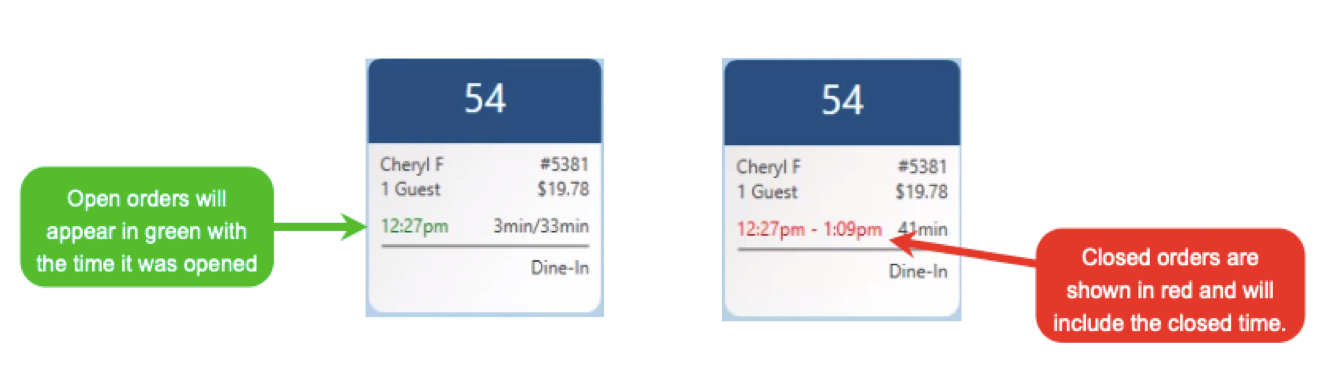
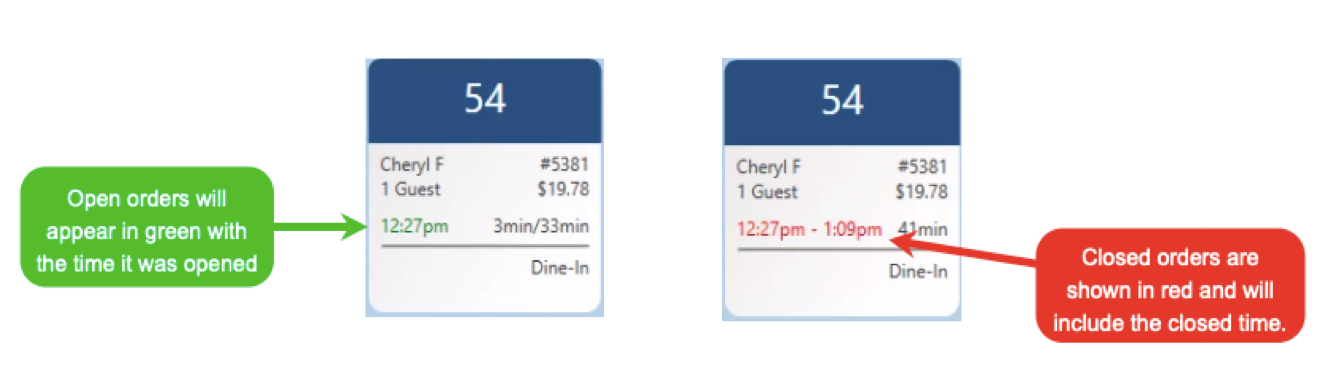
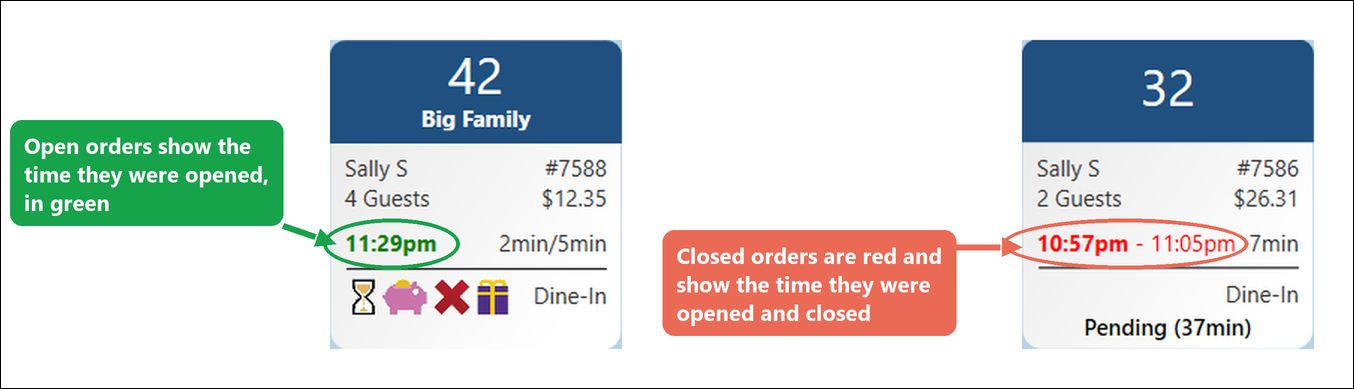
Open Time & Closed Time -
-
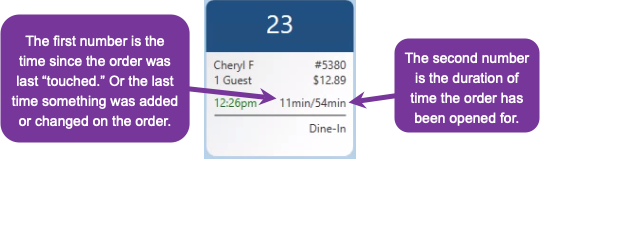
Last Touched & Order Duration -
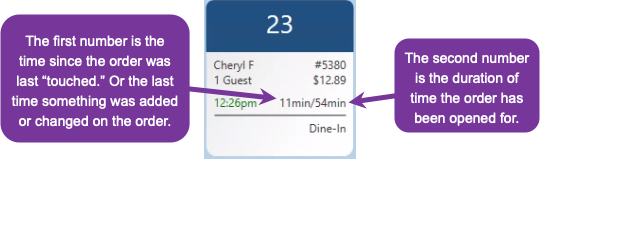
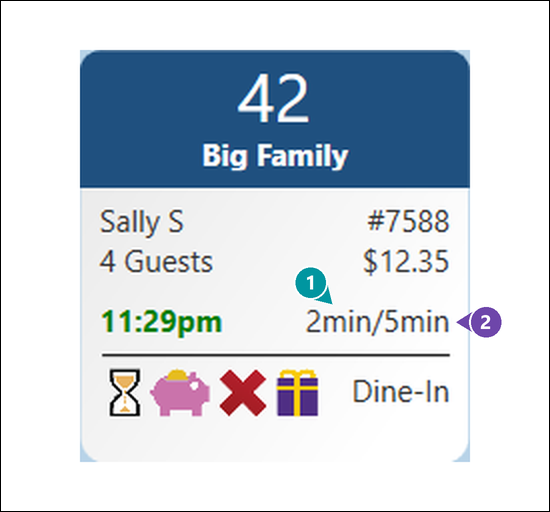
- The first number is the time since the order was last "touched," or the last time something was added or changed on the order.
- The second number is how long the order has been open.
Once an order has been open an hour or more, the times show hours and minutes (8:44 is 8 hours and 44 minutes).
-
Icon Indicators -
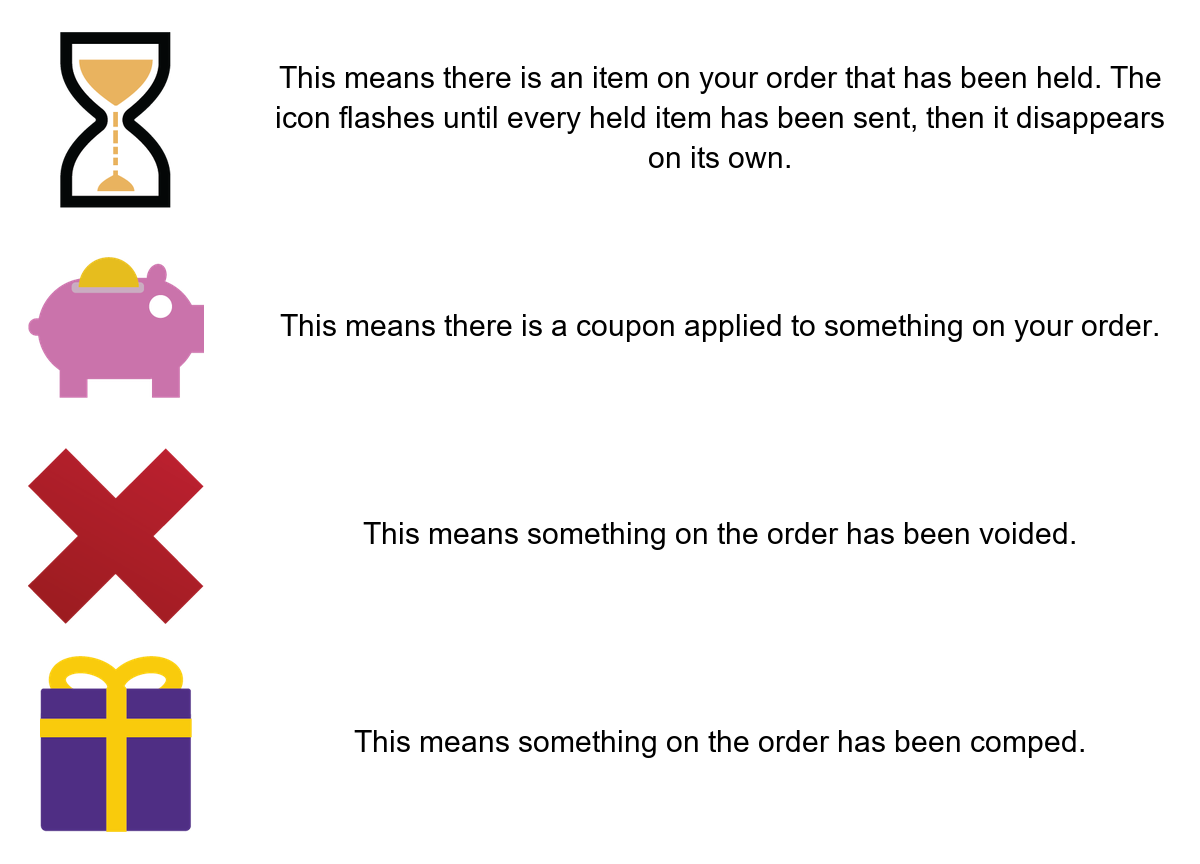
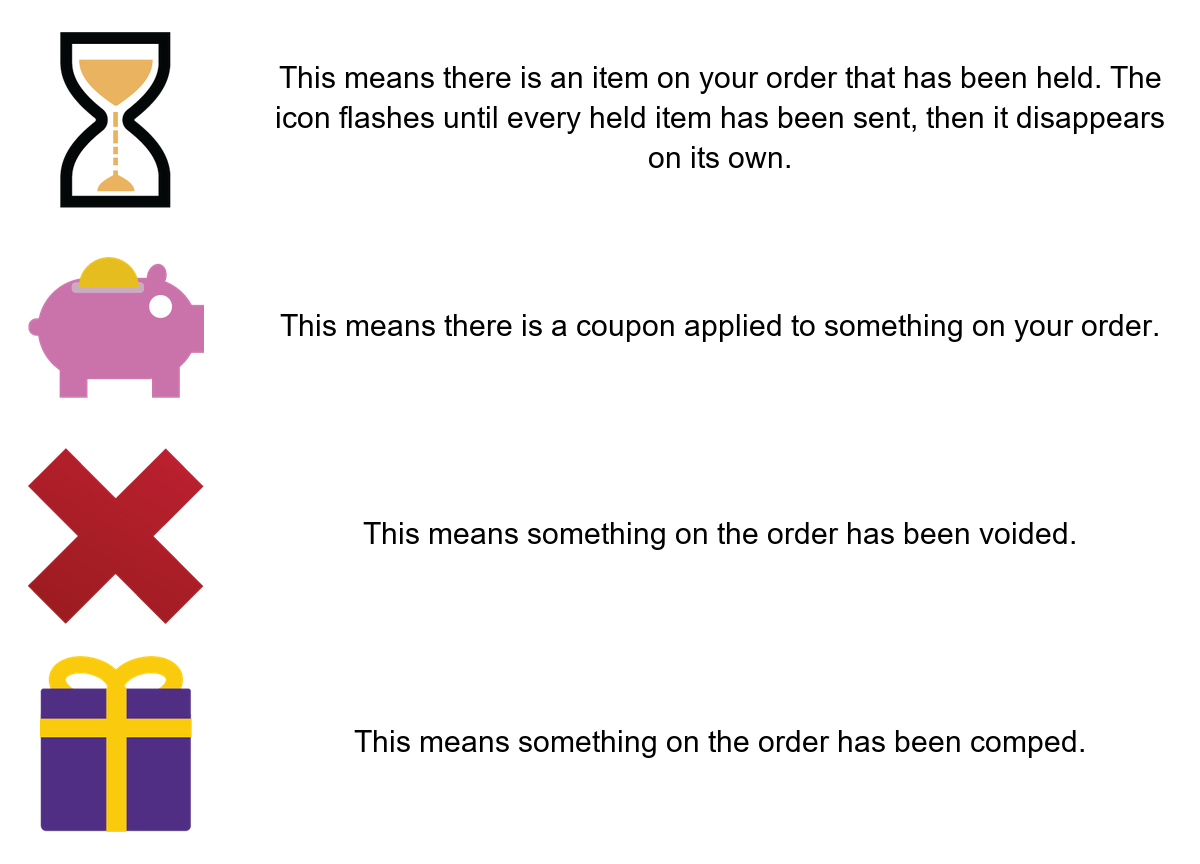
-
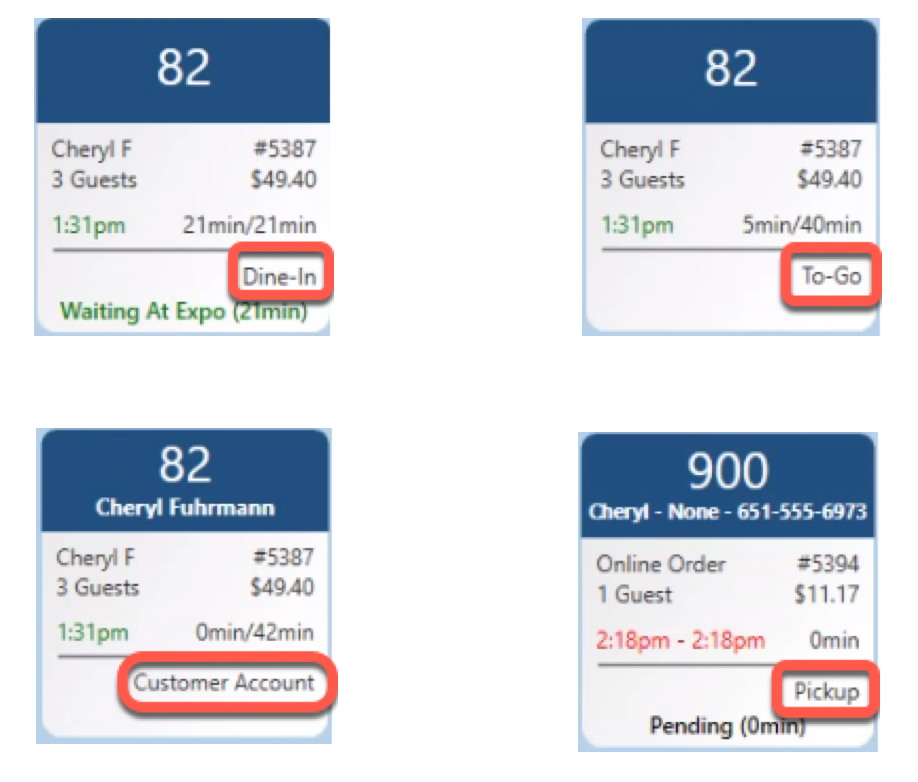
Order Types - This is the order type of the order, such as Dine-In, To-Go, or Inside Pickup for an online order.
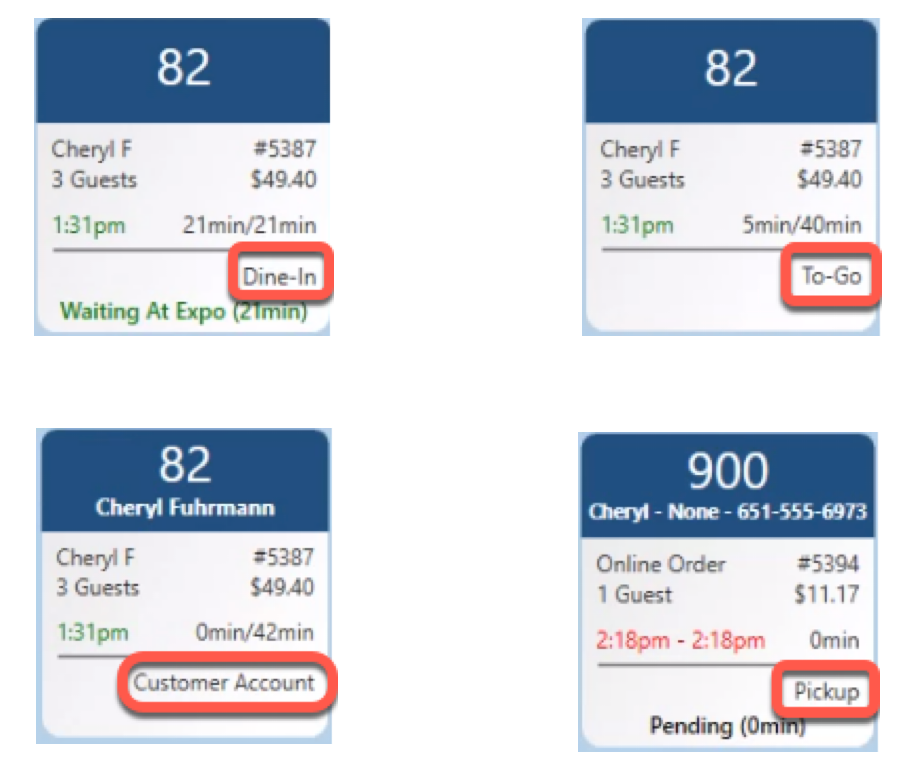
-
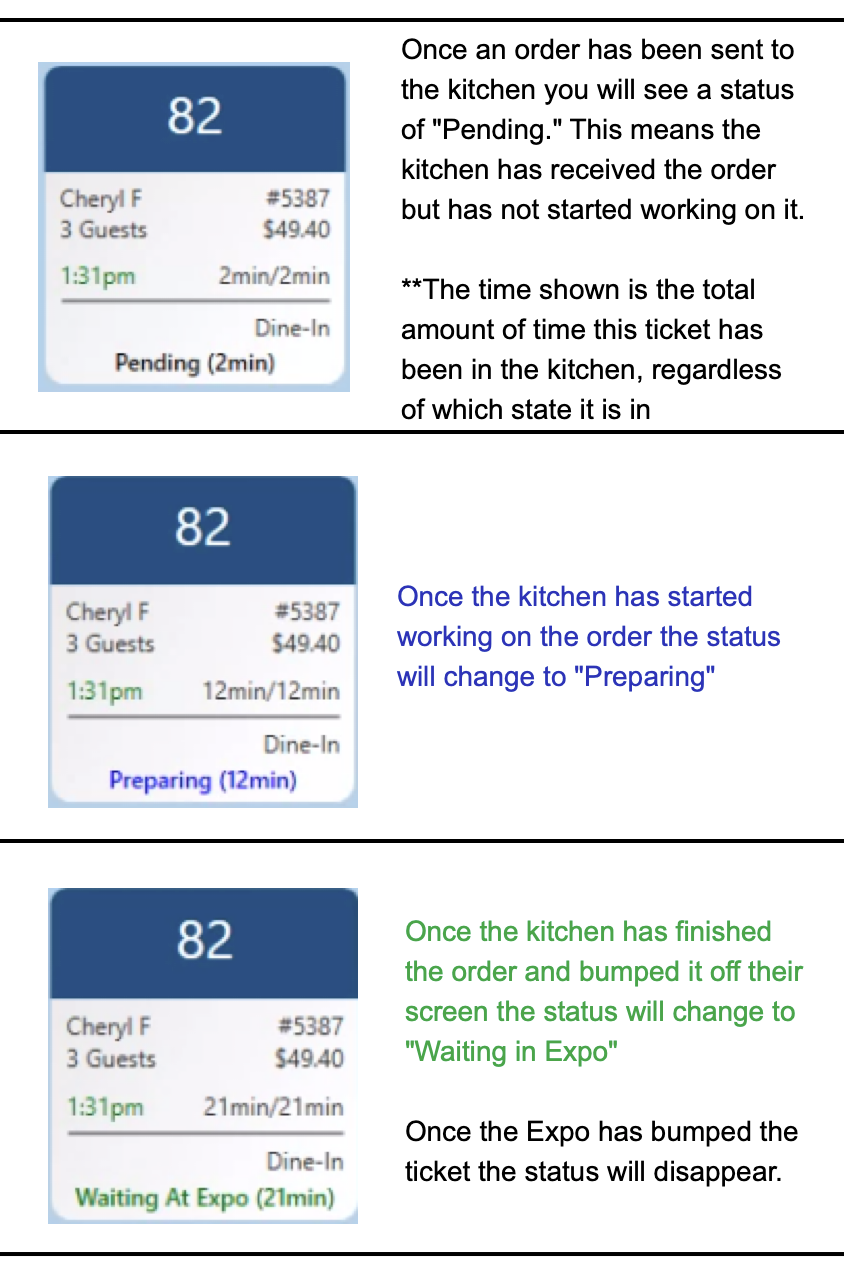
Kitchen Status - If your location is using Kitchen Video, you will have Kitchen statuses appearing at the bottom of the order.
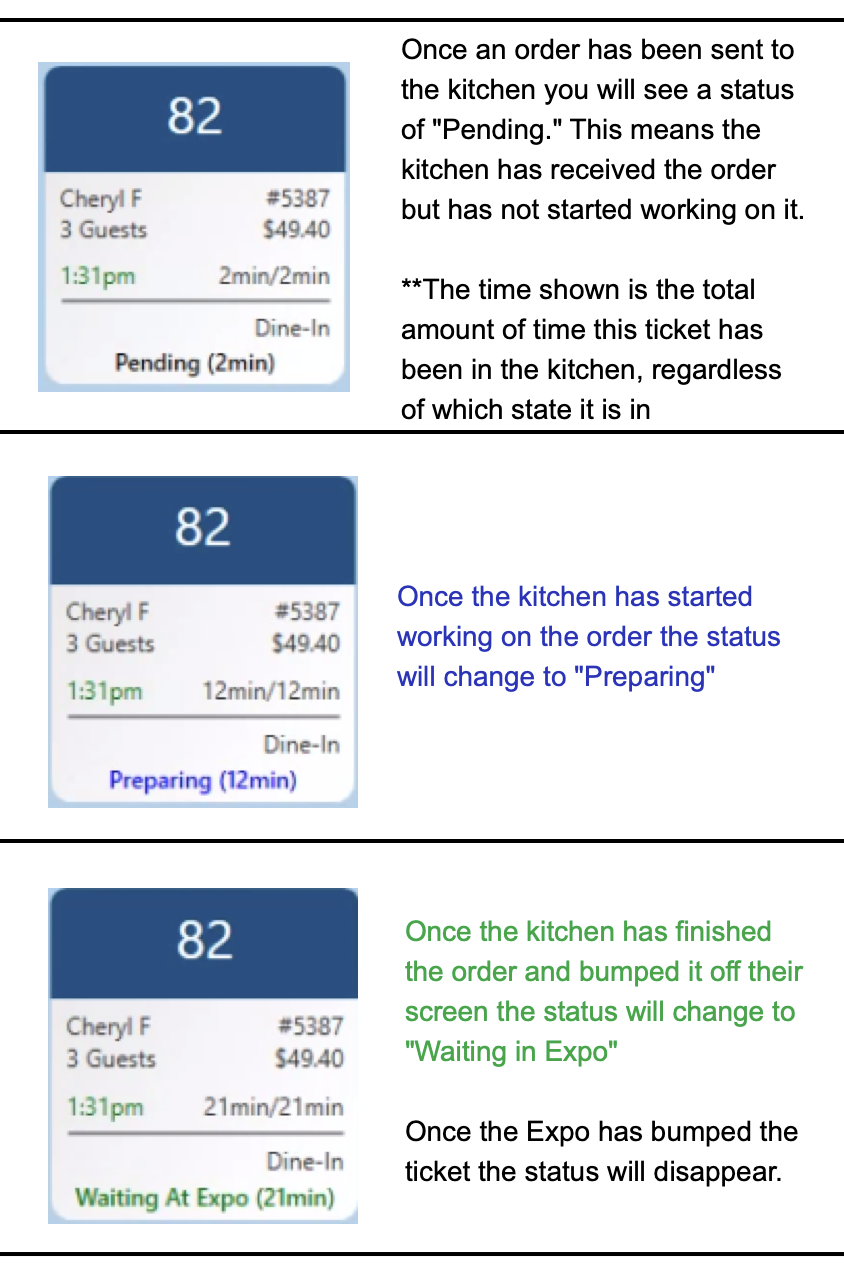
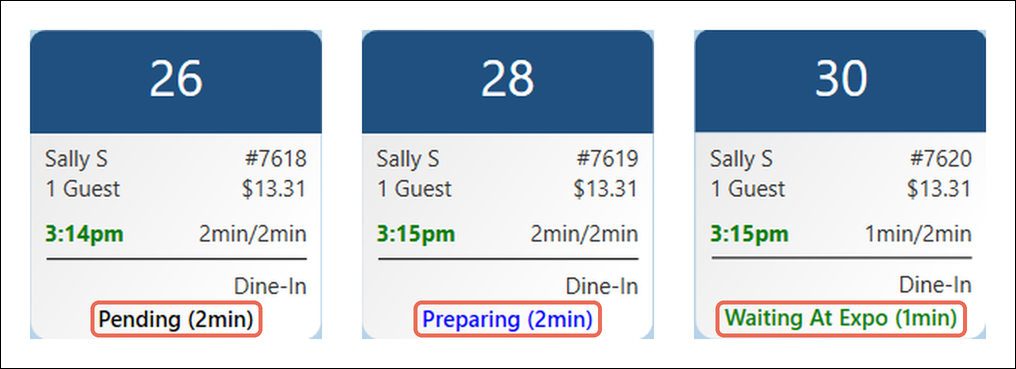
- Pending - Once an order has been sent to the kitchen you will see a status of "Pending." This means the kitchen has received the order but has not started working on it.
- Preparing - Once the kitchen has started working on the order the status will change to "Preparing."
- Waiting At Expo - Once the kitchen has finished the order and bumped it off their screen the status will change to "Waiting At Expo." Once the Expo has bumped the ticket the status will disappear.
Note: The time shown is the total amount of time this ticket has been in the kitchen, regardless of which state it is in.