
The Charges/Misc Tab
BeingThis written.document will walk you through the special buttons on the Charges/Misc tab of the order screen: open items, refunds, customer account payments and gift card sales.
The tab is one of the tabs along the top of the order screen, usually named Charges or Misc. Your store chooses which buttons are on it, so yours may have more or fewer than the ones shown here.
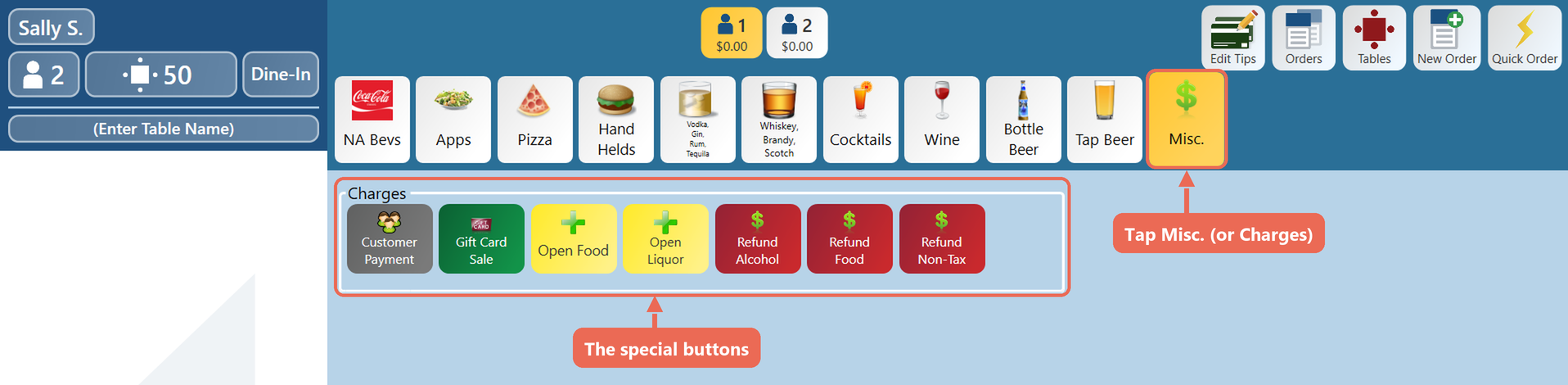
Open Items
Open items, such as Open Food and Open Liquor, ring in something that isn't on the menu, like a special of the day. You type the price each time.
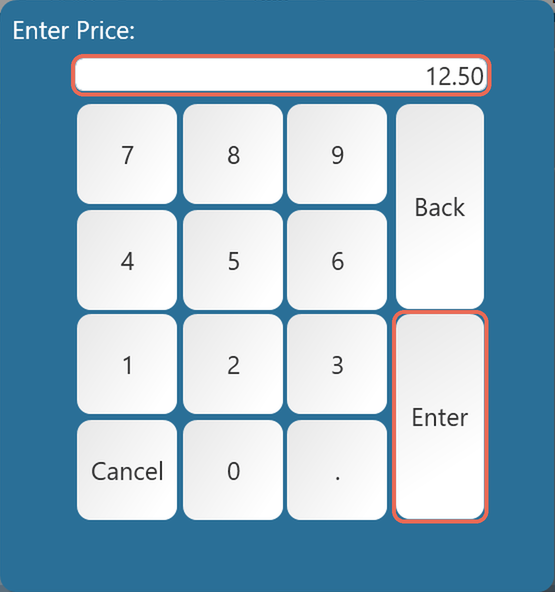
1. Tap Open Food (or Open Liquor). Type the price and tap Enter.
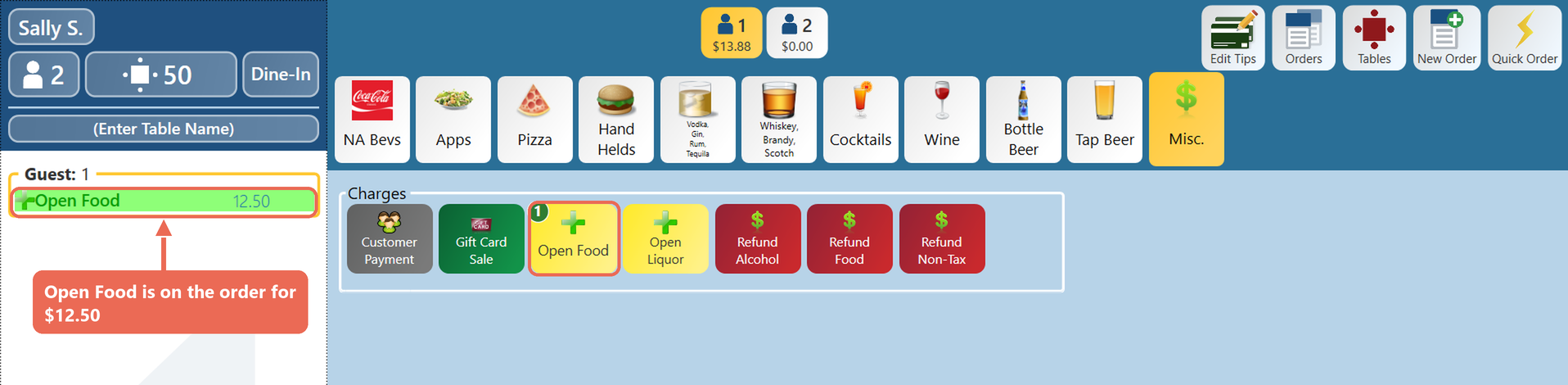
2. The item is on the order at that price. Tax is added the same way as for other food or liquor.
Refunds
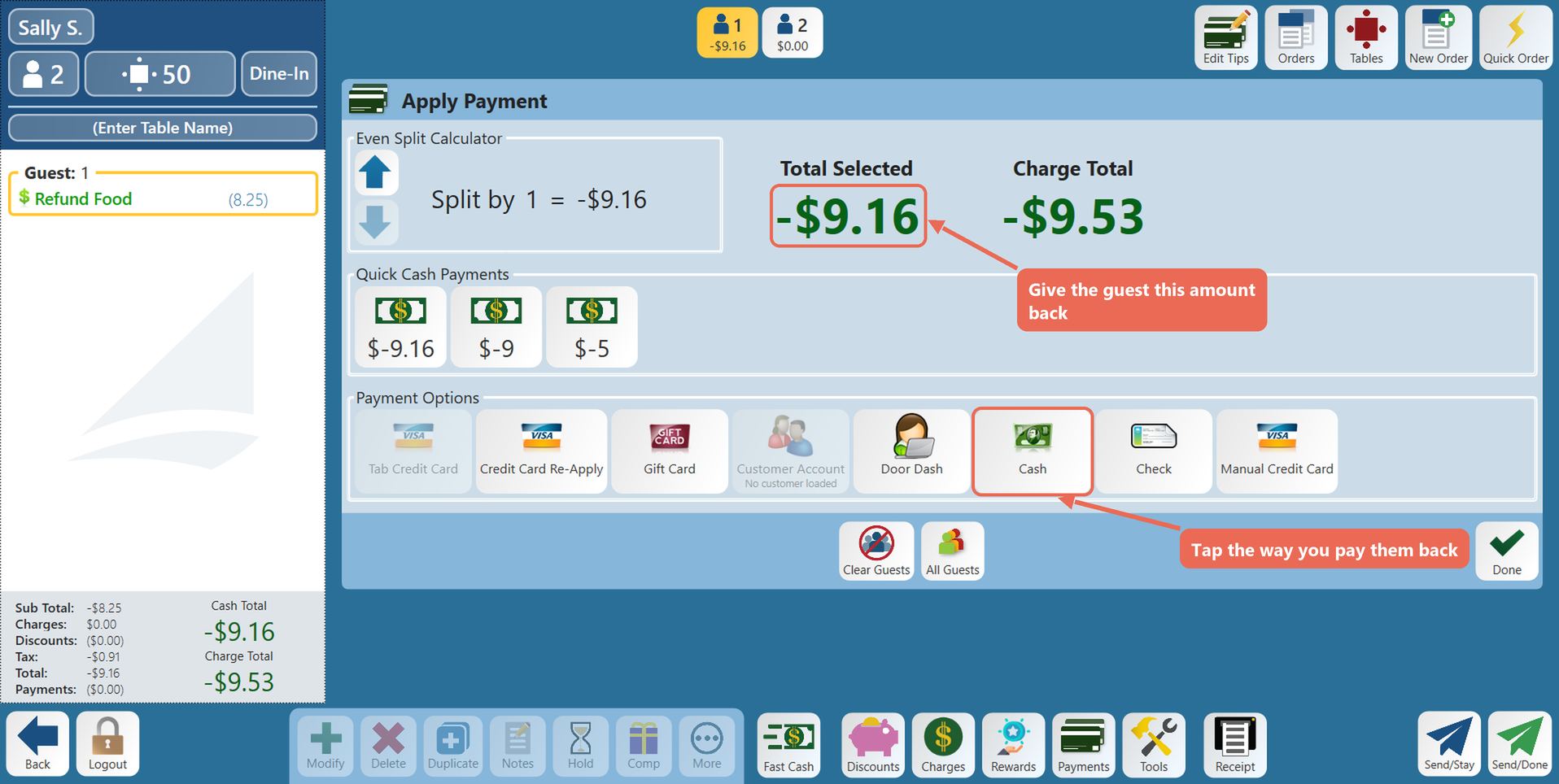
1. Tap the refund button. Type the amount to refund and tap Enter. The refund is on the order as a negative amount, and the order's balance is negative too.
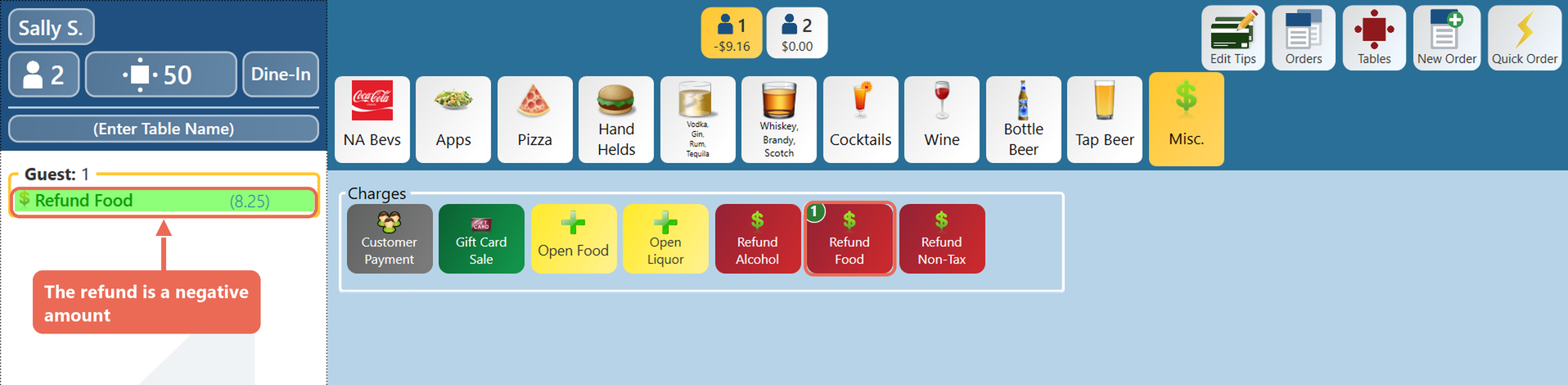
2. Tap Payments. The amount to give back shows as a negative number. Tap the way you pay the guest back, such as Cash.
Note: Pay-Outs (cash taken out of the drawer to pay for something) aren't on this tab. They're on the Functions screen, under Cash Tools.
Click here to learn more about the Functions screen.
Customer Accounts
The Customer Payment button takes a payment onto a customer's account, for example a deposit for an event or a payment toward what they owe.
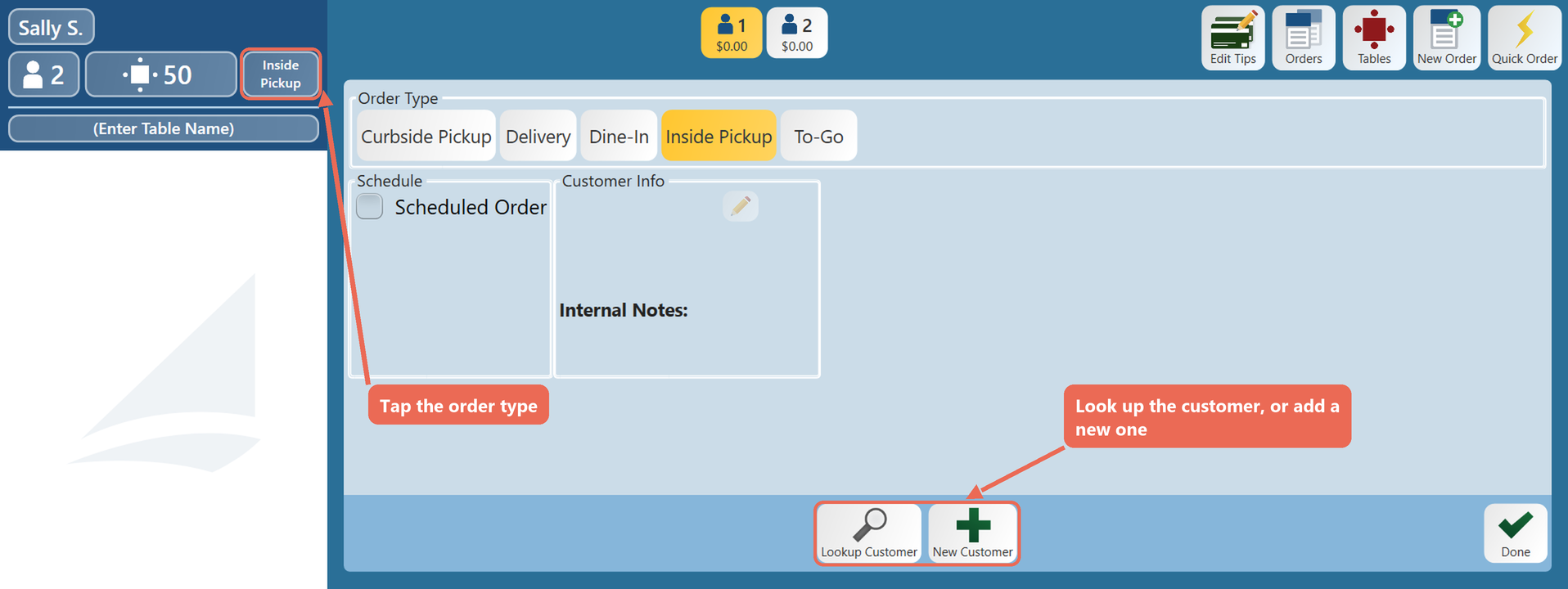
1. Attach the customer to the order first. Tap the order type at the top of the order (Dine-In) and pick the order type your store uses for customer accounts. Then tap Lookup Customer to find the customer, or New Customer to add one, and tap Done.
2. Open the Charges/Misc tab and tap Customer Payment. Type the amount the customer is paying and tap Enter.
3. Tap Payments and take the payment the usual way, such as cash or credit card. The amount goes onto the customer's account as a credit.
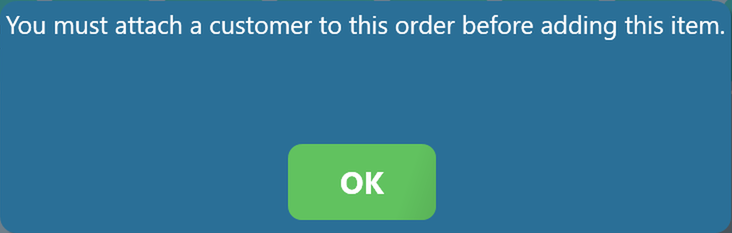
Note: If no customer is attached to the order, the terminal won't add the payment. It shows You must attach a customer to this order before adding this item.
Click here to learn more about accepting and redeeming deposits for customer accounts.
Gift Cards
The Gift Card Sale button sells a gift card or adds money to one.
1. Tap Gift Card Sale. Type the amount to put on the card and tap Enter.
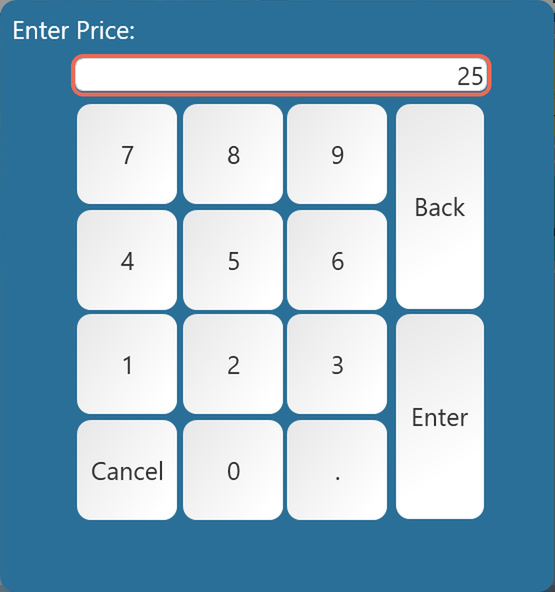
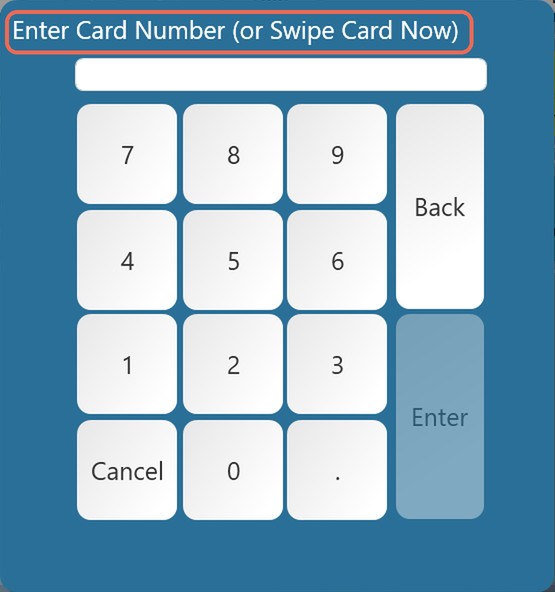
2. Swipe the gift card, or type its number and tap Enter. If the card already has money on it, the terminal shows the balance and asks if you want to add more.
3. Tap Payments and take the payment the usual way. The money is on the card once the order is paid, and a slip prints with the amount on the card.
Note: Ring in each gift card on its own - the terminal won't duplicate a gift card line. An order can have up to 20 gift cards; start a new order for more.
Click here to learn more about issuing and redeeming a gift card, or checking a gift card balance.