
Understanding modifier prompts and Hot Mod buttons
BeingThis written.will walk you through the modifier prompts that pop up when you ring in an item, and the Hot Mod buttons that change an item's ingredients: which prompts must be answered and which can be skipped, how to go back and change an answer, and what each Hot Mod button does.
What is a modifier prompt?
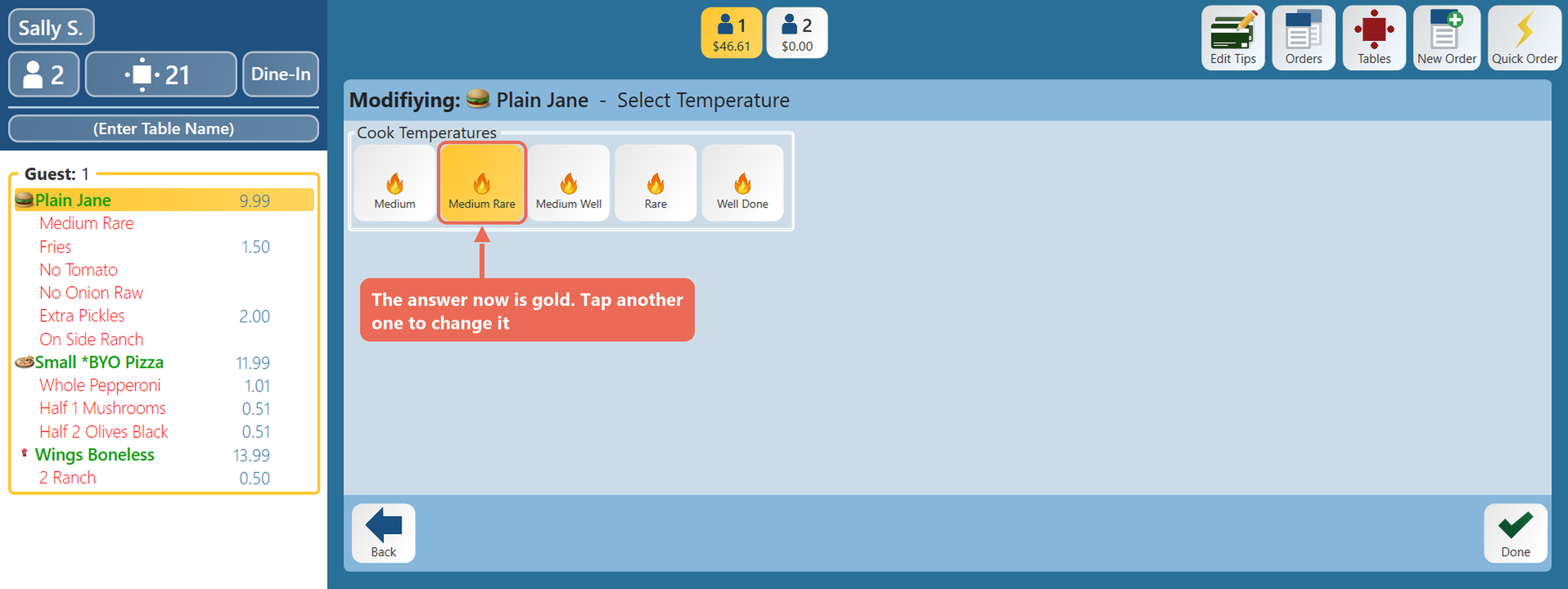
A modifier prompt is a screen that opens by itself when you ring in an item that needs more information, like the temperature for a burger or the side that comes with it. The name of the prompt is at the top, after the item's name ("Plain Jane - Select Temperature"). An item can have several prompts; they open one after the other, and each answer shows under the item on the order.
Some prompts are forced: they must be answered before you can go on. Others are optional: you can skip them. Your business decides which is which when it sets up its items in Backoffice.
Forced modifier prompts
On a forced prompt, the Done button stays grey until you pick an answer.
1. Tap your choice. When the prompt allows only one choice (like a temperature), the next prompt opens by itself as soon as you tap it - there is no need to tap Done.
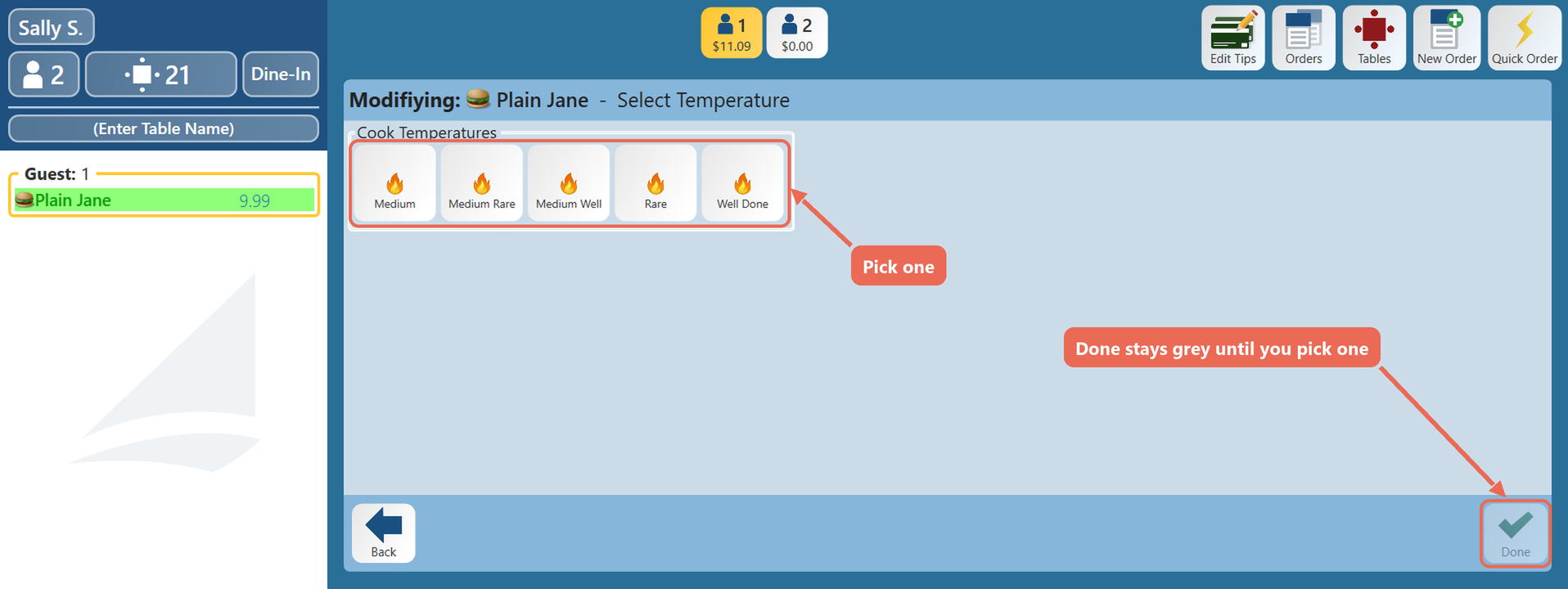
2. When the prompt allows several choices, pick them, then tap Done. The prompt also moves on by itself once you've picked the most it allows.
Optional modifier prompts
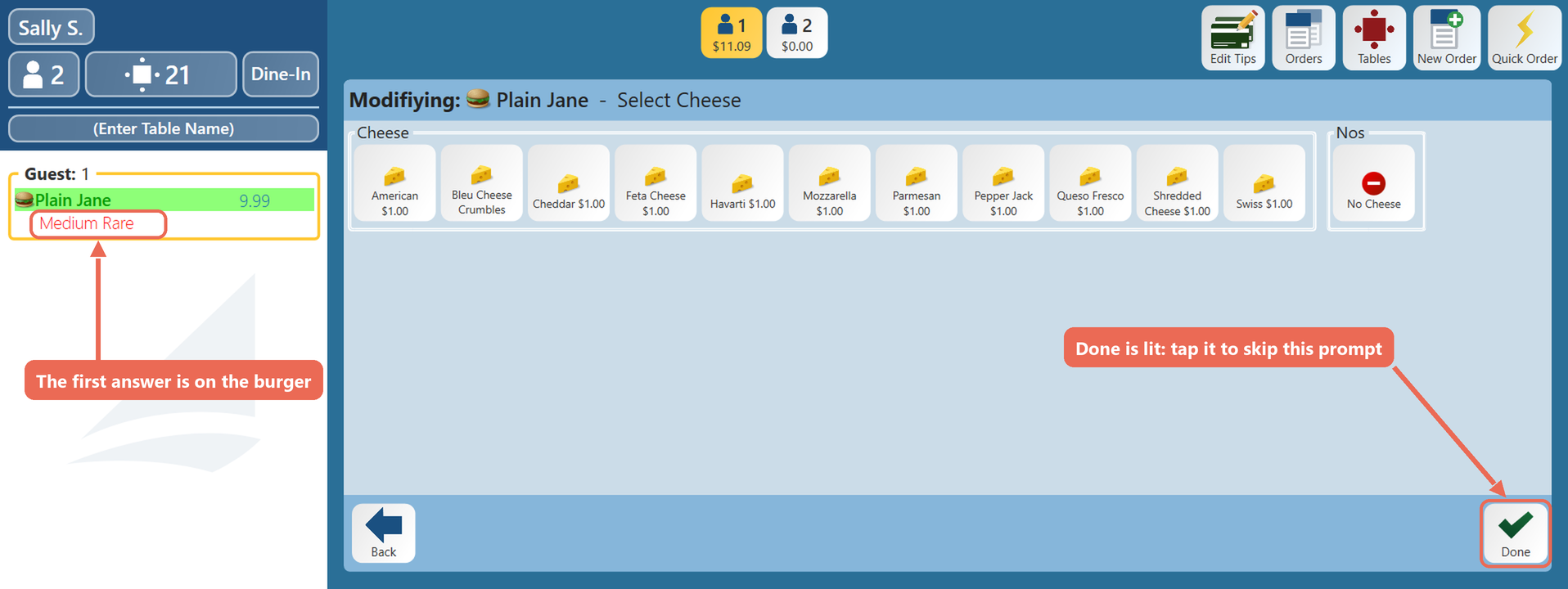
On an optional prompt, the Done button is lit from the start.
1. Tap Done to skip the prompt, or pick what the guest wants first, then tap Done.
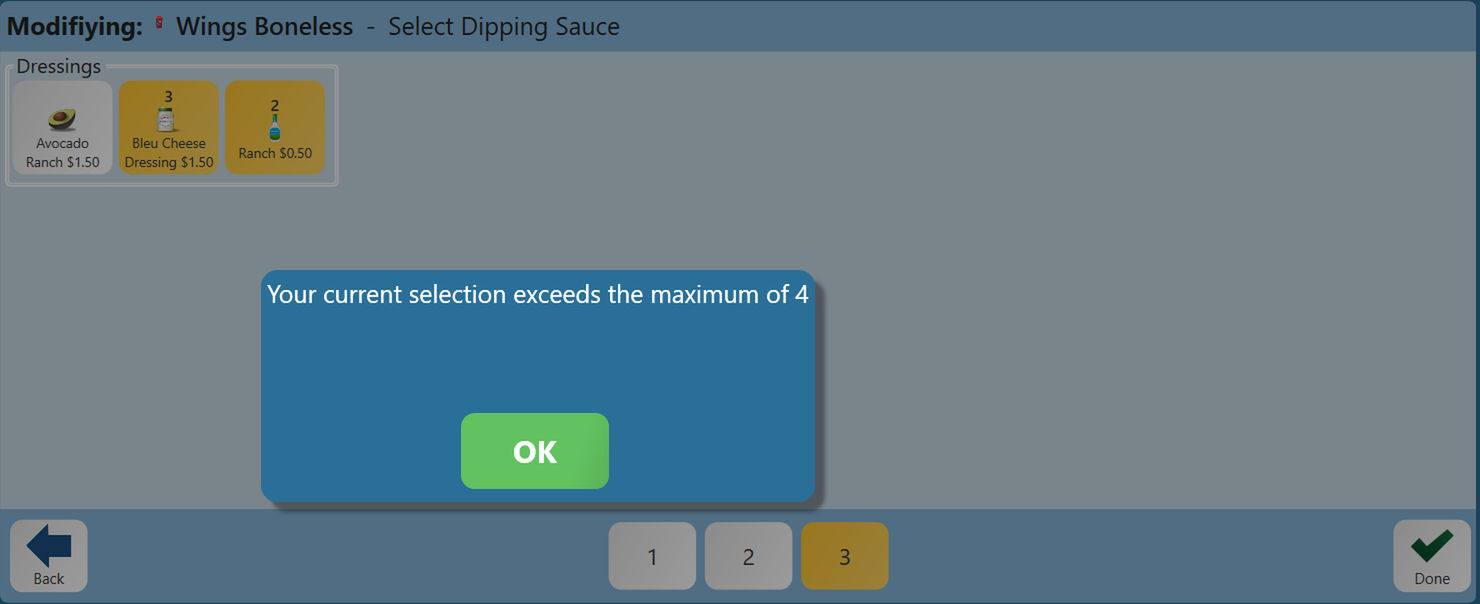
2. A prompt can limit how many choices you pick. If you pick more than it allows, a message tells you the most you can pick. Tap OK and tap a choice again to take it off.
Going back or changing an answer
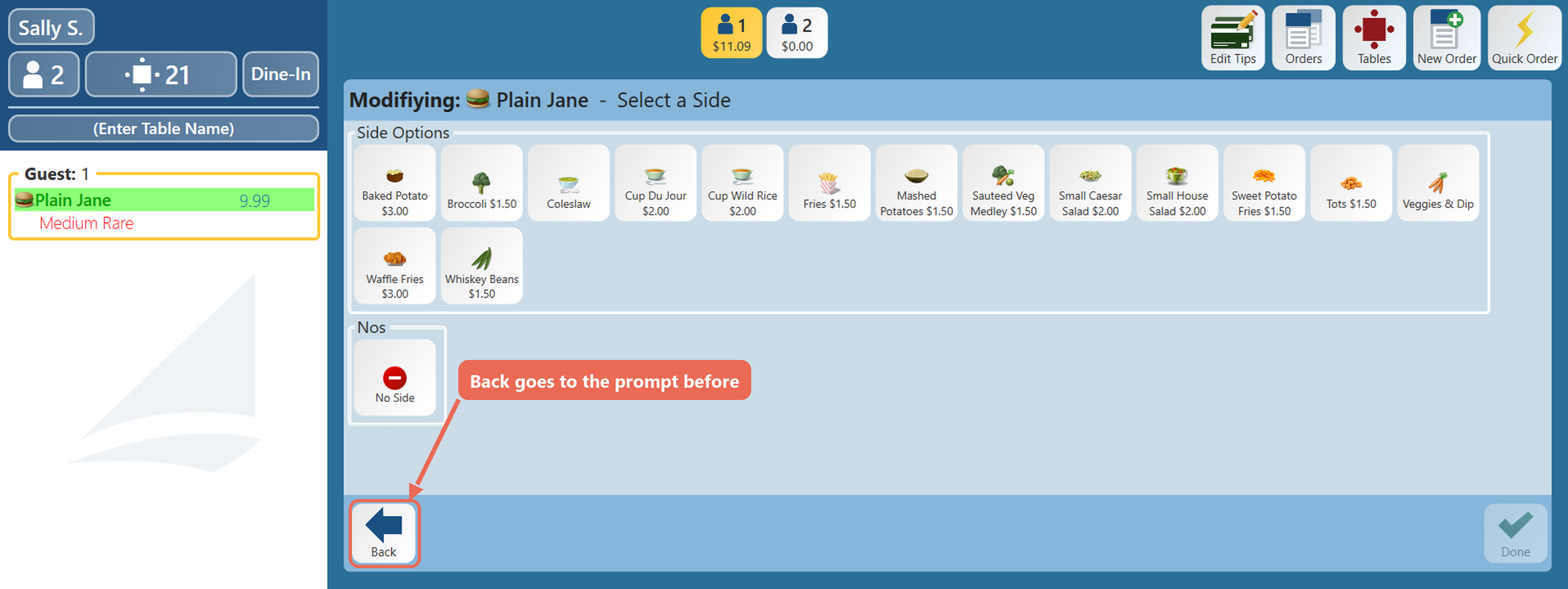
1. While the prompts are open, tap Back to go to the prompt before. On the item's first prompt, Back takes the item off the order.
To change an answer after the prompts are done (before the order is sent), there are three ways.
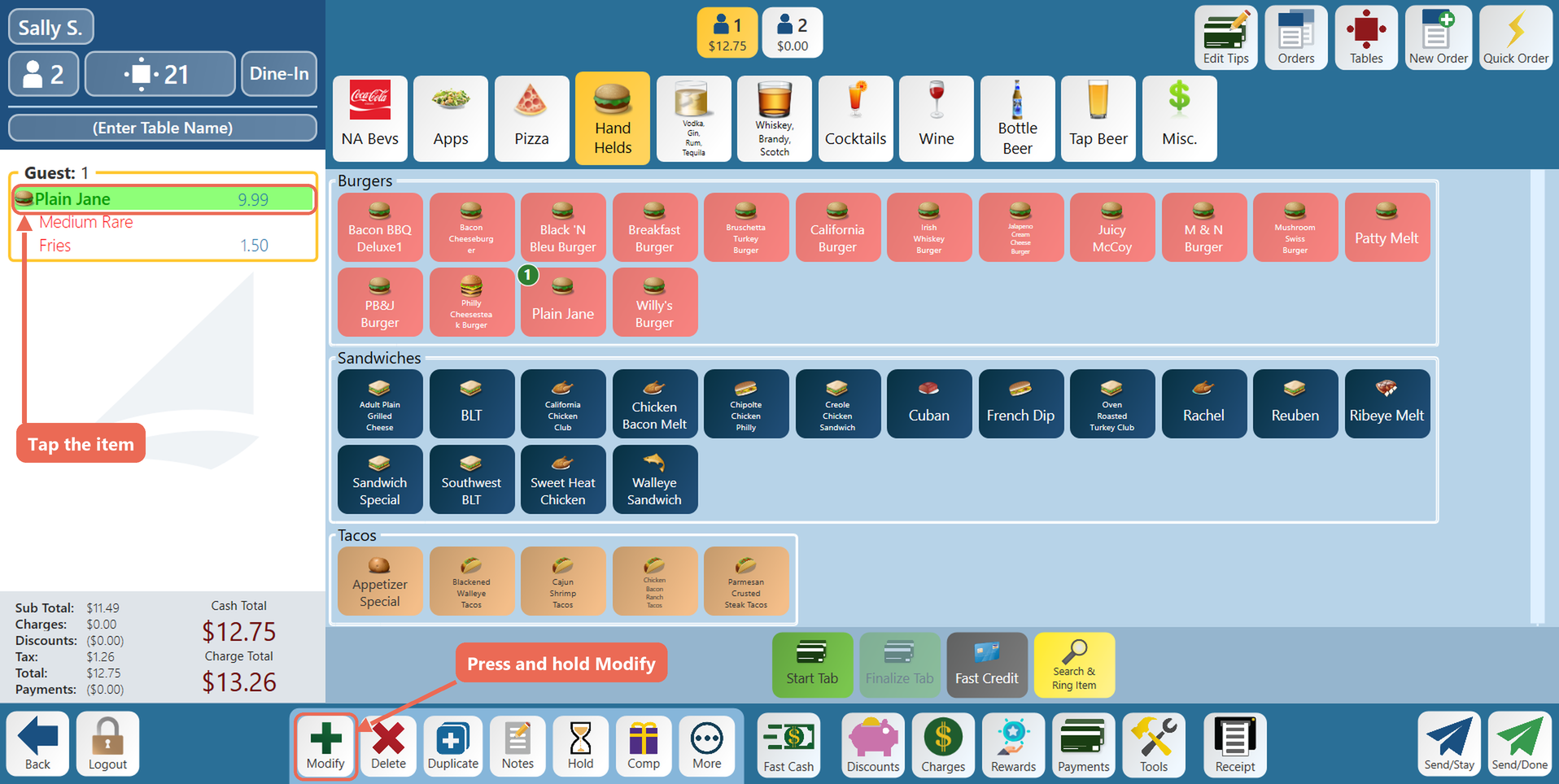
Go through all the prompts again: press and hold Modify
1. Tap the item on the order, then press and hold Modify on the bottom toolbar.
2. The item's prompts open again, starting with the first one. The answer the item has now is gold. Tap another choice to change it, or tap Done to keep it and go to the next prompt.
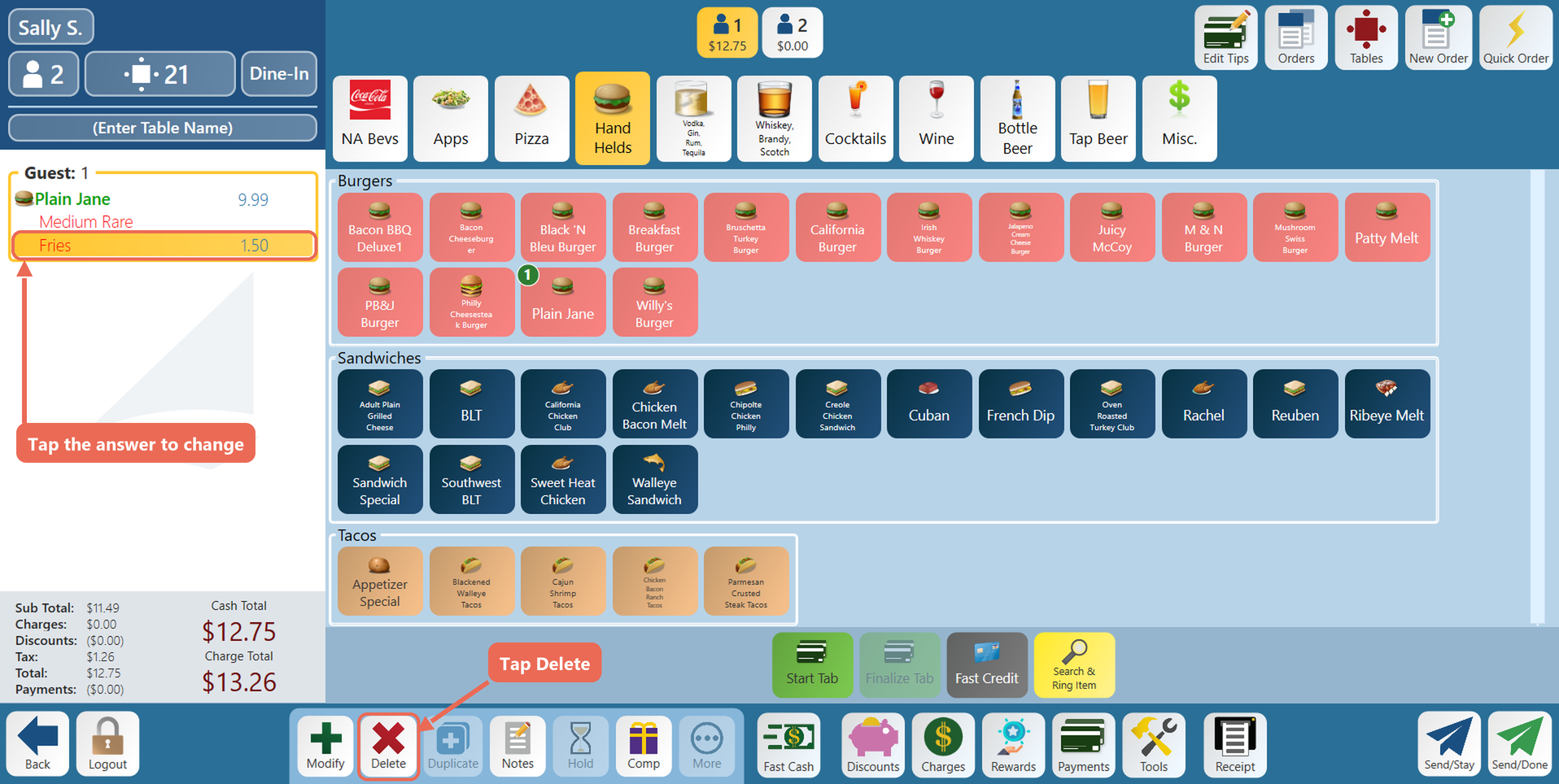
Change one answer: delete it
1. If you know which answer to change, tap it on the order (like Fries), then tap Delete on the bottom toolbar.
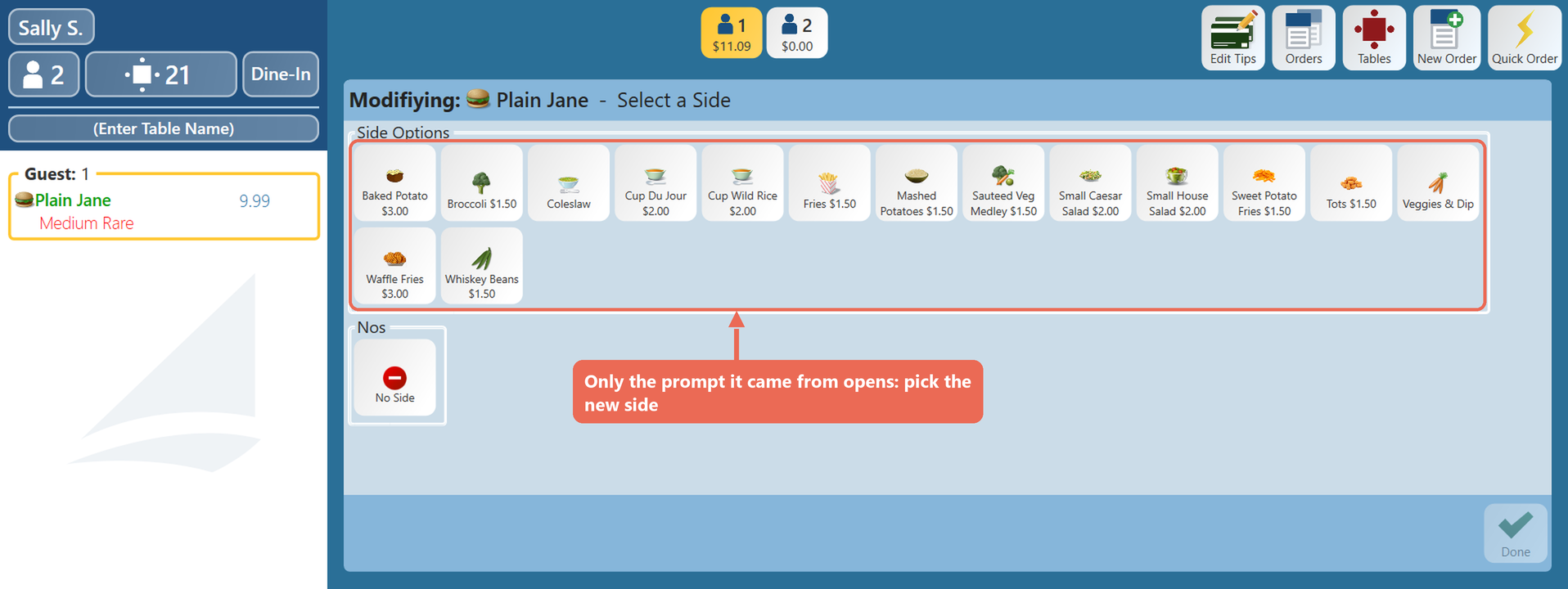
2. The answer comes off the item, and only the prompt it came from opens (Fries came from Select a Side). Pick the new answer.
From the Modify screen: Prompted
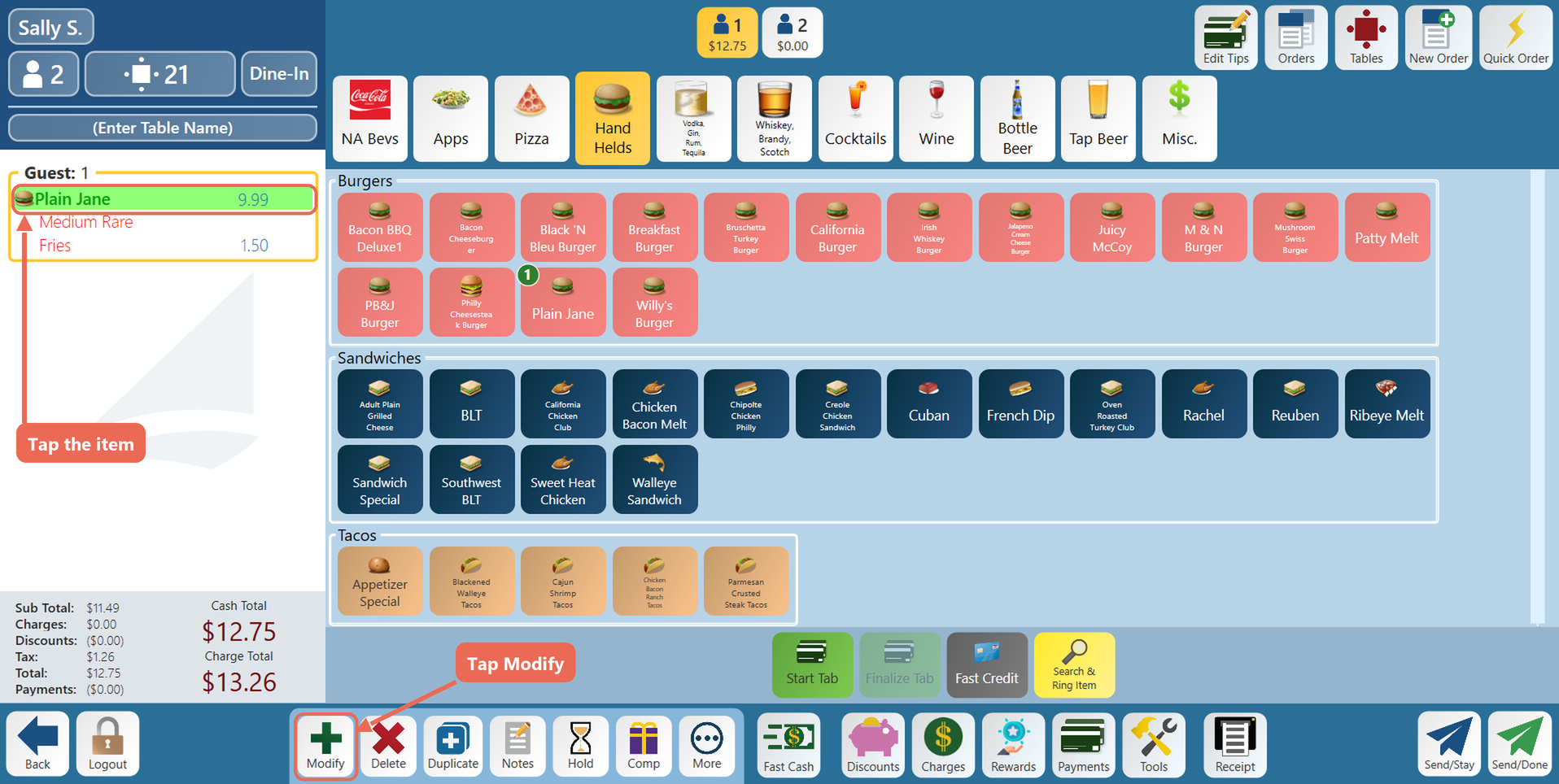
1. Tap the item on the order, then tap Modify.
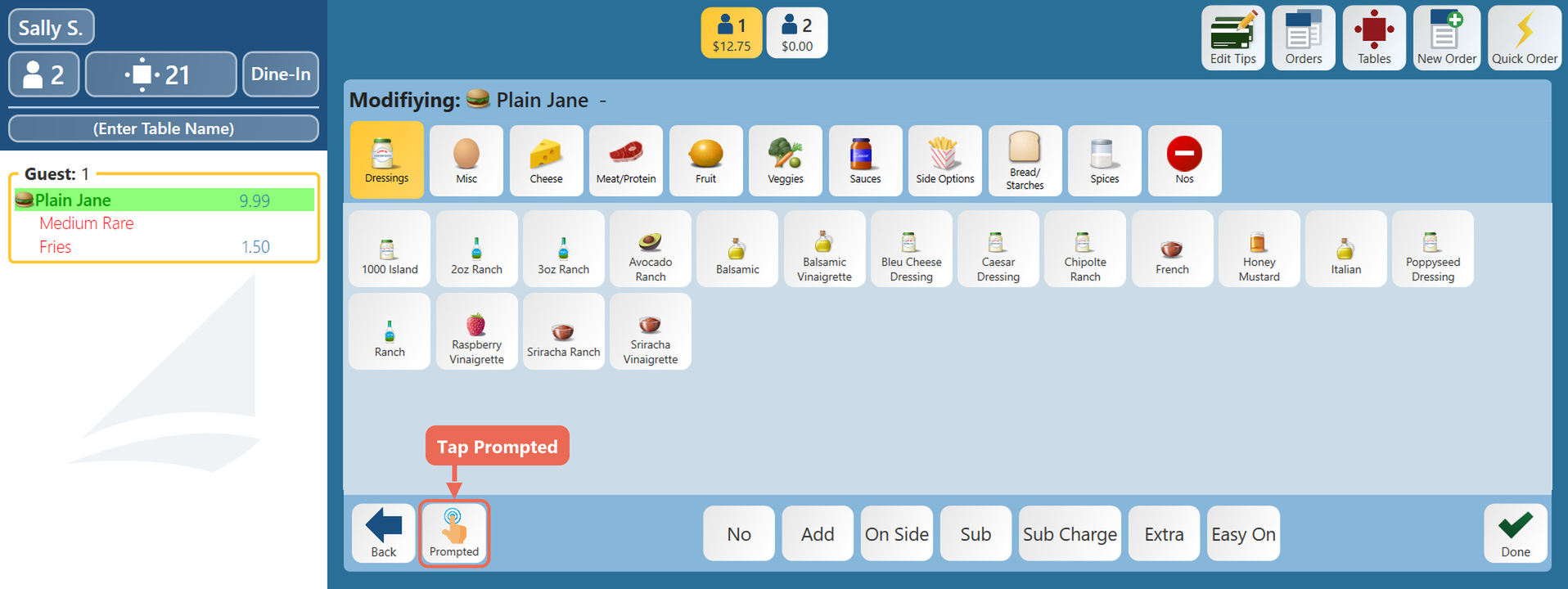
2. Tap Prompted. The item's prompts open again, the same as when you press and hold Modify.
Using the Hot Mod buttons
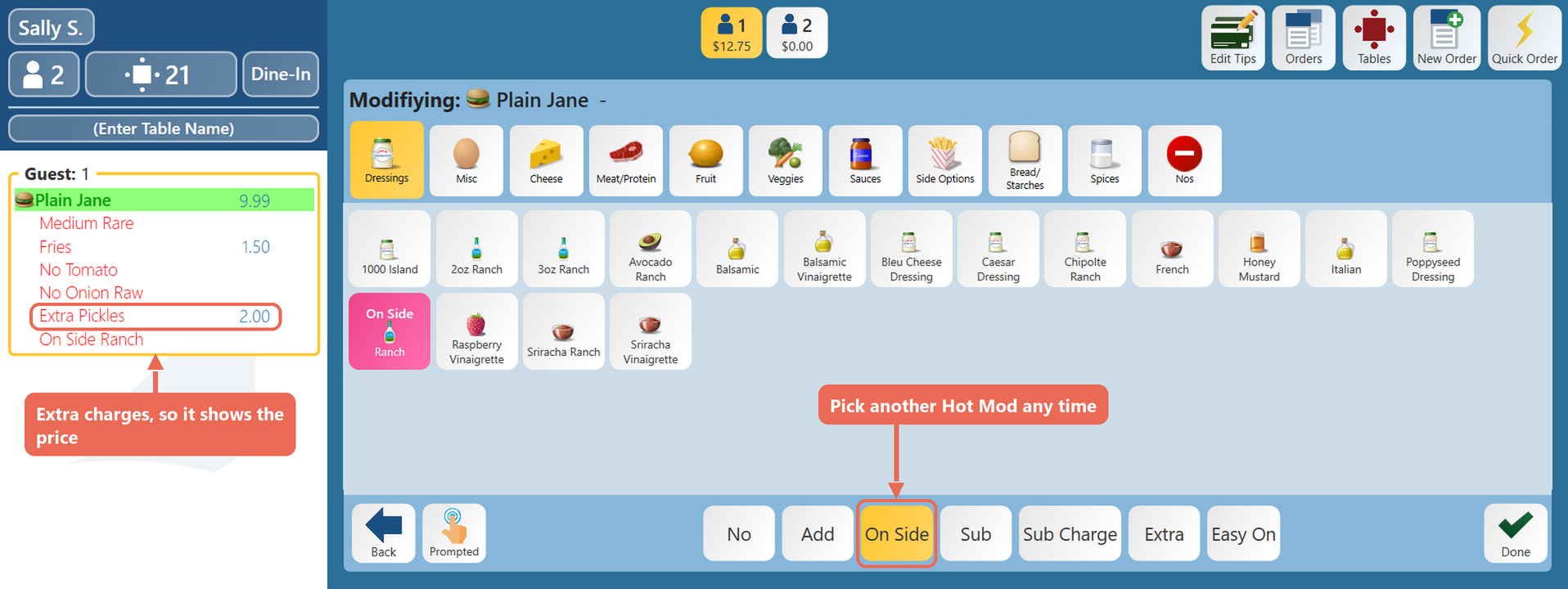
1. Tap the item on the order, then tap Modify (as in the picture above).
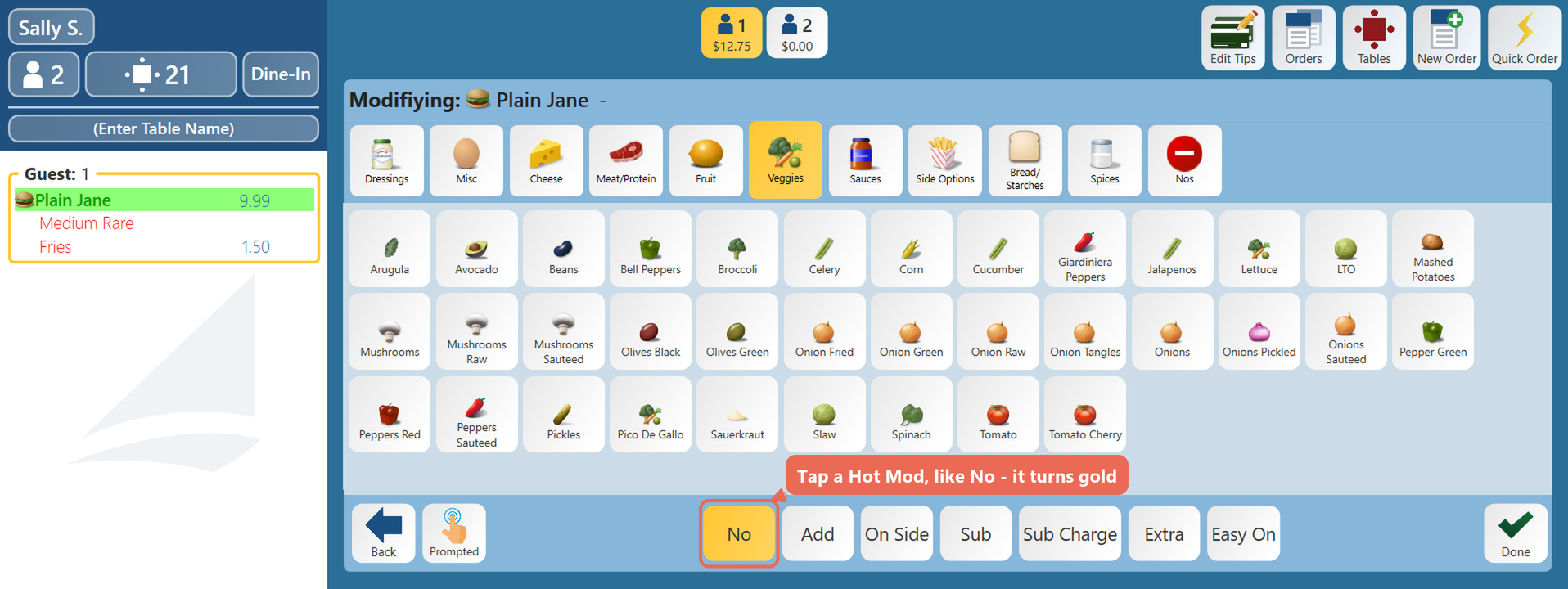
2. Tap a Hot Mod button, like No. It turns gold.
3. Tap each ingredient it's for. The Hot Mod stays picked, so you can tap as many ingredients as you need, on any of the tabs, without tapping it again. Each one shows on the item, like "No Tomato". Tapped the wrong ingredient? Tap it again to take it off.
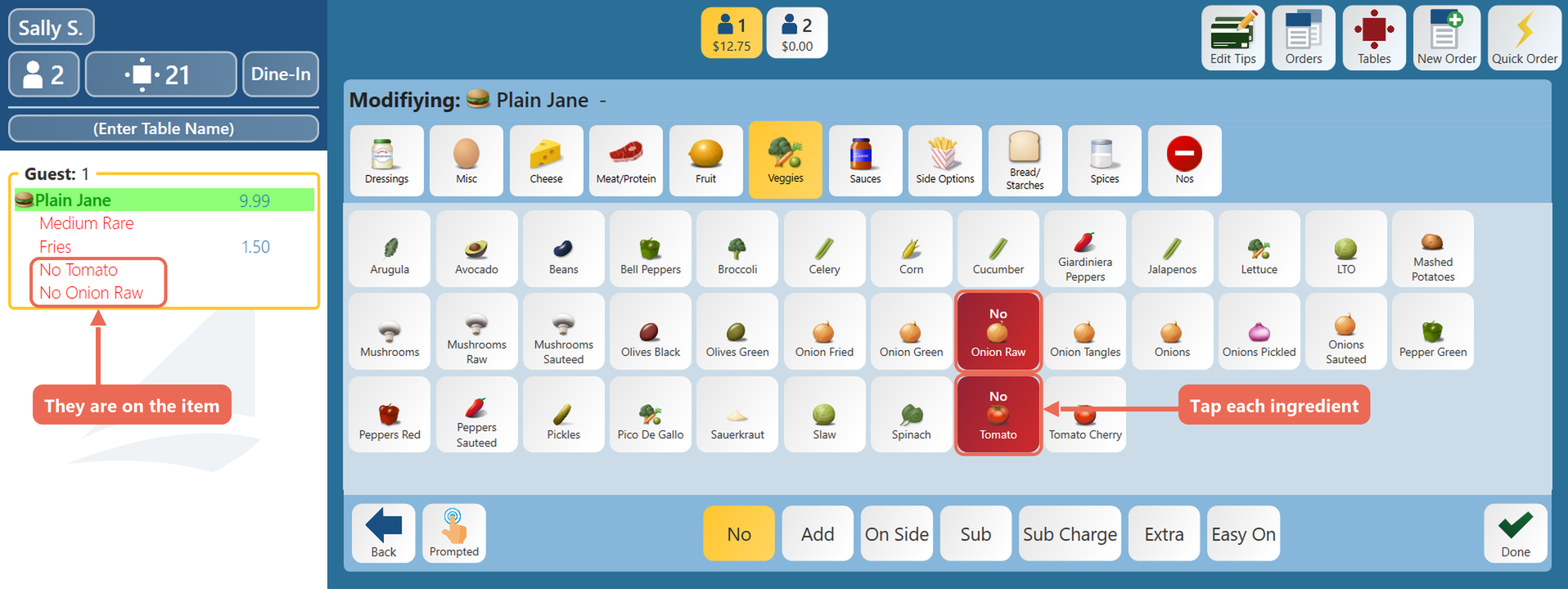
4. To use another Hot Mod, tap it, then its ingredients. A Hot Mod that charges shows the price on the ingredient buttons and on the order.
5. Tap Done.
The Hot Mod buttons
Hot Mods are set up in Backoffice in Modifier Types, so they can be any words your business wants. Each modifier set uses one modifier type, and its Hot Mods are the buttons you see. These are the ones for ingredients on the Modify screen in our example:

- No: leave the ingredient off.
- Add: add an ingredient the item doesn't come with. It charges the ingredient's price.
- On Side: the ingredient on the side. No charge.
- Sub: swap in this ingredient for another one. No charge.
- Sub Charge: swap in this ingredient for another one, and charge for it.
- Extra: more of the ingredient. It charges the ingredient's price.
- Easy On: just a little of the ingredient. No charge.
Note: Your Hot Mods may have other names, more or fewer buttons, or different charges.
Other kinds of Hot Mods
Other modifier types have their own Hot Mods, used the same way: tap the button, then the choices it's for. The usual ones are:
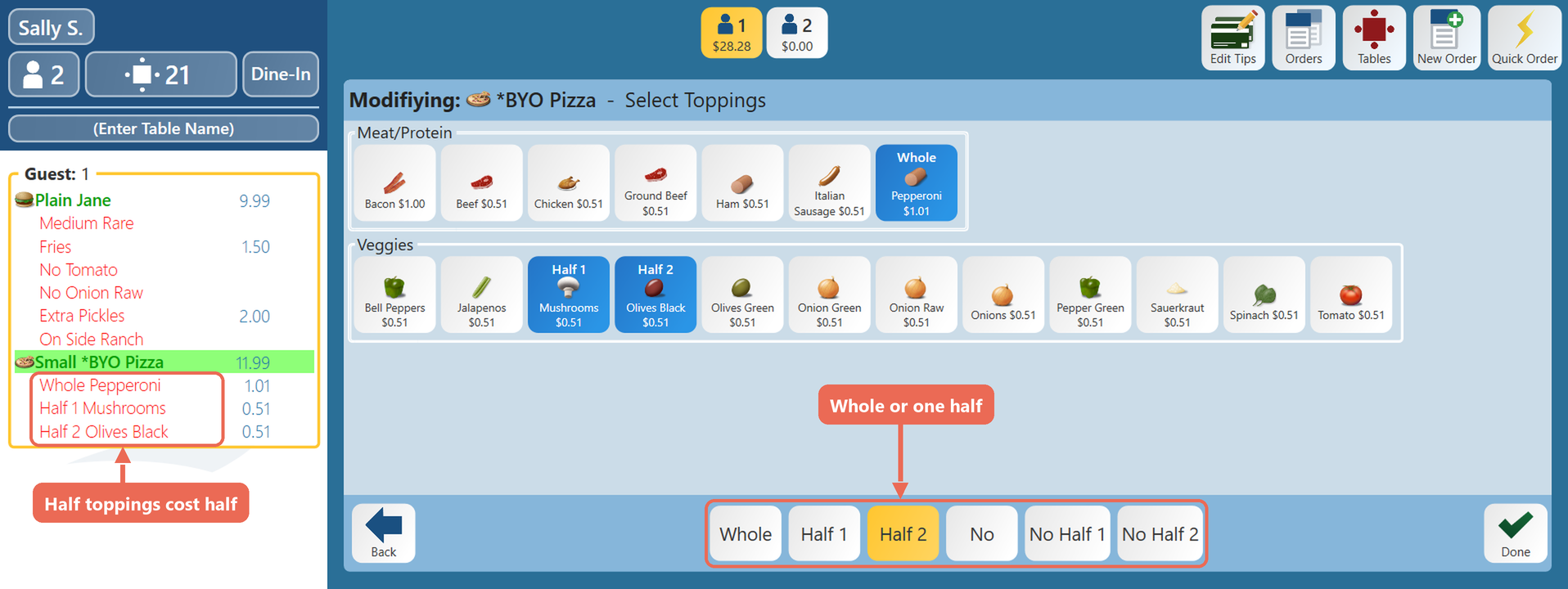
Pizza toppings: Whole puts a topping on the whole pizza, Half 1 and Half 2 on one half, and No, No Half 1 and No Half 2 take a topping off. A topping on one half costs half the price.
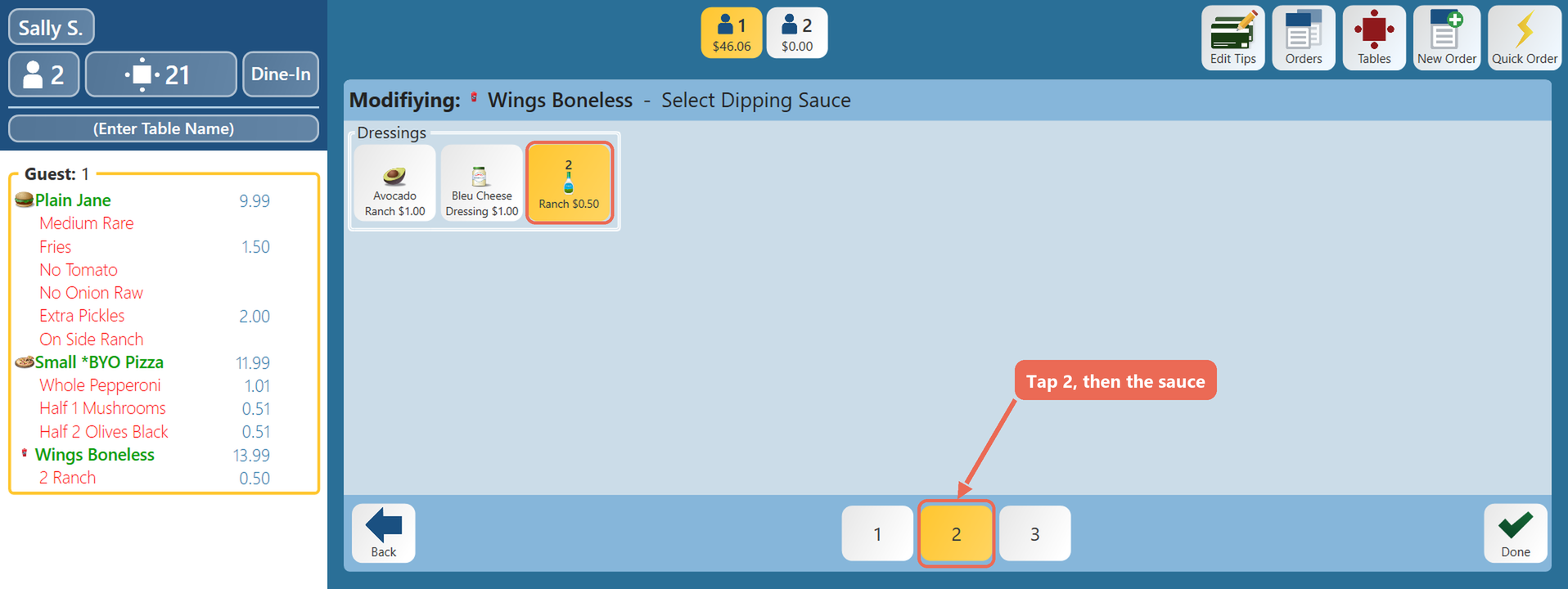
Quantity: 1, 2 and 3 say how many of a choice the guest wants, like 2 Ranch with the wings.
Click here to learn more about modifying an item.
Click here to learn more about setting up modifiers in Backoffice.