
Editing an employee
EmployeeEach informationemployee's inrecord Ingagehas Schedulingfour istabs: primarilyDetails, managedJob throughroles, Sail Backoffice. Most employee details must be updated in BackofficeAvailability and willSign-ins. automaticallyOpen sync to Scheduling.
Scheduling is mainly used for managing availability and a small set of scheduling-specific employee details.
Where to Find Employees in Scheduling
Employees can be accessedit from theConfiguration, ConfigurationEmployees: menu.
To view employees:
Go to Configuration → Employees
This screen displays all employees synced from Sail Backoffice. From here, managers can view employee information and open individual employee records.
Two ways to open an employee:
ClickOpen onthetheiremployeerow,you want to edit and select View along the topOror double-clickon the employee you want to edit
it.
Employee Details & Job Roles Tabs
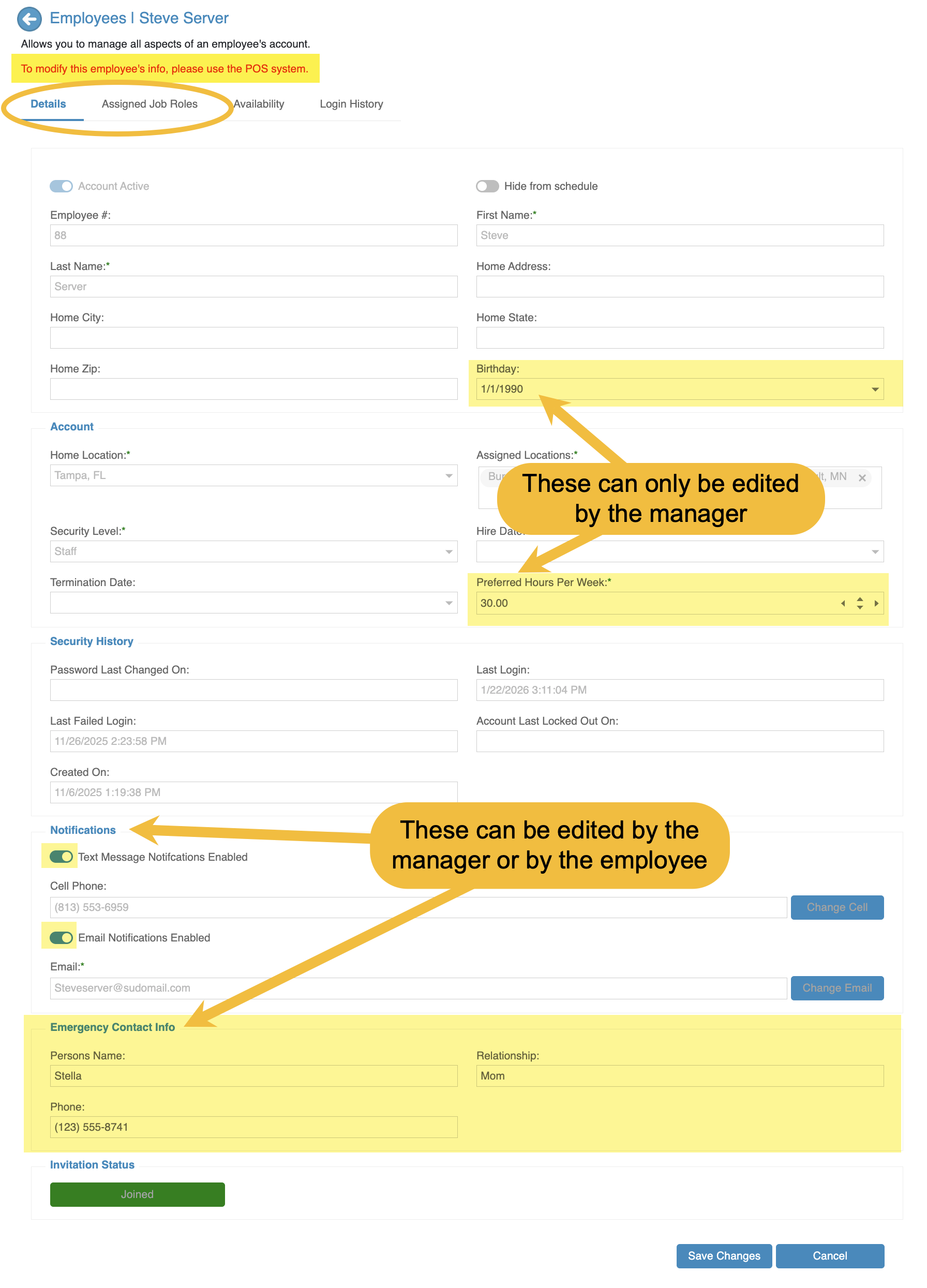
Most employee information is read-only in Scheduling and must be managed in Sail Backoffice.
EmployeeIf Detailsyour Tabrestaurant uses Sail POS,
Only the following fields can be edited in Scheduling:
BirthdayPreferred hours per weekEmergencyname, contactinformationdetails(Thisandcanjobalsorolesbecomeedited by the employee in their account settings)
All other fields on this tab are managed infrom Sail Backoffice and willcan't syncbe automatically.changed here. You can still change their birthday, their preferred hours and their availability.
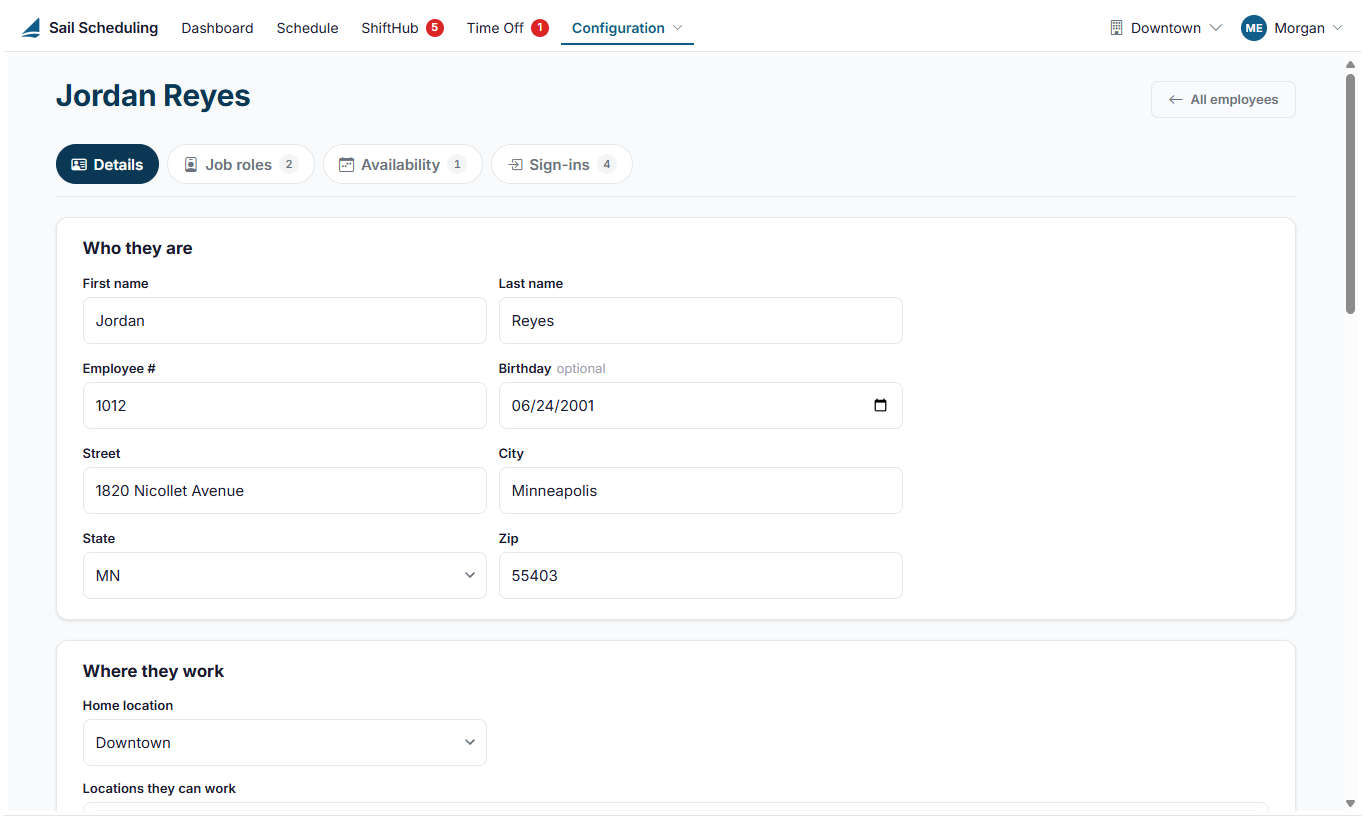
Details
- Who they are: name, employee number (for payroll or a badge), birthday and home address.
- Where they work: their home location and every location they can work at. Their home location decides which managers review their time off.
- Their time here: hire date and termination date. The hire date is shown to managers deciding who gets an open shift.
- Their account: whether they can sign in (Account Active), and their invitation.
- How we notify them: whether they get email and text messages. Use Change email and Change number to update them. Their email address is how they sign in.
- Emergency contact, and Account history: when they were added, last signed in, last changed their password and last failed to sign in.
Click Save changes at the bottom when you're done.
AssignedWhat
Jobthey Rolescan Tab
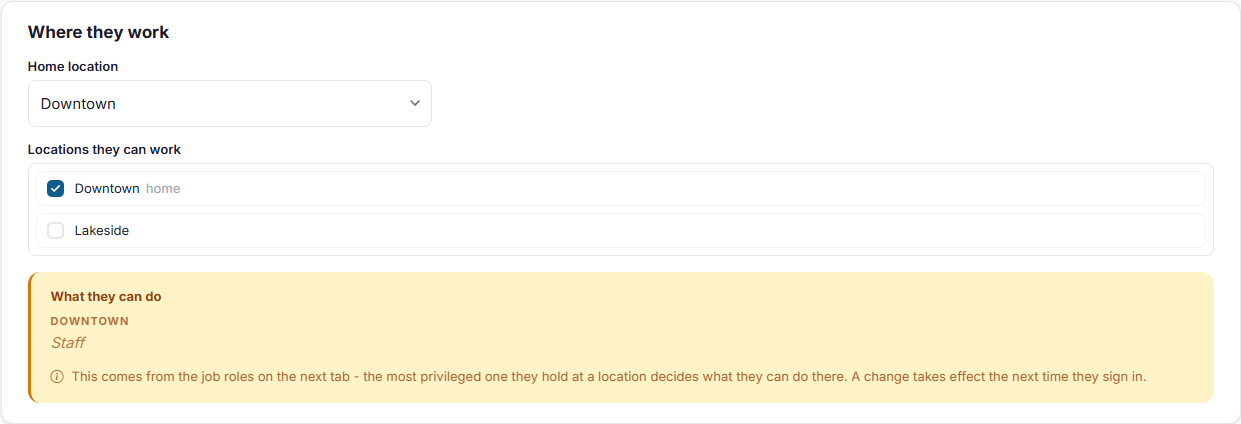
The Jobyellow RolesWhat tabthey iscan fullydo managedbox inshows Sailwhether Backoffice.Jobthey're roleStaff, assignments,a departments,Manager andor permissionsan cannotAdministrator beat editedeach inlocation. Scheduling.
Ifdon't changesset arethis neededdirectly: toit comes from their job roles. orEach job role access,grants one of the three, and the highest one they musthold beat madea inlocation Sailis Backoffice.what they can do there. A change takes effect the next time they sign in.
Job roles Availabilityand Tab
pay
The AvailabilityJob roles tab islists thewhat primary area managers will use when editing employees in Scheduling.
Availability defines when an employeethey can be scheduled as, with their skill level, their pay, and mustwhere beit maintainedapplies.
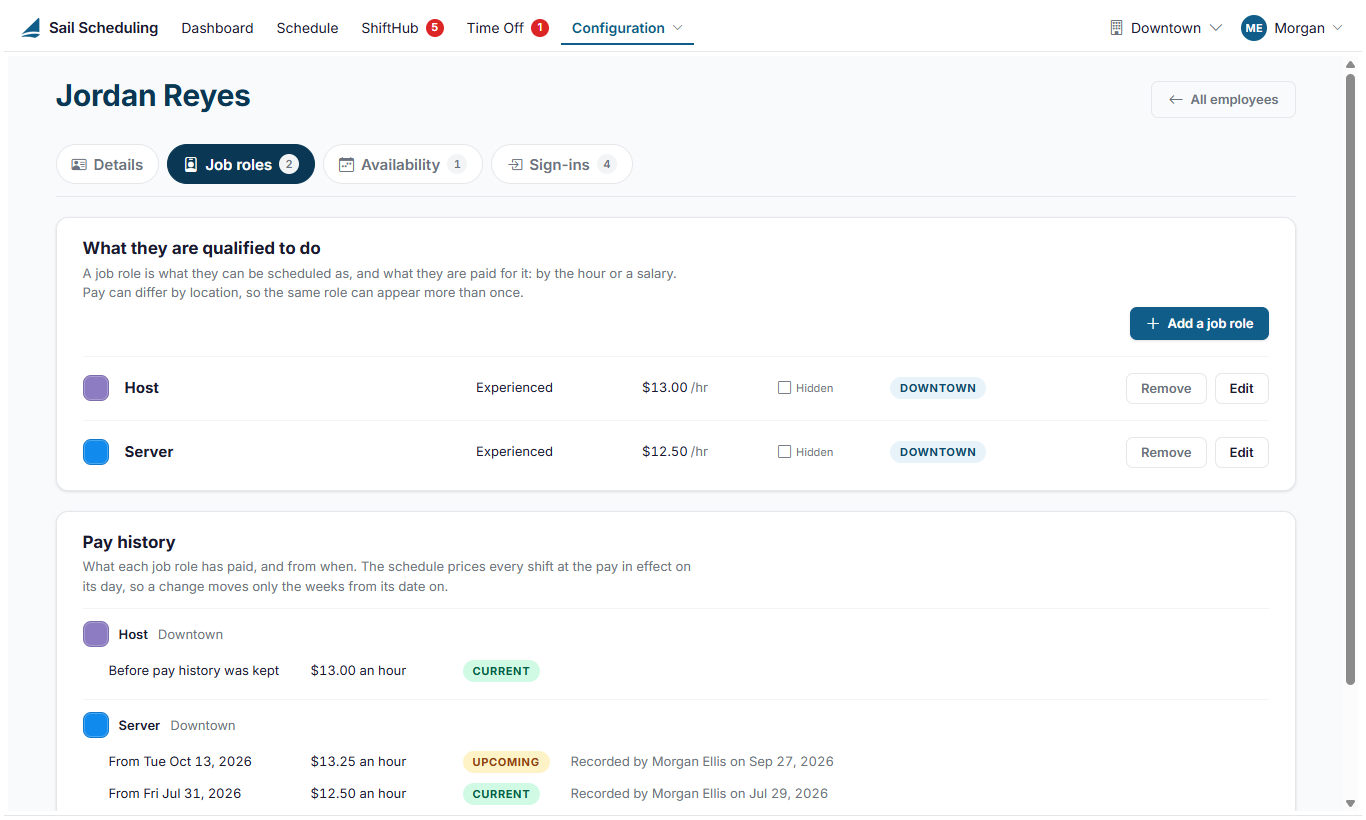
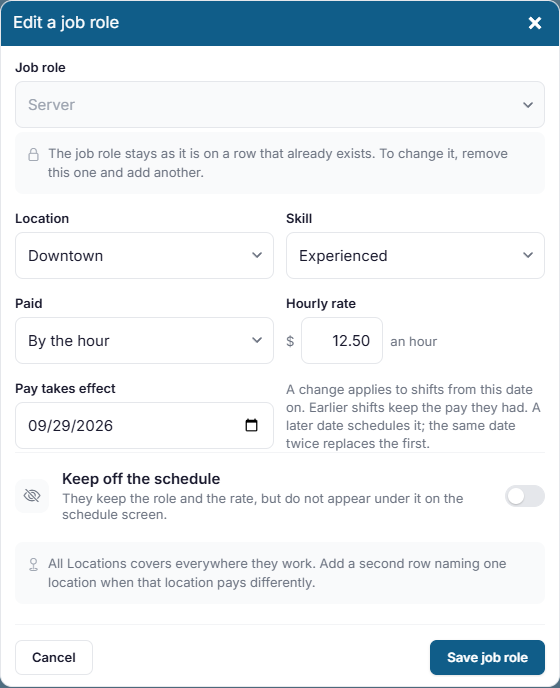
Click Add a job role, or Edit on one they already have:
- Job
:Employeesrolecannotwhat they'll be scheduled as. It can't be changed on a role they already have; remove it and add the new one instead. - Location: All Locations covers everywhere they work. If one location pays differently, add the same job role again for just that location, with its own pay.
- Skill: their skill level in this job role, such as In training or Trainer.
- Paid: By the hour with an hourly rate, or a Salary with an annual amount.
- Pay takes effect: the date the pay applies from. It starts on today. Pick an earlier date to correct pay from then, or a later one to schedule a raise ahead of time. Shifts before that date keep the pay they had. A job role you're adding starts on its pay today or earlier: to schedule a raise for it, add it first, then edit
theiritownandavailabilitypick the later date. - Keep
:Availabilityoffmustthebescheduleenteredthey keep the job role andmaintaineditsbypay,managersbut don't - appear
Availabilityunderappearsit on theschedule to help guide scheduling decisions
Click Save job role. You can't give someone a job role that would let them do more than you can yourself.
HowPay to Enter or Edit Availability
history
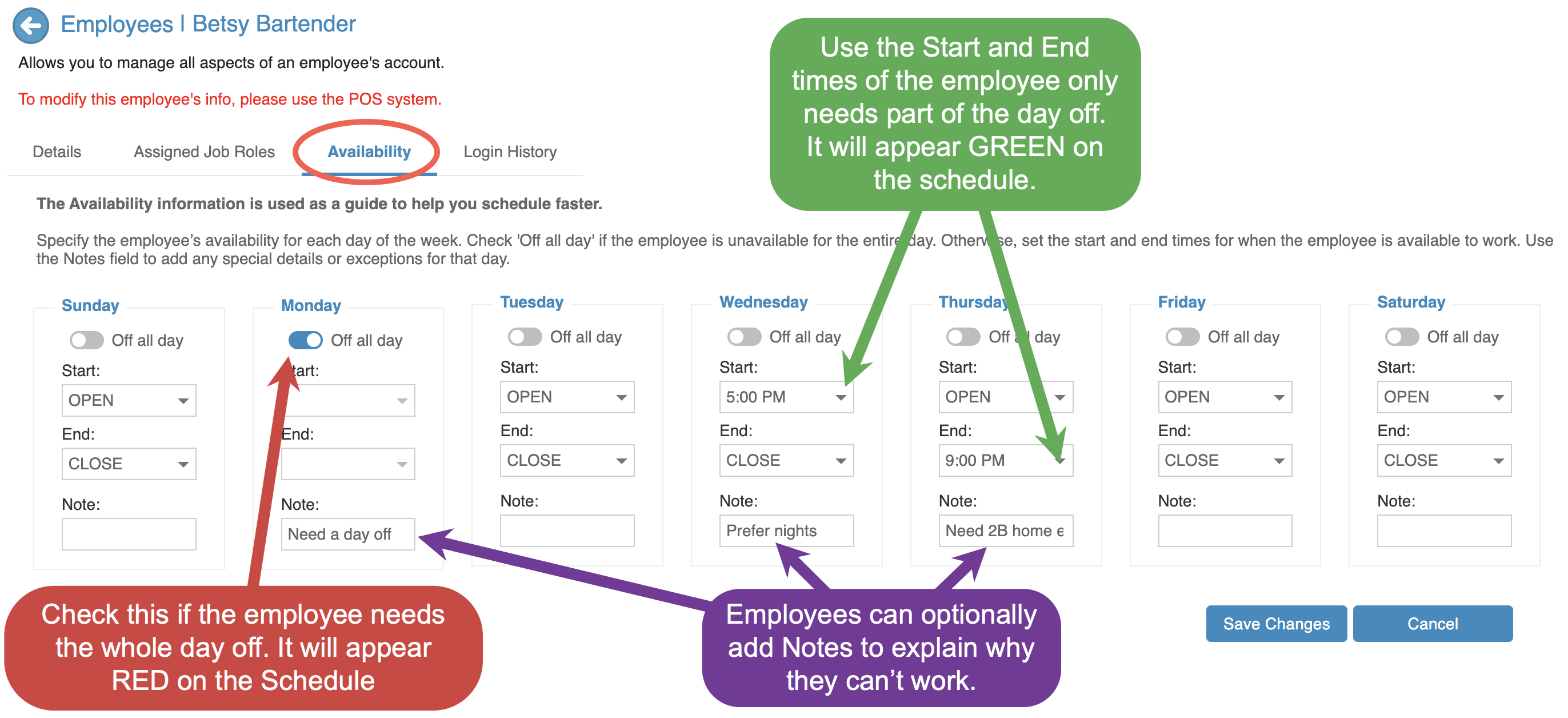
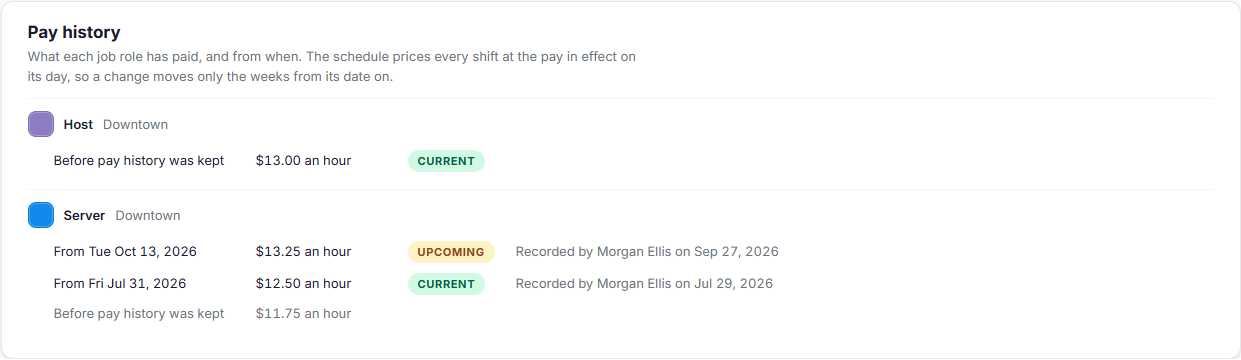
Pay history can't be edited. To enterfix ora updatemistake, an employee’s availability:
roleOpensave theemployeejobrecordagain
payGo towith theAvailabilityrighttabSpecifyand theemployee’same date: it replaces what was recorded for that date.Salaried employees
For someone on a salary, the schedule's
availabilityprojectedforlabor cost counts their salary a day at a time: the annual salary divided by the days in the year, on each day of theweek:week.Availability
CheckTheOffAvailabilityalltabdayrecordsifwhenthetheyemployeecaniswork.unavailableEmployeesfortellthe entire dayOtherwise, set the Startyou, andEndyoutimesrecordforitwhenhere.theIt'semployee is available to work
Use the Notes field to add any special details or exceptions for that dayExamples include preferred shifts, school schedules, or limited availability
Click Save to apply your changes
Keeping availability accurate helps prevent scheduling conflicts and reduces last-minute adjustments.
How Availability Appears on the Schedule
Once saved, availability appears directlyshown on the schedule usingso coloryou indicators:can plan around it.
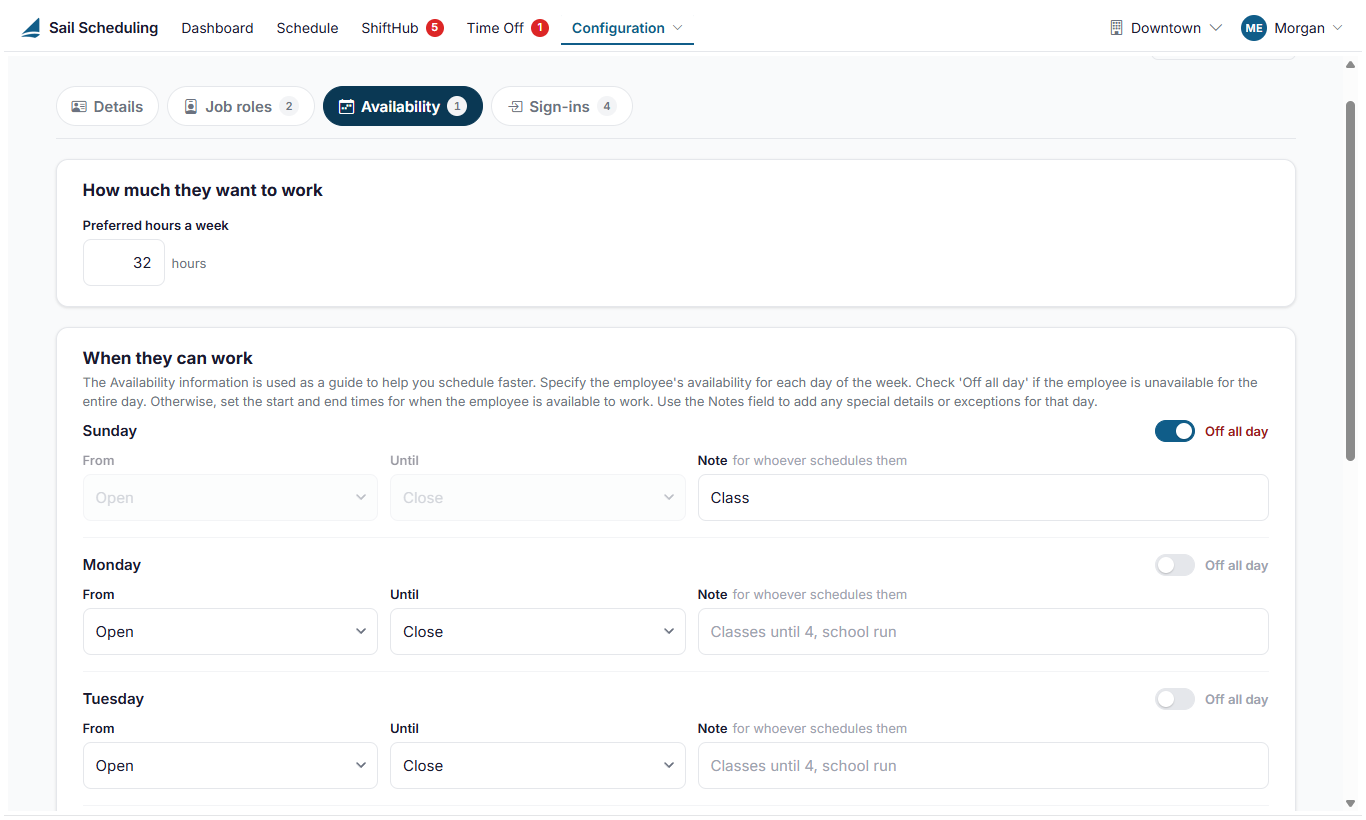
- Preferred
:GREENhoursindicatesapartialweekavailabilityhow much they'd like to work. - For
(Open to Close means any time).REDeachindicatesday, switch on Off all day if they can't work at all, or pick theemployeehoursis notthey're available - Add a Note for whoever schedules them, such as Classes until 4. The note stays even on a day they're off.
HowAvailability itis looksa guide. The schedule shows it, but doesn't stop you from scheduling someone outside it.
Sign-ins
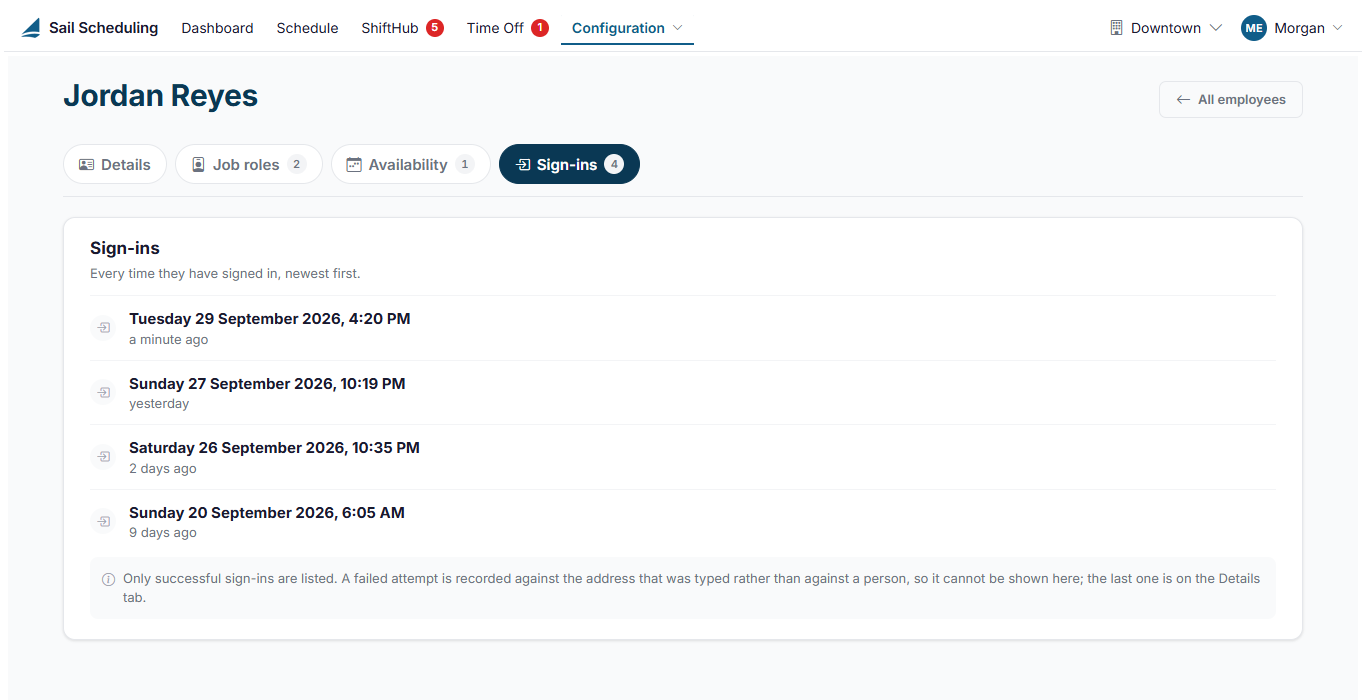
The Sign-ins tab lists every time they've signed in, newest first. Only successful sign-ins are listed. The last failed attempt is on the scheduleDetails tab, under Account history.

Availability
Good notesto enteredknow
- You can't take a location off someone while one of their job roles has pay set for that location. Change or remove that job role first.
- A person's record is shared: if they also work for another company that uses Sail Scheduling, they sign in with the
employeesamerecordemailareaddress,visiblebutwheneachschedulingcompany keeps its own details, job roles andhelpavailabilityguideforshiftthem.
Availability indicators are informational and help managers avoid conflicts, but they do not prevent scheduling if adjustments are needed.
How it looks in Shift Editor:
