
House shifts and open shift pickup
A house shift is a shift you know you need but haven't given to anyone yet, like an extra server for Saturday lunch. Put it on the schedule now and fill it later: give it to someone yourself, or publish it and let your team ask to pick it up.
You need to be a Manager or Administrator at the location to add and assign house shifts, and ShiftHub rights to approve pickups.
House shifts can be switched off. An Administrator switches them on or off for the whole company on the Settings page, and for one location on the Locations page. A location has house shifts only while both are on. Switched off, its schedule has no House shifts rows, nothing offers to make a shift a house shift or unassign one, and every shift needs somebody on it. They can only be switched off when no house shift is still to come.
Where house shifts live
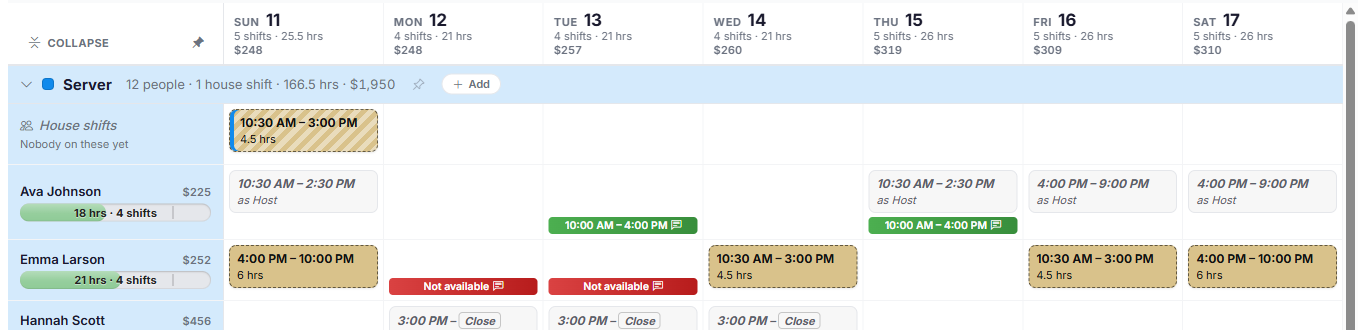
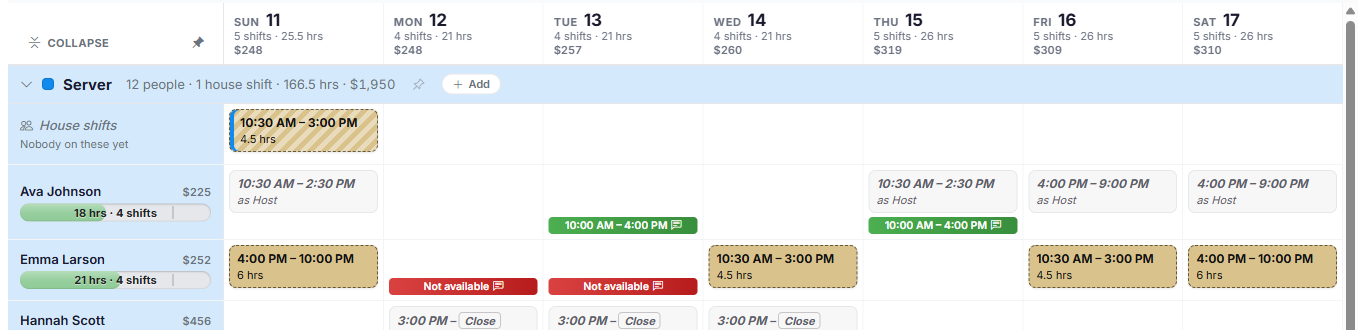
Every job role on the schedule starts with a House shifts row, above the employees who work it. A house shift is drawn with diagonal stripes: tan while it's unpublished, blue once it's published and open for pickup.
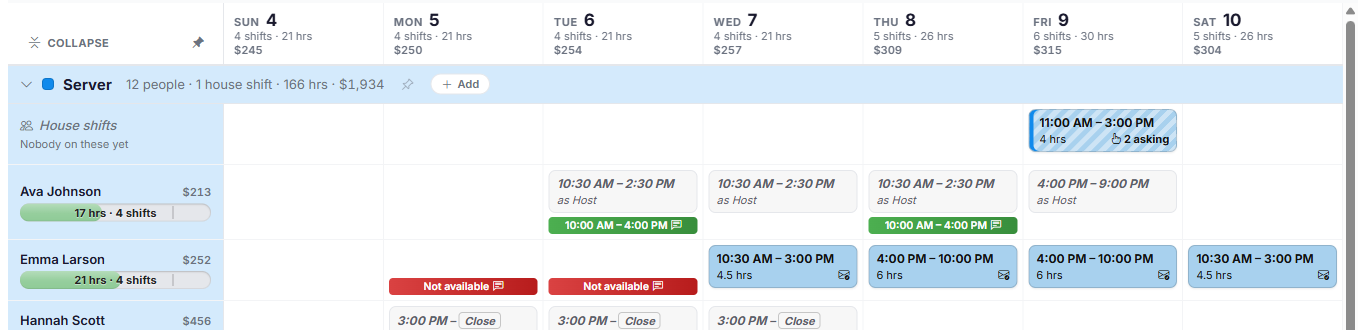
House shifts count toward each day's shifts and hours at the top of the schedule, so you can see your coverage. They don't add to labor cost until someone is on them.
Add a house shift
There are three ways to add one:
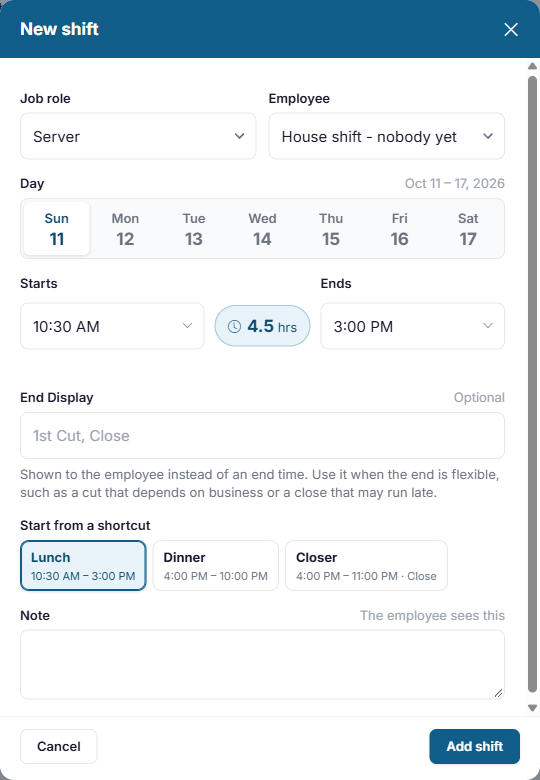
- From the form: click an empty day on the House shifts row, or click + Add beside a job role, and choose House shift - nobody yet as the employee. Fill in the day and times as for any shift.
- Take someone off a shift: click the shift and choose Unassign. The shift moves to the job role's House shifts row. This works on a published shift too, so if someone can no longer work a shift, it can go straight up for pickup.
- From a template: house shifts saved in a schedule template come back as house shifts when you apply it.
Give a house shift to someone
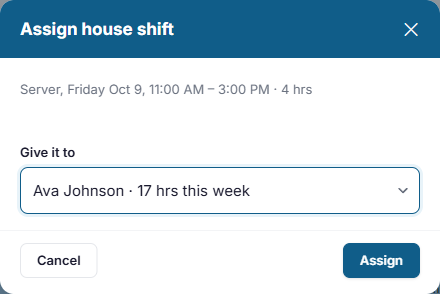
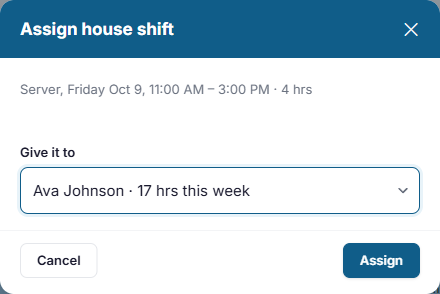
Click the house shift and choose Assign to…. The list shows everyone who works that job role at this location, with their hours so far this week. Anyone already working at that time is listed with the shift they're on and can't be picked, and anyone this shift would put into overtime is marked overtime. Pick a person and click Assign.
You can also drag a house shift onto an employee's row in the same job role.
Assigning works on a published house shift too, without unpublishing the week. If people had asked to pick it up, their requests are closed and they're told it has gone, by email, text message or a notification in the app, depending on their settings. If you give it to one of the people who asked, their request is approved and they're told the shift is theirs.
Open house shifts for pickup
When you publish a house shift that still has nobody on it, it becomes an open shift. Anyone who works that job role at this location, and isn't already working at that time, can see it and ask for it, either in the app or under Up for grabs in My ShiftHub on the website. When it's published, everyone who could pick it up gets a push notification in the app.
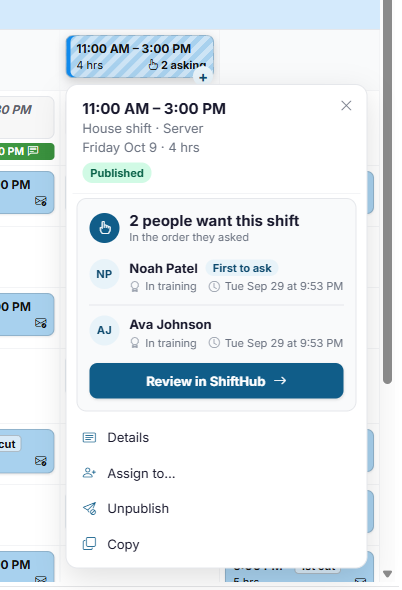
On the schedule, an open shift that people have asked for shows how many are asking. Click it to see who: everyone asking, in the order they asked, with their skill level in that job role and when they asked. When several people are asking, the first is marked First to ask. Hover over the shift to see their names without clicking. Review in ShiftHub takes you to ShiftHub, where you decide.
Approving pickups
Pickup requests are reviewed in ShiftHub, beside shift swaps and give-aways, and they're counted in ShiftHub's red badge at the top of the page. Each open shift is one card, however many people are asking. The card lists everyone asking in the order they asked, with their skill level in that job role and how long they've worked for you. Approve the person you want: the shift is theirs, and everyone else asking is told it has gone. See Reviewing ShiftHub requests for the details.
Approval, or first come, first served
An Administrator decides how pickups work, on the Settings page under Configuration, just below the switch for house shifts themselves:


- On (the default): a pickup is a request, and it waits in ShiftHub until a manager approves or rejects it.
- Off: the first person to pick up an open shift gets it straight away, and the location's managers are told by email.
Good to know
- A house shift stays open until it starts. Once it has started, nobody can pick it up.
- If you fill or unpublish an open shift on the schedule, anyone who asked for it is told it's no longer available, by email or text message (depending on their settings) and in the app, and sees it in My ShiftHub.
- Staff members looking at the schedule don't see house shifts there. They only see the open shifts they can pick up, in the app and in My ShiftHub.
- House shifts are never sent with Send published shifts to employees, because nobody is on them yet.