
Job roles and departments
A job role is what people are scheduled as: Server, Line Cook, Bartender. Each one belongs to a department, has its own color on the schedule, and decides what the people who hold it are allowed to do in Sail Scheduling.
Only Administrators can change job roles and departments. Open them from Configuration, Job Roles and Departments. Both are company-wide: the same job roles are used at every location.
If your restaurant uses Sail POS, job roles and departments come from Sail Backoffice. They're read-only here, except for each job role's color on the schedule.
Departments
Departments group job roles, however you divide the work: Kitchen, Front of House, Bar. Every job role belongs to exactly one. On the schedule, you can filter to one department at a time.
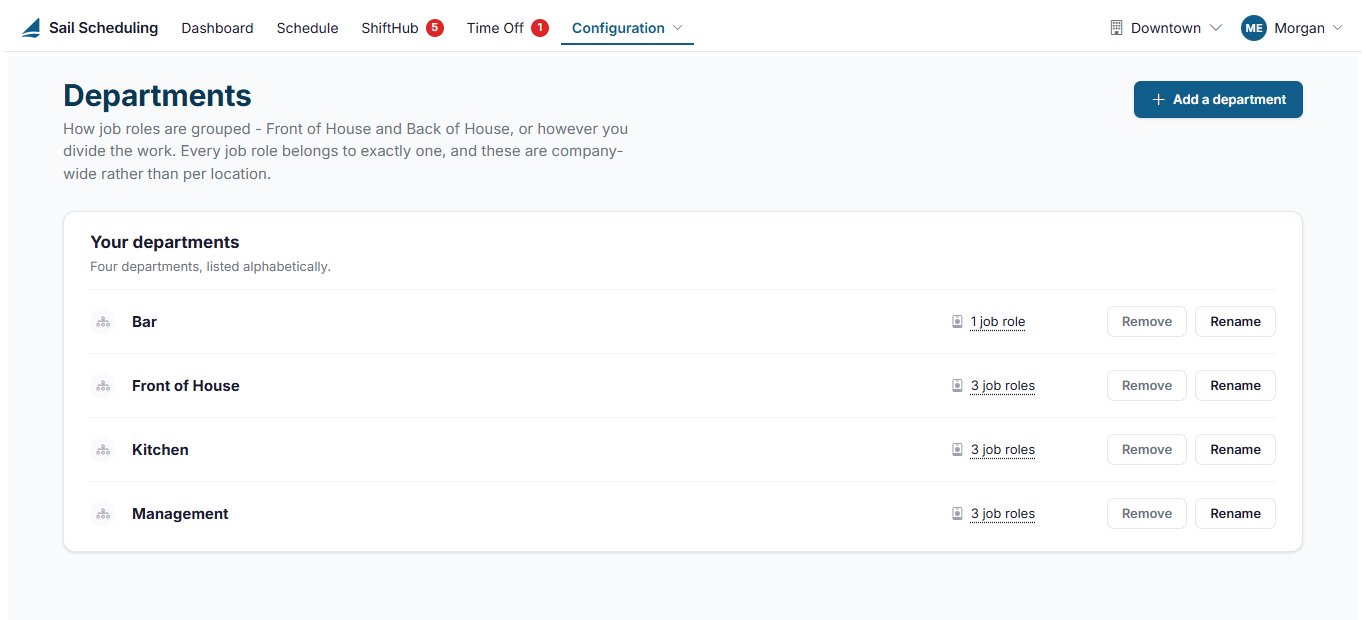
- Click Add a department and type its name. You need at least one department before you can add a job role.
- Click Rename to change a name everywhere it appears.
- Click Remove to take one away. Its job roles carry on working, but the department is no longer offered in the schedule's department filter. Move its job roles to another department first.
Job roles
The Job roles page lists every job role, grouped by department. Each row shows its color, the security level it grants, how many people hold it, and whether it grants time off rights, ShiftHub rights, or is hidden from the schedule. Click the number of people to see who they are.
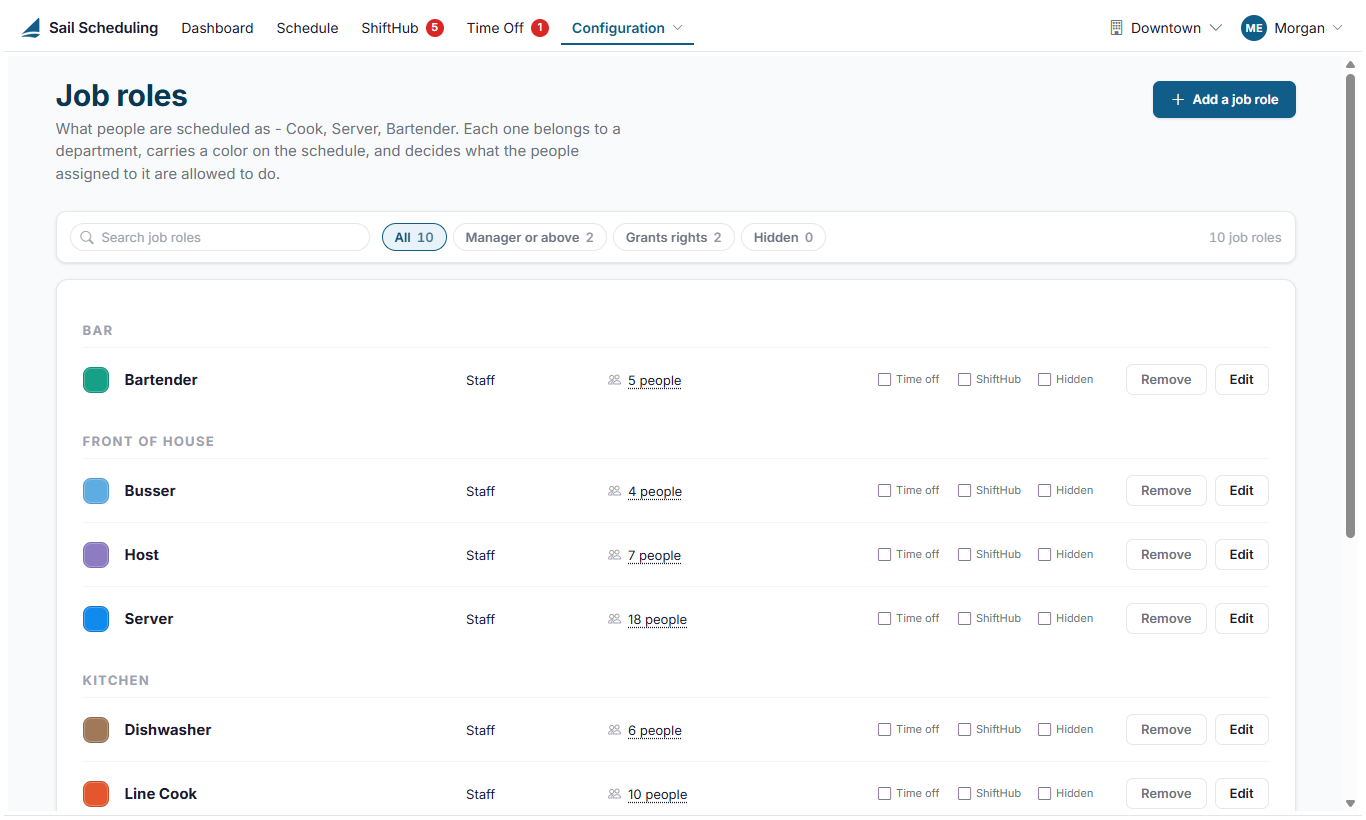
With a lot of job roles, use the search box, or Manager or above, Grants rights and Hidden, to narrow the list.
Add or edit a job role
Click Add a job role, or Edit on one, or double-click its row.
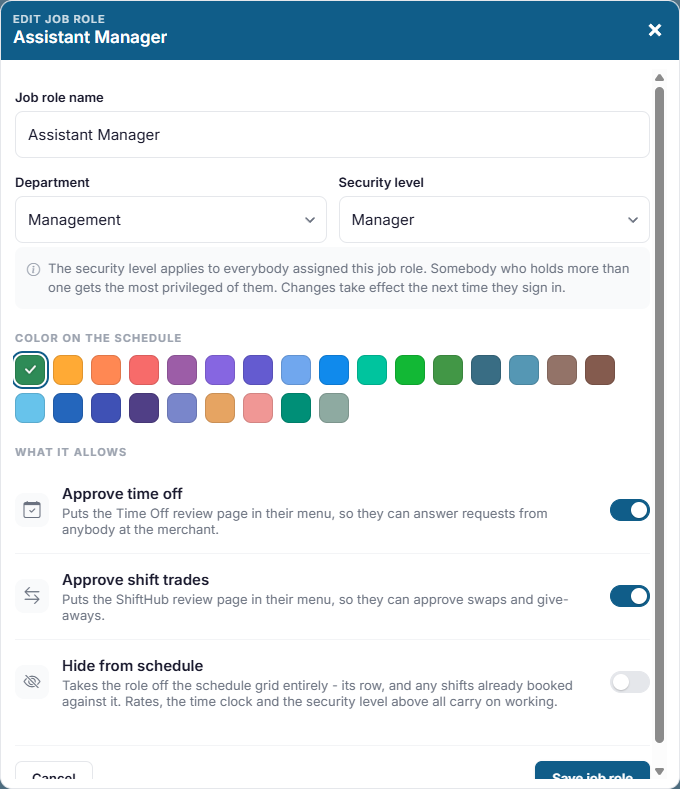
- Job role name and Department.
- Security level: Staff, Manager or Administrator. Everybody who holds this job role gets that level at the locations where they hold it. Someone who holds more than one job role gets the highest of them. A change takes effect the next time they sign in.
- Color on the schedule: how the job role is recognized on the schedule. Pick one of the colors.
- Approve time off: puts Time off review in their menu, so they can approve and deny time off requests.
- Approve shift trades: puts ShiftHub review in their menu, so they can approve swaps, give-aways and house shift pickups.
- Hide from schedule: takes the job role off the schedule entirely, its rows and any shifts already booked in it. Pay rates and the security level keep working. Use it for a role you pay but never schedule.
Click Save job role.
What each security level can do
| Level | What they can do at the location |
|---|---|
| Staff | See the published schedule and their own shifts, request time off, trade shifts and pick up open shifts. |
| Manager | Everything Staff can, plus build and publish the schedule, print it, and manage employees and shift shortcuts. |
| Administrator | Everything a Manager can, plus job roles, departments, skills, locations and company settings. |
Approving time off and shift trades is separate from the security level: it comes from the two switches above, so you can give those rights to a Staff job role such as a shift lead.
Giving someone a job role
Job roles are given to people on their employee record, on the Job roles tab, with their pay and skill level. See Editing an employee.
Removing a job role
Click Remove. The confirmation tells you how many people, shifts and shift shortcuts use it. Shifts already booked in it are kept, and show on the schedule under the job role's name marked (removed). Anyone it gave a higher security level to loses that level the next time they sign in.