
Locations
Each of your restaurants is a location. Each location has its own schedule, its own week, and its own rules for time off and overtime.
Only Administrators can change locations. Open them from Configuration, Locations. If you're an Administrator at only some locations, you see and edit just those, and can't add or remove one.
If your restaurant uses Sail POS, locations are added in Sail Backoffice, and their name, address and phone number come from there. You can still change each location's scheduling settings here.
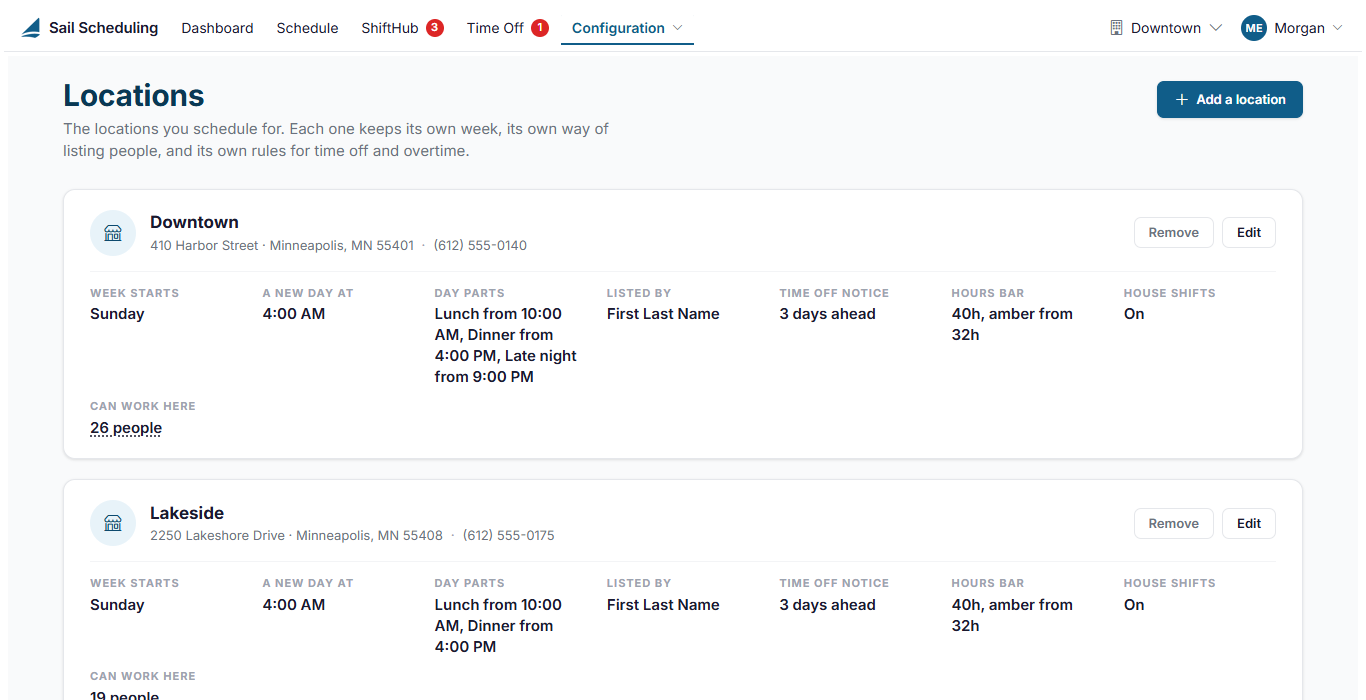
Each location's card shows its address and its settings at a glance, including whether it has House shifts (Off in Settings when they're switched off for the whole company). Can work here is the number of people assigned to it; click it to see who.
Edit a location
Click Edit on the location's card.
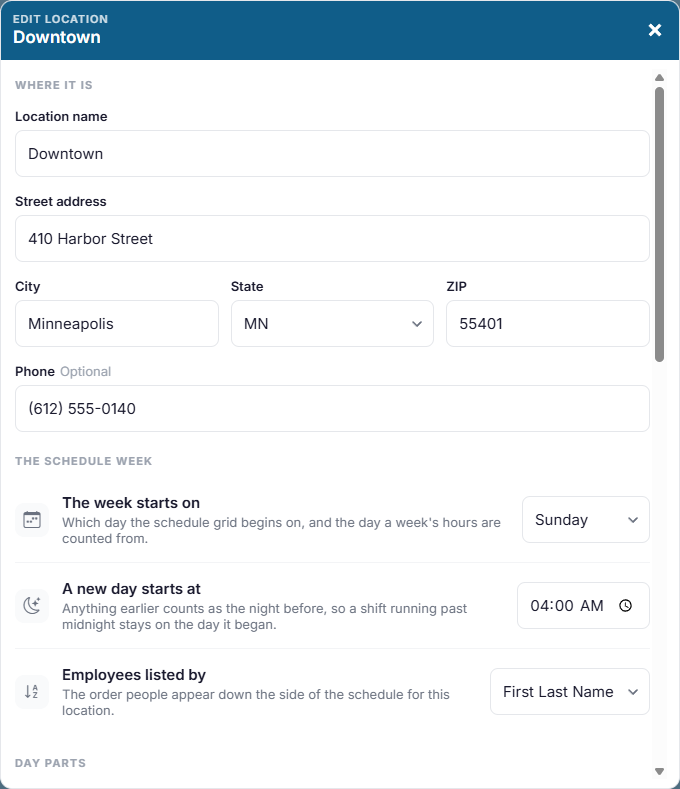
Where it is
The location's name, street address, city, state, ZIP code and phone number.
The schedule week
- The week starts on: the first day of the schedule, and the day each week's hours are counted from.
- A new day starts at: usually 4:00 AM. A shift that starts before this time belongs to the night before, so a shift running past midnight stays on the day it started.
- Employees listed by: First Last Name or Last, First Name down the side of the schedule.
Day parts
How the daily roster divides the day, such as Lunch and Dinner. See The daily roster.
House shifts
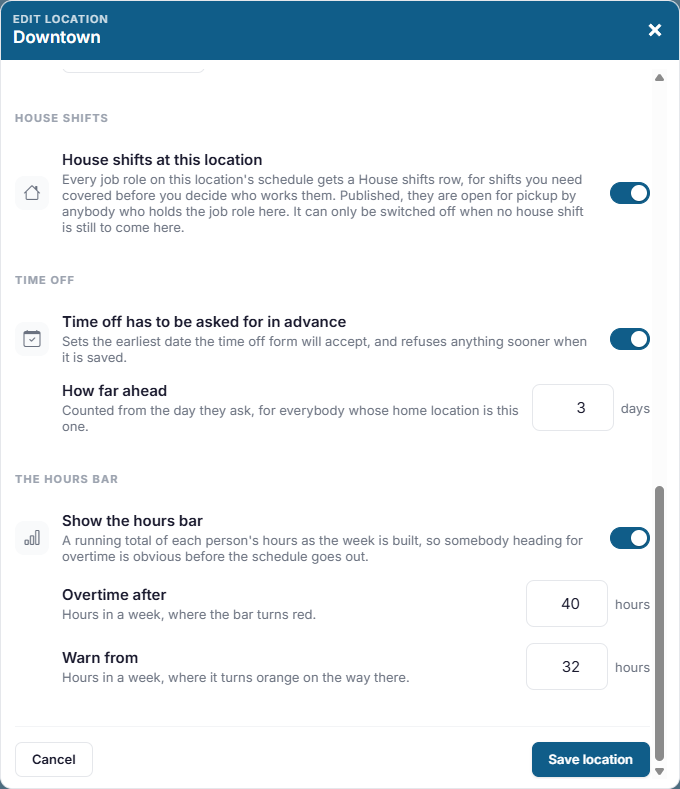
House shifts at this location: switched on, every job role on this location's schedule gets a House shifts row, for shifts you need covered before you decide who works them. Switched off, this location's schedule has none, and every shift there needs somebody on it. See House shifts and open shift pickup.
House shifts are also switched on and off for the whole company on the Settings page, and a location has them only while both are on. If they're off in Settings, this switch says so, and it applies only once they're switched on there.
A location's house shifts can only be switched off when none is still to come there. If one is, saving tells you how many. Give them to somebody or remove them on the schedule first.
Time off and the hours bar
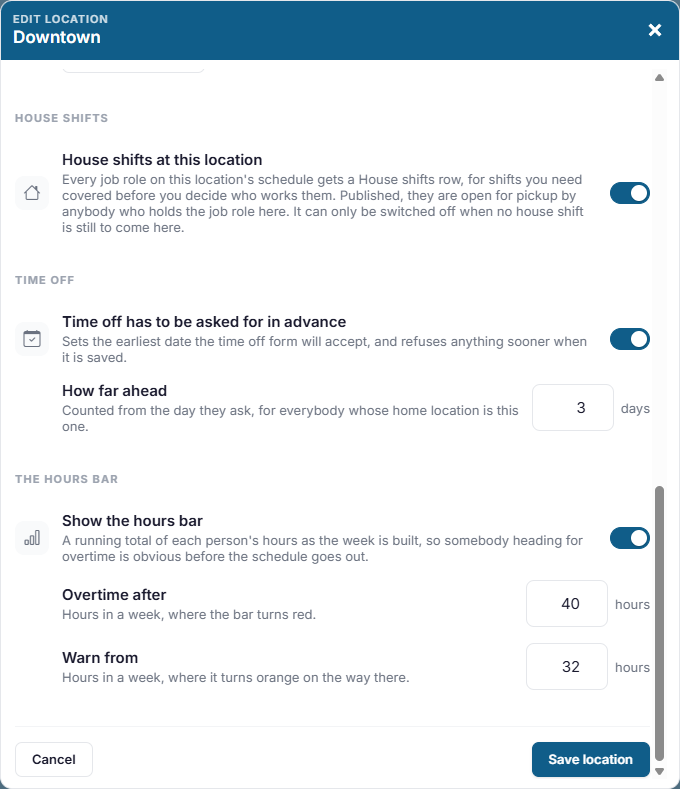
- Time off has to be asked for in advance, and How far ahead in days: employees whose home location is this one can't ask for time off sooner than that. Managers booking time off for someone aren't limited.
- Show the hours bar: the bar beside each employee on the schedule, showing their hours for the week.
- Overtime after: the weekly hours where the bar turns red. Assigning a house shift that would put someone over it also warns you.
- Warn from: the weekly hours where the bar turns orange on the way there.
Click Save location.
Add a location
Click Add a location and fill in the same details. A new location has nobody assigned to it, so it won't appear in anyone's location list, yours included, until people are assigned to it. Assign people on their employee records, under Where they work, and give them job roles there.
Remove a location
Click Remove. The confirmation tells you how many people are assigned to it and how many shifts are booked there. The location is taken off everyone's list, but its history is kept.