Requesting time off
ThisNeed guidea showsday off, a few days, or a few hours? Ask for it in Sail Scheduling, in the app or on the website. Your manager reviews it, and you'll see their answer there.
Ask for time off
- Click your name at the top right and choose My Time Off.
- Click Request time off.
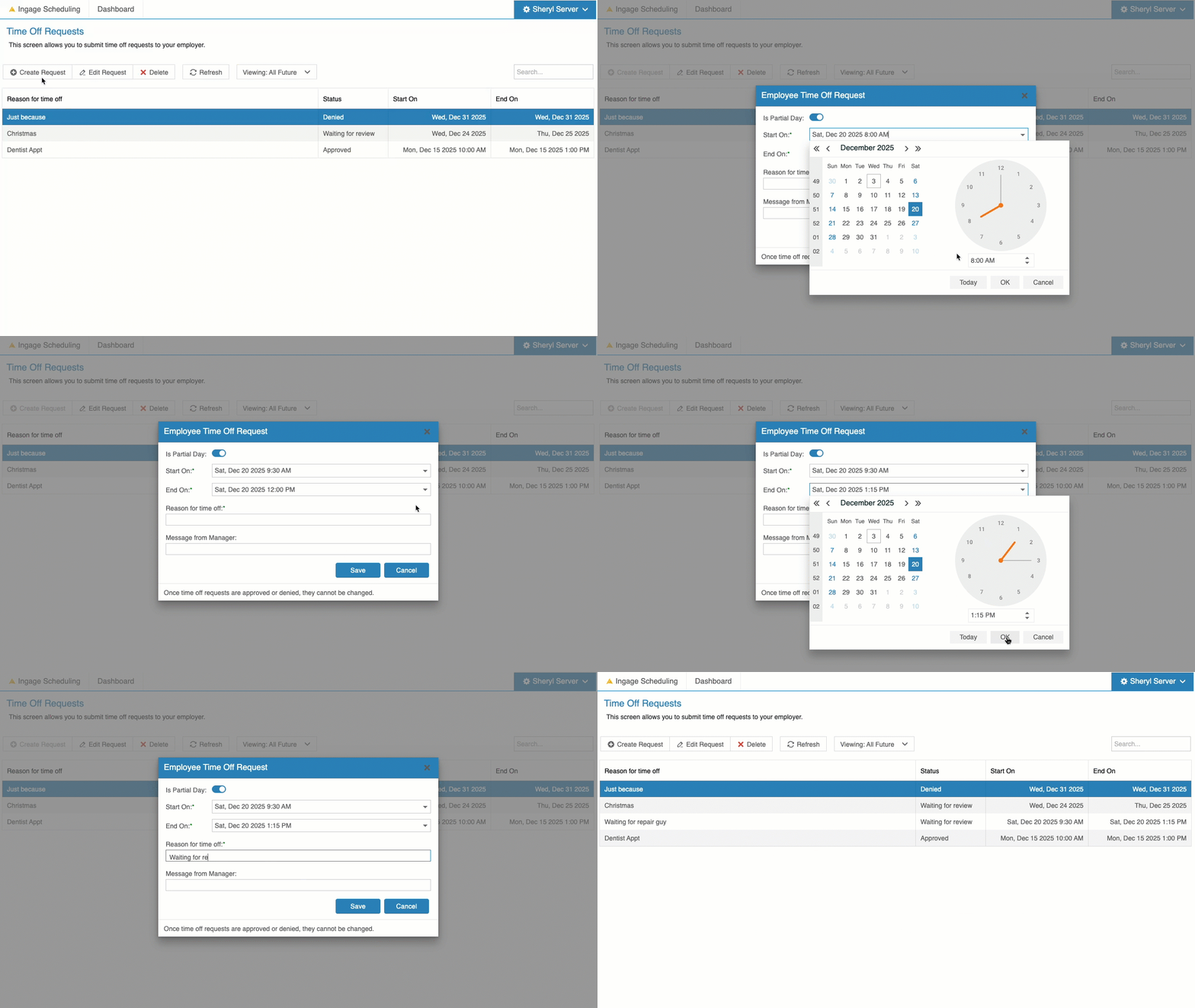
- Choose Whole days and pick your first and last day off, or Part of a day and pick the day and the hours. The line under the dates says exactly what you're asking for.
- Add a short reason for your manager.
- Click Send request.
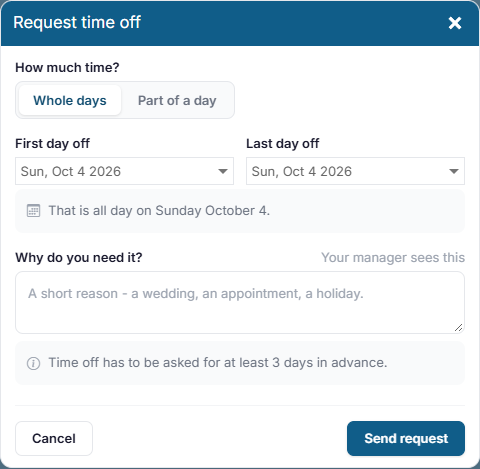
Your location may need time off to be asked for a number of days ahead. If so, the page tells you how many, and the earliest date you can pick is that far ahead. If you need time off sooner, talk to submityour time-offmanager: they can book it for you.
See where your requests throughare
My Time Off lists your requests, upcoming and past. Each one shows the Schedulingdates, appyour or website.You can submit requests for full days, multiple days, or just part of a day. All time-off requests must be reviewedreason, and approvedwhere byit a manager before they become official.
Each request will show one of the following statuses:is:
Waiting
foronreview– Youryour managerhas: notrevieweddecidedthe request yetApproved
–orYour request has been approvedDenied,
any message they wrote to you.–withYouryourrequestmanager'swasnamenotandapproved
Requesting Time Off In The App
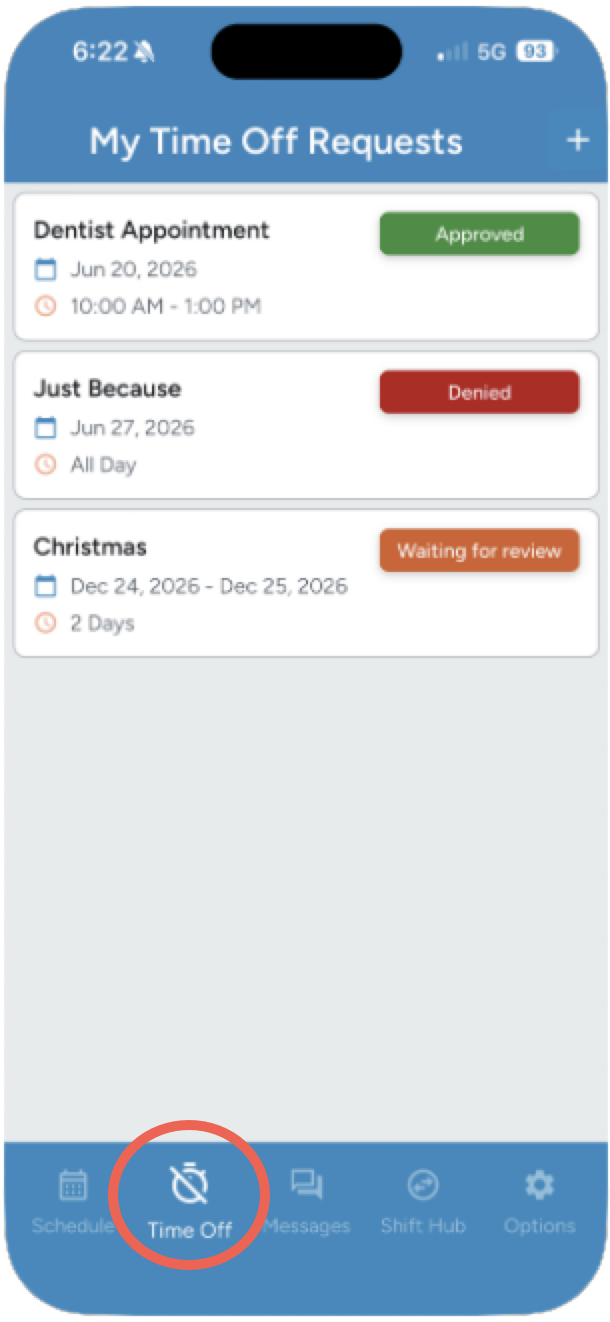
You can submit a time-off request directly from the mobile app using the Time Off icon on the bottom toolbar.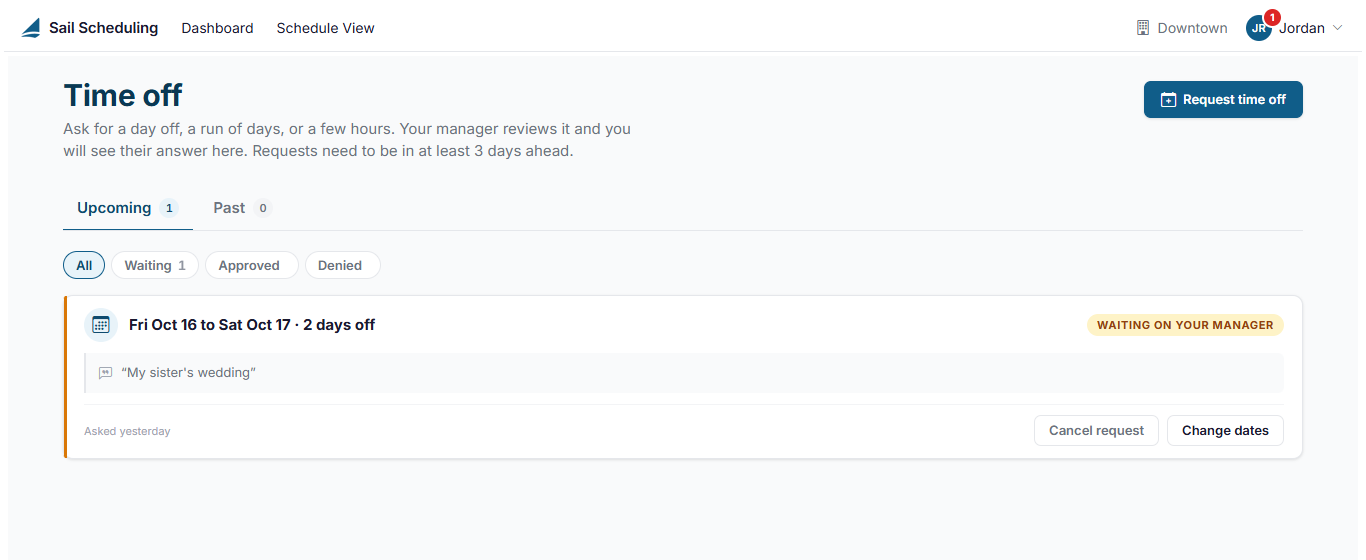
ThisUse screenWaiting, showsApproved alland ofDenied yourto time-off requests, with the soonest upcoming request listed at the top.Once a date has passed, that request will automatically fall offnarrow the list.
Addingapproves or denies a New Request
To submit a new request, tapor the + icon in the top-right corner.
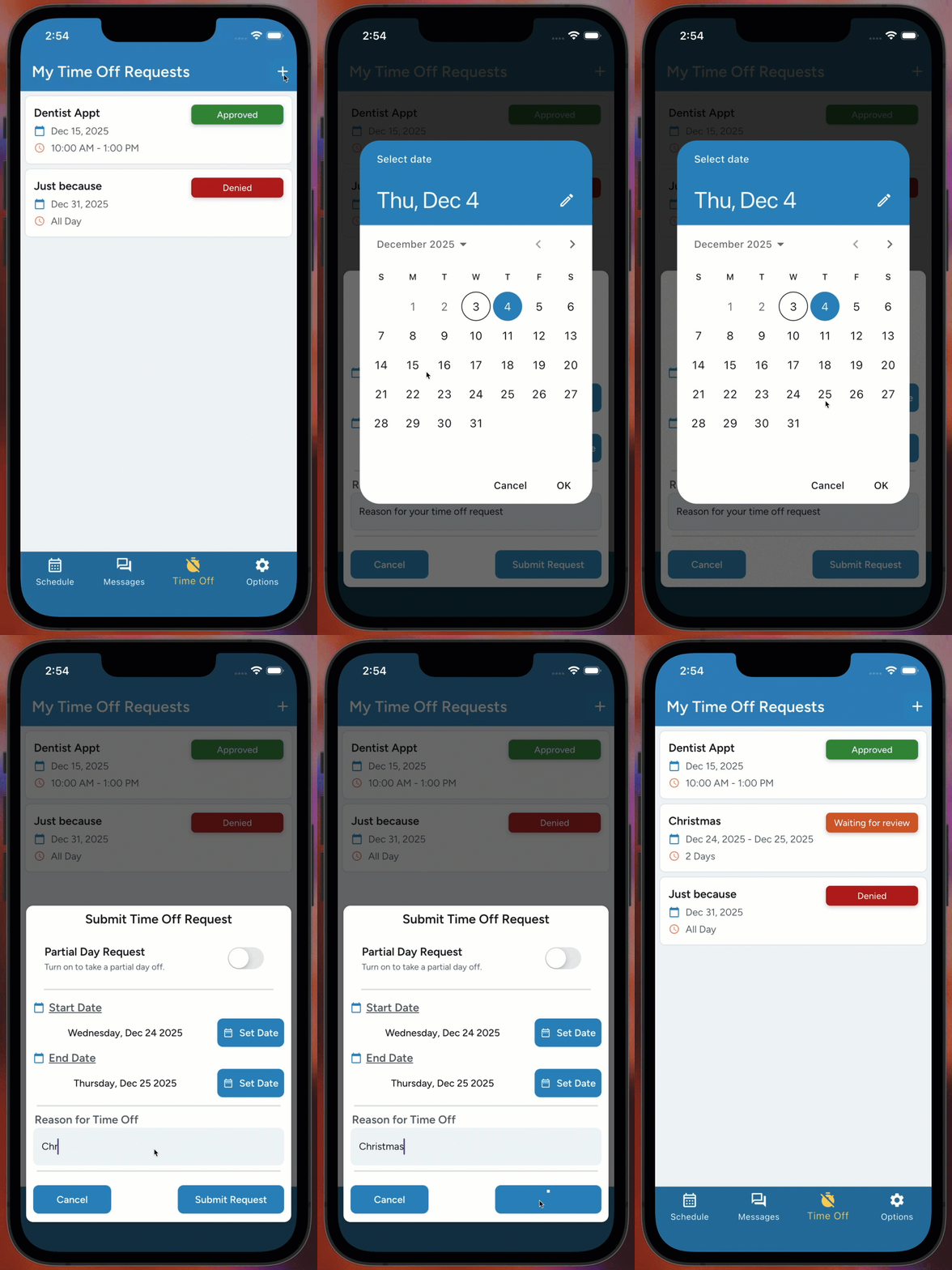
Requesting a Full Day Off
To request a full day off:
Tap the + icon in the top-right cornerSet the Start DateSet the End DateEnter a Reason for your requestTap Submit
Note: The Start Date, End Date, and Reason fields are all required.
Your manager will then review your request
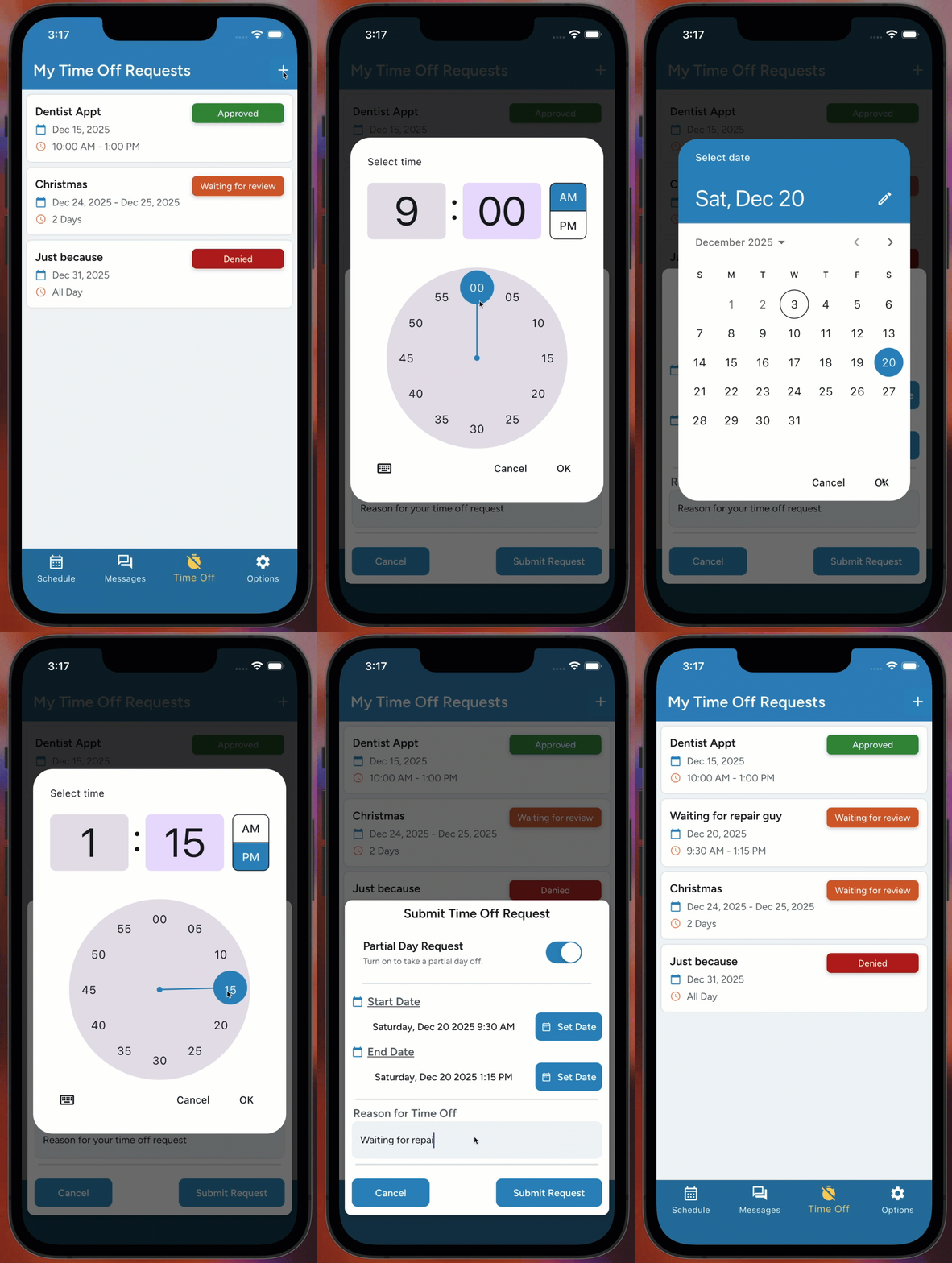
Requesting a Partial Day Off
To requestbooks time off for partyou, ofyou're sent an email or text message, depending on your notification settings, and a day:
withTap the + iconnotification in thetop-rightapp,cornerany - message
rightSelectyour manager wrote. A red number also shows on your initials at theStarttopDate- and
- beside
untilChooseMy Time Off in theStartmenu,Time- you
- open
First select the hour Then select the minutesTap OK
- open
- beside
Select the End DateChoose the EndMy Timethe same way (hour → minutes → OK)Off.
Change
Entercancel aReasonrequestWhile a request is still waiting for your manager, you can click Change dates to fix the dates or hours, or Cancel request
to - take
back.TapitSubmitOnce
Note:been Theapproved Startor Datedenied, &ask Time, End Date & Time, and Reason fields are all required.
Youryour manager willif thensomething review your request
Requesting Time Off On The Website
You can also submit time-off requests from the Scheduling website.
To get there:
Log inneeds tothe Scheduling websitechange.Click the dropdown next to your name in the top-right cornerSelect My Time Off
This page will default to show all of your future time-off requests.You can use the Viewing dropdown in the center of the screen to filter which requests you want to see.

Adding a New Request
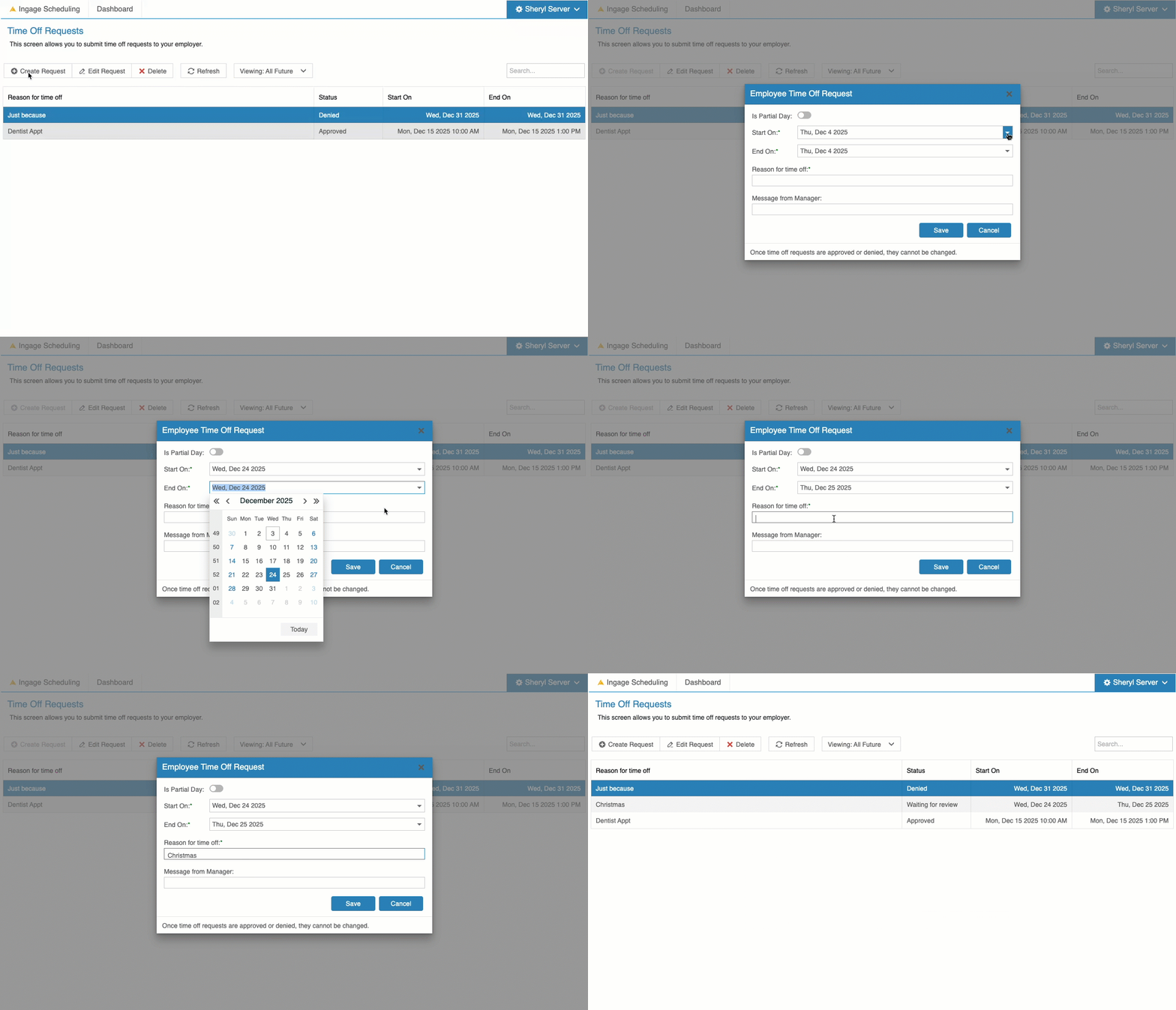
To submit a new request, click the + Create Request button
Requesting a Full Day Off
To request a full day off:
Click the + Create Request buttonSet the Start DateSet the End DateEnter a Reason for your requestClick Save
Note: The Start Date, End Date, and Reason fields are all required.
Your manager will then review your request
Requesting a Partial Day Off
To request
Approved time off forand partyour ofshifts
Approved time off shows on the schedule, so your manager can plan around it. But it doesn't take you off shifts you already have. If you're scheduled on a day:
- you're
Clicknow off, check with your manager, or trade the+ Create Request buttonSelect the Start DateTypeshift intheShiftHub.StartSeeTimeTradingor use the arrows to adjust the time
Select the End DateChoose the End Time the same way
Enter a Reason for your requestClick Save
Note: The Start Date & Time, End Date & Time,shifts and Reasonpicking fieldsup areopen all required.shifts.
Your manager will then review your request