
Reviewing ShiftHub requests
WhatShiftHub Islets ShiftHub?your team sort out cover among themselves: they can swap shifts with each other, give a shift away to someone who wants it, or ask to pick up an open house shift. Nothing changes on the schedule until a manager approves it, and ShiftHub review is where you do that.
You see ShiftHub review if one of your job roles at the selected location grants ShiftHub rights. Managers and Administrators usually have them. Requests are shown for the location picked at the top right: a trade belongs to the location of its shift.
Find what needs your attention
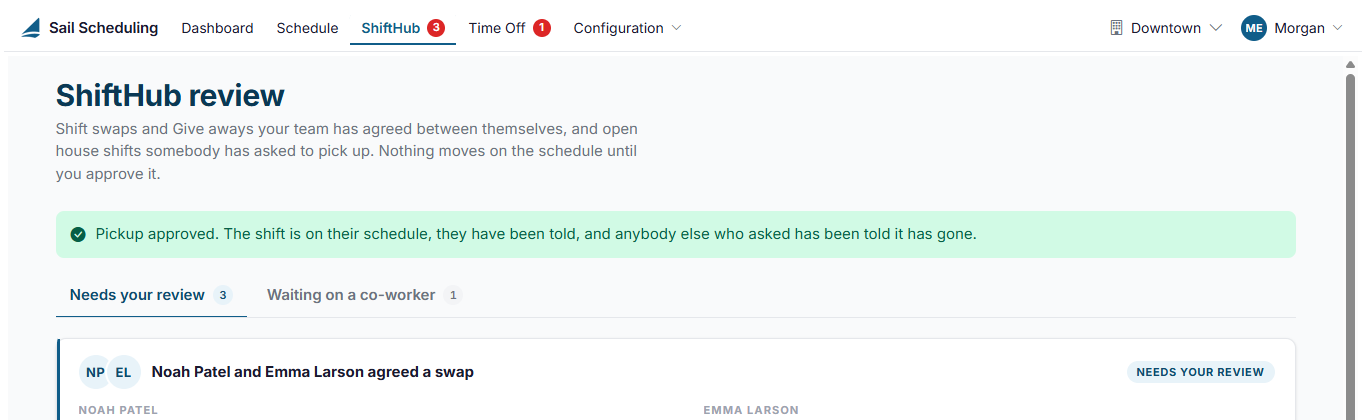
When something is the area ofwaiting, the SchedulingShiftHub systemmenu whereat managersthe reviewtop andshows managea employee-initiatedred schedulebadge changes.with Thisthe includescount. shiftClick swapit requeststo andopen shiftShiftHub give away requests submitted by employees.review.
ShiftHub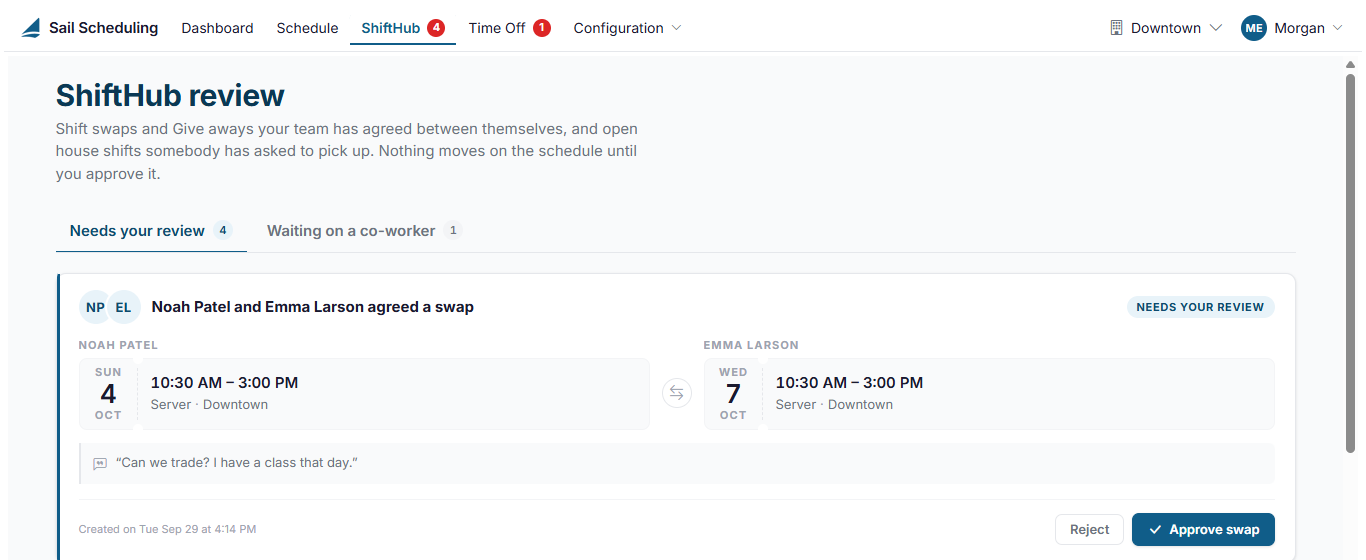
Requests managersare to:sorted into two tabs:
Review pending requestsApprove or reject changes to the scheduleMaintain visibility into upcoming schedule adjustments before they take effect
How to Access ShiftHub
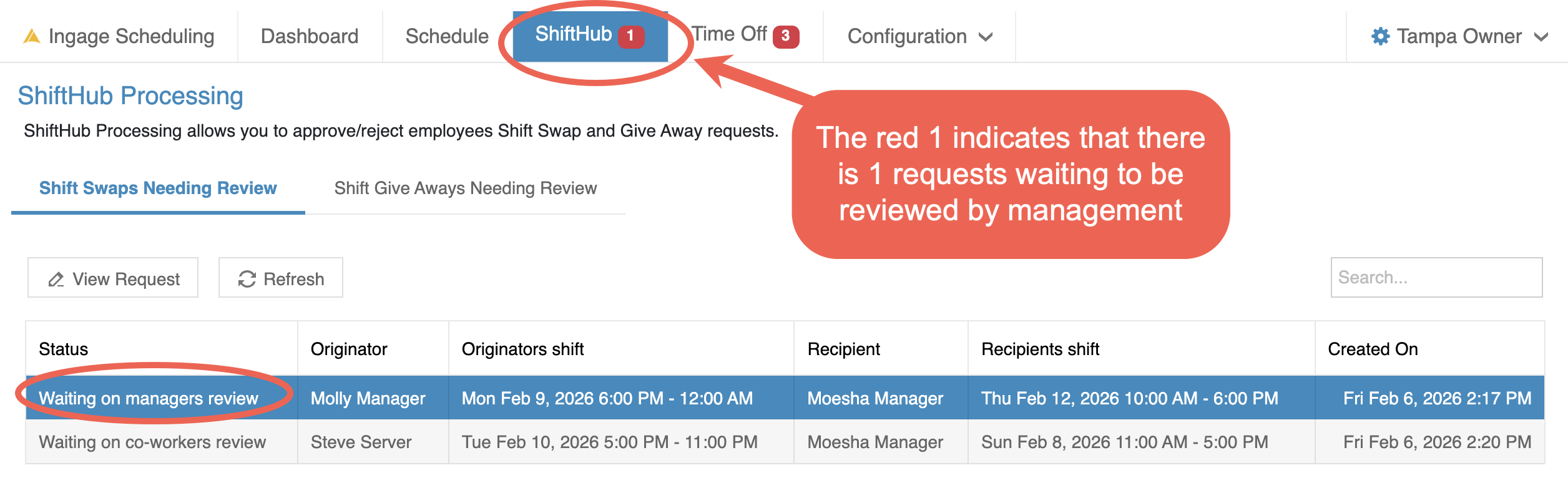
To access ShiftHub:
Log in to SchedulingClick ShiftHub from the top navigation bar
When there are requests that require manager action, you will see a notification badge on the ShiftHub tab so you know something needs to be reviewed.
***The managers will also receive a notification each time there is a Swap or Give Away that is in need of approval
Reviewing Shift Swap Requests
Managers review employee shift swap requests from the ShiftHub area of Ingage Scheduling.
When you open ShiftHub, the system defaults to Shift Swaps Needing Review. This view shows all shift swap requests, not just the ones that currently requireNeeds your action.
Understanding Shift Swap Statusesreview
Each request will display a status so you can quickly see where it is in: the process:
Waiting on co-worker’s review -The employee has submitted a shift swap request, but the other employee has not yet accepted or rejected it.Waiting on manager’s review - Bothemployees have done their part, and it's your turn. A swap both people have agreed to, a give-away somebody has claimed, or an open house shift somebody has asked tothepickswap, and the request is now waiting for manager approval.
Youon cana seeco-worker
Note: The red notification badge on ShiftHub only appears when a request is waiting on manager review.
Manager Review Flexibility
Managers are allowed to review and approve a shift swap even ifbut the co-worker hashasn't not formally accepted itanswered yet.
This allows you to:
Talk with both employees directlyConfirm that both parties agree to the swapApprove the request without waiting for the co-worker to complete the step in the system
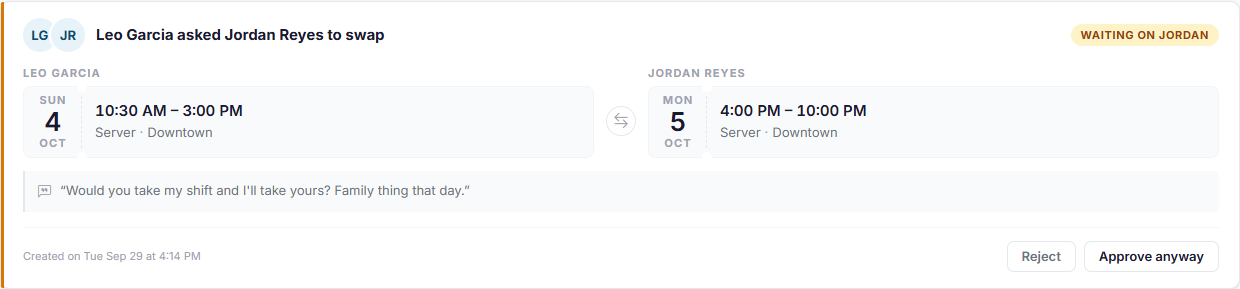
ThisEach helpscard keepshows schedulingthe flexibleshifts involved, the note the employee wrote, and avoids delays when communication has already happened in person.
Opening a Shift Swap Request
To review a shift swap request, you can:
Double-click the request, orSelect the request and click View Request
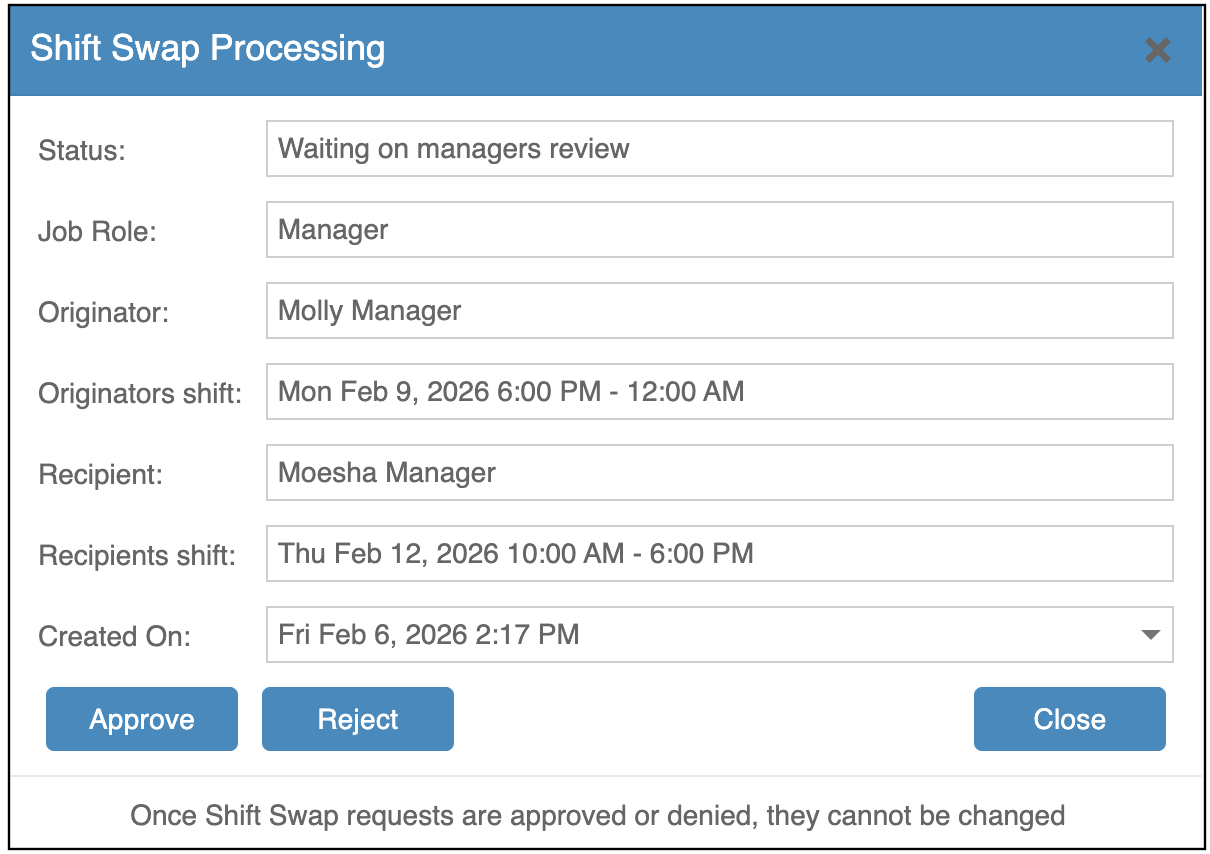
This opens the Shift Swap Processing window where you can see:
The job roleThe original employee and their shiftThe receiving employee and their shiftThe current status of the requestWhenthe request wascreatedmade.
Shift
In a swap, two employees trade shifts: each takes the other's. The card shows both shifts side by side.
Approving or Rejecting a Shift Swap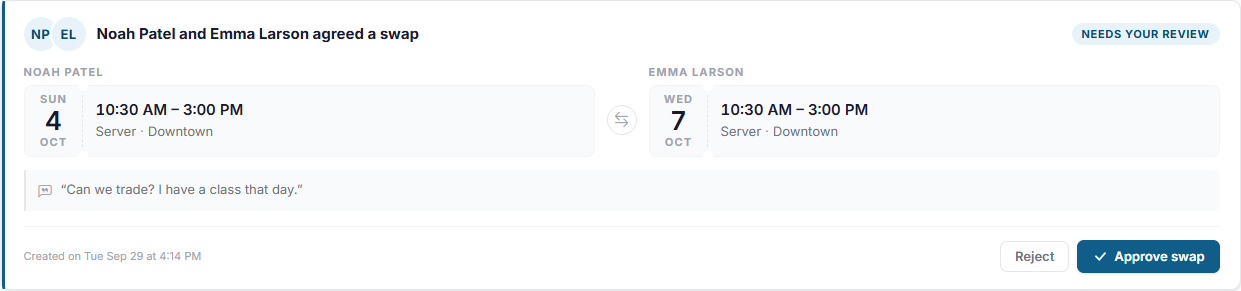
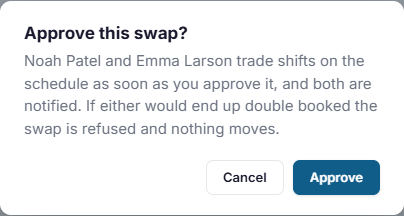
FromClick Approve swap and confirm. The two shifts change hands on the schedule right away, and both employees are told. If either of them would end up working two shifts at once, the swap is refused and nothing changes. It's refused too if either shift has changed on the schedule since the request window,was managersmade can:(removed, unassigned or given to someone else); reject the request instead.
Click
ApproveReject toacceptturn it down. Both keep their original shifts.A swap the
shiftco-workerswaphasn't- answered
Click Reject to deny the request
Once approved or rejected:
The decision is final and cannot be changedThe schedule updates automatically if approvedBoth employees are notified of the outcome
Reviewing Shift Give Away Requests
Shift Give Aways allow employees to offer one of their scheduled shifts to eligible co-workers.Managers review and approve these requests to ensure proper coverage and role alignment before the schedule is updated.
All Shift Give Away requests are managed from ShiftHub.
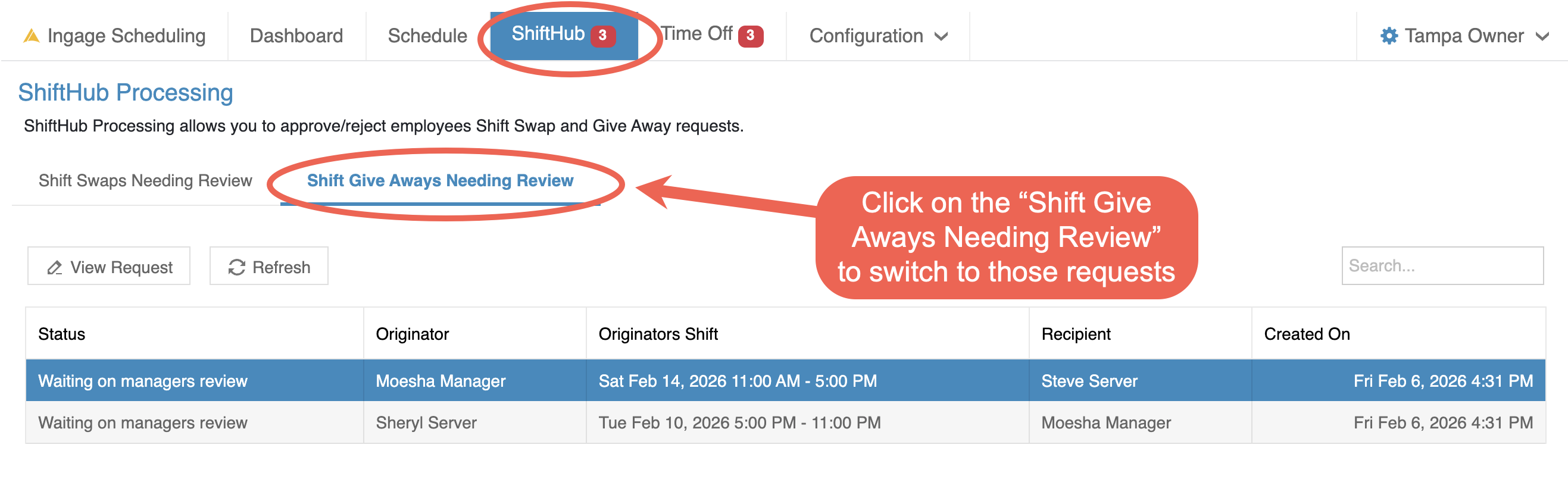
You will need to Select the Shift Give Aways Needing Review tab.
Managers will only see Shift Give Away requests that are waiting for manager approval.
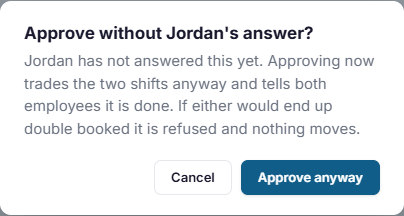
RequestsSwaps that are still waiting for the co-worker's answer are on the Waiting on a co-worker tab. Normally you leave these until they answer. But if the shift needs covering and you can't wait, click Approve anyway: the shifts are traded as if the co-worker had agreed, and both employees are told.
Give-aways
In a give-away, an employee offers up a shift and a co-worker who works the same job role claims it. It reaches you once someone has claimed it. The card says who is taking whose shift.
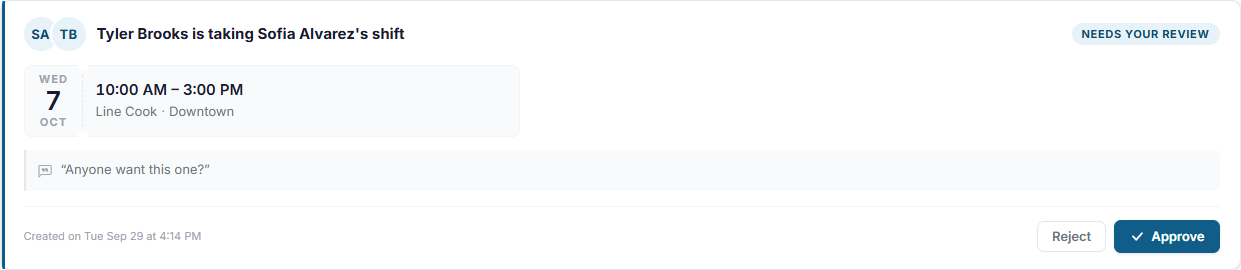
Click Approve to move the shift to the person taking it. Click Reject to leave it with the employee who offered it; it doesn't go back up for someone else to claim. Both employees are told either way. If the shift has been removed, unassigned or given to someone else on the schedule since it was offered, Approve is refused and nothing changes; reject the request instead.
Until someone claims it, a give-away is only on your team's Up for grabs list, not in your review.
Open house shift pickups
When people ask to pick up an open house shift, the shift dogets notone appearcard, however many people are asking. Everyone asking is listed in the managerorder view.
Theasked, notification badge on ShiftHub appears only when there is a request that requires manager action.
Opening a Shift Give Away Request
Managers can open a request in either of the following ways:with:
- their
in that job role,Double-clickskillthelevelrequest - when
they've been with you, if a hire date is on file,Selecttheythewererequesthired andclickhowViewlongRequest - and when they asked.
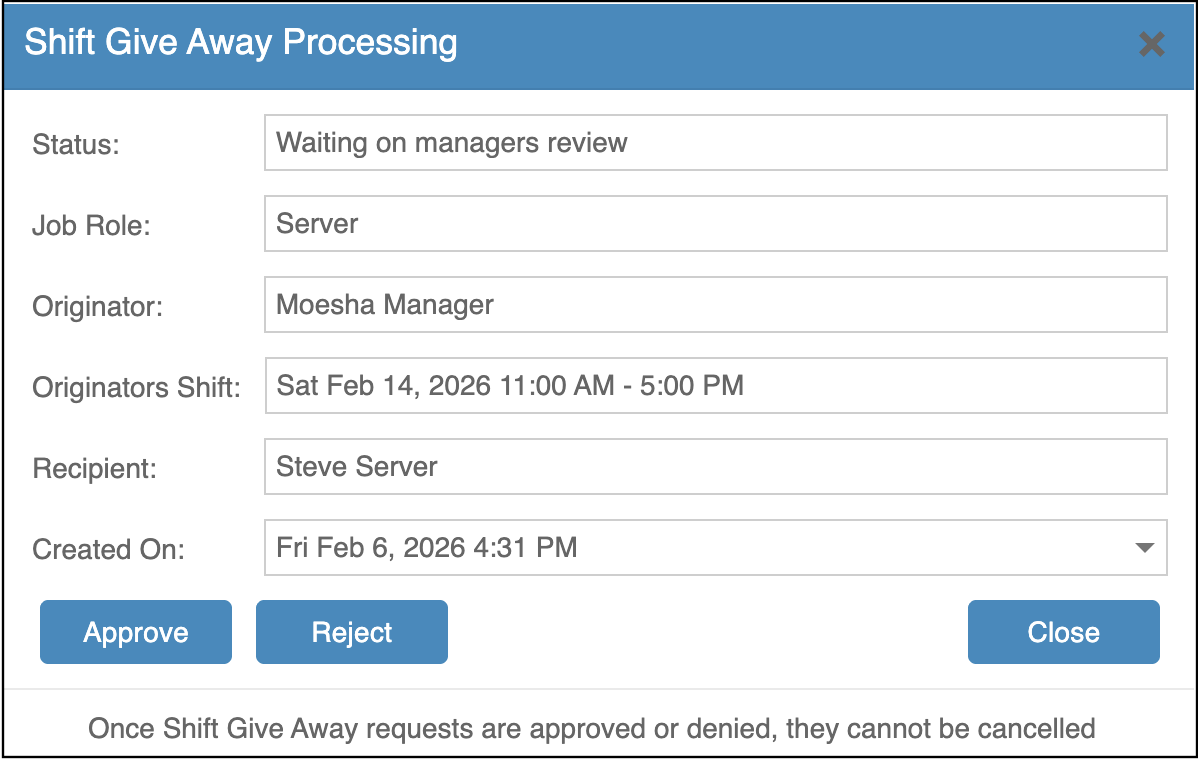
The request details include: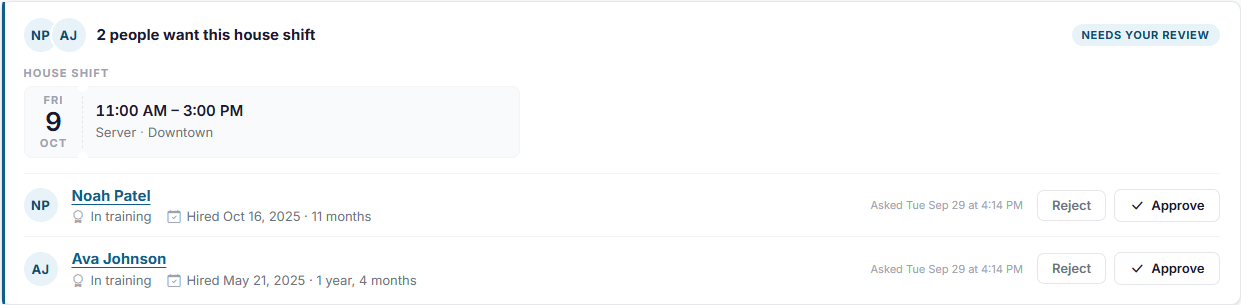
Job roleEmployee giving away the shiftOriginal shiftEmployee picking up the shiftReplacement shiftDate and time the request was created
Approving or Rejecting a Shift Give Away
From the request pop-up:
-
Click Approve next to
finalizethe person you want to give it to, and confirm. The shift goes on their schedule and they're told. Everyone else who asked is told it has gone.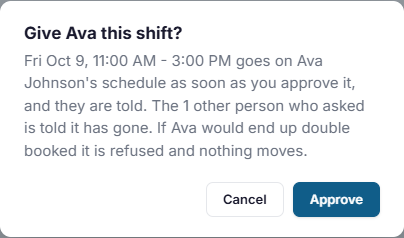
Click Reject next to someone to turn down their request. They're told no, and the shift
reassignmentstays open for everyone else. - you
ClickwouldRejectrather decide on the schedule, you can also give an open house shift todenysomeonethethererequestwith Assign to…. See House shifts and open shift pickup.
If
Good
Once a request is approved or rejected:
- A
way around.Theshiftdecisioncanisonlyfinalbe in one trade at a time. While it's offered in a swap, it can't also be given away, andcannotthebeotherchanged - Employees
Thecanemployeeonly trade shifts that are published, and only with co-workers whogave awaywork the same job role. - Only open house shifts that haven't started yet appear here. If a shift is
notifiedfilled, unpublished or removed on the schedule, its requests drop out of your review. - An
onTheAdministratorschedulecanupdatesswitchautomaticallyshiftupontradingapprovalor Theoffrequest is removed fromfor thelistwhole company on the Settings page, and choose whether house shift pickups need approval.