
Skills
SkillSkills Levels are created in Sail Backoffice
Skill Levels allow you to assign a proficiency level to each employee’s job role. These levels help managers understand experience at a glance and are used by Scheduling to support features like shift visibility and, in future updates, shift swapping rules.
***Important: Skill Levels are configured and assigned in Sail Backoffice, but they sync automatically to Ingage Scheduling. Skill Levels are not managed directly in the Scheduling system.
What Are Skill Levels?
Skill Levels representdescribe how proficientexperienced an employeesomeone is in a specific job role.
training,Skill Levels apply perjob role,notsuchperasemployeeInoverallAn employee may have different Skill Levels for different rolesSkill Levels sync to Scheduling and appear anywhere job role qualifications are referenced
Configure Skill Levels (Backoffice)
Skill Levels are managed at the Job Role level in Sail Backoffice.
Edit Skill Levels
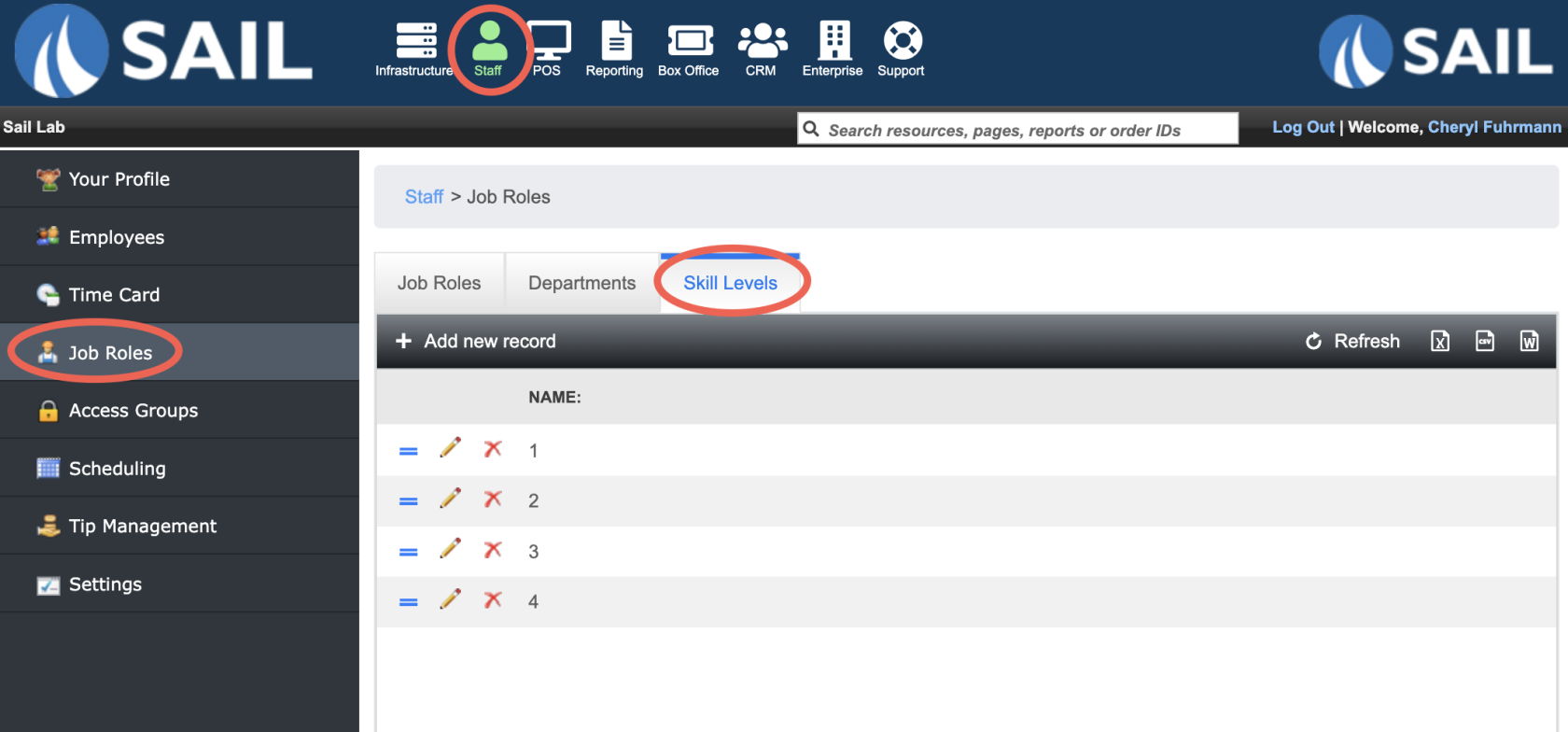
Go to Staff → Job Roles → Skill Levels Tab
hasRename existing levelsExperienced oradd/deleteTrainer.levelsEachaspersonneeded- a
By default, Skill Levels range from 1–4, but they can be customized to fit your operation.
Examples of custom Skill Levels:
TrainingBeginnerIntermediateAdvancedExpert
There is no required naming convention — choose labels that make sense for your team.
Default Skill Level Behavior
All existing job roles are automatically set toSkill Level 1New employees will default to the lowest Skill Level until updatedSkill Levels must be manually assigned to reflect experience
Assign Skill Levels to Employees
Once Skill Levels are configured, assign them to employees by job role.
Update an Employee’s Skill Level
Go to Staff → EmployeesSelect the employeeOpen the Job Roles tabClick the pencil icon to edit the job roleUse the Skill Level dropdown to select the appropriateskill levelSave your changes
Repeat for each job role they hold, so the employeesame isperson assigned.can be a trainer at one and still learning another.
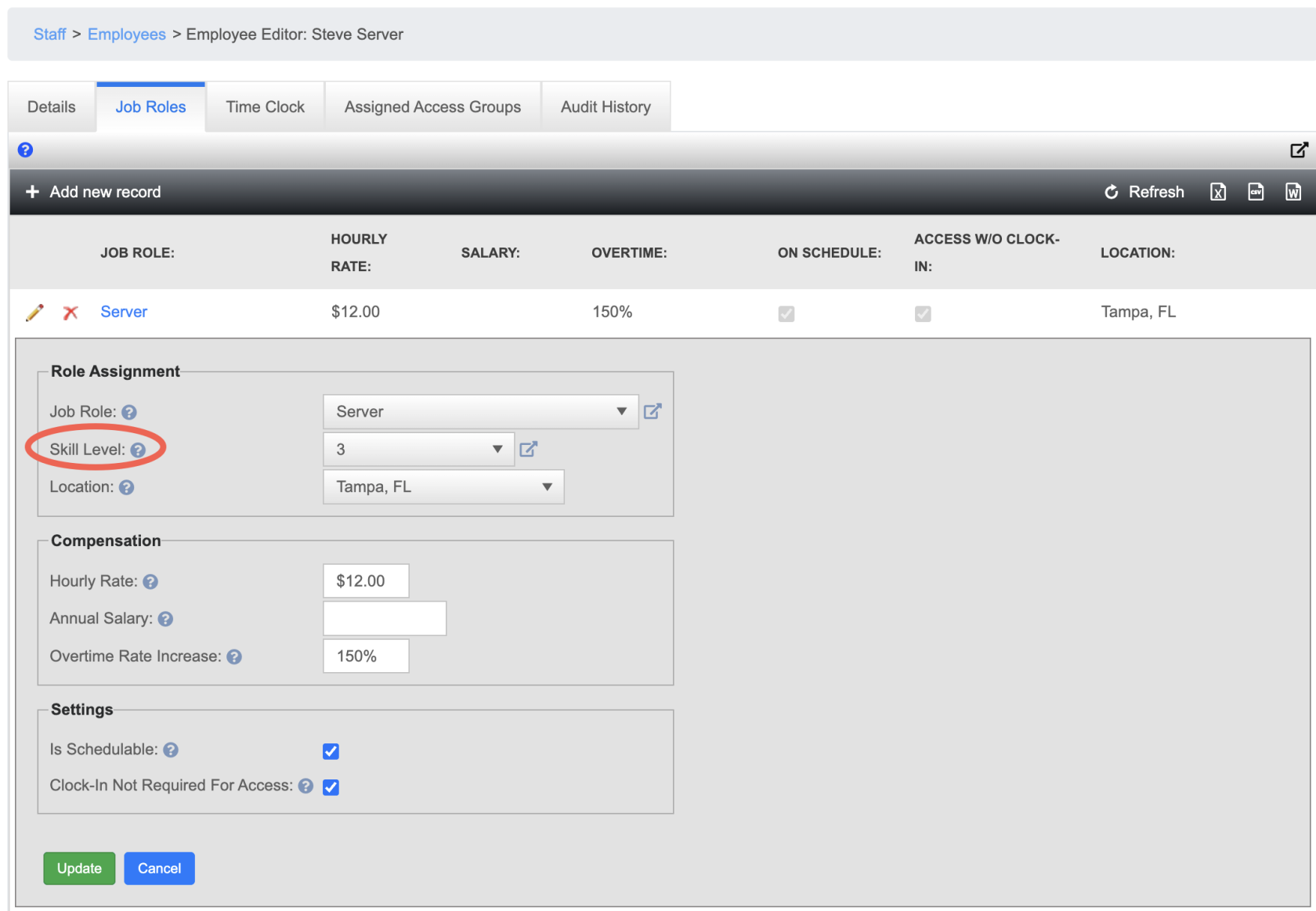
If your restaurant uses Sail POS, skill levels come from Sail Backoffice and are read-only here.
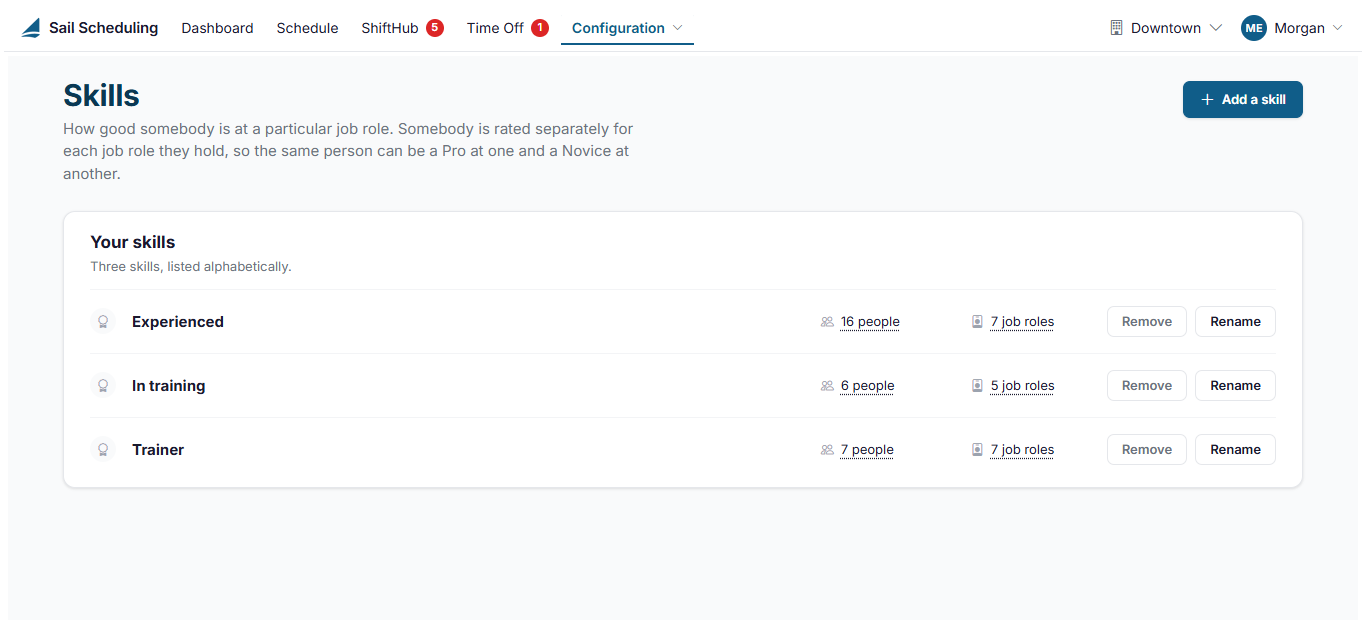
HowEach Skillskill Levelsshows Arehow Usedmany people hold it, and in Scheduling
how Oncemany assigned:job roles, at the location picked at the top right. Click either number to see the list.
- Click
SkillAddLevelsasyncskillautomaticallyand type its name. - Click Rename to
IngagechangeSchedulinga name. The new name applies everywhere, at every location. - Click
Managers can reference Skill Levels when reviewing schedules
changed, but anyone who had it is left with no skill in that job role until you choose another one.Future scheduling features (such as shift swap rules) will rely on Skill LevelsRemove toensuretakeemployeesoneareaway.qualifiedShiftsforthattheusedshiftsittheyaren'ttake
Where skills are used
- A person's skill in a job role is set on their employee record, on the Job roles tab, with their pay. See Editing an employee.
- When several people ask to pick up the same open house shift, ShiftHub review shows each one's skill in that job role, to help you choose.