
How to Read the Schedule View
Schedule View gives employees a clear, week-by-week look at the full team schedule. This view is designed to help you understand when you’re working, who you’re working with, and how the restaurant is staffed each day.
What You Can See in Schedule View
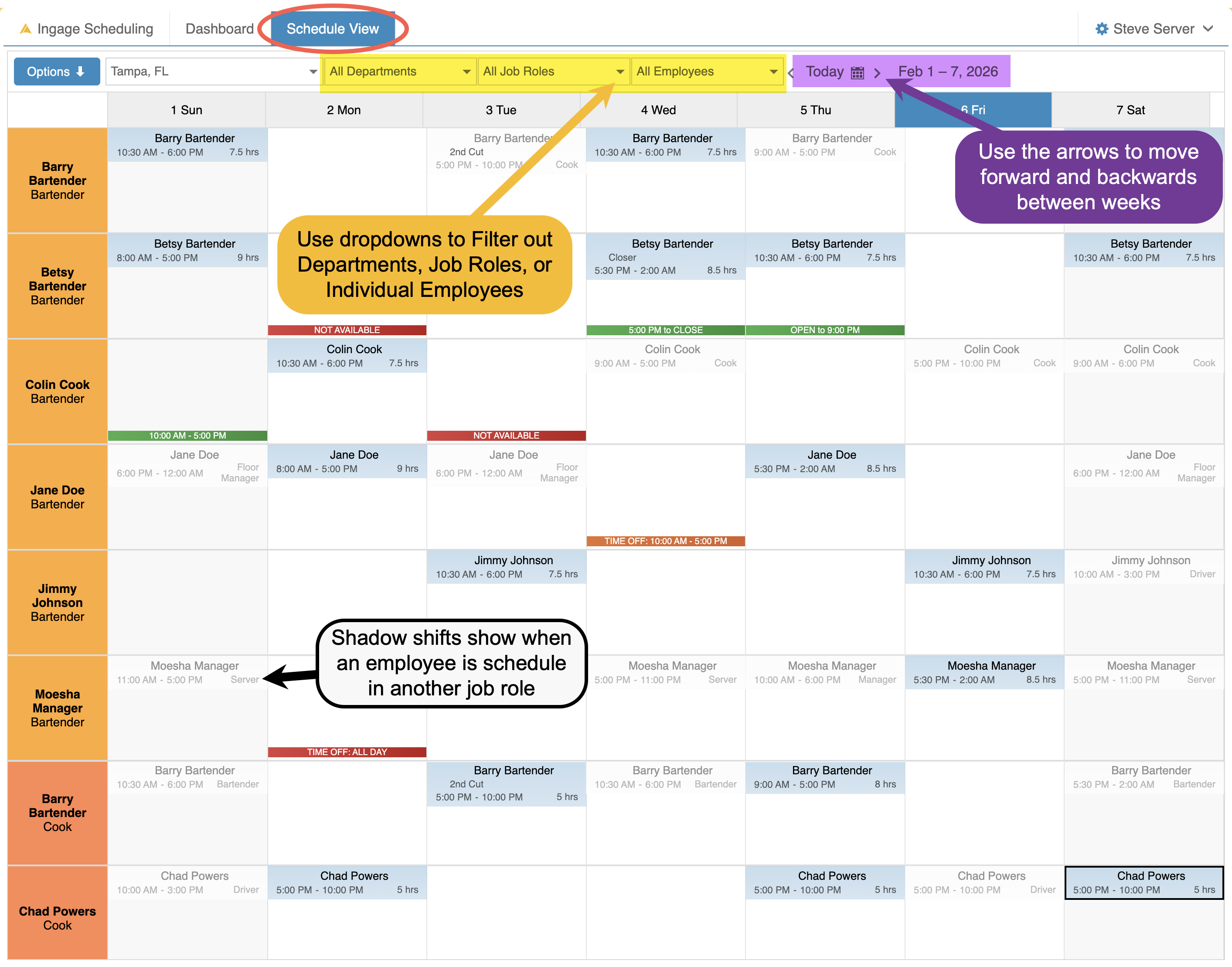
Using Schedule View, employees can:
-
View their own scheduled shifts once they are published
-
See who else is working each day across all job roles
-
Review start and end times & job roles
-
See shadow shifts when an employee works multiple job roles, helping clarify availability and coverage
-
View availability and approved time off directly on the schedule
-
Identify coworkers they may want to request a shift swap with
-
Navigate back and forth between weeks to view past or upcoming schedules
-
Use the filters at the top to narrow the view by location, department, job role, or employee
This makes it easy to understand overall coverage and plan ahead.
Understanding Colors on the Schedule
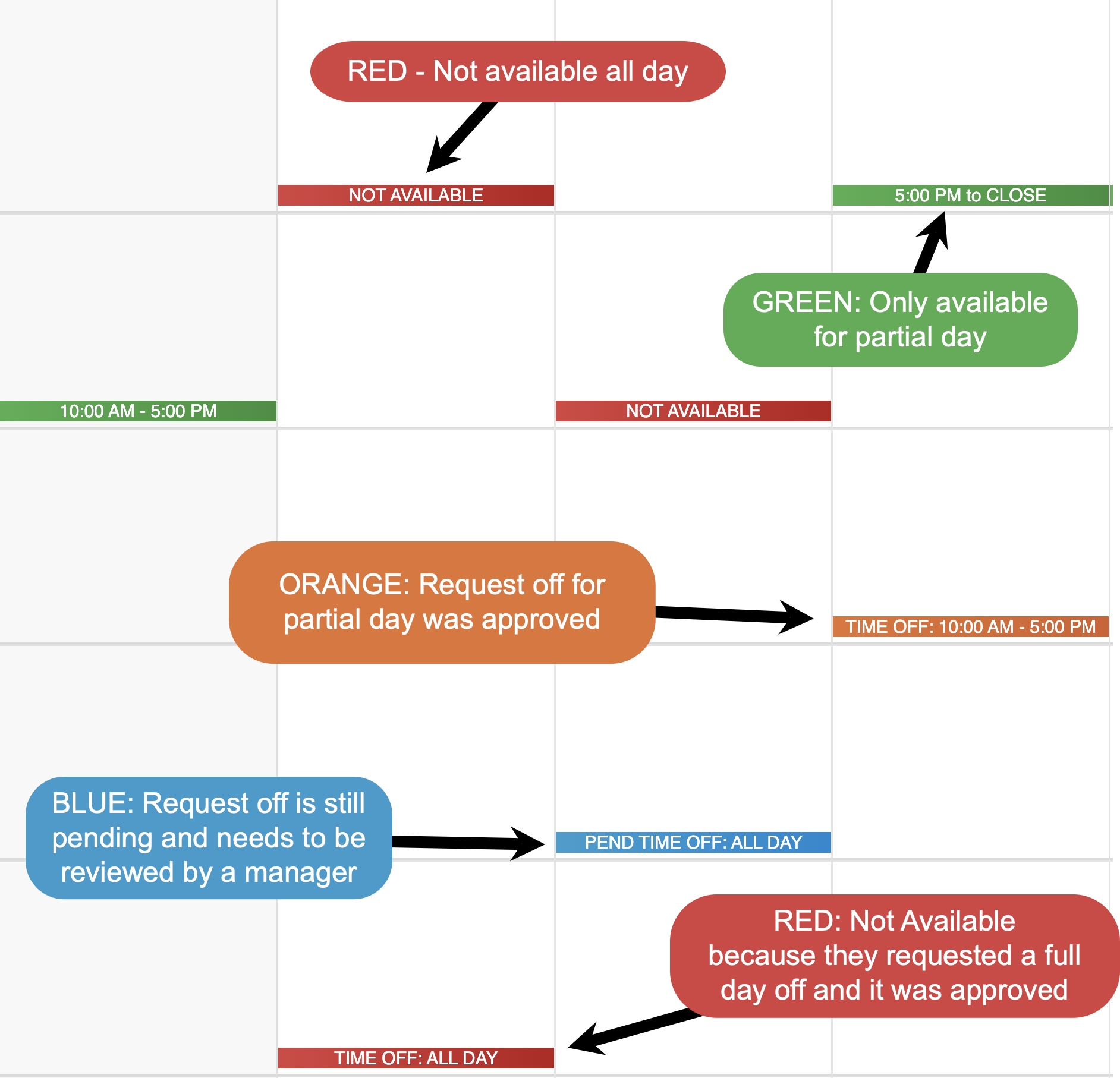
Schedule View uses color-coding to quickly communicate availability and time off:
-
Green indicates partial-day availability
-
Red indicates full-day unavailability or approved full-day time off
-
Orange indicates approved partial-day time off
-
Blue indicates a time-off request that is still pending approval
These visual indicators help you quickly understand scheduling context at a glance.
Why Schedule View Is Helpful
Schedule View is especially useful for:
-
Knowing who you’re working with
-
Planning ahead for shift swaps and shift give aways
-
Understanding the schedule before reaching out to a manager with questions
It gives everyone shared visibility into the schedule, helping teams stay informed and coordinated.
No Comments