
Requesting time off
Need a day off, a few days, or a few hours? Ask for it in Sail Scheduling, in the app or on the website. Your manager reviews it, and you'll see their answer there.
Ask for time off
- Click your name at the top right and choose My Time Off.
- Click Request time off.
- Choose Whole days and pick your first and last day off, or Part of a day and pick the day and the hours. The line under the dates says exactly what you're asking for.
- Add a short reason for your manager.
- Click Send request.
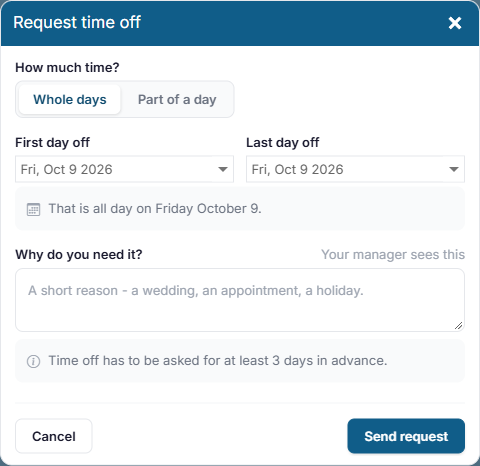
Your location may need time off to be asked for a number of days ahead. If so, the page tells you how many, and the earliest date you can pick is that far ahead. If you need time off sooner, talk to your manager: they can book it for you.
See where your requests are
My Time Off lists your requests, upcoming and past. Each one shows the dates, your reason, and where it is:
- Waiting on your manager: not decided yet.
- Approved or Denied, with your manager's name and any message they wrote to you.
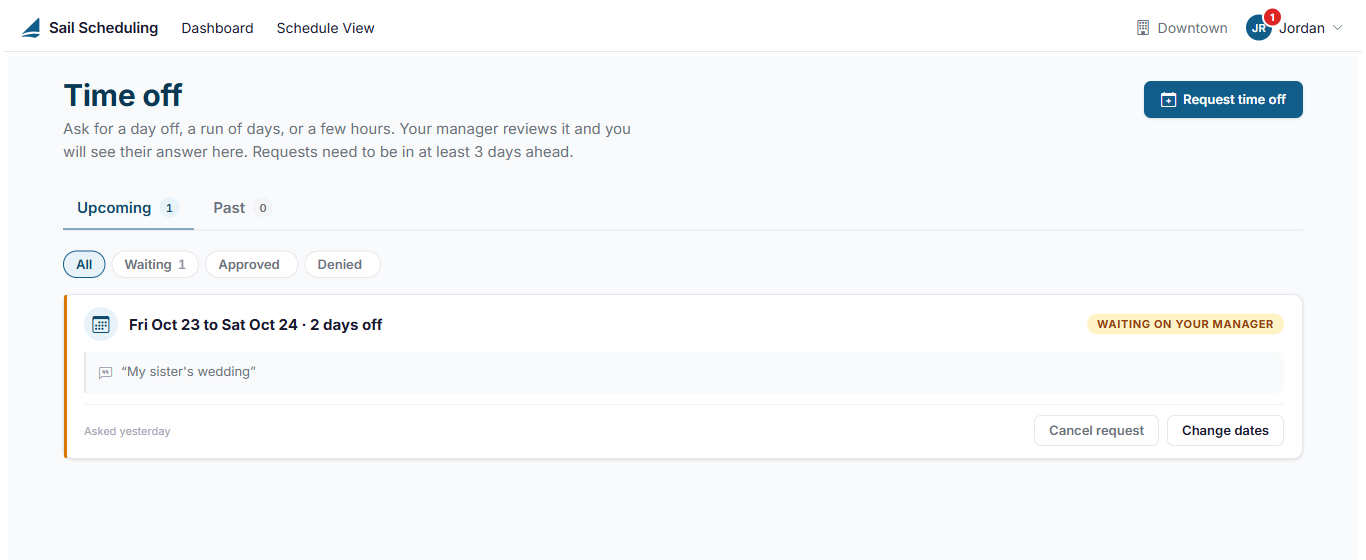
Use Waiting, Approved and Denied to narrow the list.
When your manager approves or denies a request, or books time off for you, you're sent an email or text message, depending on your notification settings, and a notification in the app, with any message your manager wrote. A red number also shows on your initials at the top right and beside My Time Off in the menu, until you open My Time Off.
Change or cancel a request
While a request is still waiting for your manager, you can click Change dates to fix the dates or hours, or Cancel request to take it back. Once it's been approved or denied, ask your manager if something needs to change.
Approved time off and your shifts
Approved time off shows on the schedule, so your manager can plan around it. But it doesn't take you off shifts you already have. If you're scheduled on a day you're now off, check with your manager, or trade the shift in ShiftHub. See Trading shifts and picking up open shifts.
No Comments