
Trading shifts and picking up open shifts
Can't make a shift? Want more hours? ShiftHub lets you sort it out with your co-workers: swap a shift with someone, give a shift away to whoever wants it, or pick up an open shift. Your manager approves each trade before the schedule changes.
Click your name at the top right and choose My ShiftHub. You can do all of this in the app too.
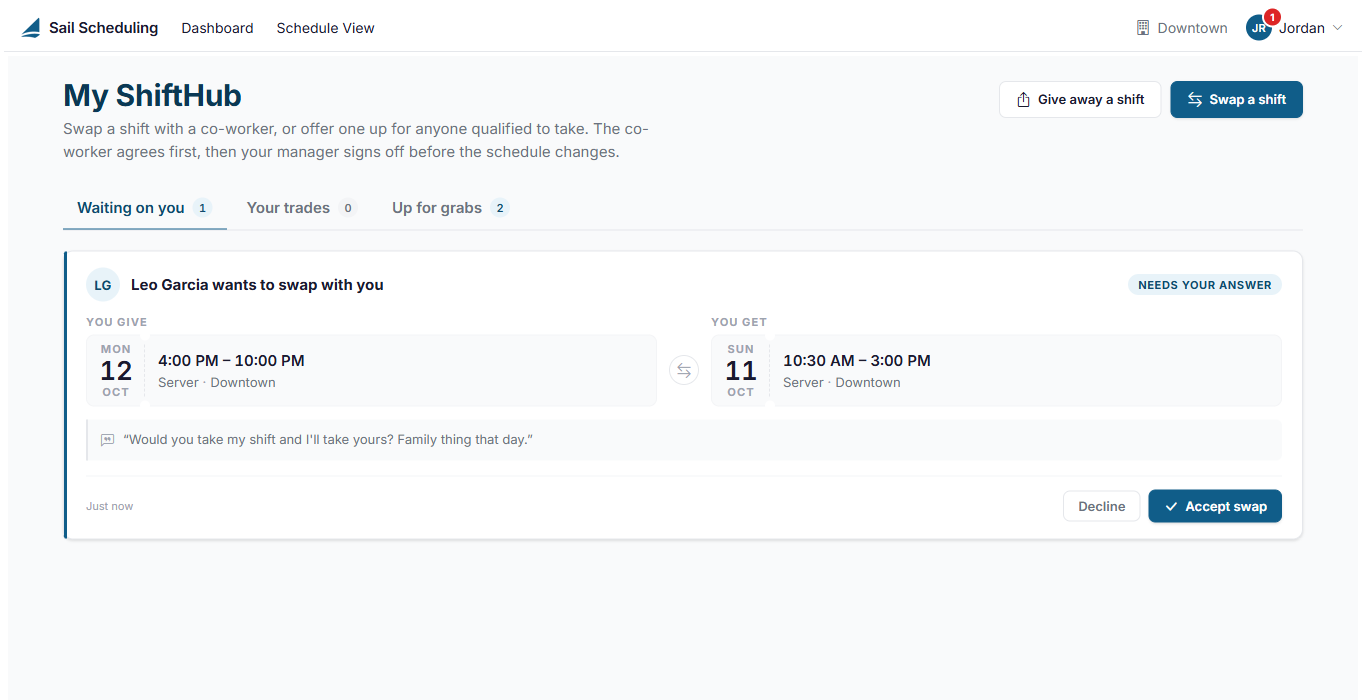
My ShiftHub has three tabs:
- Waiting on you: swaps co-workers have asked you for, waiting for your answer.
- Your trades: every trade you've started, accepted or claimed, and where it is.
- Up for grabs: shifts co-workers are giving away, and open shifts, that you can pick up.
You don't have to keep checking. When a co-worker asks you to swap, or a manager decides on one of your trades or open shift pickups, a red number shows on your initials at the top right and beside My ShiftHub in the menu. A swap waiting for your answer is counted until you answer it. Everything else is counted until you open My ShiftHub.
Swap a shift
In a swap, you and a co-worker trade shifts: you take theirs, and they take yours.
- Click Swap a shift.
- Under Pick the shift you need covered, choose one of your shifts.
- Under Pick the shift you will work instead, choose a co-worker's shift. Only shifts in the same job role at the same location, that don't clash with your other shifts, are listed.
- Add a note if you like, such as why you need the swap, and click Send request.
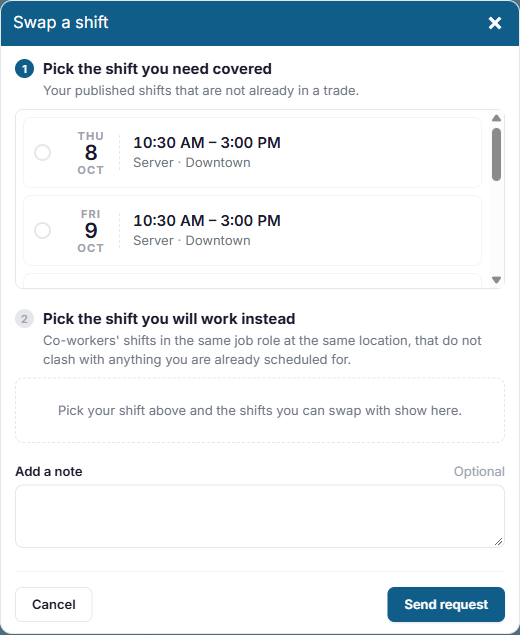
Your co-worker is asked. If they accept, your manager reviews it. Nothing changes on the schedule until your manager approves.
When someone asks you to swap
A swap request appears under Waiting on you, showing the shift you'd give and the one you'd get.
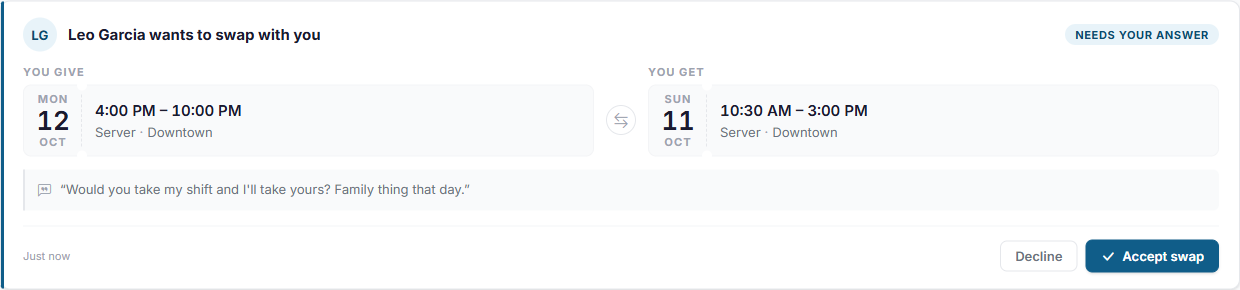
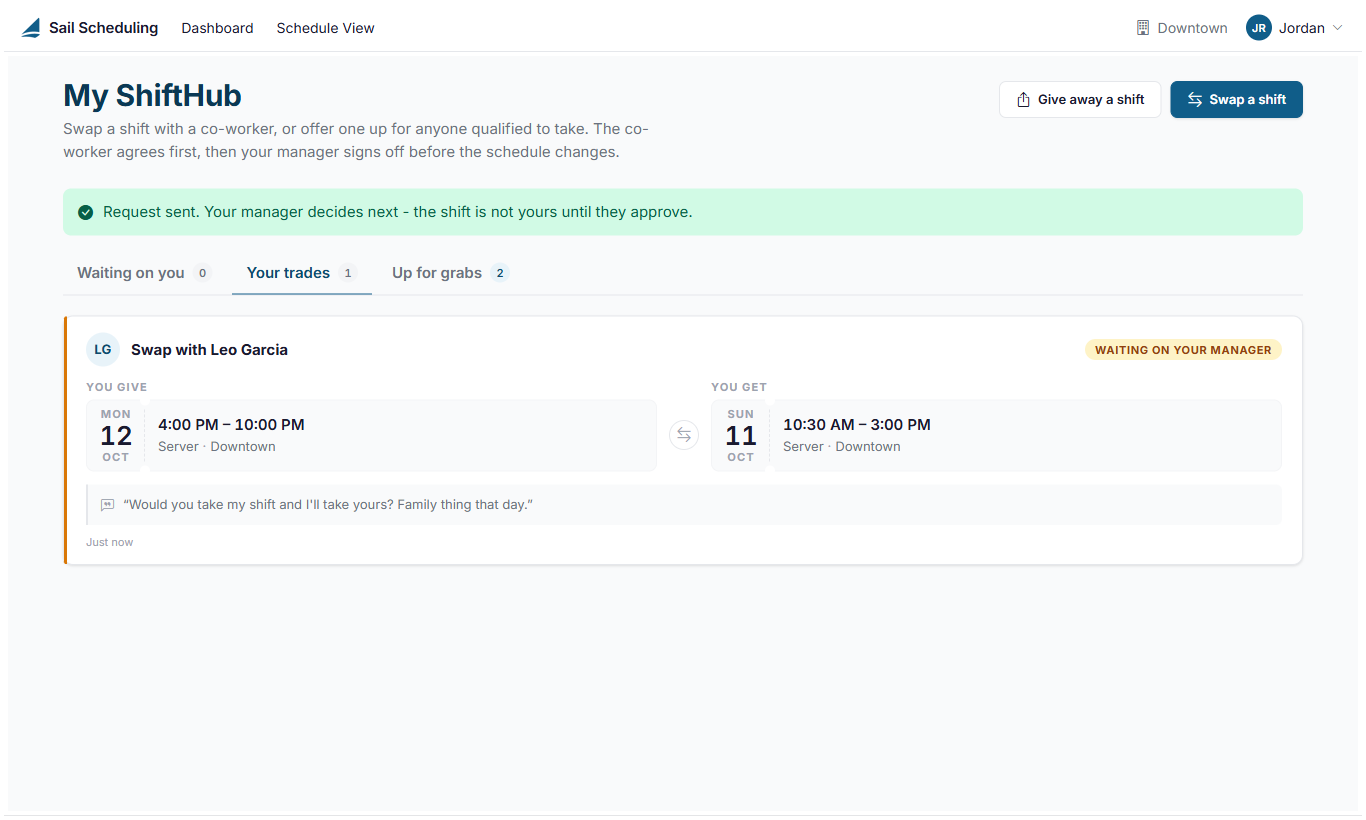
Click Accept swap to agree, or Decline. Once you accept, it goes to your manager, and it moves to Your trades as Waiting on your manager.
Give away a shift
If you just need a shift covered, offer it up for anyone to take.
- Click Give away a shift.
- Choose the shift you're offering, and add a note if you like.
- Click Offer shift.
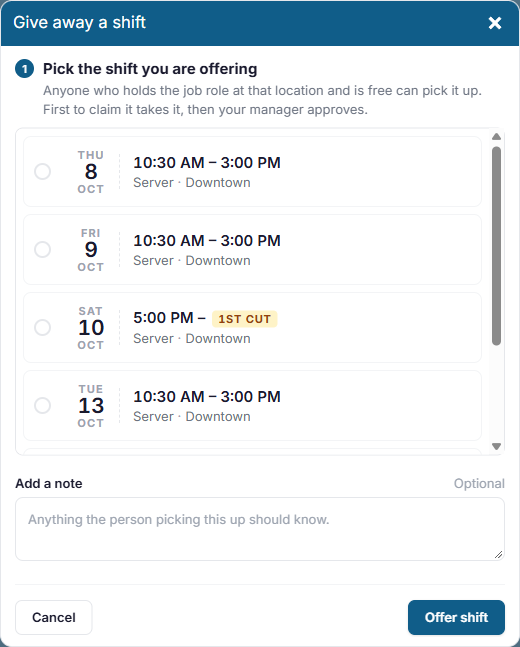
Everyone who works that job role at that location, and is free at that time, sees it under Up for grabs. The first to claim it takes it, then your manager approves. It's still your shift until they do, so plan to work it until you hear otherwise. If your manager changes the shift on the schedule in the meantime, it comes off Up for grabs.
Pick up a shift
Up for grabs lists the shifts you can pick up: shifts co-workers are giving away, and open shifts your manager has posted with nobody on them yet.
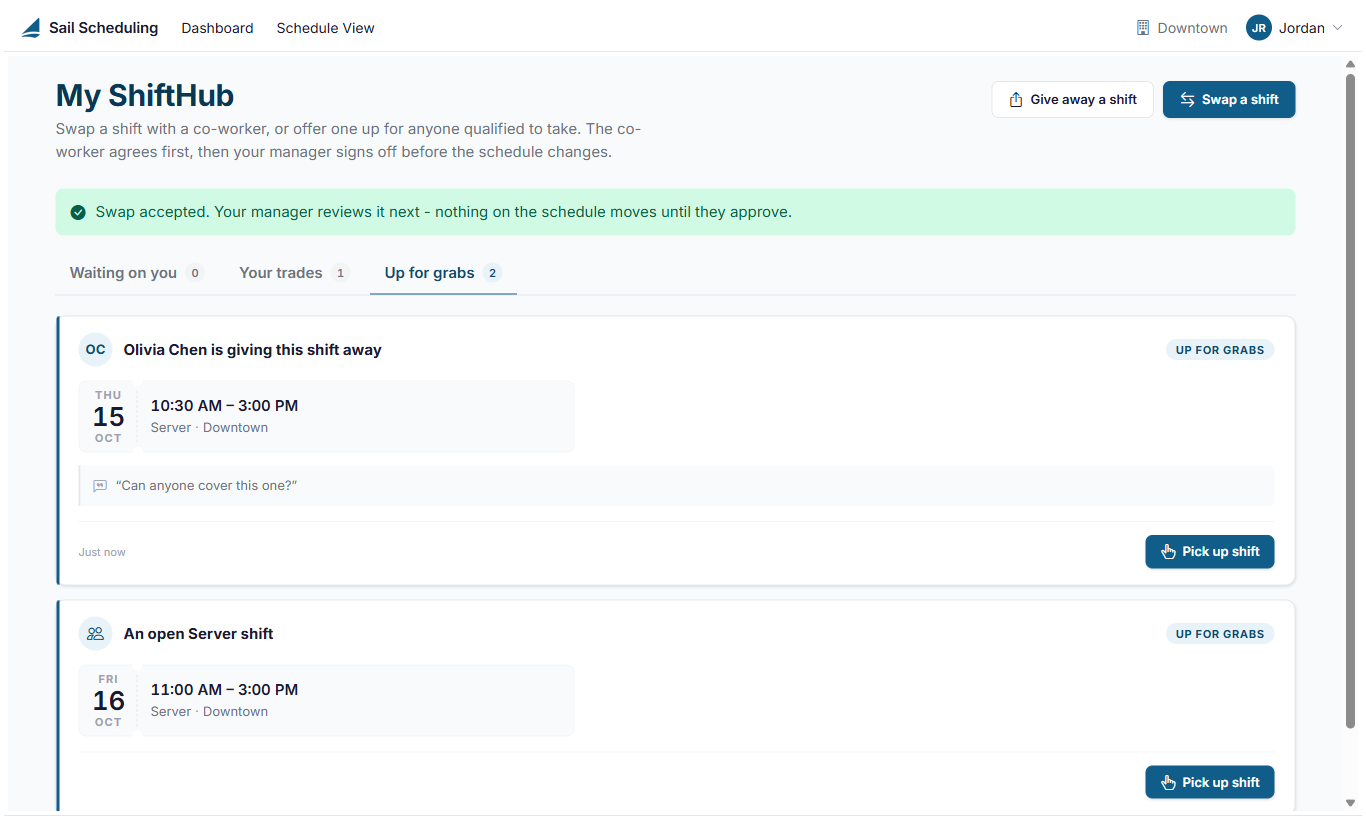
Click Pick up shift and confirm. For an open shift, your manager is asked to approve it: it isn't yours until they do.
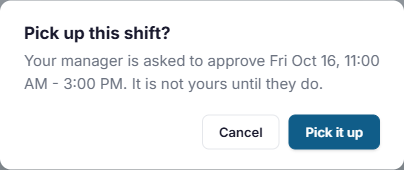
While you're waiting, the shift says Waiting for manager. Click Withdraw request if you change your mind.

Several people can ask for the same open shift, and your manager picks one. If it goes to someone else, or your manager takes it off the schedule, you're told it's no longer available, by email, text message or a notification in the app, depending on your settings. Some restaurants give open shifts to whoever picks them up first, without waiting for a manager.
Good to know
- You can only trade published shifts, and only up to an hour before they start.
- A shift can only be in one trade at a time: if it's offered in a swap, you can't give it away as well.
- You're told when your manager approves or rejects a trade, by email, text message or a notification in the app, depending on your settings.
- If you don't see My ShiftHub in your menu, your restaurant doesn't use shift trading.
No Comments