
The daily roster
The daily roster is a one-page printout of who is working on a given day at a location, split into the parts of your day, such as Lunch and Dinner. Print it for the wall or the host stand, so everyone can see at a glance who is on.
Only Managers and Administrators can print the daily roster. Each location needs its day parts set up first, on the Locations page (see below).
Print the roster
- Open the Schedule page for the location you want.
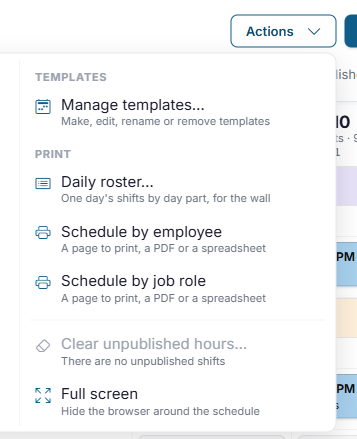
- Open Actions and choose Daily roster, under Print.
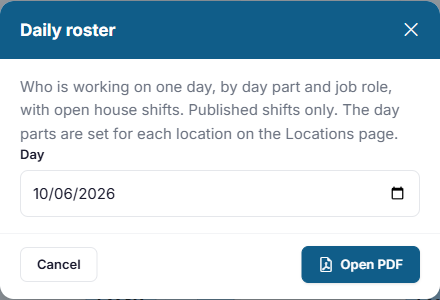
- Pick the Day. It starts on today's date, but you can pick any day.
- Click Open PDF. The roster opens in a new tab, where you can print it or save it.
What's on it
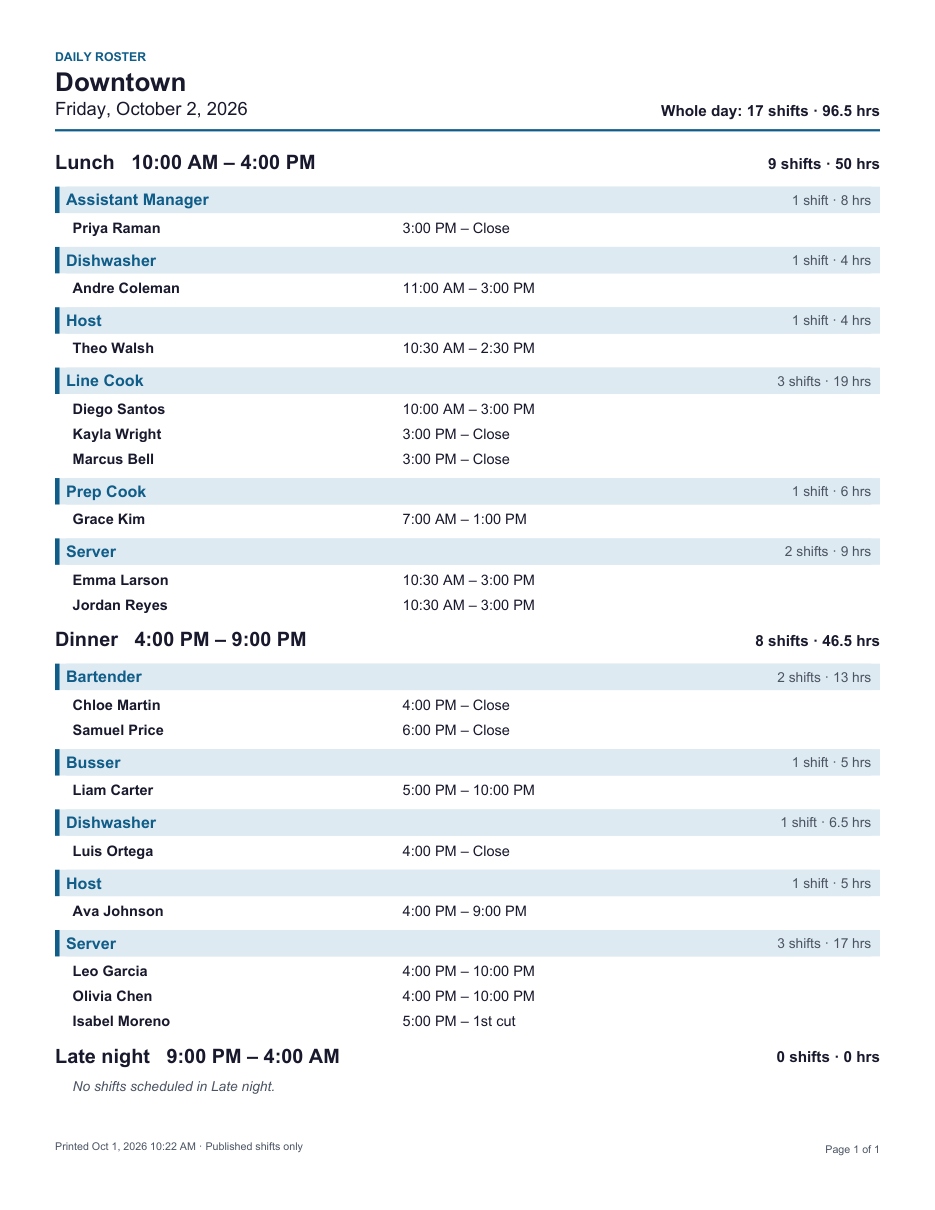
- A section for each day part, with its hours, the number of shifts and the hours scheduled.
- Within each day part, each job role has a shaded heading with its number of shifts and hours. Under it, the people working it are listed earliest start first, each with their start and end time.
- A shift appears once, under the day part it starts in. For example, a cook who starts at 3:00 PM for the dinner rush is listed under Lunch if Dinner starts at 4:00 PM. A shift that starts before your first day part, such as early prep, is listed under the first one.
- Where a shift has an End Display, such as Close, it's shown instead of the end time, just as the employee sees it.
- Open house shifts are listed as House Shift, so you can see what's still unfilled.
- A day part with no shifts still prints, marked as having none.
The roster shows the whole location's published shifts for that day. The schedule's filters don't apply to it, and unpublished shifts are left off.
Set up day parts
Day parts are set for each location by an Administrator.
- Open Configuration and choose Locations.
- On the location's card, click Edit.
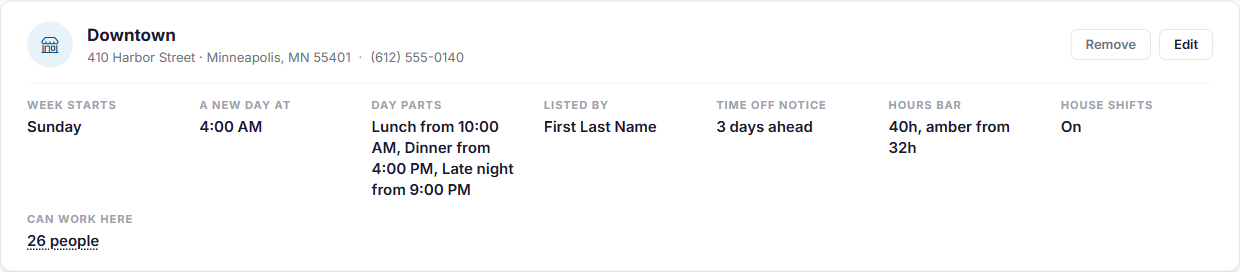
- Scroll to Day parts. Type a name for each part of your day and pick the time it starts. Click Add a day part for another one, or the X to remove one. You can have up to eight.
- Check the line under them, which says exactly when each one runs on the roster.
- Click Save.
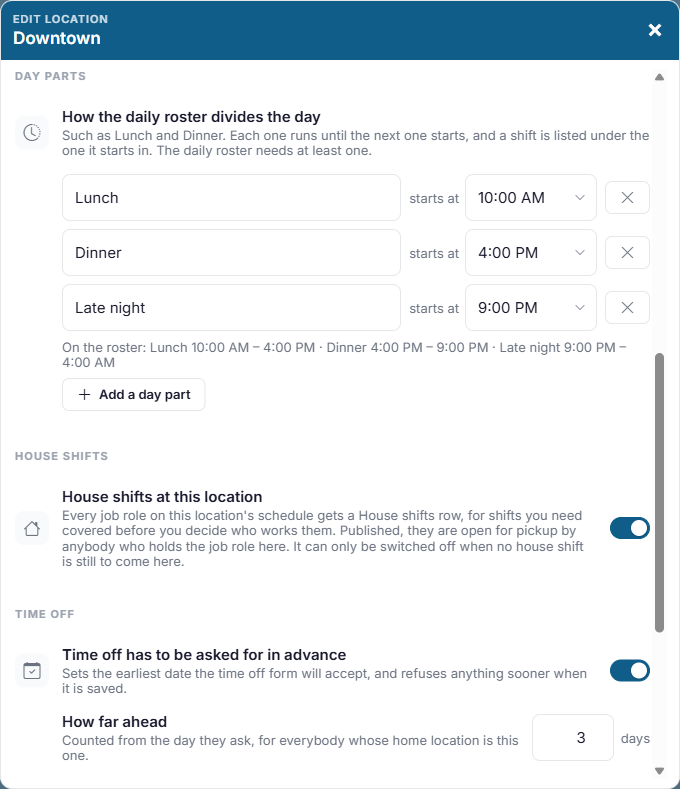
Each day part runs until the next one starts. The last one runs until the location's new day begins (the A new day starts at setting above it, usually 4:00 AM), so a late-night shift stays on the day it belongs to.
The location's card shows its day parts, so you can check them without opening the editor.
If a location has no day parts yet, Daily roster is grayed out on the Actions menu, with a note that it needs day parts. If you're an Administrator there, the word location in that note is a link straight to its day parts.
No Comments