
Adding and inviting employees
Everyone who works for you has a record on the Employees page. This guide covers finding people, adding someone new, and inviting them so they can sign in to the app and the website.
You need to be a Manager or Administrator. You see the people who work at the locations you manage. Open it from Configuration, Employees.
If your restaurant uses Sail POS, employees are added and changed in Sail Backoffice and sent to Sail Scheduling automatically. The Employees page is then read-only: there's no Add, Remove or Invite, and each person opens with View. You can still set everyone's availability here.
Find someone
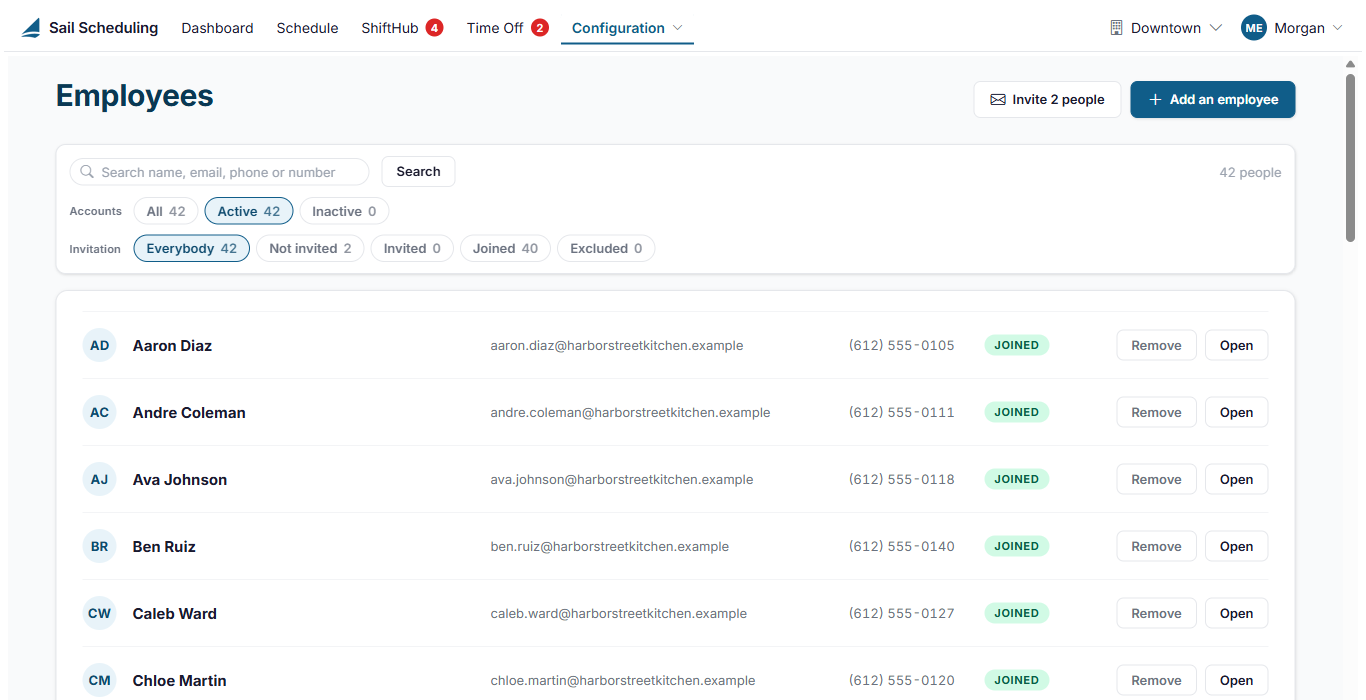
- Type a name, email address, phone number or employee number in the search box and press Enter or click Search.
- Accounts narrows the list to Active or Inactive accounts. The list opens on Active.
- Invitation narrows it by where each person is with their invitation: Not invited, Invited (sent, but they haven't set a password yet), Joined or Excluded.
Click Open, or double-click a row, to open someone's record.
Add an employee
- Click Add an employee at the top right.
- Fill in Who they are: first and last name at least. The employee number, birthday and home address are optional.
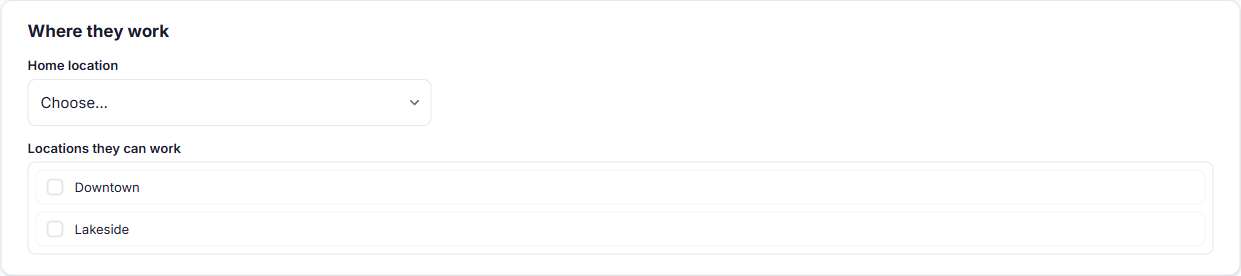
- Under Where they work, pick their Home location and tick every location they can work at.
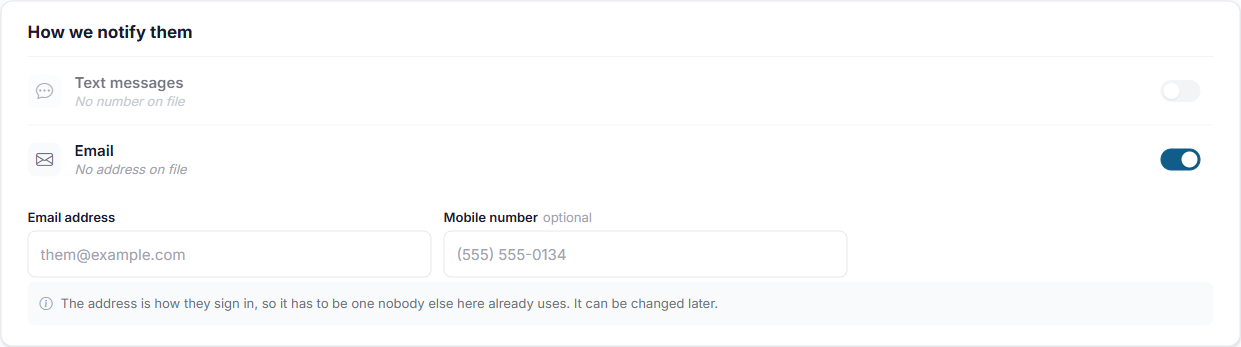
- Under How we notify them, enter their email address. It's how they sign in, so it can't be one someone else here already uses. Add their mobile number if they want text messages, and switch Email and Text messages on or off.
- Add an emergency contact if you keep one.
- Click Create employee.
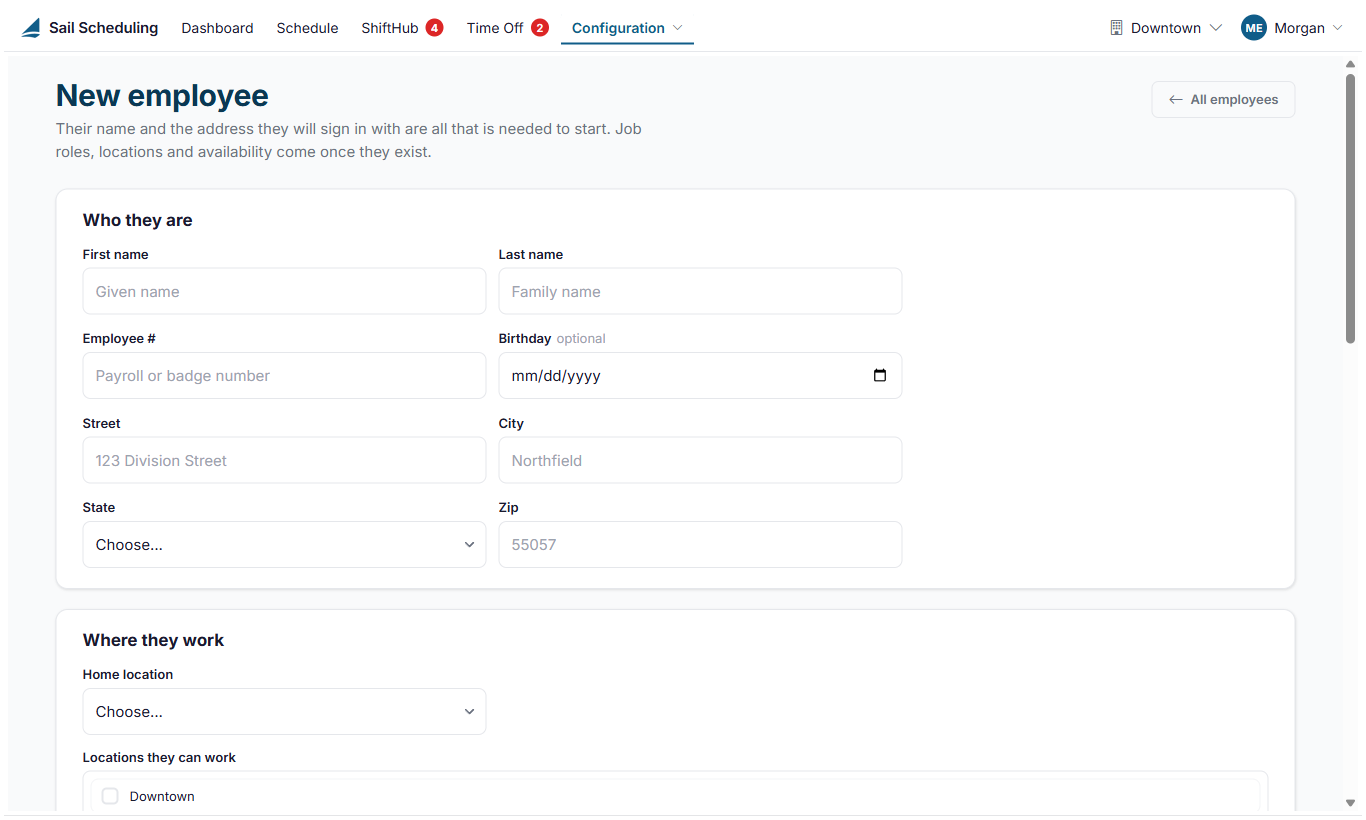
Once they're created, give them their job roles and pay on the Job roles tab, and set their availability. See Editing an employee. Nobody can be scheduled until they have a job role at a location.
Adding someone doesn't send them anything. They can't sign in until you invite them.
Invite employees
An invitation is an email with a link to set up their account. Once they set a password, they can sign in to the app and the website, and their status changes to Joined.
- One person: click Send Invite on their row, or open their record and click Send an invitation under Their account.
- Everyone not invited yet: click Invite N people at the top of the page and confirm with Send them.
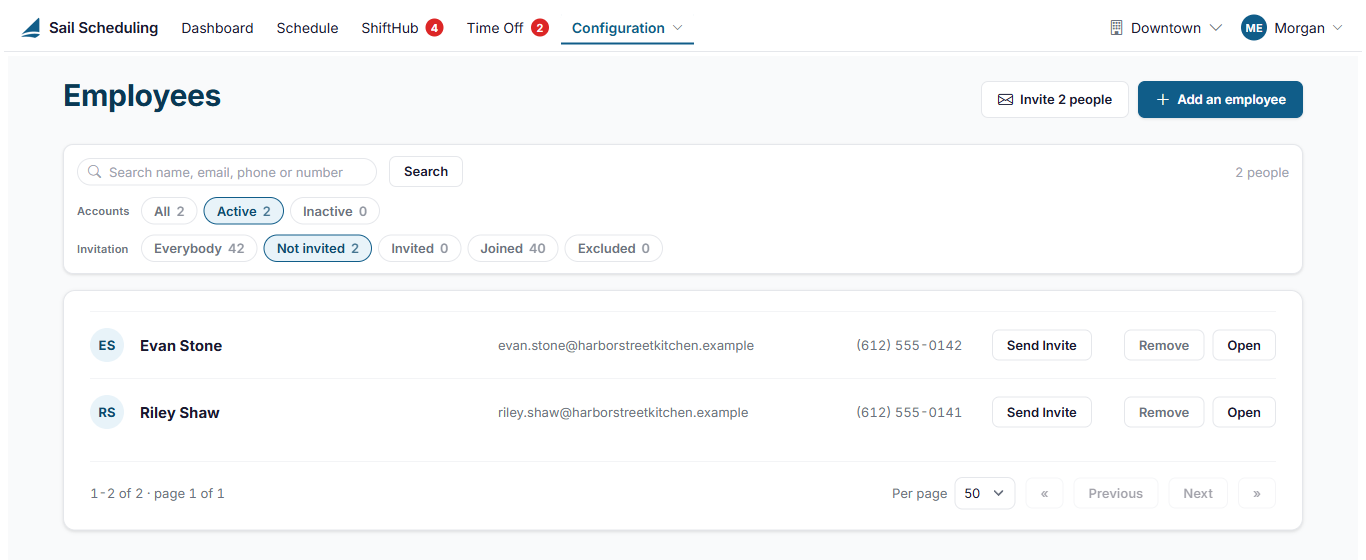
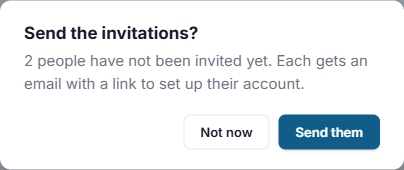
Send Invite only appears for someone whose account is active and who can be reached: email switched on with an address, or text messages switched on with a number. If someone already has a Sail Scheduling account with another company, they go straight to Joined and can sign in with the password they already have.
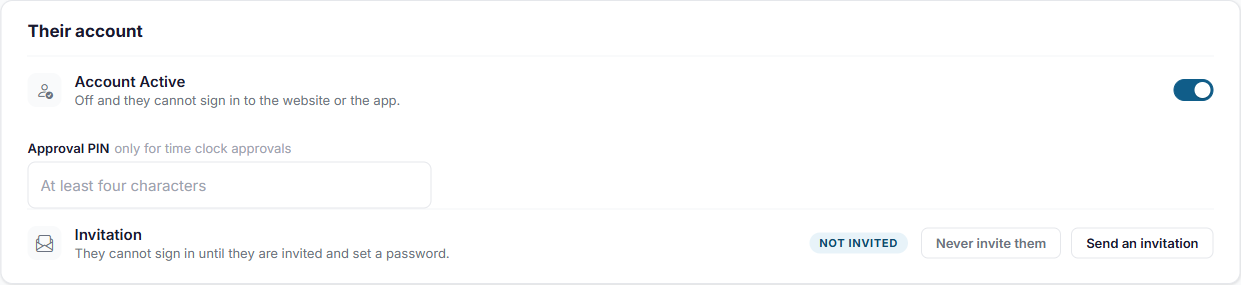
On a person's record you can also:
- Send it again, if they lost the email. It's safe to send more than once.
- Never invite them, for someone who will never use the app, such as a person you only schedule. They're left out of every invitation, including the bulk one. You can change your mind later.
Switch off an account, or remove someone
- Account Active, on their record under Their account: switch it off and they can't sign in to the website or the app, but their record stays as it is. Use it for someone on leave.
- Remove, on their row on the Employees page: they stop being part of your company. They come off the schedule going forward, out of the app and out of every list. Shifts they have already worked are kept. If they also work for another company that uses Sail Scheduling, they keep that.
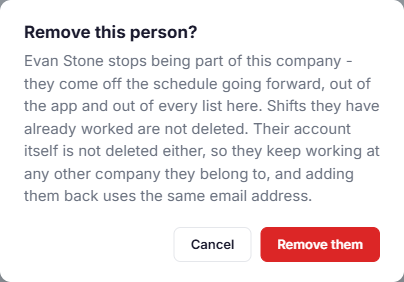
If you only manage some of your company's locations, you can remove someone only if they don't also work at a location you don't manage.
No Comments