
Set up in Sail Scheduling
Once Sail POS has sent your employees, departments, job roles and locations across, there are a few things only Sail Scheduling can set. Do these before you build your first schedule. You need to be a Scheduling Administrator in Sail Backoffice.
Your team signs in to Sail Scheduling, on the website and in the app, with the email address and password of their Backoffice login.
1. Each location's schedule settings
Open Configuration, Locations, and click Edit on each location. The name, address and phone number come from Sail POS, but the scheduling settings are set here:
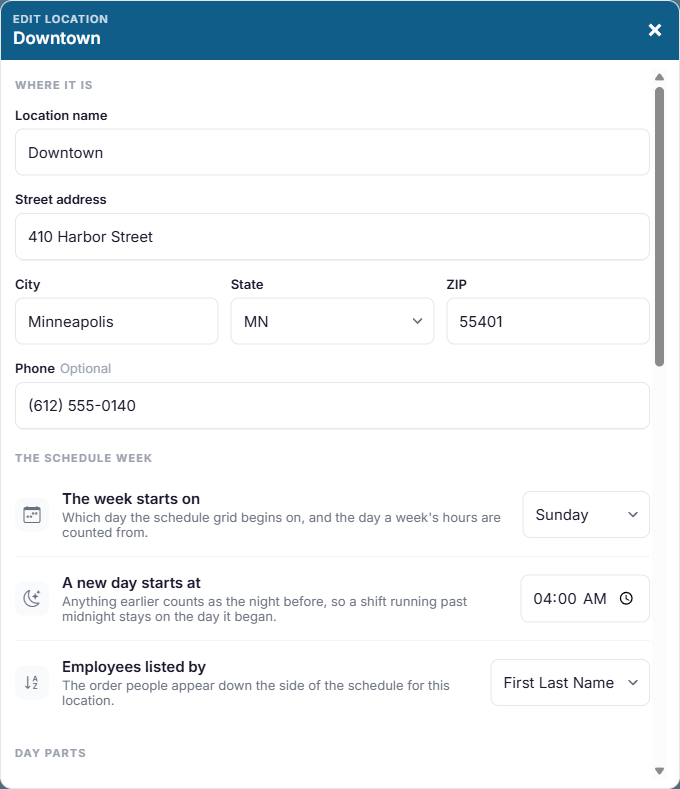
- The week starts on: the first day of your schedule week.
- A new day starts at: usually 4:00 AM, so a shift running past midnight stays on the day it started.
- Employees listed by: first name first, or last name first.
- Day parts, such as Lunch and Dinner, for the printable daily roster.
- Time off has to be asked for in advance, and how many days ahead.
- The hours bar, and the weekly hours where it turns orange (Warn from) and red (Overtime after).
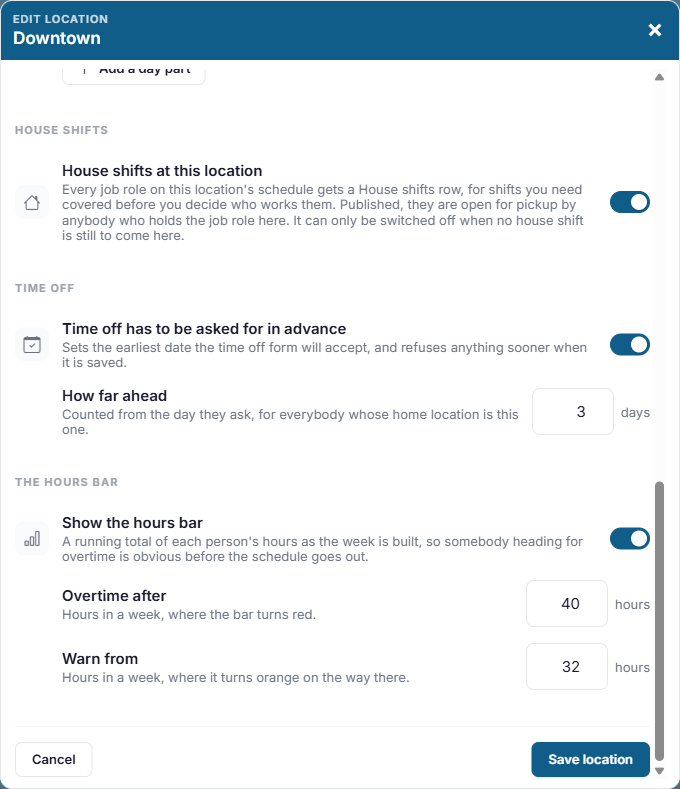
See Locations and The daily roster for the details.
2. Job role colors
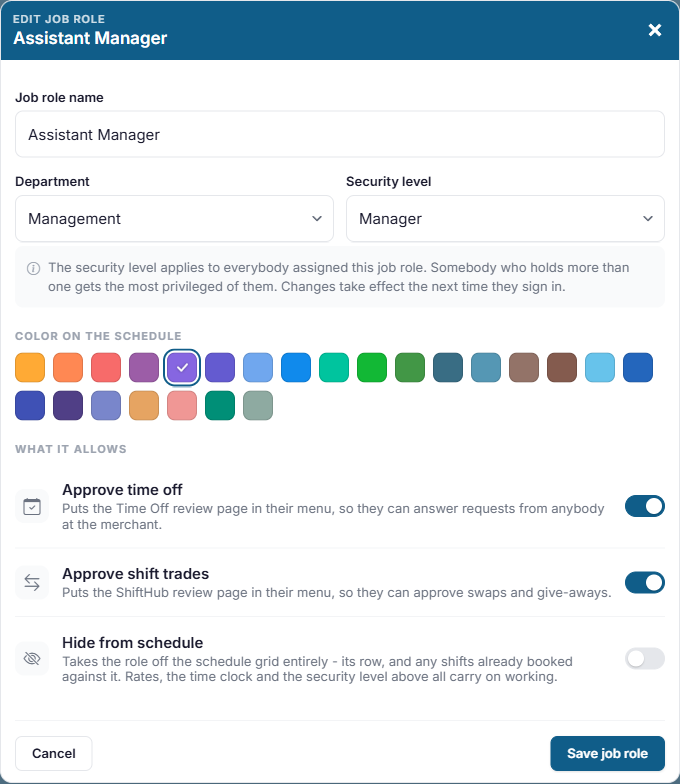
Each job role is given a color when it first arrives from Sail POS. The color is how it's recognized on the schedule and in the app. To change one, open Configuration, Job Roles, click Edit and pick a color. Everything else about a job role, including what it allows people to do, is set in Sail Backoffice.
3. Everyone's availability
Availability isn't sent from Sail POS, so set it here. Open Configuration, Employees, open each person, and go to the Availability tab. For each day, mark them Off all day or pick the hours they're free, and add a note if they need one. Everyone starts available at any time. See Editing an employee.
Employees can't change their own availability, so ask them for it and keep it up to date as it changes.
4. Shift shortcuts
If your shifts follow the same patterns each week, set them up as shift shortcuts so they can be added to the schedule in one click. Open Configuration, Shift Shortcuts. See Shift shortcuts.
5. Company settings
Open Configuration, Settings, to choose whether employees can trade shifts in ShiftHub and use the app, whether shadow shifts are shown, and whether open shift pickups need a manager's approval. See Company settings.
Then, build your first schedule
You're ready to build your first schedule. See Building and publishing the schedule. Point your team to Welcome to Sail Scheduling in the For Staff chapter, so they know how to see their shifts, ask for time off and trade shifts.
Time off requests and availability aren't part of the Sail POS sync. They're kept only in Sail Scheduling.
No Comments