
Welcome to Sail Scheduling
Sail Scheduling is where you see your work schedule, ask for time off, trade shifts with your co-workers, and pick up extra shifts. You can use it in the Sail Scheduling app on your phone or on the website.
This guide shows you around the website. Your manager will send you an invitation by email to set up your account.
Signing in
- Open the invitation email from your restaurant and follow its link to set your password.
- Sign in with your email address (or your mobile number) and that password, on the website or in the app. The app is on the App Store and Google Play; the sign-in page has links to both.
If you forget your password, click Forgot password? on the sign-in page to be sent a link to set a new one.
Finding your way around
Everything is reached from the bar across the top of the page.

- Dashboard: your upcoming shifts. This is where you land when you sign in.
- Schedule View: the whole published schedule for your location, so you can see who you're working with.
Click your name at the top right for everything else:
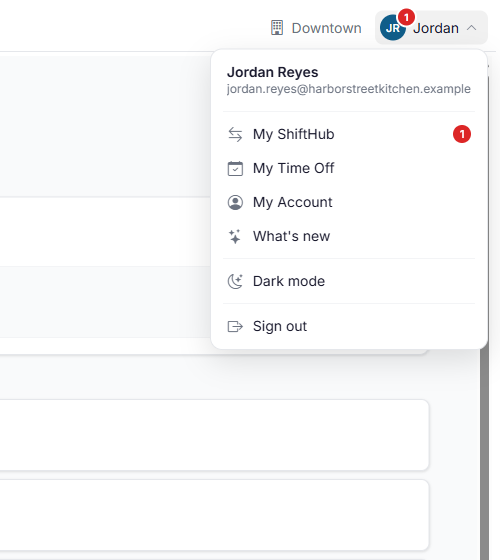
- My ShiftHub: swap shifts, give shifts away, and pick up open shifts. See Trading shifts and picking up open shifts.
- My Time Off: ask for time off and see your manager's answer. See Requesting time off.
- My Account: your email address, mobile number, password, emergency contact and how you're notified. See Your account and notifications.
- What's new: the latest changes to Sail Scheduling.
- Dark mode: switch between a light and a dark screen.
- Sign out.
A red number on your initials means something is waiting for you: a co-worker has asked you to swap, or your manager has decided on one of your trades, open shift pickups or time off requests. Open the menu to see where: the same red number is beside My ShiftHub or My Time Off. It goes away once you've opened that page.
If you work at more than one location, the location at the top right is the one you're looking at. Click it to switch. If you work for more than one company that uses Sail Scheduling, they're listed in the account menu, so you can switch between them.
Your shifts
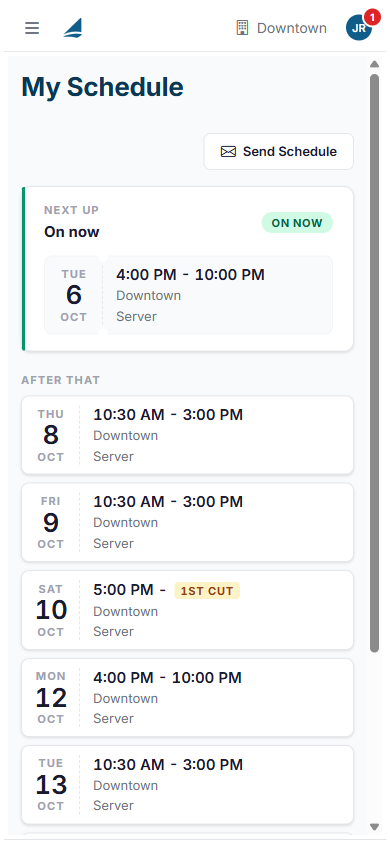
The Dashboard leads with your next shift, and says how long until it starts. Your other upcoming shifts are listed under it, with the date, the times, the location and your job role.
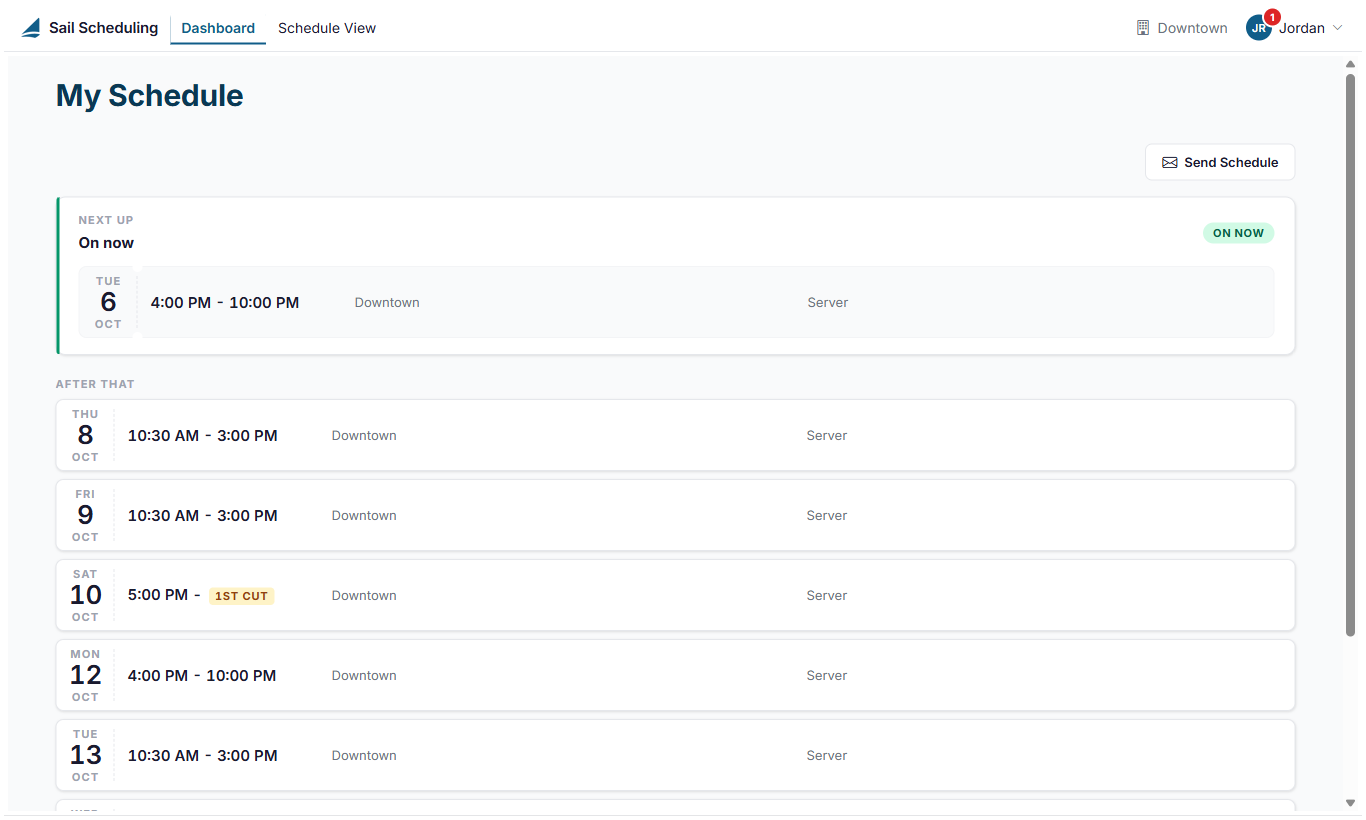
- If a shift shows a word like Close or 1st cut instead of an end time, that's its End Display: the end isn't fixed. After a cut you may be sent home once it's quiet, and a close lasts until closing is done.
- If your manager added a note, such as your section, it's shown with the shift.
- A shift that already ended today stays at the bottom, faded, under Earlier today.
Click Send Schedule to have your upcoming shifts sent to you by email or text message, depending on your notification settings.
The whole schedule
Schedule View shows the published schedule for your location, grouped by job role, with everyone's shifts. It's read-only: you can look, but only managers can change it. Use the arrows to move between weeks, or click the dates to pick a week from a calendar, and click a shift to see its details. Holidays and the restaurant's busy days, like Mother's Day, are marked at the top of their day. It keeps itself up to date: when a manager publishes changes while you're looking at it, your screen catches up within half a minute, or as soon as you come back to the tab.
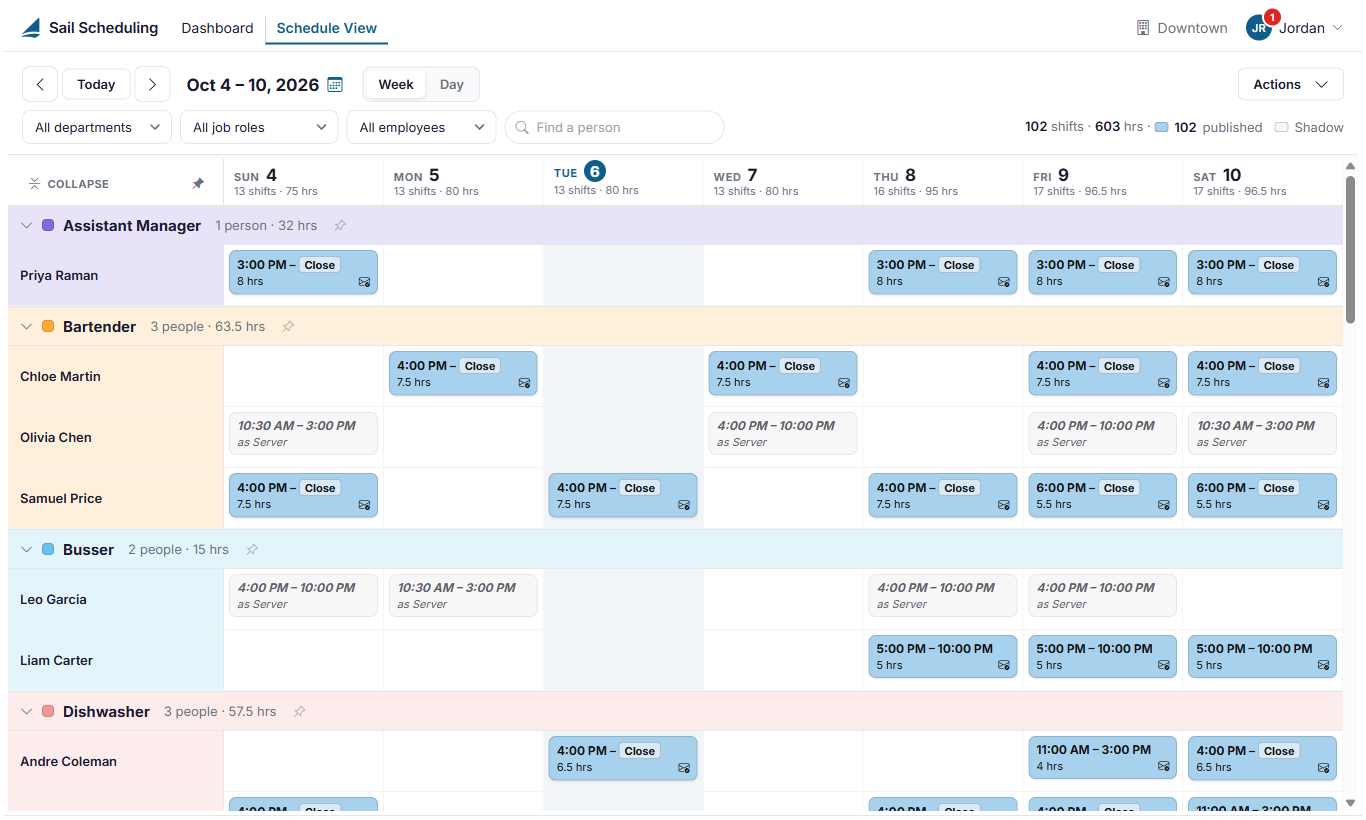
Only published shifts are shown. If you can't see next week yet, your manager hasn't published it.
When your schedule changes
Your manager sends you your schedule when it's ready, and you're told when a trade or pickup you asked for is approved. Whether that comes by email, text message or a notification in the app depends on your settings in My Account and in the app.
No Comments