
Shift shortcuts
A shift shortcut is a ready-made shift, such as Lunch, 10:30 AM to 3:00 PM. On the schedule, clicking a shortcut adds that shift in one click, instead of typing the times each time.
Managers and Administrators can manage shift shortcuts. Open them from Configuration, Shift Shortcuts.
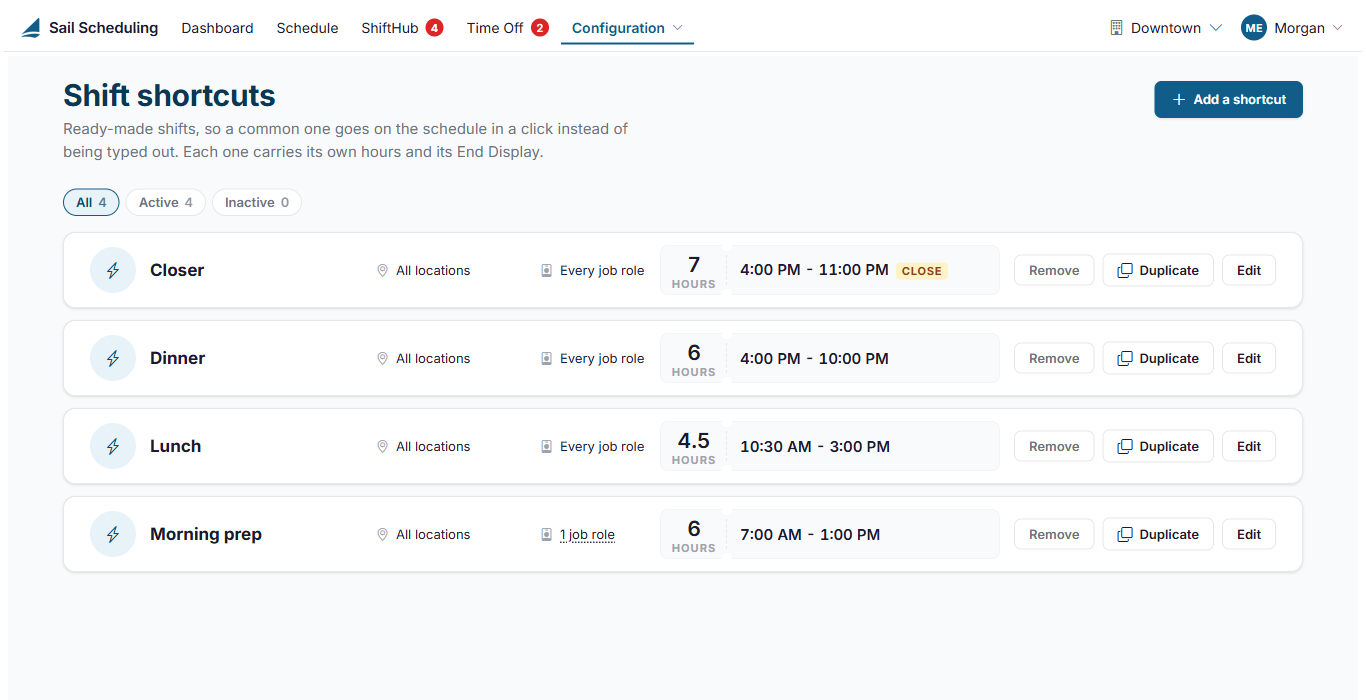
Each shortcut shows where it's offered (one location or all of them), which job roles it's for, its length and its times, with any End Display. Use All, Active and Inactive to narrow the list.
Add or edit a shortcut
Click Add a shortcut, or Edit on one, or double-click it.
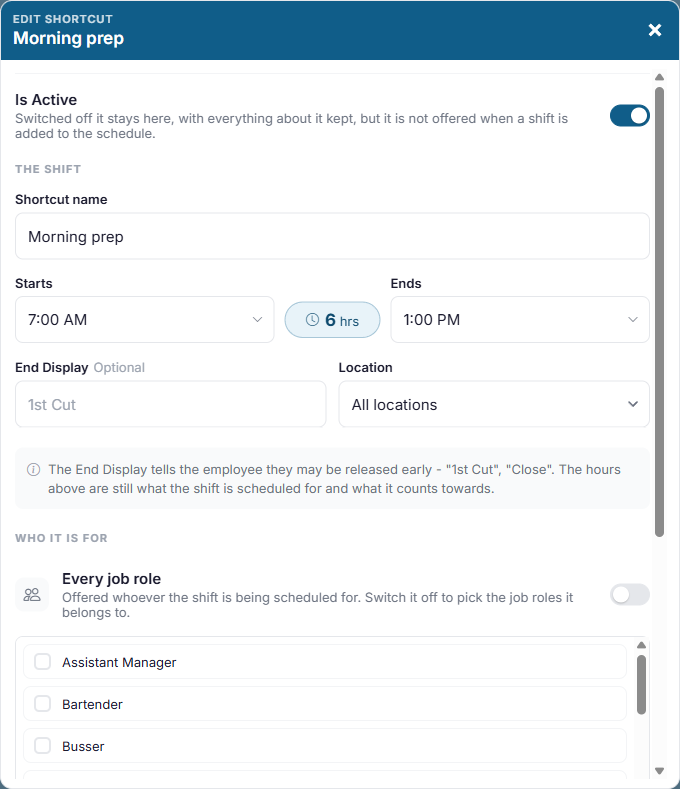
- Is Active: switched off, the shortcut is kept but isn't offered on the schedule.
- Shortcut name: what managers see on the schedule, such as Lunch or Closer.
- Starts and Ends: type or pick the times. The length is shown between them. If it ends before it starts, it runs past midnight into the next day.
- End Display (optional): what the employee sees instead of the end time, such as Close or 1st cut, for a shift whose end is flexible. The shift is still scheduled, and counted, to its end time.
- Location: All locations, or just one.
- Who it is for: leave Every job role on to offer it whoever is being scheduled, or switch it off and tick the job roles it belongs to. A shortcut with no job roles ticked is never offered.
- Notes that come with it: a note for the employee, which they see on the shift, and a back office note only managers see.
Click Save shortcut.
Duplicate or remove a shortcut
- Duplicate makes a copy and opens it, which is the quickest way to make a similar shortcut, such as a later version of the same shift.
- Remove deletes it. Shifts already added from it stay on the schedule.
Using shortcuts on the schedule
Click an empty day on the schedule: the shortcuts for that job role and location are listed under New shift…. They're also under Start from a shortcut in the shift form, where the one you pick stays highlighted, and editing a shift highlights the shortcut it matches. See Building and publishing the schedule.
Adding and changing shortcuts from the schedule
You don't have to leave the schedule to set up a shortcut. Click an empty day, then:
- click + beside Shift shortcuts to add one. It starts with that row's job role ticked, for the location you're looking at.
- click the pencil beside a shortcut to change it, or click Remove at the bottom of the window to remove it. You're asked to confirm first.
The window has the same settings as this page, and the shortcut is ready to use as soon as you save it. On the schedule, a shortcut can be for the location you're looking at or for all locations. To move one to another location, or to duplicate one, use this page.
If you manage only some locations, you can change the shortcuts at your own locations. Shortcuts for all locations open read-only here, and on the schedule they have no pencil, but you can Duplicate one here to make your own copy for your location.
No Comments