
Reviewing time off requests
Employees ask for time off in the app or on the website. Time off review is where you approve or deny those requests, change their dates, and book time off for someone yourself.
You see Time off review if one of your job roles at the selected location grants time off rights. Managers and Administrators usually have them. A request belongs to the employee's home location, so you review requests from the people whose home is the location picked at the top right. Requests from people who also work here but call another location home are listed too, for you to see but not decide: see Time off from other locations.
Find what needs your attention
When a request is waiting, the Time Off menu at the top shows a red badge with the count. Click it to open Time off review.
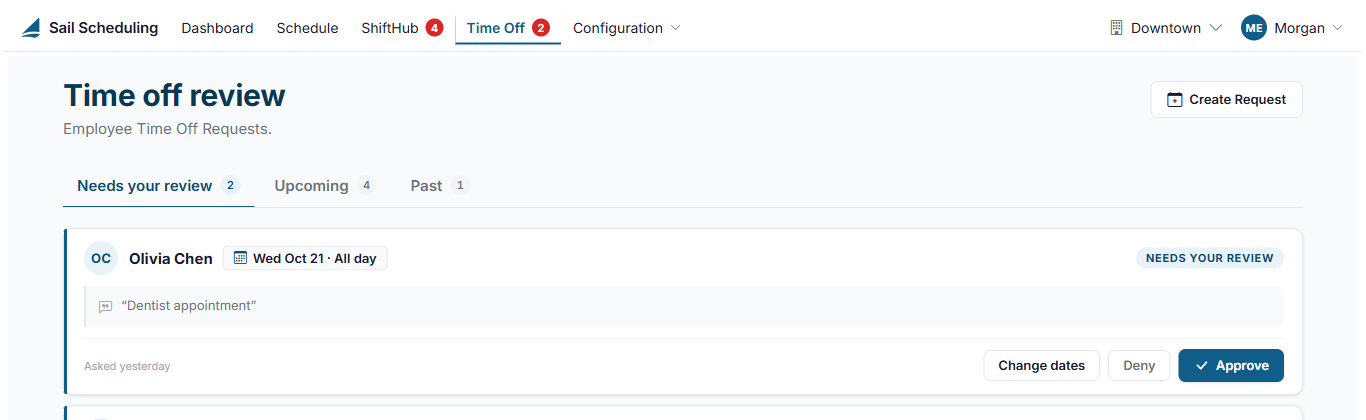
Requests are sorted into tabs:
- Needs your review: every request still waiting for a decision, however far off or long ago its dates are.
- Upcoming: every request for time off still to come, whatever its status. Use All, Waiting, Approved and Denied to narrow the list.
- Past: requests whose dates have gone by.
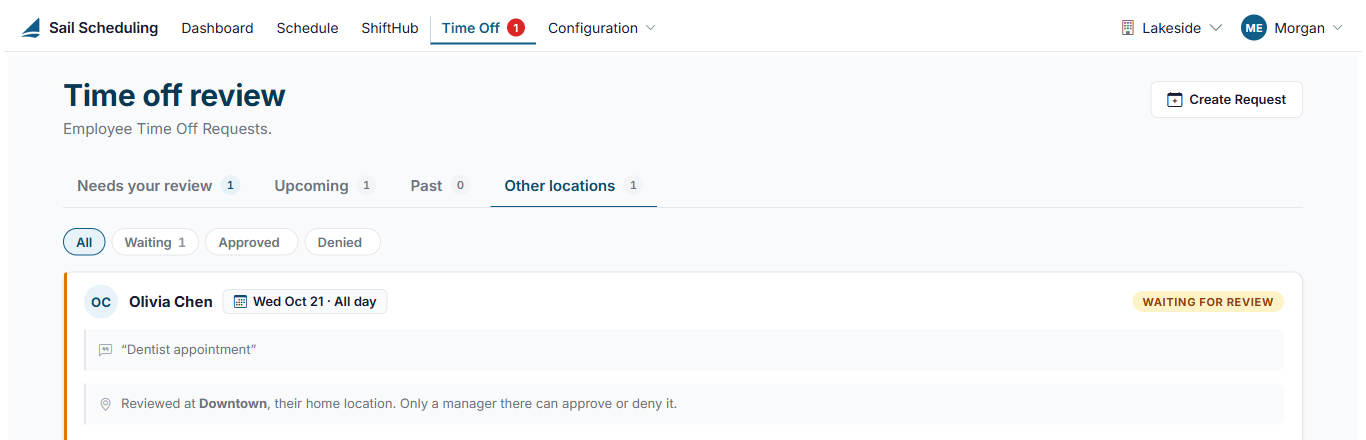
- Other locations: time off still to come for people who work here but call another location home. This tab only appears when there's something on it.
Each card shows who is asking, the dates (or the hours, for part of a day), the reason they gave, and when they asked.
Approve or deny a request
- On the request's card, click Approve or Deny.
- If you like, write a message under Say something back. The employee reads it with their request.
- Click Approve or Deny to confirm.
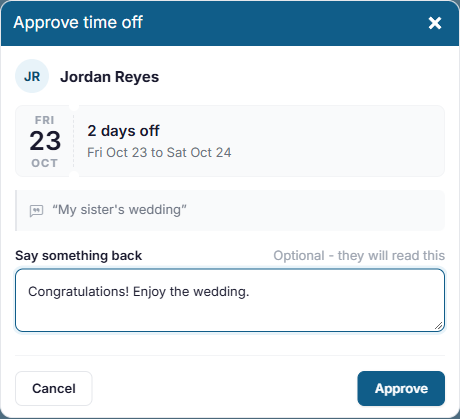
The decision shows on the employee's own Time off page and in the app straight away, with your name and message.
The employee is told about your decision by email or text message, depending on their notification settings, and with a notification in the app. Your name and your message are included. When you book time off for someone, they're told it was booked for them. Undoing a decision doesn't send anything.
Approved time off appears on the schedule as a red Time off all day bar, or an orange bar with the hours for part of a day, so you can plan around it.

Approving time off doesn't take the employee off shifts they already have. If they're scheduled on those days, change or remove those shifts on the schedule, or unpublish them first if they're published.
Change your mind, or the dates
Every decided request on the Upcoming tab has two buttons:
- Undo decision puts the request back to waiting for review, and clears who decided it and your message. You can then decide it again.
- Change dates lets you correct the dates or hours, for example when the employee asked for the wrong day.
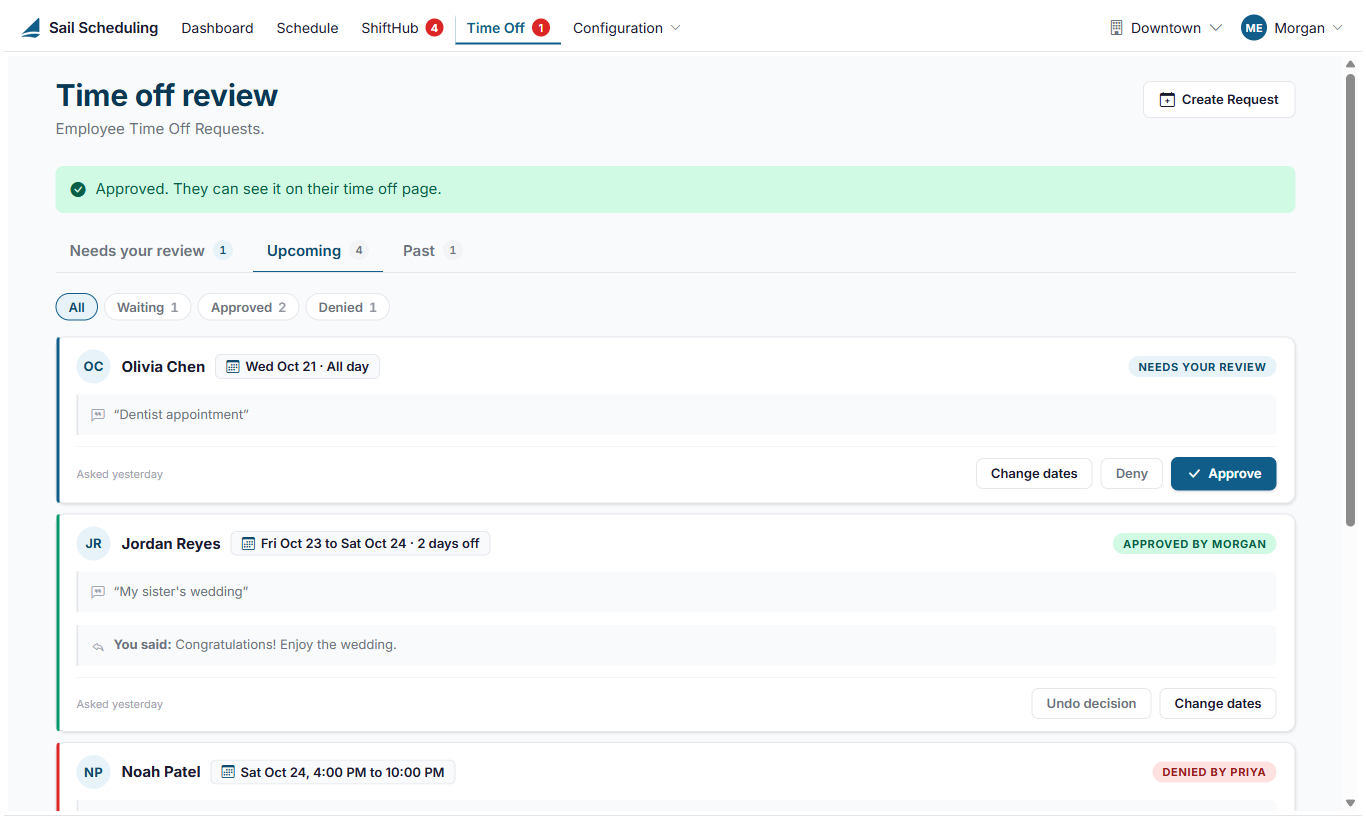
A request that is still waiting has Change dates too.
Time off from other locations
Some employees work at more than one location. Their time off shows on the schedule at every location they work at, so you can plan around it, but only their home location approves or denies it. That way each request has one set of managers deciding it.
When you pick one of their other locations at the top right, their requests are on the Other locations tab. Each card says which location reviews it. There are no buttons: you can see the request and its status, but not decide it or change it. These requests aren't counted in the red badge on the Time Off menu, because they aren't yours to review.
On the schedule, their request still shows as a blue Pending time off bar until it's decided. Click the day, or point at the bar, to see which location is reviewing it.
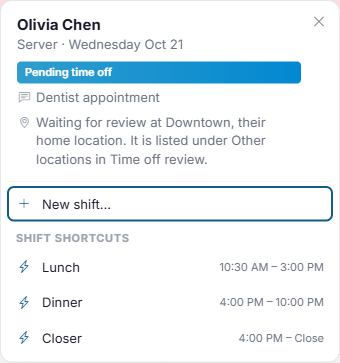
If Needs your review is empty but a request is waiting at someone's home location, the empty tab says so and points you to Other locations.
Book time off for someone
If an employee asks you in person, you can put the request in for them. It's saved as already approved, with your name on it.
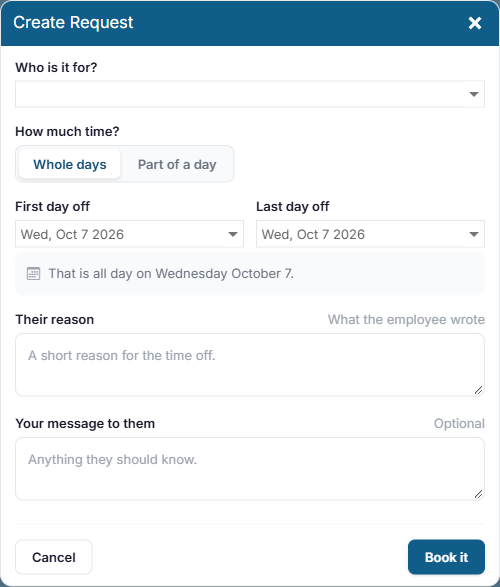
- Click Create Request at the top right of the page.
- Choose Who is it for?
- Choose Whole days and pick the first and last day off, or Part of a day and pick the day and the hours. The line under the dates says exactly what that comes to.
- Fill in Their reason, and a message to them if you want one.
- Click Book it.
Good to know
- Each location can require time off to be asked for a number of days ahead. That's set on the Locations page, and it applies to the employee's home location. It limits what employees can ask for; managers booking time off aren't limited.
- A request is either whole days, or part of a single day.
- An employee can change or cancel a request only while it's still waiting for review.
No Comments