
Set up in Sail Backoffice
If your restaurant uses Sail POS, your employees, departments, job roles, skill levels and locations are set up once, in Sail Backoffice, and sent to Sail Scheduling automatically. This guide covers what to check in Sail Backoffice before the first sync, so everything arrives cleanly.
Employees
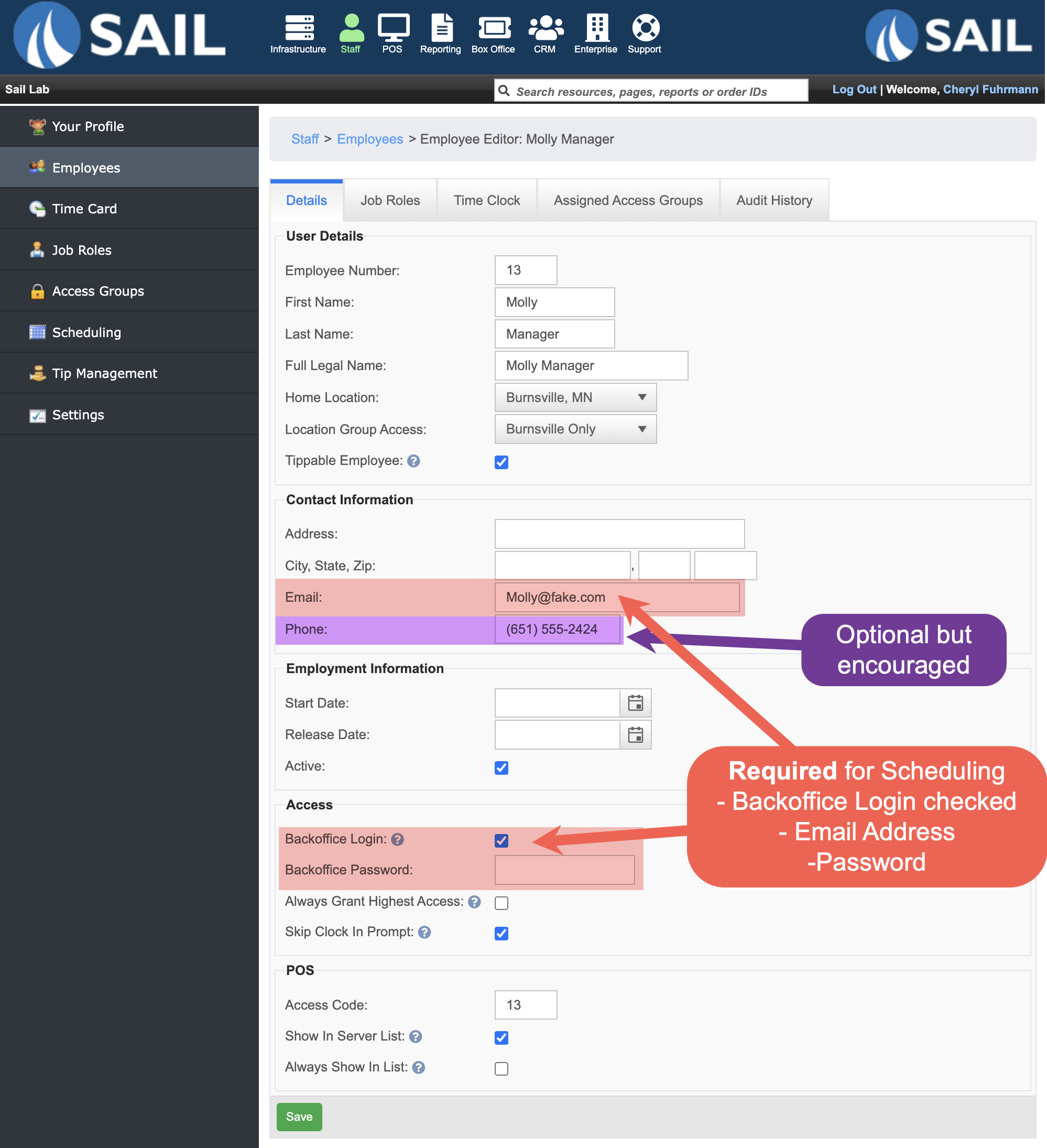
A Backoffice login and email address
- Every employee needs a Backoffice login with a valid email address. It's how they sign in to Sail Scheduling, on the website and in the app, and where their schedule and notifications are emailed.
- Each email address can only belong to one person. An employee whose email address is missing, or already used by someone else, won't be sent to Sail Scheduling.
- Set a password if you can. If you don't, the employee creates one the first time they sign in to the website, and can use the app after that.
A mobile number (recommended)
- A mobile number lets employees choose to get text messages. It's optional.
- Enter it in Sail Backoffice: it can't be changed in Sail Scheduling. It must be exactly 10 digits, or the employee won't be sent.
Employees' job roles
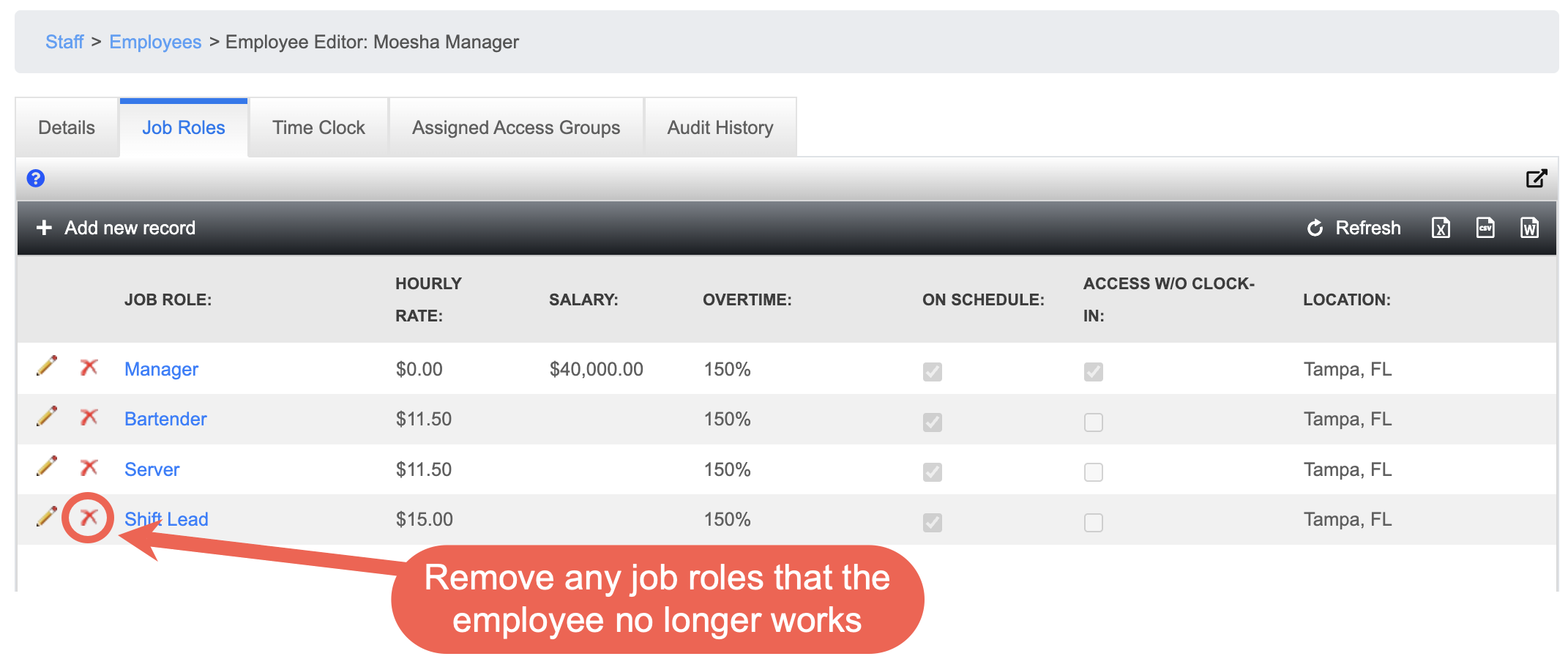
On the schedule, an employee appears under every job role they hold. Someone with four job roles appears in four places. Before syncing, remove any job role an employee no longer works, so the schedule only shows people where they really work.
Skill levels
Give each employee a skill level for each of their job roles, such as In training or Trainer. In Sail Scheduling, a manager deciding who gets an open shift sees each person's skill level in that job role.
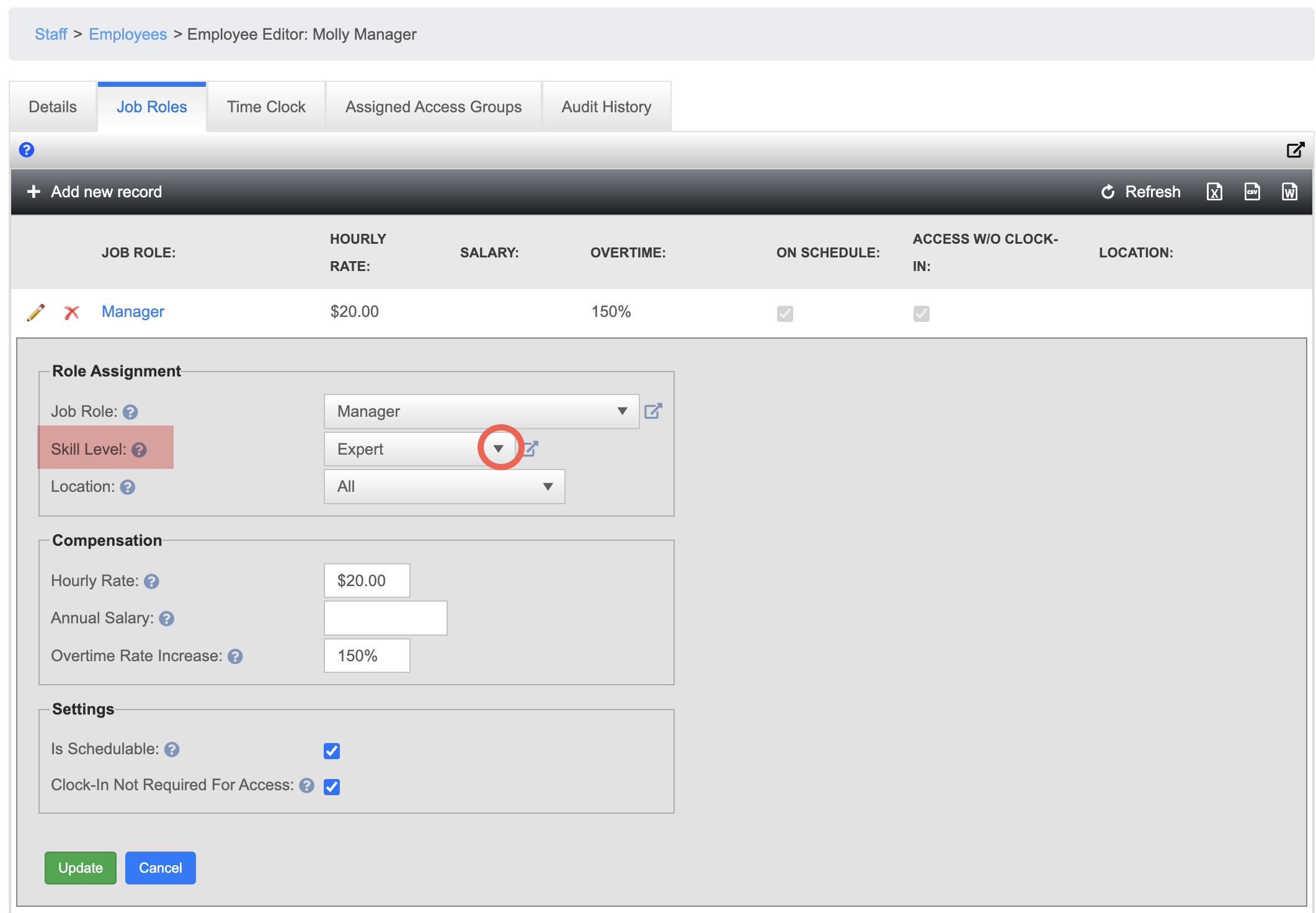
For each employee, go to their job roles and choose a skill level for each one.
Job roles and what they allow
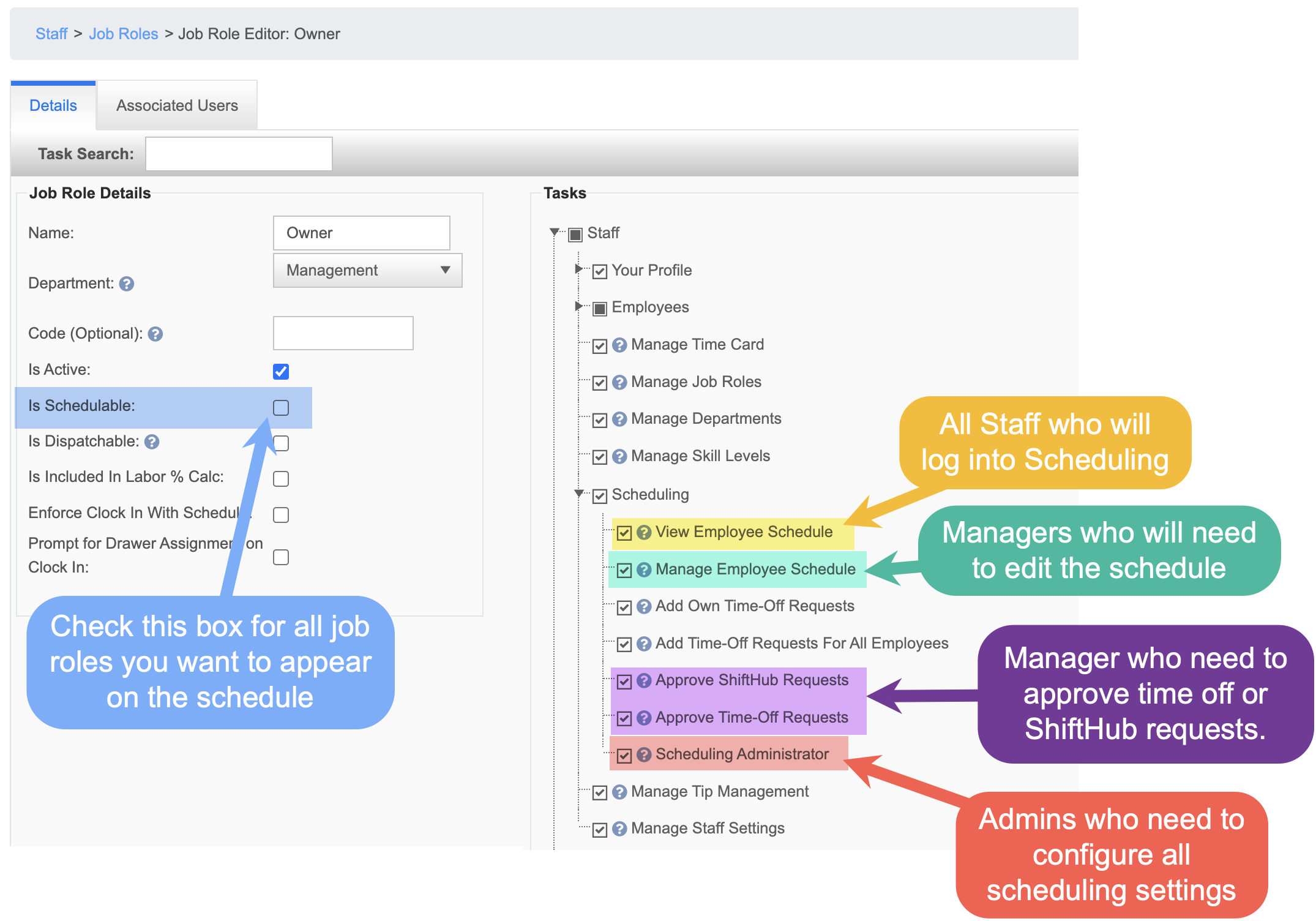
Each job role's scheduling settings decide what the people who hold it can do in Sail Scheduling.
- Is Schedulable: switch this on for every job role that should appear on the schedule. Every active job role is sent, but only schedulable ones are shown on the schedule.
- View Employee Schedule: for staff, who see the schedule and their own shifts.
- Manage Employee Schedule: for managers who build and change the schedule.
- Approve Time-Off Requests and Approve ShiftHub Requests: for the managers who approve time off, and shift swaps, give-aways and open shift pickups.
- Scheduling Administrator: for owners and general managers, who set up Sail Scheduling itself.
These settings come across with every sync, so change them in Sail Backoffice, not in Sail Scheduling. A change reaches Sail Scheduling the next time Sail syncs, and applies to each person the next time they sign in.
Tidy up before the first sync
The sync sends every department, job role and active employee. Before running it:
- Departments: rename them as you'd like them to appear, and remove any you don't use.
- Job roles: rename, or delete, any that are out of date.
- Employees: deactivate anyone who no longer works for you.
Once all of this is done, you're ready for the sync. After it, see Set up in Sail Scheduling.
No Comments